This guide compares serving static content directly from Amazon S3 with delivering the same content through Amazon CloudFront. It demonstrates the differences in access control, delivery flow, and how to configure CloudFront to fetch from a private S3 bucket using Origin Access Control (OAC). Goals
  • Show how a browser requests S3 content directly (no CloudFront).
  • Upload a simple object to an S3 bucket, make it temporarily public, and test direct access.
  • Re-lock the bucket, create a CloudFront distribution configured to access the private S3 origin via OAC, and test access through CloudFront.
  • Clean up created resources.
Conceptual summary
  • Without CloudFront: the browser requests objects directly from the S3 Regional endpoint.
  • With CloudFront: the browser hits a CloudFront edge location; CloudFront fetches the origin (S3) and can cache content closer to users.
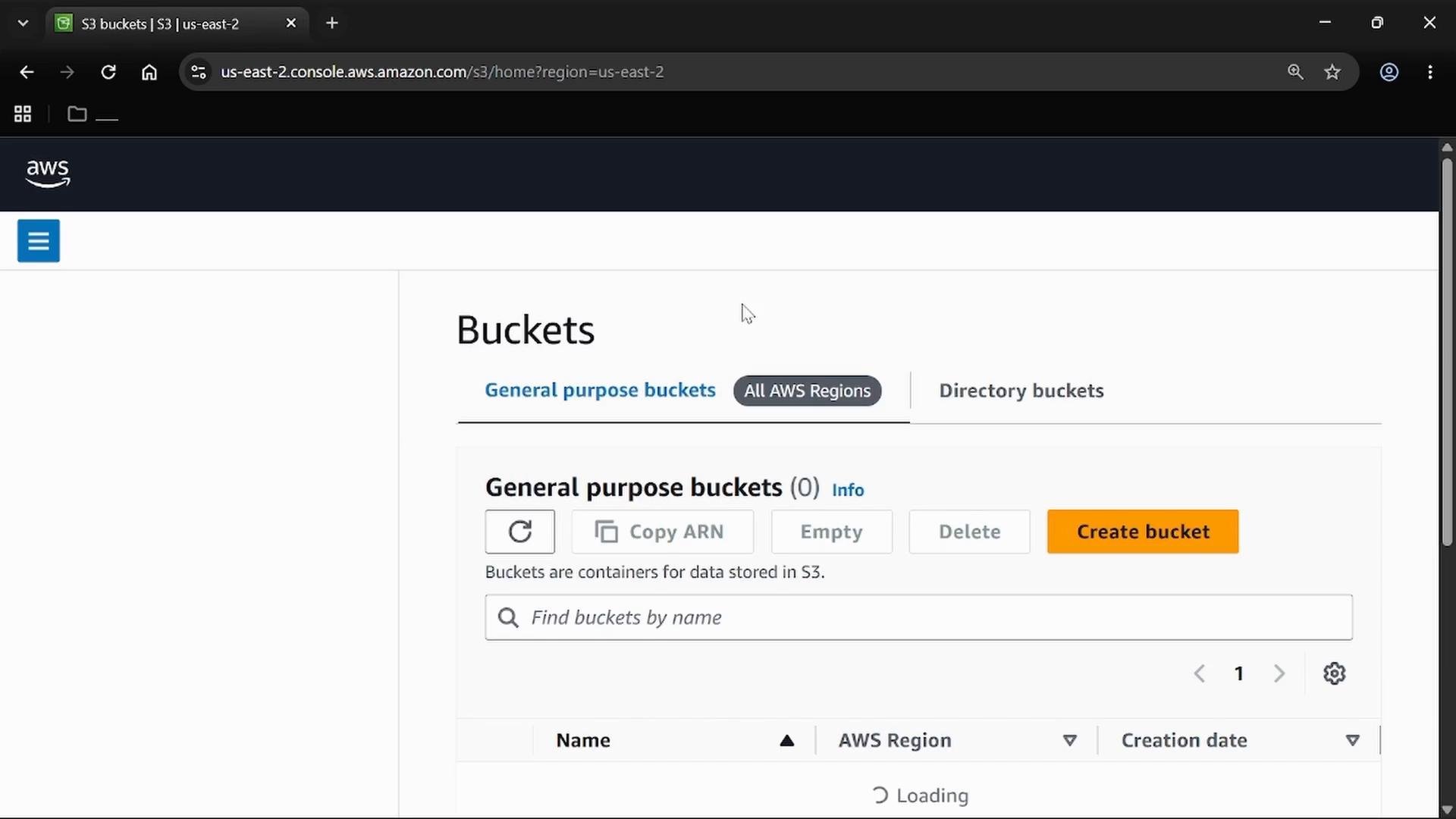
Prerequisites and links Step 1 — Create an S3 bucket (S3 as origin) Open the S3 console and create a bucket that will act as the origin for this demo. Choose a globally unique bucket name and the AWS Region you prefer.
A screenshot of the AWS S3 console showing the "Buckets" page with no general-purpose buckets listed and buttons like "Create bucket," "Copy ARN," and a search field. The page is in the us-east-2 region as seen in the browser address bar.
Example:
  • Bucket name used in this demo: eden-kk-cloud-bkt
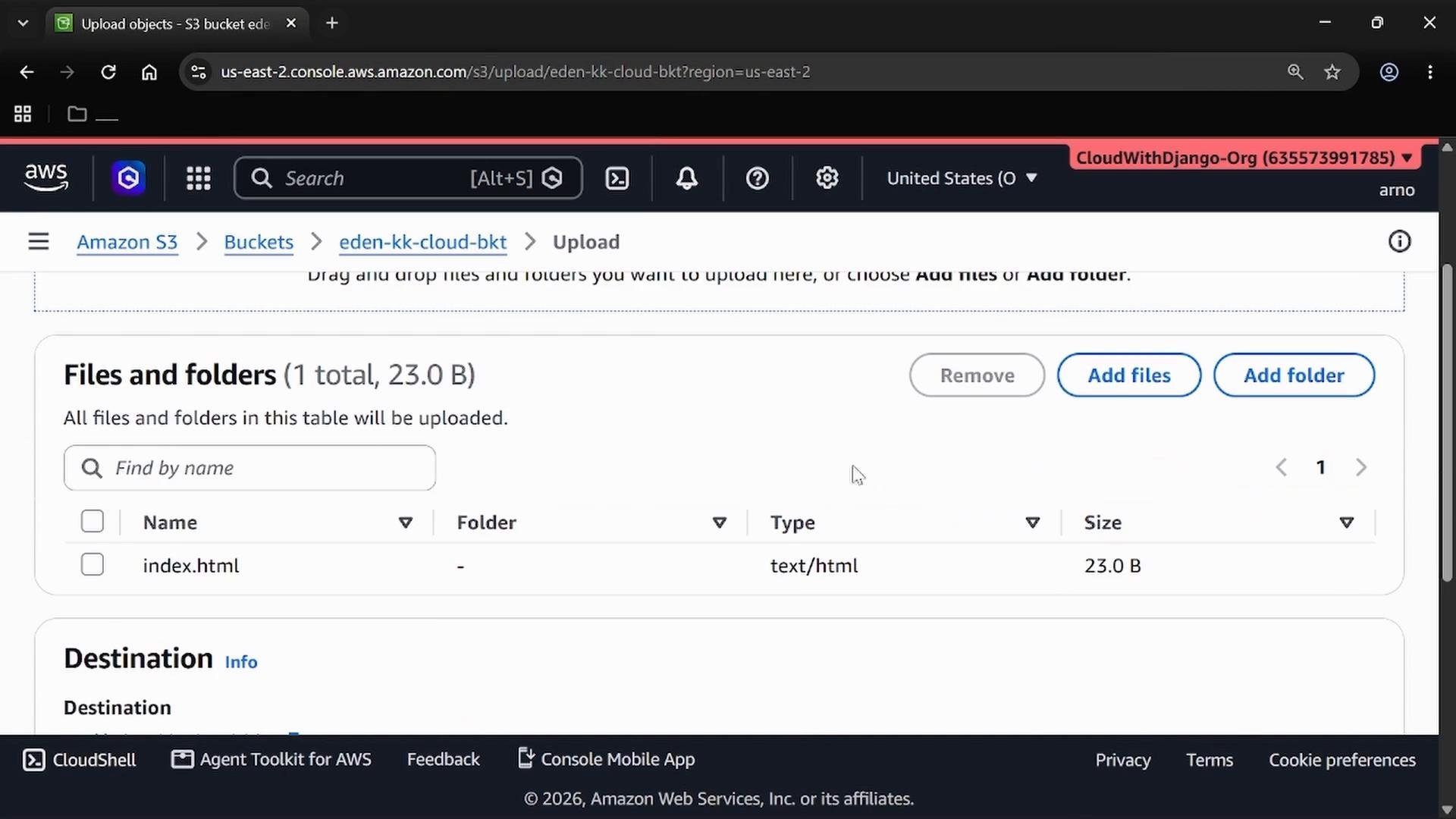
Step 2 — Upload a simple index.html Upload a minimal index.html (for example, an H1 with “Hello world”) to the bucket. This will be the object we test.
A screenshot of the Amazon S3 upload page for a bucket showing the "Files and folders" pane with one file listed (index.html, 23.0 B) and Add files/Add folder buttons.
What happens if the bucket is private? By default S3 buckets block public access. If you try the object URL immediately you’ll see an Access Denied XML response:
Step 3 — Temporarily enable public reads (direct S3 hosting) To demonstrate direct access, temporarily allow public reads:
  1. In the S3 bucket Permissions, edit the Block public access settings and disable the relevant block(s) to permit public reads.
  2. Add a bucket policy that grants s3:GetObject to all principals for objects in the bucket (only for this controlled demo).
Example minimal read-only bucket policy:
Enabling public access or adding a broad bucket policy can expose your objects. Only use this approach in a controlled demo or test environment and remove the policy immediately after testing.
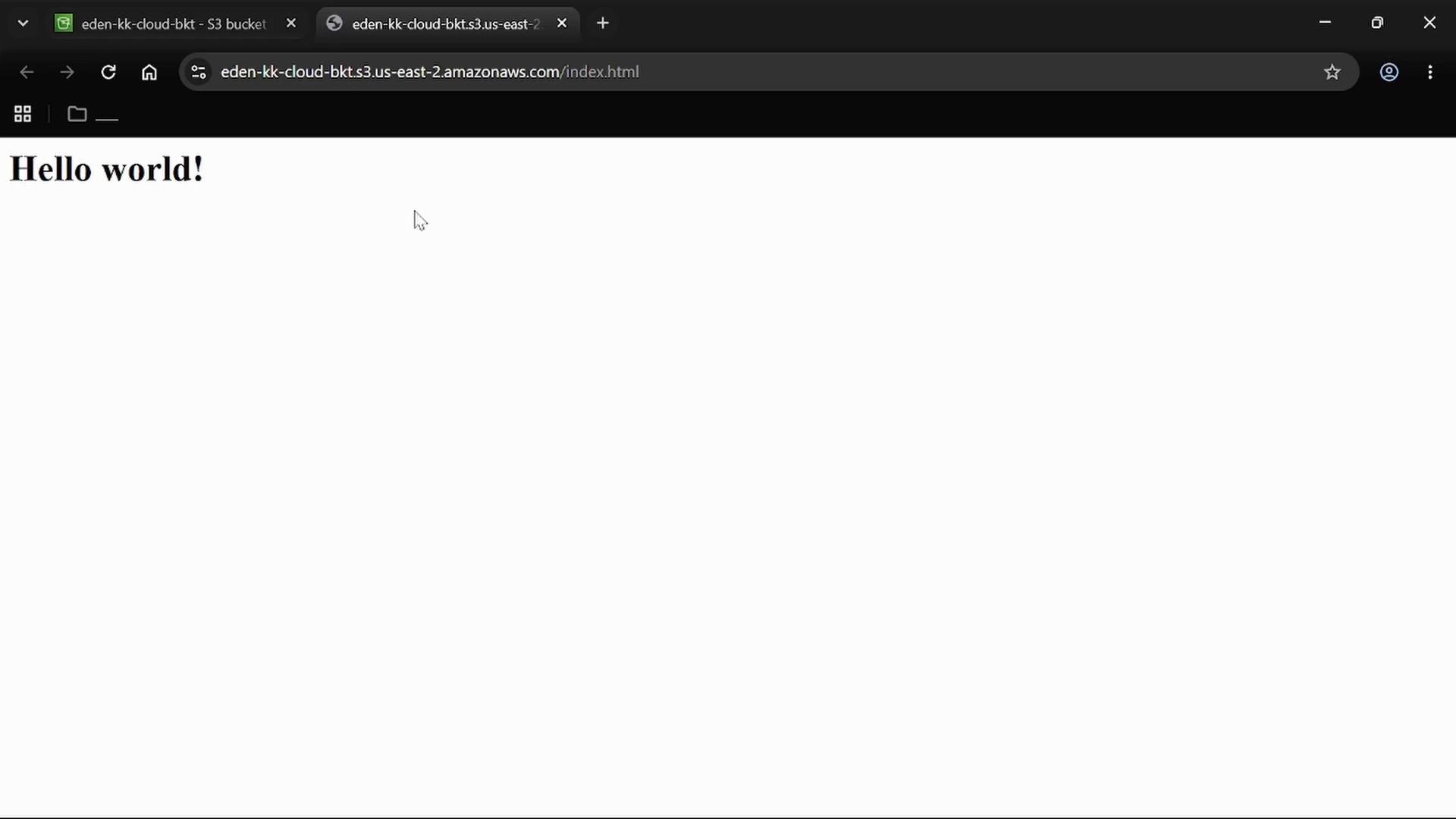
After applying the policy, opening the S3 object URL in a browser will display your index.html content (e.g., “Hello world!”) served directly from S3:
A browser window showing a simple webpage that displays "Hello world!" in large text on a mostly blank white page. The address bar indicates the page is hosted from an Amazon S3 bucket URL.
This confirms direct S3 access: the browser requested the S3 object URL and S3 returned the content.
Use a unique bucket name in your AWS account. Enabling public access or applying broad bucket policies can expose your objects—only do this in a controlled demo or test environment.
Step 4 — Re-lock the bucket (prepare for CloudFront) Before creating a CloudFront distribution, revert the bucket to private:
  • Re-enable “Block all public access”.
  • Remove the read-all bucket policy.
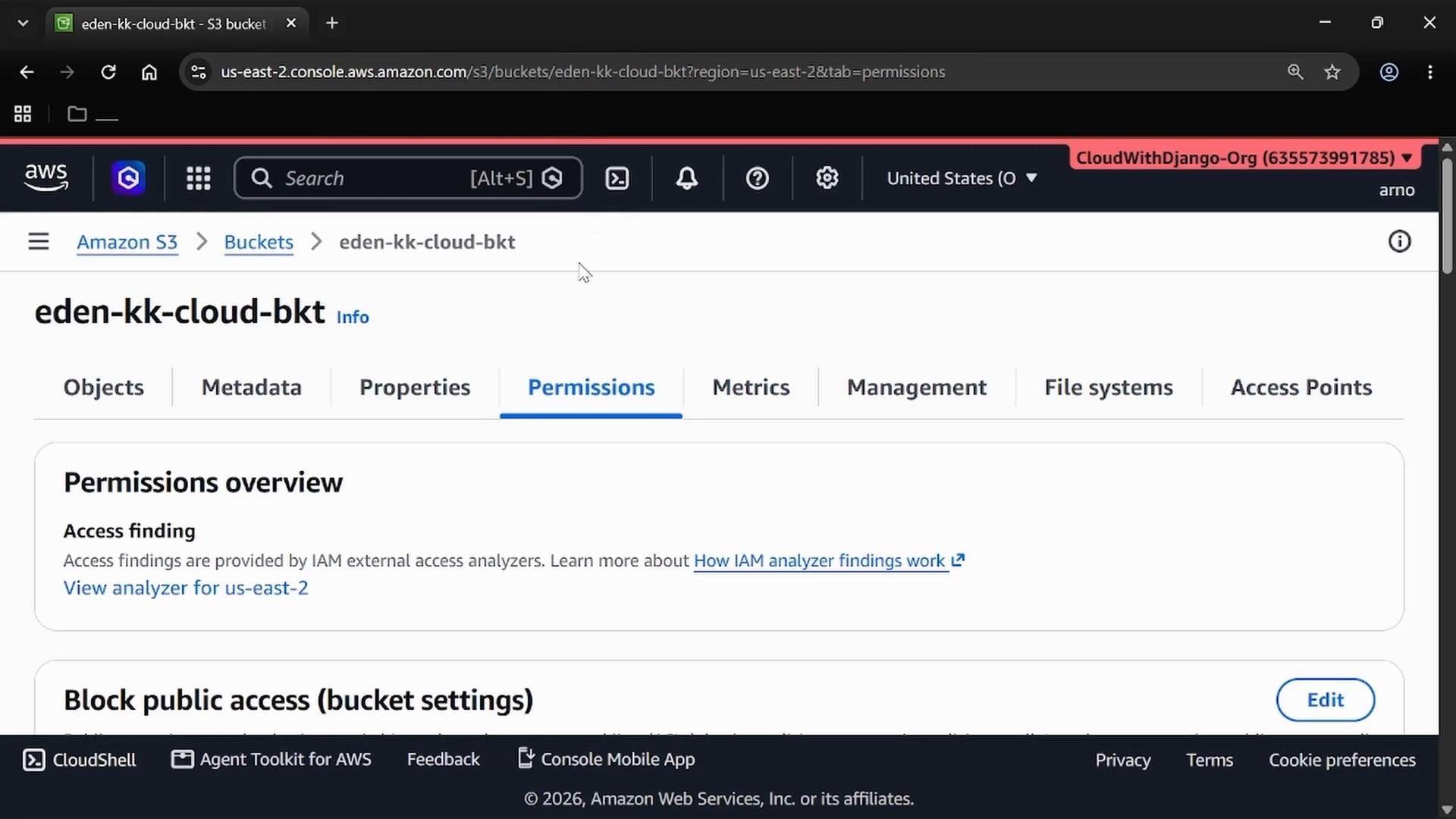
  • Confirm the Permissions tab shows public access is blocked.
A screenshot of the AWS S3 console showing the "eden-kk-cloud-bkt" bucket with the Permissions tab open, displaying a "Permissions overview" section and block public access settings.
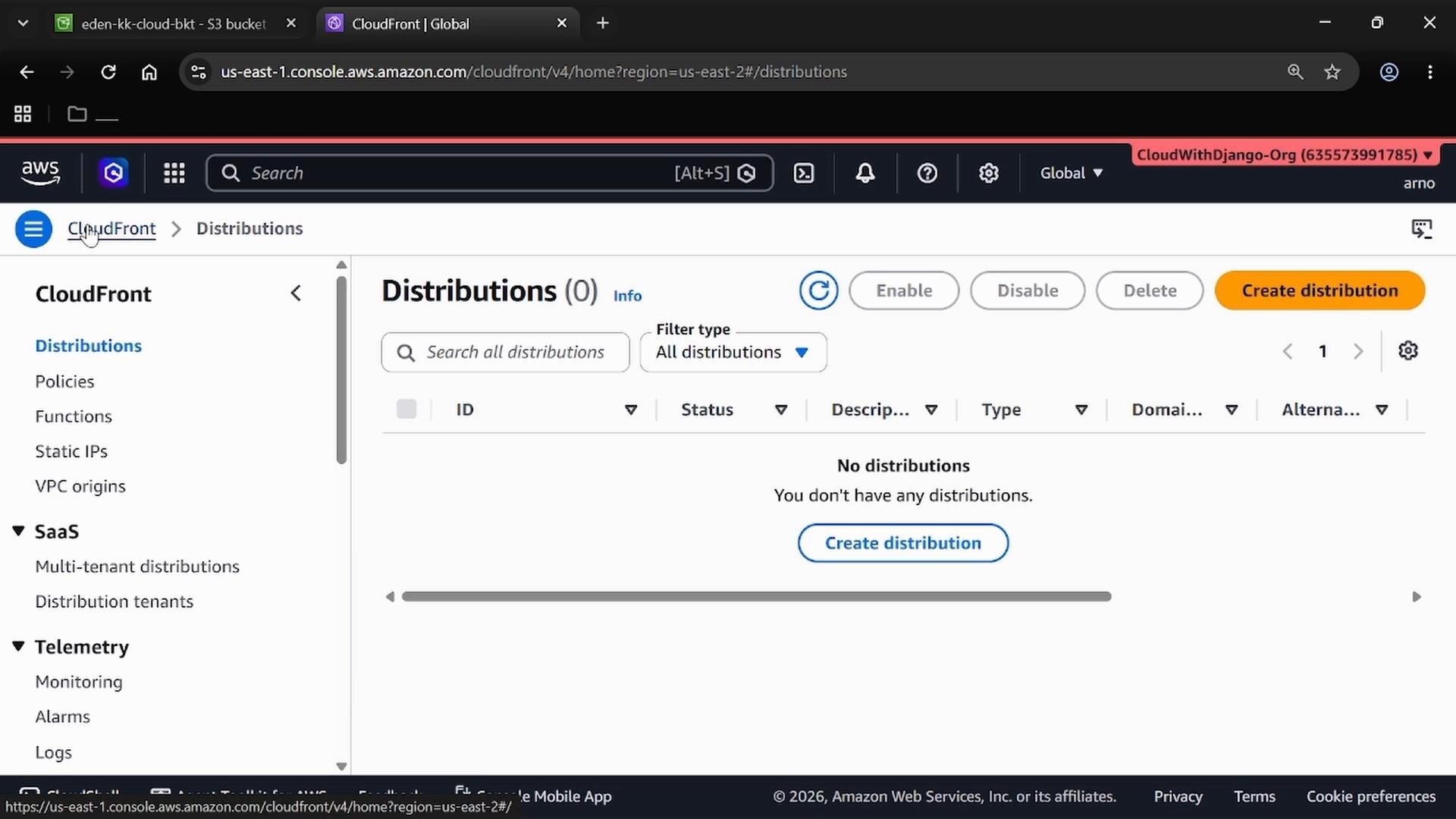
Step 5 — Create a CloudFront distribution for the private S3 origin Open the CloudFront console and create a new distribution. If you have no distributions yet, the console looks like this:
A screenshot of the AWS CloudFront console on the Distributions page showing "No distributions" (0) and a prominent "Create distribution" button. The left navigation lists CloudFront sections like Distributions, Policies, Functions, Static IPs, and VPC origins.
For this demo:
  • Use the default settings.
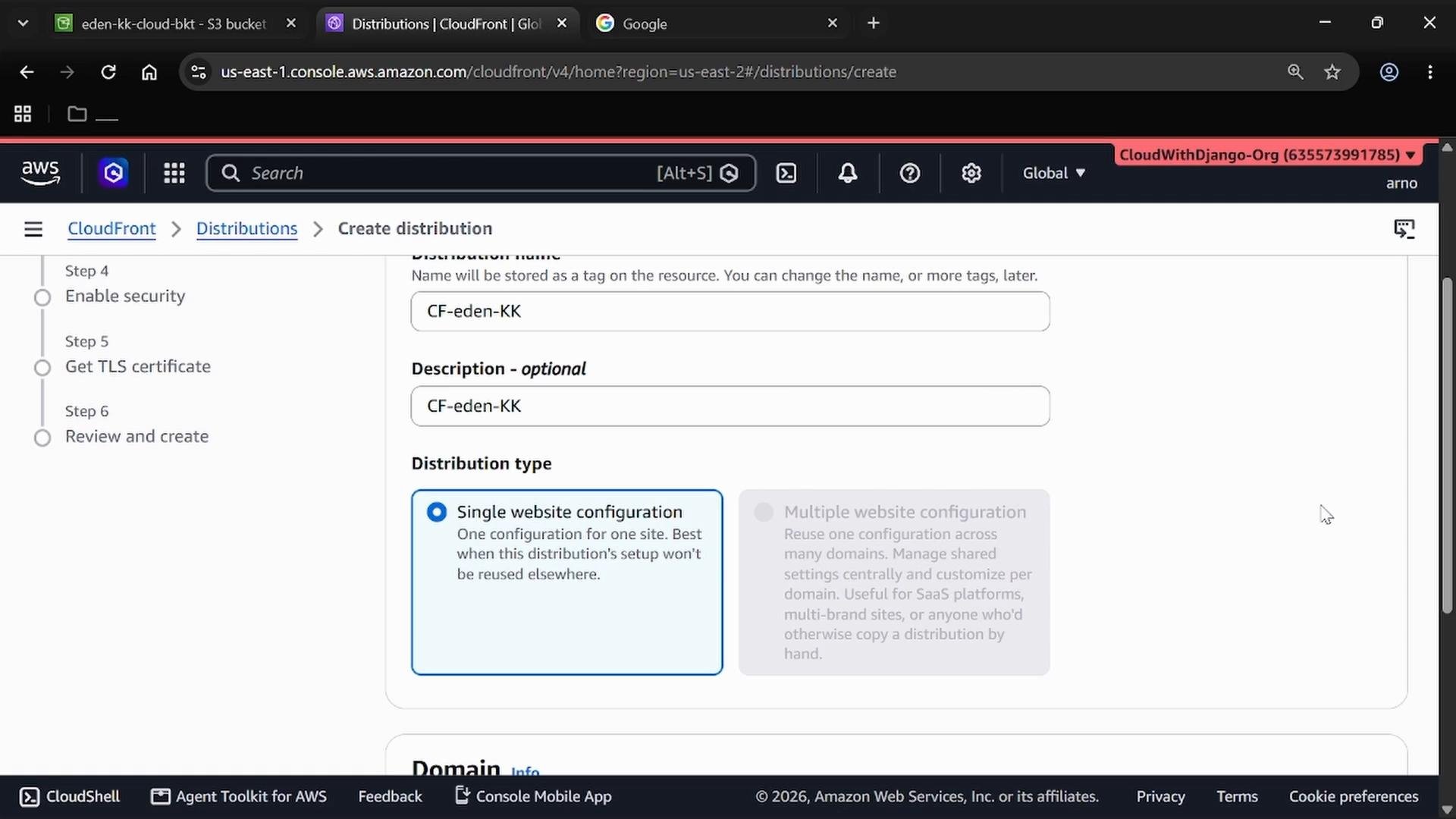
  • Create a single website configuration (one distribution serving one site).
  • Optionally give a friendly name like CF-eden-KK.
A screenshot of the AWS CloudFront "Create distribution" console showing a distribution named "CF-eden-KK" with the "Single website configuration" option selected. The left sidebar lists steps like Enable security, Get TLS certificate, and Review and create.
Origin configuration (key points)
  • Origin type: Amazon S3.
  • Use the “Browse S3” option and select your eden-kk-cloud-bkt bucket.
  • Enable the AWS-configured Origin Access Control (OAC). OAC lets CloudFront sign requests to S3 so the bucket can remain private while CloudFront is authorized to fetch objects on behalf of clients.
Refer to the AWS documentation: Restricting Access to S3 for CloudFront — https://docs.aws.amazon.com/AmazonCloudFront/latest/DeveloperGuide/private-content-restricting-access-to-s3.html Deployment After creating the distribution CloudFront will deploy it. Wait until the distribution status reaches “Deployed” (no longer “In Progress”) before testing. Testing the CloudFront URL CloudFront provides a domain name for the distribution. Request the same object via the CloudFront domain, for example: https://<your-cloudfront-domain>/index.html Because the S3 bucket is private and CloudFront uses OAC credentials, CloudFront becomes the only authorized way to fetch the object from S3 on behalf of clients. Direct S3 object URL access will return Access Denied until permissions are changed. S3 Permissions confirm the bucket is private:
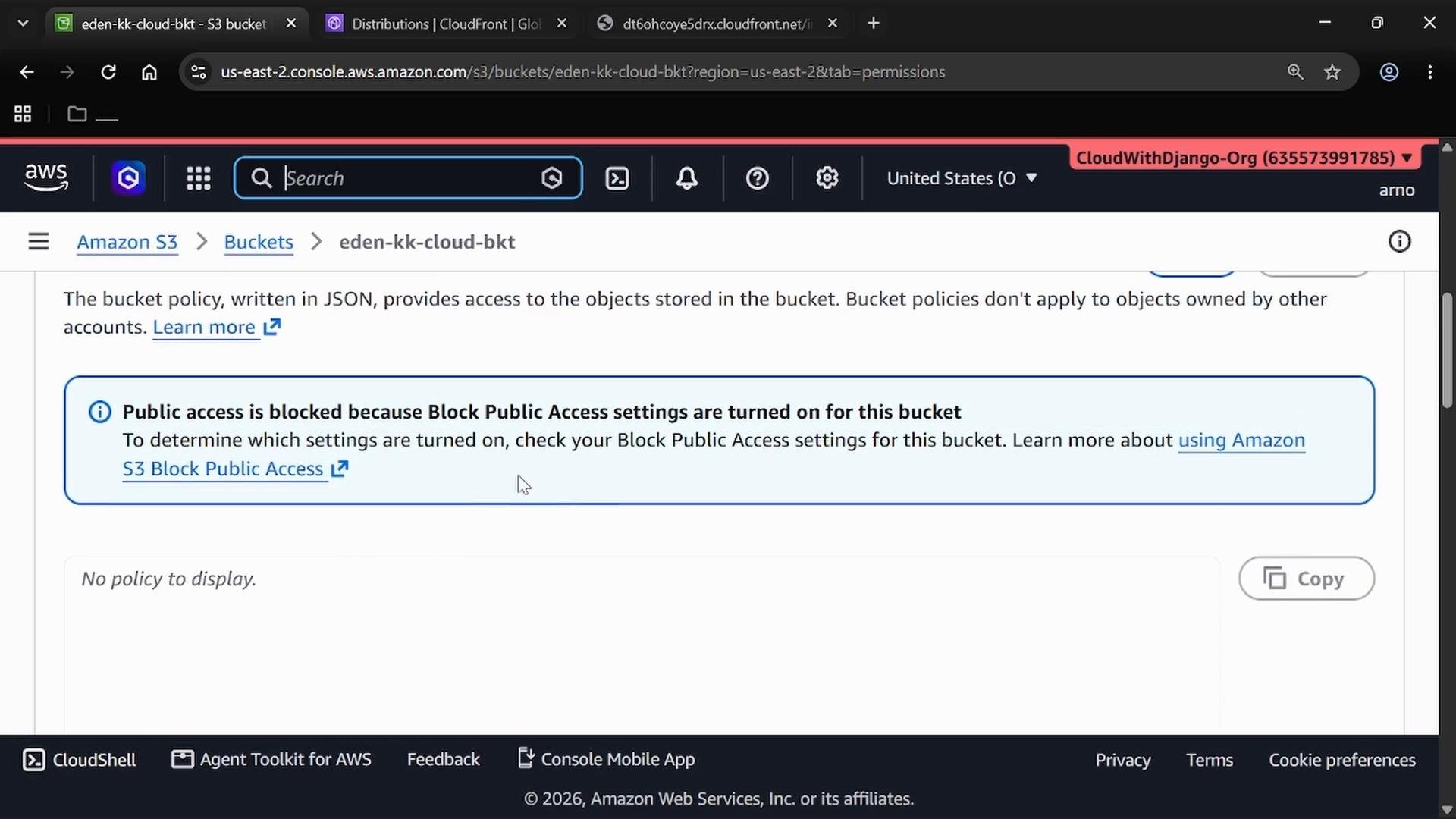
A screenshot of the Amazon S3 console on a bucket permissions page showing a blue banner that "Public access is blocked because Block Public Access settings are turned on for this bucket." The page also shows "No policy to display."
Object metadata (reference)
How CloudFront serves the content
  • The client requests the CloudFront domain.
  • CloudFront checks cache at the edge; if missing or expired, CloudFront uses OAC-signed requests to fetch the object from the private S3 origin.
  • CloudFront caches the object at edge locations, improving latency for subsequent requests.
  • CloudFront also enables features such as custom TLS certificates, WAF integration, finer cache-control, and performance optimizations.
Cleanup (remove resources created in this demo)
  1. Disable the CloudFront distribution, then delete it (distributions must be disabled before deletion; propagation can take several minutes).
  2. Delete all objects in the S3 bucket and then delete the bucket.
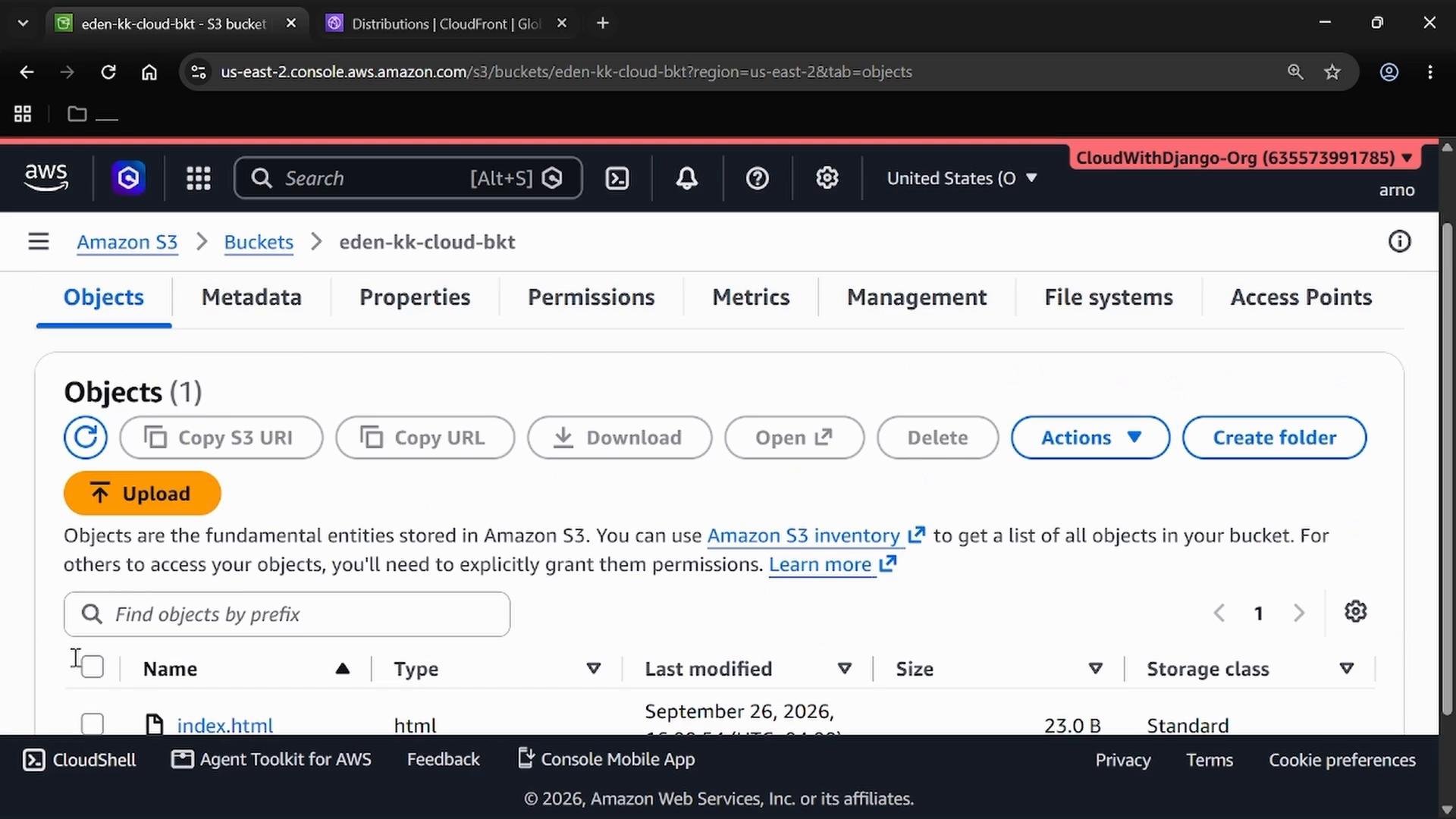
Open the bucket Objects tab to remove files:
A screenshot of the AWS S3 console open to the "eden-kk-cloud-bkt" bucket's Objects tab, showing controls like Upload, Copy URL, Download, Actions, and Create folder. The list area shows one object (index.html) and the AWS navigation/header at the top.
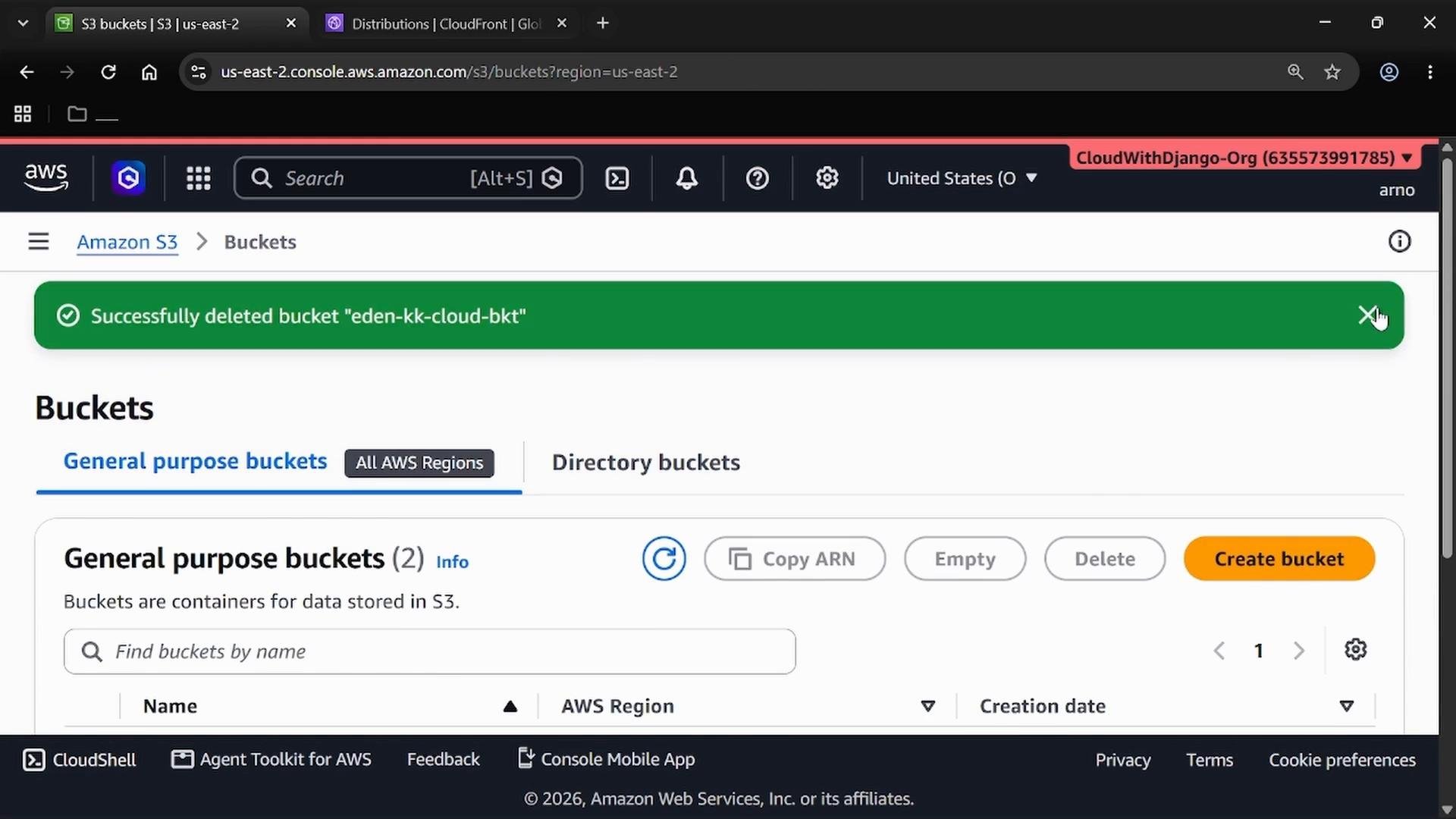
After deleting the objects and the bucket you should see confirmation:
A screenshot of the AWS S3 console showing the Buckets page with a green success banner that says "Successfully deleted bucket 'eden-kk-cloud-bkt'." The page shows the "General purpose buckets" section and buttons like Create bucket, Delete, and Copy ARN.
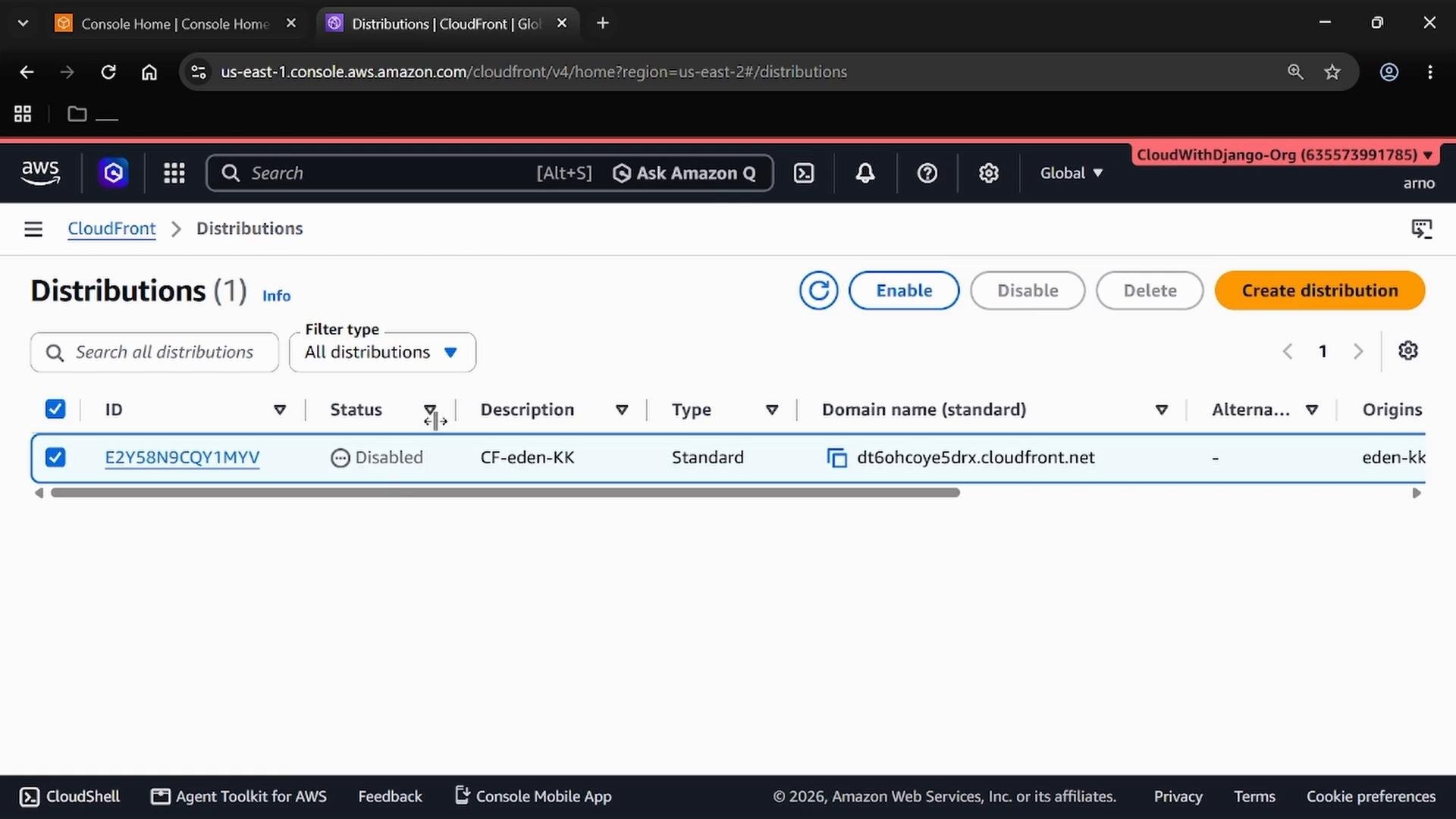
CloudFront will show the distribution as Disabled (ready for deletion) or removed once the operation finishes:
A screenshot of the AWS CloudFront Distributions console showing one distribution listed. The distribution is marked "Disabled" and displays a CloudFront domain (dt6ohcoye5drx.cloudfront.net) with controls to enable, disable, delete, or create distributions.
Comparison — When to use each approach Summary
  • Direct S3 hosting is simple but typically requires public object access or permissive policies.
  • CloudFront acts as a secure front door to a private S3 bucket when configured with OAC: CloudFront fetches objects on behalf of clients and caches them at edge locations, improving performance and security.
  • For production static websites or assets, prefer CloudFront + private S3 with OAC for better security, performance, and control.
Further reading and references

Watch Video