

- Create the administration and execution IAM roles required for StackSets
- Update the execution role trust policy so the administration role can assume it
- Create a StackSet using self‑managed permissions
- Verify stack instances and the created resources (S3 buckets in this demo)
- Delete stack instances and then delete the StackSet
- AWS account with IAM permissions to create roles and policies
- Access to the CloudFormation console
- The target account IDs and Regions where you’d like to deploy
Create the required IAM roles
First, create the two IAM roles that StackSets require: an administration role used by CloudFormation in the administering account and an execution role that CloudFormation assumes in target accounts/Regions. Open the IAM console, go to Roles, and create the first role.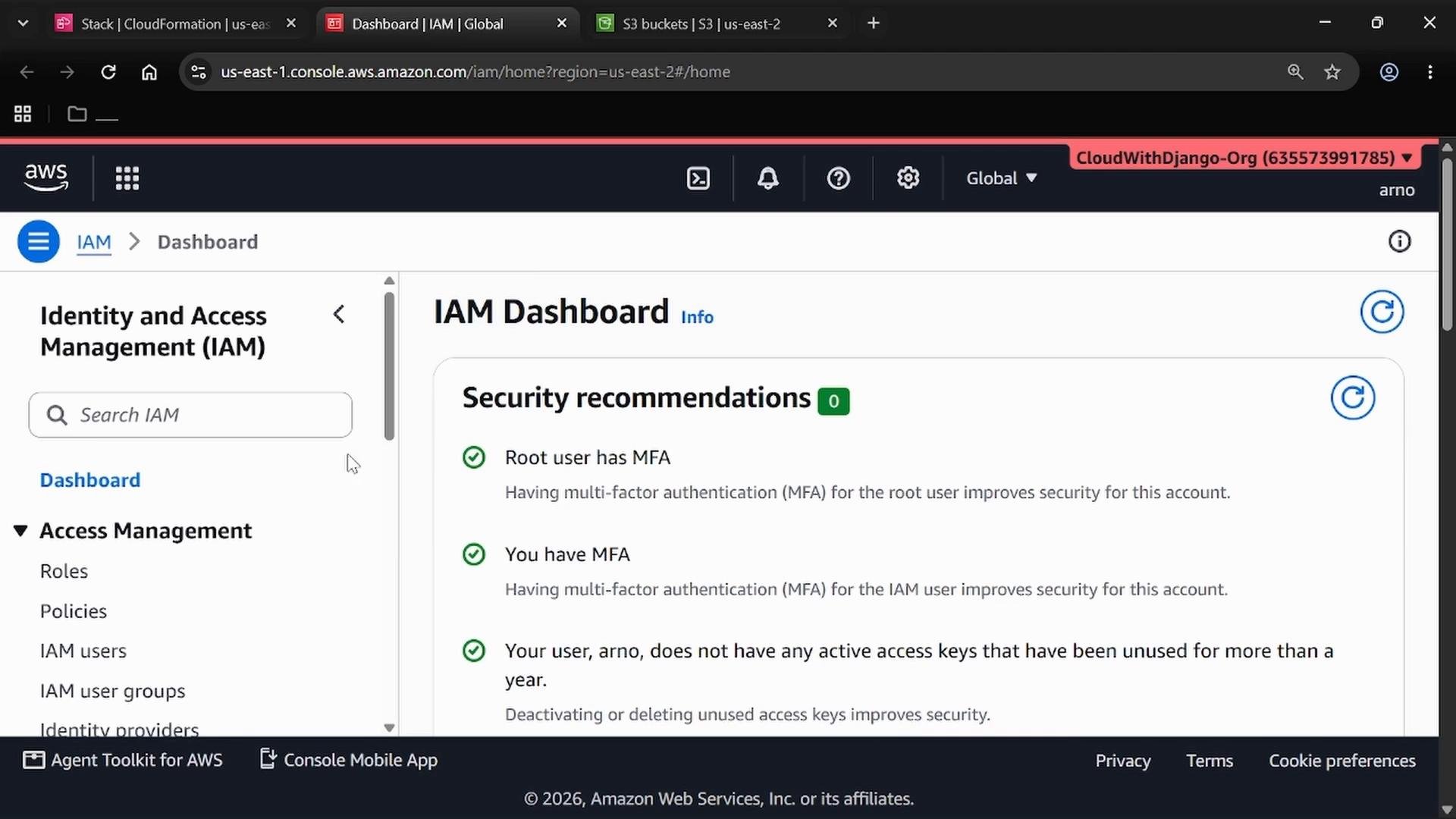
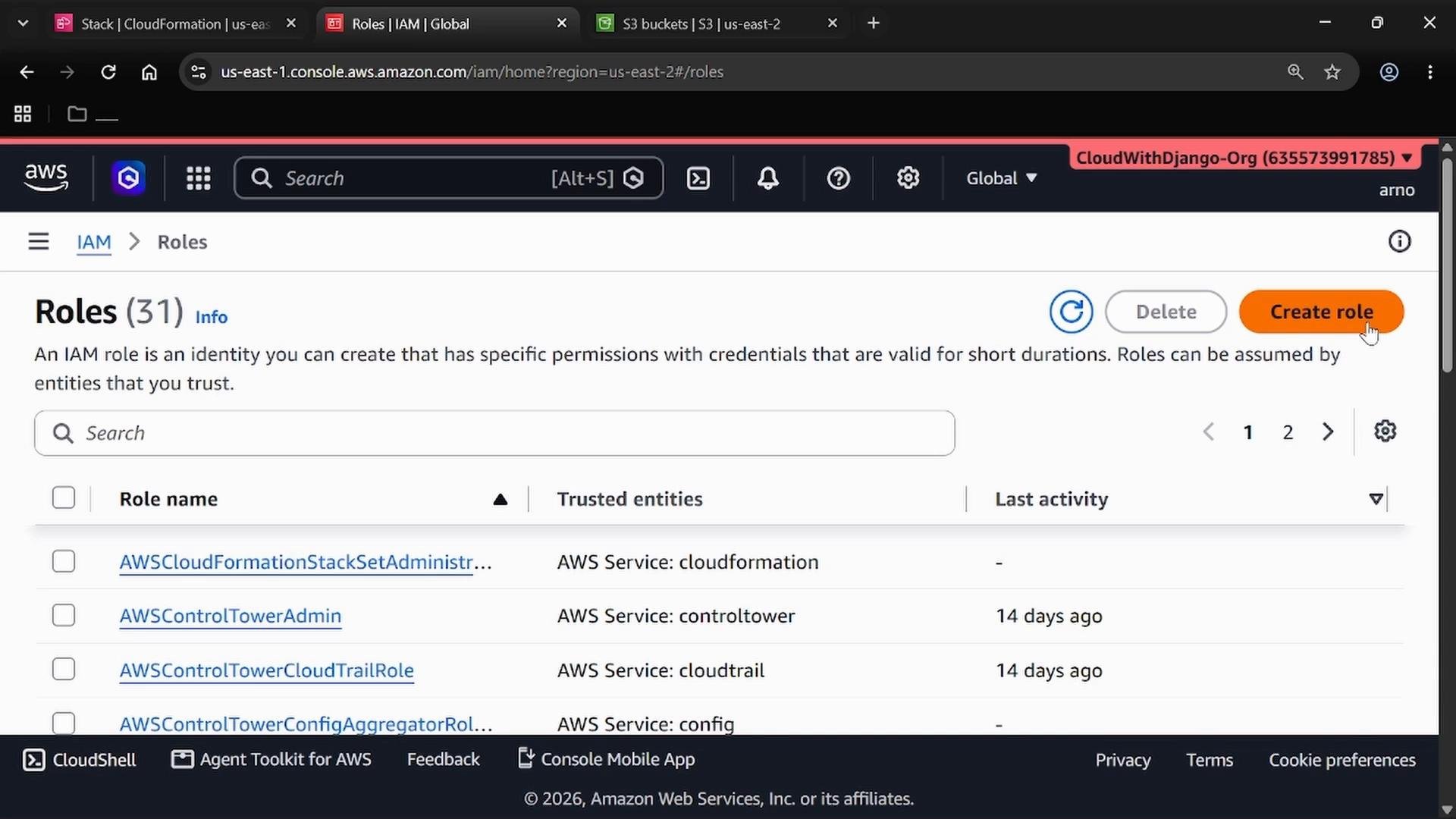
- Click Create role.
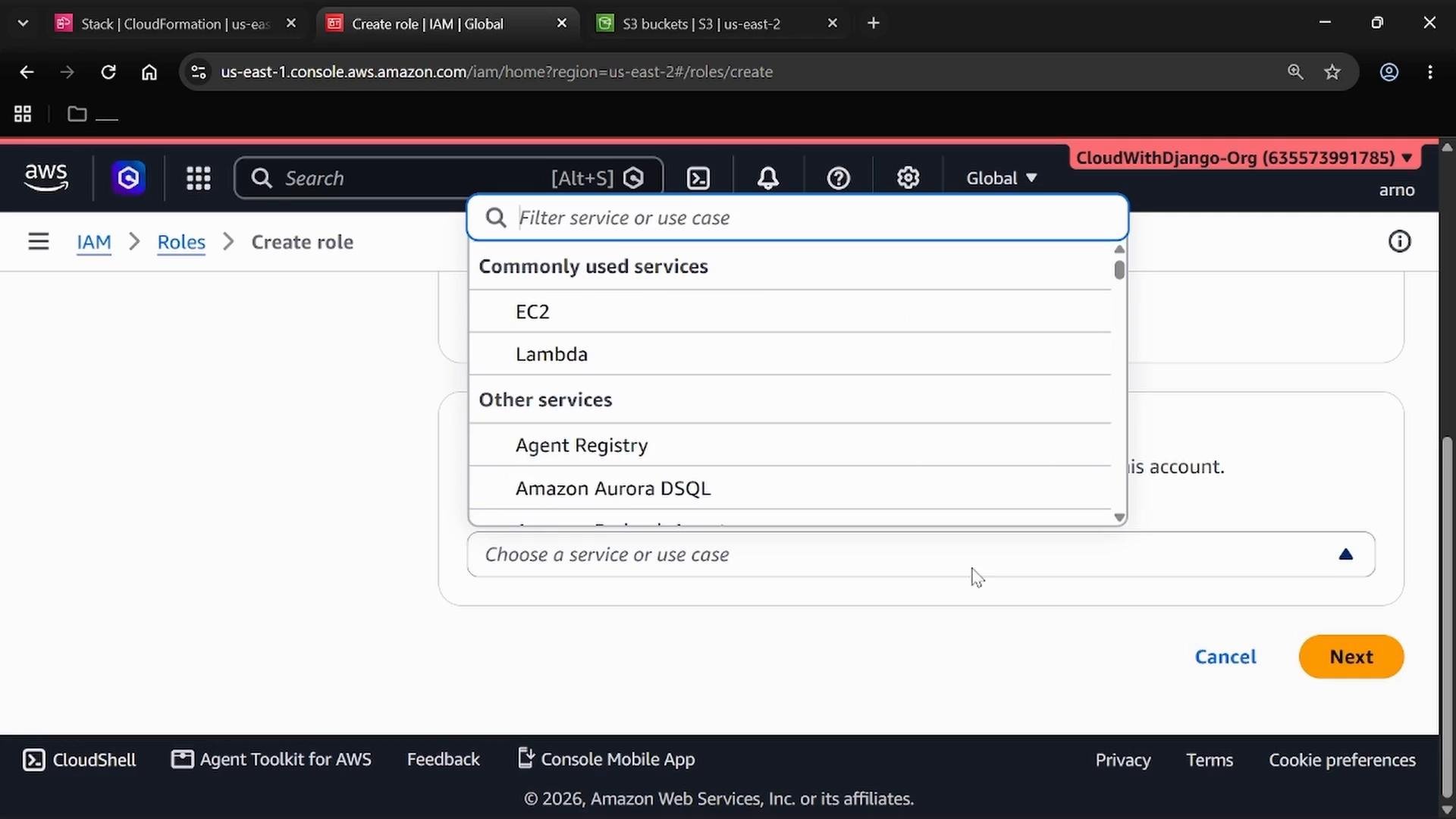
- Choose “AWS service” as the trusted entity and select CloudFormation as the use case.
- Attach the
AdministratorAccesspolicy (or a scoped, least‑privilege policy appropriate for your templates). - Name the administration role exactly:
AWSCloudFormationStackSetAdministrationRole. - Add a meaningful description and create the role.
AWSCloudFormationStackSetExecutionRole
Prefer least privilege: instead of granting full
AdministratorAccess to these roles, create a policy that allows only the CloudFormation actions and resource access your templates require.Edit the execution role trust relationship
After creating both roles, update the execution role’s trust policy so it allows the administration role to assume it. This cross‑account trust is required for a self‑managed StackSet. Replace thePrincipal.AWS value with the ARN of the administration role in the administering account. Example trust policy (replace the account ID and role name with your values):
- Open the execution role
AWSCloudFormationStackSetExecutionRole. - Go to the Trust relationships tab and choose Edit trust policy.
- Update
Principal.AWSto the administration role ARN (for example:arn:aws:iam::635573991785:role/AWSCloudFormationStackSetAdministrationRole). - Save the policy.
Create the StackSet (self‑managed permissions)
Now create the StackSet in the CloudFormation console and configure it to use the roles you created.- In CloudFormation, choose Create StackSet.
- Under Permissions, select Self‑managed permissions (this uses the administration and execution roles you created).
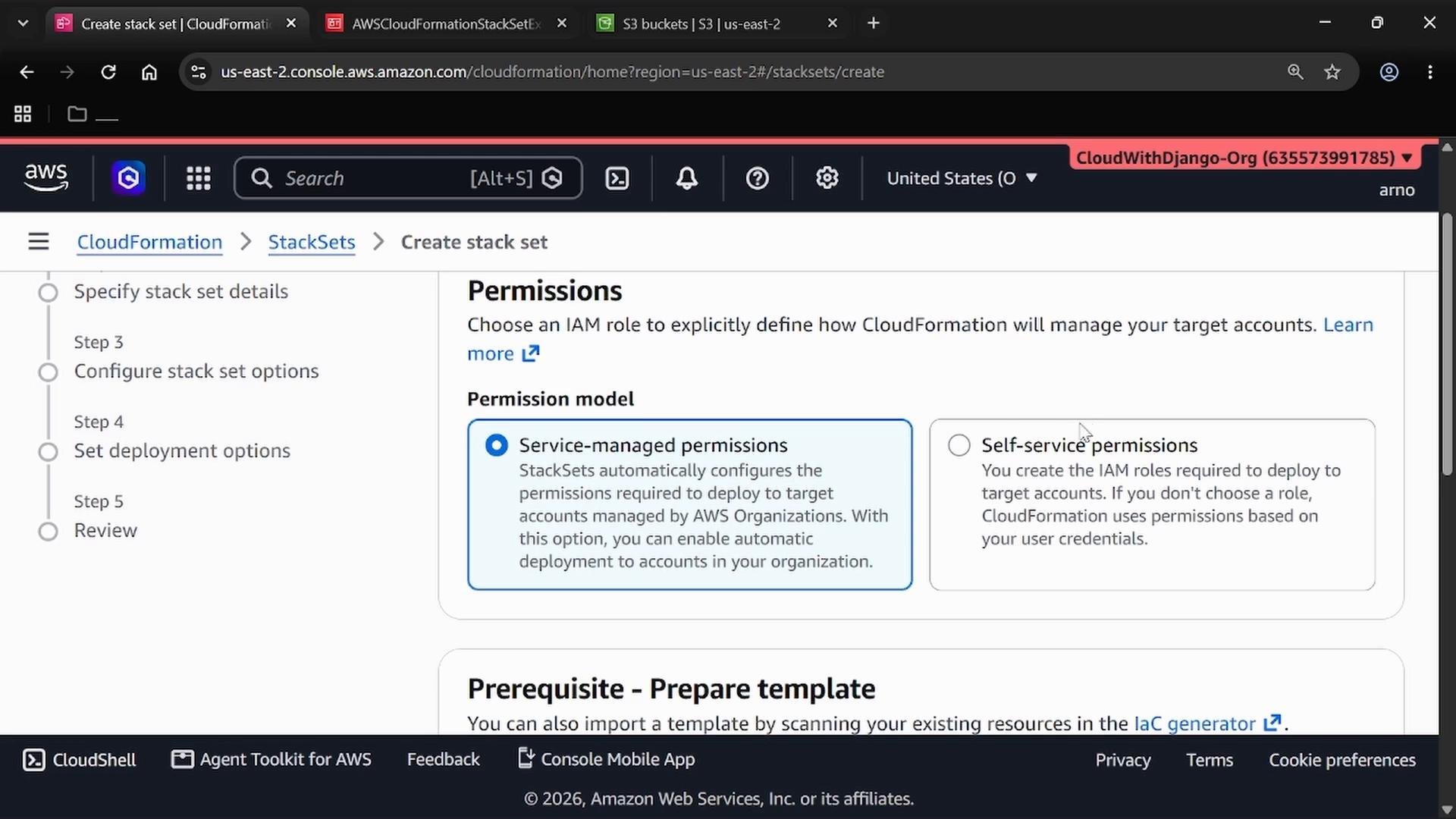
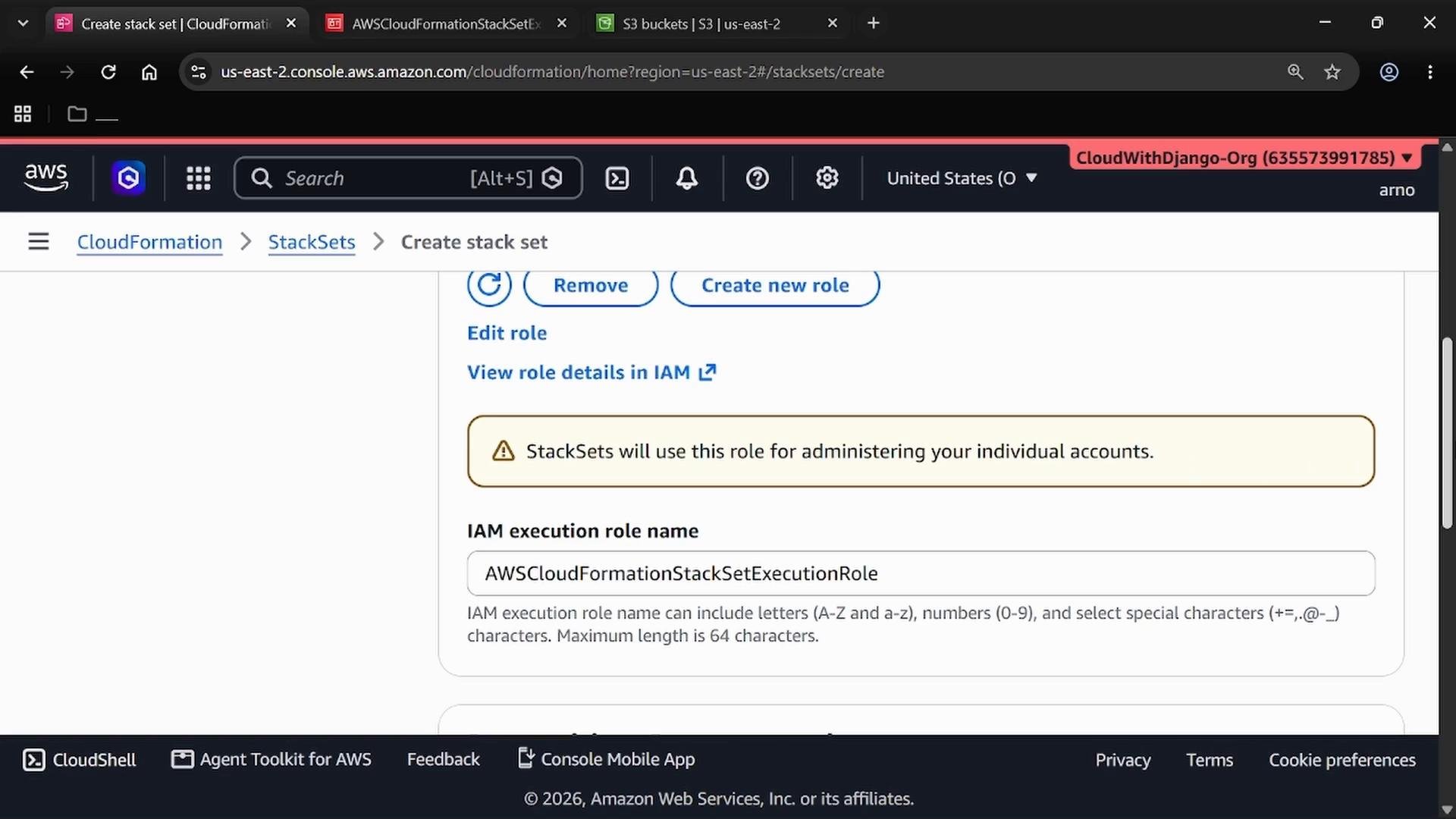
- Specify the administration role name:
AWSCloudFormationStackSetAdministrationRole. CloudFormation will report that this role will be used to administer accounts. - Enter the execution role name:
AWSCloudFormationStackSetExecutionRole— this is the role CloudFormation will assume in target accounts.
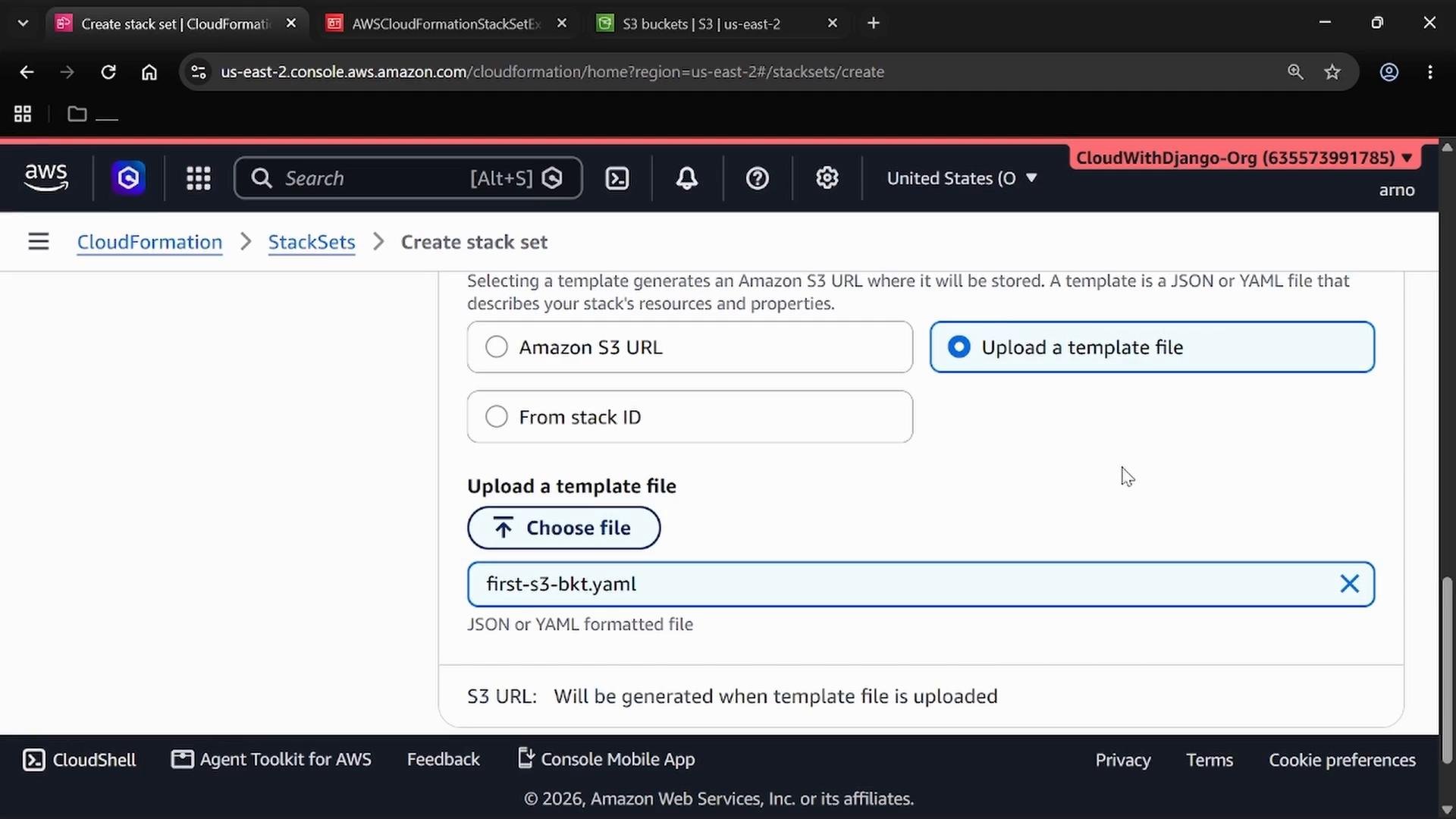
- Upload your template (in this demo:
first-s3-bkt.yaml) or use a sample template from the console. - Click Next and specify a StackSet name (for example:
DemoStackSet) and optional description/tags.
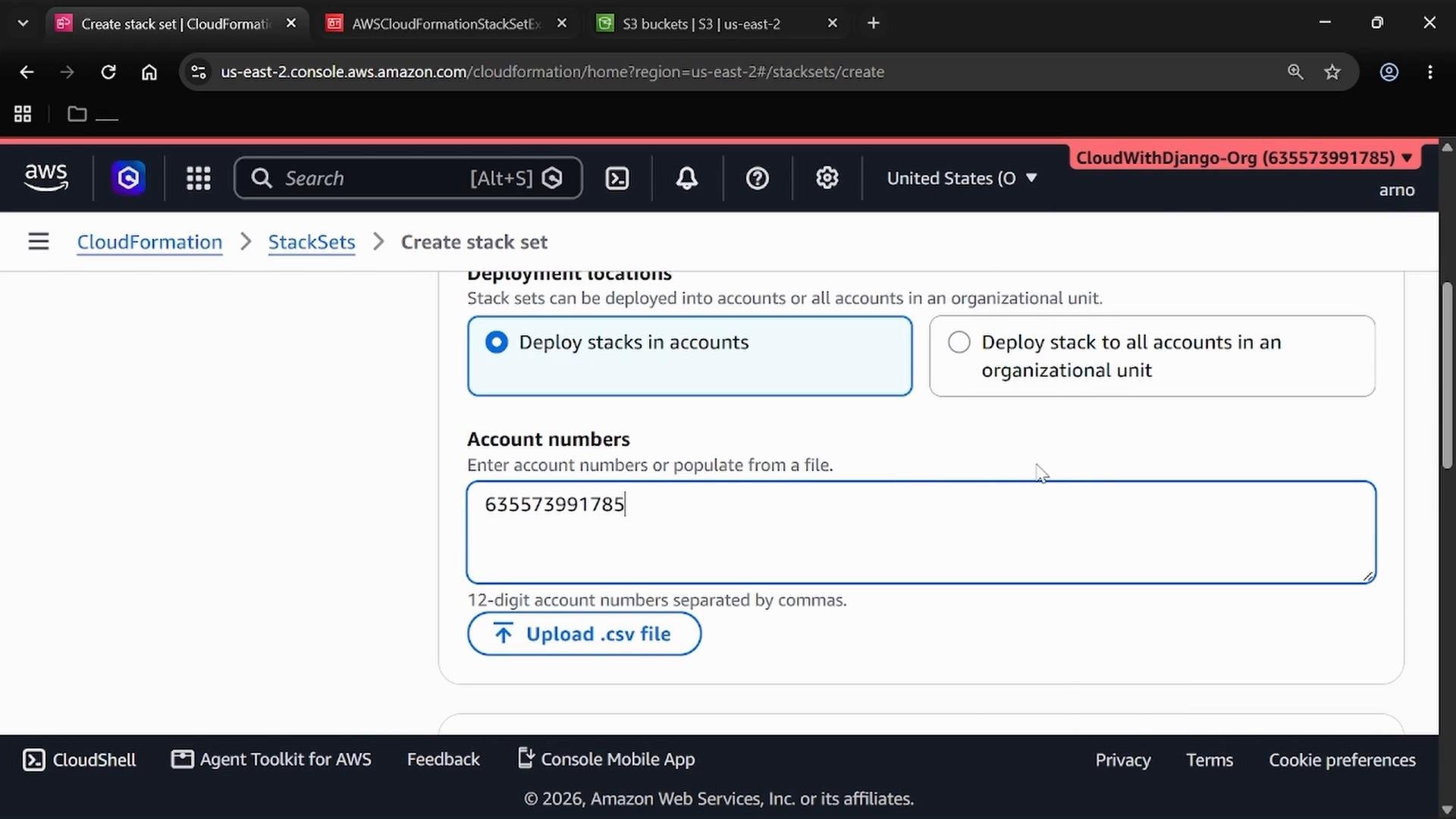
- Choose “Deploy stacks in accounts” and enter the target AWS account number(s) (the account IDs where stack instances will be created).
- Select the Regions where you want the stacks deployed (for example:
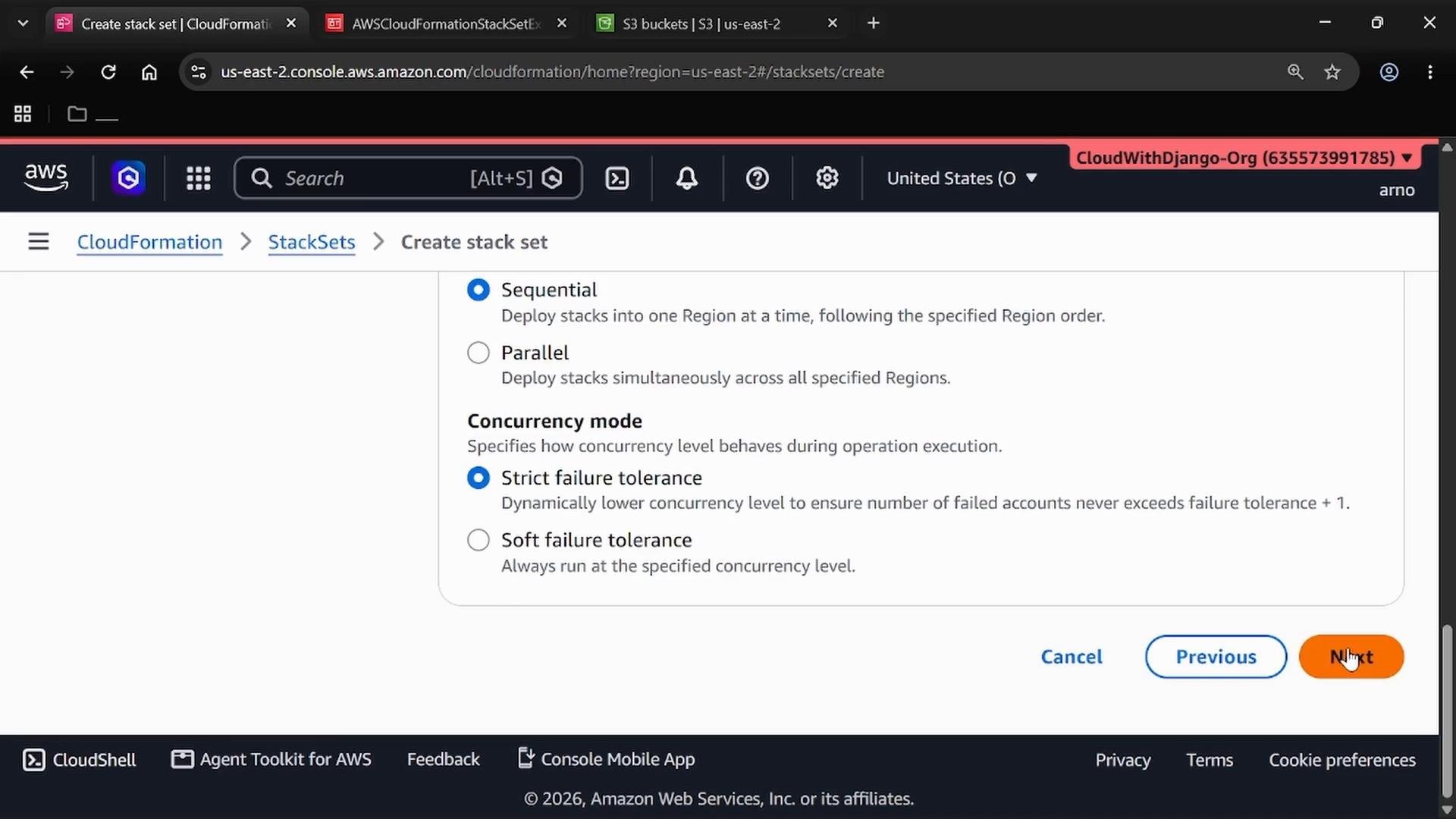
us-east-2andus-east-1). - Configure deployment options such as concurrency and failure tolerance (Sequential vs Parallel, max concurrent accounts per Region) and review the stackset settings. When ready, submit to create the StackSet.
Verify StackSet and stack instances
After submission CloudFormation runs a StackSet operation to deploy stack instances to the chosen accounts and Regions. Monitor the StackSet Overview and Instances tabs to check progress, operations, and per‑Region status.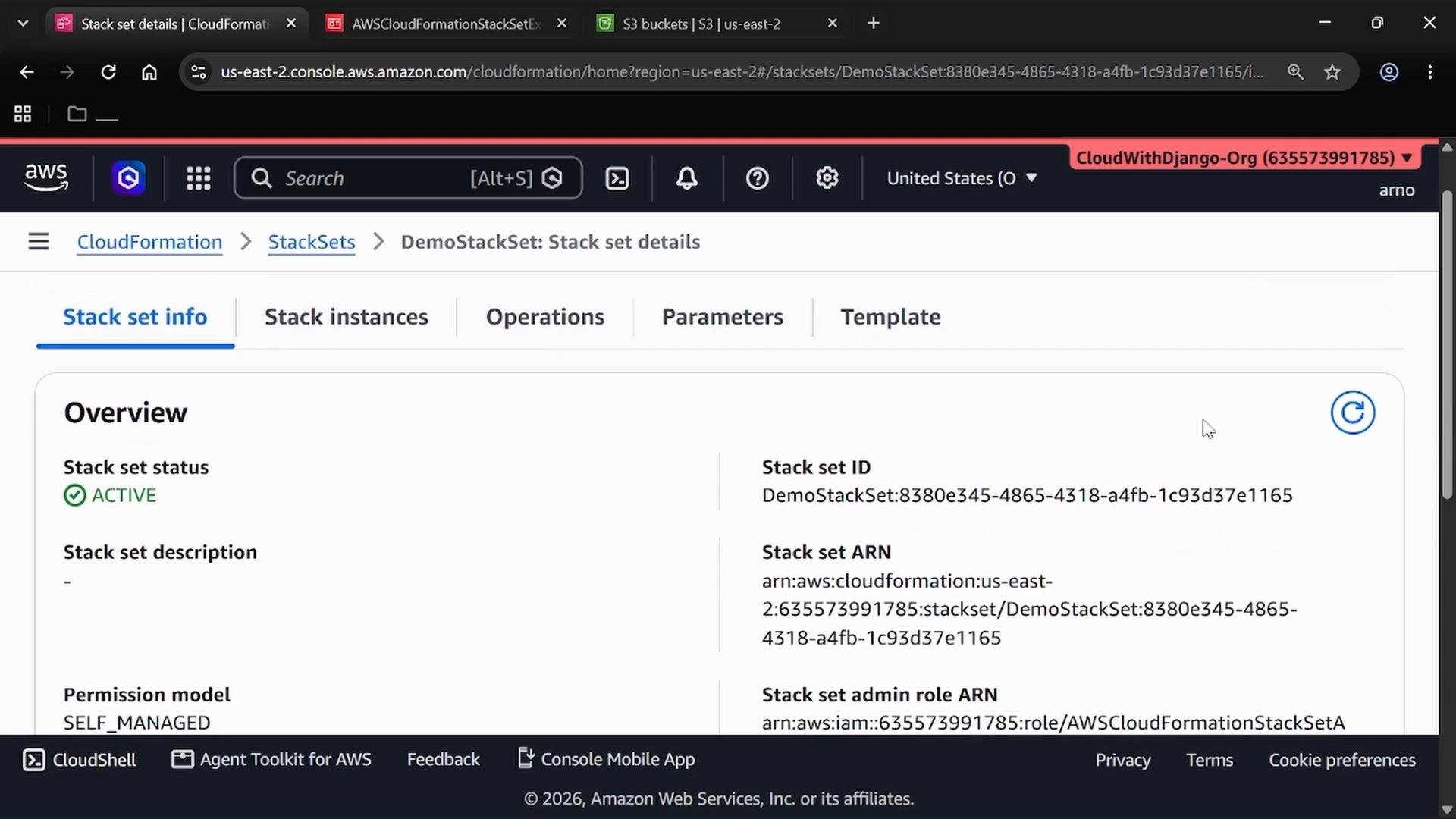
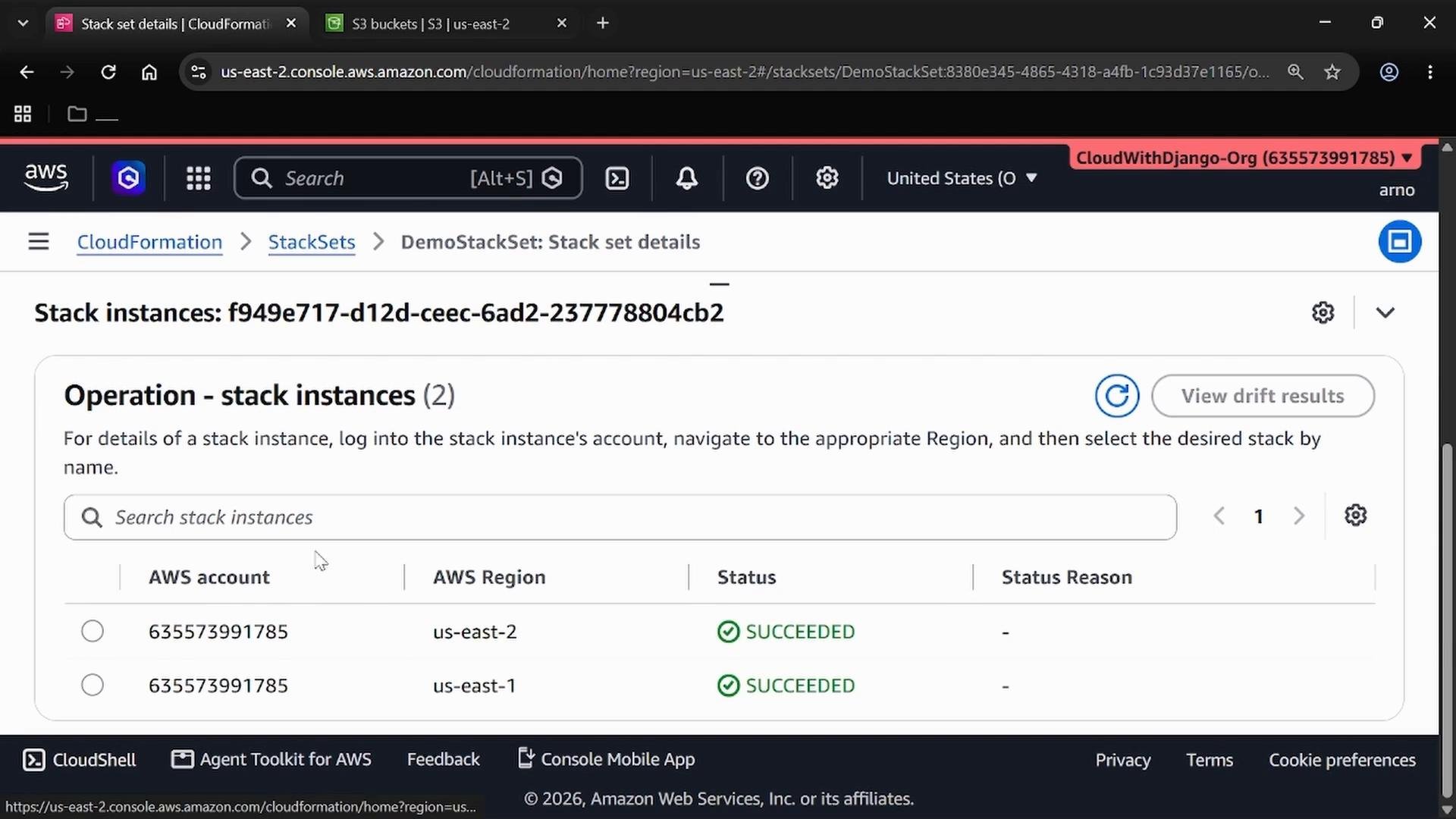
- Open the Instances tab to see stack instance status for each Region. When the operation completes, instances should show
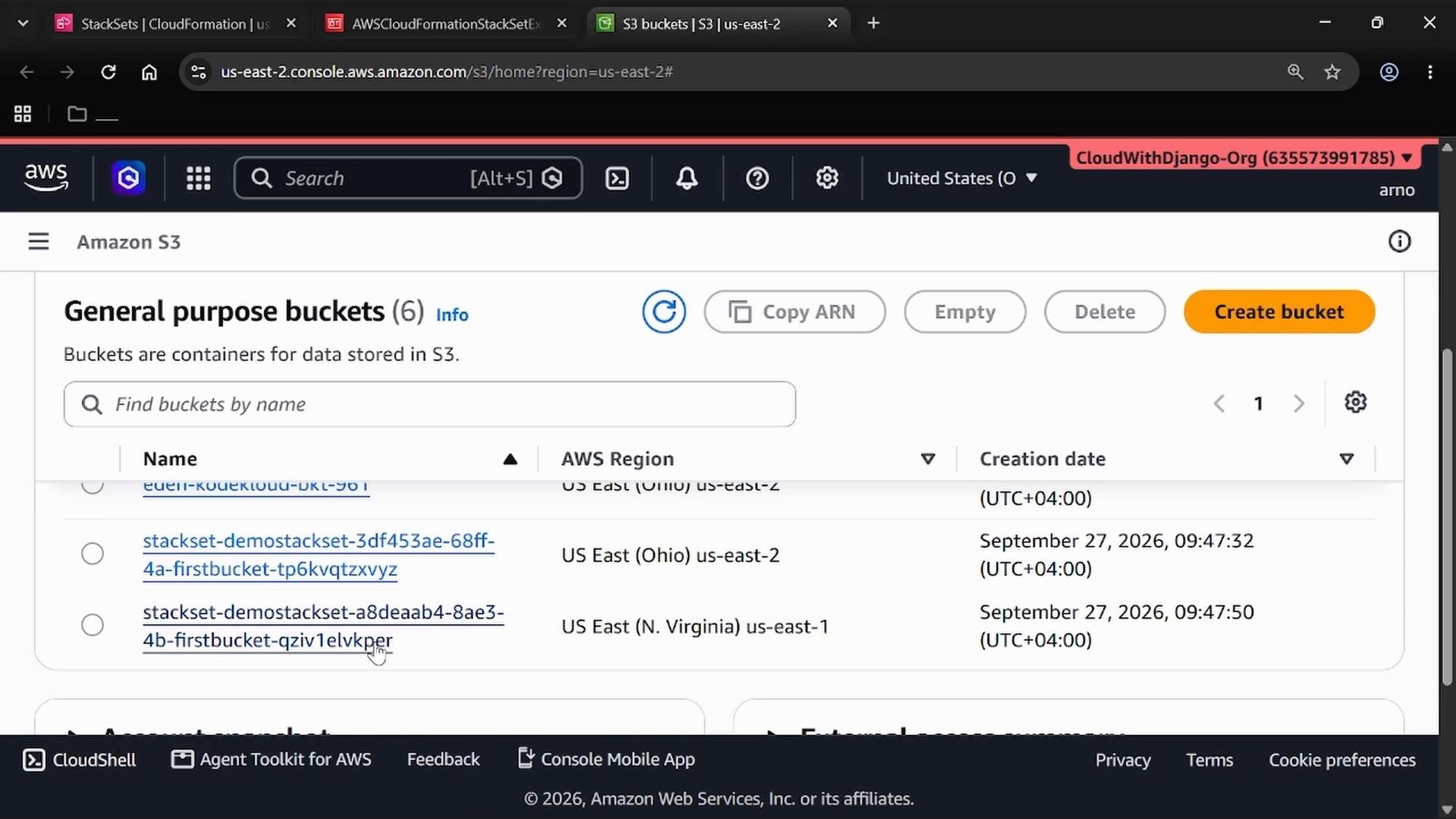
SUCCEEDED. - Verify created resources in the target Regions. In this demo the template created S3 buckets in each Region; open the S3 console and refresh to confirm the buckets exist.
Delete stack instances and the StackSet (cleanup)
To remove resources created via StackSets, you must first delete the stack instances and then delete the StackSet itself.- In the StackSet console choose Instances (or Actions → Delete stacks from stack set).
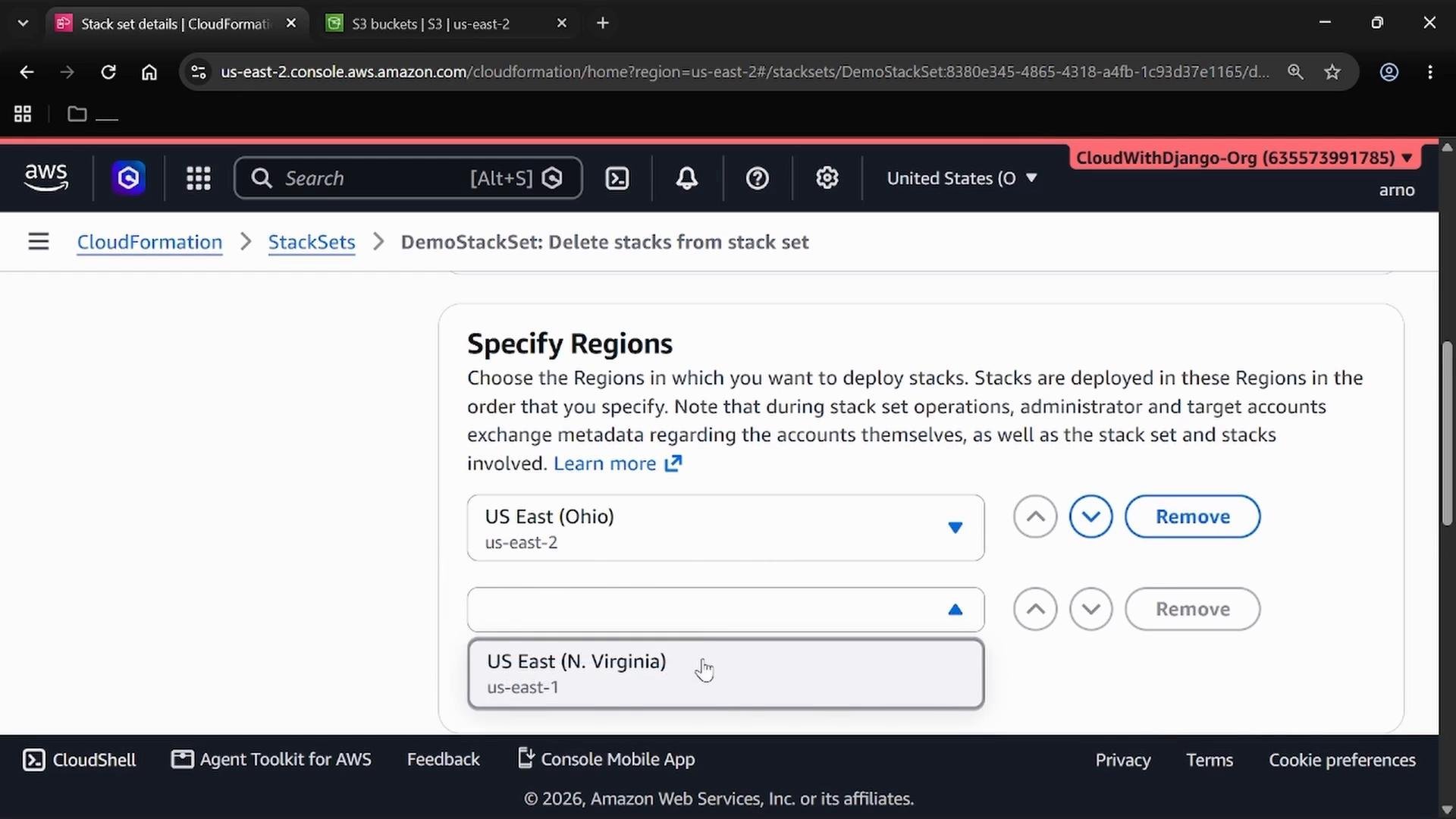
- Select the target account(s) and Region(s) where stacks exist (for example: US East (Ohio) and US East (N. Virginia)).
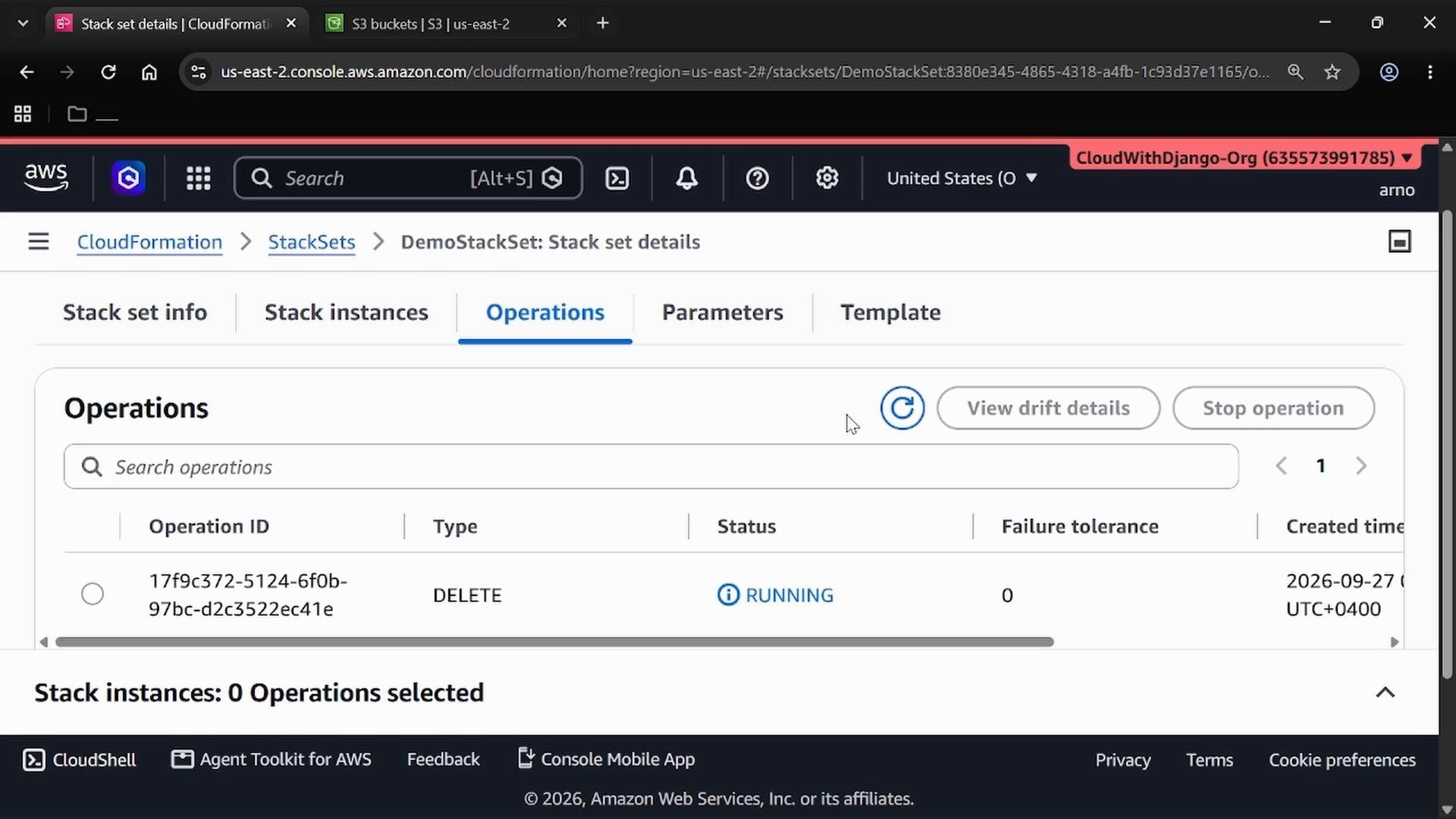
- Review and confirm to start the DELETE operation. CloudFormation will run a StackSet operation to delete stack instances in the specified locations.
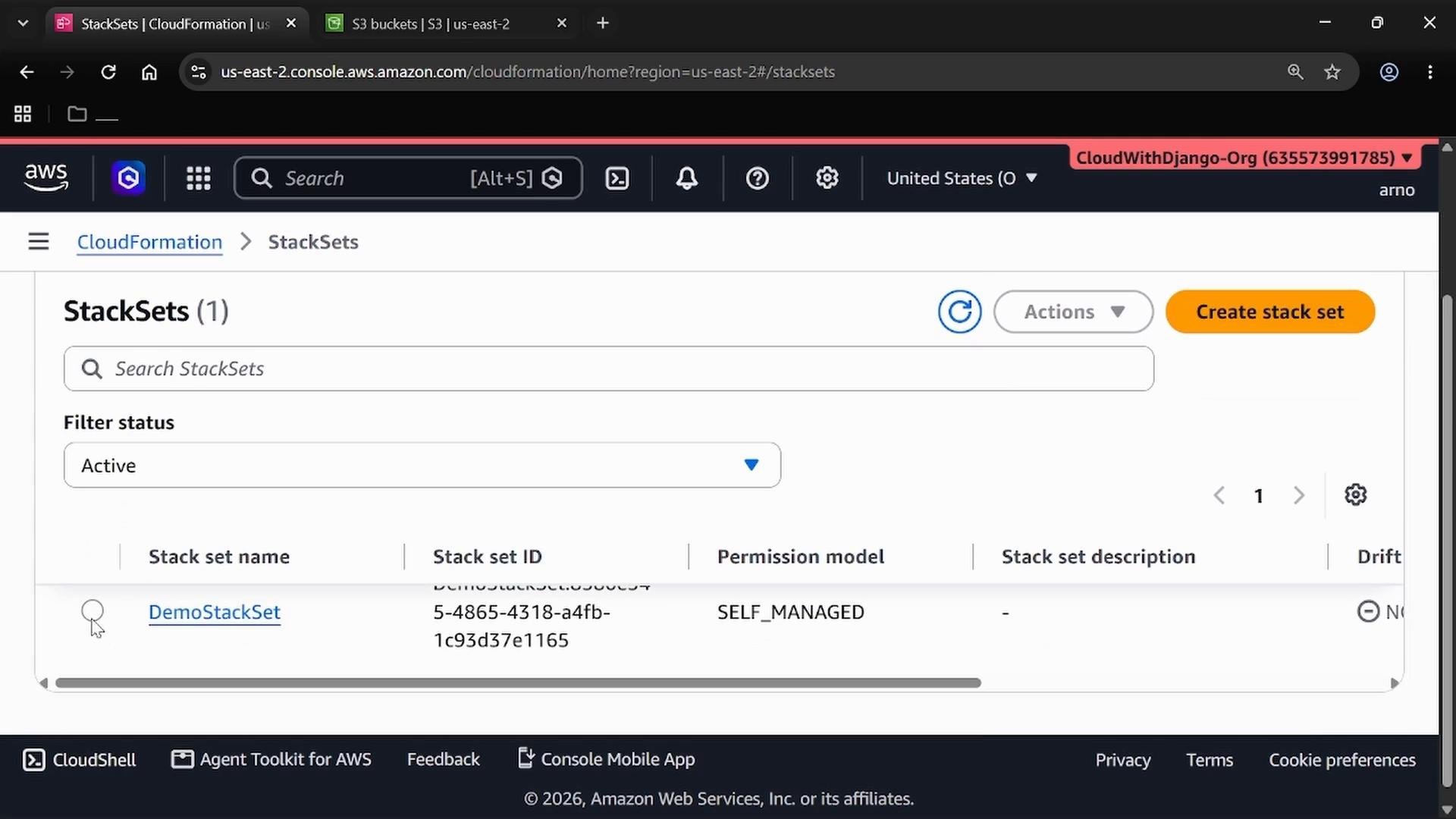
- Select the StackSet and choose Actions → Delete stack set to remove the StackSet itself.
- Confirm instances report
SUCCEEDED(or the expected terminal status) before initiating deletion if you need to preserve logs or outputs.
Important: Deleting resources is destructive. Always delete the inner stacks (stack instances) first, verify that all resources that must be retained are backed up, and then delete the outer StackSet.
Summary and best practices
- CloudFormation StackSets enable centralized deployment and management of stacks across multiple AWS accounts and Regions.
- Required IAM roles:
AWSCloudFormationStackSetAdministrationRole— used by the administering account to create/manage stack instances.AWSCloudFormationStackSetExecutionRole— assumed in target accounts/Regions to perform resource creation.
- Update the execution role trust policy so the administration role can assume it (cross‑account trust via
sts:AssumeRole). - Create the StackSet using self‑managed permissions, specify target accounts and Regions, upload the template, configure deployment options, and deploy.
- Clean up by deleting stack instances first, then deleting the StackSet.
- AWS CloudFormation StackSets documentation: https://docs.aws.amazon.com/AWSCloudFormation/latest/UserGuide/what-is-cfnstacksets.html
- IAM roles for StackSets: https://docs.aws.amazon.com/AWSCloudFormation/latest/UserGuide/stacksets-orgs-prereqs.html
- AWS S3 documentation: https://docs.aws.amazon.com/s3/index.html