

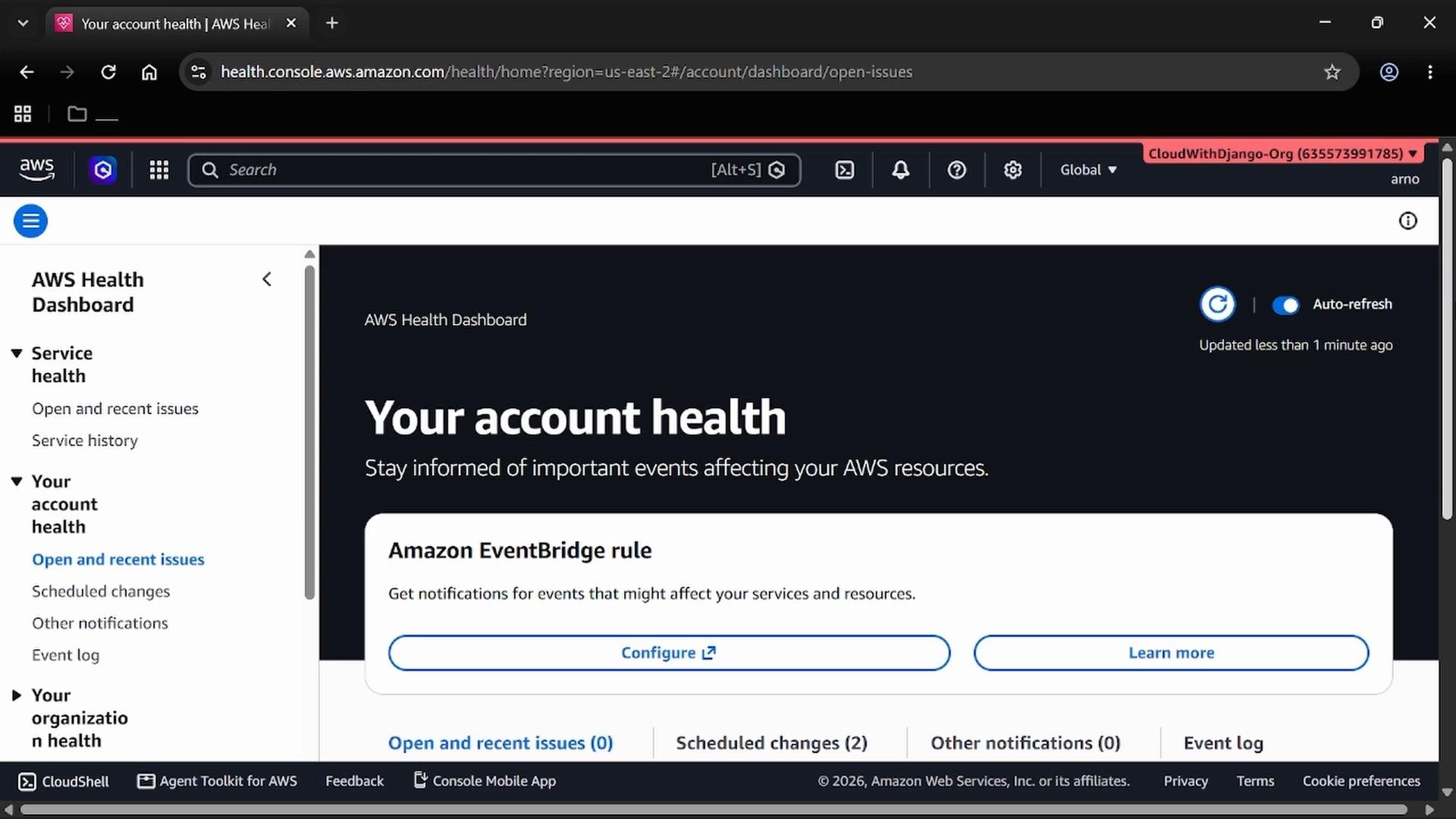
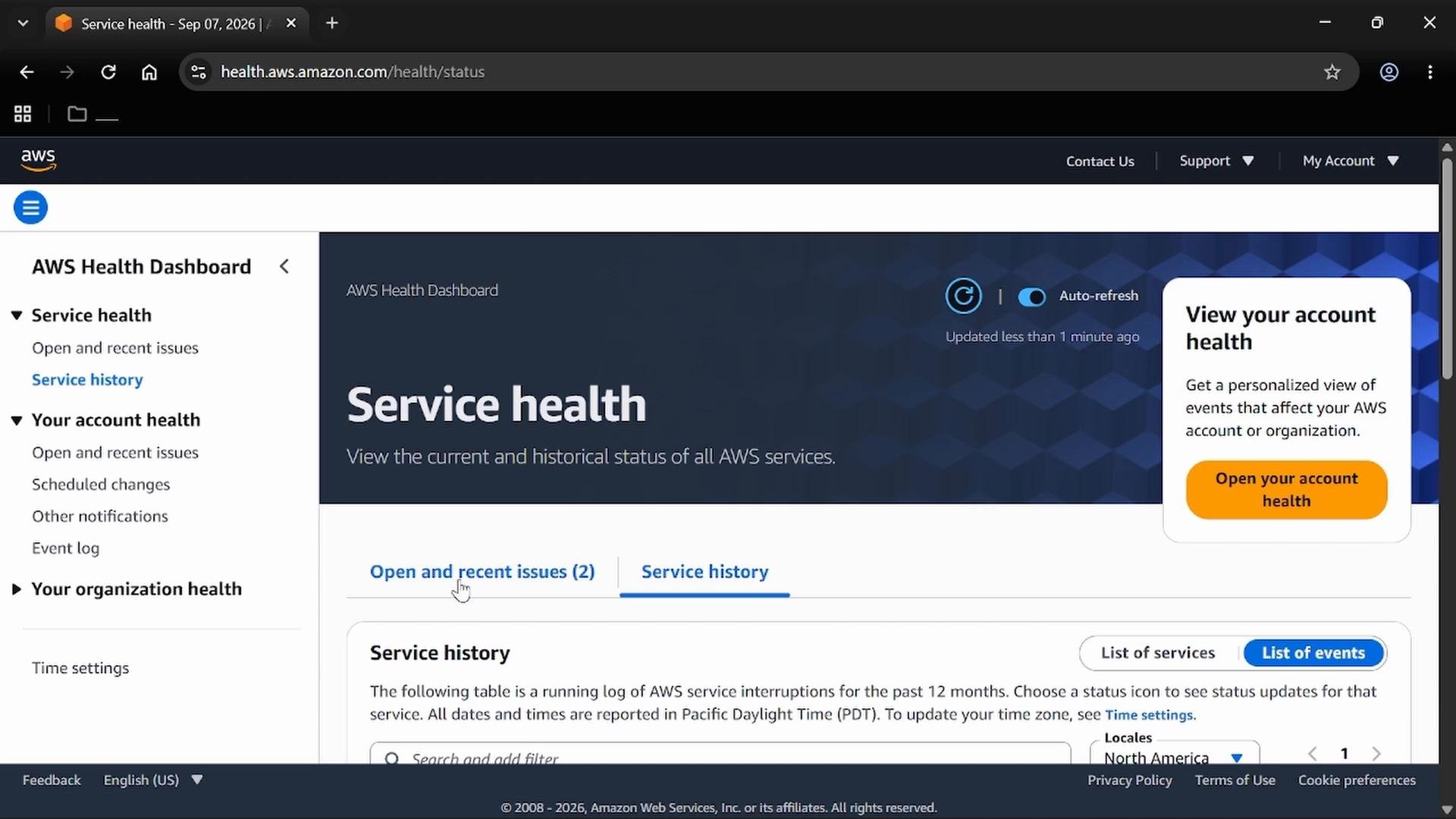
- Account Health: events that specifically affect resources in your AWS account (for example, scheduled changes, planned maintenance, or operational issues impacting your resources).
- Service Health: the global service status across regions (public service interruptions or degraded performance that may affect many accounts).
Account Health is scoped to your AWS account and resources. Service Health reports broader AWS service status across regions. Choose the view that matches the scope of incidents you need to monitor.
Scroll the dashboard to see lists of open and recent issues. Account-level entries include the event type (for example, “billing planned lifecycle event”), the region, start time, and affected resources. Each event’s log shows update timestamps and descriptive details about the impact and resolution.
Operational issue entries commonly include:
- Region and availability zone (if applicable)
- Start and (if available) end times
- A problem description and remediation details
- Affected AWS services (for example, IAM Identity Center, AWS STS, Amazon Connect)
- Click the notifications icon (bell) to open the Notification Center (User Notifications).
- Choose a service to enable Common Notifications — select Health.
- Create a new notification configuration (for example, “Health quick setup”).
- Event type: choose AWS Health events.
- Regions: pick one or more AWS Regions where events will be sourced (for example, US East (Ohio)).
- Delivery channels: add delivery channels such as Email, AWS Console Mobile App, or chat integrations (Amazon Chime, Microsoft Teams, Slack).
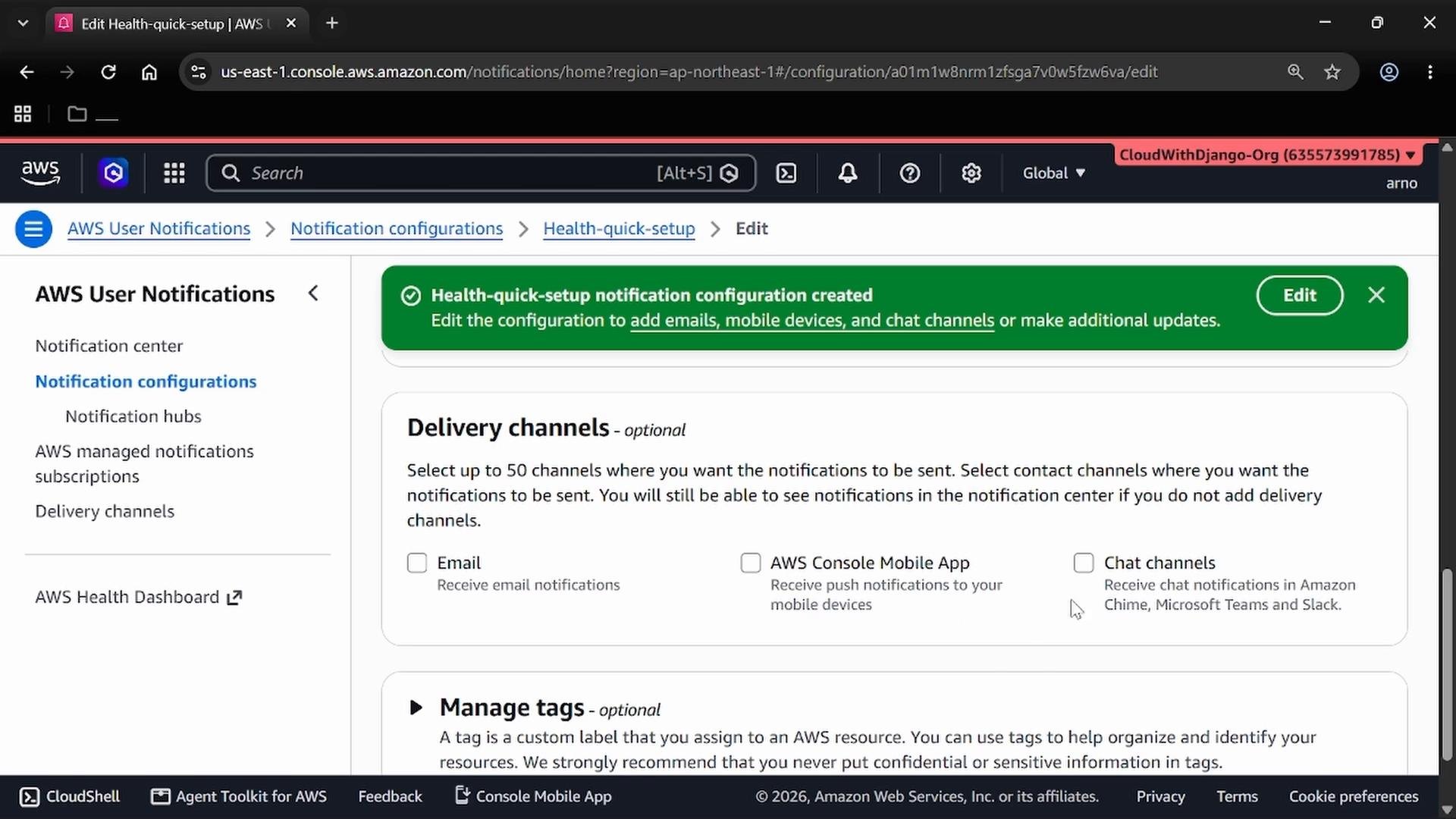
When selecting Email as a delivery channel, you’ll be prompted to enter recipient details and a channel name. You can remove Email if you do not want email notifications — but be aware that removing it clears the entered email addresses for that channel.
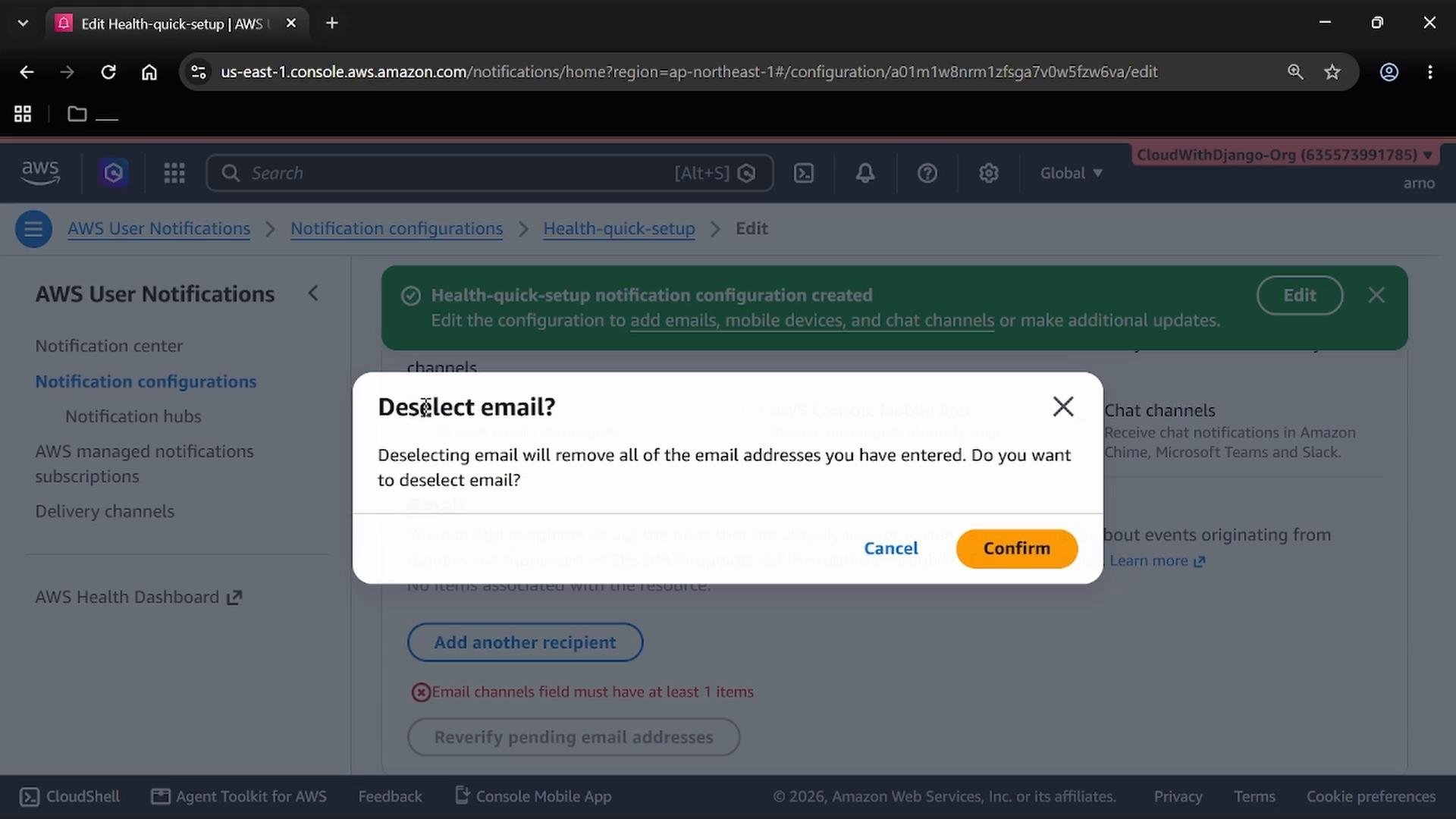
Email delivery for notifications may be restricted by regional SES endpoints. If you rely on email, confirm your selected region supports SES-based notifications or add alternate channels (mobile push or chat) to ensure delivery.
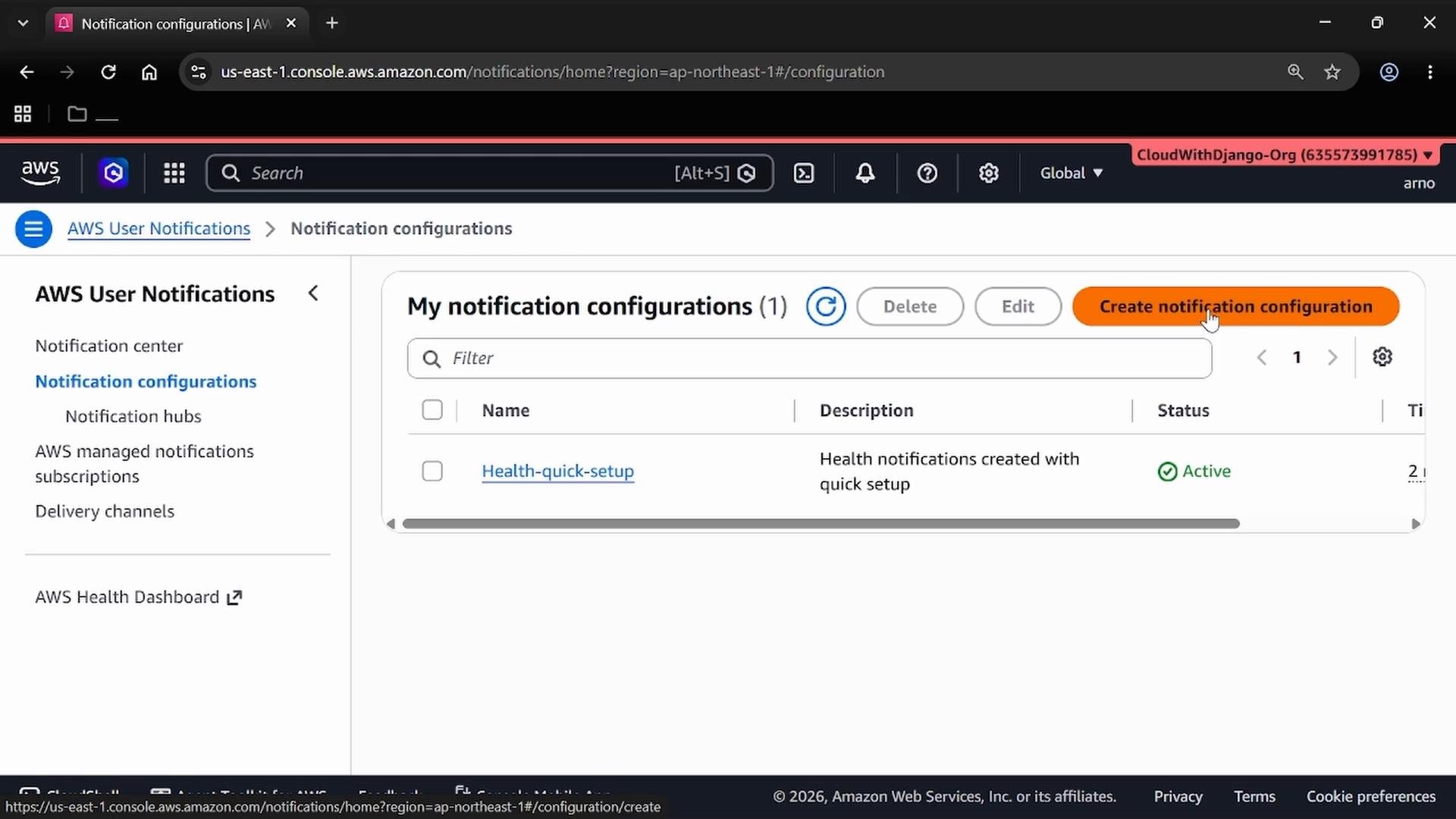
- Edit a configuration to change regions, event types, or channels
- Delete a configuration
- Create additional configurations to cover different regions, event types, or recipient groups
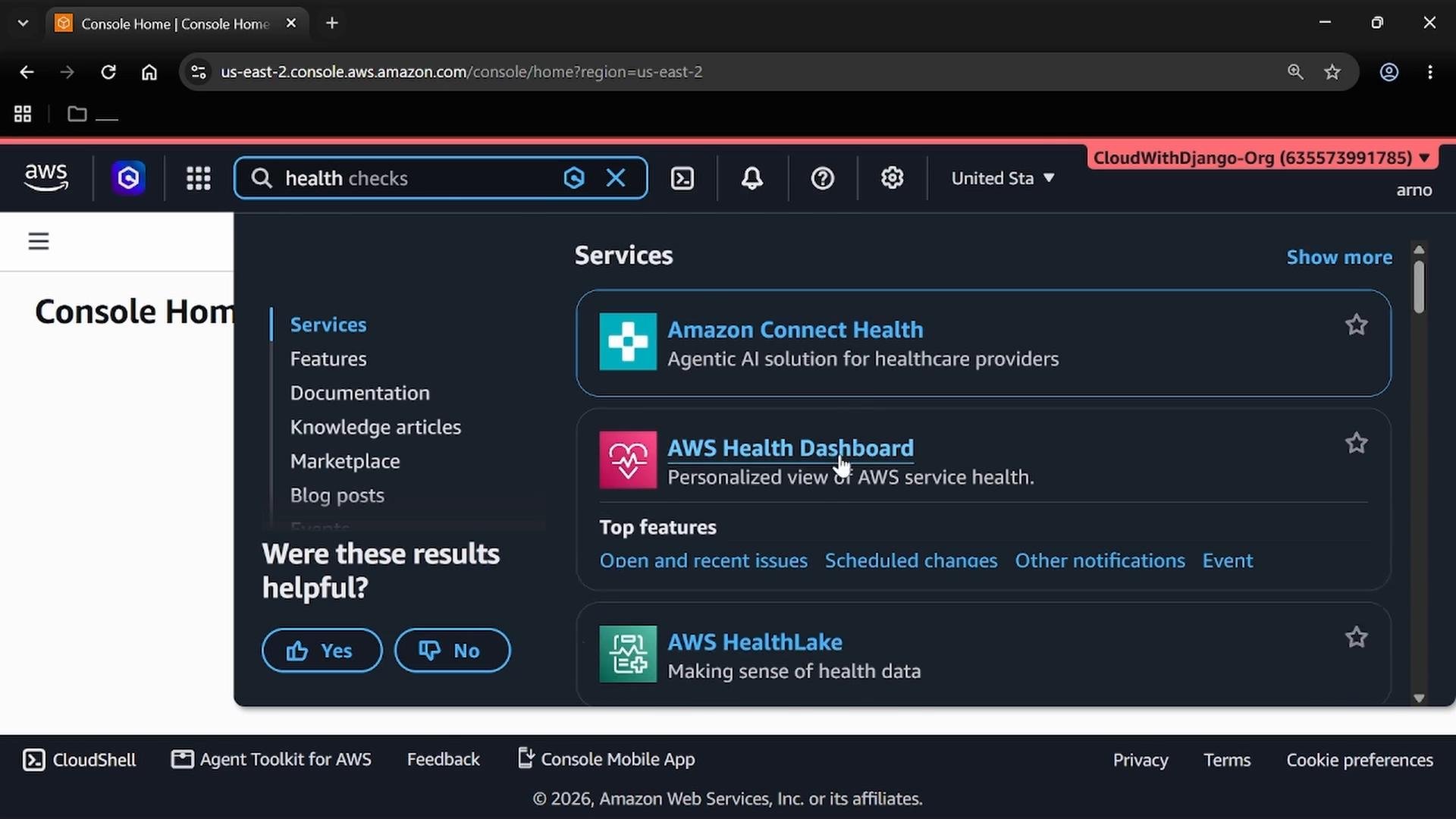
- Open the AWS Console and navigate to Health.
- Review Account Health vs Service Health to determine your scope.
- Open Notification Center (bell icon) → Enable Health common notifications.
- Create a notification configuration: select event types, regions, and delivery channels.
- Add recipients or channels (email, mobile app, chat) and save.
- Test or monitor to confirm notifications are received; edit configuration as needed.
- AWS Health Dashboard overview: https://docs.aws.amazon.com/health/latest/ug/what-is-aws-health.html
- AWS SES Regions and endpoints: https://docs.aws.amazon.com/ses/latest/dg/regions.html
- AWS Console Mobile App: https://aws.amazon.com/console/mobile/
- Amazon Chime: https://aws.amazon.com/chime/
- Microsoft Teams: https://learn.microsoft.com/en/microsoftteams/
- Slack: https://slack.com/