

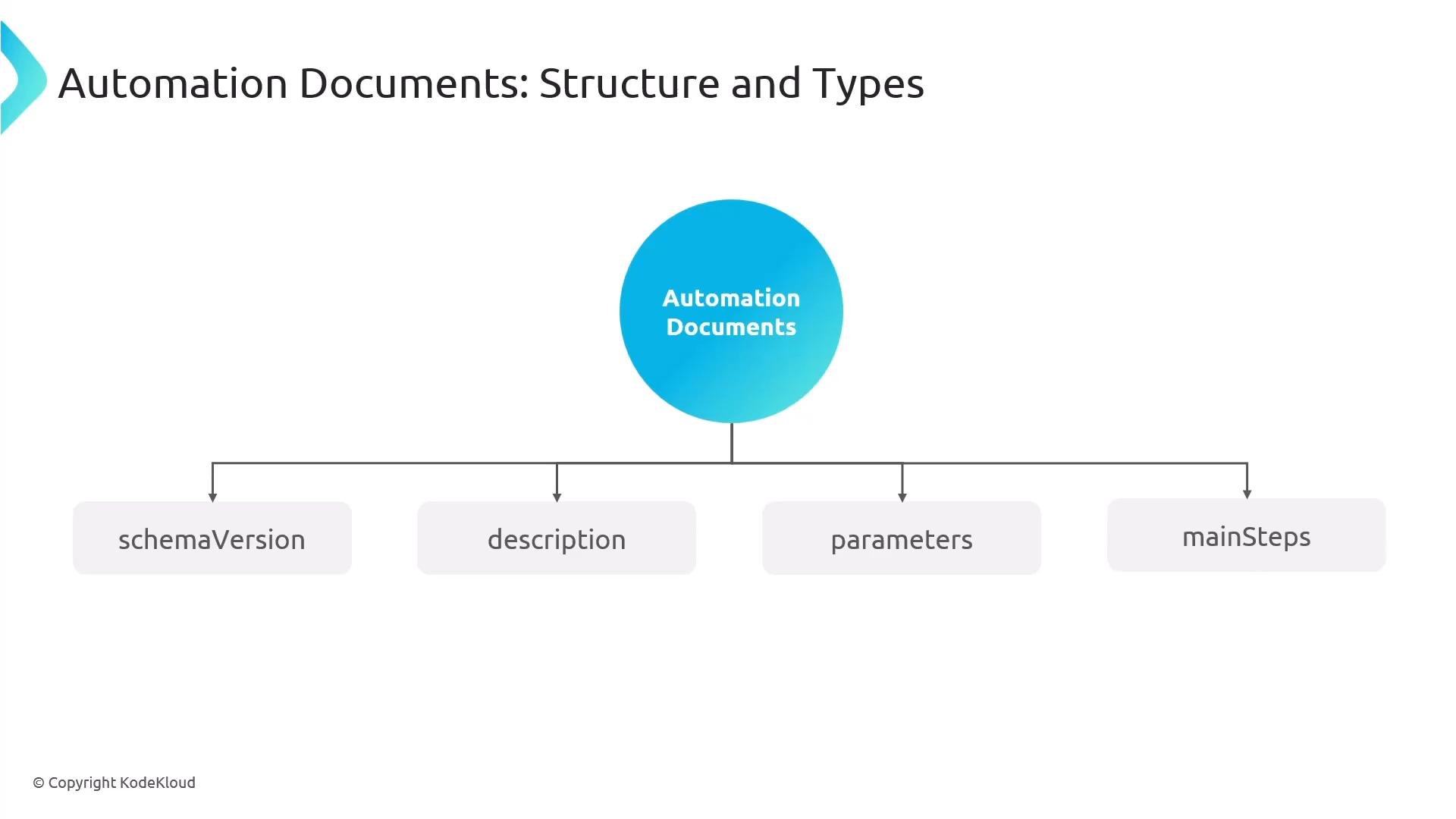
Automation document structure
Automation documents follow a simple, predictable schema so you can author repeatable runbooks:schemaVersion– document schema version.description– human readable description.parameters– input variables for the runbook.mainSteps– ordered steps executed by the runbook.
mainStep defines an action (e.g., call an AWS API, run a script, invoke Run Command, or call another document), inputs, outputs, and optional error handling. Documents support versioning so you can track changes and roll back if needed.
Built‑in vs custom runbooks
AWS provides many common automation documents for routine tasks (patching, stopping instances, creating snapshots, restarting instances, enabling S3 logging, etc.). These AWS‑maintained runbooks are great starting points or references when authoring custom documents.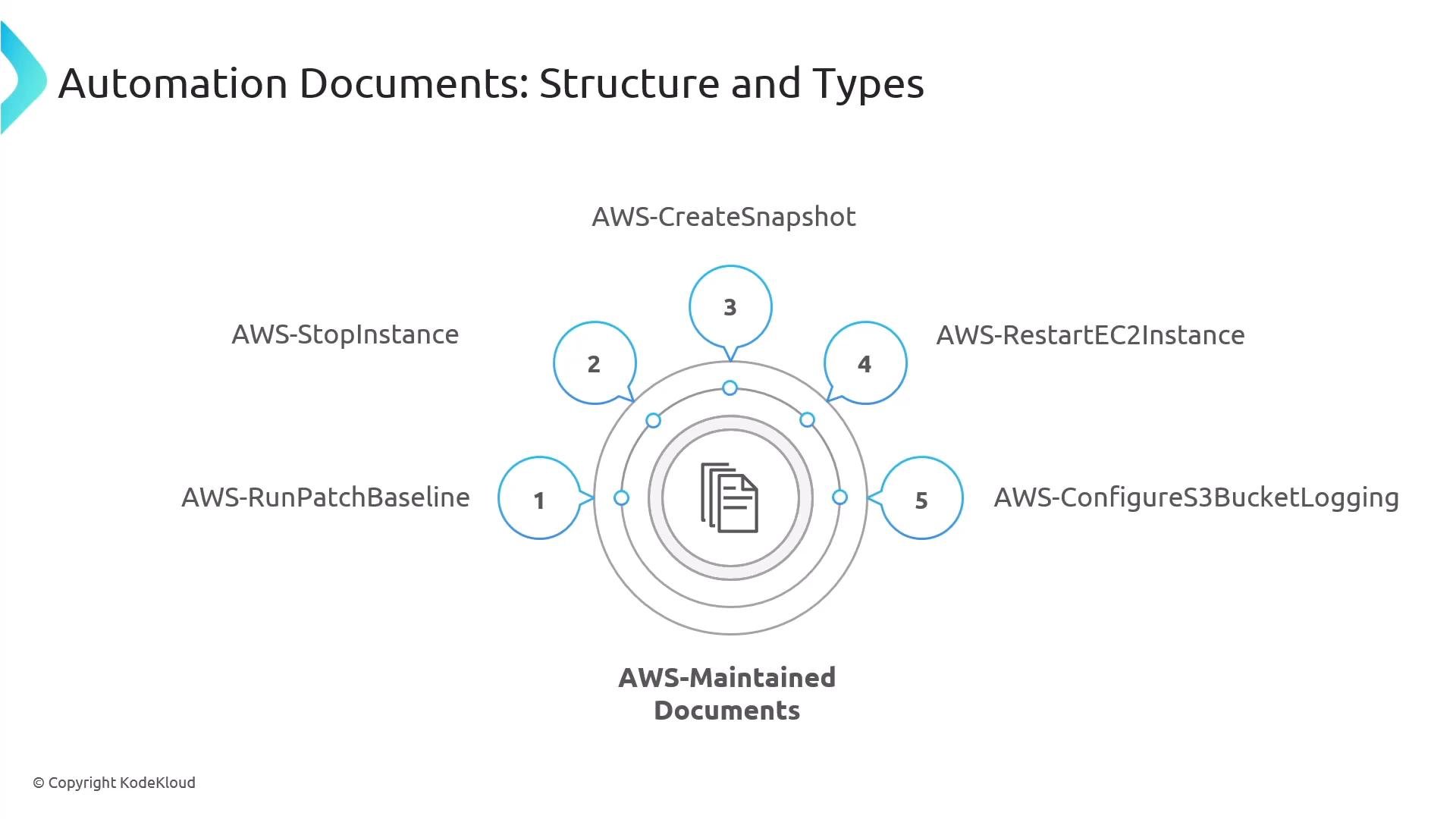
Workflow controls and actions
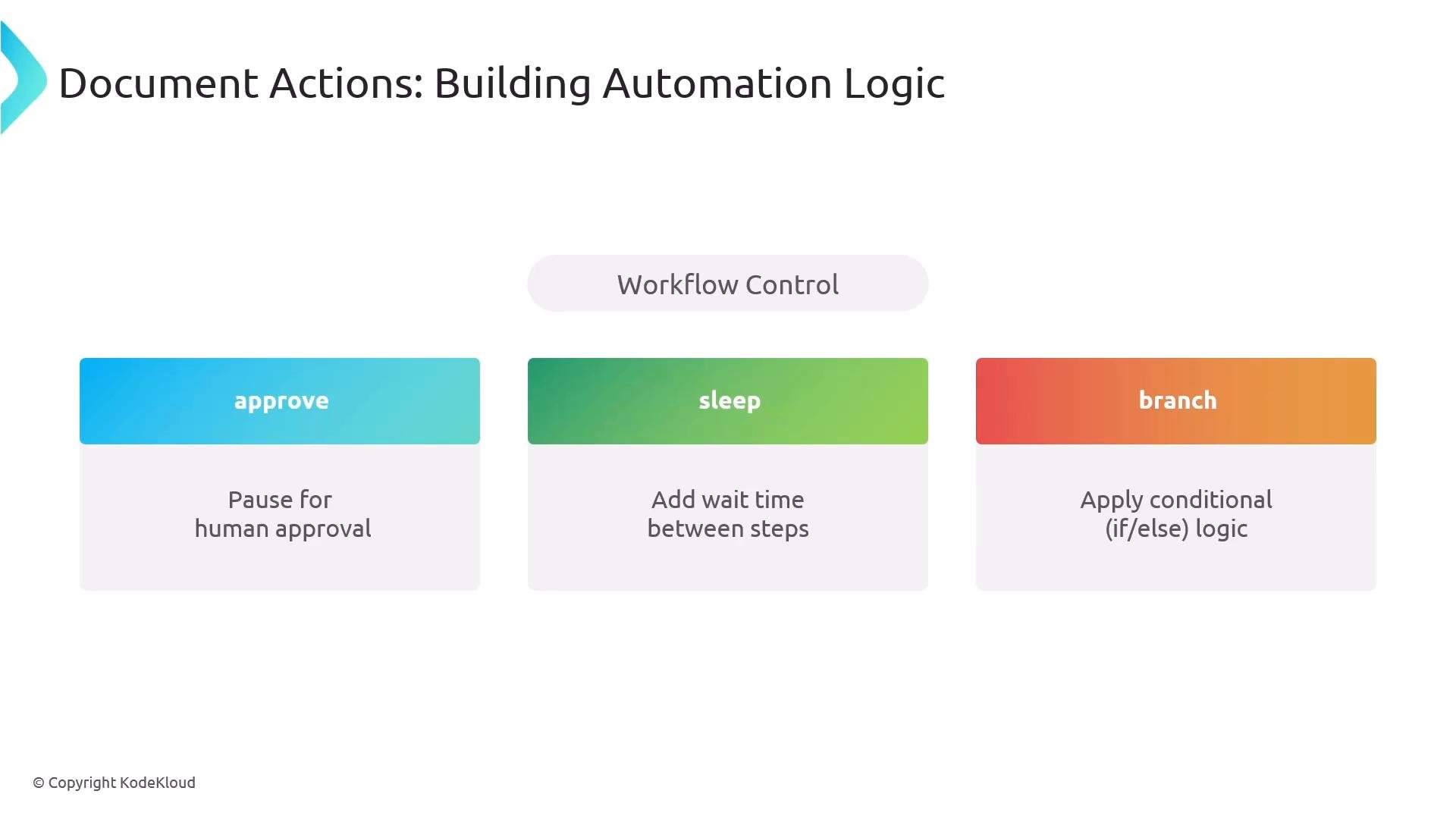
Document actions support API calls and script execution (PowerShell, Python, shell). SSM Automation provides built‑in workflow controls to orchestrate steps:- Branching (if/else) logic
- Sleep/wait periods
- Human approval steps (aws:approve)
- Error handling and retry logic
- Step outputs that feed into subsequent steps
Cross‑account execution
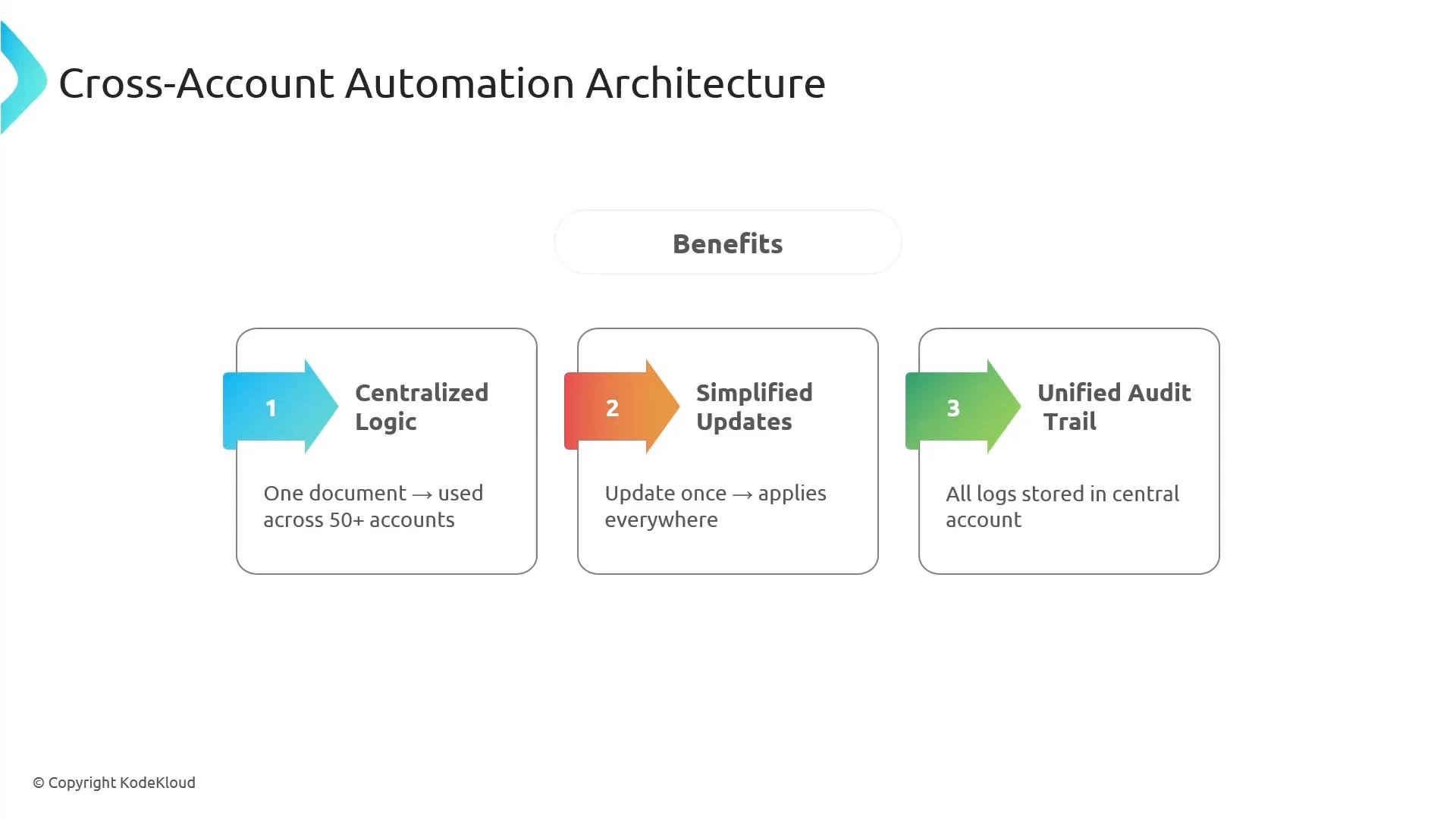
SSM Automation supports cross‑account remediation. A centralized automation account can assume a role in target member accounts to perform actions (lock down SSH, update security groups, apply ACL changes, etc.). For this pattern to work, the automation execution must be allowed to assume the role in the target account—so configure IAM trust and permissions accordingly.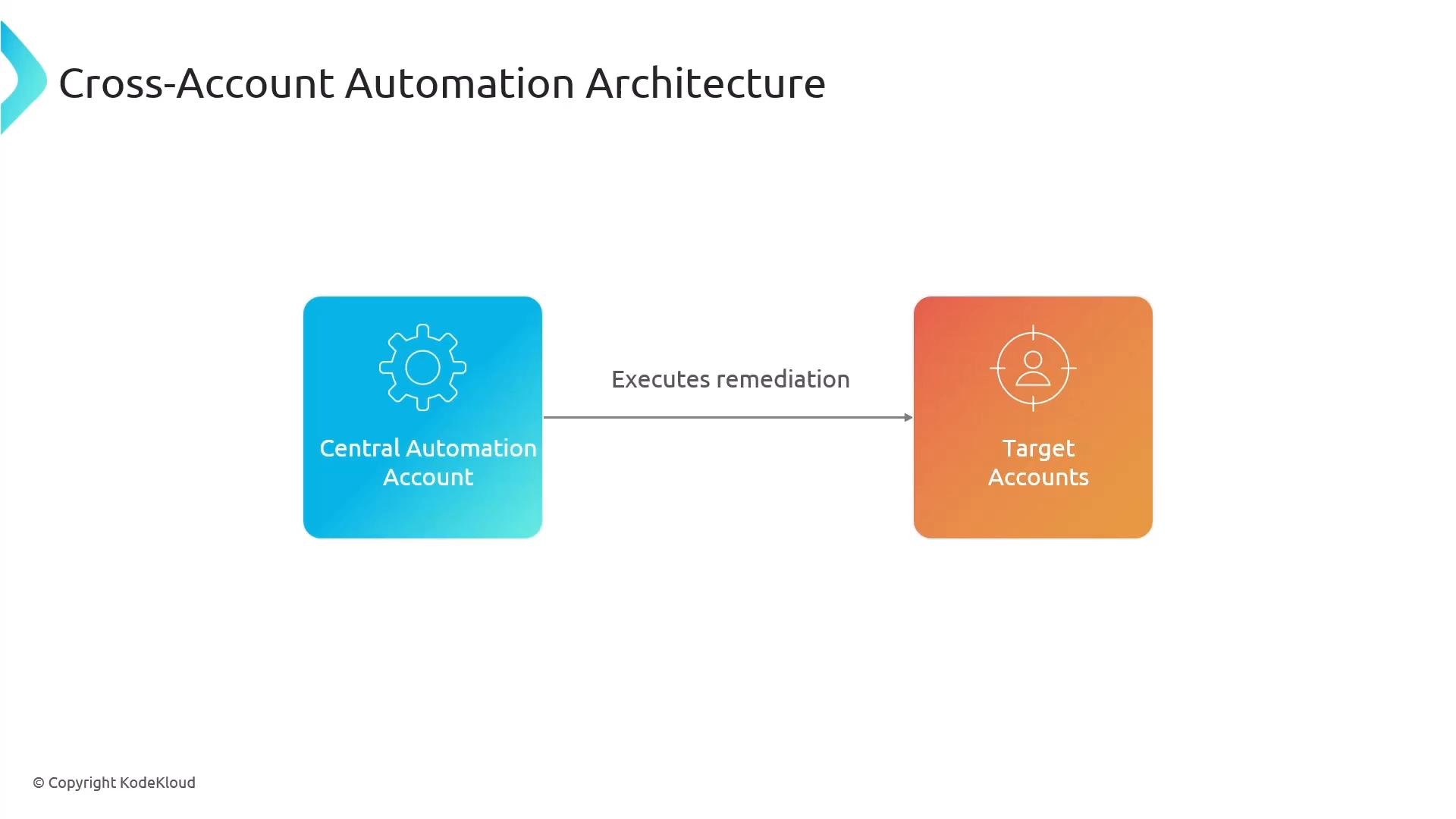
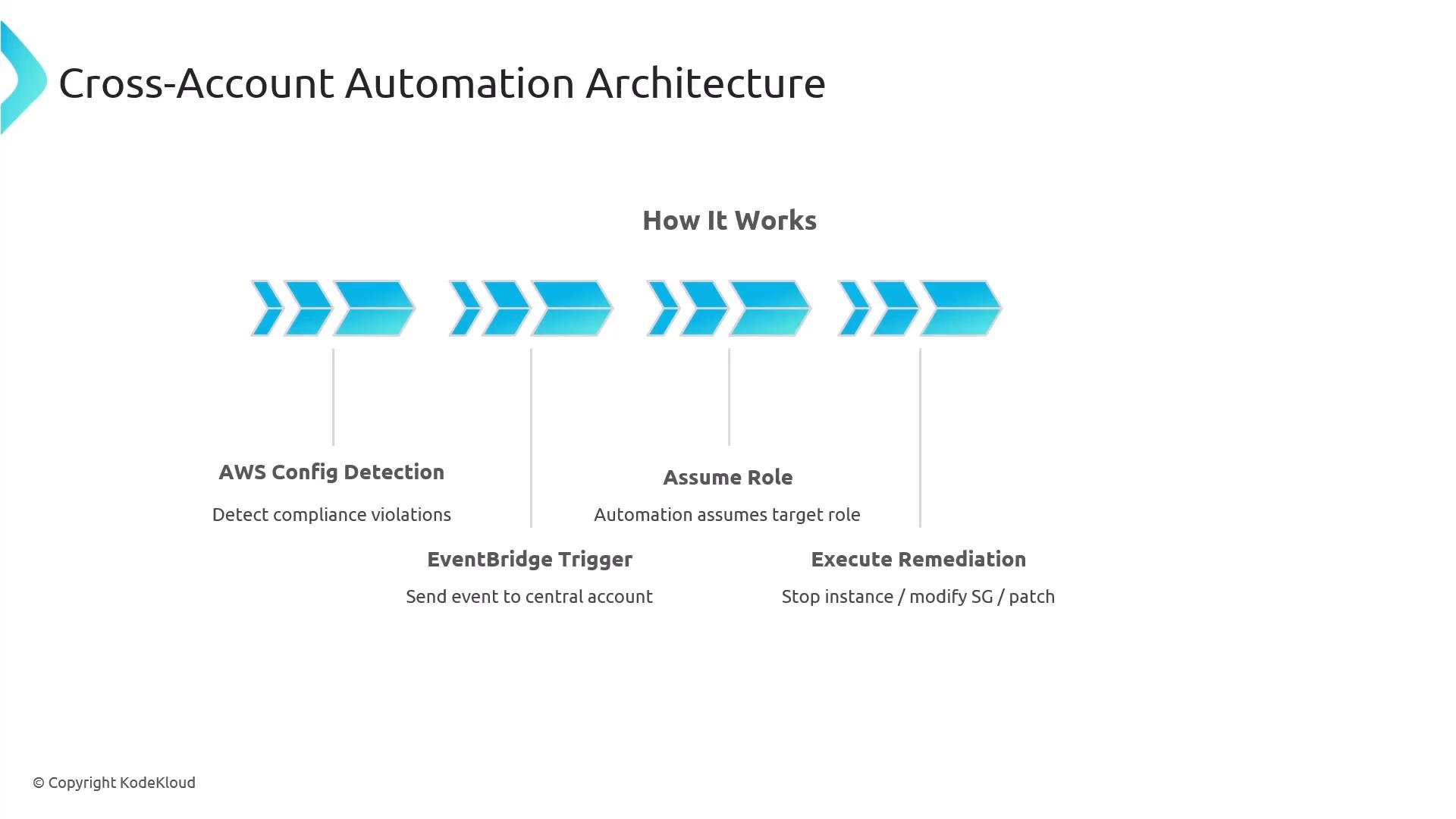
- AWS Config detects a non‑compliance (or an EventBridge rule matches an event).
- EventBridge (or another event source) triggers the automation in the central account.
- The automation assumes a role in the target account and runs remediation.
- Results and logs flow back to the central account for auditing.
Automation execution concurrency is limited (for example, 100 concurrent executions per account). Throttle or stagger large-scale remediation to avoid hitting concurrency limits.
Human approval (aws:approve) for high‑risk steps
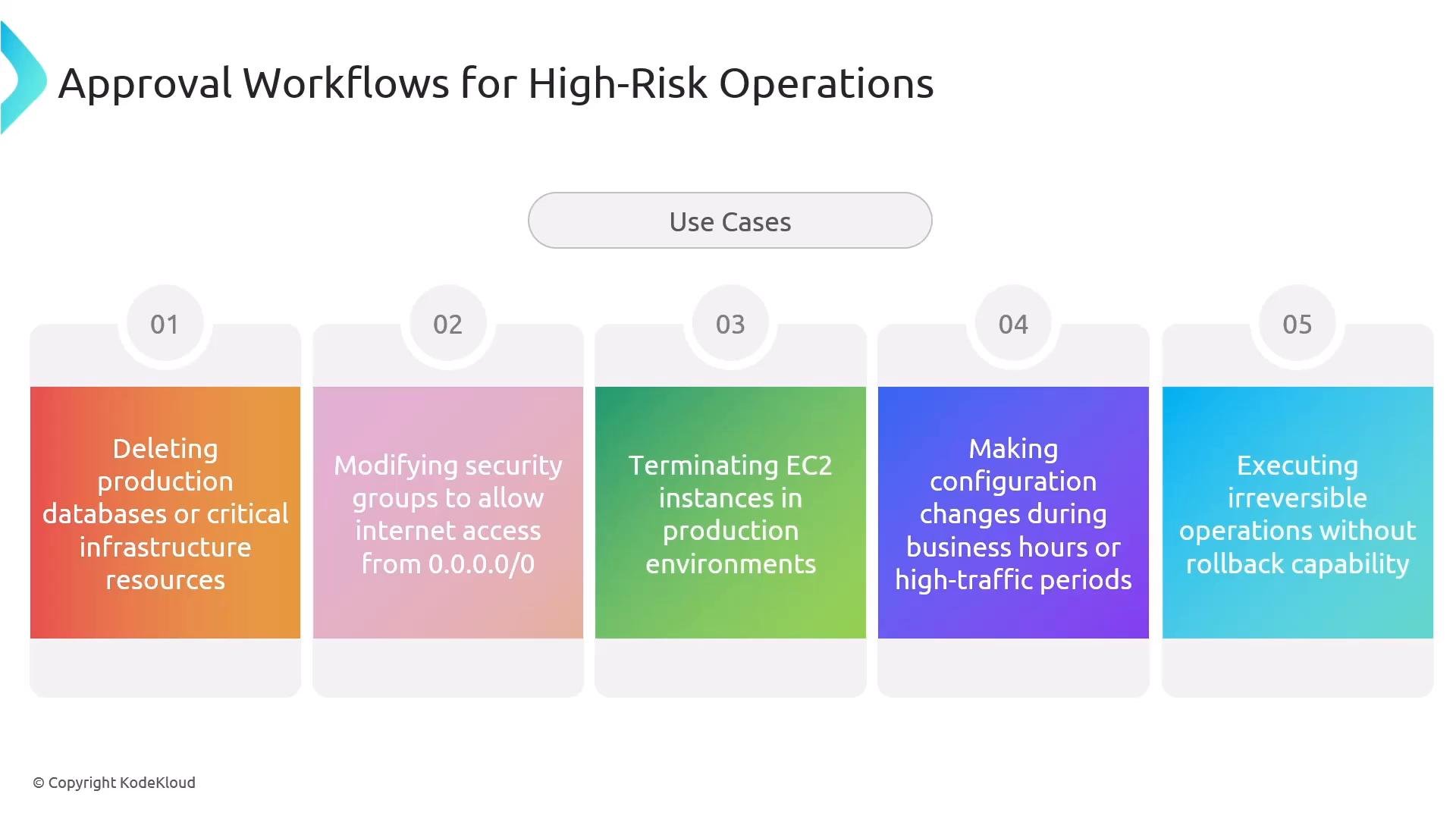
For destructive or irreversible operations—deleting production databases, opening security groups to 0.0.0.0/0, terminating instances—you should insert anaws:approve step. The approval step pauses execution, notifies approvers (for example via SNS), and proceeds only if the minimum required approvals are received.
Common scenarios that require approvals:
- Deleting production data
- Changing firewall/security group rules to public
- Terminating instances or data stores in high‑traffic periods
- Any irreversible configuration change without automated rollback
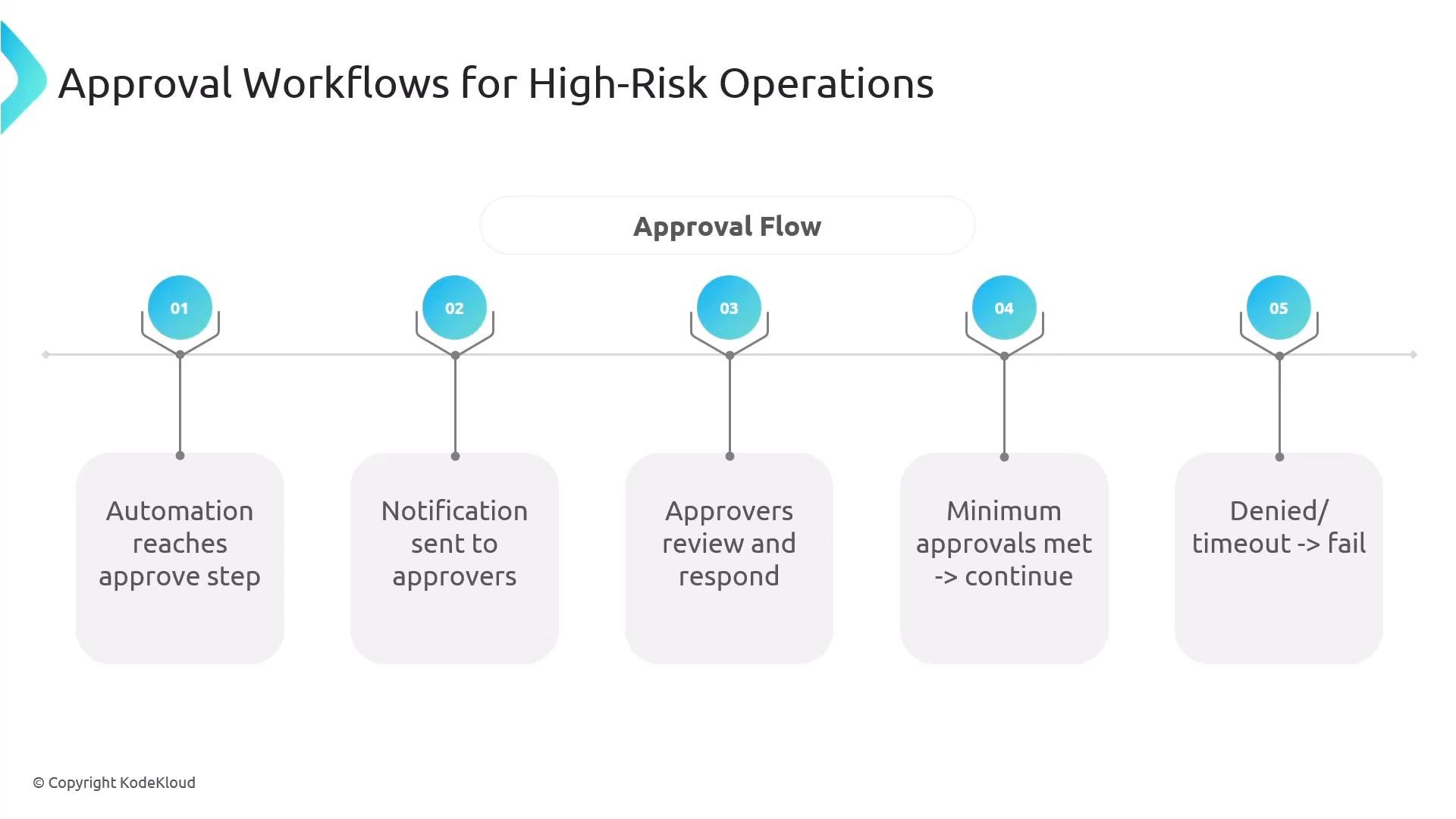
- Automation reaches an
aws:approvestep. - Notification sent to designated approvers (e.g., SNS).
- Approvers review and respond (approve/deny).
- If the minimum approvals are met, automation continues.
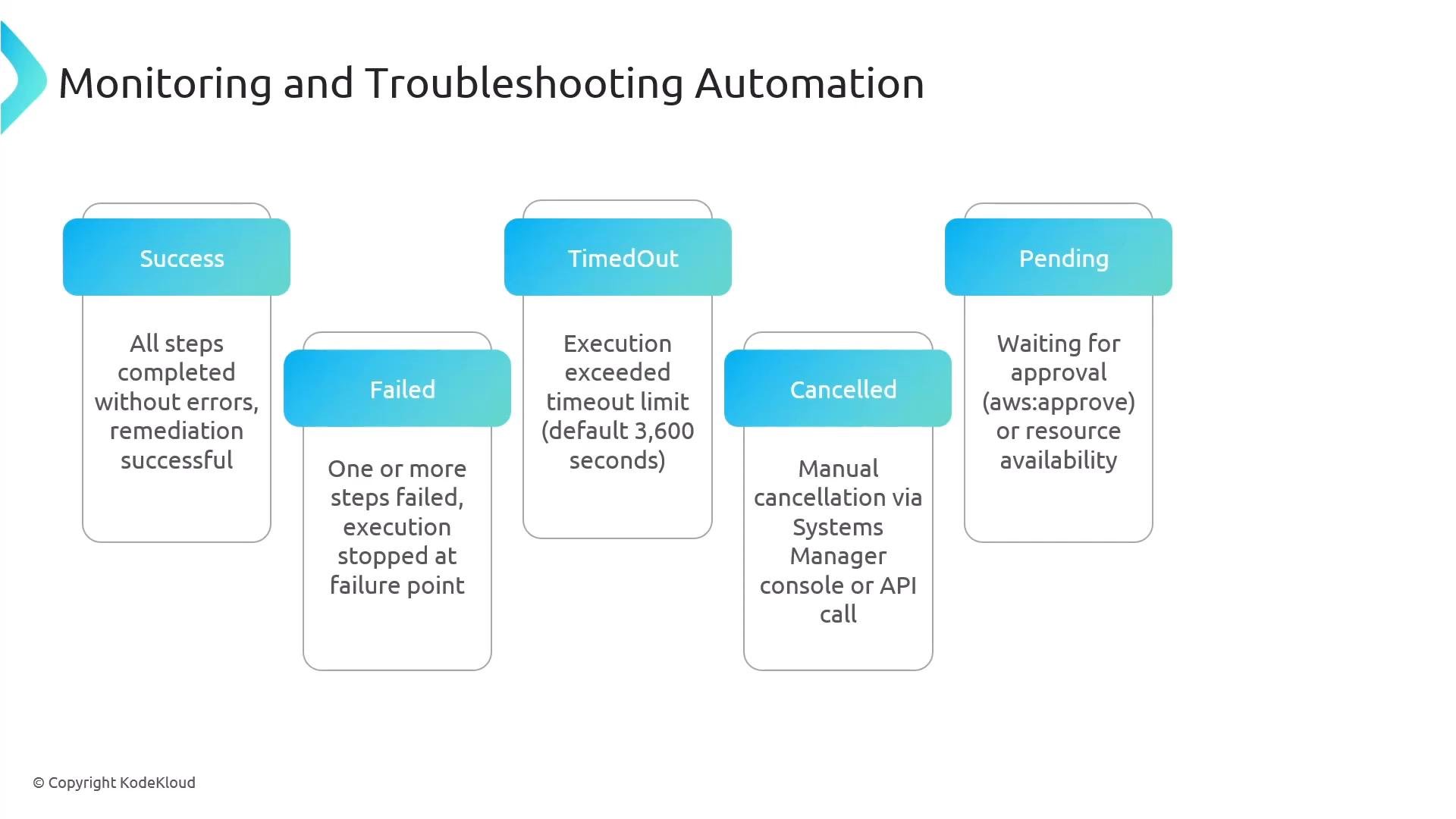
- If denied or timeout occurs, automation fails.
aws:approve step that posts to an SNS topic and requires two approvals:
Integration points and IAM requirements
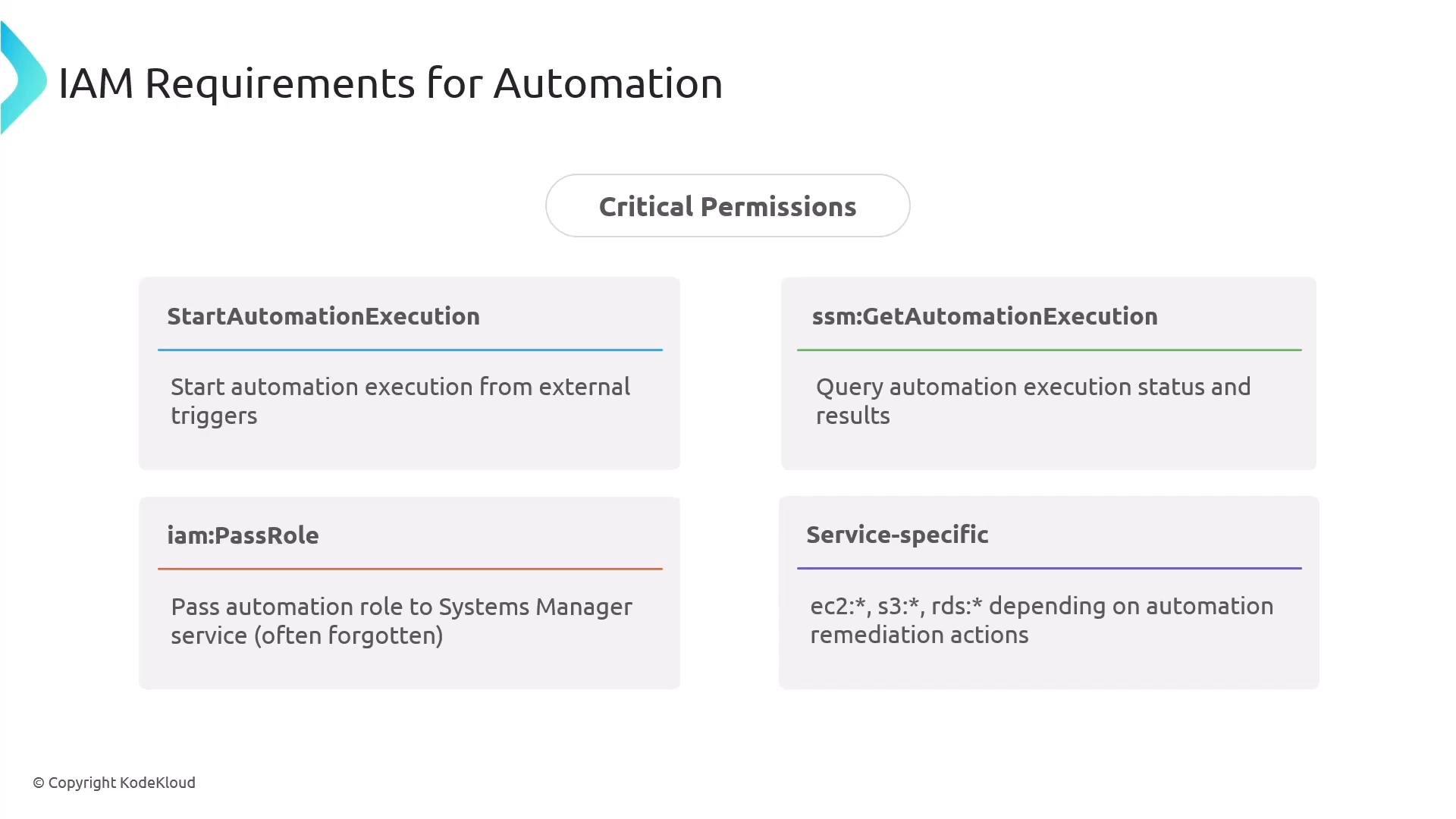
SSM Automation integrates tightly with other AWS services—AWS Config and EventBridge commonly detect issues and start automations. When designing automations, ensure IAM roles and service trusts are correct. Key IAM considerations:Critical permissions to verify:
ssm:StartAutomationExecution, ssm:GetAutomationExecution, and iam:PassRole for the role that invokes or runs Automation. Also ensure service trusts (for example, ssm.amazonaws.com or events.amazonaws.com) are properly configured.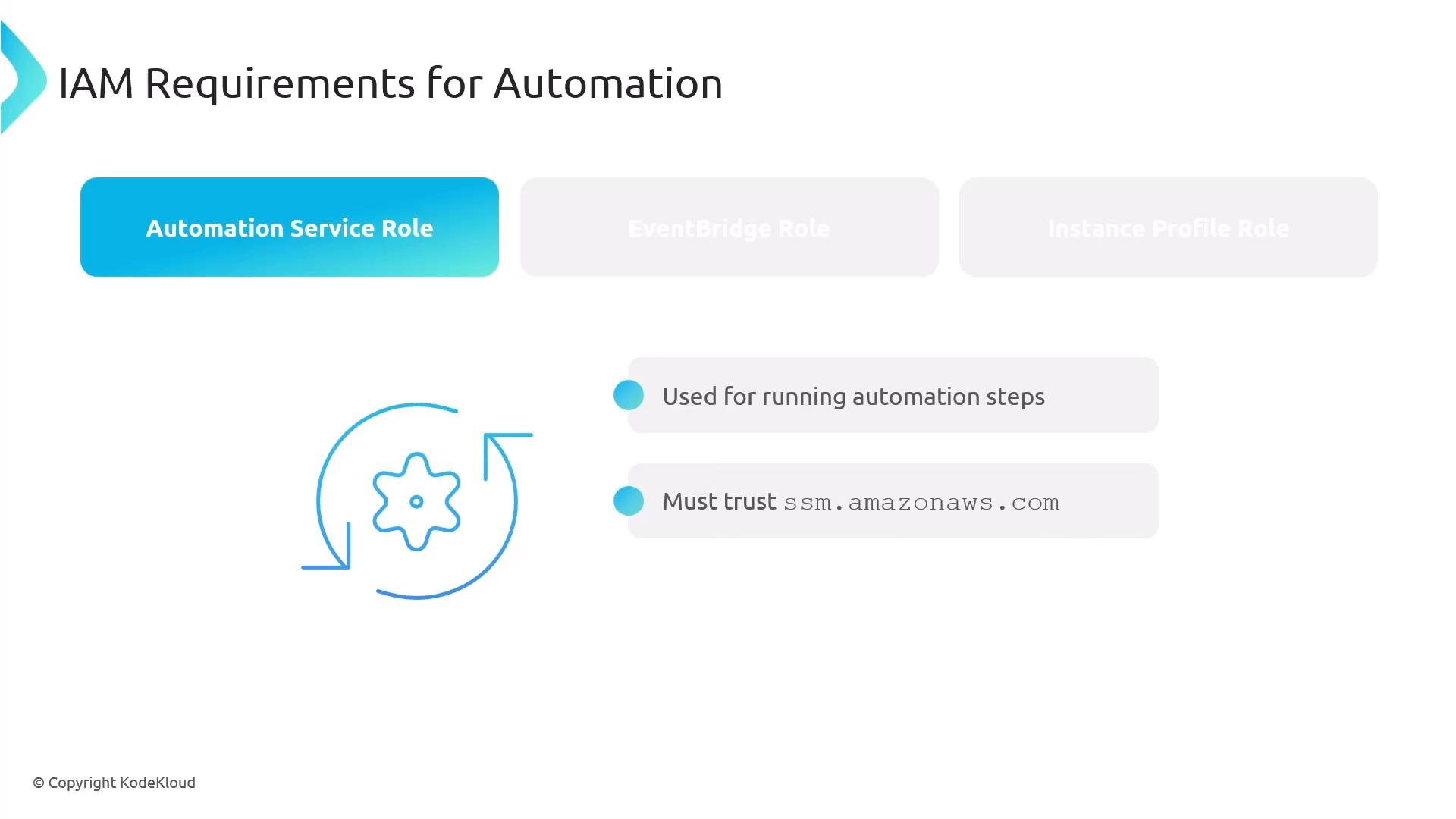
Common use cases
- Patch management and OS updates
- Security remediation (fixing non‑compliant security groups)
- Lifecycle automation (create/delete resources, snapshots)
- Backup and recovery orchestration
- Incident response and configuration drift remediation
Monitoring and troubleshooting
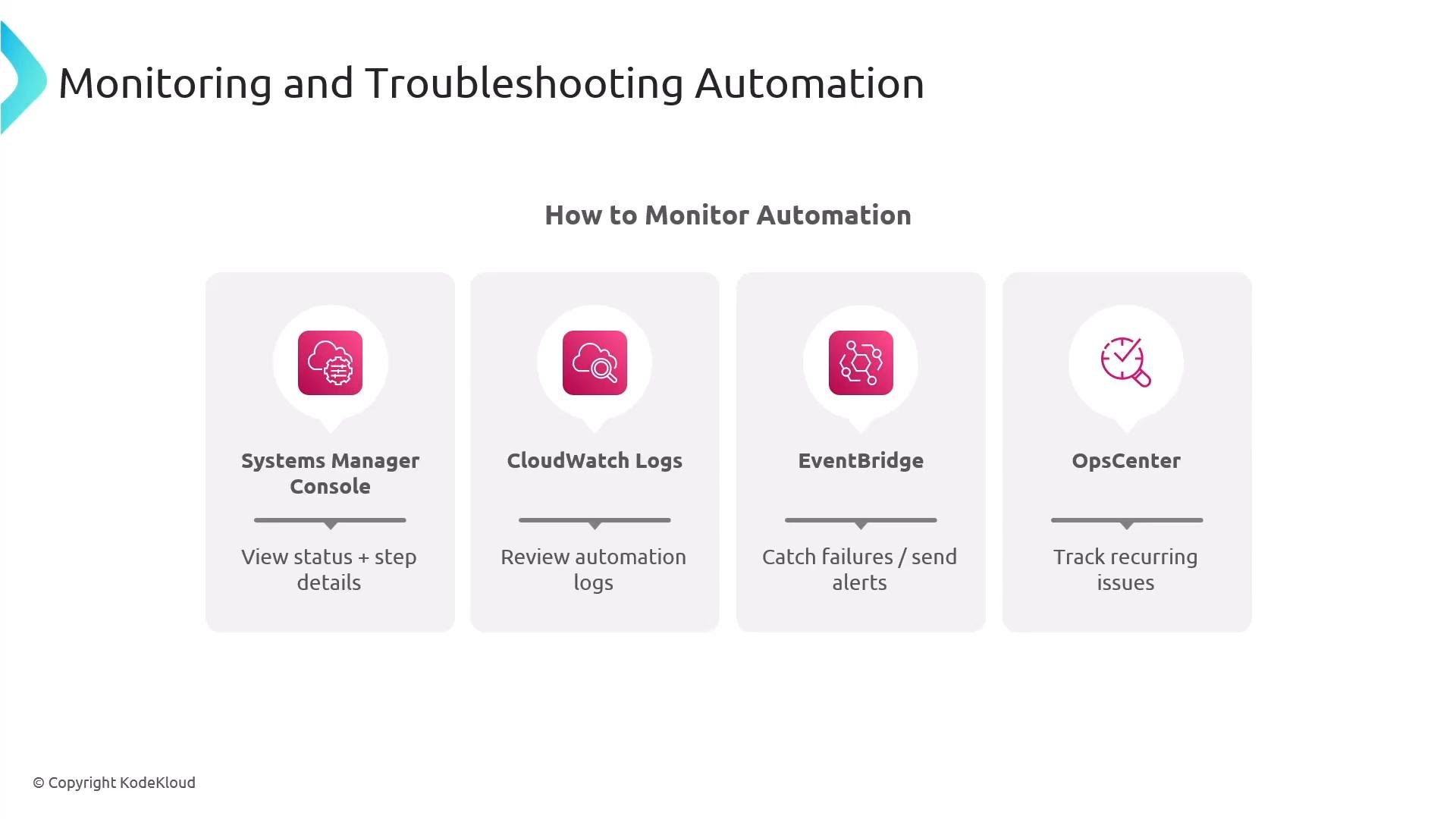
Monitor automation executions using the Systems Manager console, CloudWatch Logs, and EventBridge events. OpsCenter can surface recurring automation failures for centralized investigation.- View execution steps and status in the Systems Manager Automation console.
- Stream detailed logs to CloudWatch Logs; export to S3 for long‑term retention.
- Use EventBridge rules to emit success/failure metrics or trigger alerts.
- OpsCenter aggregates recurring failures into actionable items.
- Missing or insufficient IAM permissions (most frequent).
- Target resource already in an incompatible state or not present.
- API throttling.
- Step exceeded configured timeout.
- Approval timeout if approvers don’t respond.
Production best practices
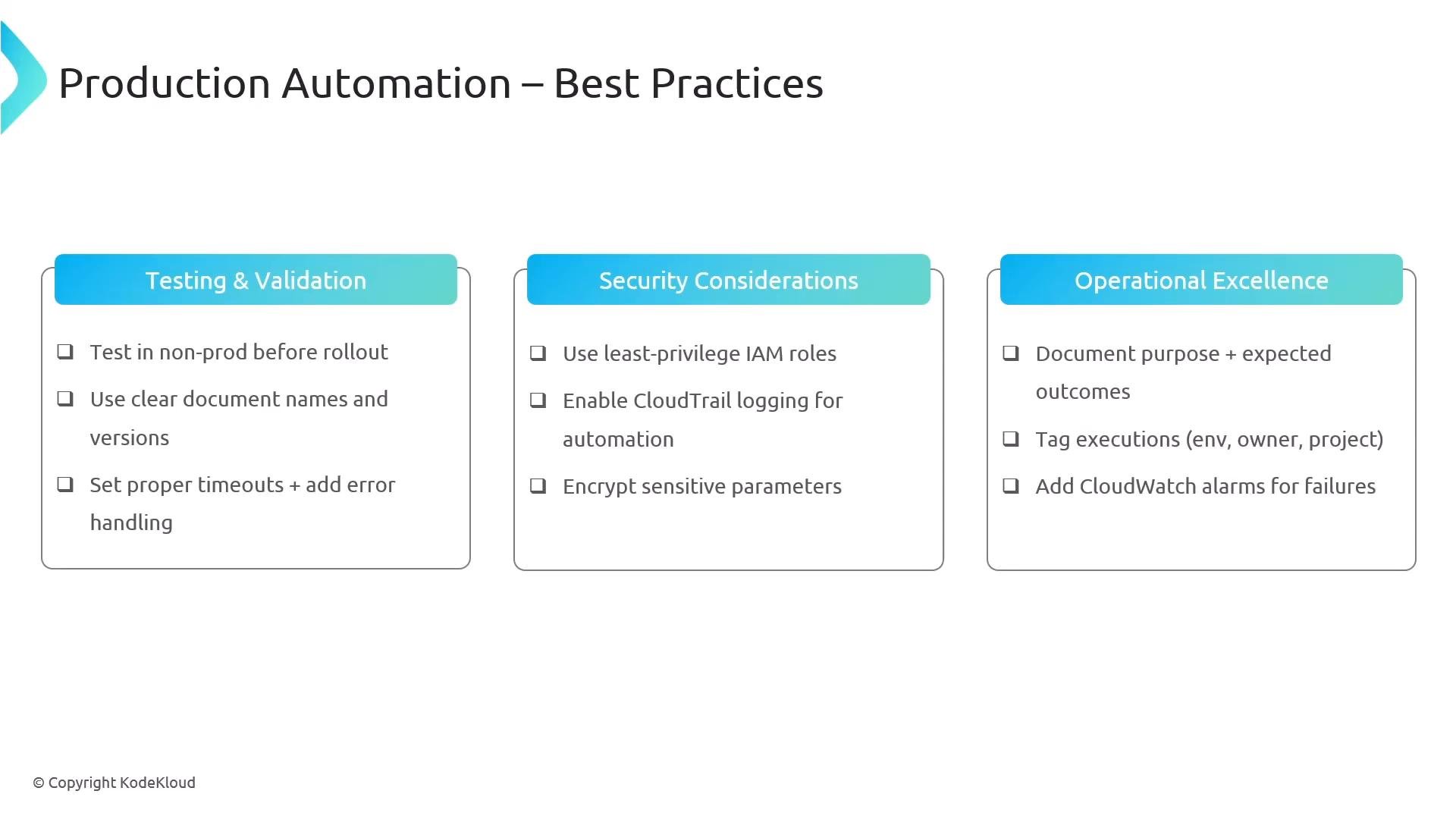
- Validate and test documents in non‑production environments before production deployment.
- Apply least‑privilege IAM for automation roles and approvers; scope permissions tightly.
- Reuse and version‑control documents; tag documents and executions for traceability.
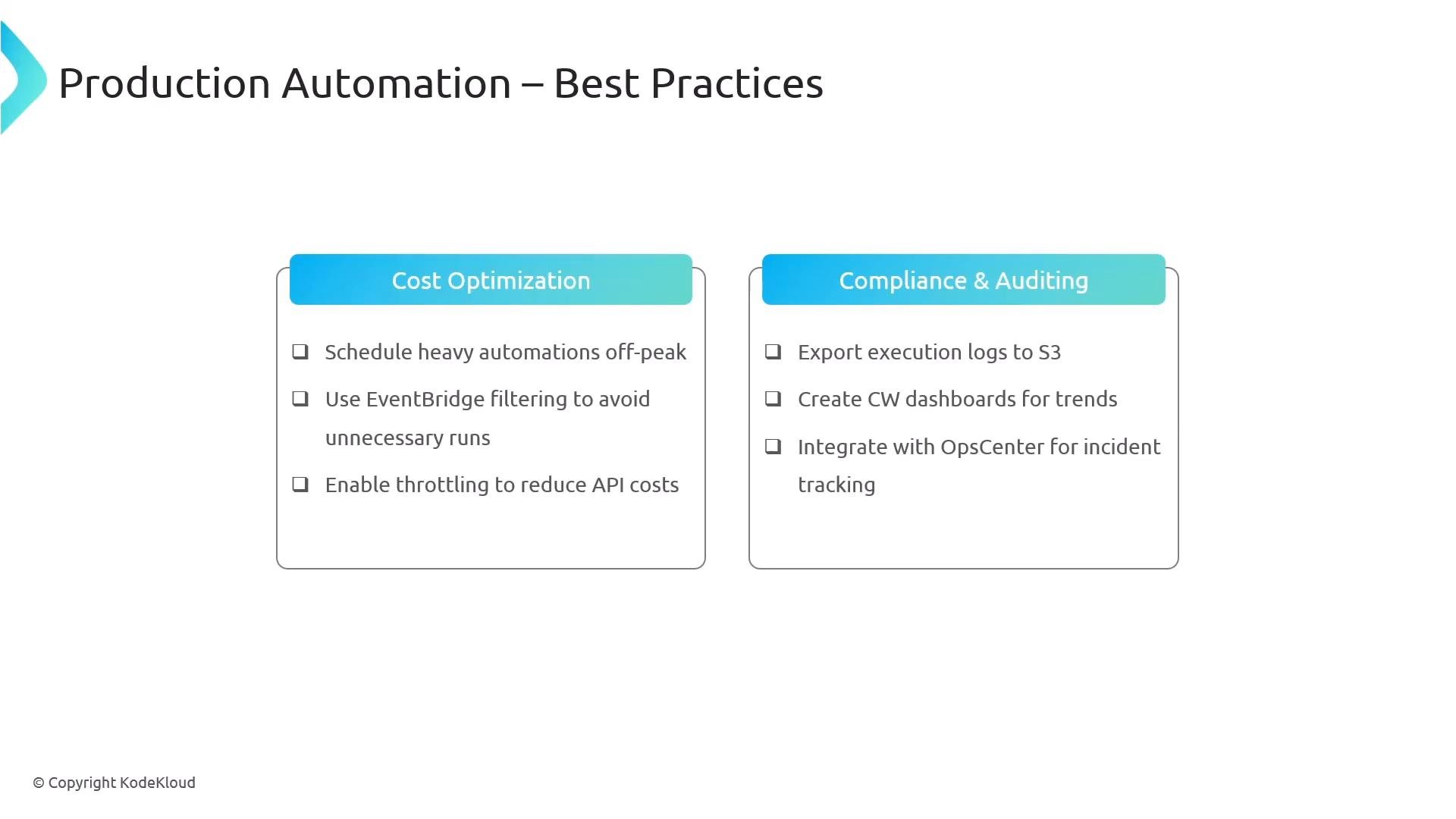
- Export execution logs to S3 and enable CloudTrail for auditability.
- Use EventBridge filtering to reduce noisy triggers and unnecessary executions.
- Throttle or schedule heavy automations off‑peak to reduce throttling risk and control cost.
- Integrate with OpsCenter and CloudWatch dashboards for operational visibility.
Summary
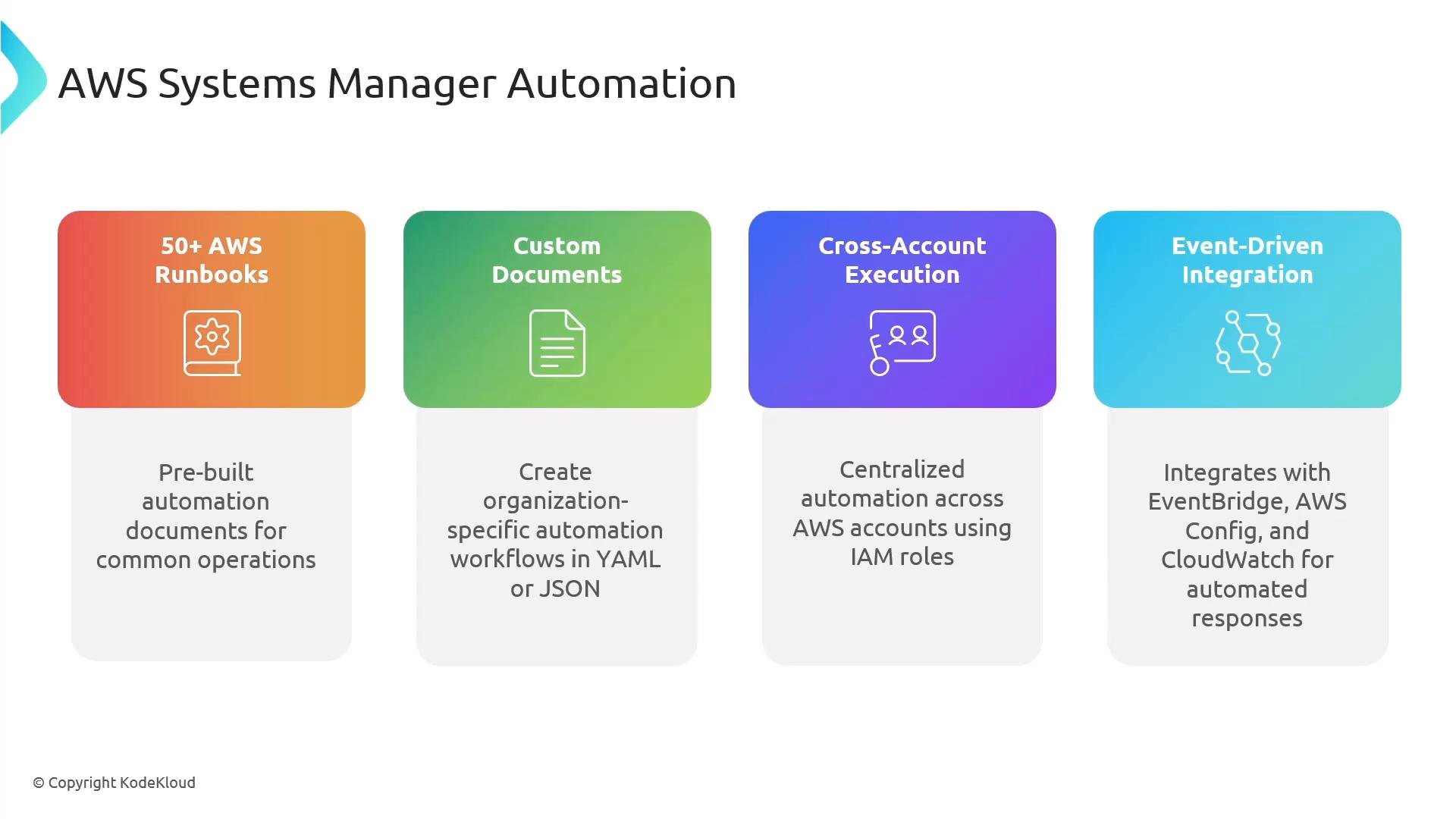
SSM Automation is a powerful tool for event‑driven, auditable, and repeatable operational workflows. Key takeaways:- Documents are simple YAML/JSON structures with
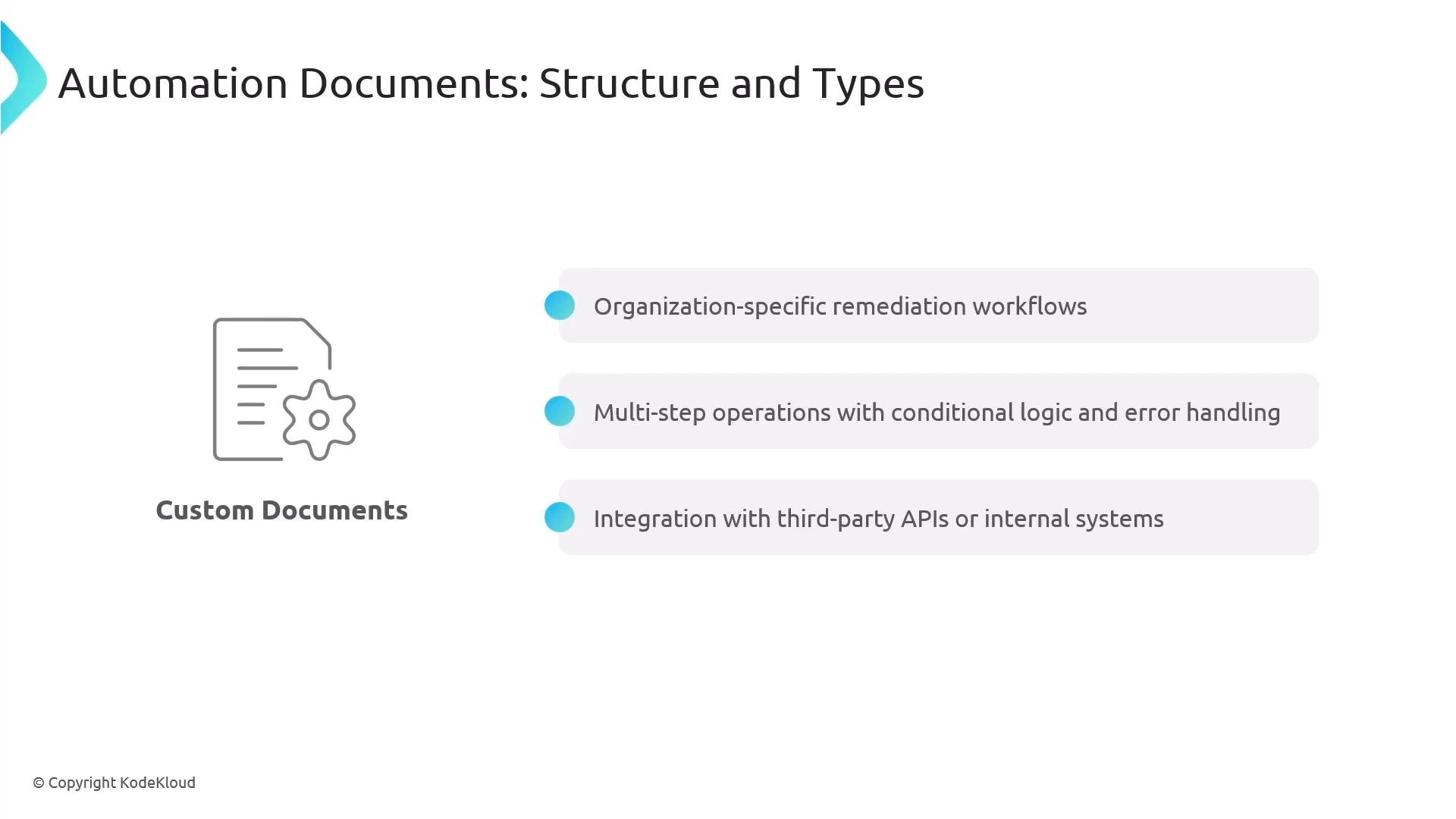
parametersandmainSteps. - Use AWS‑maintained runbooks for common tasks and custom documents for organization‑specific remediation.
- Leverage workflow controls (branching, wait, approval) to handle complexity and human‑in‑the‑loop scenarios.
- Implement cross‑account execution with proper IAM trust relationships to centralize remediation.
- Monitor, log, and audit all executions—use CloudWatch, S3, CloudTrail, and OpsCenter.
- Follow least‑privilege IAM, version control, and staging/testing best practices for production automation.
- AWS Systems Manager Automation documentation: https://docs.aws.amazon.com/systems-manager/latest/userguide/systems-manager-automation.html
- AWS Config and EventBridge integration patterns: https://docs.aws.amazon.com/config/latest/developerguide/evaluate-config_rules.html
- IAM best practices: https://docs.aws.amazon.com/IAM/latest/UserGuide/best-practices.html