

Troubleshooting Mindset: Four Core Practices
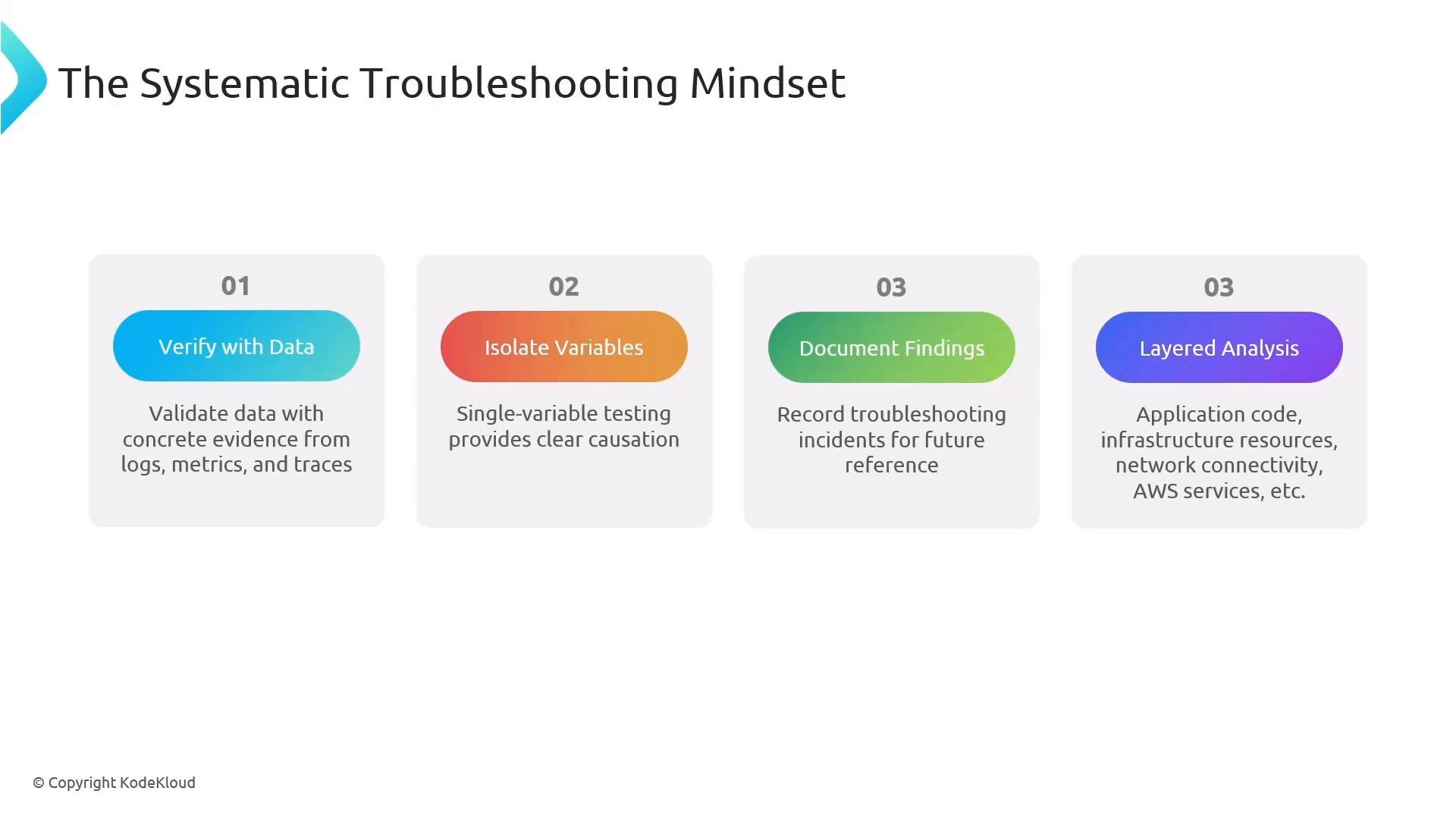
Adopt these four habits for reliable incident response:- Verify with data: form and validate hypotheses using observable signals.
- Isolate variables: make one controlled change at a time to identify cause-and-effect.
- Document findings: capture what you tried, what worked, and what didn’t.
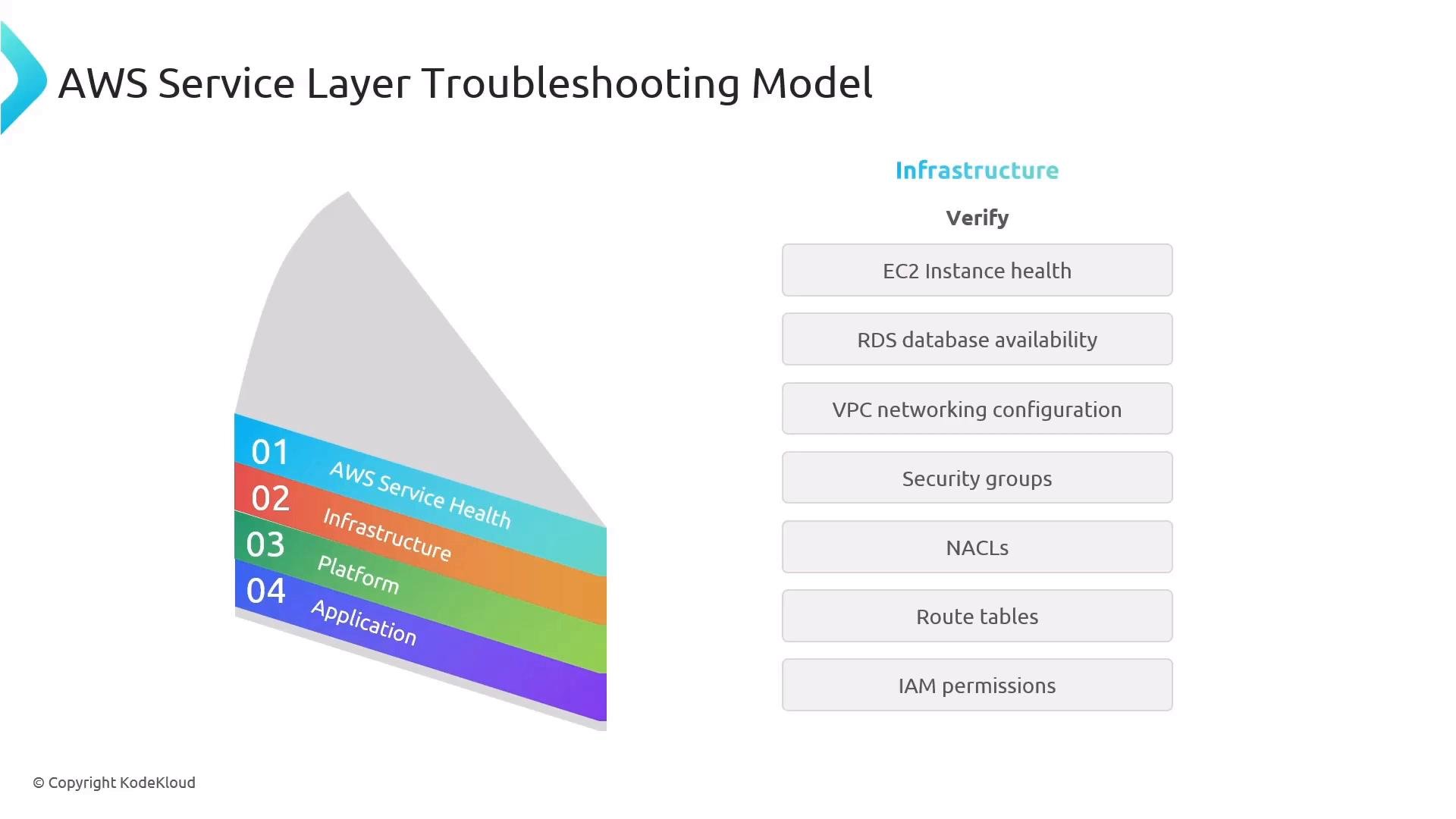
- Layered analysis: inspect Application → Platform → Infrastructure → AWS Service Health.
Causal Analysis: Five Whys
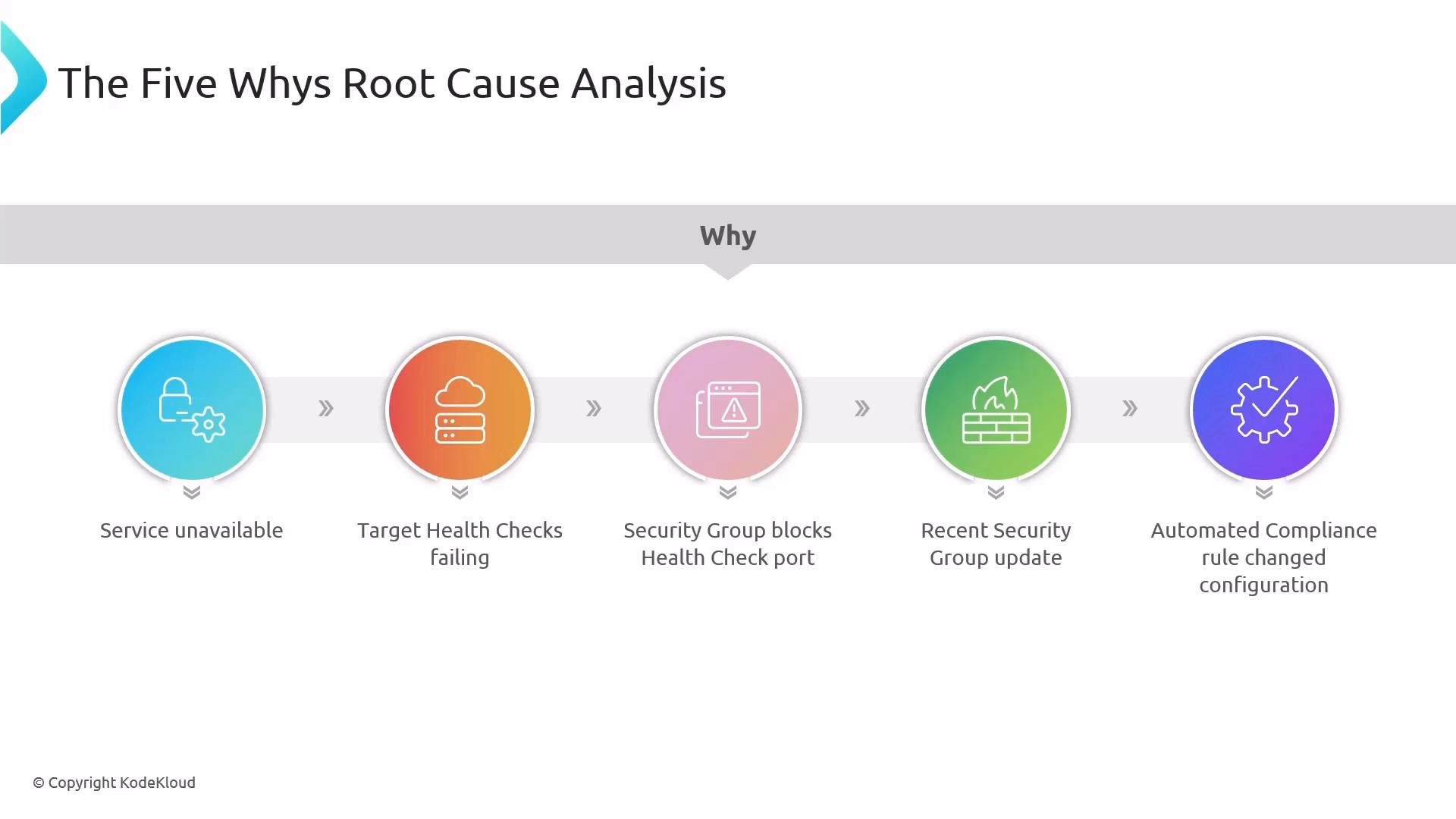
A pragmatic technique for root-cause analysis is the Five Whys: keep asking “Why?” until you reach a systemic cause or a change that introduced the failure. Example chain:- Service unavailable.
- Why? Target health checks are failing.
- Why? A security group is blocking the health check port.
- Why? Security groups were recently updated.
- Why? An automated compliance rule changed the configuration.
A Six-Step Troubleshooting Framework
Apply this sequence to structure your triage and remediation:- Define the problem and observable symptoms.
- Gather data that confirms the problem (metrics, logs, traces, events).
- Form a hypothesis from observed patterns (e.g., memory spike aligns with failure window).
- Test the hypothesis (free memory, adjust configuration, or replicate the failure in a sandbox).
- Implement a fix and verify return to expected behavior.
- Document the incident, timeline, root cause, and remediation steps.
Layered Analysis: Where to Look First
Reason about faults by layer. Typical control and visibility:- Application: full control and instrumentation.
- Platform: OS, runtimes, containers, and orchestration (high control).
- Infrastructure you manage: EC2, RDS, networking, IAM (partial control).
- AWS Service Health: provider-managed; mostly observability.
Central Troubleshooting Tools in AWS
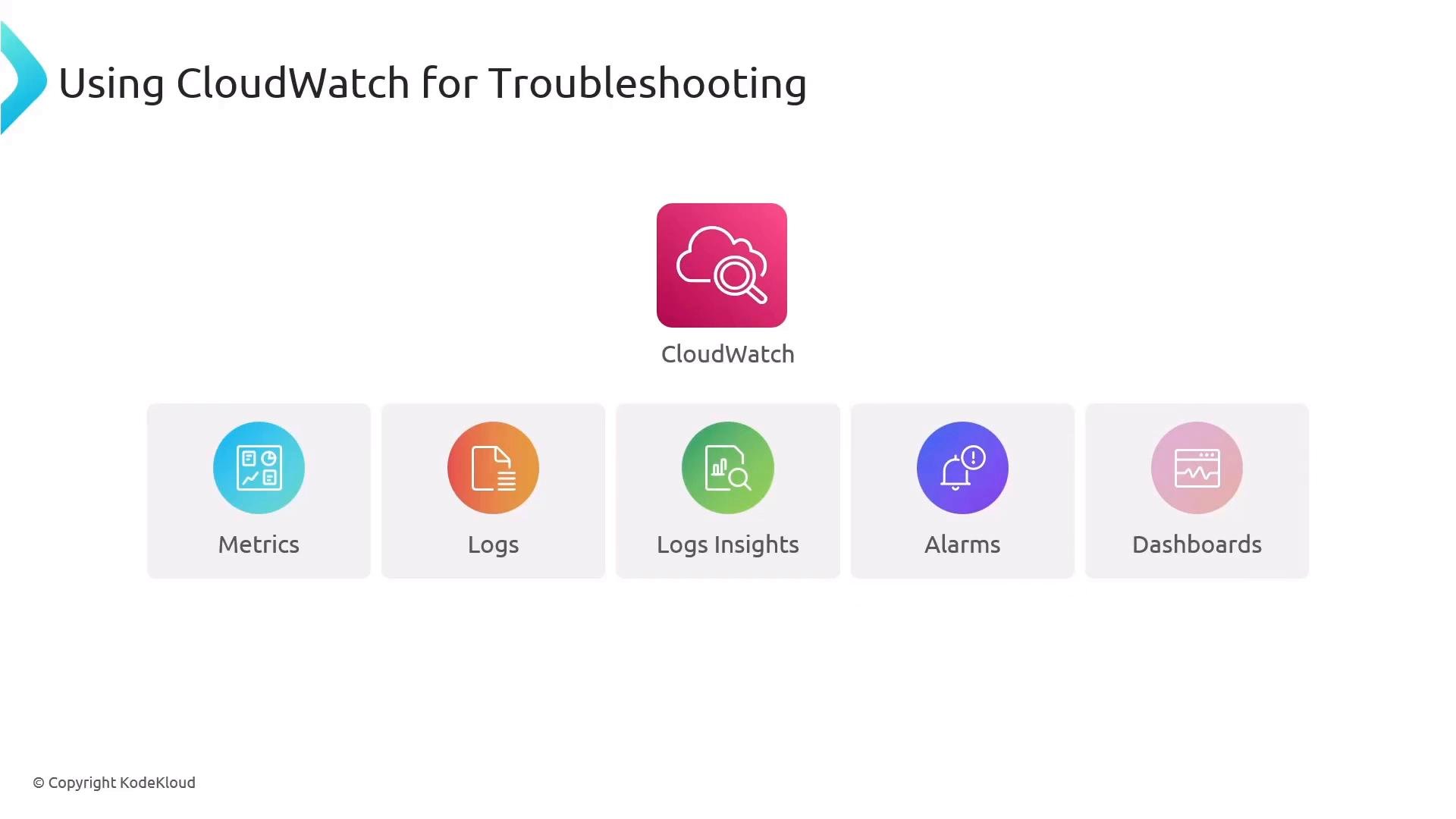
- CloudWatch: metrics, logs, Logs Insights, alarms, dashboards — use it as your active troubleshooting hub.
- X-Ray: distributed tracing and service maps to follow requests across services.
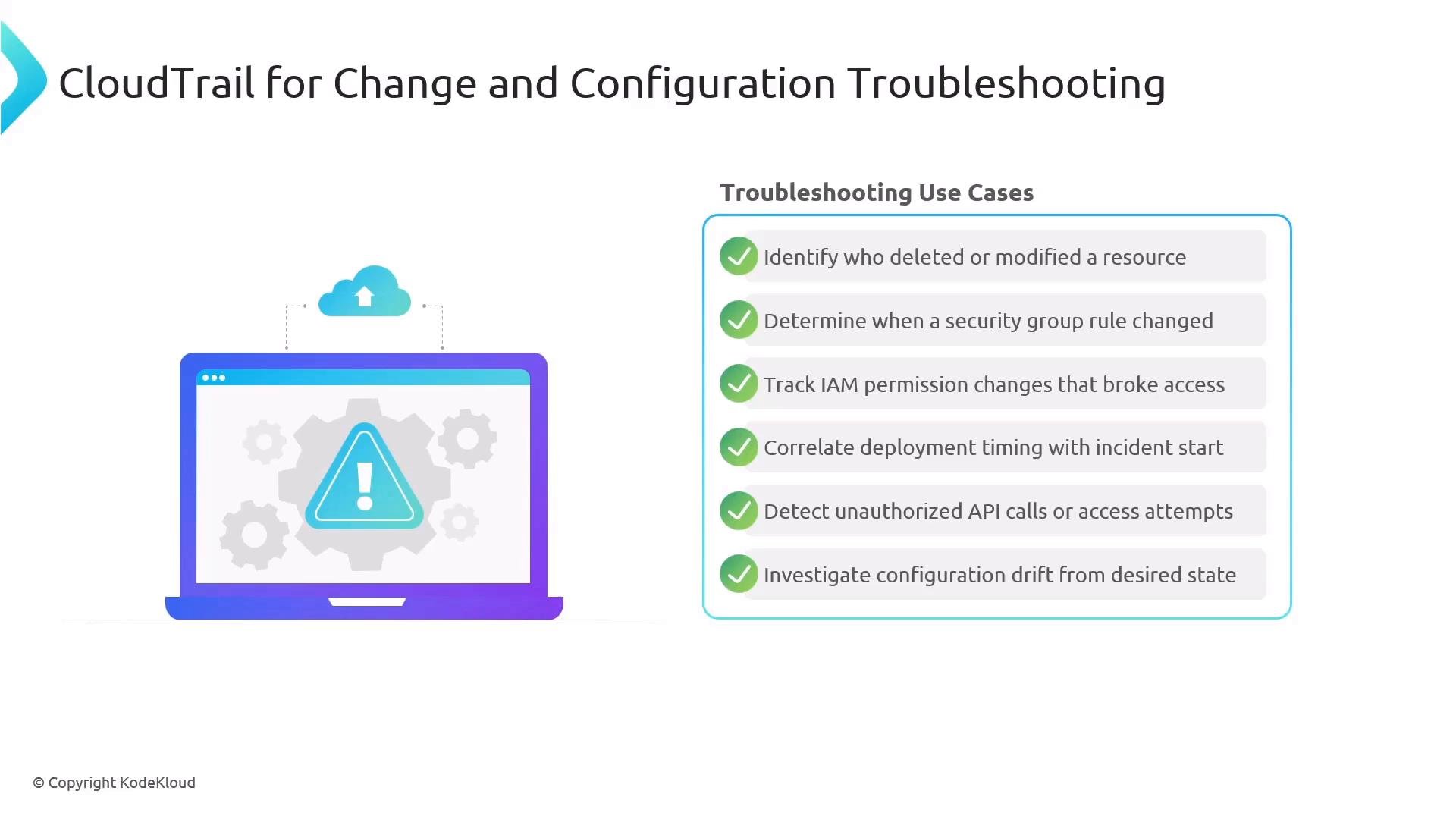
- CloudTrail: API-level audit trail for change and access investigations.
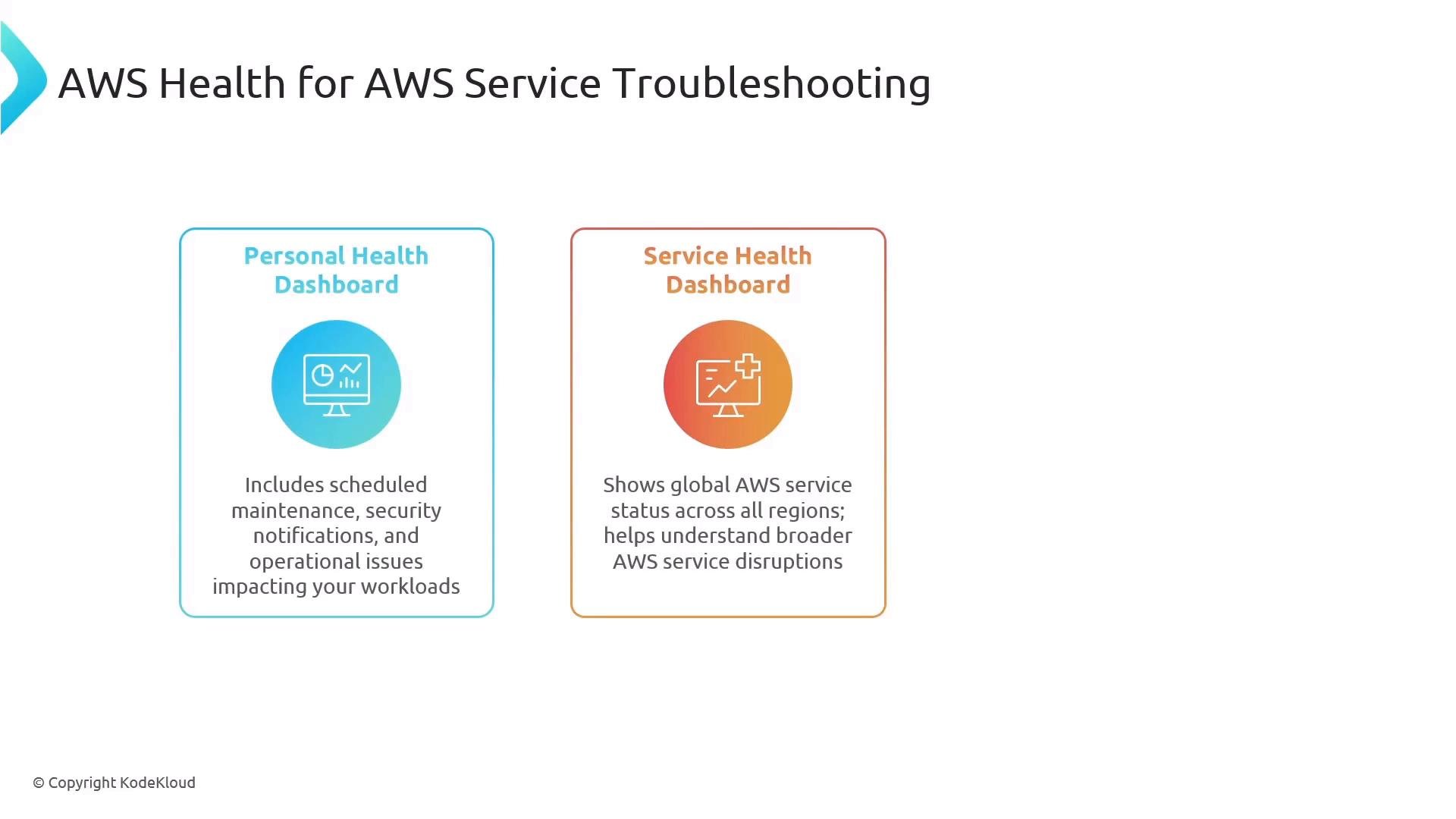
- AWS Health & Personal Health Dashboard: provider-side events and scheduled maintenance.
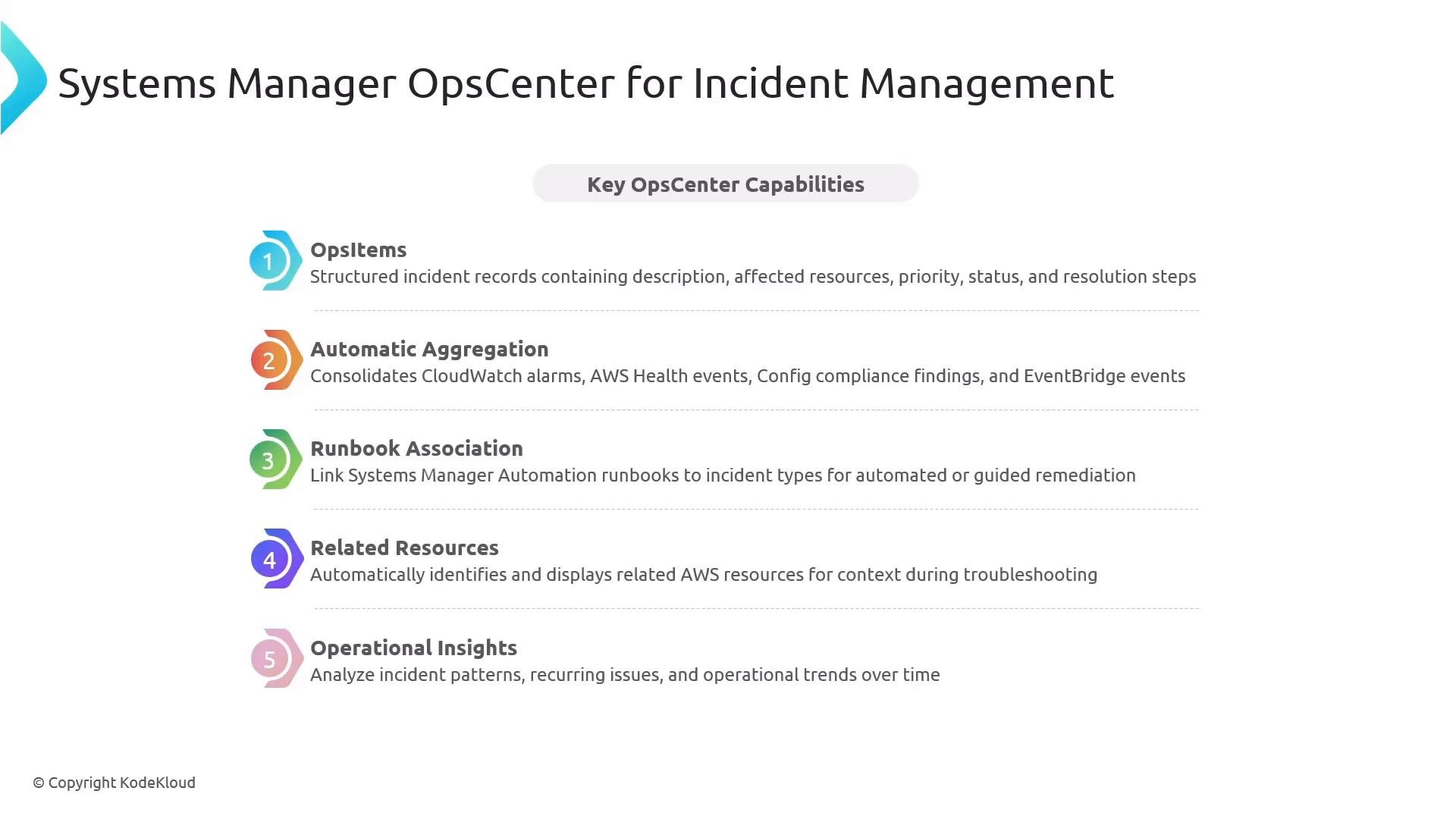
- Systems Manager (OpsCenter): aggregate signals into OpsItems and associate runbooks for remediation.
Distributed Systems: Tracing with X-Ray
Tracing helps you go from a red node on a service map to the exact trace and subsegment responsible for errors or latency.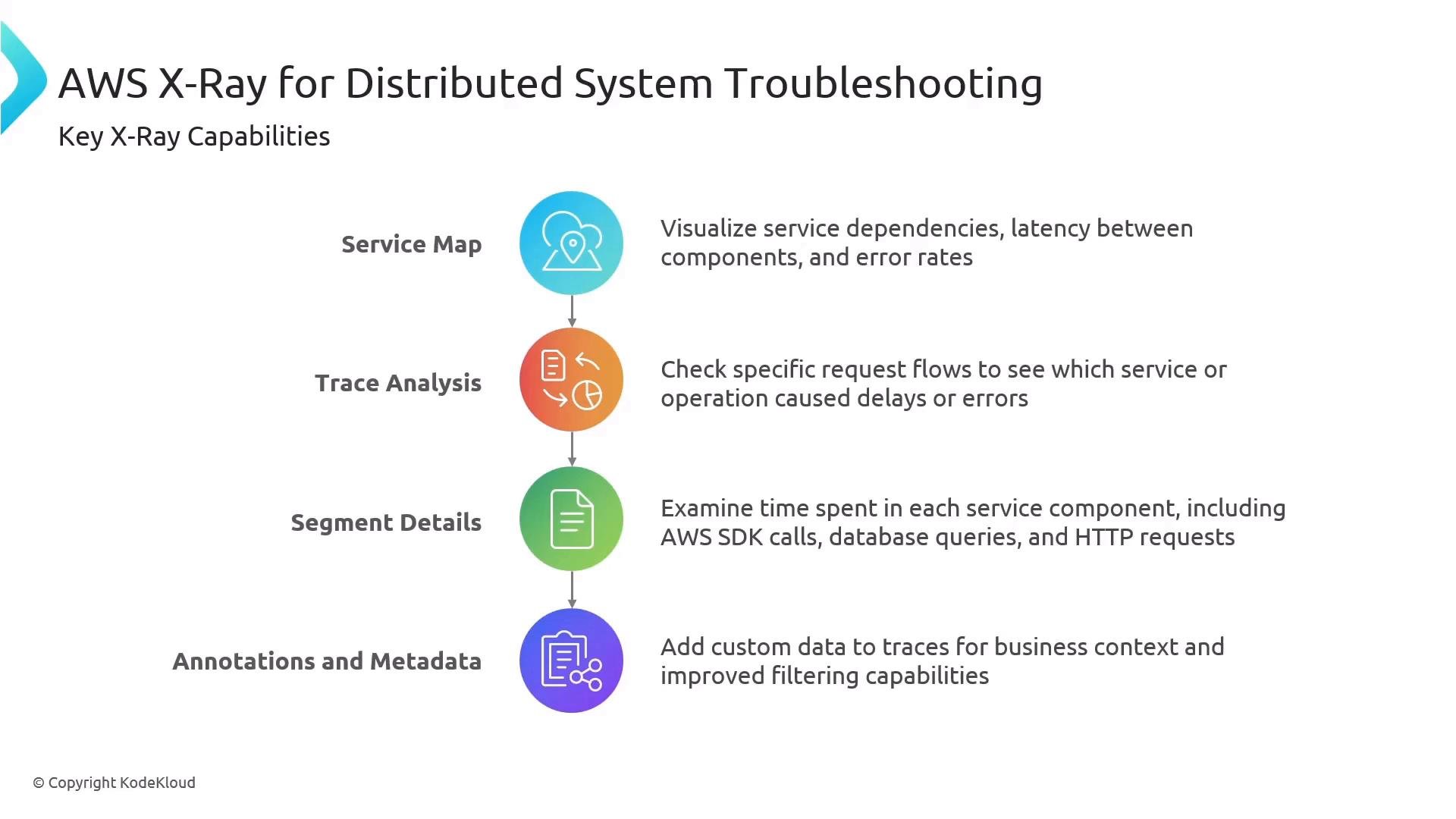
Change and Configuration: CloudTrail
CloudTrail captures AWS API activity—essential for correlating incidents with configuration changes and identifying actors.CloudTrail records AWS API calls—not in-guest OS or application-level events. Combine CloudTrail with CloudWatch logs, in-guest logs, and platform-specific diagnostics to build a complete incident timeline.
AWS Health: Provider-Side Issues
Use:- Personal Health Dashboard for account-specific notices (maintenance, security or operational notifications).
- Service Health Dashboard (
https://status.aws.amazon.com) for global AWS service status.
Troubleshooting Deployments and CI/CD
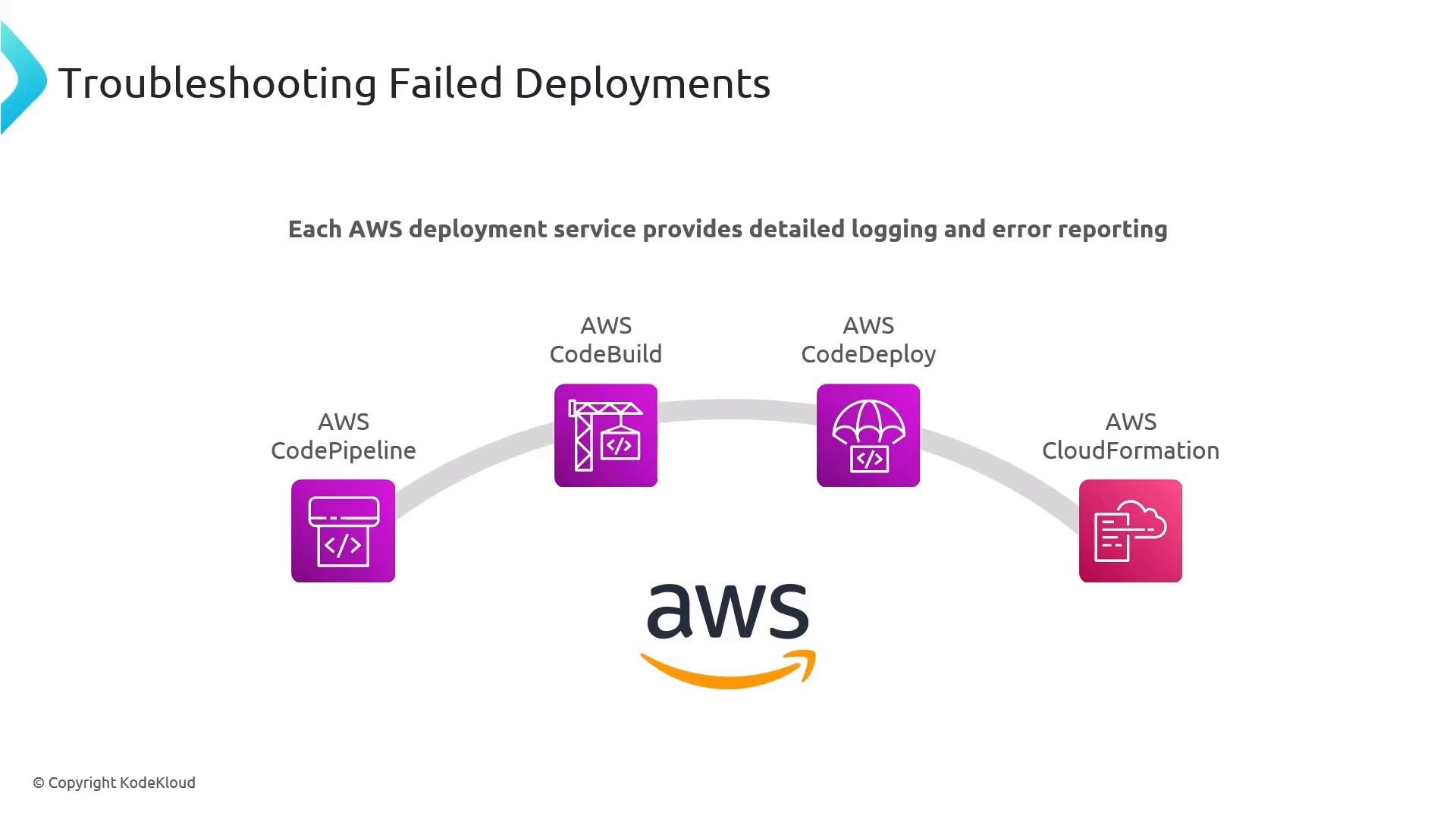
When a deployment fails, check the deployment service logs and CloudWatch logs first. Relevant services:- CodePipeline, CodeBuild, CodeDeploy: all expose detailed logs and failure reasons in CloudWatch Logs.
- CloudFormation: review stack events and resource drift; CloudTrail records stack changes.
Auto Scaling: Diagnosing Failures
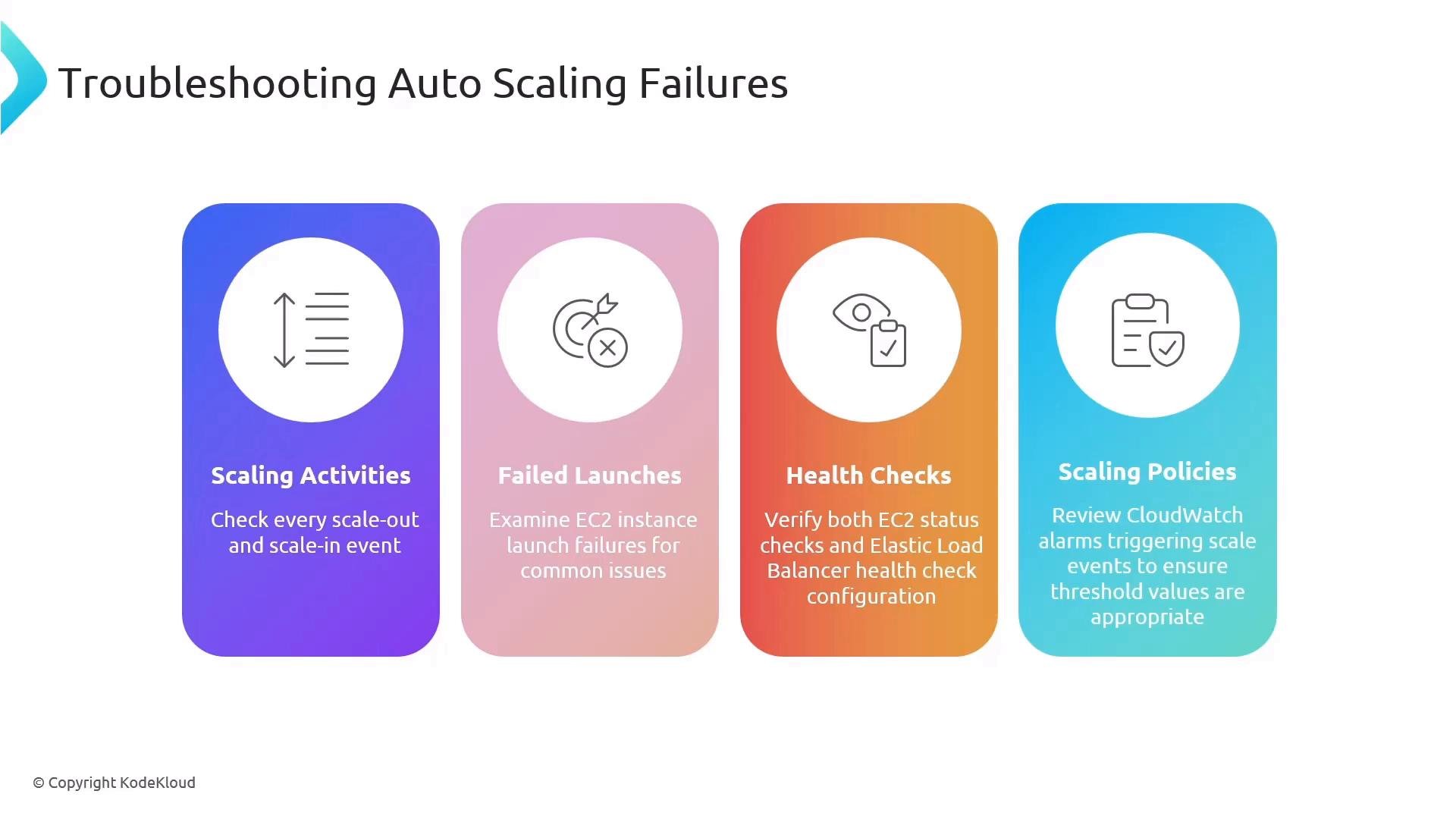
Auto Scaling emits scaling activity, failed launch events, and health-check metrics into CloudWatch. Use:- Scaling activity history
- Lifecycle events and instance status
- CloudTrail entries for API-level actions and why a scale failed
Container Platforms: ECS & EKS
- ECS and EKS surface service and task/pod events and metrics to CloudWatch (when integrated).
- CloudWatch Container Insights gives node and pod-level metrics and diagnostics.
- For EKS, inspect the Kubernetes control plane and use kubectl for pod-level investigation.
Troubleshooting by Layer (Quick Reference)
Performance & Latency: Tools by Layer
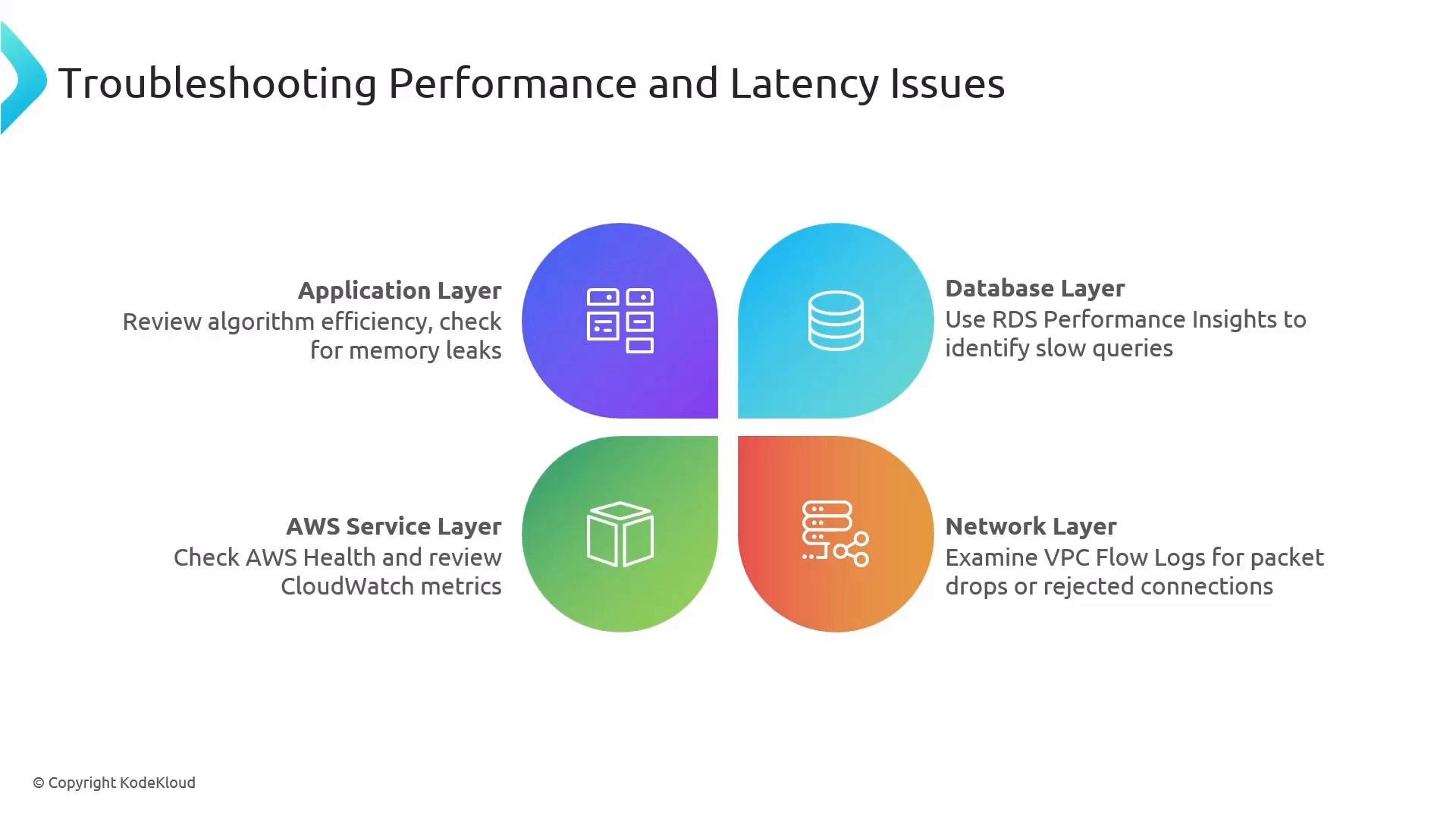
- Application: X-Ray traces, application metrics, and logs.
- Database: RDS Performance Insights for slow queries and contention.
- Network: VPC Flow Logs + Reachability Analyzer for dropped packets or routing issues.
- AWS Service: CloudWatch metrics and AWS Health for provider-side performance issues.
Network & Connectivity Checklist
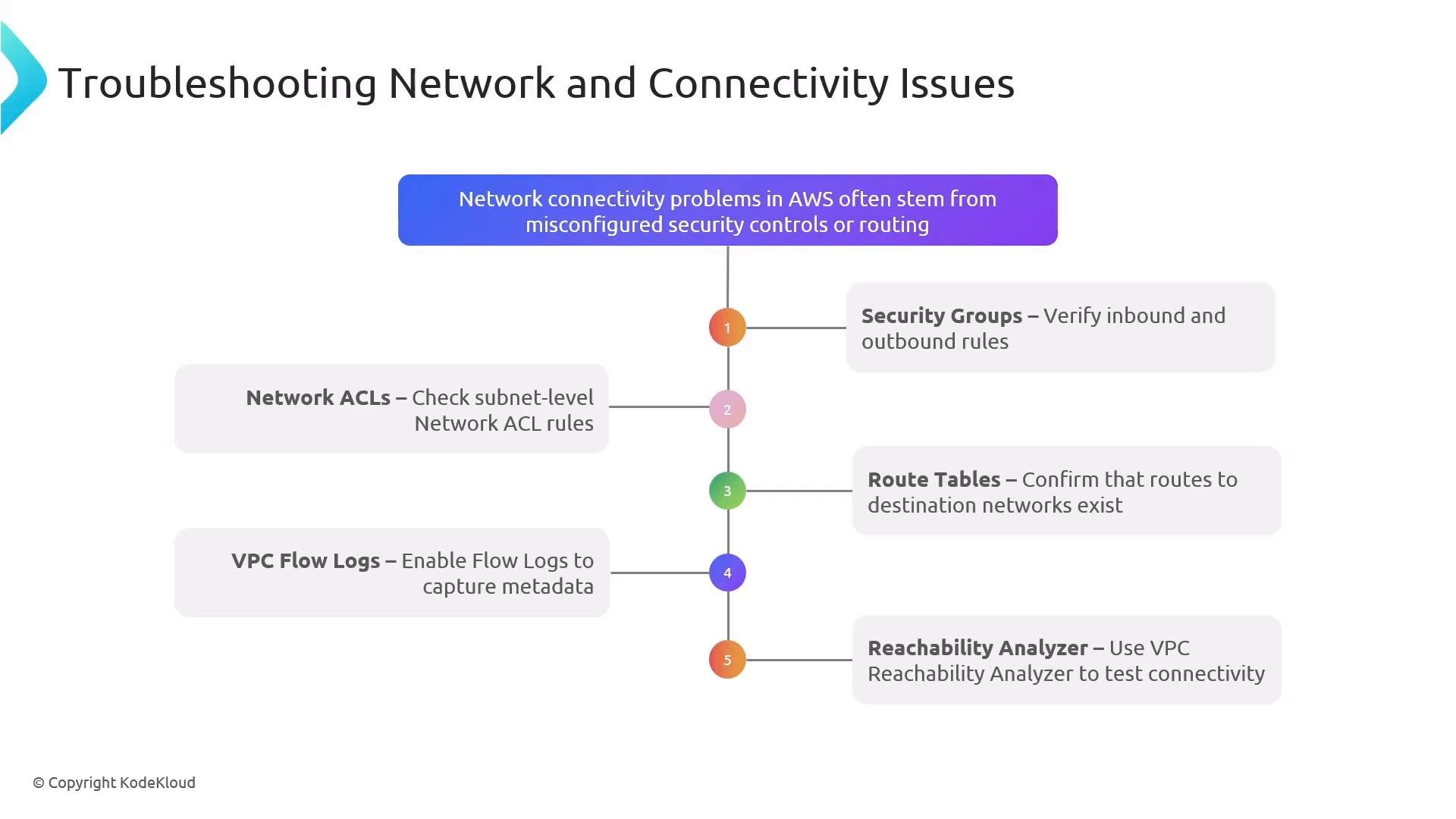
When investigating connectivity failures, validate:- Security Groups: correct inbound/outbound and ports.
- Network ACLs: stateless rules allow expected flows.
- Route Tables: routes between subnets and gateways.
- VPC Flow Logs: capture accepted vs. denied traffic for packet drop analysis.
- Reachability Analyzer: simulate paths and identify blocking hops.
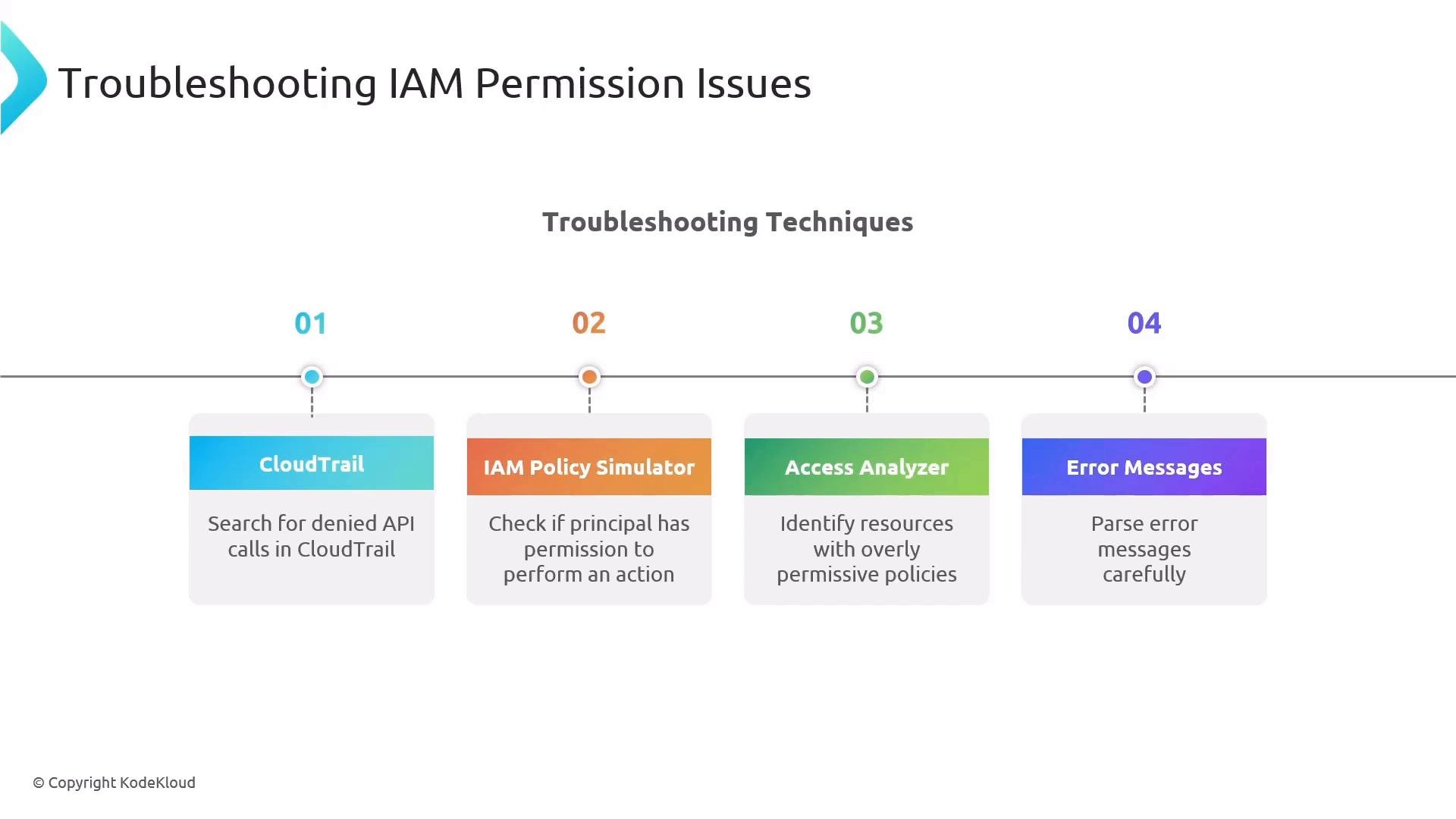
Permissions & IAM Troubleshooting
Common tools and techniques:- CloudTrail to see who attempted API calls and what failed.
- IAM Policy Simulator to validate effective permissions for a principal.
- Access Analyzer to detect overly permissive policies.
- Read and capture full error messages—many API responses indicate the exact permission or resource mismatch.
Anti‑Patterns to Avoid (and What to Do Instead)
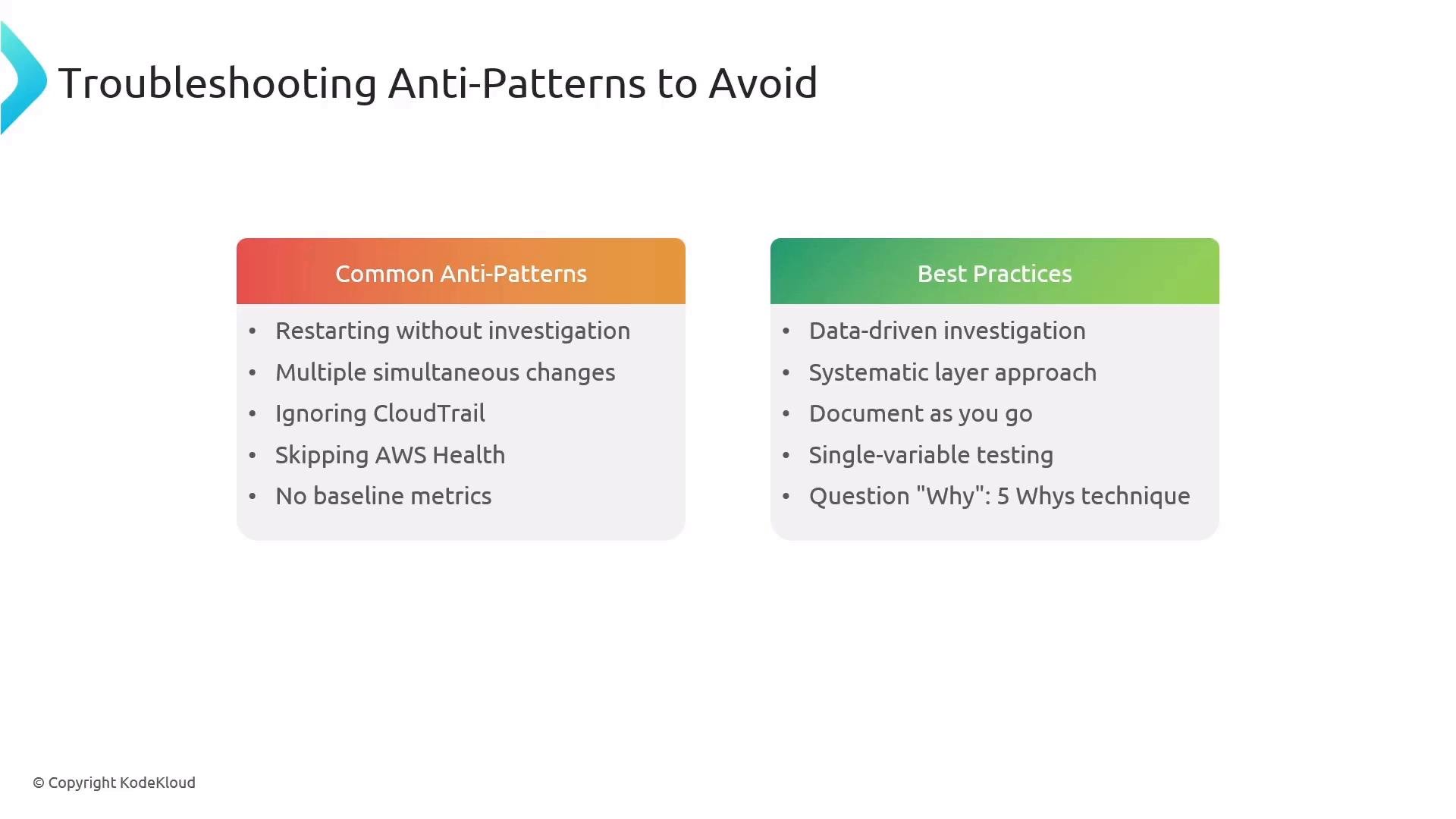
Do not:- Restart systems before collecting data.
- Make multiple simultaneous changes.
- Ignore logs (CloudWatch) and audit trails (CloudTrail).
- Skip AWS Health checks.
- Operate without baseline metrics.
Avoid changing multiple variables in a single step during incidents — you must be able to trace the cause and verify whether a remediation actually fixed the problem.
When You Hit a Dead End
Ask the right diagnostic questions:- What are the exact symptoms?
- What changed recently (deployments, config, IAM)?
- Do metrics deviate from baseline?
- Who changed configuration and when?
Post-Incident Review & Continuous Improvement
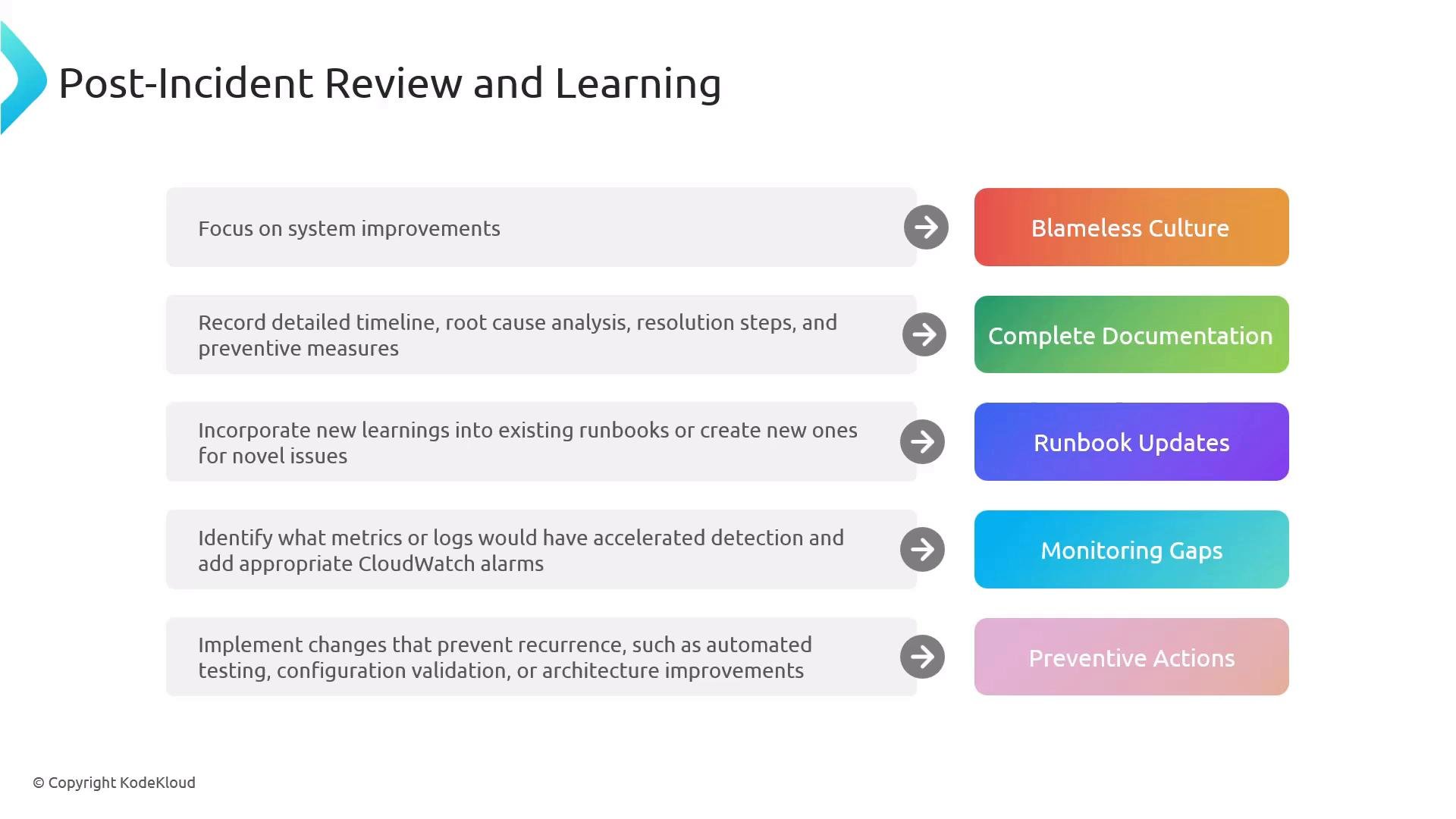
Make post-incident work actionable:- Run blameless postmortems focused on improvement.
- Record detailed timelines, root causes, and remediation steps.
- Update runbooks and playbooks with new failure modes.
- Close monitoring gaps by adding alarms and metrics.
- Implement preventive fixes to reduce recurrence or severity.
References & Further Reading
- AWS CloudWatch: https://docs.aws.amazon.com/cloudwatch/
- AWS X-Ray: https://docs.aws.amazon.com/xray/
- AWS CloudTrail: https://docs.aws.amazon.com/cloudtrail/
- AWS Health: https://status.aws.amazon.com
- Systems Manager OpsCenter: https://docs.aws.amazon.com/systems-manager/latest/userguide/opscenter.html
- Kubernetes kubectl reference: https://kubernetes.io/docs/reference/kubectl/overview/