

- Create a basic Lambda function for tracing
- Enable X-Ray tracing for the function
- Generate trace data by invoking the function
- Inspect traces, metrics, and related CloudWatch Logs in X-Ray
1. Create a basic Lambda function
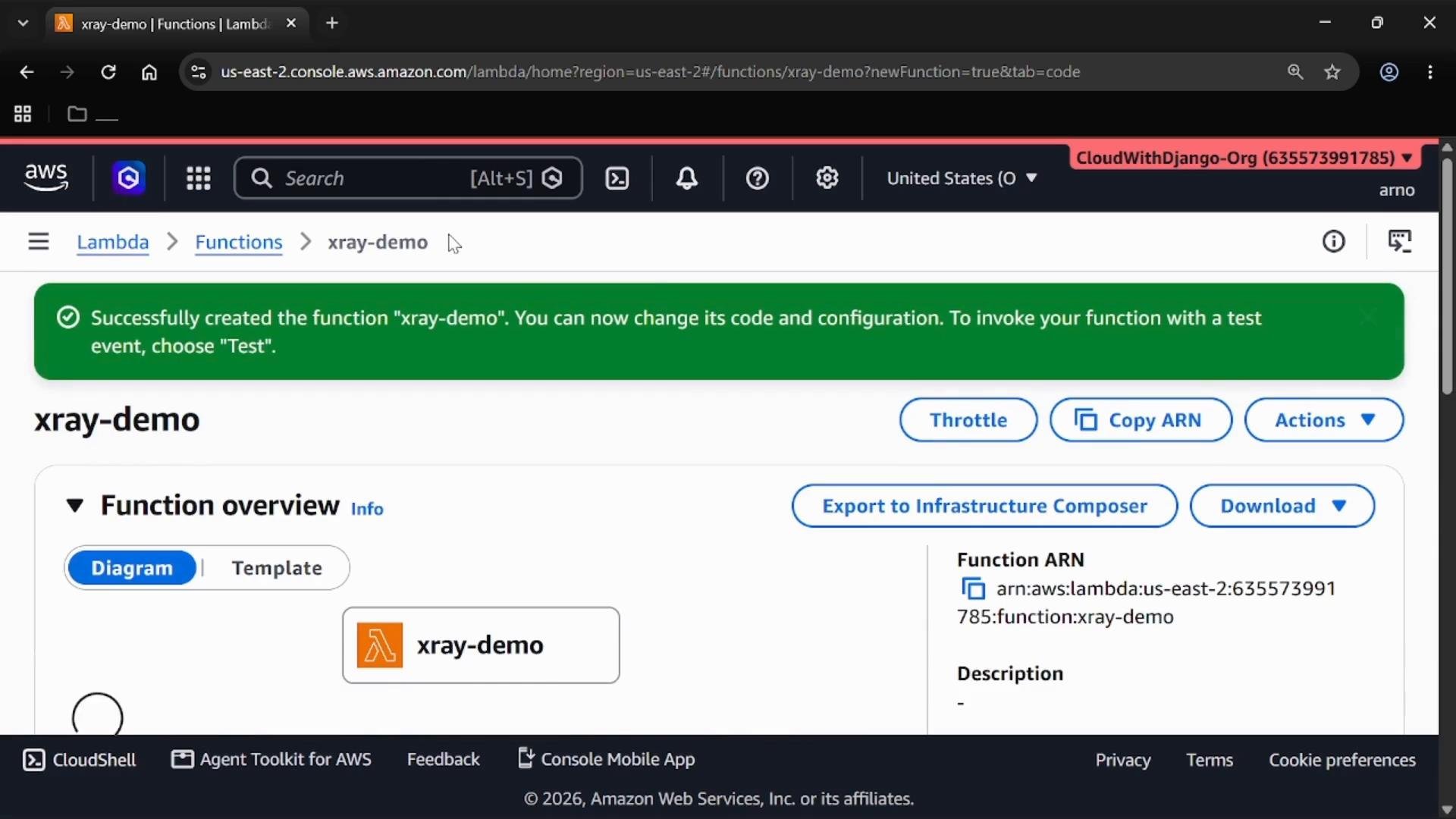
- Open the Lambda console and choose Create function.
- Select Author from scratch, give the function a name (for example,
xray-demo), and choose a Python runtime. - Leave other settings as defaults and create the function.
2. Enable X-Ray tracing for the function
- Open your function and go to the Configuration tab.
- Under Monitoring and operations tools, choose Edit.
- In Additional monitoring tools enable Lambda service traces (this enables active X-Ray tracing for the function).
- Save the change.
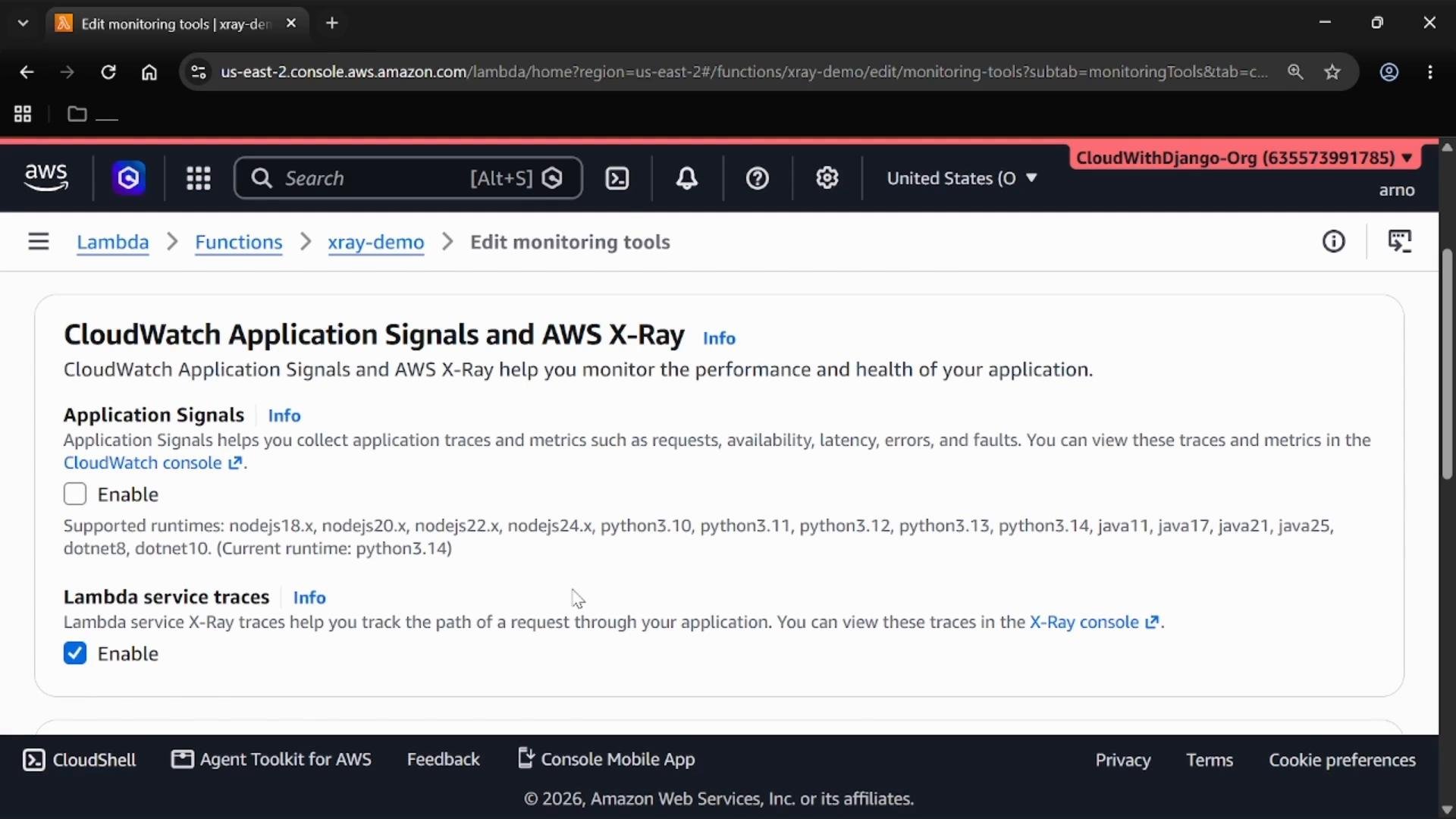
When you enable tracing from the Lambda console, Lambda will add the necessary IAM permissions to the function’s execution role so the function can send trace segments to X-Ray. After the first invocations, traces may take a short time to appear in the X-Ray console.
3. Create and run a test event
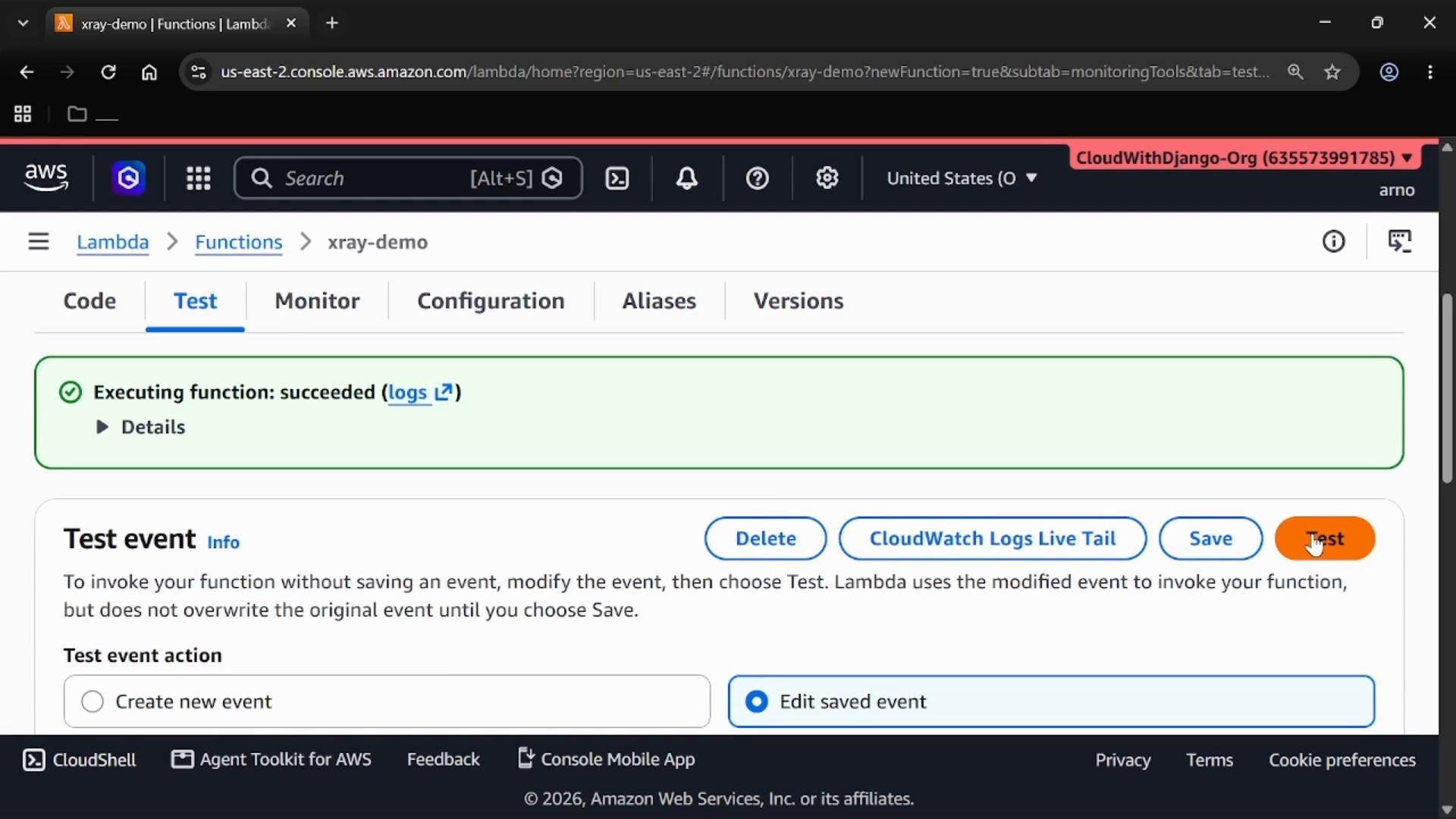
- Switch to the Test tab and create a new test event (for example,
X-Ray test). - Use a simple sample JSON payload such as:
- Save the test event and invoke the function from the console several times to generate trace segments.
4. Open X-Ray and inspect traces
- Open the X-Ray console (also available via CloudWatch > X-Ray).
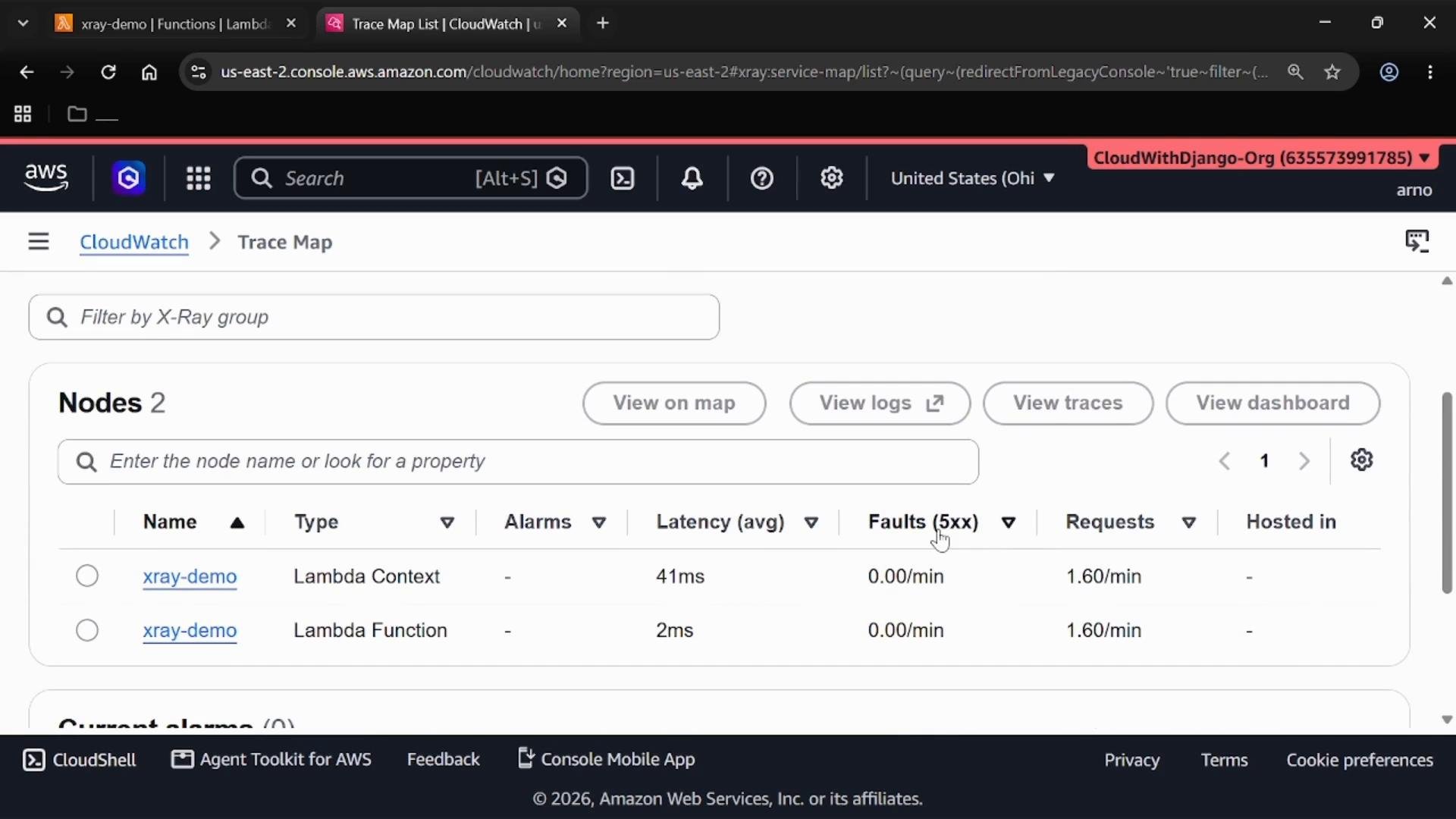
- Use the Trace map to view the topology of services and clients. Toggle between the map and the list view depending on whether you prefer a visual topology or a condensed list of services and segments.
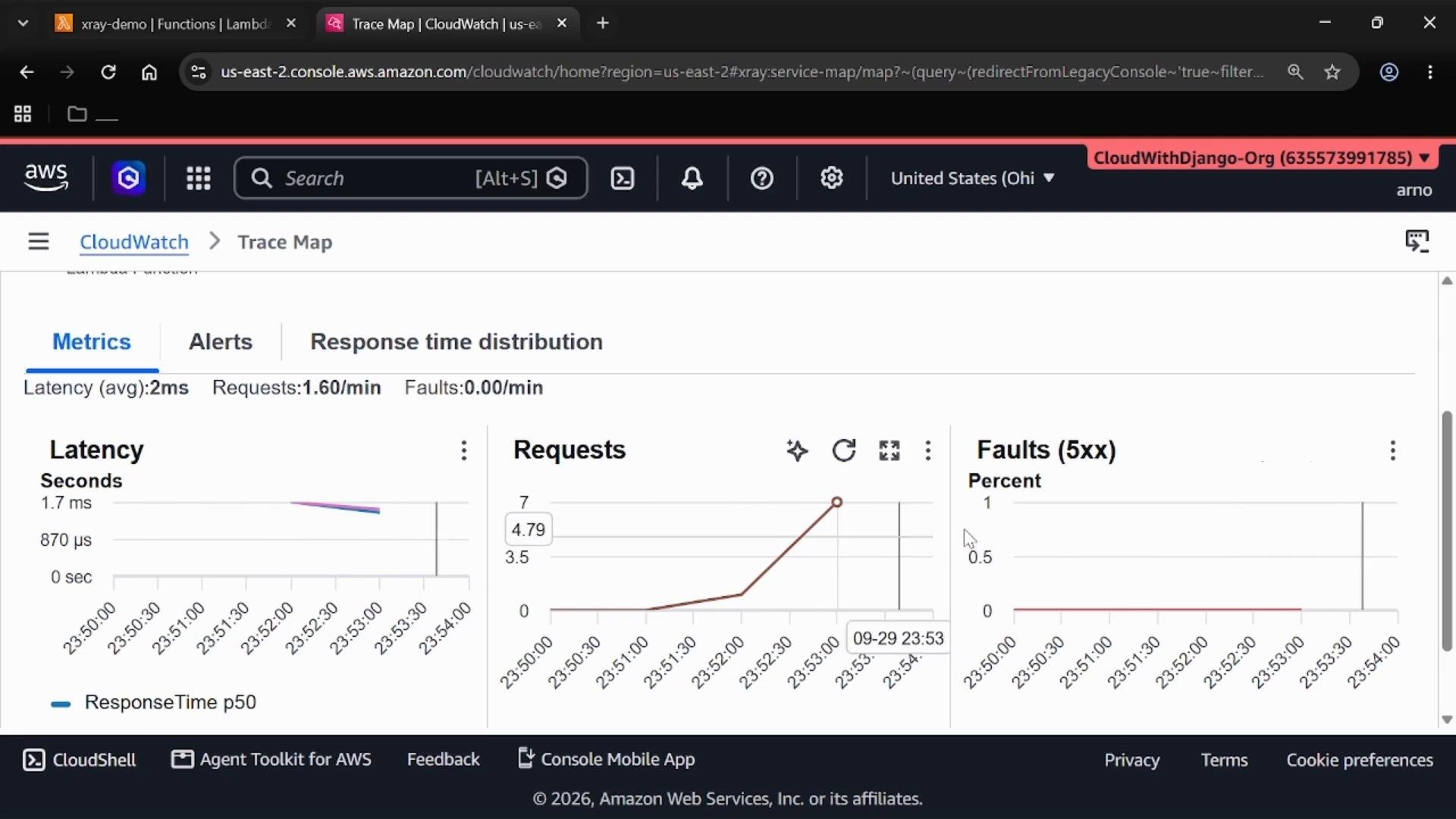
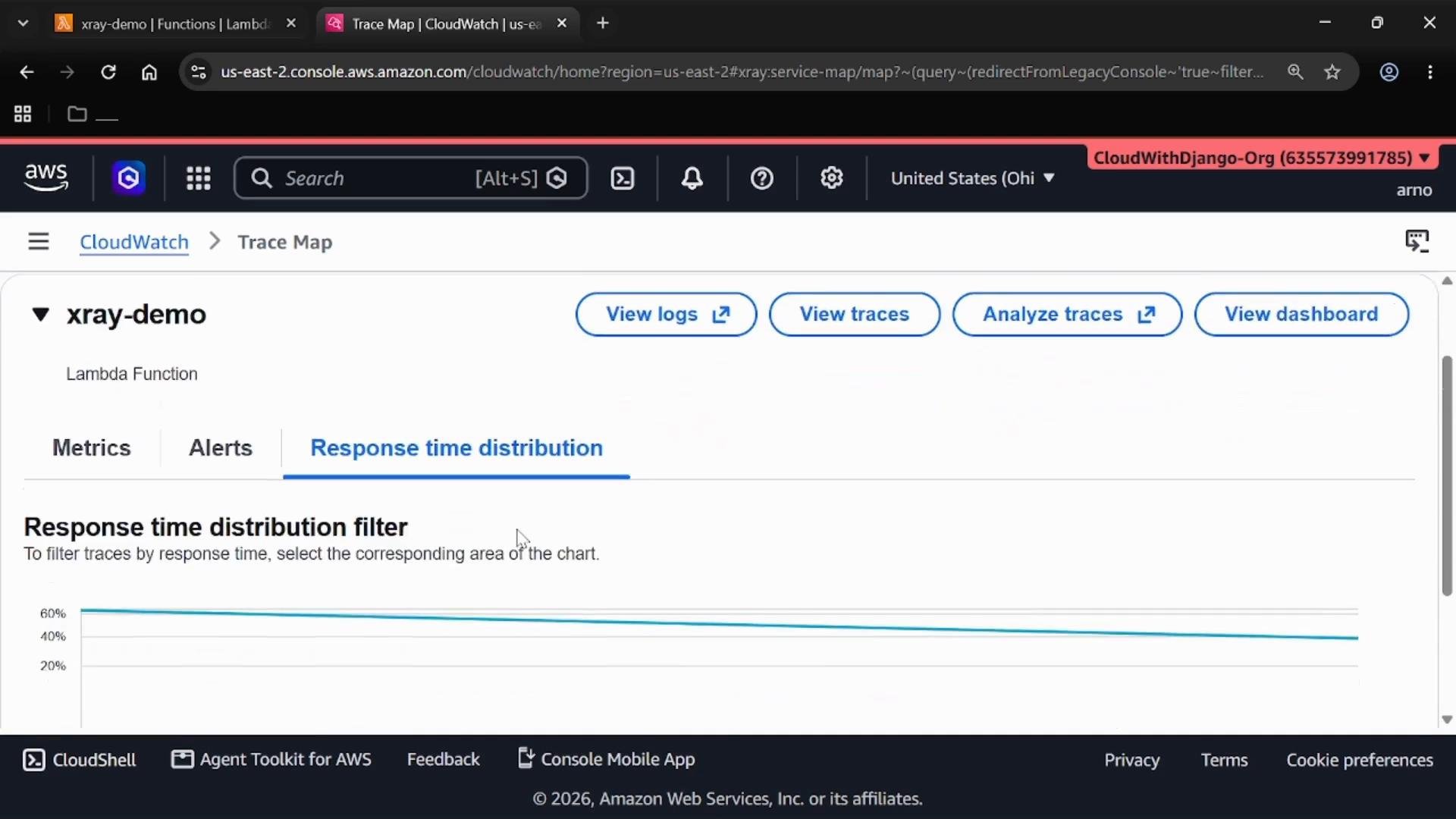
5. View metrics and response-time distribution
X-Ray surfaces helpful metrics for the selected service:- Latency (p95, p50, etc.)
- Request rate (requests per second)
- Faults (5xx errors)
6. List and inspect individual traces
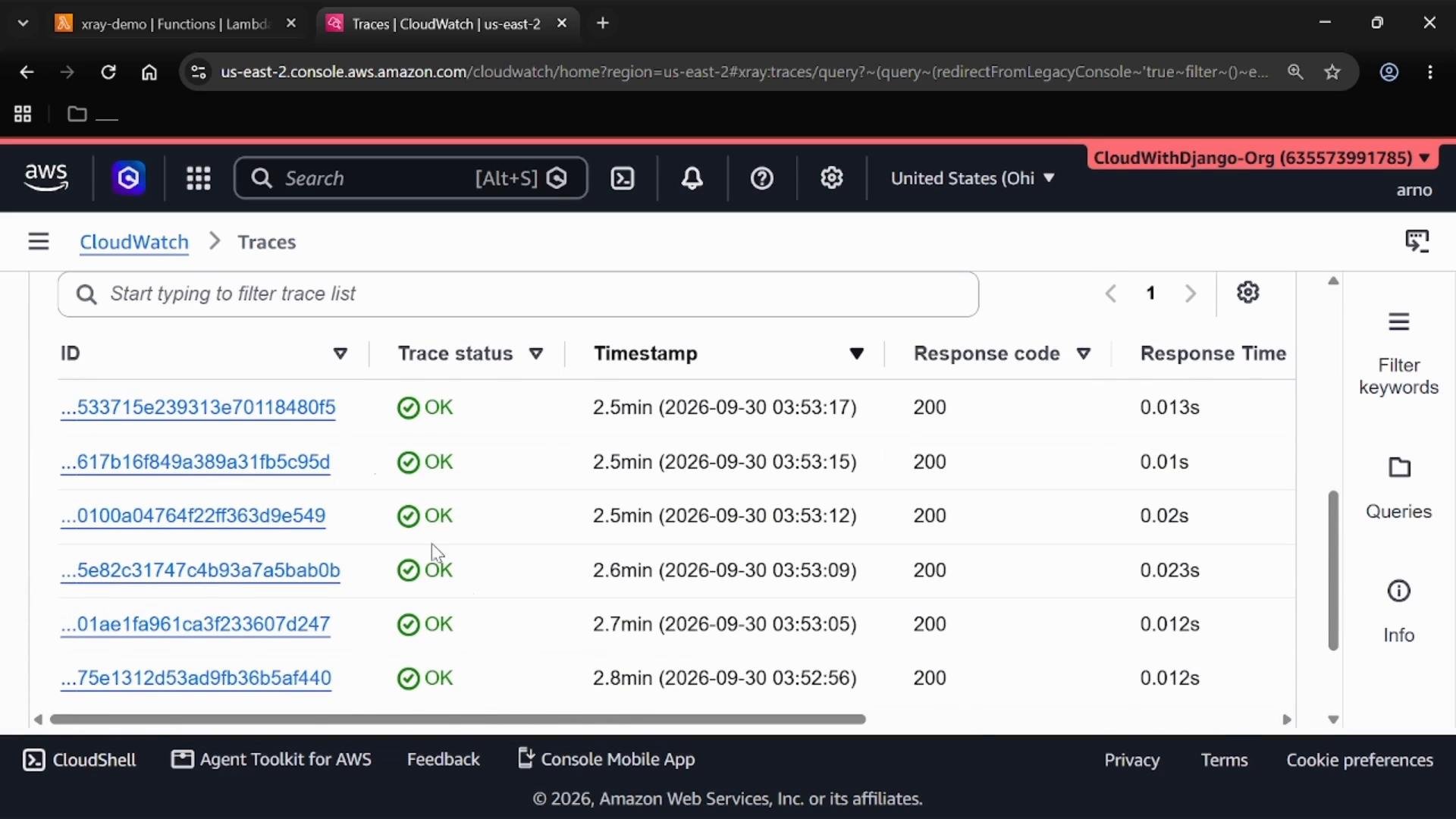
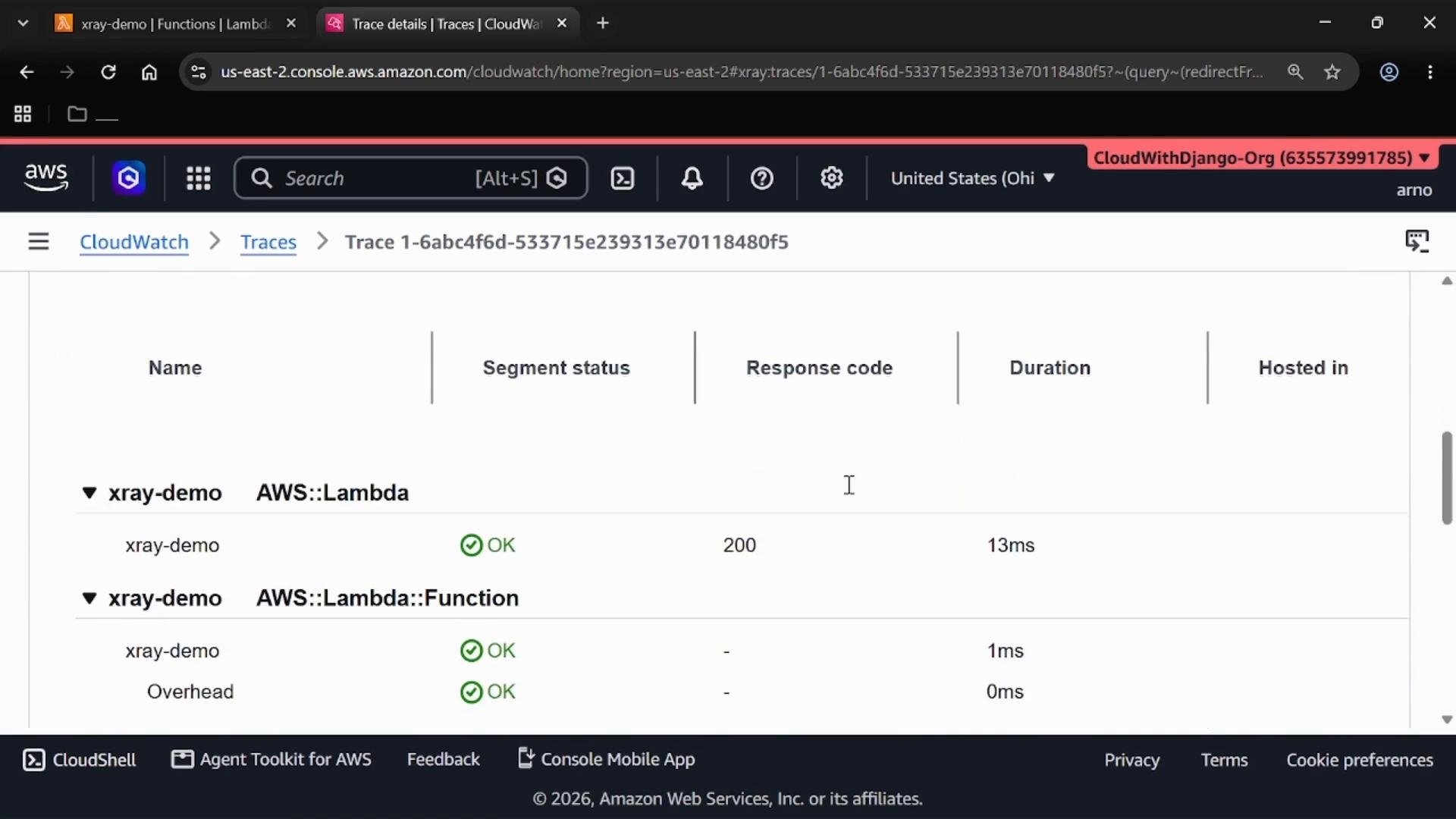
- In the Traces view you can see each recorded trace (typically one per invocation when segments are emitted). Select a trace to view detailed information: status, response code, duration, and segment timelines.
- Use these details to investigate errors, slow segments, and which downstream services contributed to latency.
7. View CloudWatch Logs for a trace
- From a trace detail you can jump to the related CloudWatch Logs for the Lambda invocation. Logs typically include the START / REPORT / END lines plus any application logs you wrote.
- Use the logs to correlate X-Ray segments with application-level events and debugging output.