

- authoring a minimal CloudFormation YAML template,
- uploading the template to the AWS Management Console,
- creating the stack,
- updating the stack to add metadata (tags),
- and verifying the result in the S3 console.
What you’ll create
- A CloudFormation stack named (for example)
DemoStack - One S3 bucket resource with logical ID
MyBucket - An update that adds an
Author: Arnotag to the bucket
Prerequisites
- An AWS account and permissions to create CloudFormation stacks and S3 buckets.
- A code editor (Visual Studio Code recommended).
Step 1 — Open CloudFormation in the Console
Open the AWS Management Console, use the service search box, type “CloudFormation” (typing “CloudF” is sufficient), and select CloudFormation. If you’ve used CloudFormation before you’ll land on the Stacks dashboard; otherwise you’ll see the CloudFormation homepage. Click “Create stack” and follow the guided steps:- Create stack
- Specify stack details
- Configure stack options
- Review and create
For this lesson we’ll create a local YAML template and upload it directly via the console.
Step 2 — Create stack.yaml locally
Open your project folder in Visual Studio Code and create a new file named stack.yaml. Example Windows path:
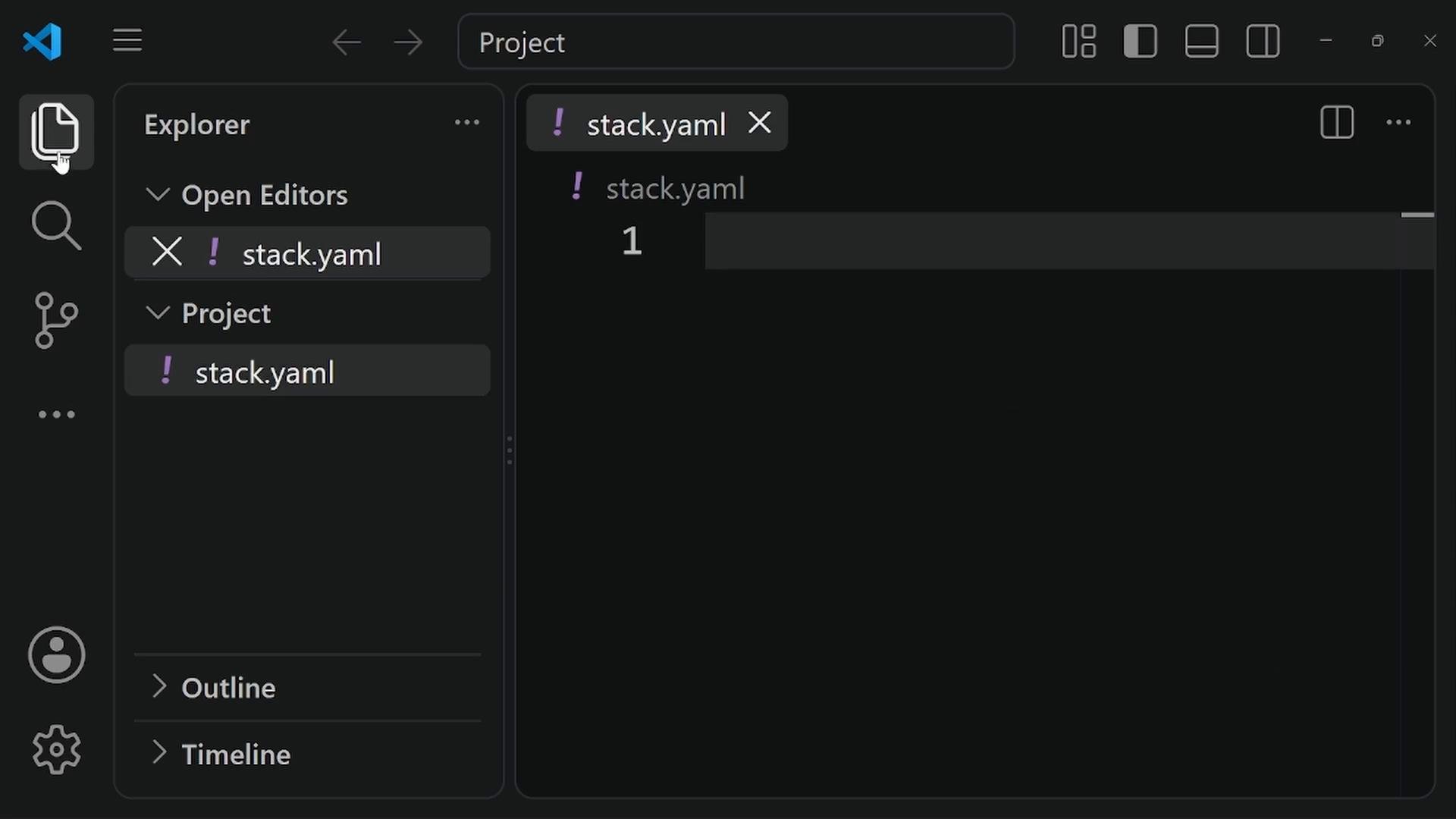
Resources section declaring an S3 bucket with logical ID MyBucket:
stack.yaml.
Step 3 — Upload the template and create the stack
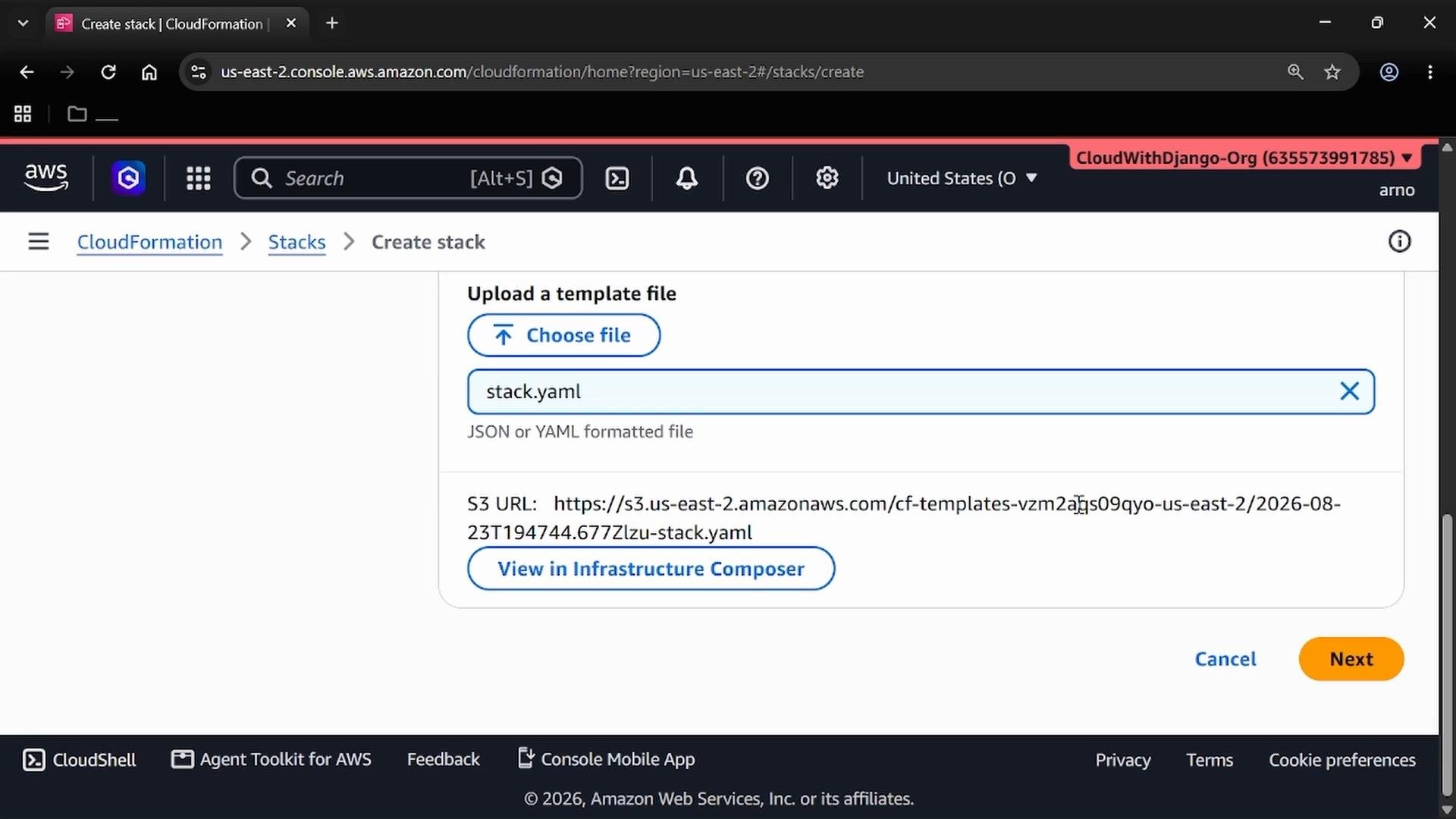
In the CloudFormation console choose “Upload a template file”, select thestack.yaml you created, then click Next and proceed through the stack creation wizard. CloudFormation will internally upload your template (it stores it in a managed S3 location) and then create the stack.
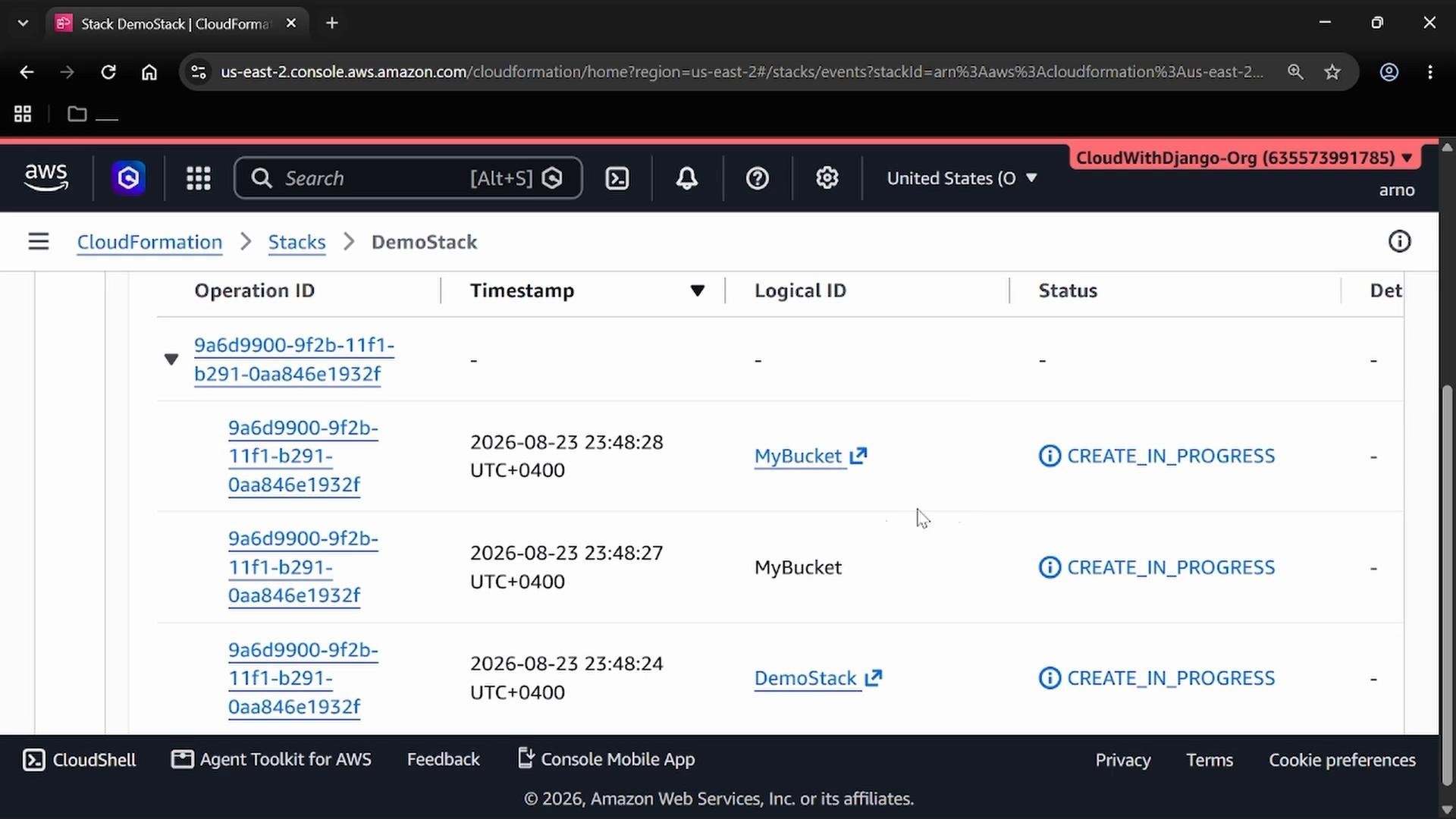
CREATE_IN_PROGRESS and then CREATE_COMPLETE.
Step 4 — Verify the S3 bucket
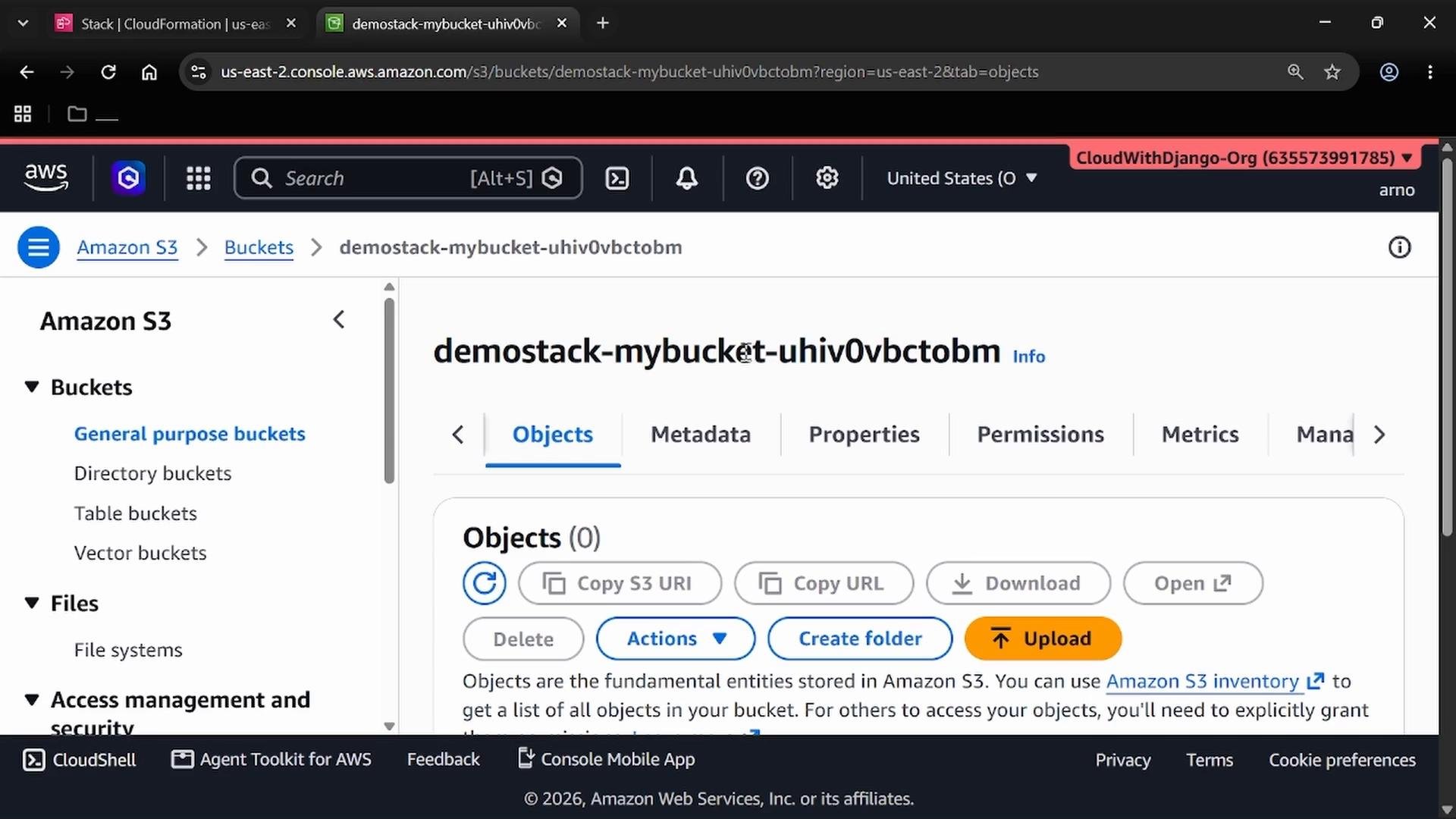
When the stack completes, open the Amazon S3 service in a new console tab and browse buckets. CloudFormation typically prefixes the physical bucket name with the stack name and logical ID; for exampledemostack-mybucket-<random-suffix>.
Step 5 — Update the stack to add tags
Tags are key-value pairs used to store metadata such as author, environment, or cost center. We’ll update the template to add anAuthor tag for the bucket.
YAML indentation is significant. Use consistent spaces (commonly two spaces per level). Under a resource’s
Properties, Tags is a list where each item is a Key/Value mapping.stack.yaml and add a Properties block with Tags. The updated template should look like this:
stack.yaml, and proceed through the update wizard. Submit the change.
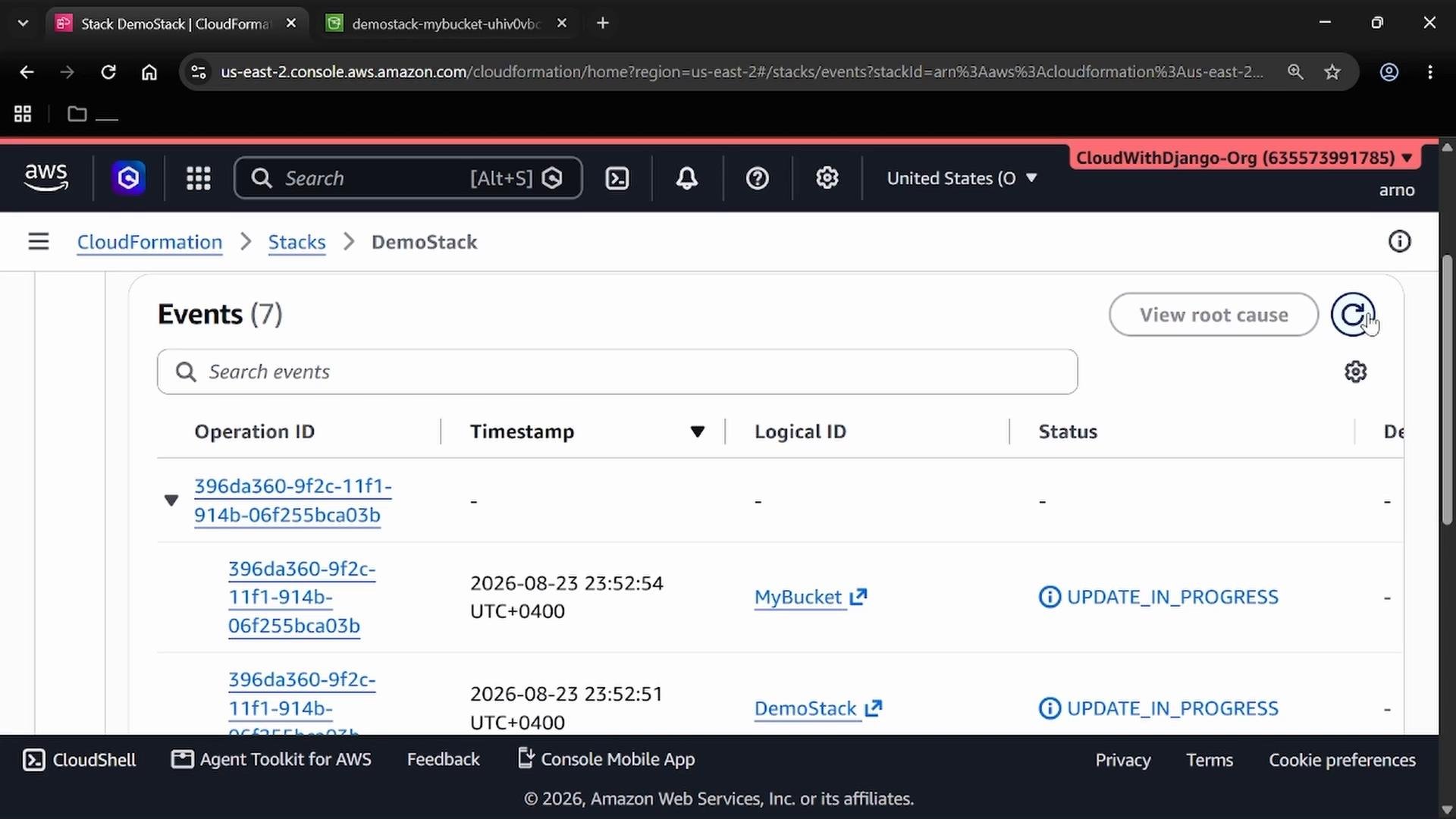
Watch the Events pane to follow the update operation — you should see UPDATE_IN_PROGRESS followed by UPDATE_COMPLETE entries for the stack and the MyBucket resource.
Step 6 — Confirm the update
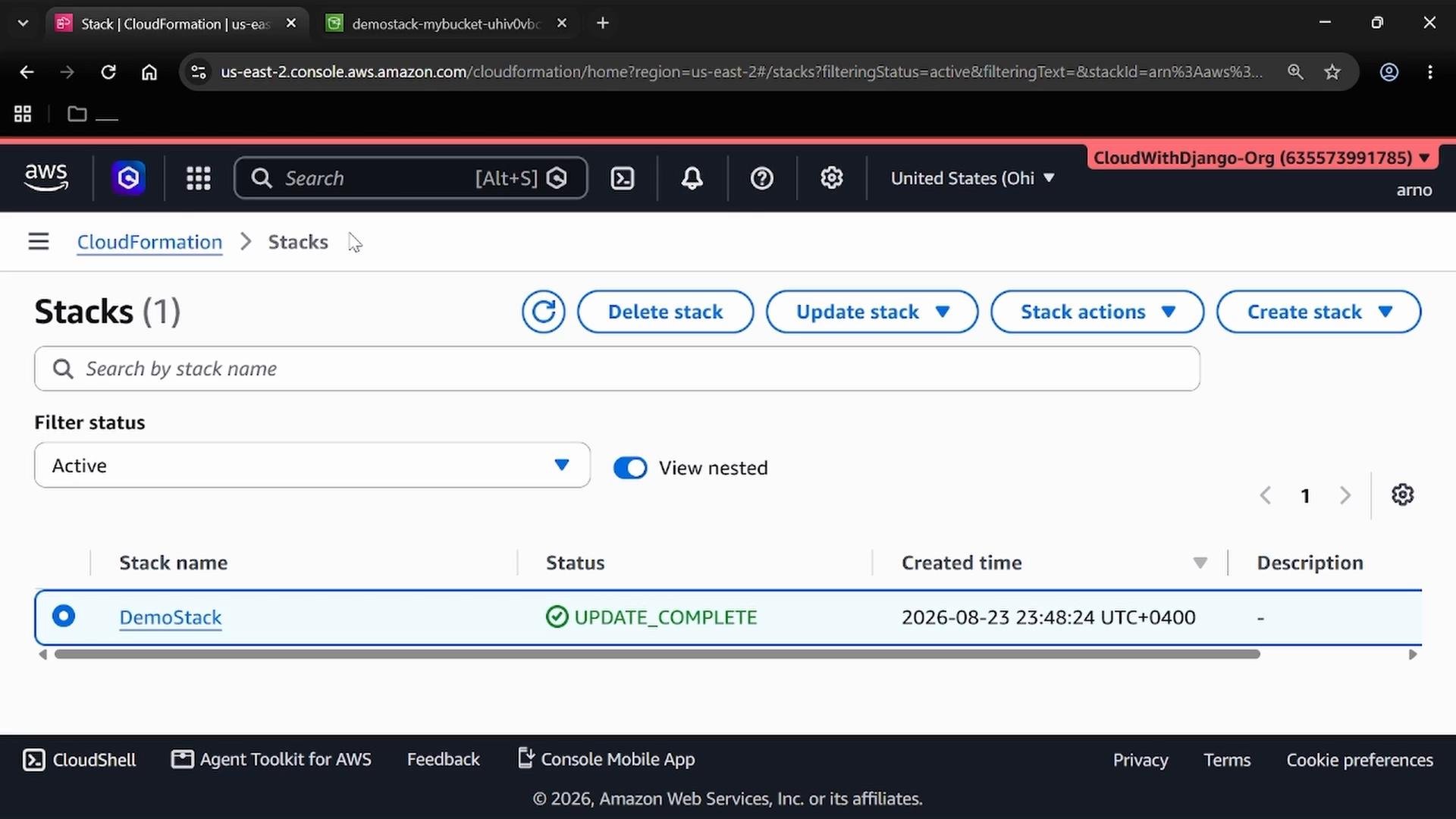
When the update completes the stack status will showUPDATE_COMPLETE. Verify the S3 bucket’s properties in the S3 console (Properties → Tags) to confirm the Author: Arno tag appears.
Troubleshooting tips
- If the stack update fails, check the Events tab for the failing resource and the associated error message.
- Ensure the IAM permissions for your user/role include CloudFormation and S3 actions required for stack creation and updates.
- Verify there are no bucket name conflicts; CloudFormation-generated physical names include a random suffix to help avoid collisions.