

- An AWS account with permissions to call CloudWatch
PutMetricData. - The AWS CLI configured in CloudShell or your local terminal: https://aws.amazon.com/cli/
- Optional: access to the CloudWatch console: https://console.aws.amazon.com/cloudwatch/home
put-metric-data (see the PutMetricData API docs: https://docs.aws.amazon.com/AmazonCloudWatch/latest/APIReference/API_PutMetricData.html). You must specify a namespace, metric name, value, and (optionally) a unit and dimensions.
Example command:
Notes about best practices and important behaviors
--namespacegroups related metrics together. Choose consistent, descriptive namespaces (e.g., your application name or team).- Metric names and namespaces are case-sensitive.
- Attach
--dimensionssuch asName=environment,Value=prodorName=service,Value=checkoutto enable finer-grained filtering and aggregation. - Use
--storage-resolution 1to publish high-resolution (1-second) metrics when you need sub-minute granularity. - Units are optional but recommended to make metrics easier to interpret and to avoid unit-mismatch issues when creating alarms.
MyApplication) and the metric OrdersProcessed within it. If you didn’t publish dimensions, the metric will appear without them.
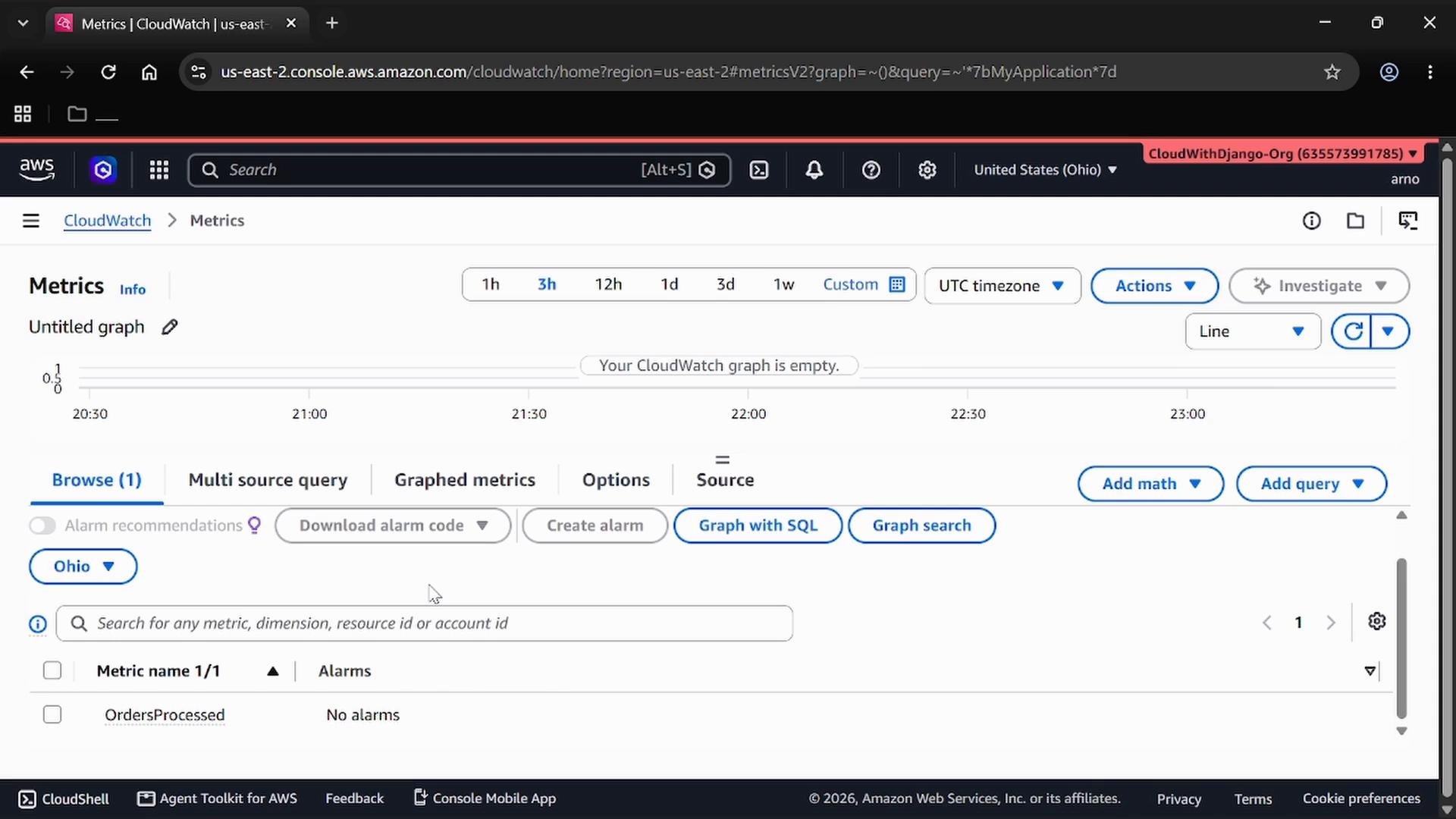
Best practices: Use consistent namespaces and metric names. Attach dimensions (for example,
environment=prod, service=checkout) to enable finer-grained filtering, aggregation, and alarm targeting.- Add the metric to dashboards for continuous visibility.
- Create CloudWatch alarms on thresholds, anomalies, or rate-of-change.
- Aggregate metrics by dimension, statistic (Sum, Average), and period to drive alerts and automated remediation.
- PutMetricData API: https://docs.aws.amazon.com/AmazonCloudWatch/latest/APIReference/API_PutMetricData.html
- AWS CloudShell: https://aws.amazon.com/cloudshell/
- AWS CLI: https://aws.amazon.com/cli/
- CloudWatch metrics and units: https://docs.aws.amazon.com/AmazonCloudWatch/latest/monitoring/cloudwatch_concepts.html