In this lesson we demonstrate two AWS services that simplify cross-region disaster recovery (DR) and improve global availability:
  • Amazon Route 53 — DNS-based failover using health checks and failover record types.
  • AWS Global Accelerator — static Anycast IPv4 addresses and global-layer routing to the healthiest regional endpoints.
The demo uses two EC2 instances in different AWS Regions:
  • PrimaryEC2 — us-east-2 (Ohio)
  • SecondaryEC2 — us-east-1 (Northern Virginia)
Both instances run a minimal HTTP server configured via EC2 user data so you can clearly observe which instance is serving traffic. EC2 user data (Amazon Linux 2)
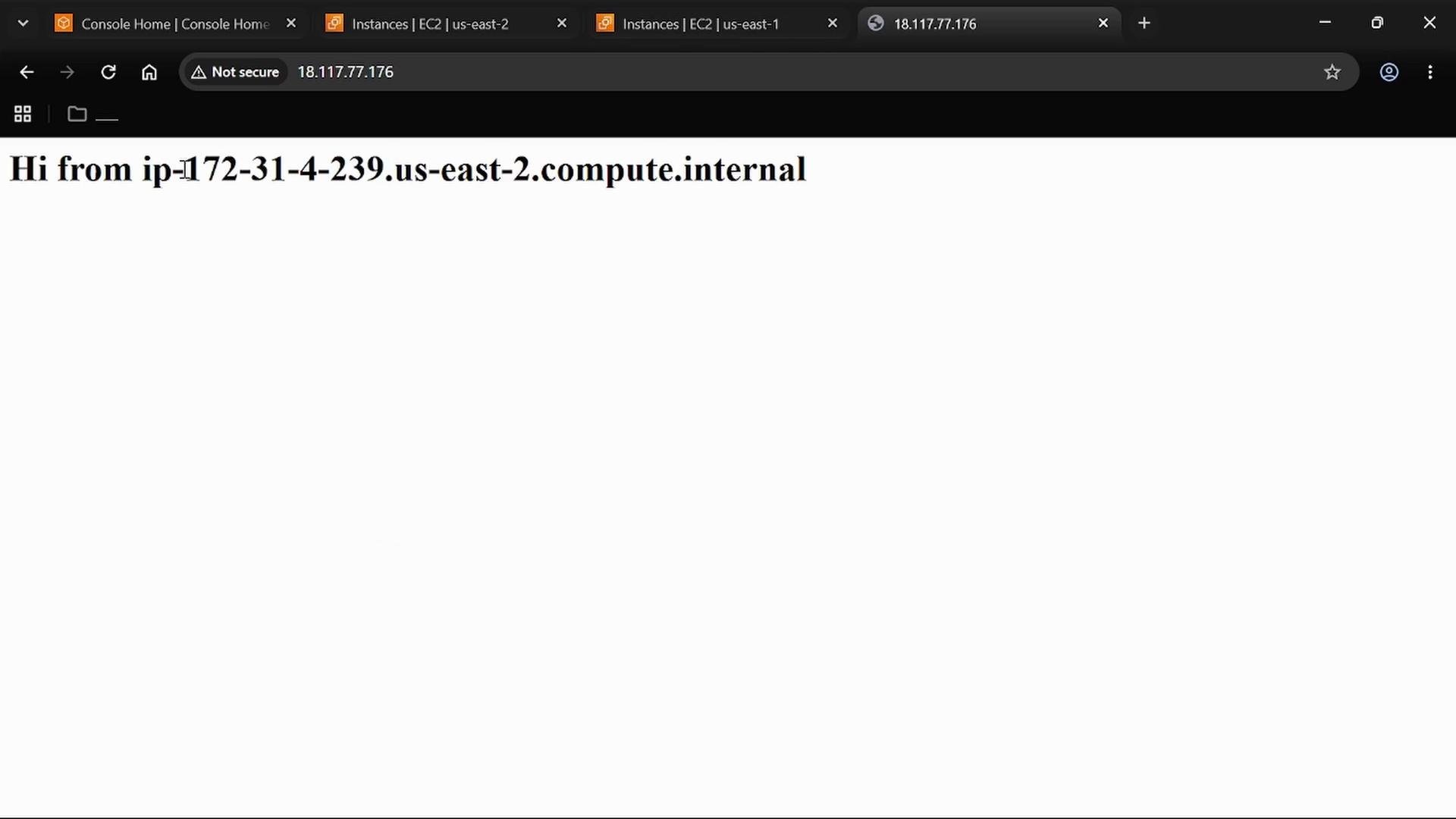
Validate each EC2 instance by opening its public IPv4 address in a browser, for example http://18.117.77.176. Confirm the web page shows the instance hostname produced by the user-data script.
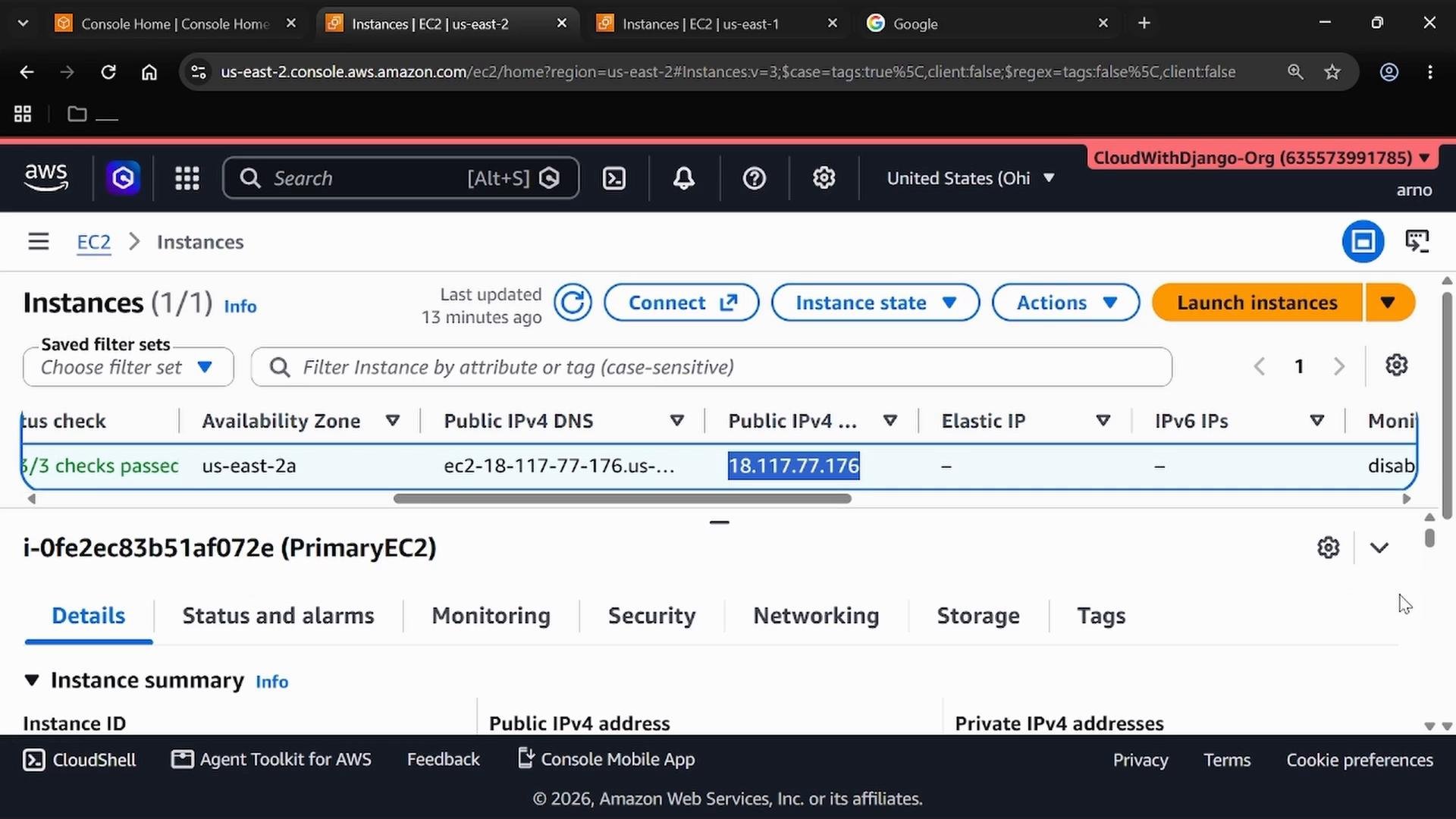
A screenshot of the AWS EC2 Instances page in the AWS Management Console showing a single instance in us-east-2a with its public IPv4 address (18.117.77.176) highlighted. The view shows instance details tabs (Details, Status and alarms, Monitoring, Security, Networking) and the "Launch instances" button.
Open the instance public IP in your browser:
A browser screenshot showing a plain webpage that reads "Hi from ip-172-31-4-239.us-east-2.compute.internal" with the URL 18.117.77.176 and a "Not secure" badge in the address bar. The open tabs suggest AWS Console/EC2 instance pages.
Repeat the same verification for the secondary instance (http://<secondary-ip>). Make sure the EC2 security group allows inbound HTTP (port 80) from your test client IPs.

Route 53: hosted zone and health checks

Route 53 provides DNS failover by combining health checks with failover record types. You can use a Route 53-registered domain or proceed with IP addresses for a lab/demo. The Route 53 dashboard and hosted zones appear like this:
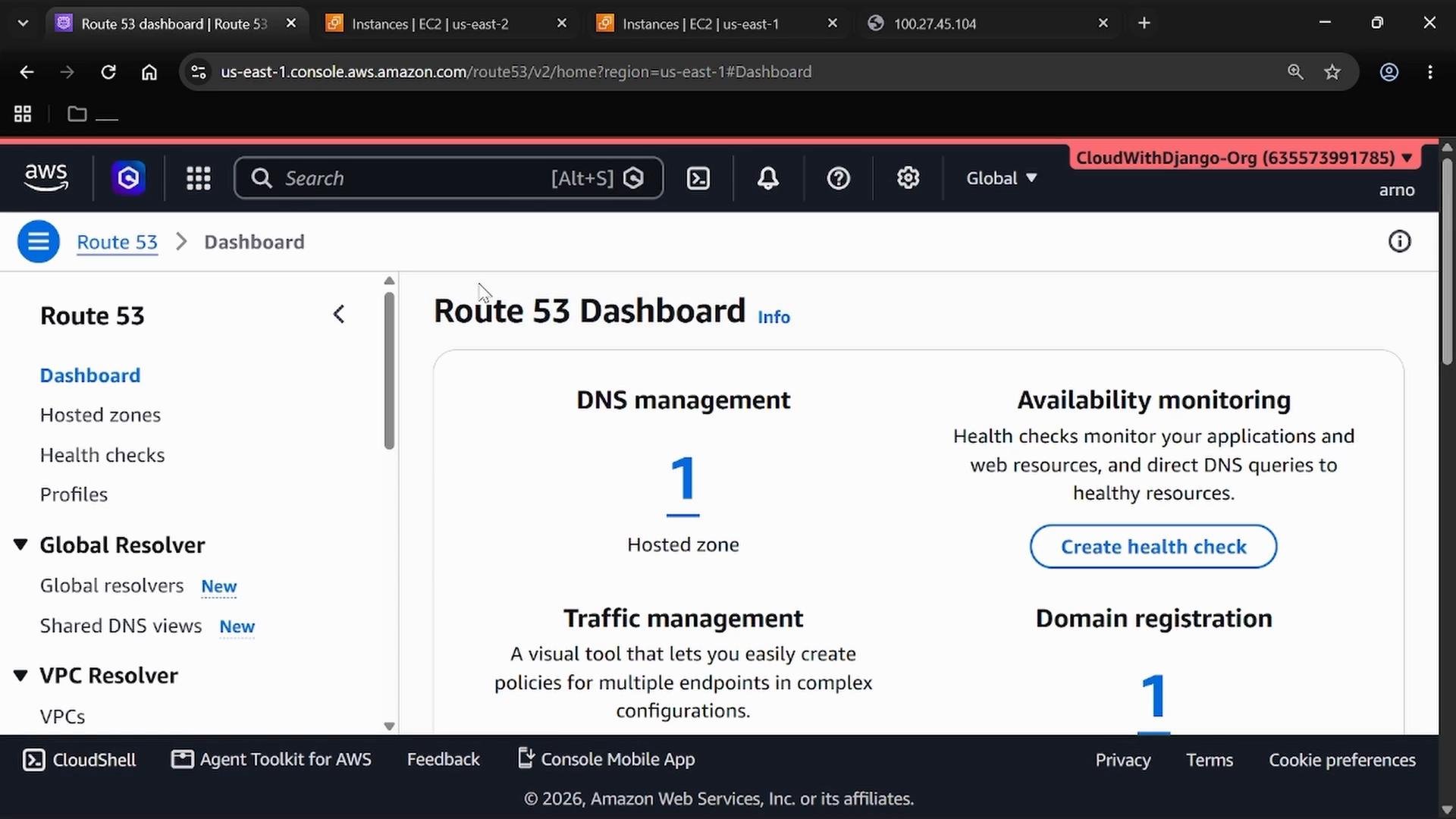
A screenshot of the AWS Route 53 Dashboard in a web browser, showing DNS management with one hosted zone and sections for availability monitoring, traffic management, and domain registration. The left sidebar displays navigation items like Dashboard, Hosted zones, Health checks, and Global Resolver.
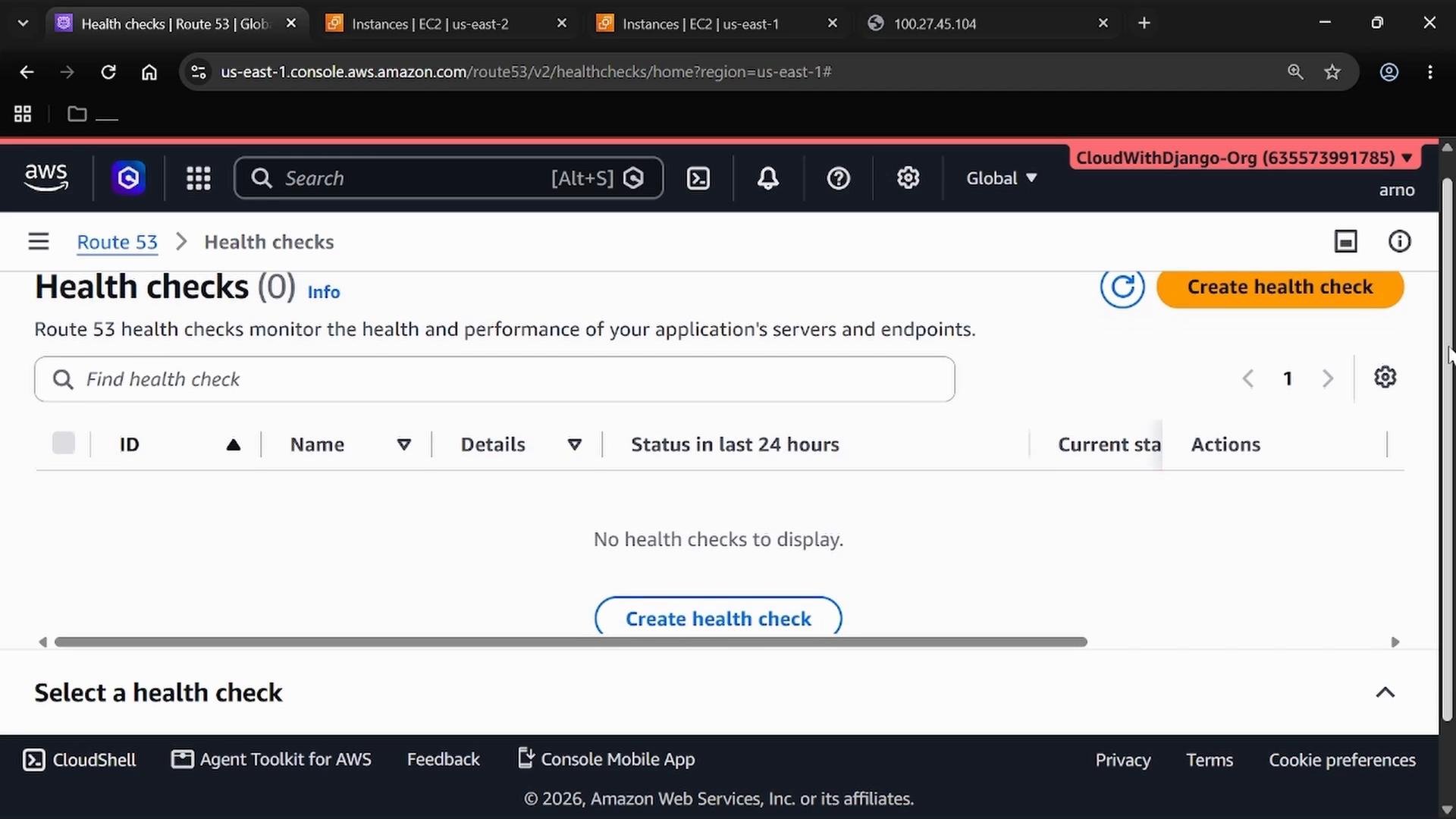
Before creating failover records, create a Route 53 health check that points at your primary instance. Route 53 will use this check to mark endpoints healthy/unhealthy and to enforce failover. Open Health Checks and choose Create health check:
A screenshot of the AWS Route 53 "Health checks" console showing no health checks listed and a prominent "Create health check" button. The page displays a search box, table headers (ID, Name, Details, Status), and navigation/header elements.
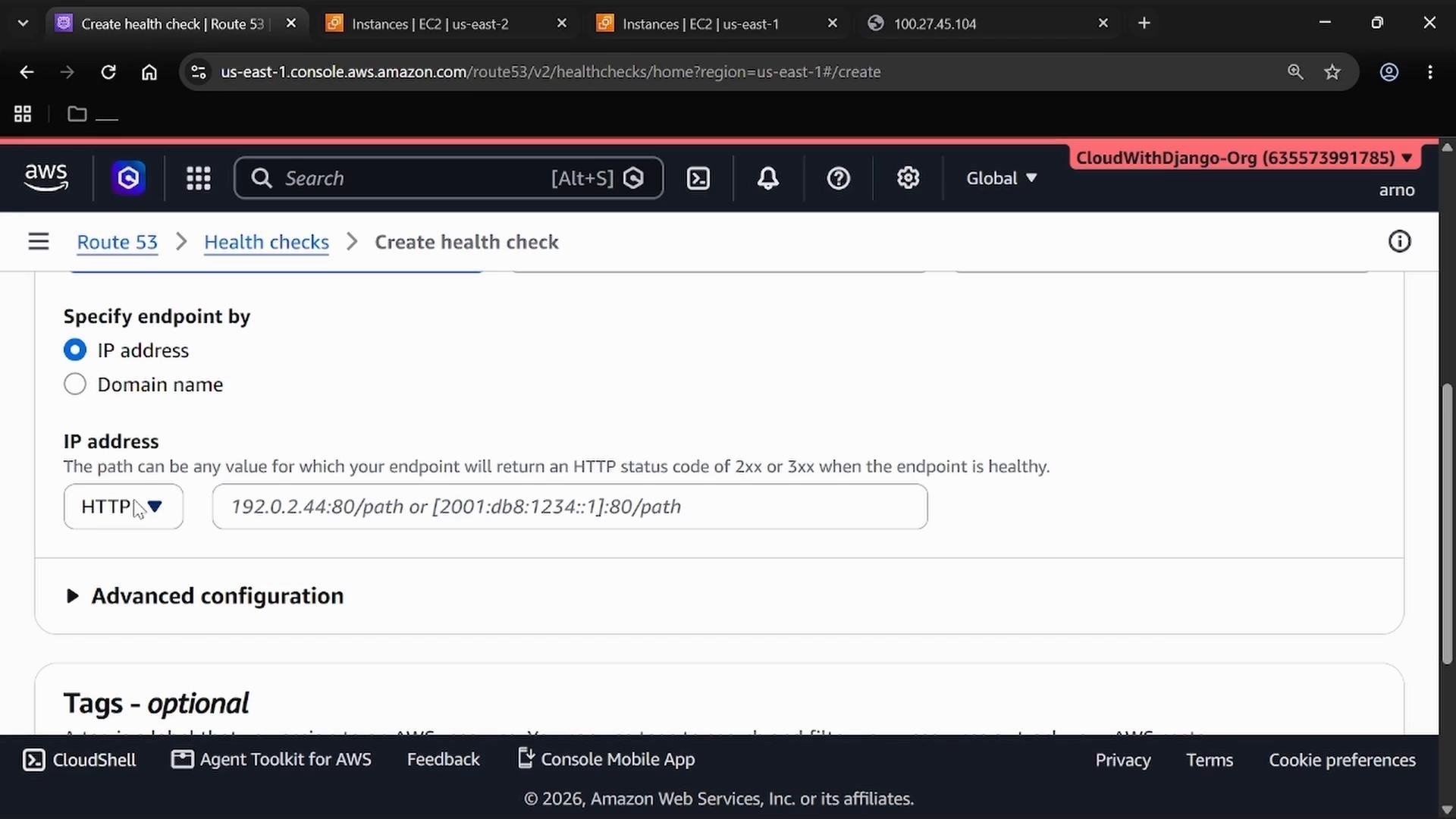
When creating the health check, select endpoint by IP address, set the protocol to HTTP and the port to 80. Route 53 supports specifying a path like / — e.g., 192.0.2.44:80/:
A screenshot of the AWS Route 53 "Create health check" page showing the option to specify an endpoint by IP address (HTTP) with an example address "192.0.2.44:80/path". The browser header and AWS navigation tabs are visible at the top.
This health check will periodically probe your primary EC2 HTTP endpoint. Later, create Route 53 record sets that reference this health check and use a failover policy to prefer the primary endpoint until it becomes unhealthy. Tip: Route 53 failover is DNS-based—clients honor DNS TTLs. For faster observed switchovers, set low TTLs on failover records (for tests only; production TTLs should be chosen carefully).

AWS Global Accelerator: static Anycast IPs and endpoint groups

AWS Global Accelerator provides two static Anycast IPv4 addresses and routes client traffic over the AWS global network to the healthiest regional endpoint. Use cases include improved performance, simplified static IP management, and multi-region high availability. Create an accelerator (choose Standard) and select IPv4 for the IP address type:
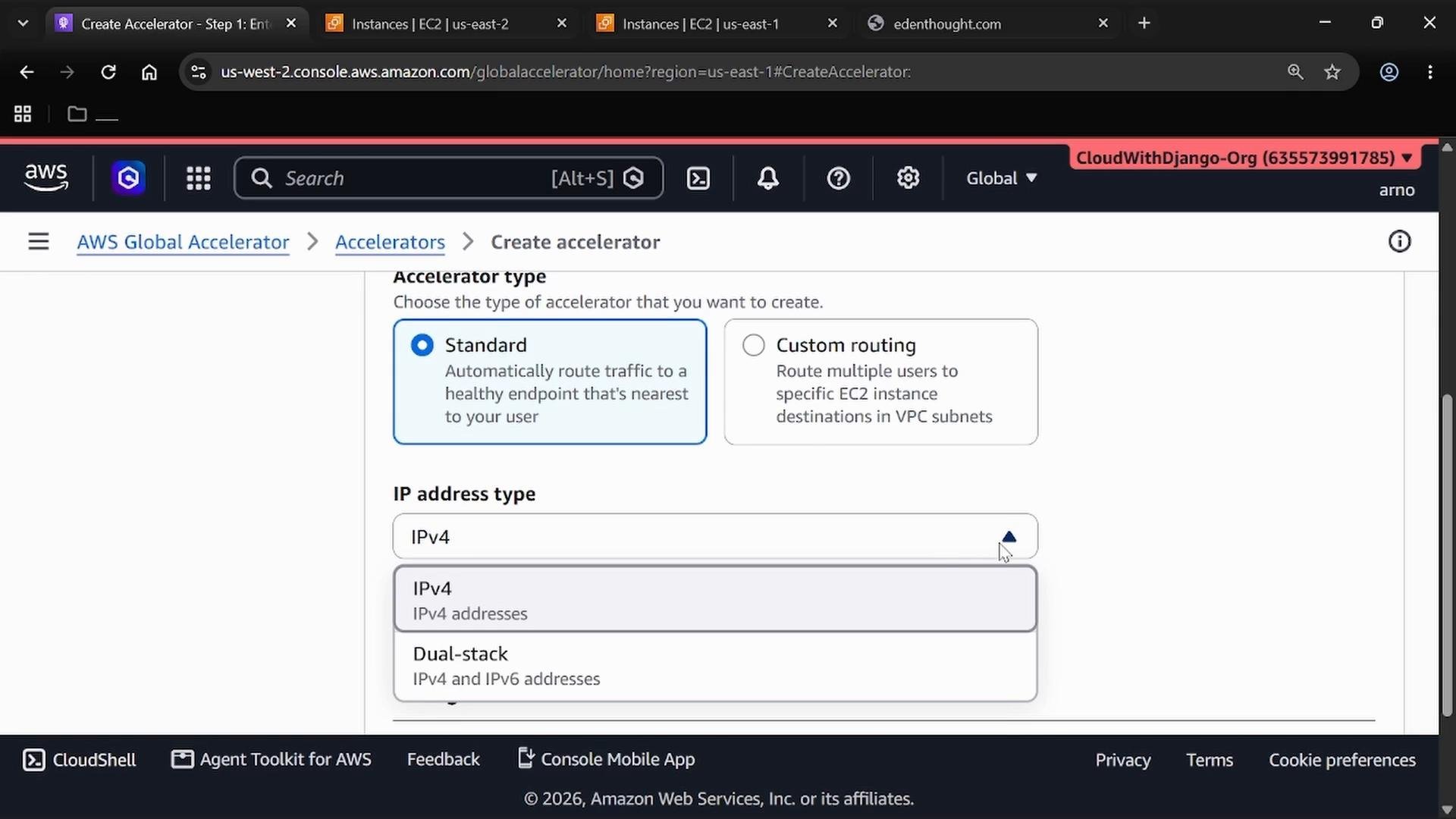
A screenshot of the AWS Global Accelerator "Create accelerator" page showing options to choose an accelerator type (Standard or Custom routing) and an IP address type dropdown with IPv4 and Dual-stack selections. The Standard option is selected and the IP address dropdown is open.
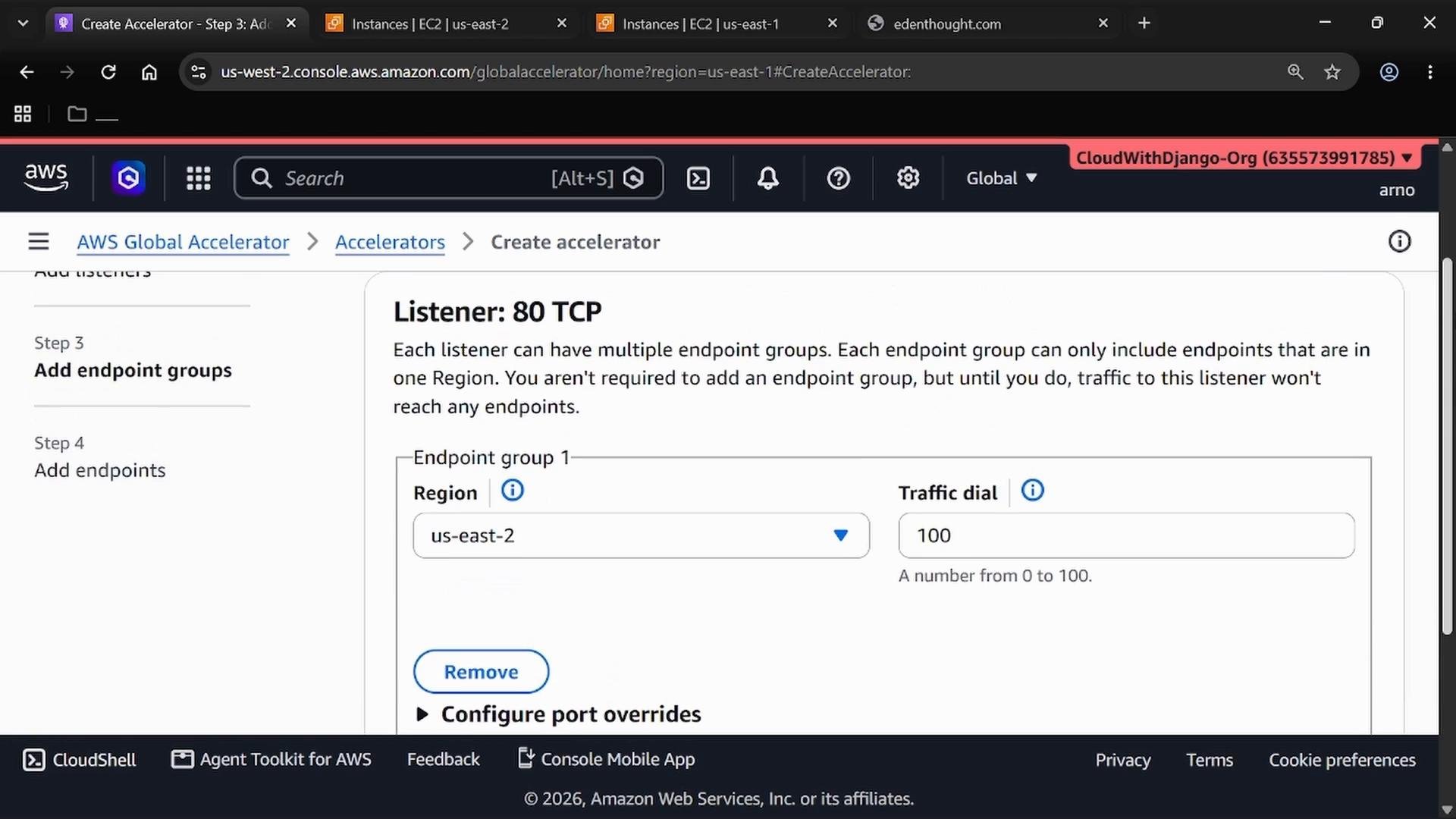
Add a listener for your application port (example uses TCP port 80):
A screenshot of the AWS Global Accelerator console on the "Create accelerator" page showing a Listener configured for port 80 TCP. The endpoint group is set to region us-east-2 with a traffic dial of 100.
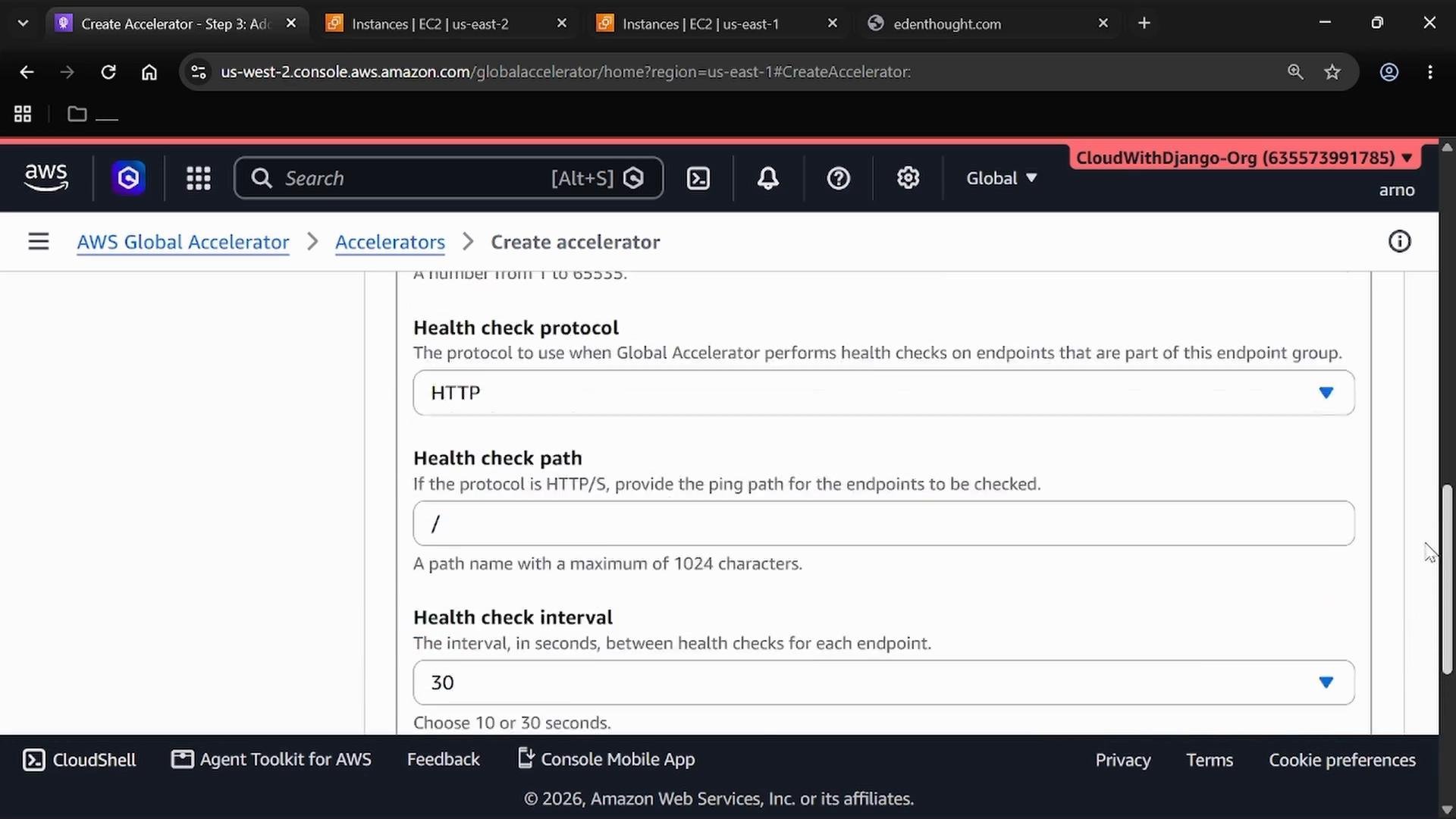
Configure health checks for each endpoint group (example: HTTP, port 80, path /, interval 30s):
A screenshot of the AWS Global Accelerator "Create accelerator" console showing health check settings, with protocol set to HTTP, health check path "/" and interval 30 seconds. The browser toolbar and AWS account UI are visible.
Add endpoint groups for the regions you wish to serve from:
  • Endpoint Group 1: us-east-2 (Ohio) — add PrimaryEC2 as an EC2 endpoint
  • Endpoint Group 2: us-east-1 (N. Virginia) — add SecondaryEC2 as an EC2 endpoint
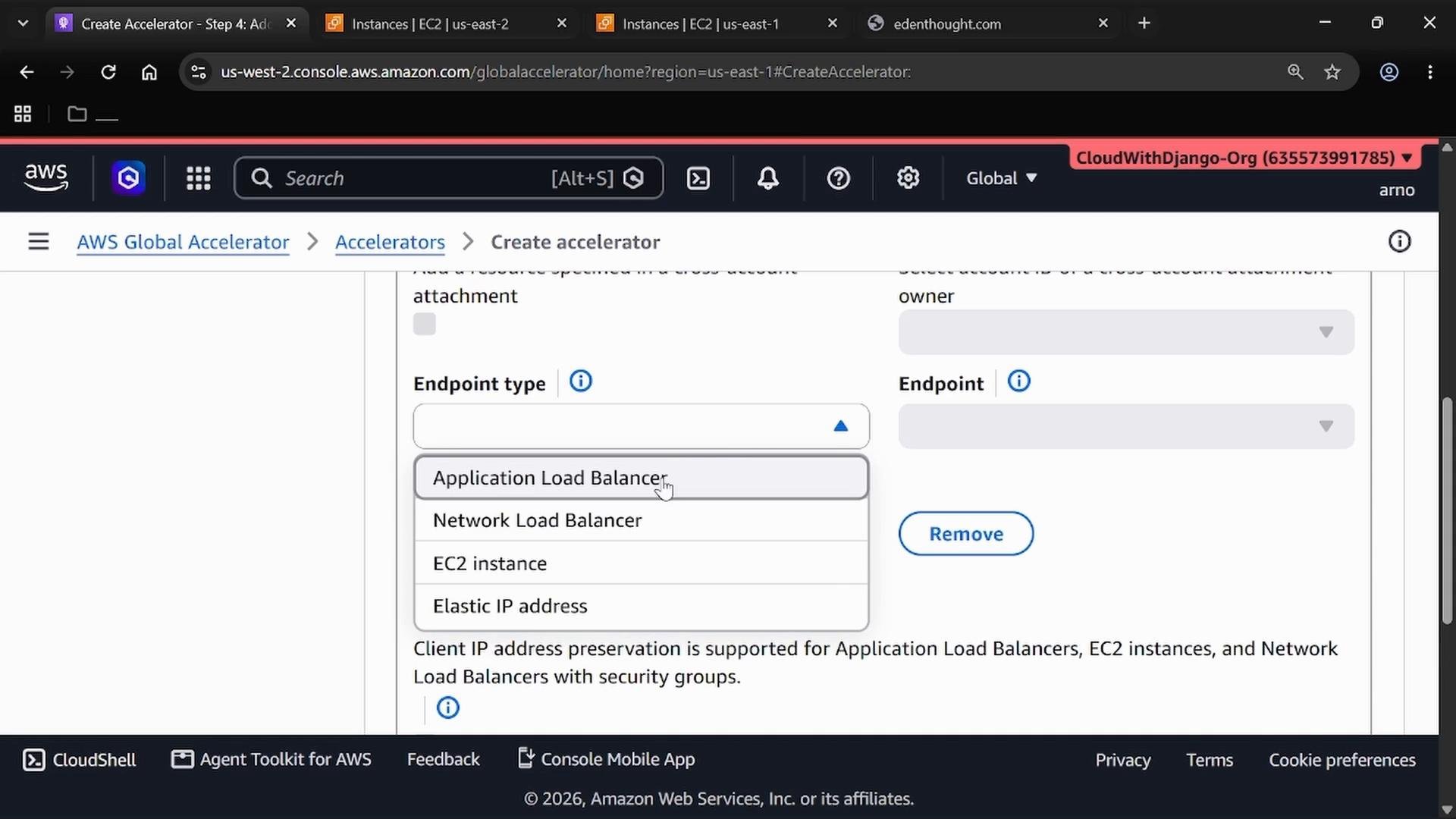
When adding endpoints, select the endpoint type (EC2 instance, ALB, NLB, or Elastic IP):
A screenshot of the AWS Global Accelerator "Create accelerator" console showing an "Endpoint type" dropdown with options like Application Load Balancer, Network Load Balancer, EC2 instance, and Elastic IP. The browser UI and AWS navigation/header are visible at the top.
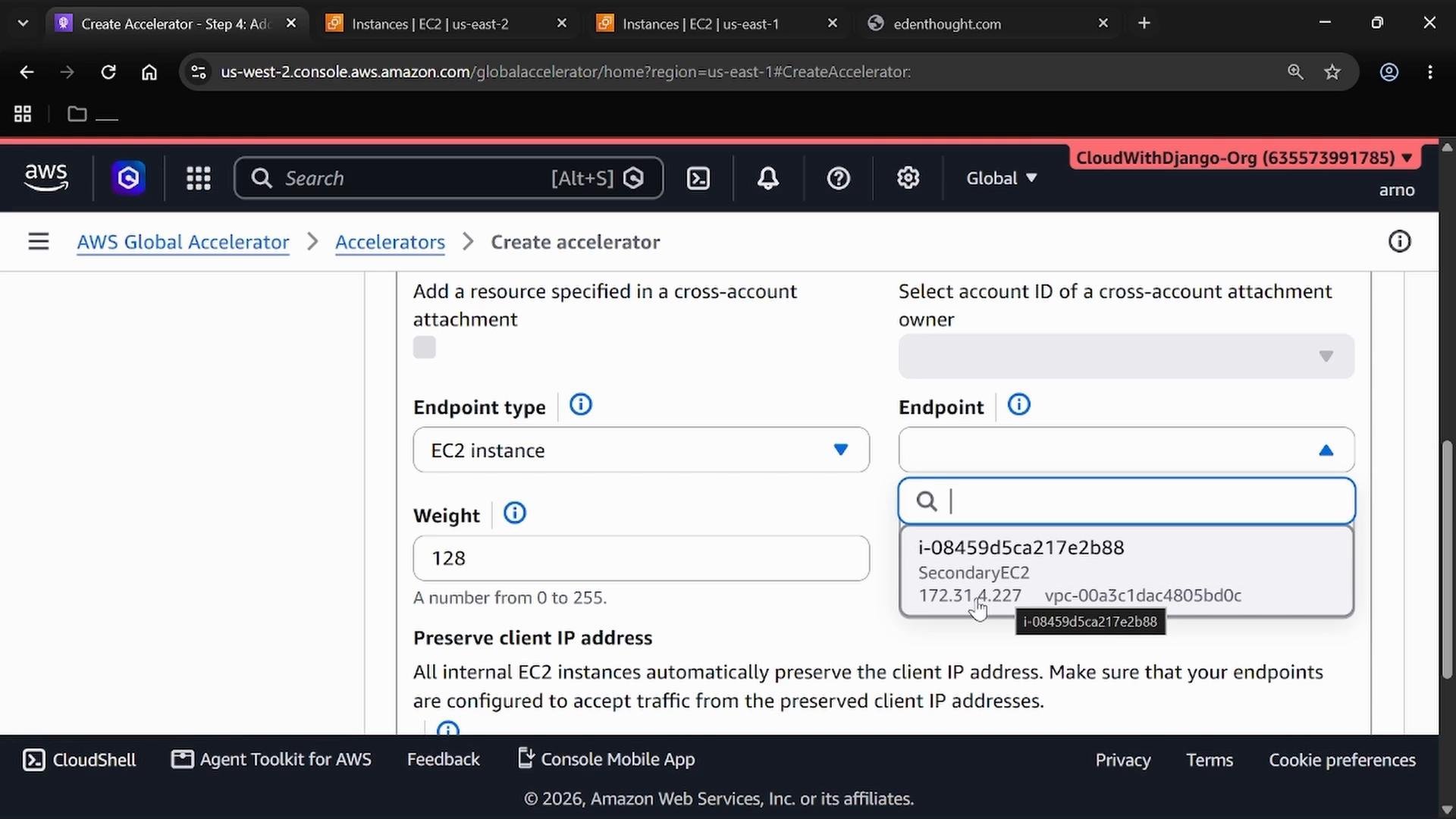
Select the EC2 instance and optionally set traffic weight. In the demo the weight is set to 128:
A screenshot of the AWS Global Accelerator "Create accelerator" console showing the form with Endpoint type set to "EC2 instance" and an EC2 instance ID selected from a dropdown. The weight field is set to 128 and explanatory text about preserving client IP addresses is visible.
Create the accelerator. Deployment typically takes several minutes (the demo deployment took ~15 minutes). When complete, Global Accelerator provides two static Anycast IP addresses. Use those IPs as your application endpoints, for example http://<GlobalAccelerator-IP>. Global Accelerator routes traffic using its own health checks and routing logic: it prefers healthy endpoints, optimizes user-to-application paths over the AWS global network, and does not strictly follow a primary/secondary priority model like Route 53 failover records.

Demonstrating failover behavior (Global Accelerator)

To simulate a failover, stop the EC2 instance that is currently serving traffic (in the demo this was the secondary instance). After the configured health-check interval and a short propagation time, Global Accelerator will mark the endpoint as Unhealthy and shift traffic to another healthy endpoint (for example, the primary instance in us-east-2). Listener details page:
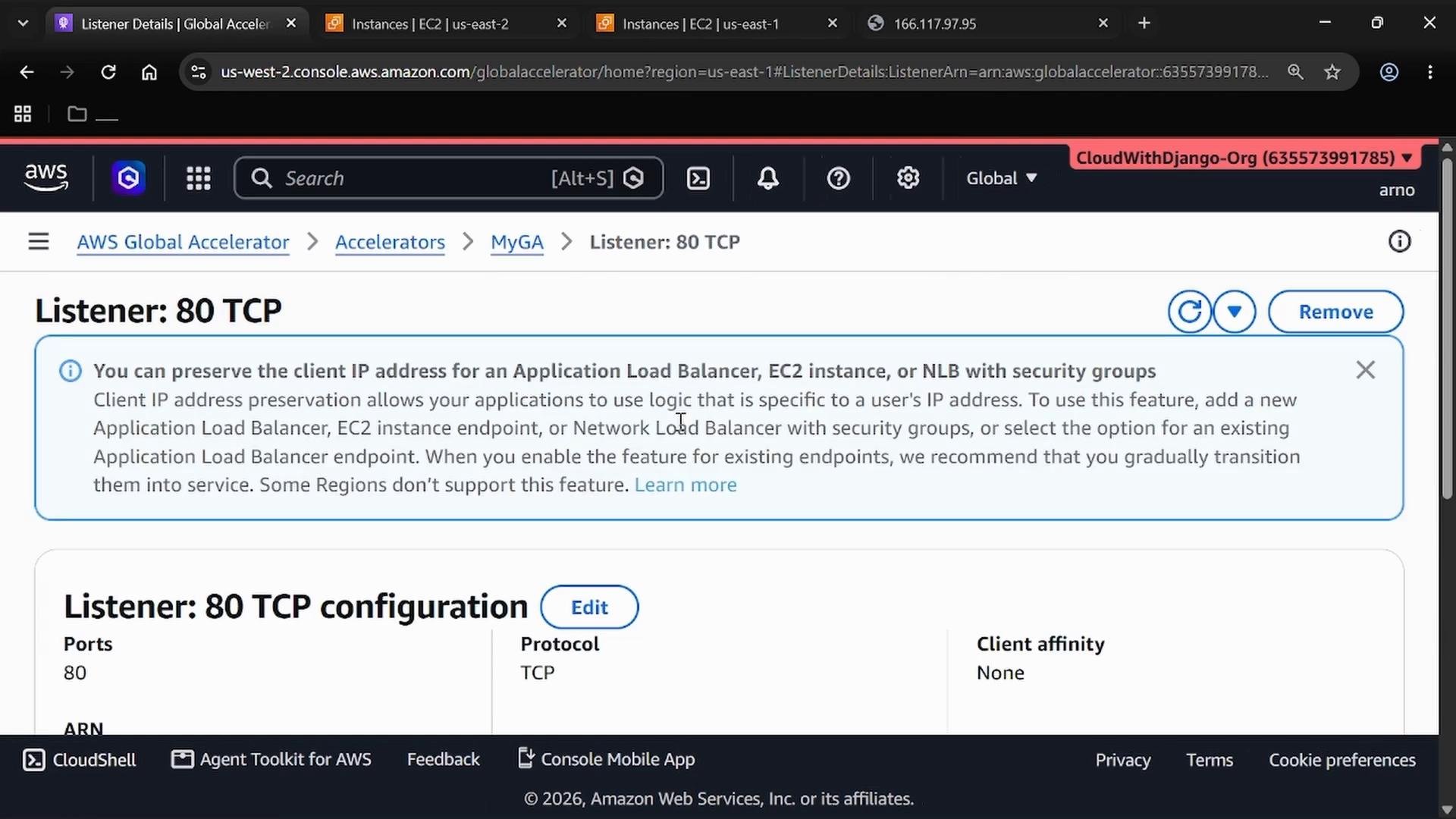
A screenshot of the AWS Management Console showing an AWS Global Accelerator "Listener: 80 TCP" details page, including a notice about preserving client IP addresses and the listener configuration (port 80, protocol TCP).
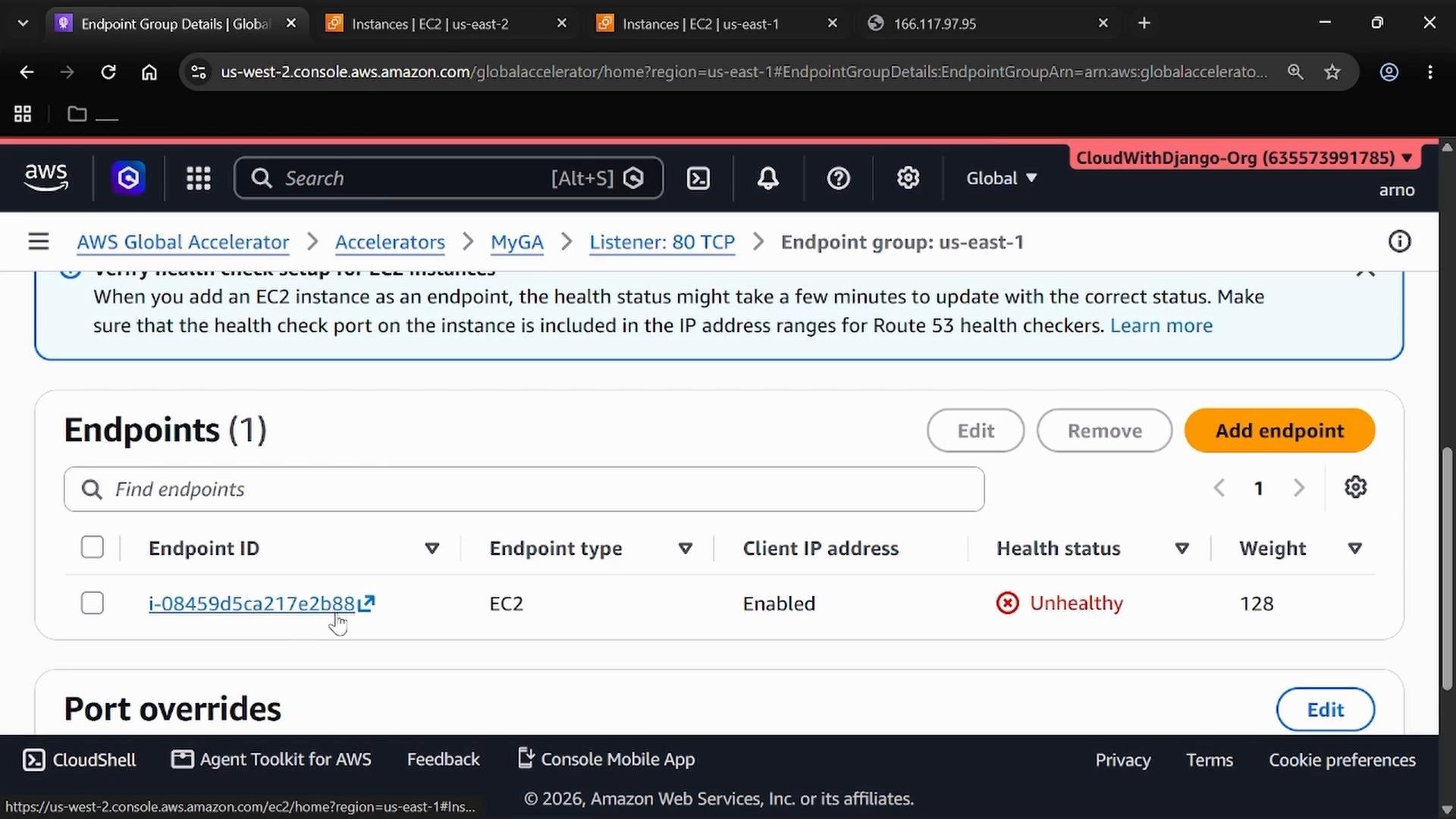
If an endpoint fails health checks, the endpoint group shows the Unhealthy state for that endpoint:
A screenshot of the AWS Global Accelerator console showing an endpoint group with one EC2 endpoint (i-08459...) listed as Enabled but marked "Unhealthy." The page shows controls to Edit, Remove, or Add endpoint and a section for port overrides.
In the demo, the application output changed from one EC2 hostname to the other, for example:
and later:
This shows the Global Accelerator shifted traffic to the healthy EC2 instance. Quick test commands
  • From a terminal run: curl -sS http://<GlobalAccelerator-IP> to see which instance responds.
  • To test Route 53 failover behavior, use dig or nslookup and observe TTL behavior:
    • dig +short @8.8.8.8 example.com (replace example.com with your domain)
Note: Route 53 failover depends on DNS TTL values, so client-side caching may delay failover visibility. Global Accelerator failover is immediate at the network edge and does not depend on DNS TTLs.

Cleanup

When your testing is complete:
  1. Disable and delete the Global Accelerator.
  2. Terminate any EC2 instances you launched.
  3. Remove Route 53 health checks and records you created.
Remember to delete resources (Global Accelerator, EC2 instances, Route 53 health checks/records) to avoid ongoing charges. Global Accelerator and EC2 instances can incur costs while they remain active.

Key differences to remember:
  • Route 53 failover: DNS-based routing with health checks and failover record types; can enforce primary/secondary priority but is subject to DNS TTL/caching.
  • Global Accelerator: Provides two static Anycast IPs and routes traffic at the network layer using the AWS global network; relies on its own health checks and routing logic and provides faster failover behavior independent of DNS TTL.

Comparison at a glance


That completes the demonstration of Route 53 and Global Accelerator for cross-region failover and availability.

Watch Video