

- An AWS account with permission to view and modify CloudWatch Logs and CloudWatch Metrics.
- A log group (we’ll create one in this demo).
- Open the CloudWatch console and navigate to Logs → Log groups in the left-hand navigation. If you already have log groups they will appear here; for this walkthrough we’ll create a new one.
-
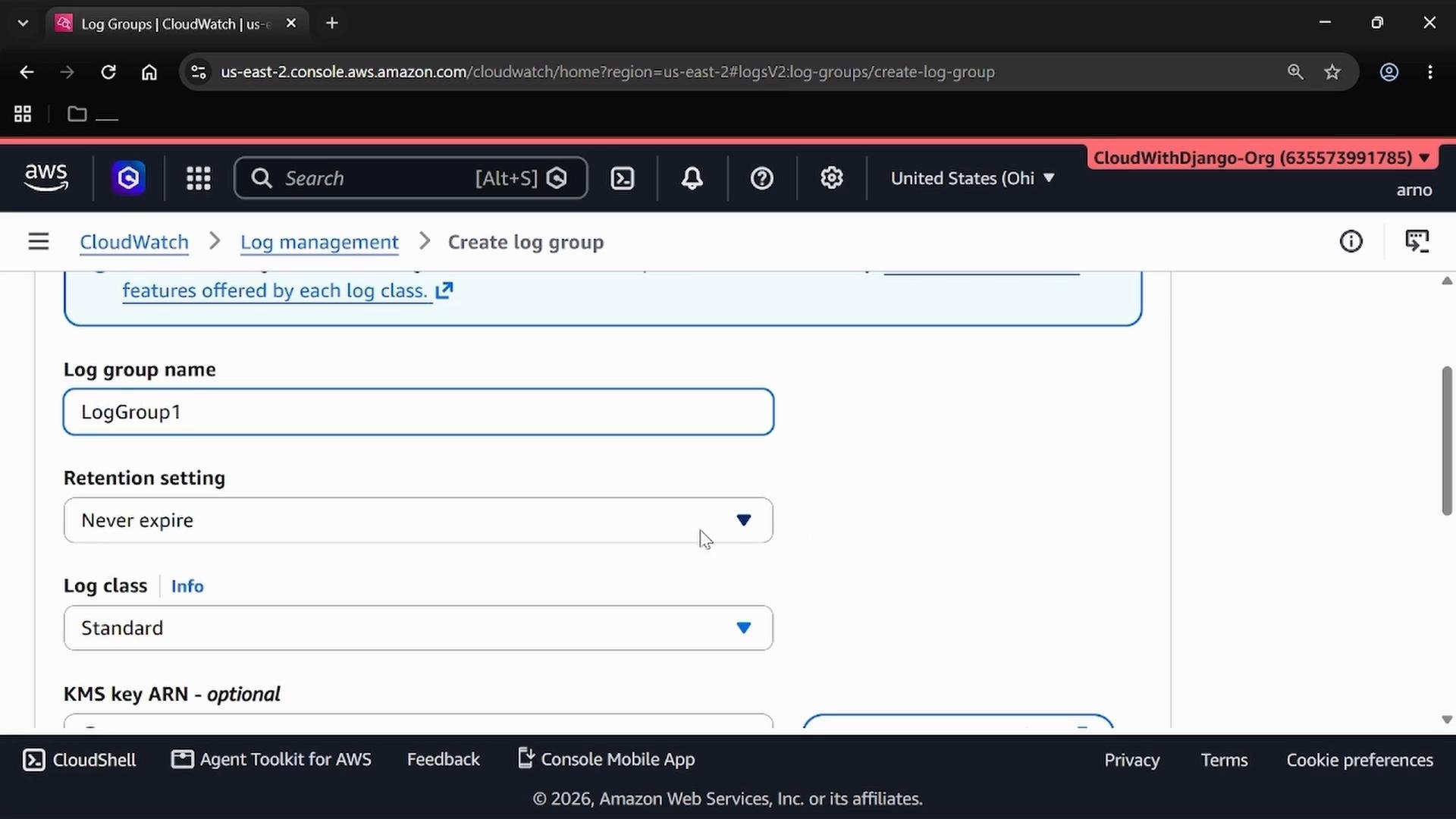
Create a new log group. Give it a name and set retention and other options as needed. In this demo we create
LogGroup1, set retention to never expire, and leave the log class as Standard.
- Select the new log group (
LogGroup1), open Actions, and choose Create metric filter.
- Define the filter pattern — the text or structured fields CloudWatch should look for in each log event. For a simple, unstructured example, look for log lines that include the term
ERROR. Matching is case-sensitive unless you explicitly include alternate variants.
- (Optional) Use Field Selection Criteria for structured logs (JSON, key/value). For this basic demo we skip structured field selection and rely on plain-text pattern matching.
- Test the filter pattern using Custom Log Data. Paste several sample log lines to verify which events match your pattern. Example sample events:
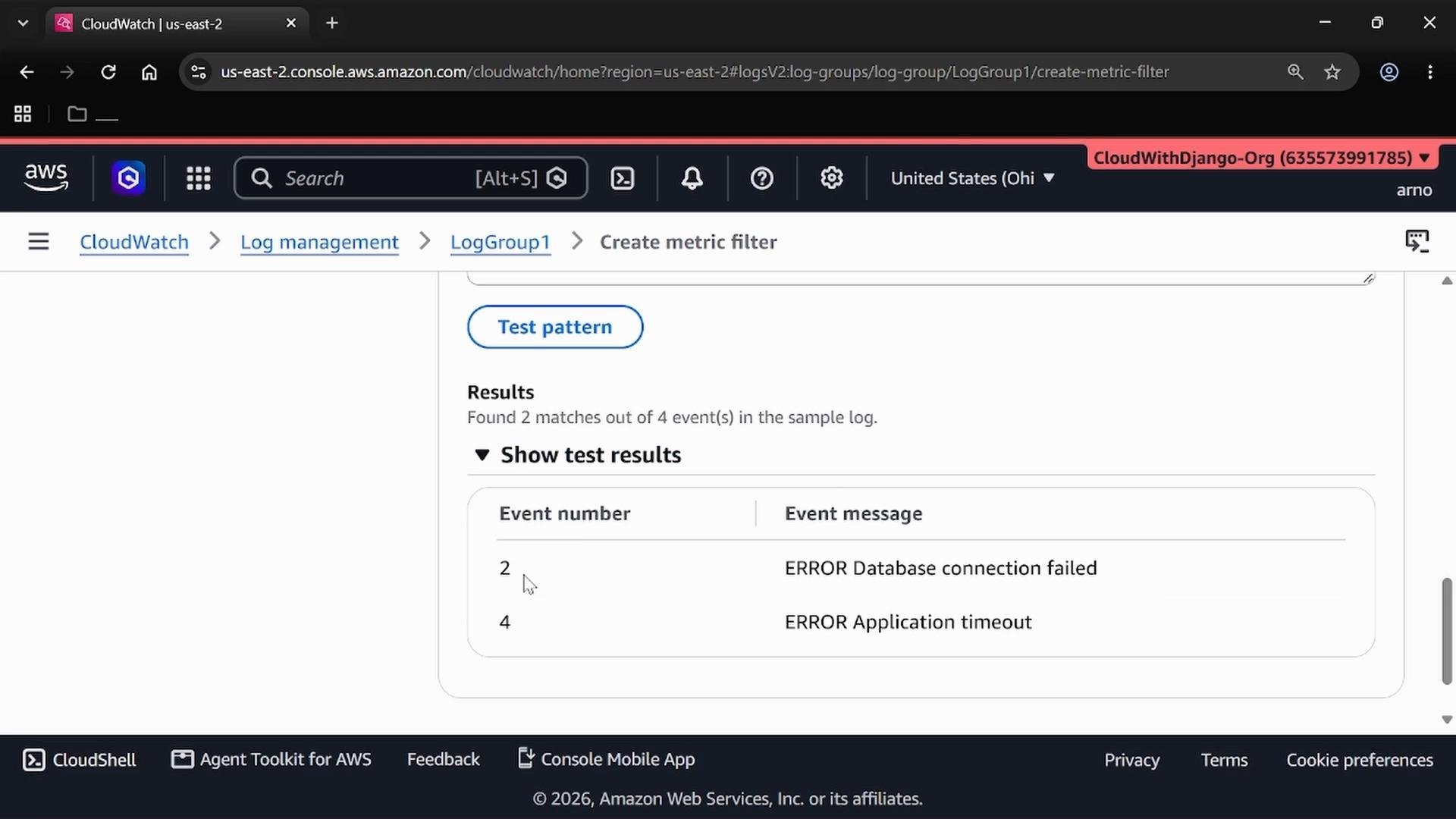
ERROR Database connection failed and ERROR Application timeout), confirming the filter behaves as expected.
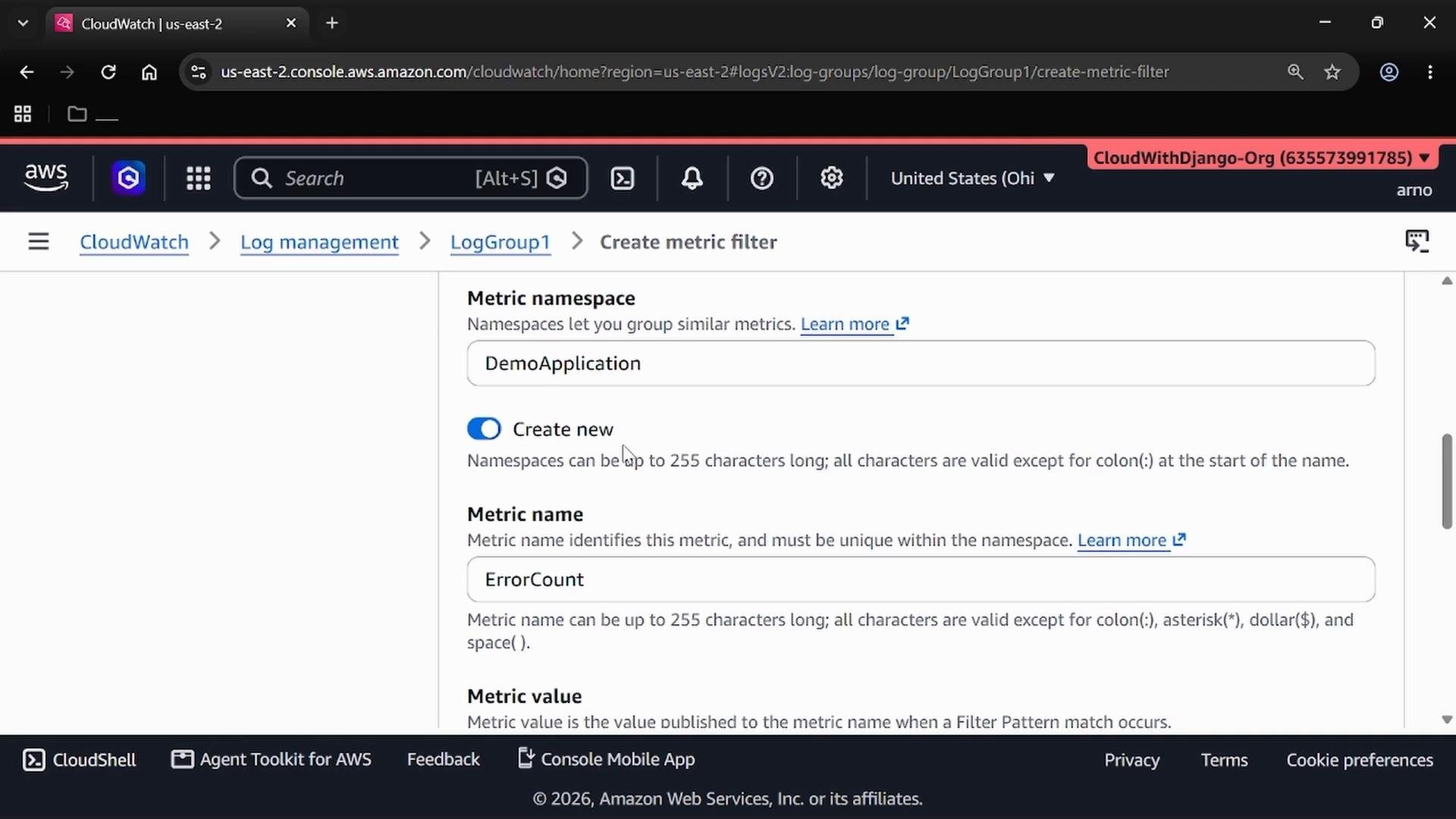
- Configure the metric that CloudWatch will publish for each matching event. Typical settings:
- Filter name: choose a descriptive name (e.g.,
error-count-filter). - Metric namespace: logical grouping for your custom metrics (e.g.,
DemoApplication). - Metric name: the measurement name (e.g.,
ErrorCount). - Metric value: the numeric value to publish when an event matches — commonly set to
1to count occurrences.
1, each matching log event publishes a data point with value 1 to the ErrorCount metric, allowing you to count occurrences over time.
Table — Metric configuration examples
- Review your configuration and create the metric filter.
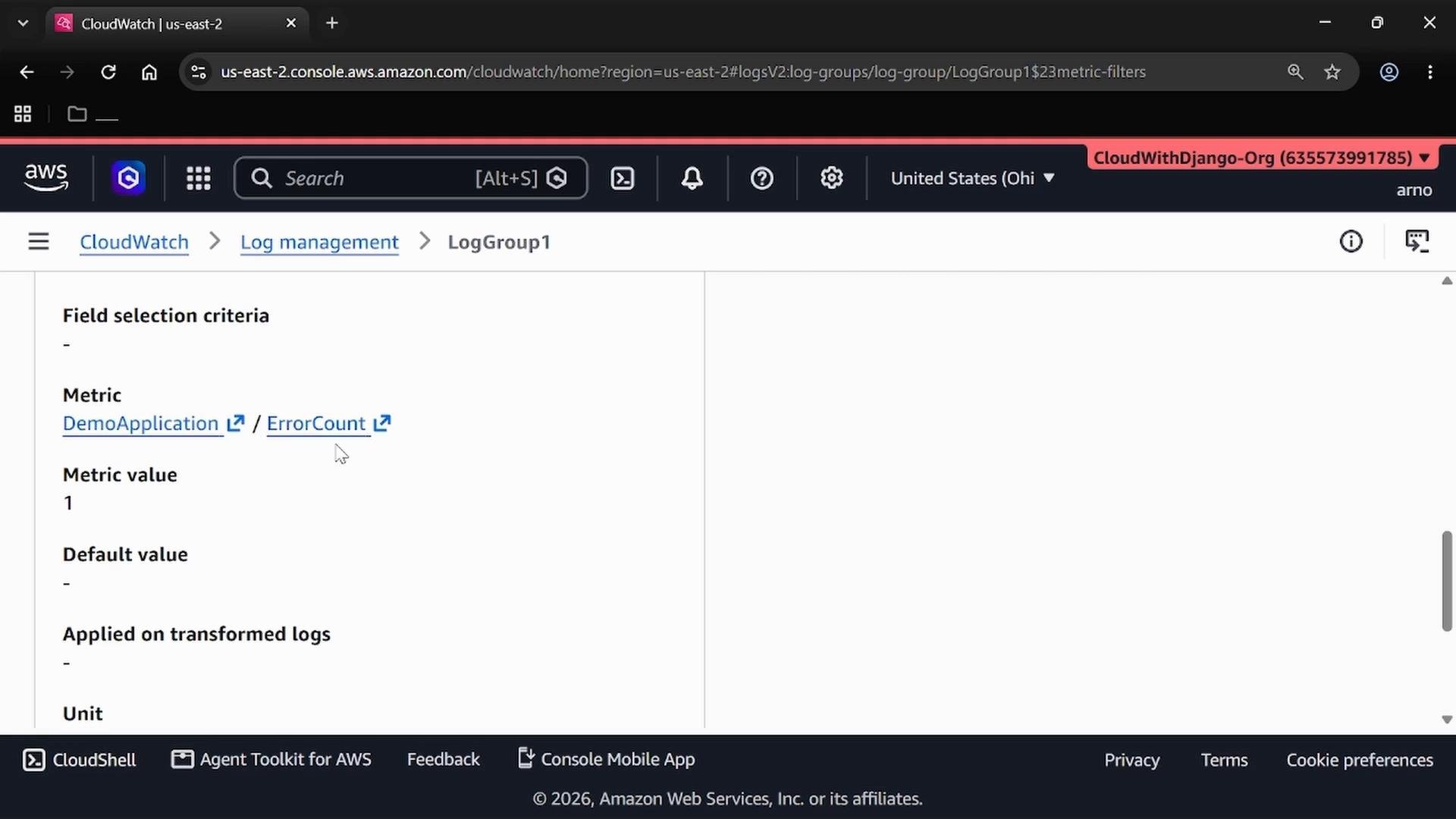
- After creation, verify the filter under the log group’s Metric Filters to confirm the associated metric namespace/name and metric value are displayed. The console lists configured metric filters and the metrics they publish.
- Graph the custom metric in CloudWatch Metrics.
- Add the metric to dashboards.
- Create CloudWatch Alarms to trigger notifications when thresholds are crossed.
When using simple term-based patterns, remember matching is case-sensitive. For counting occurrences, set Metric value =
1 so each matched event increments the metric by one.