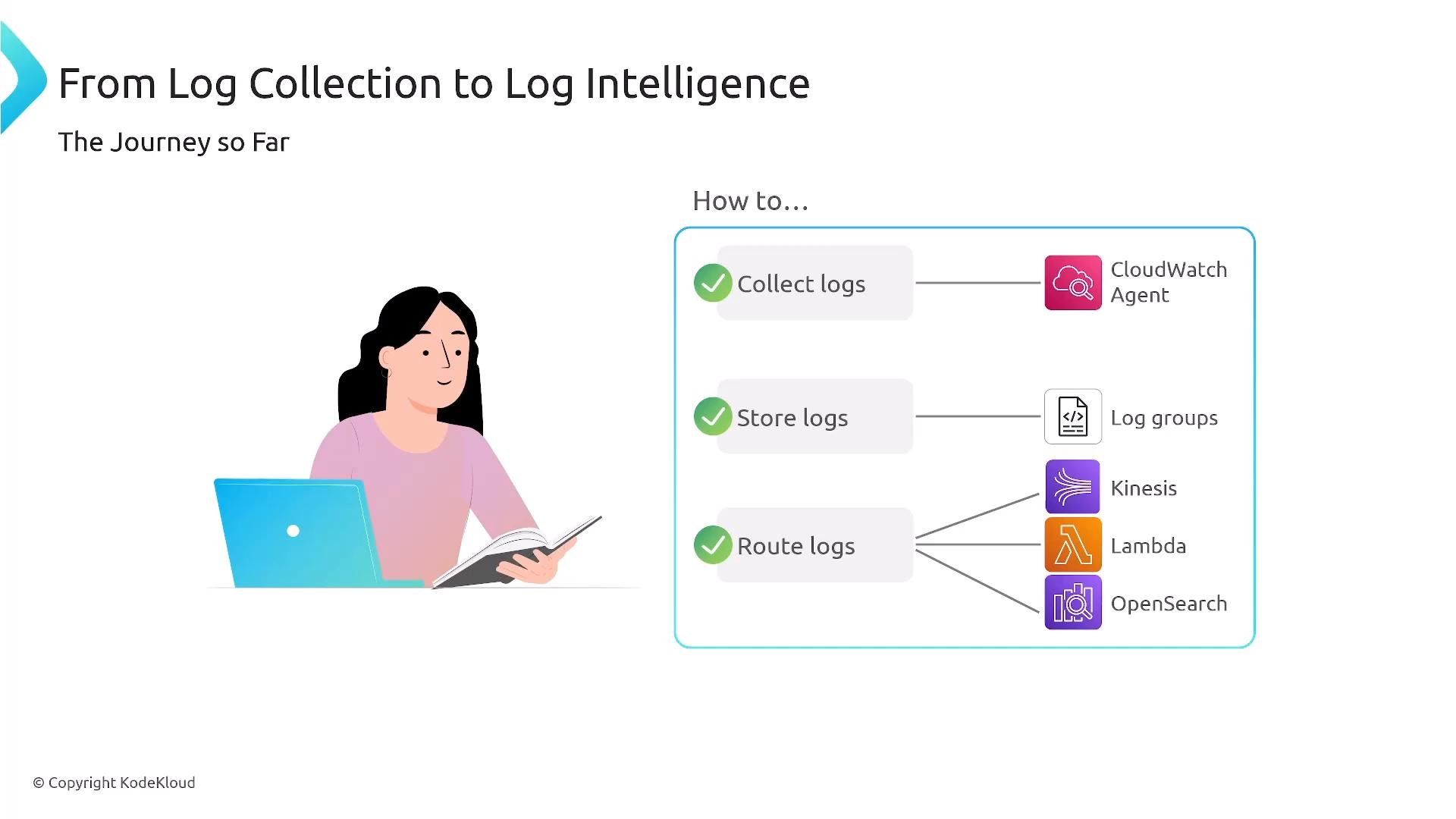
Welcome — this lesson explains CloudWatch Logs Insights, AWS’s interactive log query engine. We’ll follow the path from log collection to log intelligence and then focus on how to quickly find patterns, troubleshoot issues, and extract actionable insight from large volumes of log data. CloudWatch Logs Insights is a purpose-built, SQL-like query engine built into CloudWatch. It requires no additional infrastructure, is optimized for time-series log data, and is a primary tool for interactive troubleshooting in AWS. For heavy historical or scheduled analysis over archived logs, consider Amazon Athena on S3, EMR, or visualization platforms like QuickSight, Grafana, or OpenSearch.
A presentation slide titled "From Log Collection to Log Intelligence" showing steps to collect, store, and route logs with icons for CloudWatch Agent, Log groups, Kinesis, Lambda, and OpenSearch. On the left is a cartoon illustration of a woman reading beside a laptop.

When to use CloudWatch Logs Insights

Use Logs Insights when:
  • You need real-time or near-real-time troubleshooting, pattern discovery, or security investigation.
  • Your logs are already ingested into CloudWatch Logs.
  • You want an interactive, low-latency query experience without running additional infrastructure.
Prefer Athena, EMR, or OpenSearch when you need:
  • Long-term cross-account or cross-bucket historical analysis on archived logs (Athena + S3).
  • Large batch analytics or ETL (EMR).
  • Advanced full-text search, fuzzy matching, or complex dashboards (OpenSearch / Grafana).

Operational notes (quick facts)

  • Query results are retained for 7 days by default.
  • You can save up to 1,000 saved queries per account.
  • Billing is pay-per-GB scanned by Logs Insights.
  • Use Athena for cost-effective scheduled queries over S3 archives.
Typical workflow: choose target log group(s) → narrow the time range → filter early → parse/aggregate → visualize/export.

Query language fundamentals

CloudWatch Logs Insights uses a compact pipeline-style query language. You chain commands with the pipe character (|) and they execute sequentially. The language is case-sensitive by default; use regex flags for case-insensitive patterns.
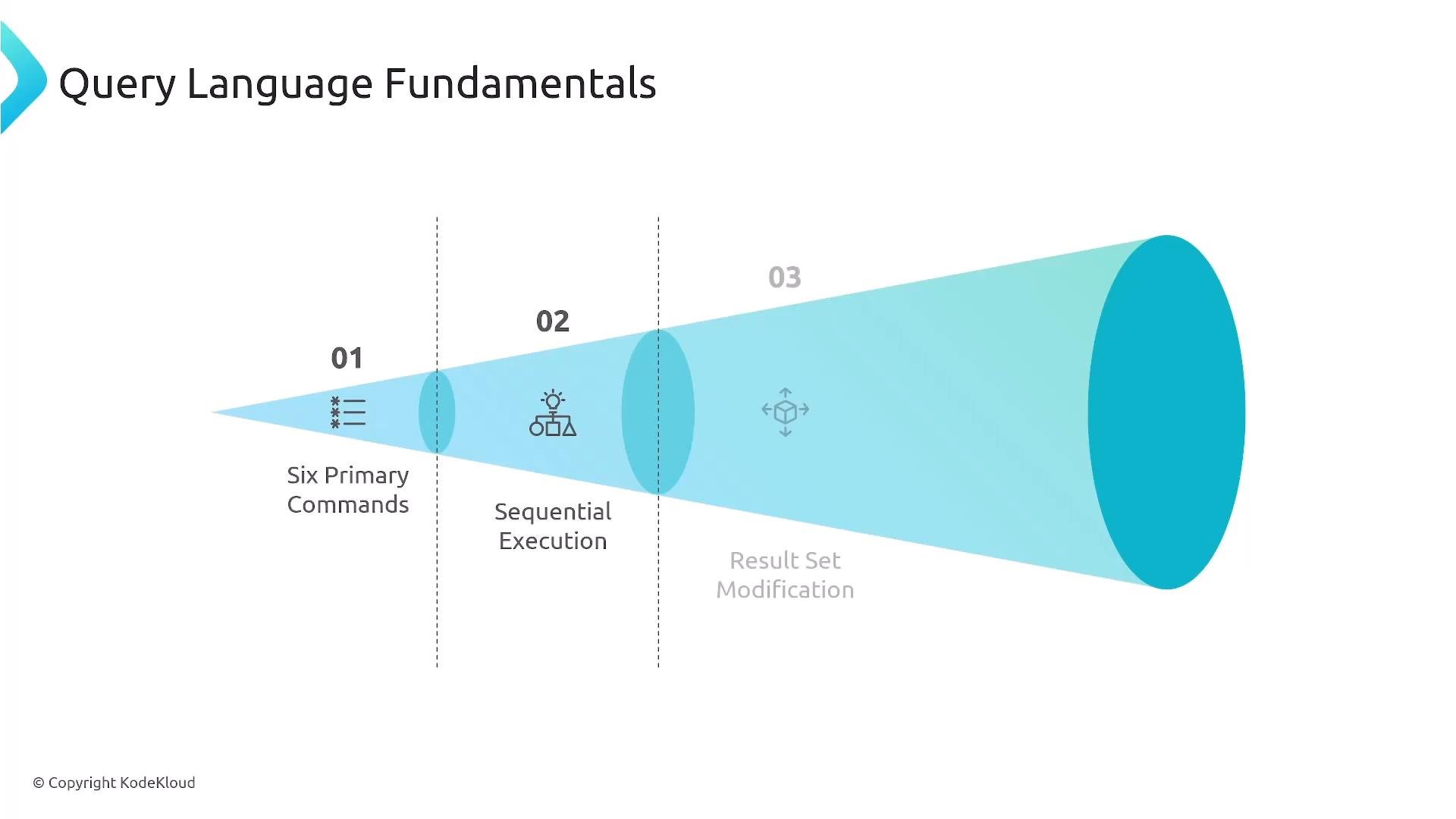
A slide titled "Query Language Fundamentals" showing a blue funnel/cone graphic split into three stages (01, 02, 03) labeled "Six Primary Commands," "Sequential Execution," and "Result Set Modification," expanding into a large cylinder on the right. Small icons accompany each stage.

Primary commands

Example pipeline:

Automatic field discovery

Logs Insights attempts to discover fields at query time — it supports nested JSON and JSON Lines formats and is schema-free (no ETL required). When encountering a new structured schema you may see a short discovery delay. Example JSON log:
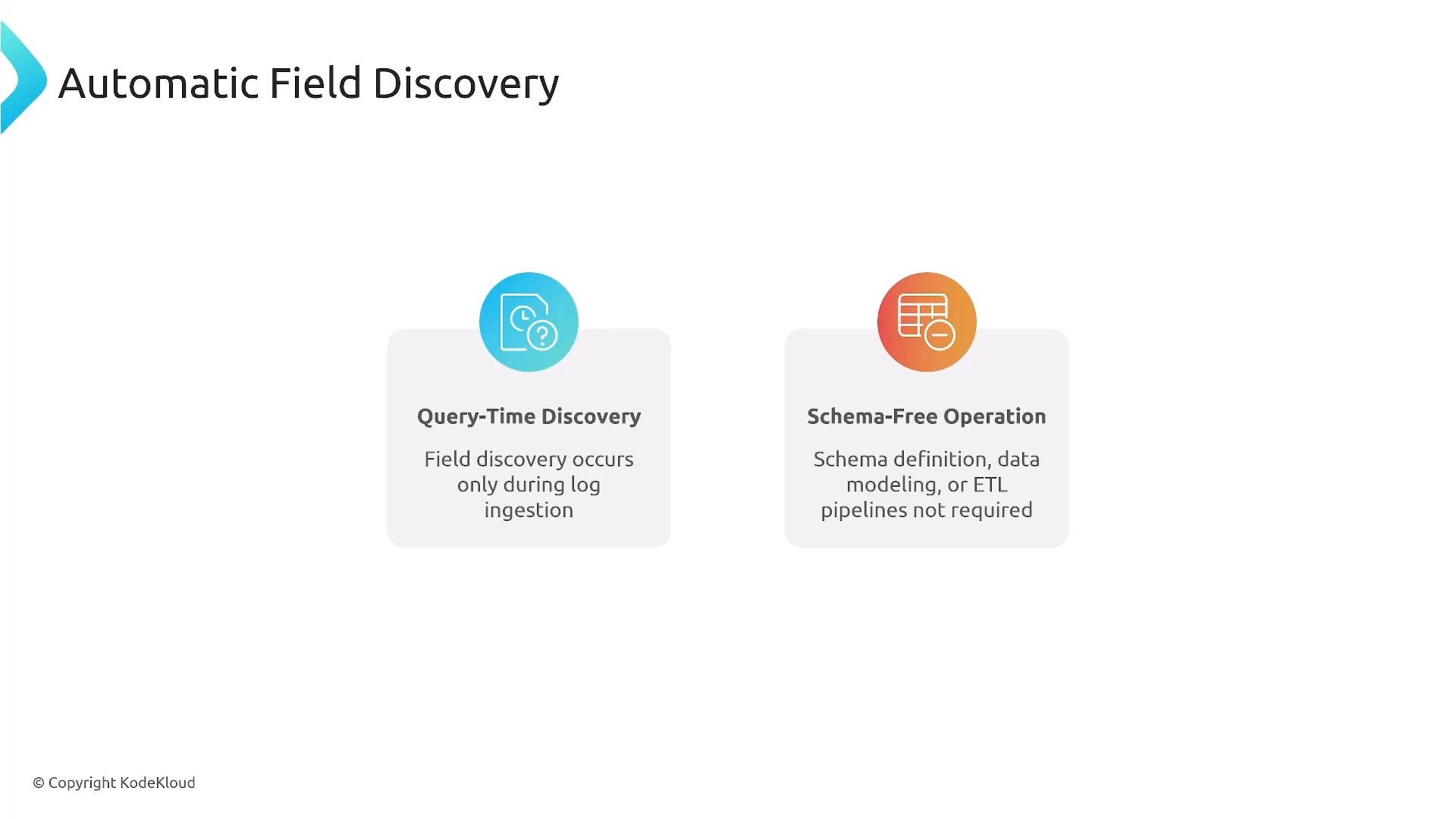
A slide titled "Automatic Field Discovery" showing two feature boxes. One box is "Query-Time Discovery" (field discovery during log ingestion) and the other is "Schema-Free Operation" (no schema definition, data modeling, or ETL required).

Pattern matching and operators

Logs Insights supports:
  • Exact match: =
  • Membership: IN
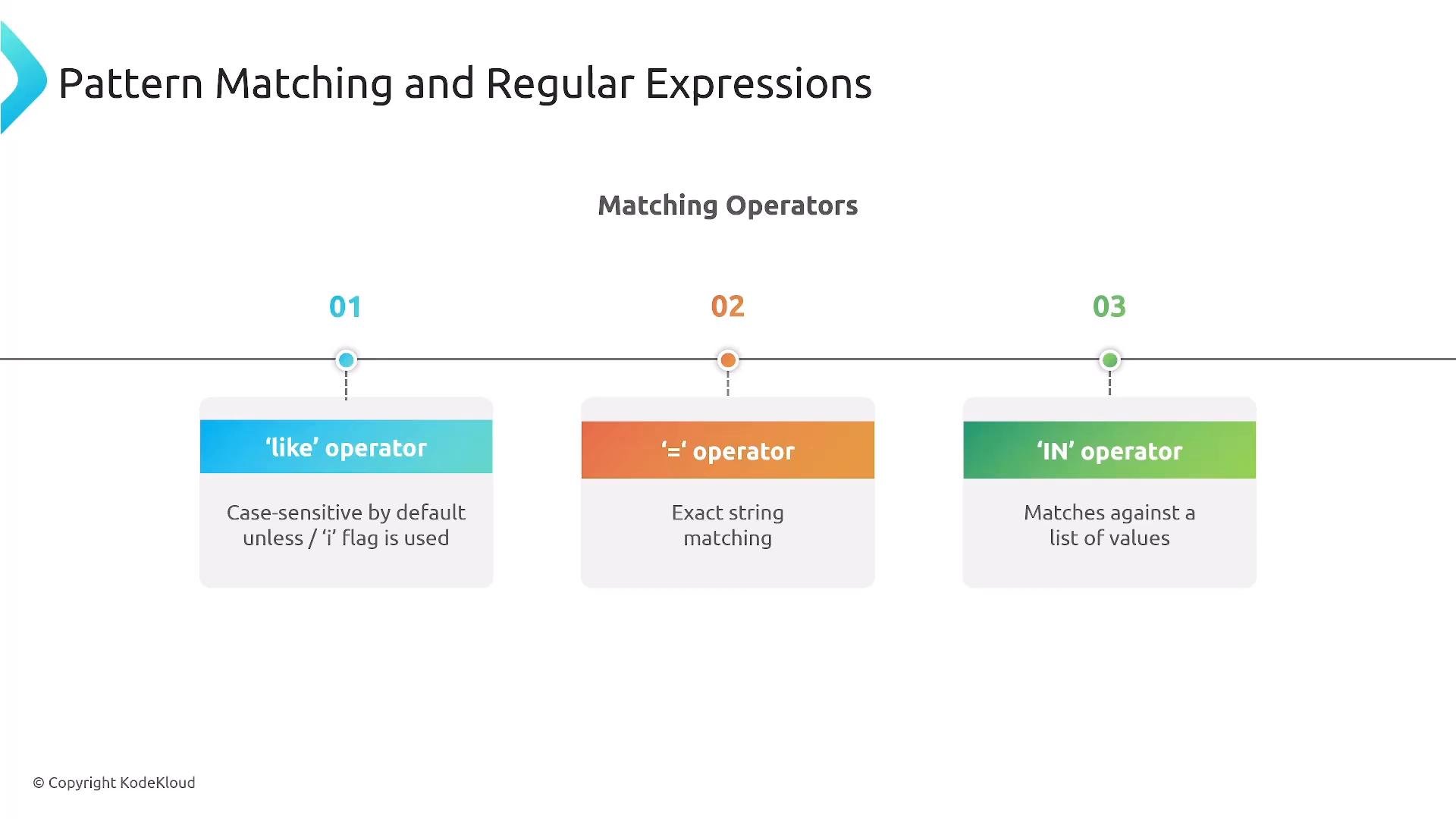
  • Pattern matching: like (case-sensitive by default)
  • Regular expressions: /regex/ (use i flag for case-insensitive)
  • Numeric comparisons: >, >=, <, <=
  • Logical operators: AND, OR, NOT, parentheses for grouping
A presentation slide titled "Pattern Matching and Regular Expressions" showing three matching operators: 'like', '=' and 'IN'. The slide notes that 'like' is case-sensitive by default unless the 'i' flag is used, '=' does exact string matching, and 'IN' matches against a list of values.
Examples:

Aggregation, sorting, and limits

Use stats to compute aggregates and derive insights. Common functions: Use sort to order results and limit to bound rows. UI defaults to 1,000 rows and maximum 10,000 rows per query.

Query performance and cost optimization

Query speed affects both troubleshooting time and cost (you’re charged for data scanned). Best practices:
  • Filter early: apply filter before expensive parse or wide stats.
  • Target specific log groups: avoid scanning unrelated groups.
  • Limit the time range: smaller windows lower scan size and cost.
  • Sample first: test queries on a short time range before broad scans.
  • Validate logic on small data sets, then expand scope.
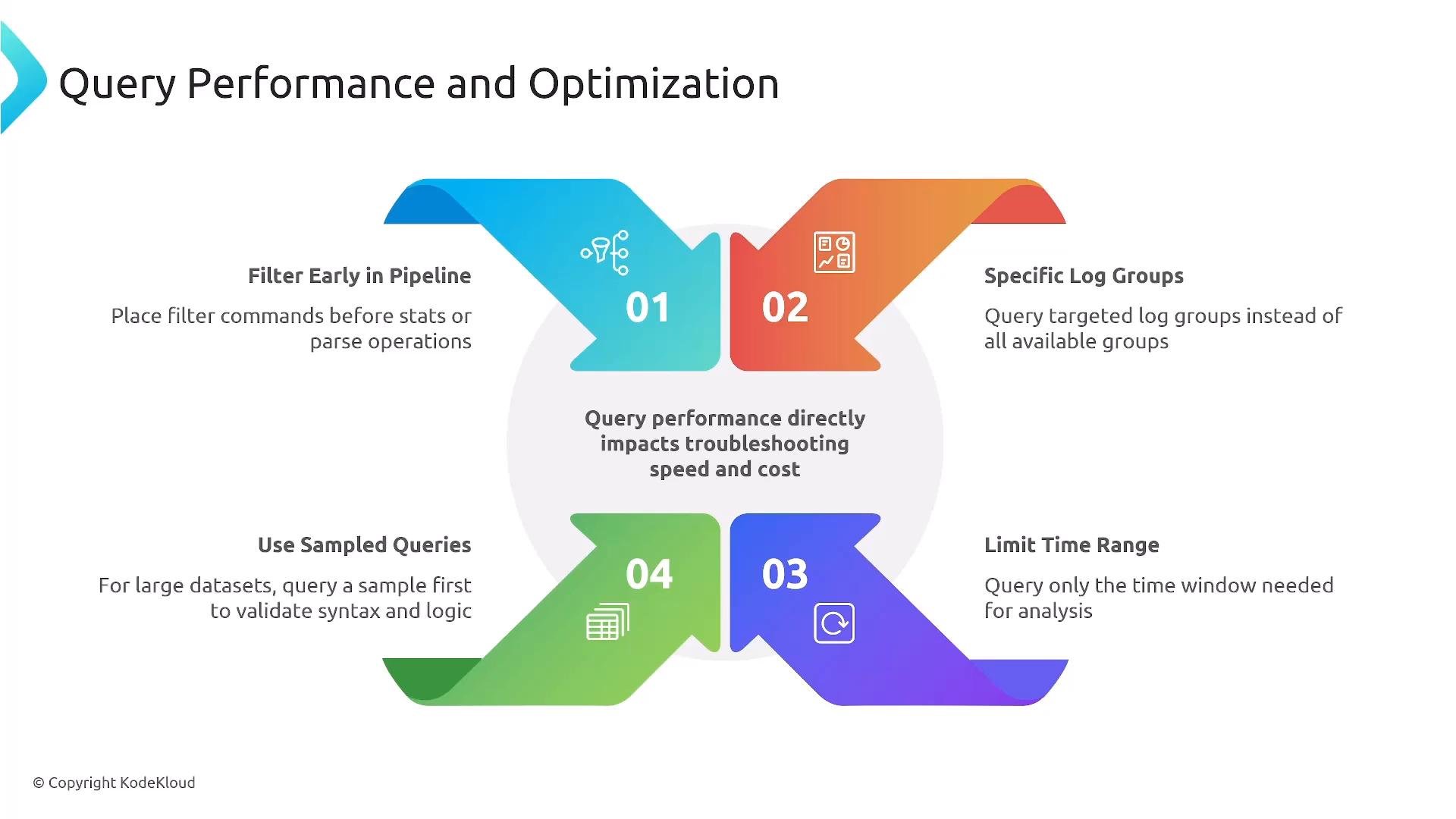
An infographic titled "Query Performance and Optimization" that shows four colorful numbered ribbons with tips like "Filter Early in Pipeline," "Specific Log Groups," "Limit Time Range," and "Use Sampled Queries." The center notes that query performance directly impacts troubleshooting speed and cost.
If asked in an exam how to reduce Logs Insights cost by ~80%, accepted answers include shorter time ranges, targeted log groups, sampling, and more specific filters.

Common query patterns

Top error messages:
Latency percentile analysis by endpoint:
Request volume by service with hourly bins:

Integration and visualization

Logs Insights integrates with CloudWatch Dashboards. Query results can be visualized as bar charts, line charts, stacked area charts, and other chart types. You can export results as CSV, or export logs to S3 and analyze with Athena and visualize with QuickSight, Grafana, or OpenSearch.
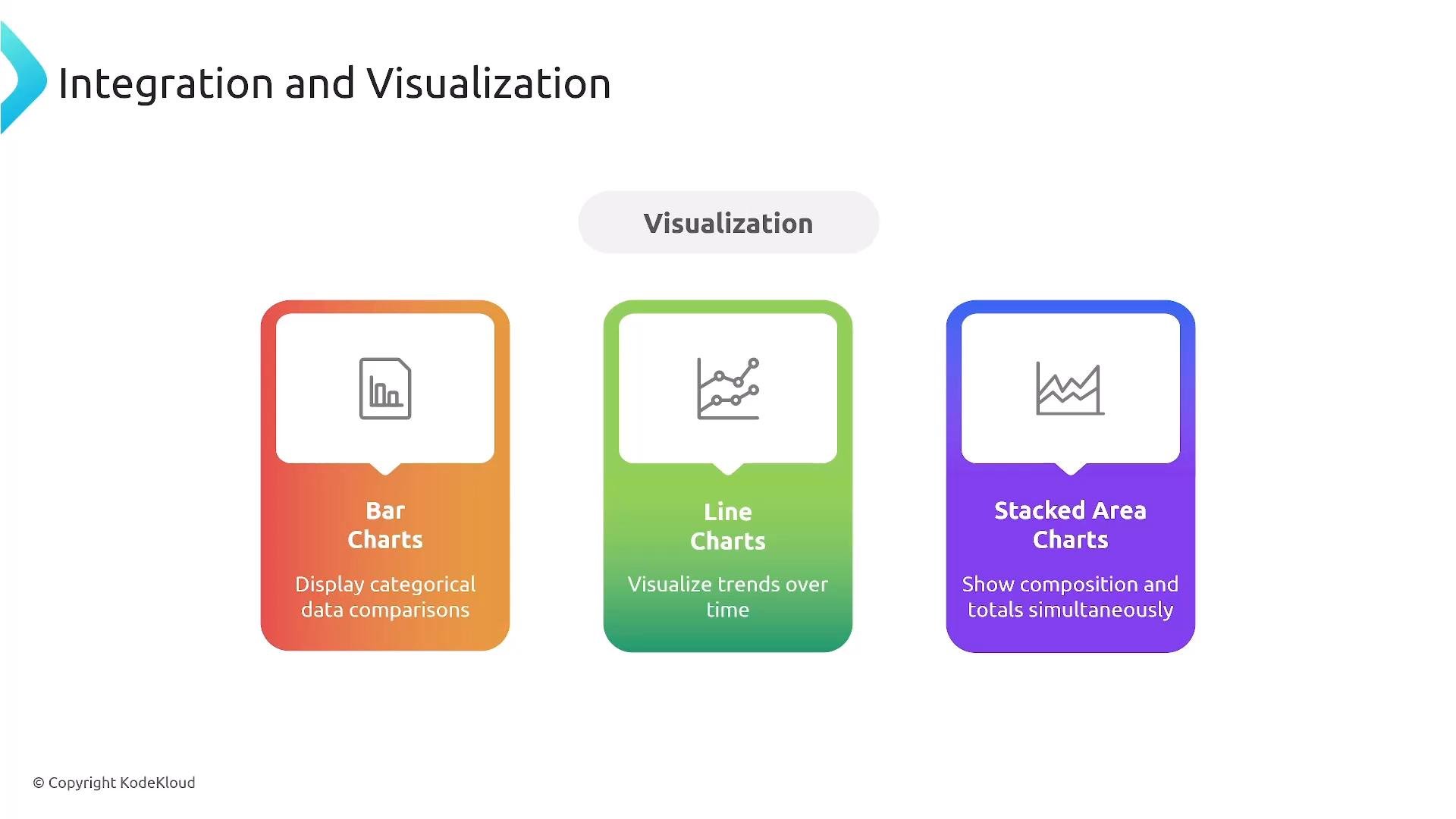
A slide titled "Integration and Visualization" showing three colorful cards labeled Bar Charts, Line Charts, and Stacked Area Charts with icons. Each card briefly describes the chart use—categorical comparisons, trends over time, and composition/totals respectively.

Metric filters and alarms

Create metric filters from logs to publish custom CloudWatch Metrics, then build alarms on those metrics. For scheduled automated responses or continuous monitoring, metric filters + CloudWatch Alarms is the standard approach.

Limitations and gotchas

  • Query timeout: 15 minutes maximum execution time.
  • Result limits: UI default of 1,000 rows; maximum 10,000 rows.
  • The Logs Insights UI is interactive-first — no native scheduling in the UI (you can schedule programmatically).
  • Not optimized for very large-scale historical analysis; use Athena/EMR for that.
  • For advanced full-text search and complex dashboards, OpenSearch or Grafana are better suited.
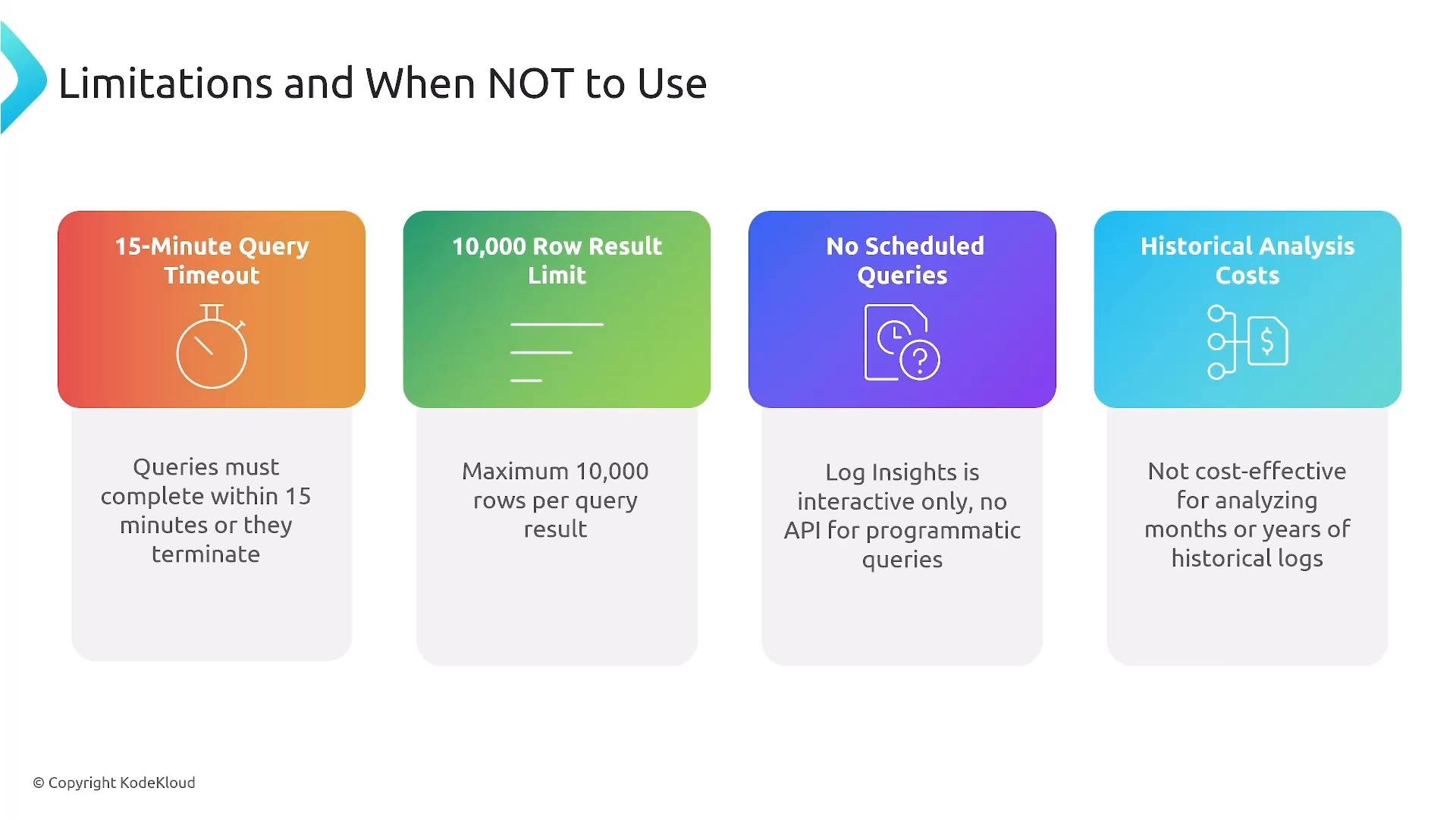
A slide titled "Limitations and When NOT to Use" with four colored panels listing constraints: 15-minute query timeout, 10,000-row result limit, no scheduled/programmatic queries, and costly historical analysis. Each panel includes a small icon and a brief explanation.
You can programmatically run Logs Insights queries using the CloudWatch Logs API (StartQuery, GetQueryResults). To schedule or automate queries, invoke StartQuery from Lambda (triggered by EventBridge schedules) or run from any scheduled compute. The Logs Insights UI itself does not provide native scheduling.

Better alternatives for specific needs

  • Athena (S3) — scheduled, long-term historical analysis on archived logs.
  • OpenSearch / Elasticsearch — complex full-text search, fuzzy matching, and team-facing dashboards.
  • EMR / batch processing — heavy, long-running analytics on very large datasets.
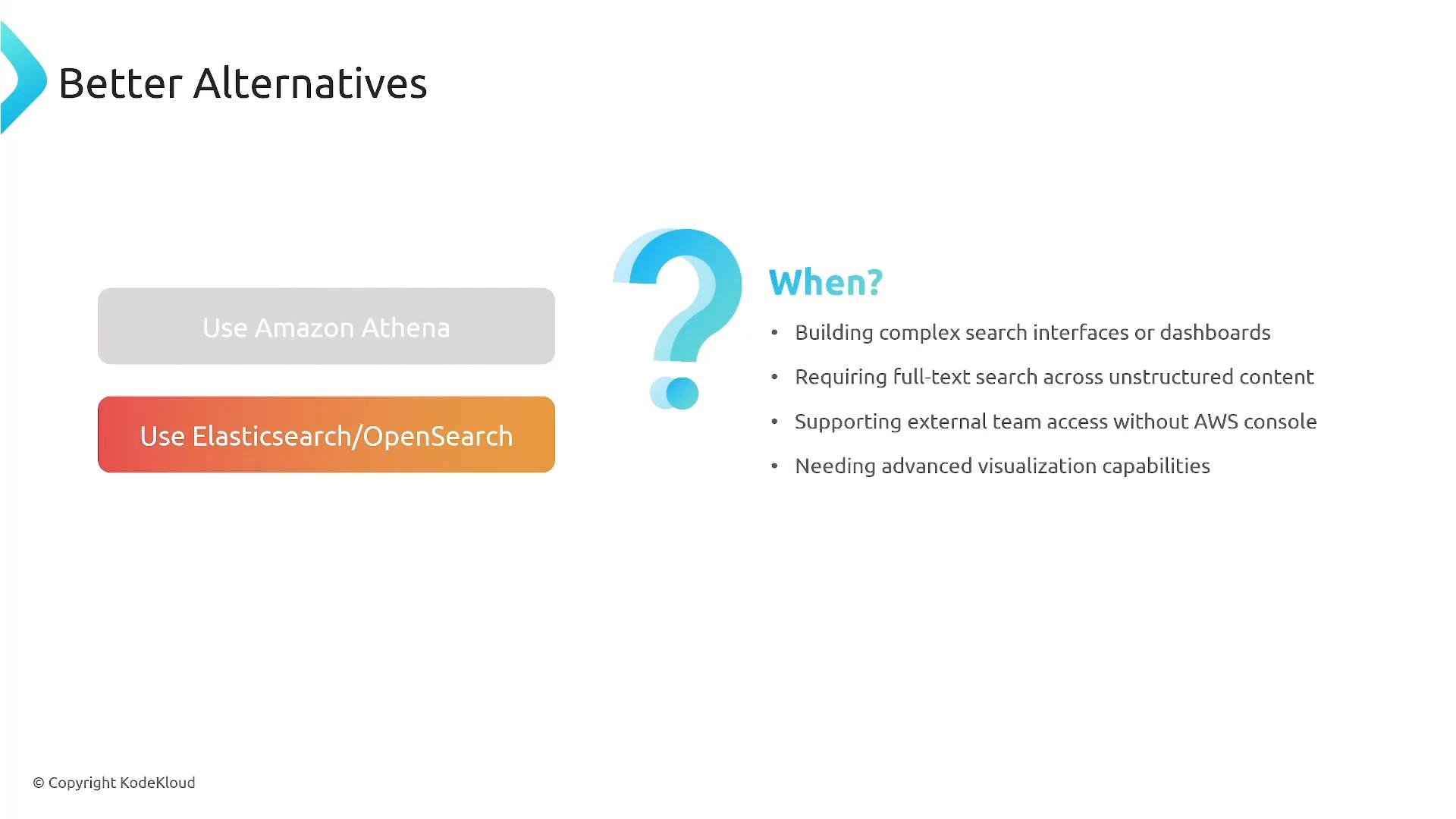
A presentation slide titled "Better Alternatives" showing two options—"Use Amazon Athena" (dimmed) and a highlighted "Use Elasticsearch/OpenSearch"—with a large question mark and a "When?" bullet list explaining use cases like complex search interfaces, full-text search on unstructured content, external team access, and advanced visualizations. The slide is branded with a small "© Copyright KodeKloud" at the bottom.

Summary

CloudWatch Logs Insights is a fast, interactive query engine for logs already in CloudWatch — ideal for real-time troubleshooting, pattern detection, and diagnostics. Follow optimization best practices (filter early, narrow time ranges, sample small datasets first), be mindful of execution and result limits, and automate queries programmatically when you need scheduling or recurring analysis. For heavy historical or complex search workloads, use Athena, EMR, or OpenSearch as appropriate.

Watch Video