

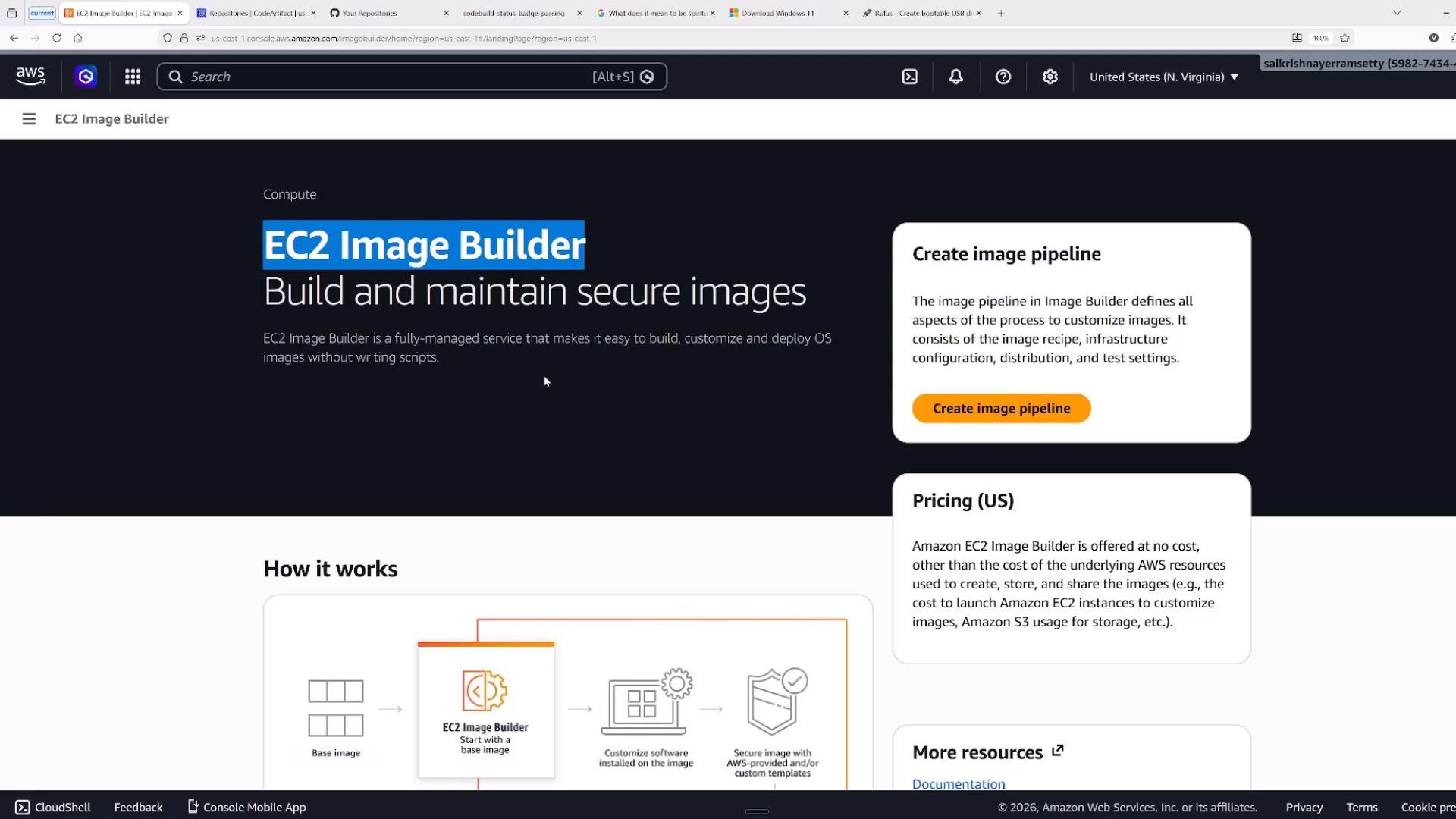
- Automates image creation and configuration with reusable components.
- Provides built-in test and validation phases to reduce drift and configuration errors.
- Enables versioned image pipelines and lifecycle rules for cleanup.
- Supports cross-region and cross-account distribution with KMS encryption support.
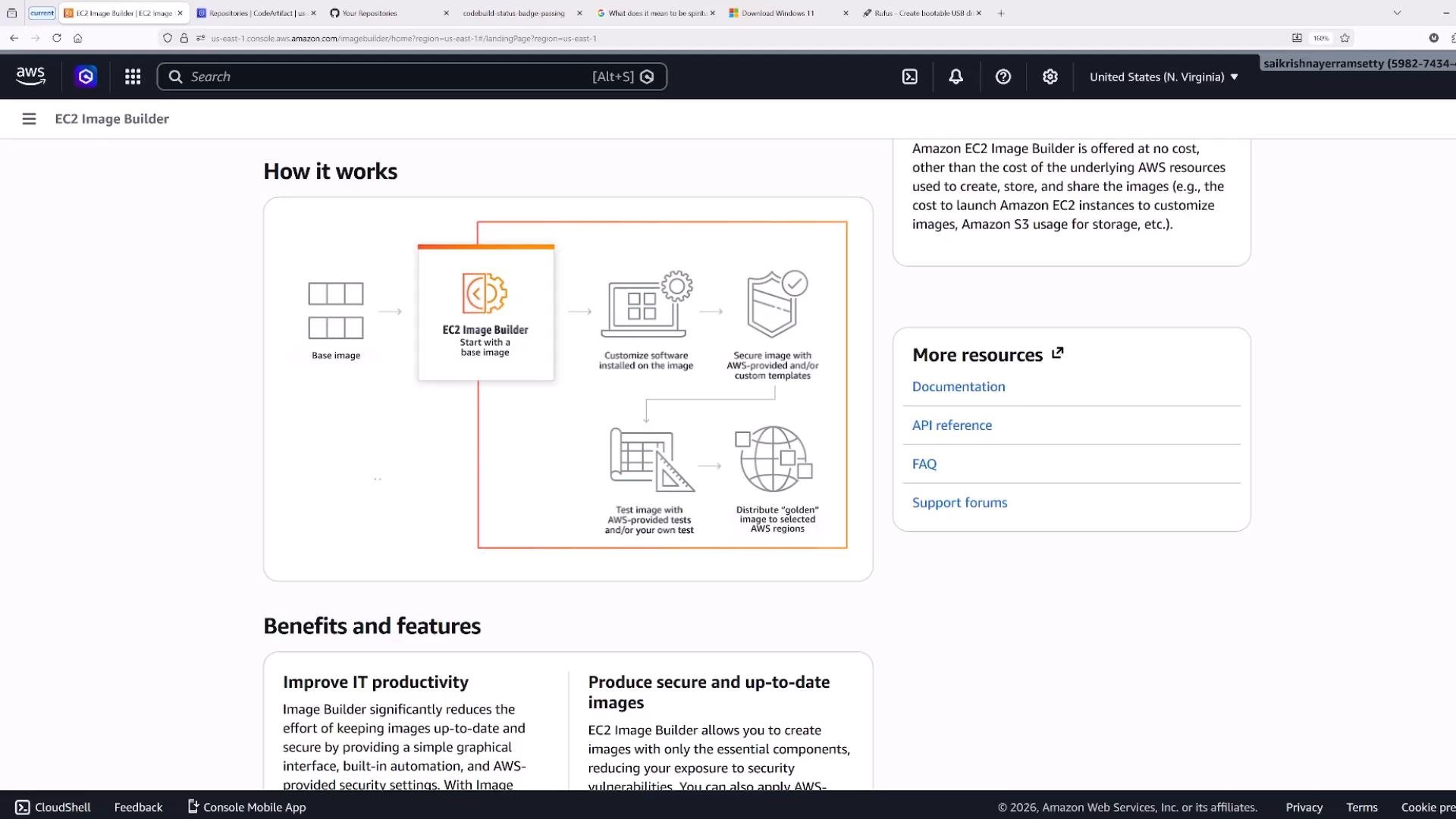
Architecture — five main components
There are five core concepts to understand. The table below summarizes each component, its purpose, and an example.- Image pipelines — the orchestration layer that ties a recipe, infrastructure configuration, distribution settings, and a schedule together. Pipelines run the build workflow when triggered (manually, scheduled, or via EventBridge).
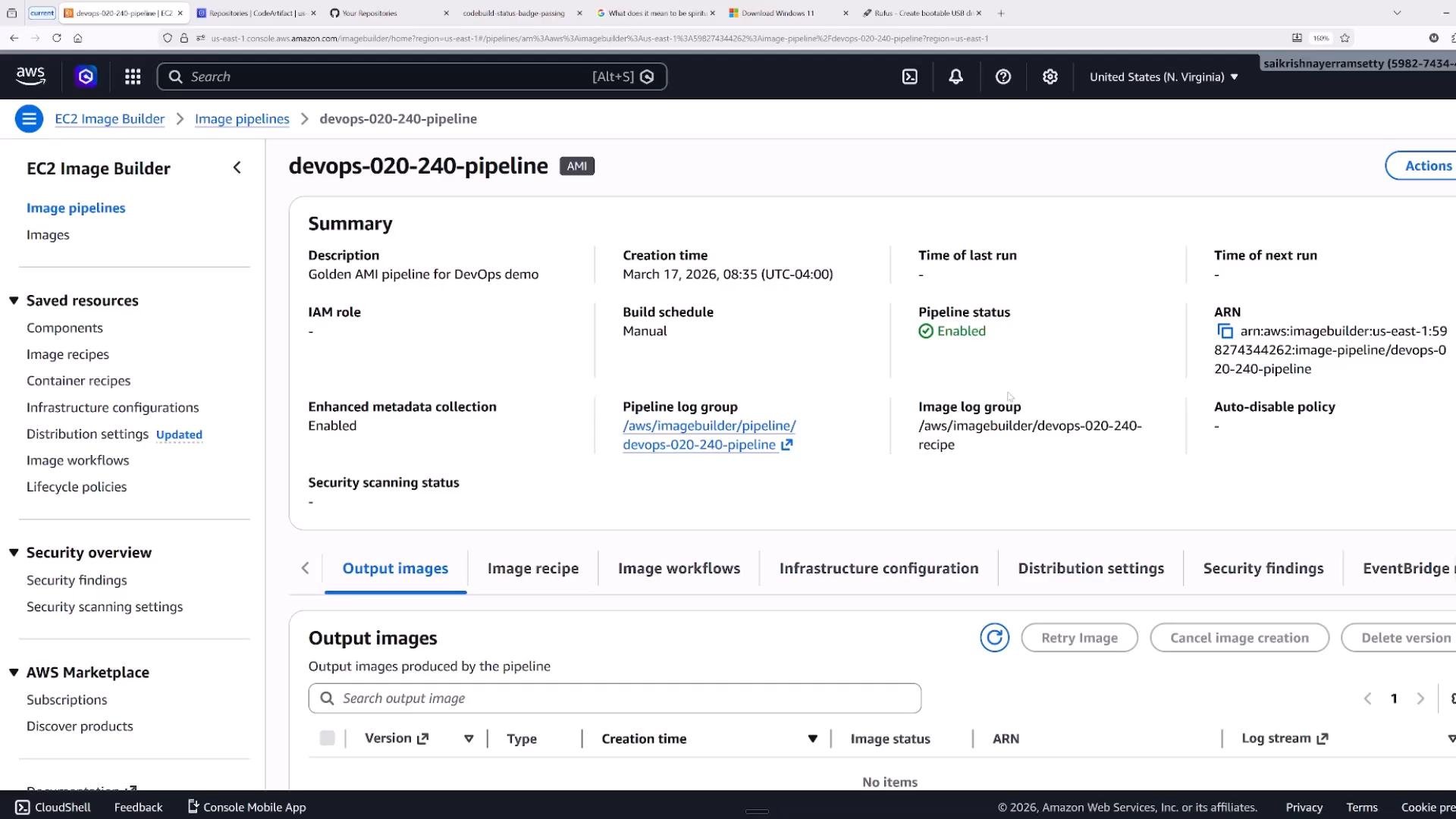
- Image recipes — define the base image and the components (both build and test components) to run during the build.
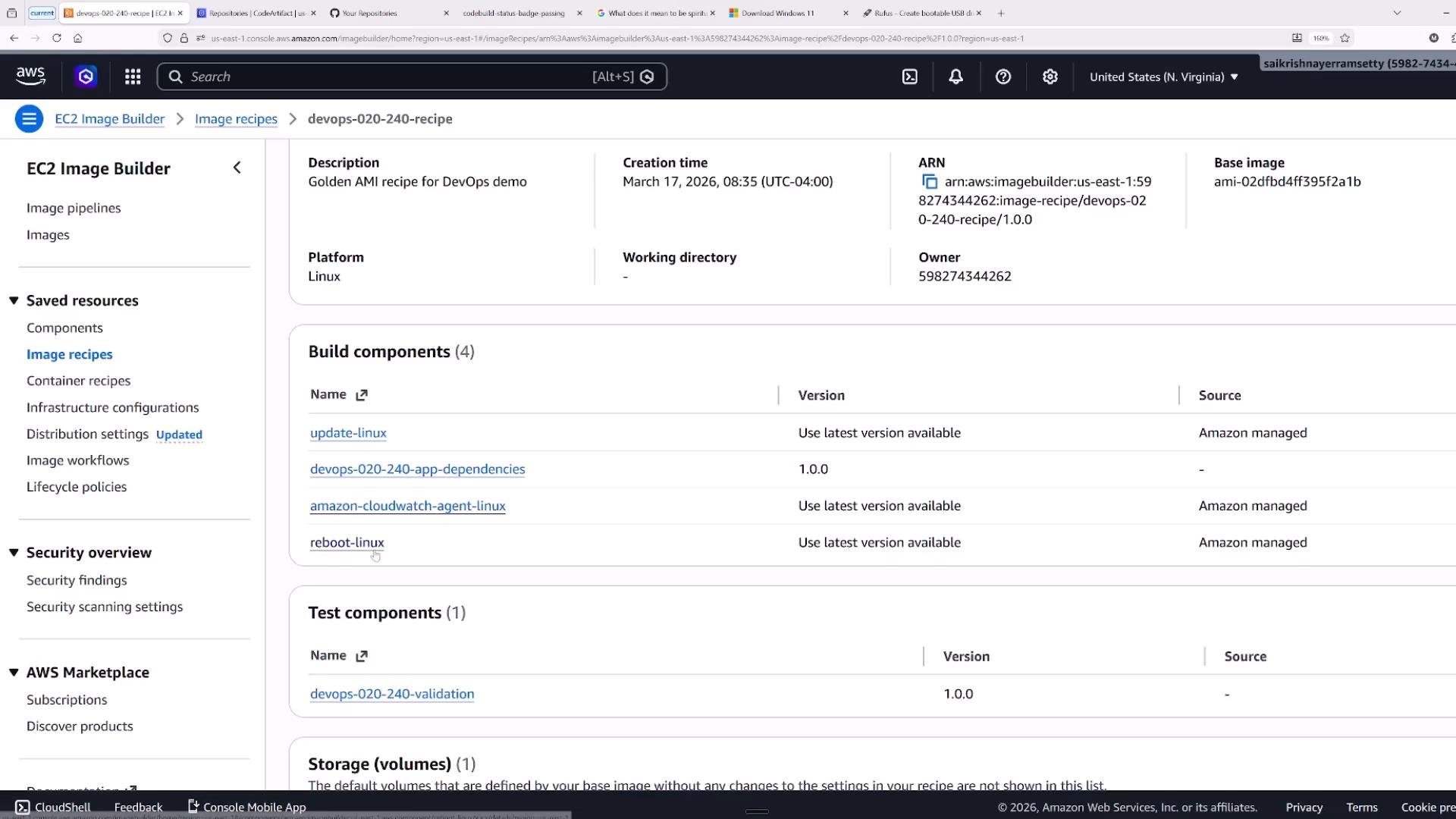
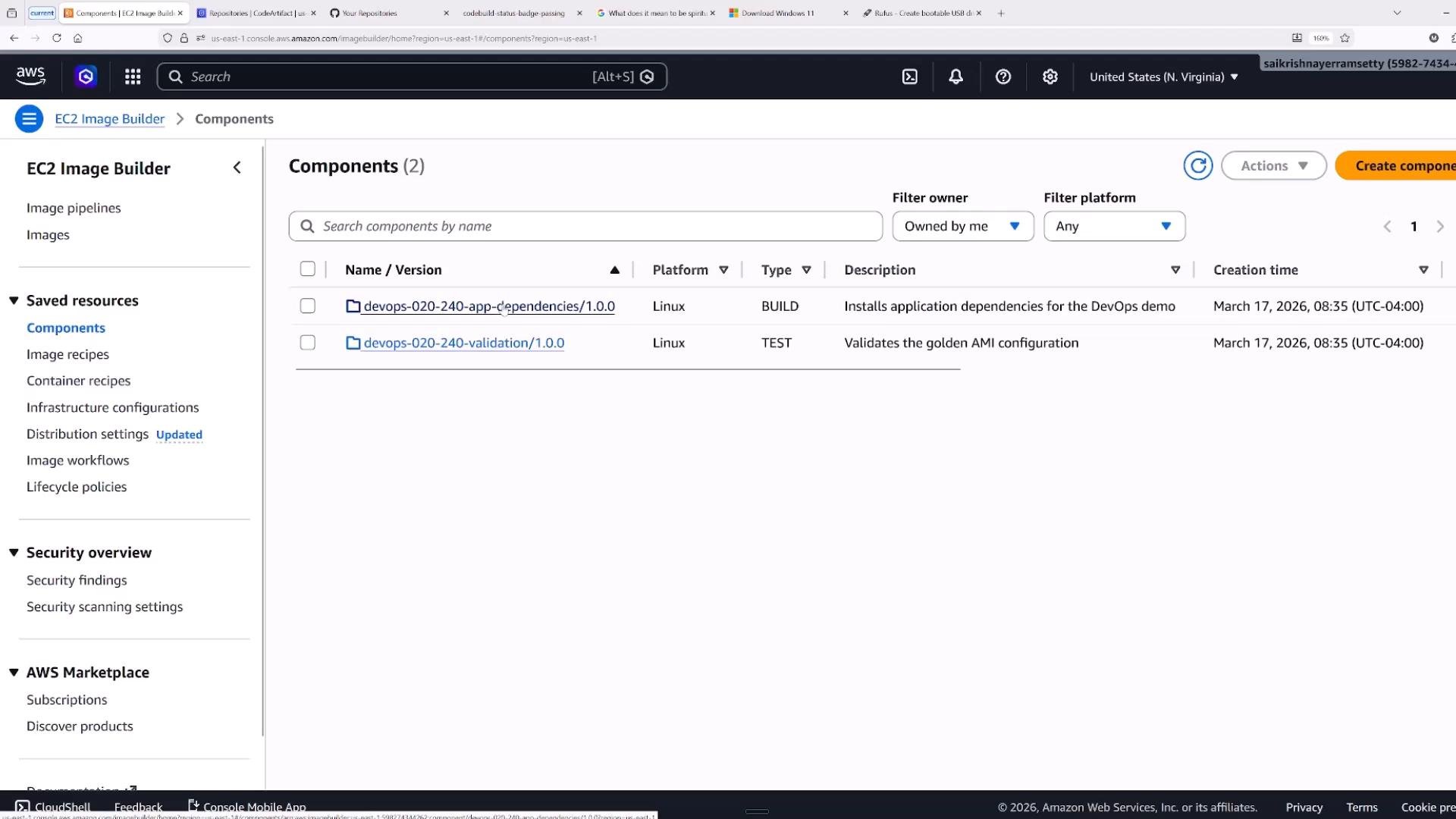
- Components — reusable building blocks defined as small YAML documents. Components run actions such as installing packages, configuring files, running scripts, downloading/uploading artifacts, or running assertions. Use components in both build and test phases.
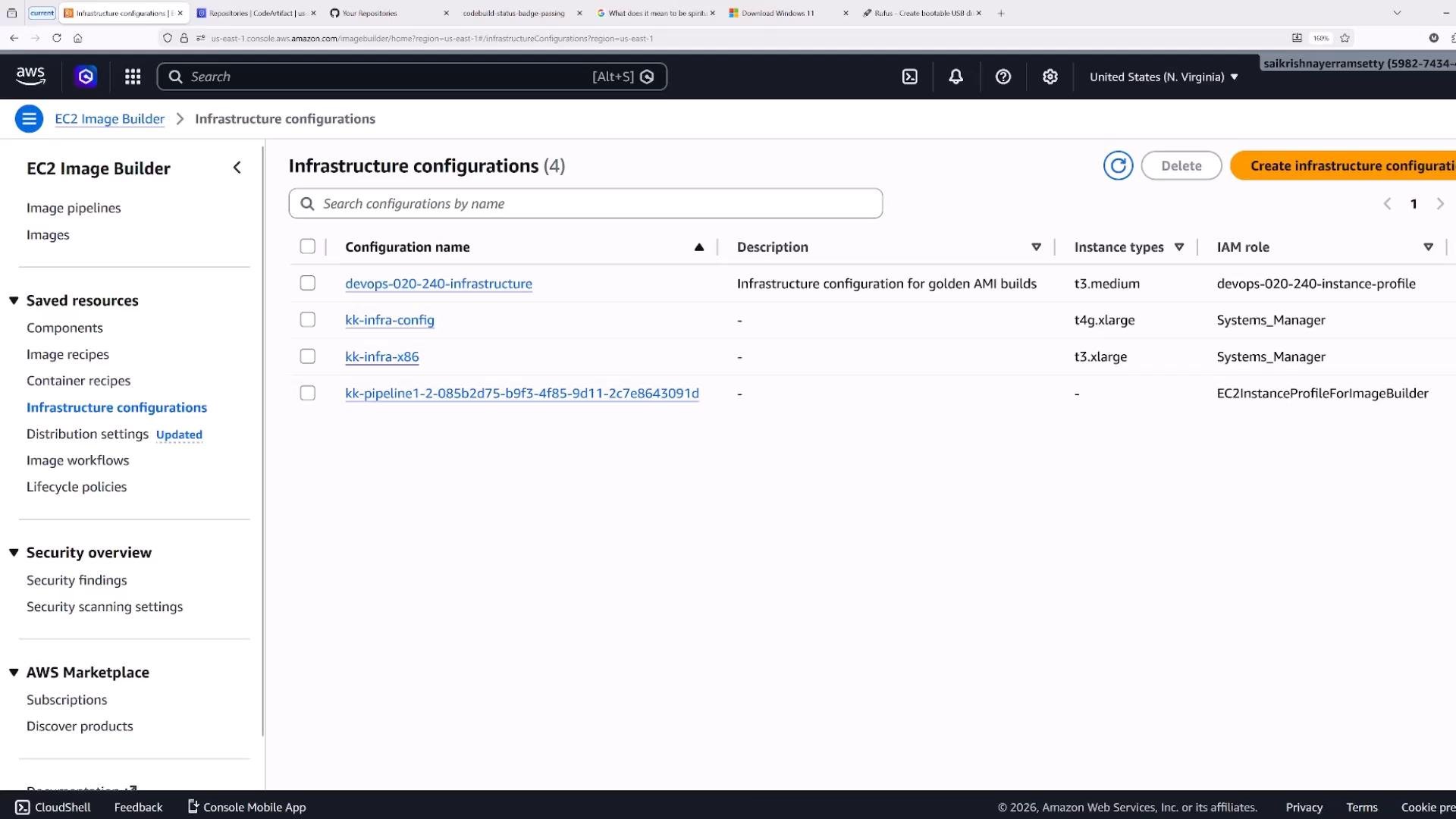
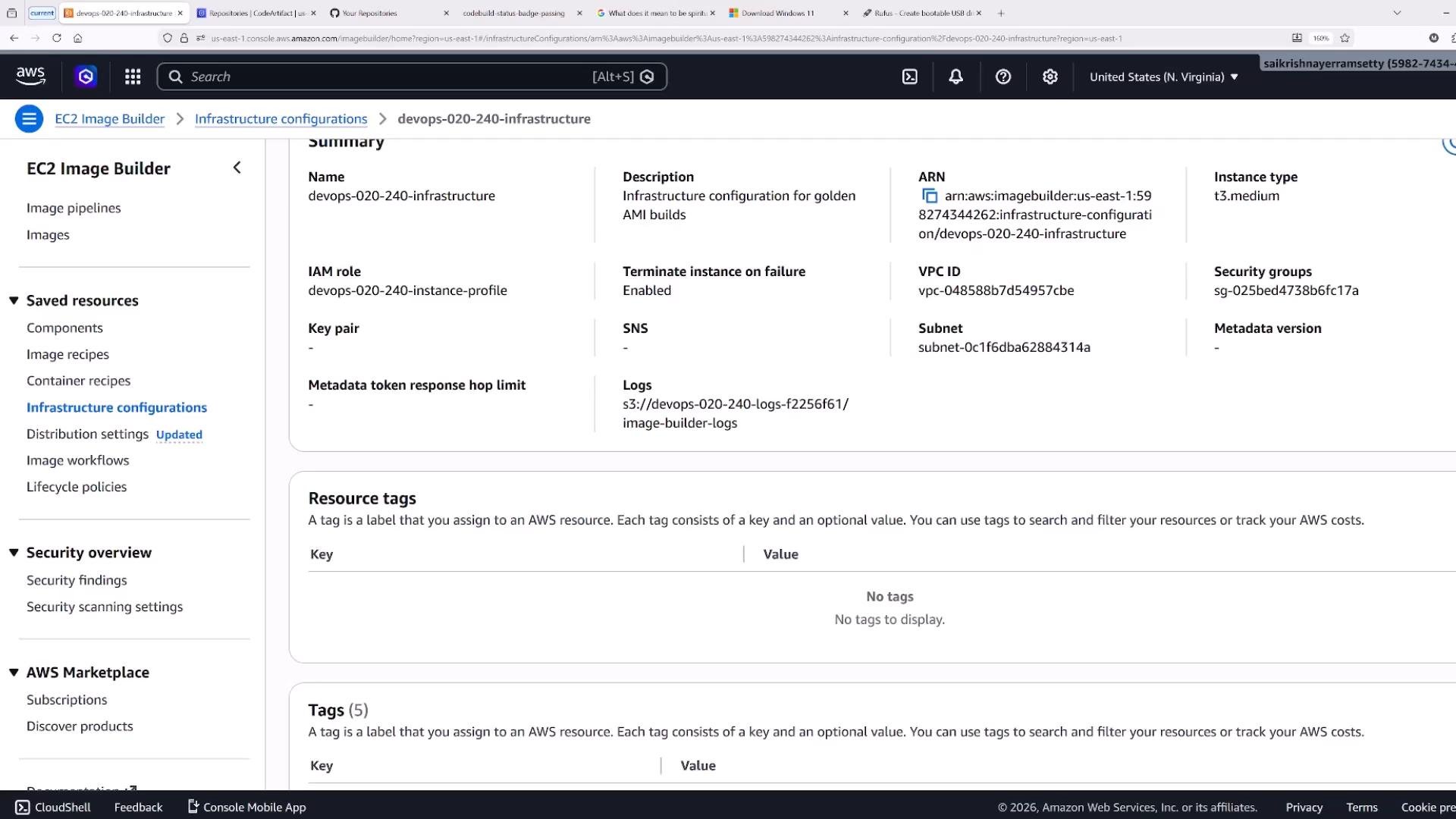
- Infrastructure configuration — specifies how the ephemeral build instance is launched (instance type, VPC/subnet, IAM role, key pair, security groups, logging, etc.). Image Builder launches a temporary EC2 instance to perform the build and then terminates it.
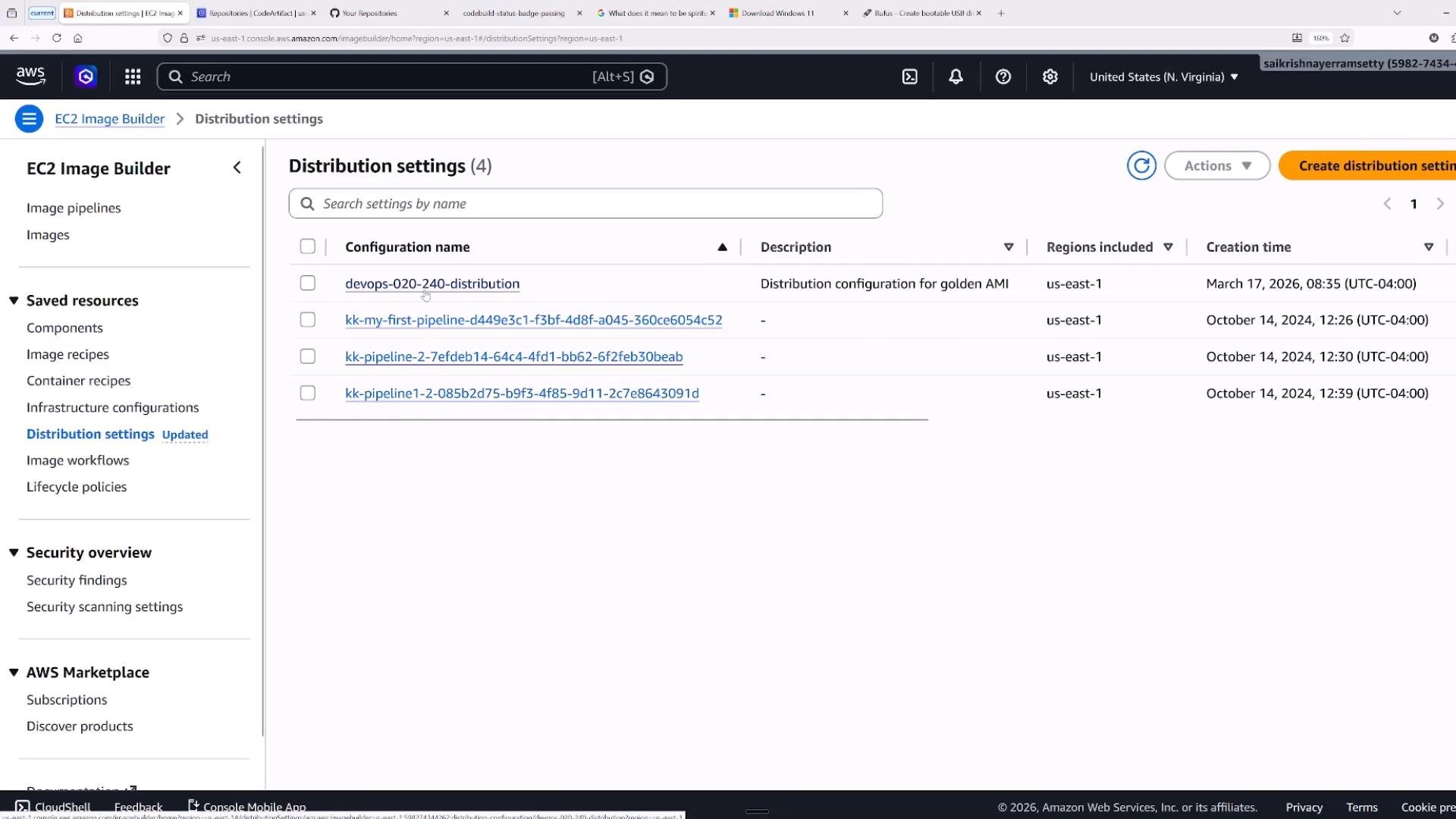
- Distribution settings — define where built images are published (regions, accounts), any AWS KMS keys for encryption, launch templates, and other distribution options.
- Pipeline triggers (manual, scheduled, or EventBridge).
- Infrastructure configuration launches a temporary EC2 build instance (for example,
t3.medium). - The recipe’s build components run in the defined order.
- Test components run to validate the image. Tests must return success; otherwise the image is not published.
- If tests pass, Image Builder creates and optionally distributes the AMI per your distribution settings.
- The ephemeral build instance is terminated.
Make sure your execution and instance IAM roles include the required permissions to download components, write logs to S3, create AMIs, and perform KMS operations. Missing permissions cause builds to fail. Refer to the official docs for required policies.
Components — build and test examples
Components are defined using a compact YAML schema. Build components perform installation and configuration tasks; test components assert that the image satisfies expected conditions. Common actions includeExecuteBash, ExecutePowerShell, S3Download, S3Upload, and FileCopy.
Below is a consolidated build component example that installs Python, Node.js, Docker, the CodeDeploy agent, and creates an application directory. This single component contains multiple steps in the build phase:
exit 1 on failure so Image Builder marks the test as failed:
Hello World:
ExecuteBash. Windows components can use PowerShell; use S3Download/S3Upload for artifacts stored in S3. Always include clear and deterministic tests to catch regressions early.
Always include test components. Testing ensures the resulting AMI or container image meets the expected configuration and prevents publishing broken images.
Image recipes and component versioning
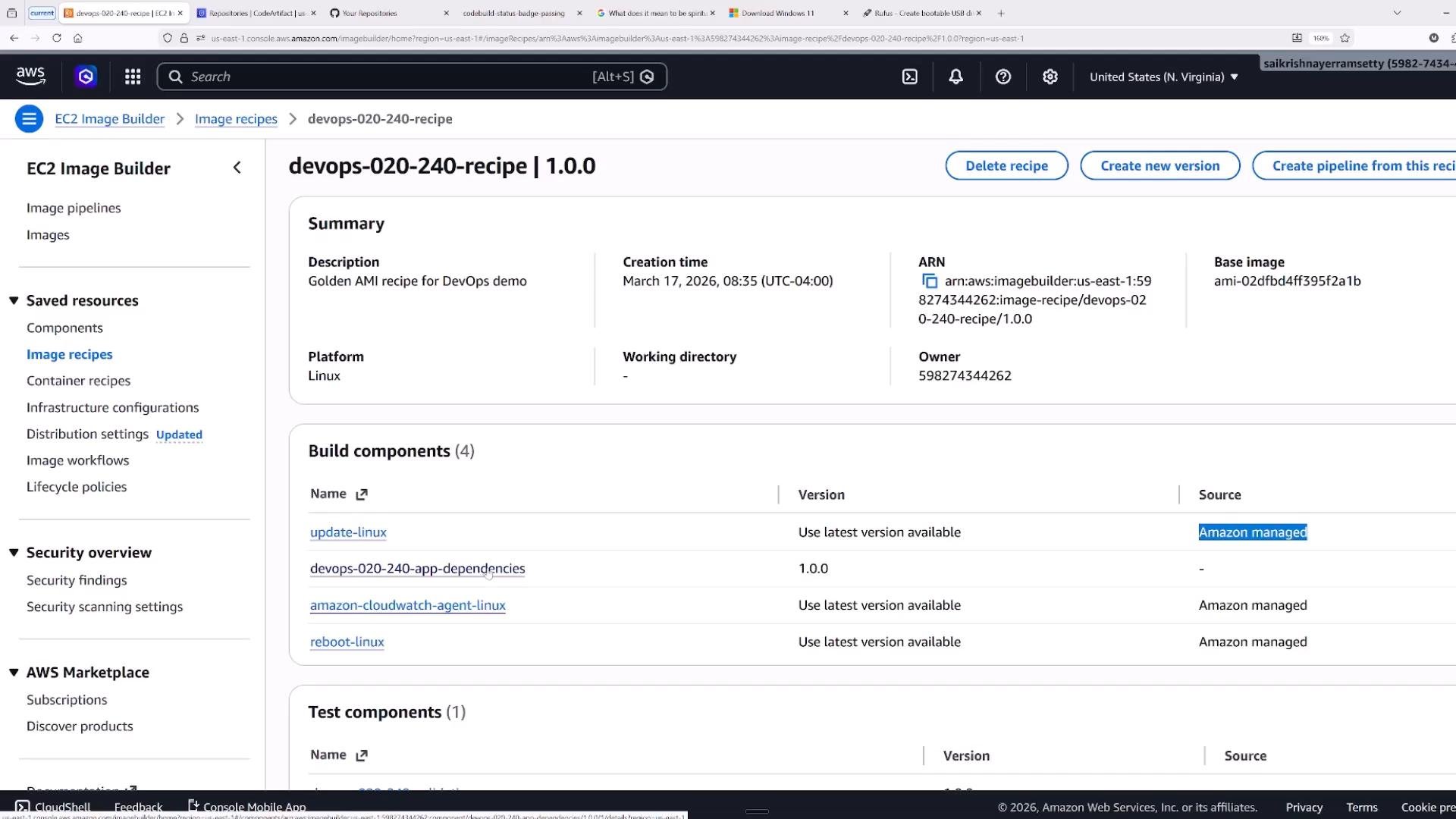
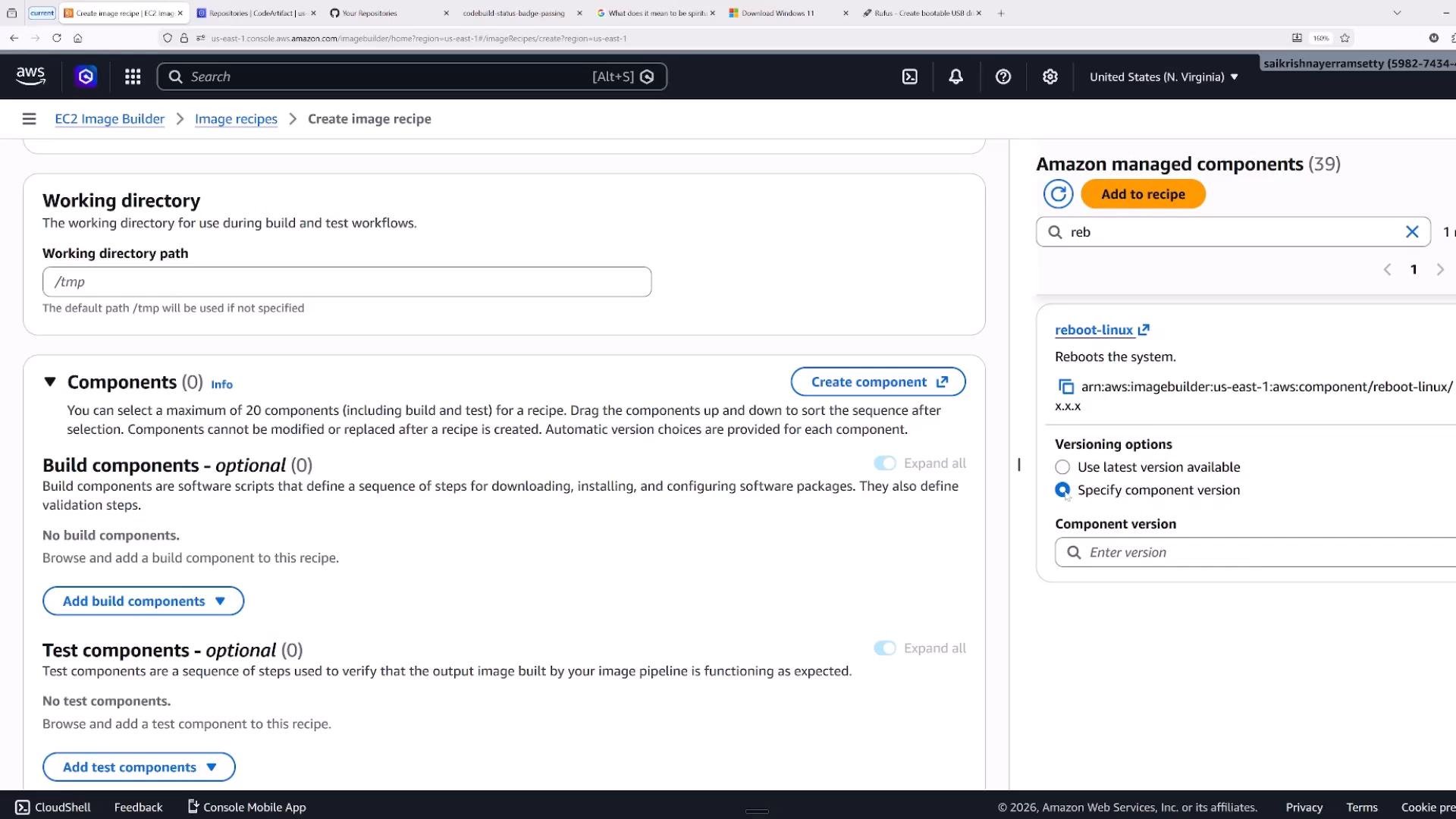
An image recipe selects a base image and lists build and test components in the exact order you want them executed. You can use Amazon-managed components or provide your own custom components. Best practice: pin component versions to avoid unexpected behavior when managed components change. When creating a recipe you typically choose:- Base image (AWS-managed AMI, Marketplace, shared AMI, or a custom AMI).
- Build components and their specific versions.
- Test components for validation.
- Additional storage volumes, working directory, and metadata tags.
- Reboot behavior (many components include a
rebootcomponent when required).
Distribution settings and sharing
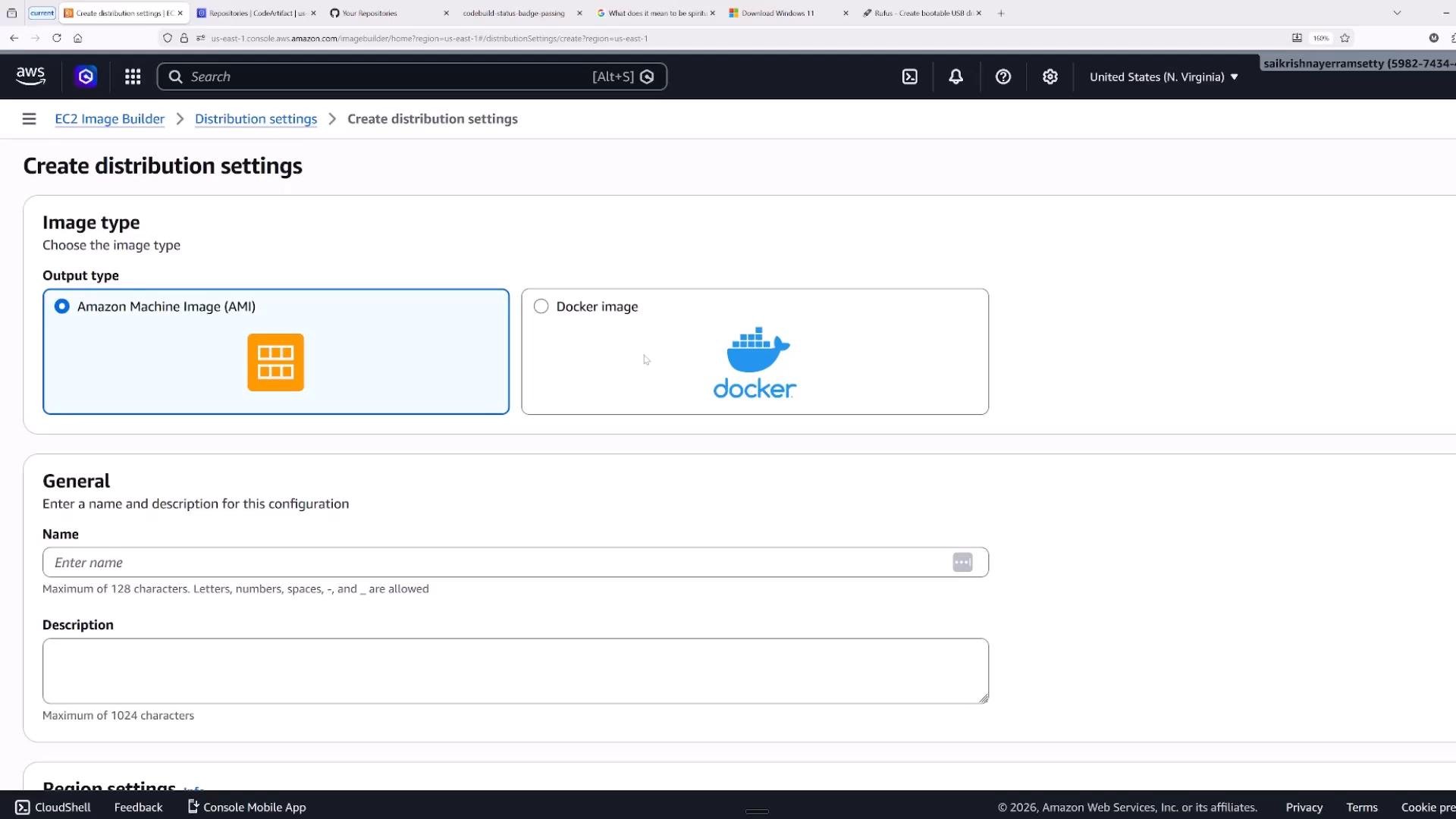
Distribution settings control where and how images are published:- Publish AMIs to multiple regions and accounts.
- Encrypt AMIs with an
AWS KMSkey for secure sharing. - Attach launch templates or specify launch permissions (private, shared accounts/organizational units, or public).
- Integrate with license management and Systems Manager (SSM) for instance inventory and run commands.
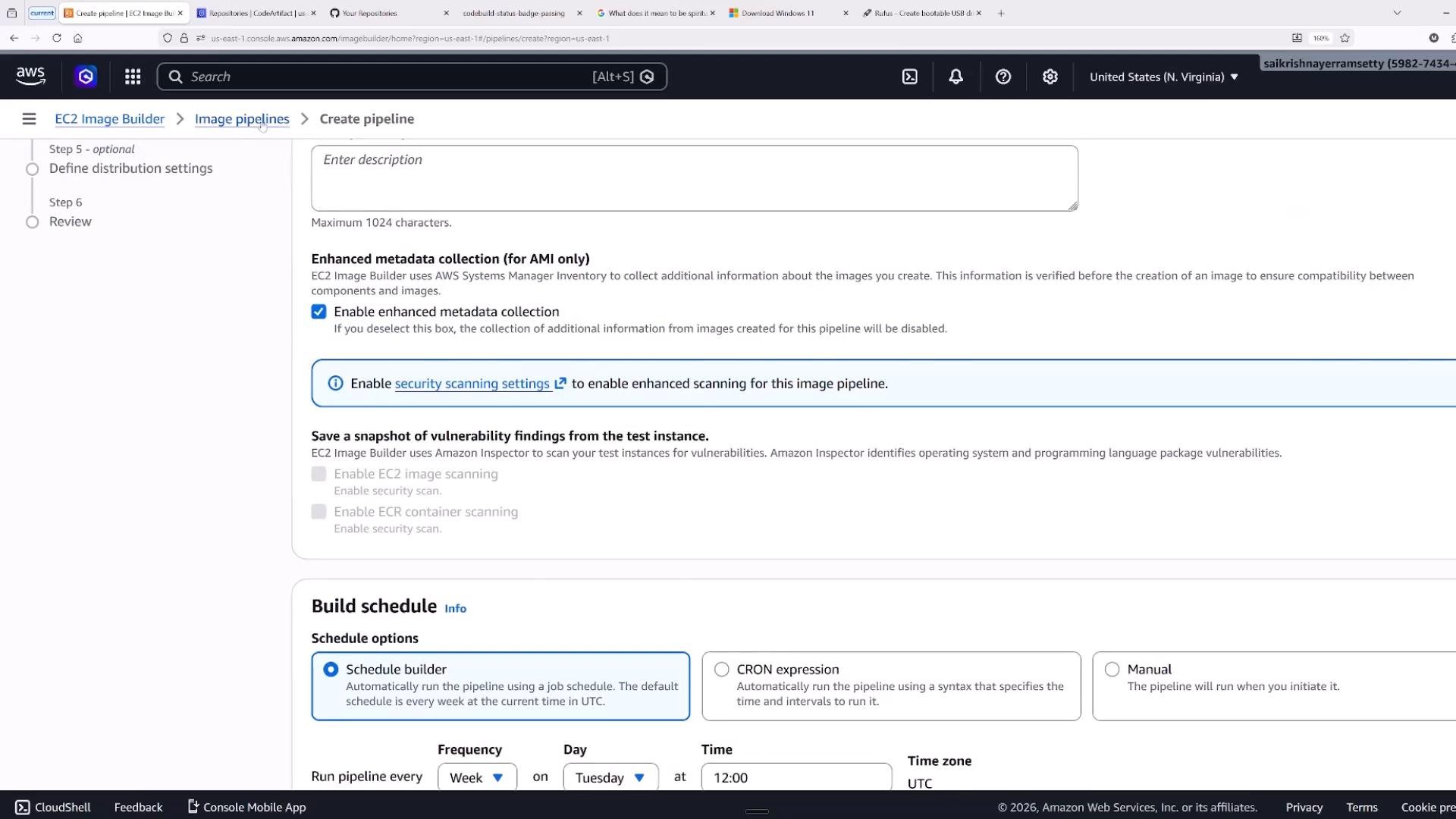
Pipelines — scheduling, triggers, and security scanning
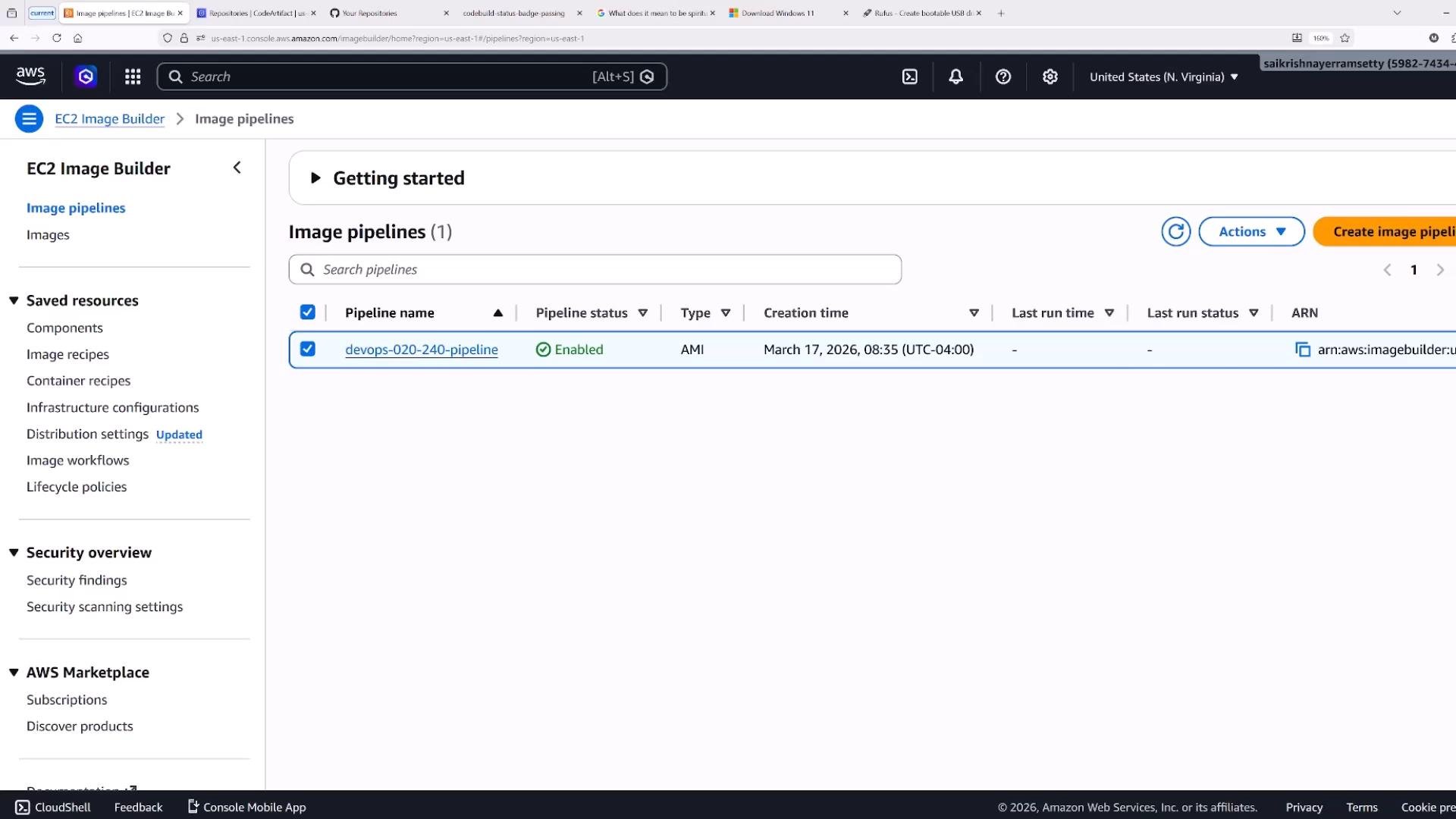
Image pipelines tie recipes, infrastructure configs, and distribution settings into a runnable workflow. Pipeline options include:- Manual runs, scheduled runs (cron-like), or EventBridge-triggered runs.
- Vulnerability scanning and security snapshots during the build.
- Enhanced metadata collection and logging to
Amazon S3orAmazon CloudWatch.
EventBridge for automated triggers when, for example, a base image is updated.
Lifecycle policies and versioning
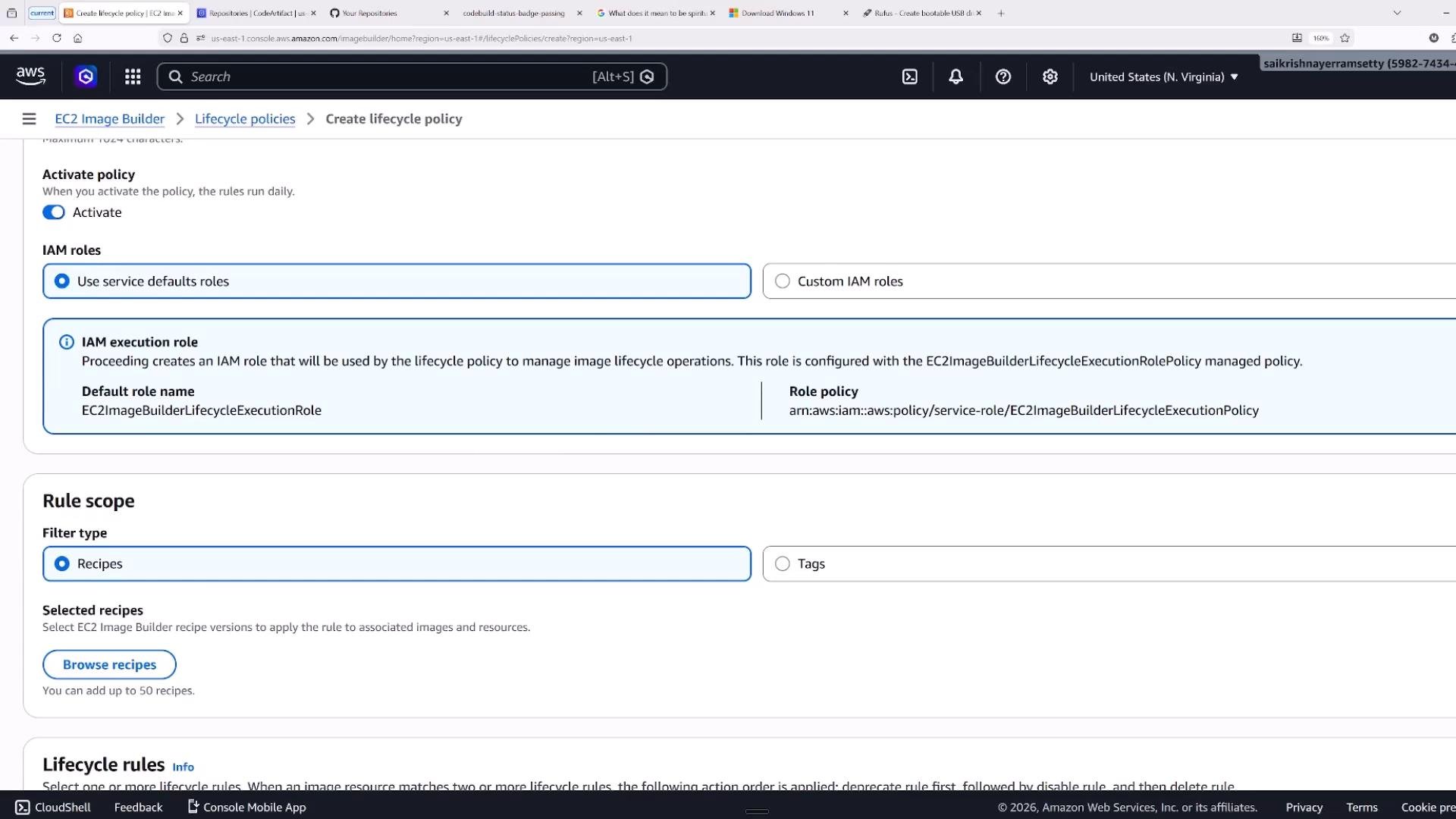
Image Builder supports lifecycle policies for recipes and images to automate versioning and cleanup. Use lifecycle rules to:- Auto-version recipes on updates.
- Retain a fixed number of image versions.
- Delete images older than a specified age to control image sprawl.
Quick reference — key features
Summary
EC2 Image Builder helps formalize the golden image process by combining automation, testing, versioning, and distribution:- Author components (build and test) as YAML documents.
- Create recipes that assemble base images and ordered components.
- Configure ephemeral build infrastructure and pipelines to orchestrate builds.
- Use distribution settings and KMS for secure publishing.
- Apply lifecycle policies to manage image retention and cleanup.
- EC2 Image Builder documentation: https://docs.aws.amazon.com/imagebuilder/
- EventBridge: https://aws.amazon.com/eventbridge/
- Amazon S3: https://aws.amazon.com/s3/
- AWS KMS: https://aws.amazon.com/kms/
- AWS Systems Manager (SSM): https://aws.amazon.com/systems-manager/