

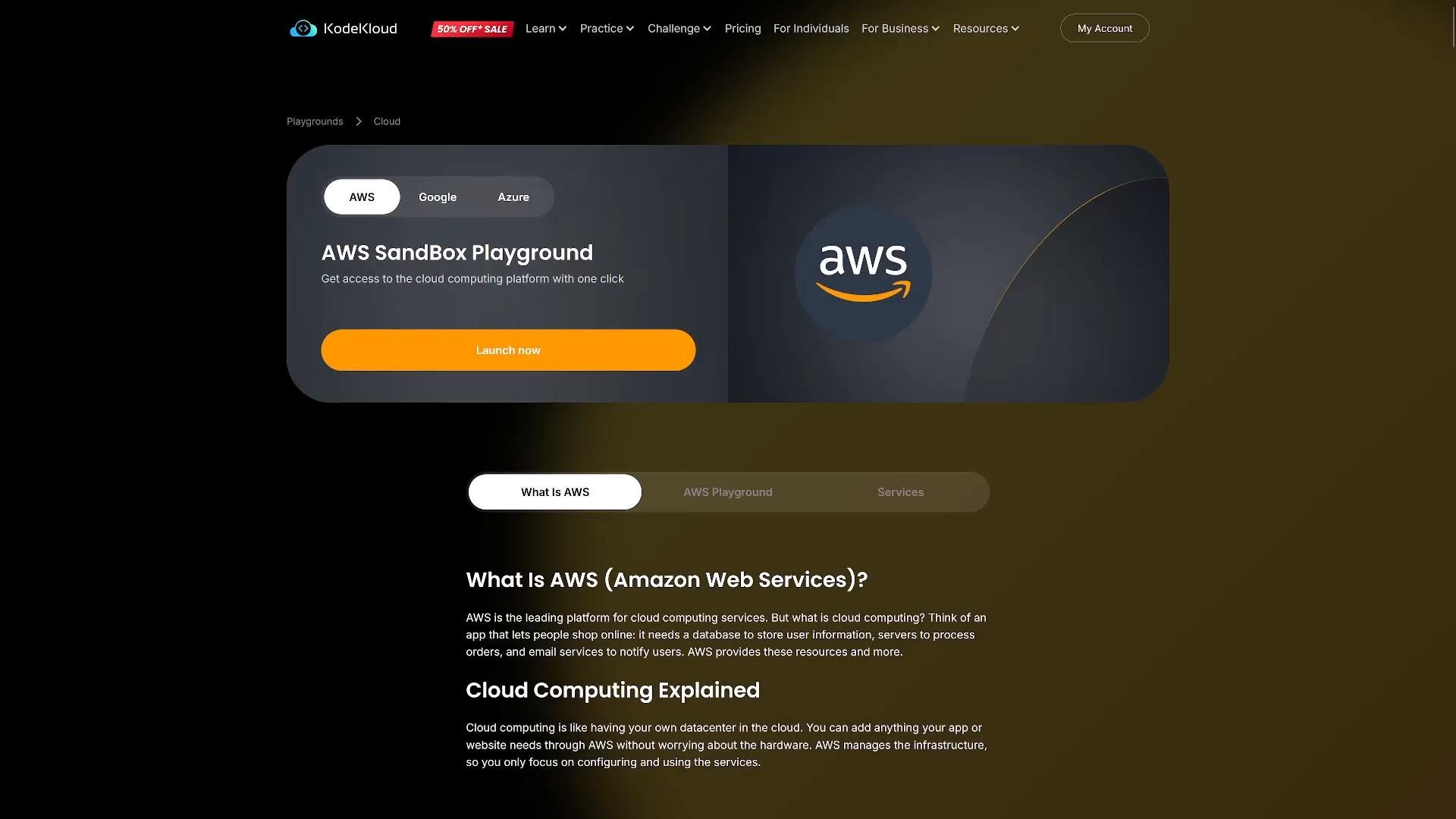
Playgrounds are more permissive than labs but not unrestricted. Always review the playground limits before starting resource-heavy tasks (for example, certain instance sizes, stopped-instance counts, or managed services may be limited).
What to expect: limits and why they exist
KodeKloud Playgrounds enforce resource and service limits to balance cost and availability for all users. Typical constraints include:- Instance families and sizes limited (commonly up to t3.medium or t3.micro depending on the playground)
- A cap on the number of stopped instances
- Session duration limits (example: 180 minutes)
- Some managed or high-cost services (like SageMaker) may be restricted or unavailable
- Terminate-on-shutdown behavior instead of stop for some instances
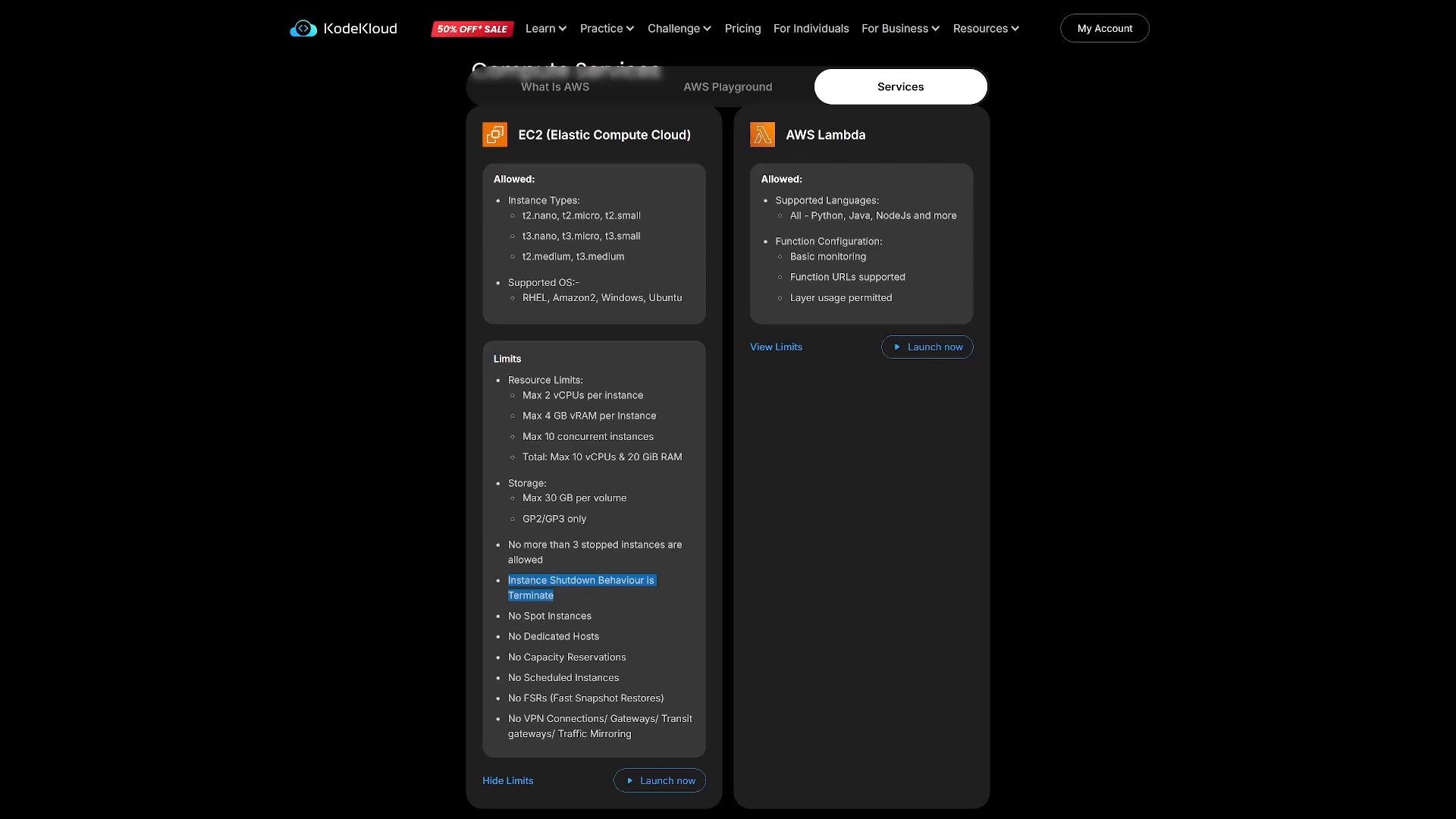
Typical limits (example)
Quick walkthrough — launching an AWS sandbox and an EC2 instance
-
Sign in to KodeKloud and navigate: Profile → Practice → All Playgrounds → AWS → Launch Now.
The playground provisions a sandbox and provides a console URL, a temporary username, and a password. - Open the provided console URL and sign in as the labs user. You will have an AWS Console session for the duration of the sandbox.
-
Launch an EC2 instance (typical steps):
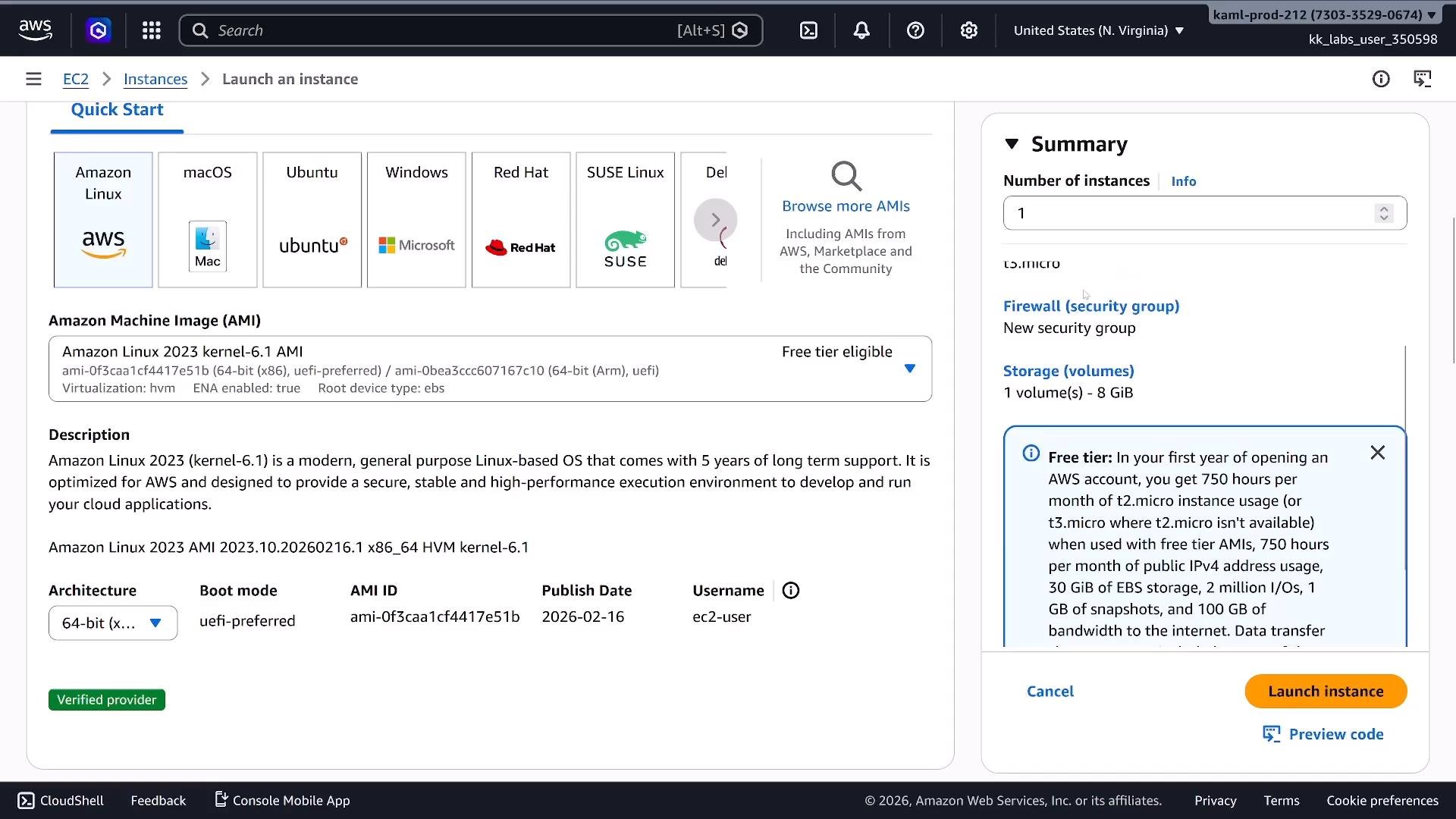
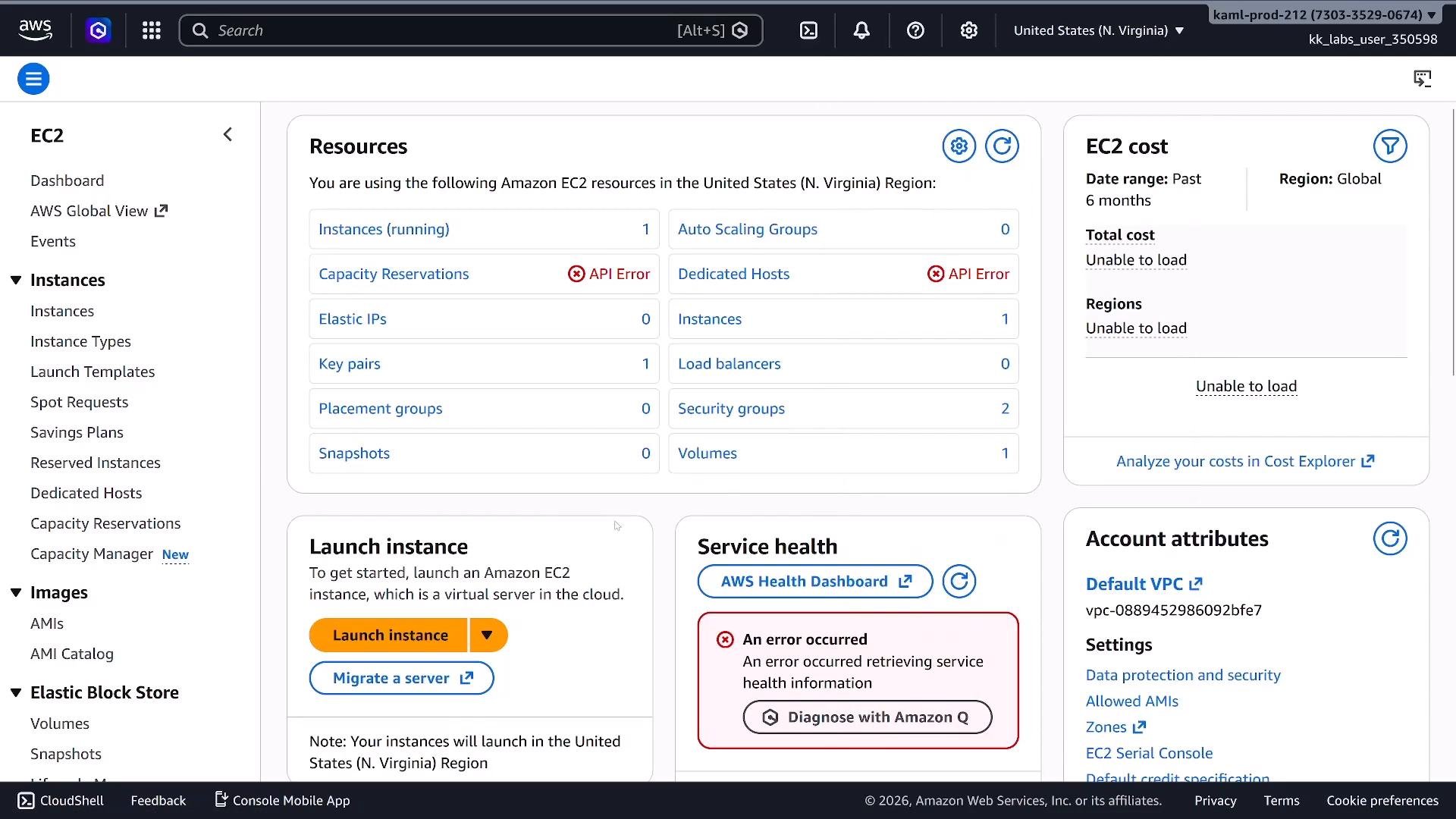
- Open EC2 → Instances → Launch instances
- Choose an AMI (Amazon Linux 2023 is a common choice)
- Select an allowed instance type (for example,
t3.micro) - Configure storage, security groups, and subnet
- Create/download a key pair (PEM or ED25519/RSA options may be shown)
Access methods for instances
If a public IP is not available or you prefer not to expose instances publicly, common access methods include:- Bastion host (jump box) in a public subnet
- EC2 Instance Connect (browser-based SSH) — may require specific IAM permissions
- AWS Systems Manager Session Manager — supports shell access without an SSH key
- Serial console (for troubleshooting) — may require additional configuration
If you encounter permission errors (for example, with Image Builder, Instance Connect, or IAM-restricted APIs), first check the playground limits and available IAM permissions. Many errors stem from attempting restricted actions or exceeding quotas.
Best practices and troubleshooting tips
- Review the playground limits page before planning resource-heavy experiments.
- Choose smaller instance types for routine practice to avoid hitting quotas.
- Use Systems Manager Session Manager for access when SSH keys or public IPs are not available.
- Save private keys securely and do not share them.
- If a service is unavailable, check for an informational note in the playground UI — restricted managed services are a common reason.
- If you need longer sessions or larger resources, consider using your own AWS account (be mindful of costs and clean up resources afterward).
Links and references
- KodeKloud Course: 100 Days of Cloud - Hands-on Labs
- KodeKloud Course: Fundamentals of DevOps
- AWS EC2 Documentation
- AWS Systems Manager Session Manager