

- Create an AppConfig Application and Environment
- Add a Configuration Profile that acts as your config source
- Define a Deployment Strategy for staged rollouts
- Start a controlled deployment and observe progress
1) Open AppConfig and create an application
- Open the AWS Systems Manager console and select AppConfig from the left-hand navigation.
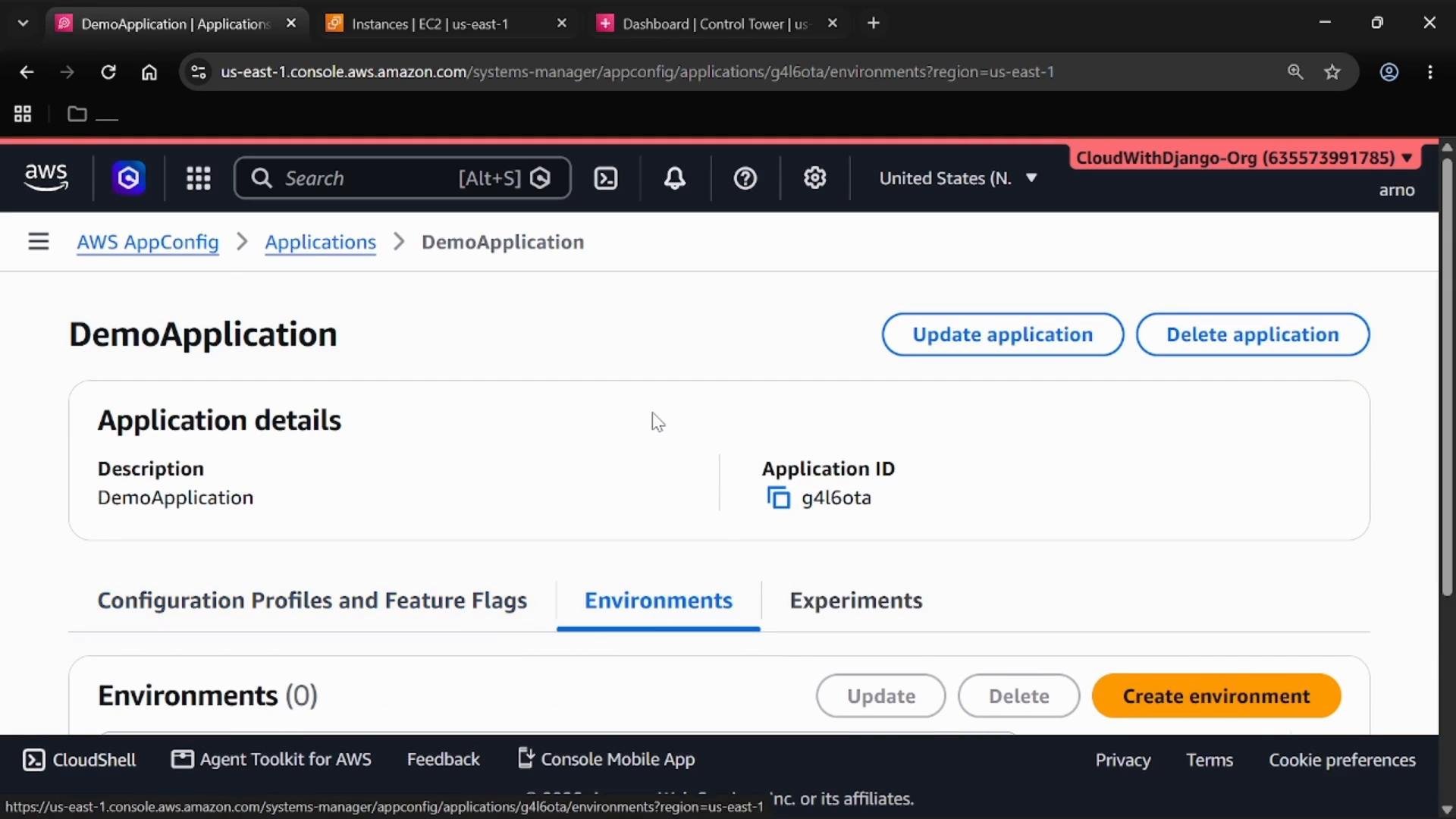
- Create a new Application to represent the workload whose configuration you want to manage (for example, a web app, API, or backend service).
- Name the application with a descriptive identifier (for example,
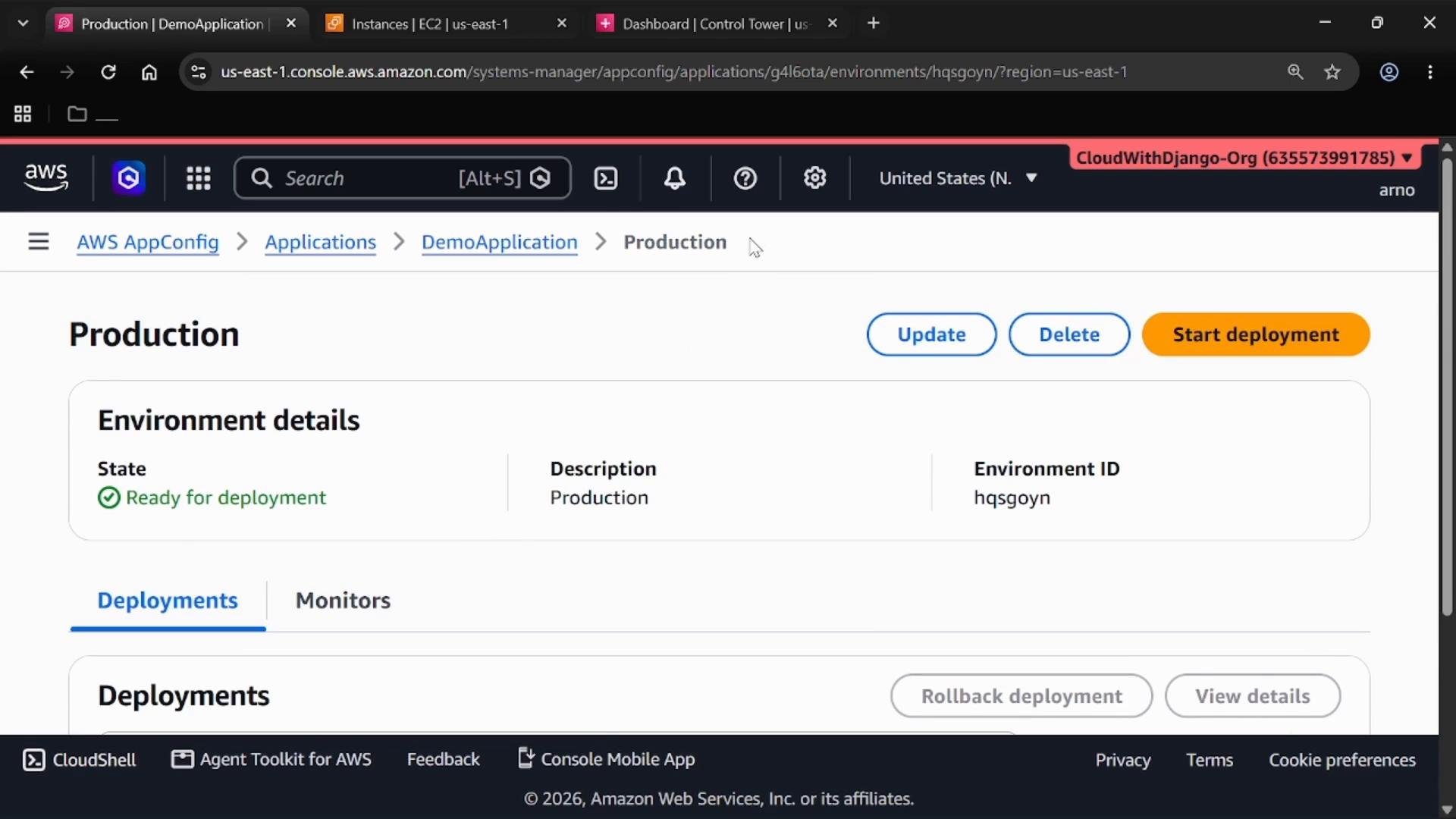
DemoApplication). - Create an Environment for that application (for example,
Production) so you can isolate and control where configuration changes are deployed.
2) Create a configuration profile (your config source)
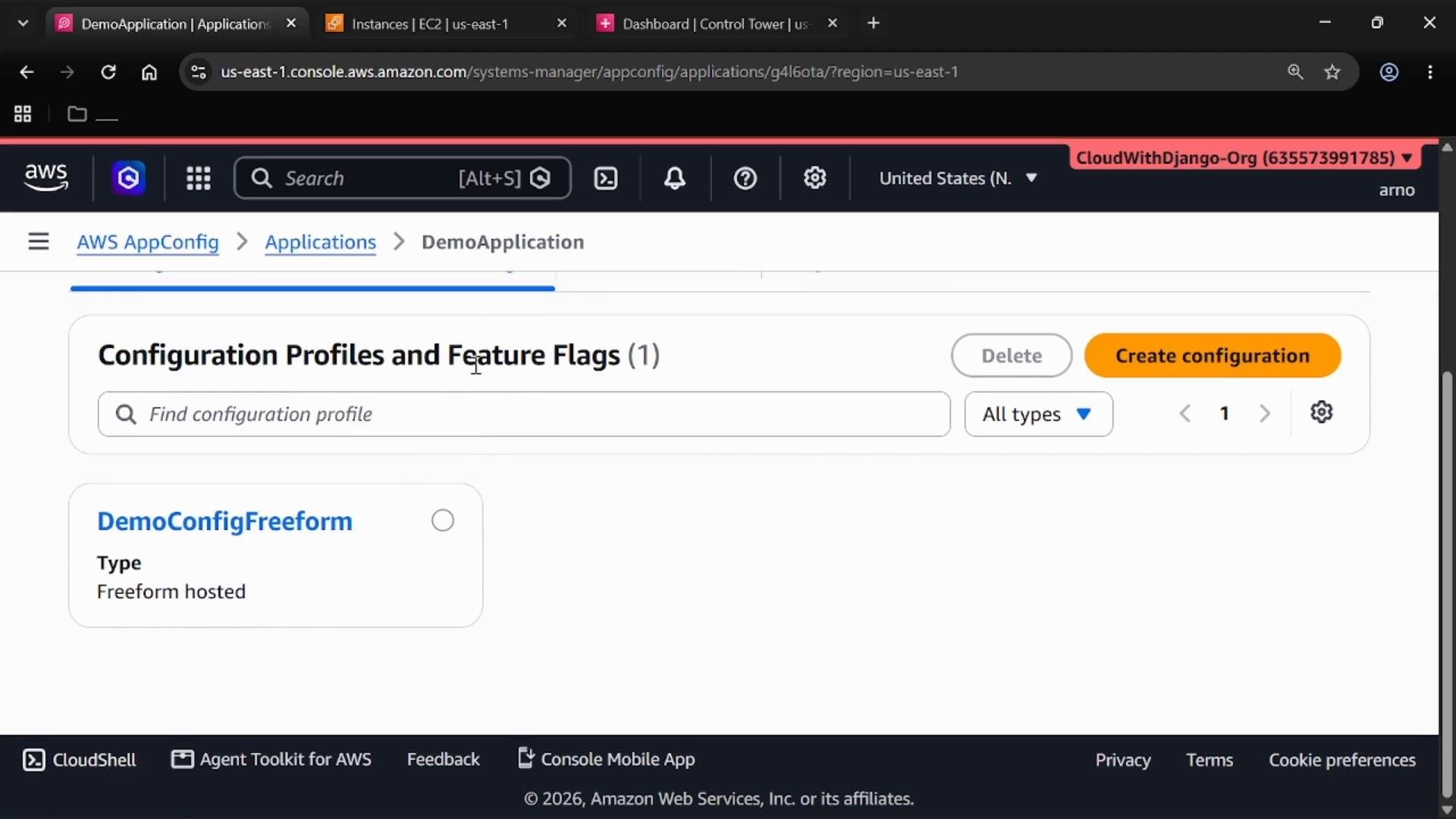
Configuration Profiles hold the data your application retrieves at runtime. Typical uses include feature flags, toggles, or other runtime settings. Steps:- From your Application page, create a new Configuration Profile.
- Choose the configuration type (for this demo, use a freeform configuration).
- Give it a name (for example,
DemoConfigFreeform) and set the content type (e.g., JSON). - Add the configuration content and either deploy immediately or save for later.
3) Create a deployment strategy
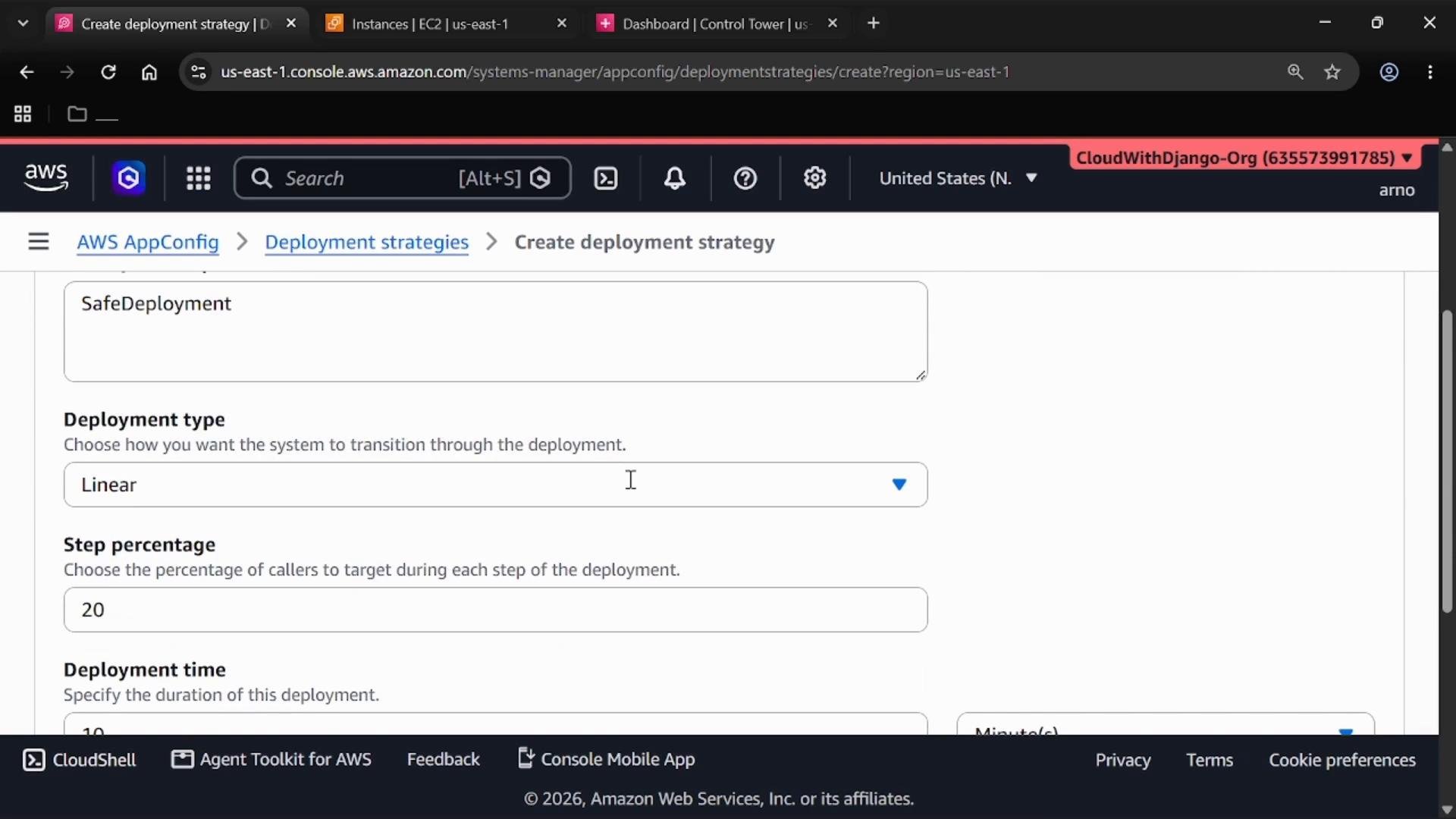
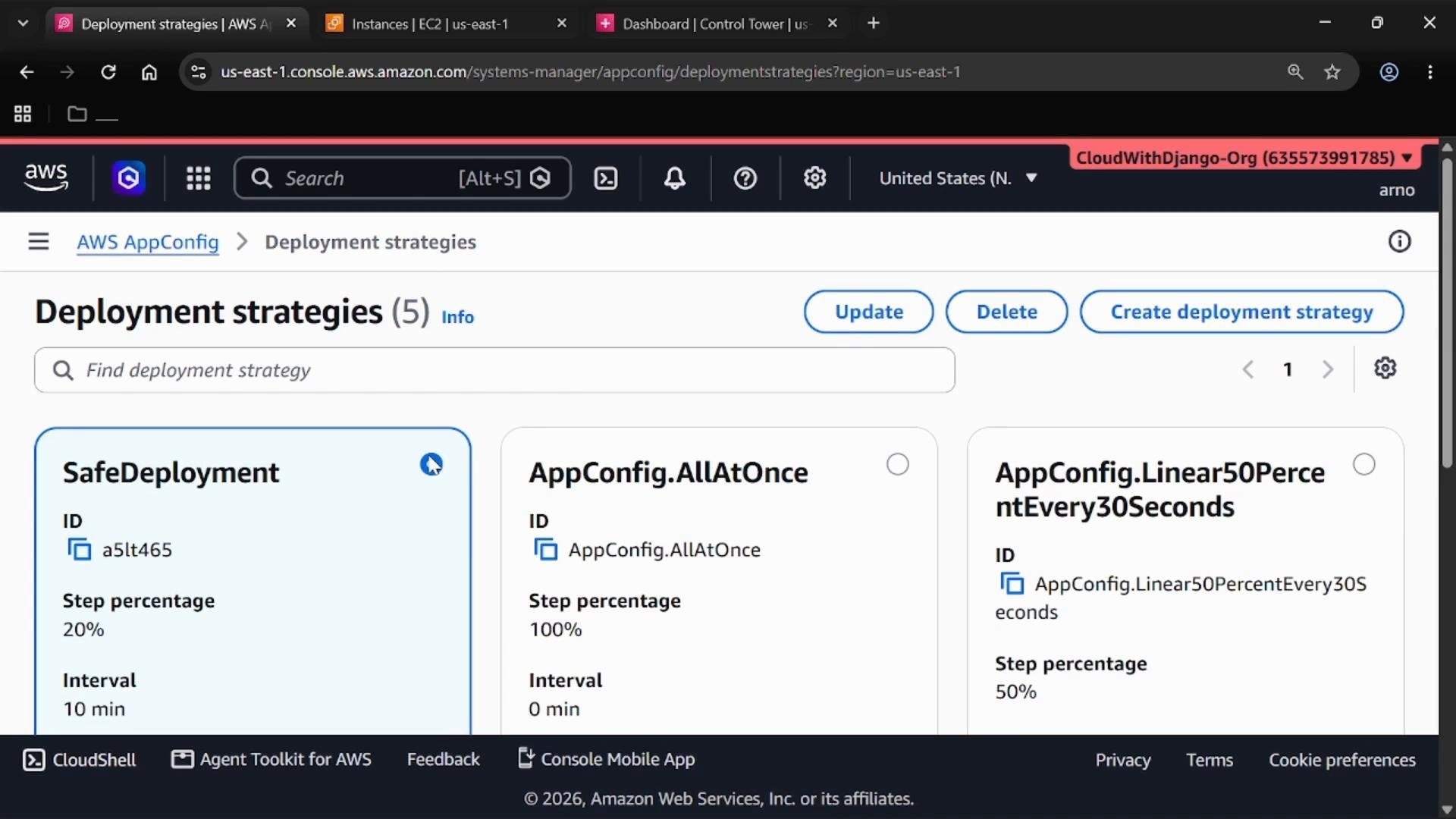
Deployment strategies define how configuration updates are rolled out across targets. Instead of changing everything at once, AppConfig supports staged rollouts (linear, canary, all-at-once) to limit blast radius. To create a strategy:- Open Deployment strategies in AppConfig.
- Create a new strategy (for example,
SafeDeployment). - Choose a deployment type. For this demo pick a Linear strategy and configure:
- Step percentage: how much of the target gets updated in each increment
- Step duration: how long to wait between increments
4) Start a deployment
To start a deployment:- Return to the Application page and select the target Environment.
- Choose the Configuration Profile you created (e.g.,
DemoConfigFreeform). - Select the Hosted configuration version (first rollout will usually be version
1). - Choose the Deployment strategy (e.g.,
SafeDeployment). - Optionally add a description and click Start deployment.
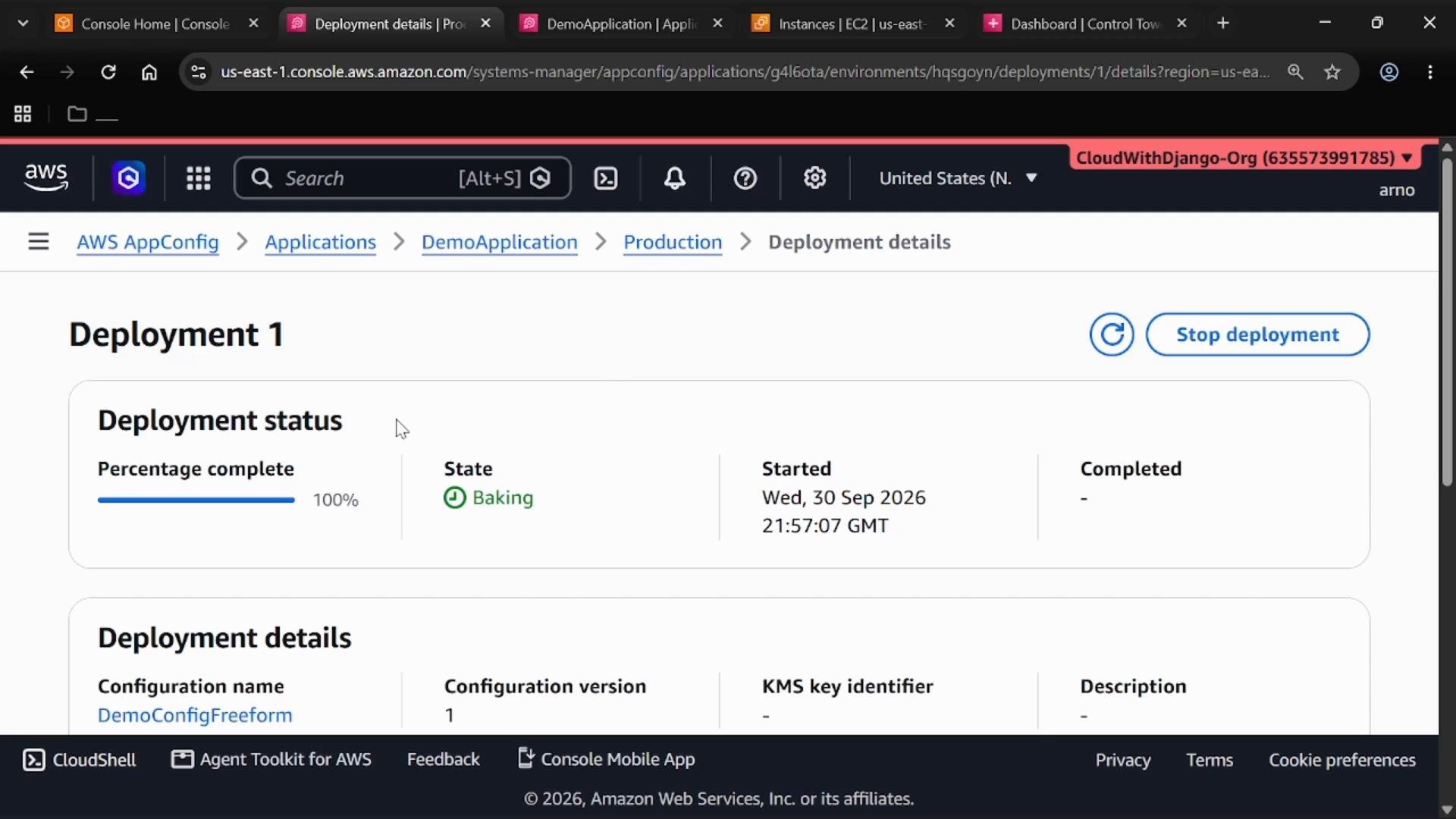
Baking, Complete, or Stopped), plus percentage complete and strategy details. Staged strategies advance progress in increments defined by step percentage and interval.
AWS AppConfig separates application configuration from code and lets you perform controlled, observable rollouts (feature flags, scheduled rollouts, and staged deployments) without redeploying application binaries. This reduces risk and accelerates safe operational changes.
Always validate configuration changes in a non-production environment and use monitors/alarms during initial rollout steps. Staged deployments reduce risk but do not replace good observability and testing.
For exam and practical purposes, remember:
- AppConfig separates configuration from application code.
- It supports controlled deployments (linear, canary, all-at-once).
- It enables feature flags and scheduled rollouts without a full application deployment.