

- Create an IAM role for EC2 that grants Systems Manager permissions.
- Launch an EC2 instance with that role attached.
- Use Run Command to update the SSM Agent on the instance.
- Create a State Manager association to keep the agent updated on a schedule.
1. Create an EC2 role for Systems Manager
Create an IAM role for EC2 that allows Systems Manager to manage the instance:- In the IAM console, create a new role and choose EC2 as the trusted entity.
- Attach the managed policy
AmazonSSMManagedInstanceCore. This policy grants the core Systems Manager permissions that a managed instance needs to communicate with Systems Manager. - Name the role
SSM-EC2-Role(or choose a clear, descriptive name) and finish creating the role.
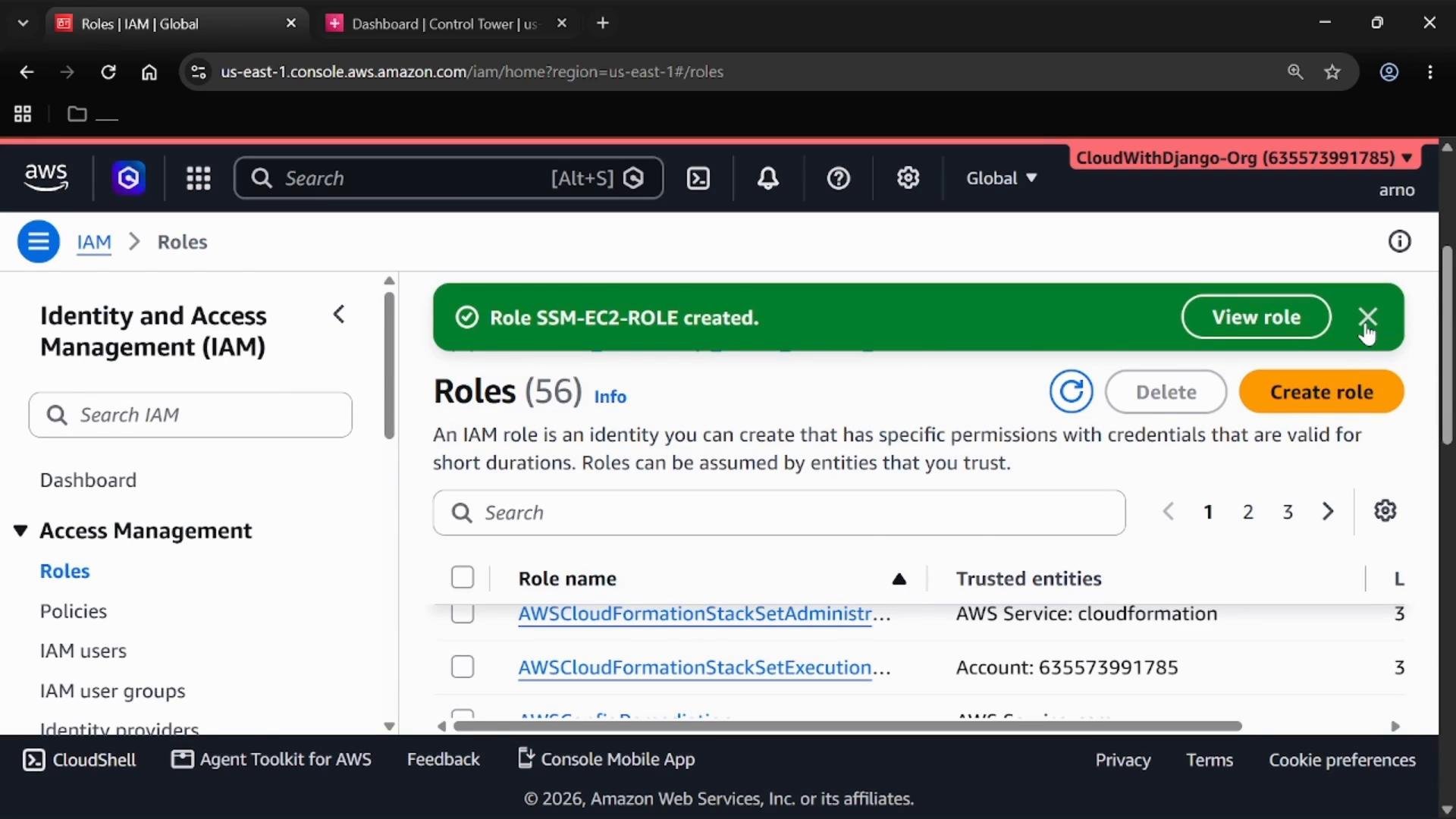
AmazonSSMManagedInstanceCore includes permissions for SSM Agent communication and Session Manager. If you need additional access (for example, to write results to S3), grant only the minimum required permissions via a separate role or an inline policy.
2. Launch an EC2 instance with the SSM role
Attach the IAM role to a new EC2 instance so Systems Manager can manage it.- Open the EC2 console and choose Launch instances.
- Provide a name (for example,
EC2-Instance) and select your AMI and instance type (t3.micro is fine for testing). - Under Advanced details, set the IAM Instance Profile to the
SSM-EC2-Roleyou created. - Launch the instance.
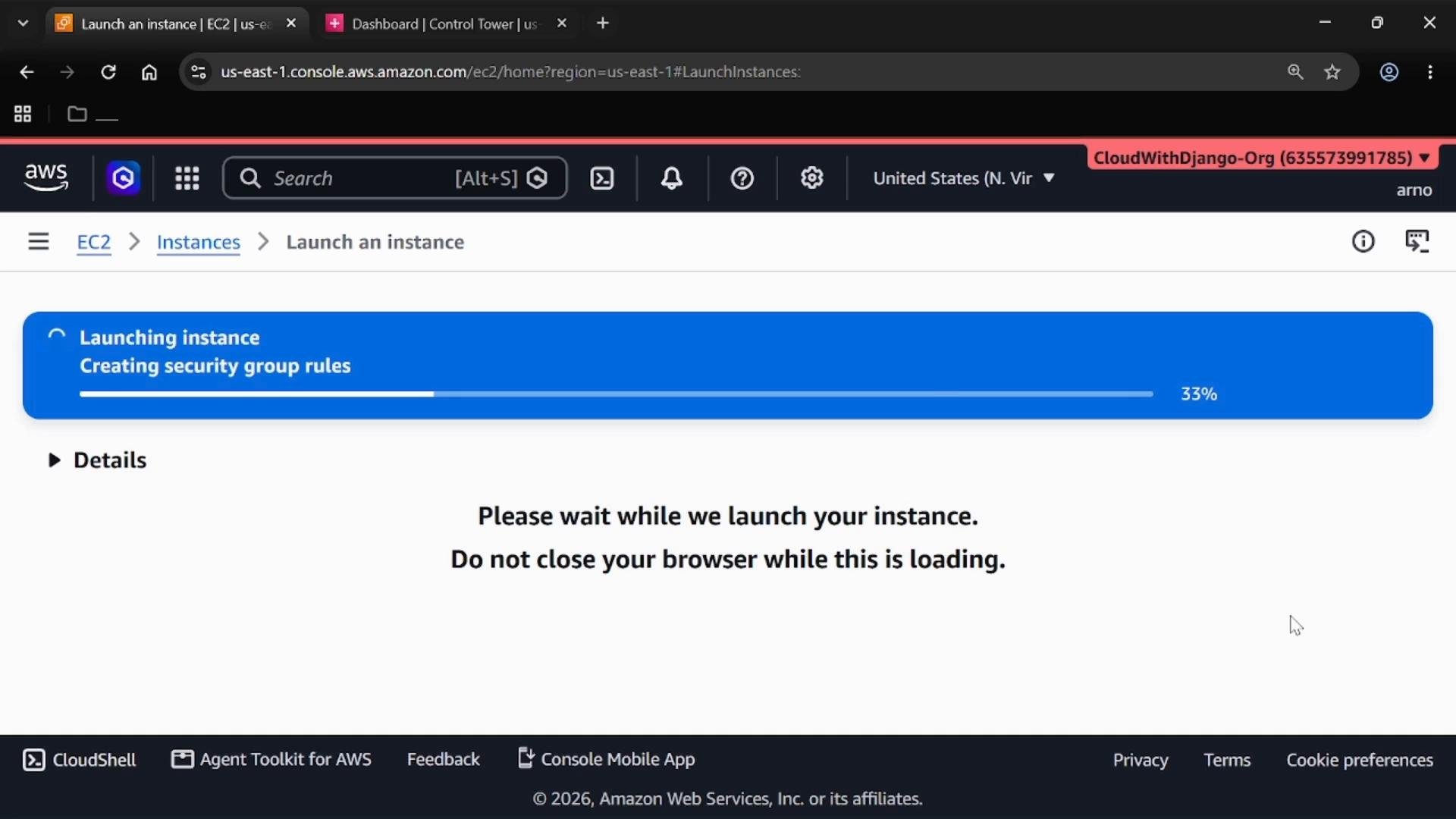
Ensure the SSM Agent is installed and running on the instance. Many official AMIs (for example, Amazon Linux) include it by default. Also verify network access to Systems Manager endpoints through an Internet Gateway/NAT or VPC endpoints for Systems Manager.
3. Use Run Command to update the SSM Agent
Run Command is ideal for one‑off or immediate operations across managed instances.- Open Systems Manager and navigate to Run Command.
- Click Run command.
- Choose the
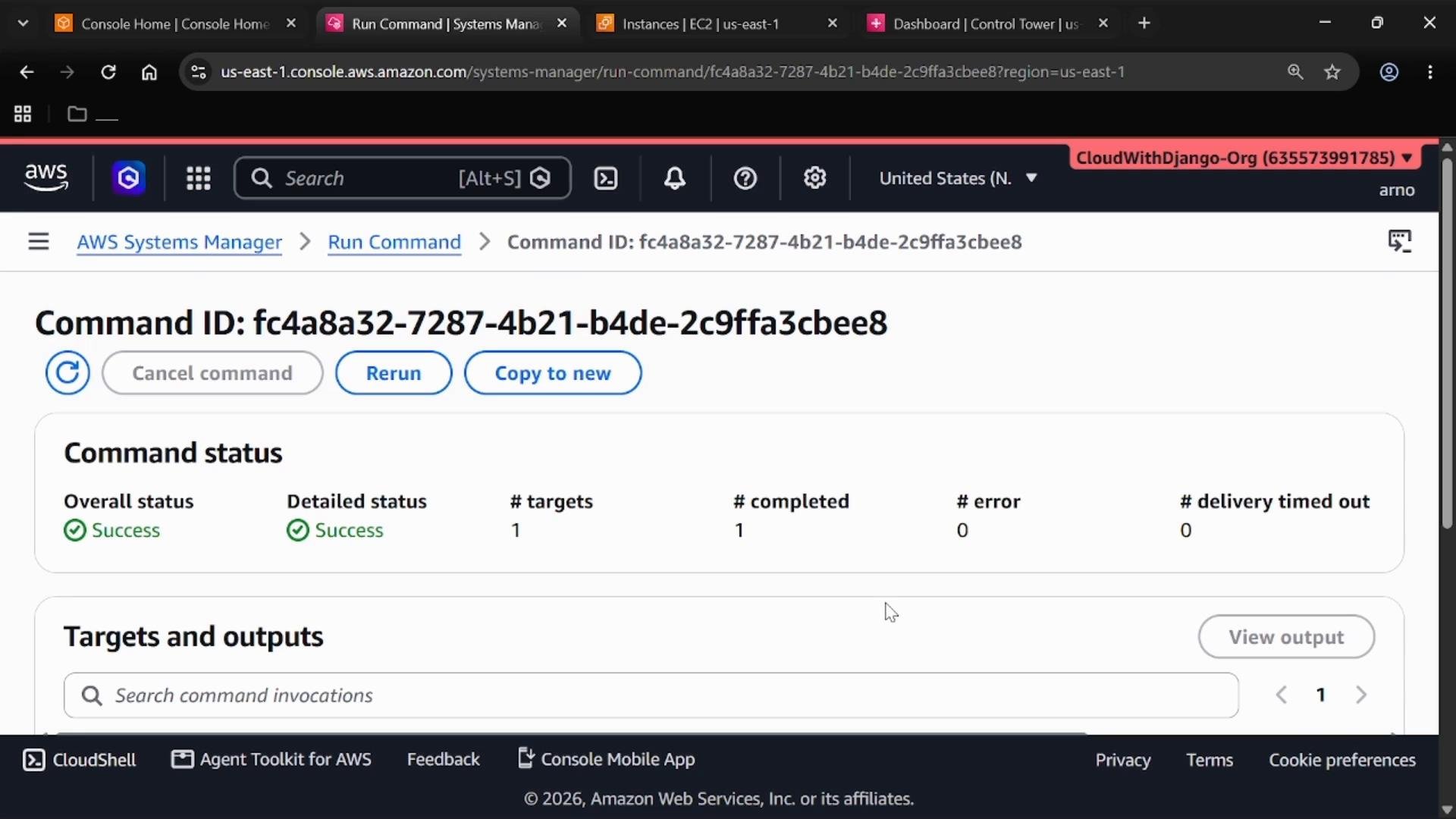
AWS-UpdateSSMAgentdocument — this document updates the SSM Agent on the target instance. - Select target instance(s) — you can target instances directly, by tag, or by other target types.
- Leave parameters as default unless you need to change them, then execute the command.
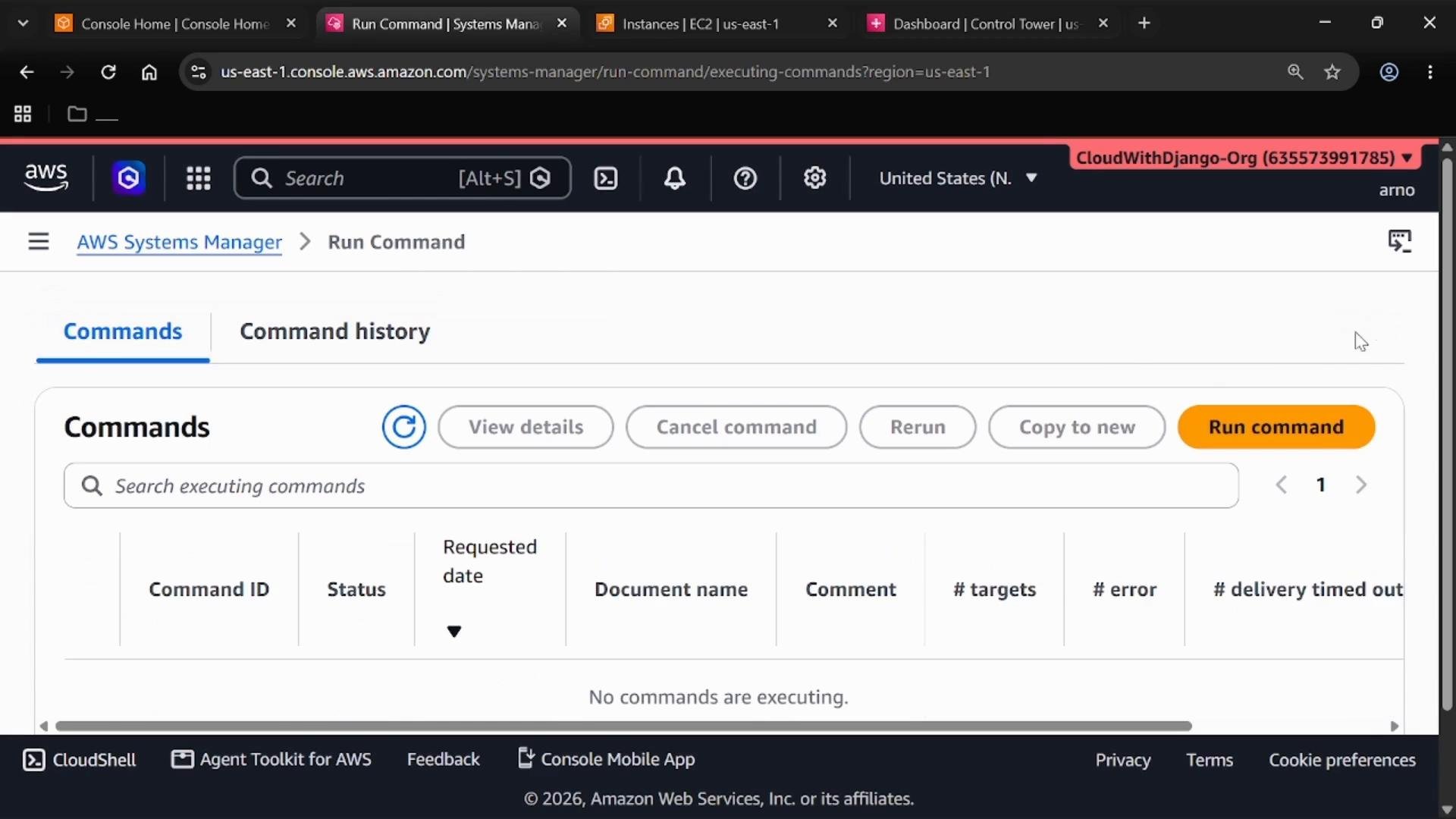
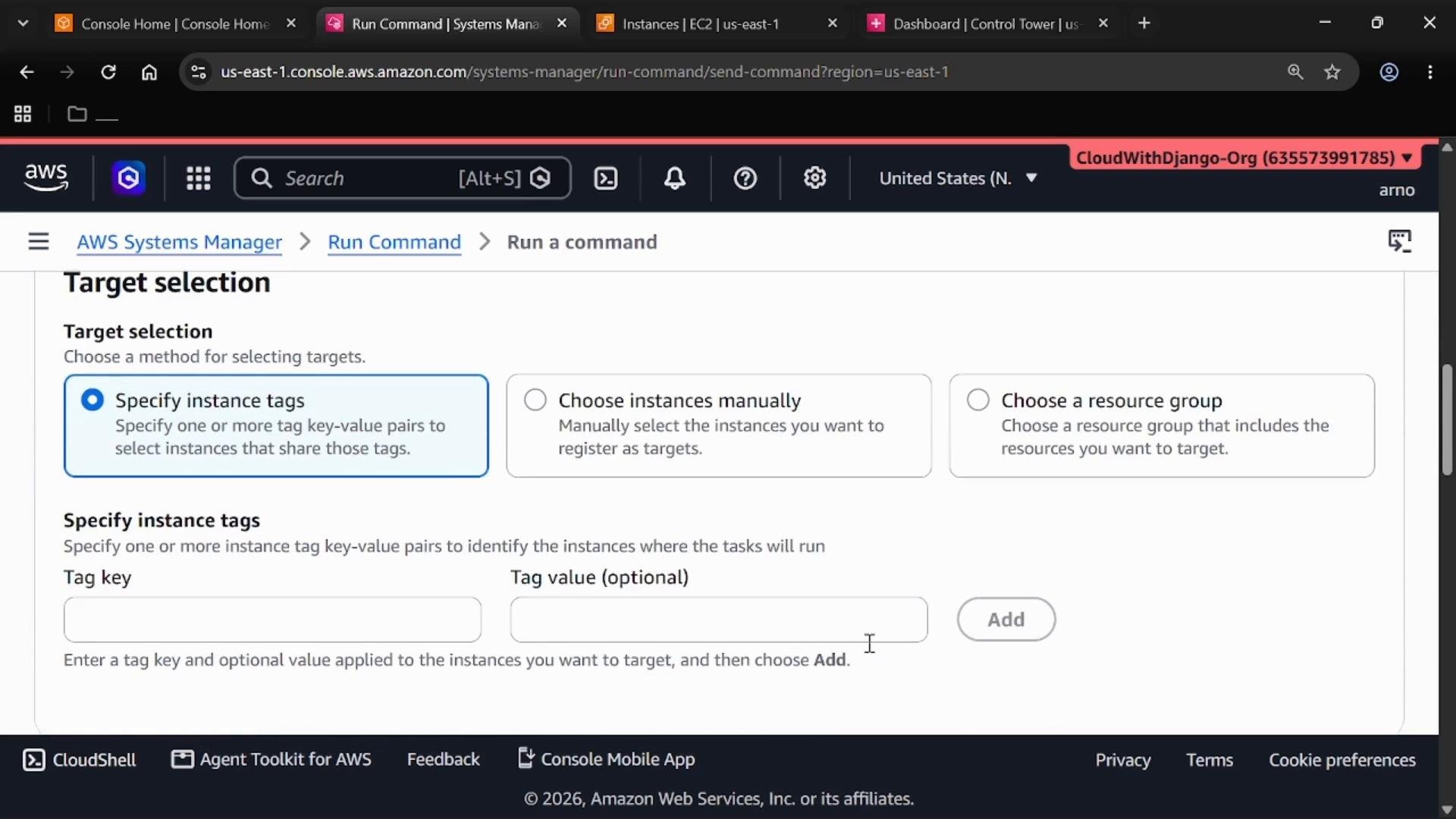
Environment=prod).
4. Introduction to State Manager
Run Command performs ad‑hoc tasks. State Manager is designed to declare and maintain a desired state over time by creating associations:- An association ties a Systems Manager document (for example,
AWS-UpdateSSMAgent) to a set of targets and optionally schedules recurring execution. - State Manager ensures the document runs on the targets according to the association’s schedule and parameters.
5. Create a State Manager association
Create an association to keep the SSM Agent updated on a recurring schedule.- In Systems Manager, open State Manager and choose Create association.
- Provide a name (for example,
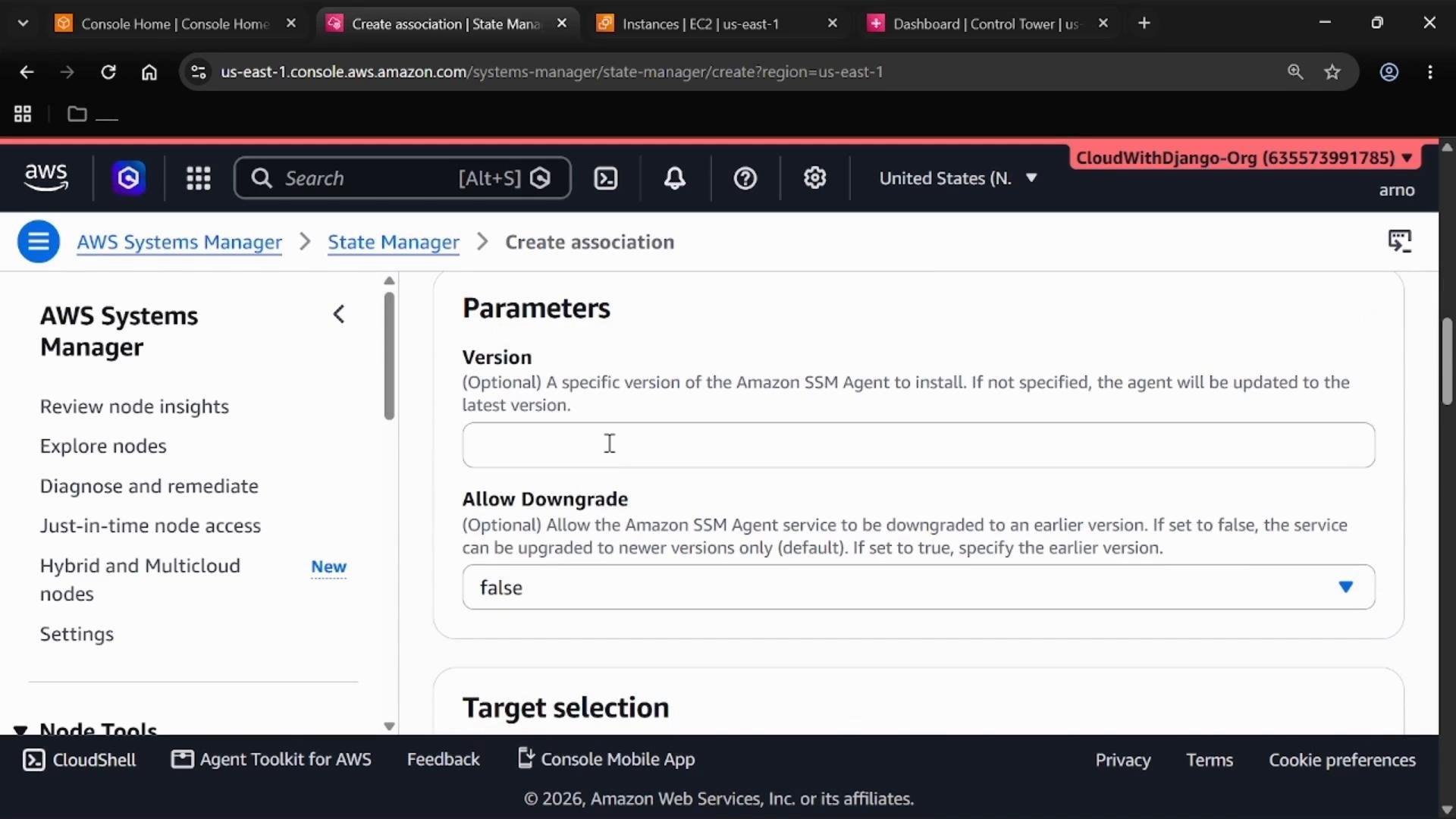
Demo-State-Manager) and select theAWS-UpdateSSMAgentdocument. - Keep default document parameters unless you need to override specific options.
- Choose targets manually, by tag, or apply to all instances depending on scope.
- Optionally provide an association execution role (dispatch role) that State Manager can assume to call other AWS services on your behalf — for example, to write execution output to S3 or to invoke Lambda.
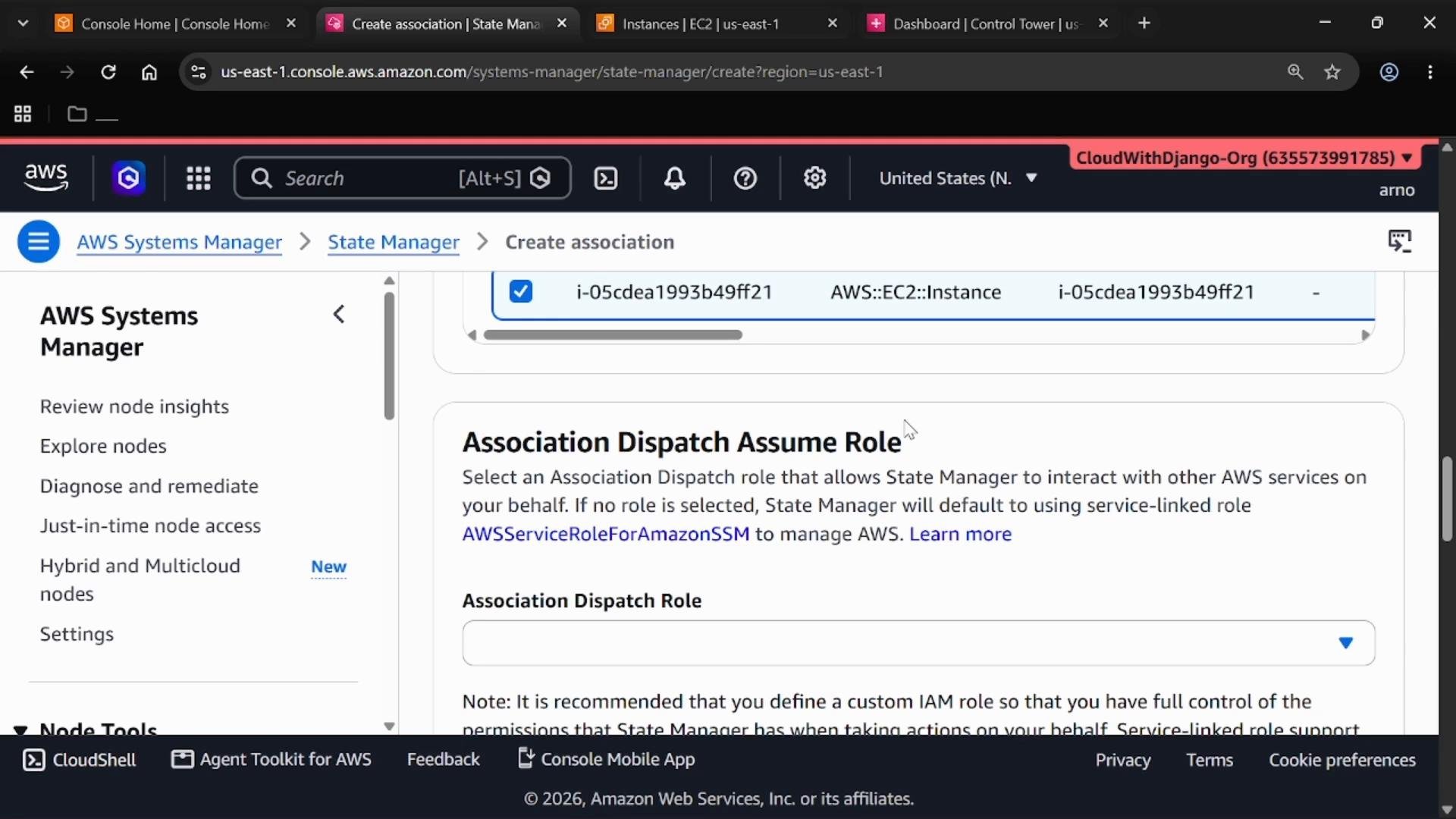
When specifying an association execution role, follow the principle of least privilege. Grant only the permissions required for the association (for example, S3 PutObject if writing results to an S3 bucket). Excessive permissions increase risk.
6. Scheduling, rate controls, and monitoring
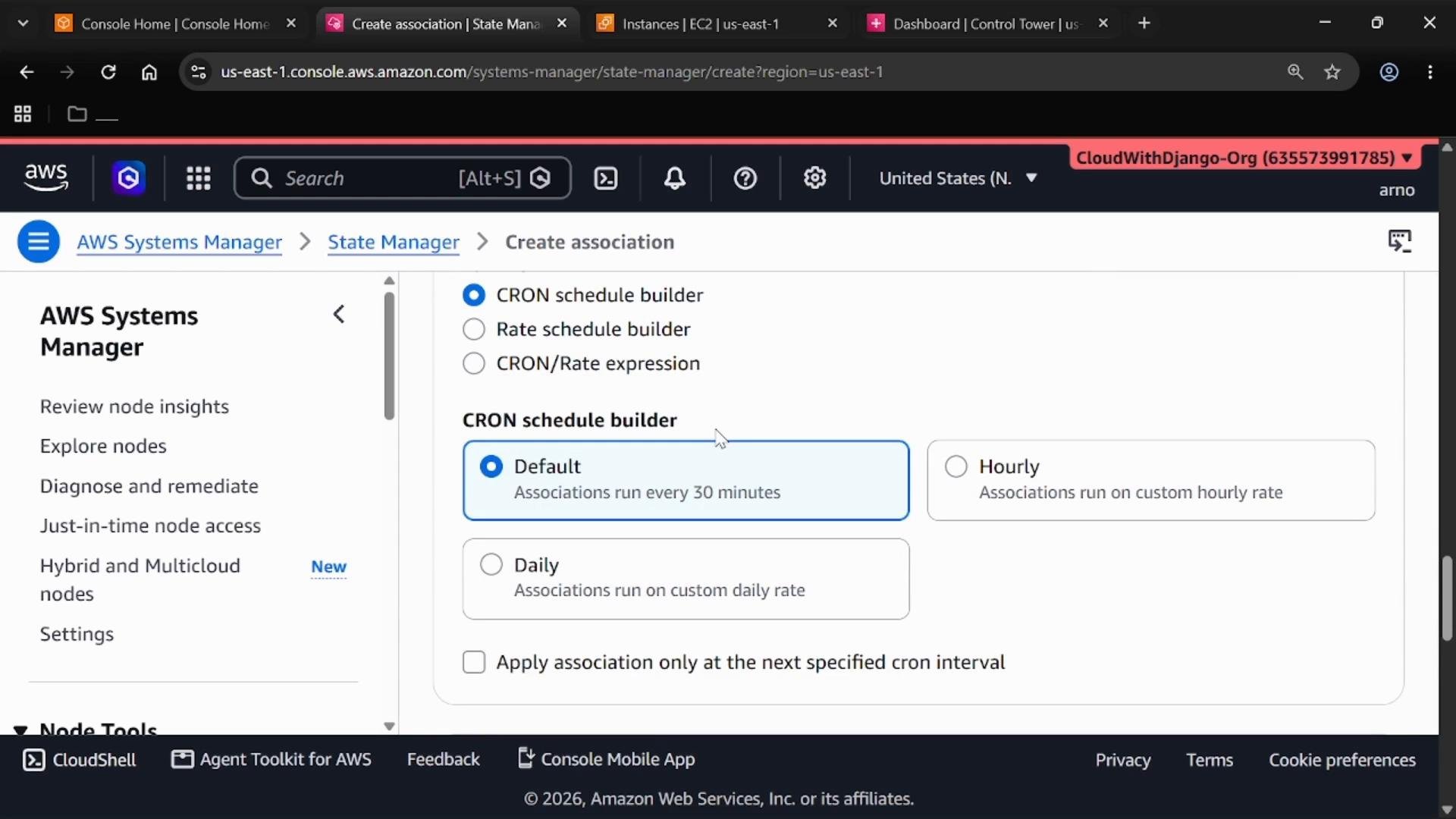
- Choose whether the association runs once, on a schedule, or at set intervals. Use the schedule builder to create simple intervals or CRON expressions.
- Configure concurrency and error threshold rate controls to limit how many instances run concurrently and when to stop on errors.
- Send execution output to Amazon S3 or CloudWatch Logs for auditing.
- Add CloudWatch Alarms to trigger on unhealthy association executions.
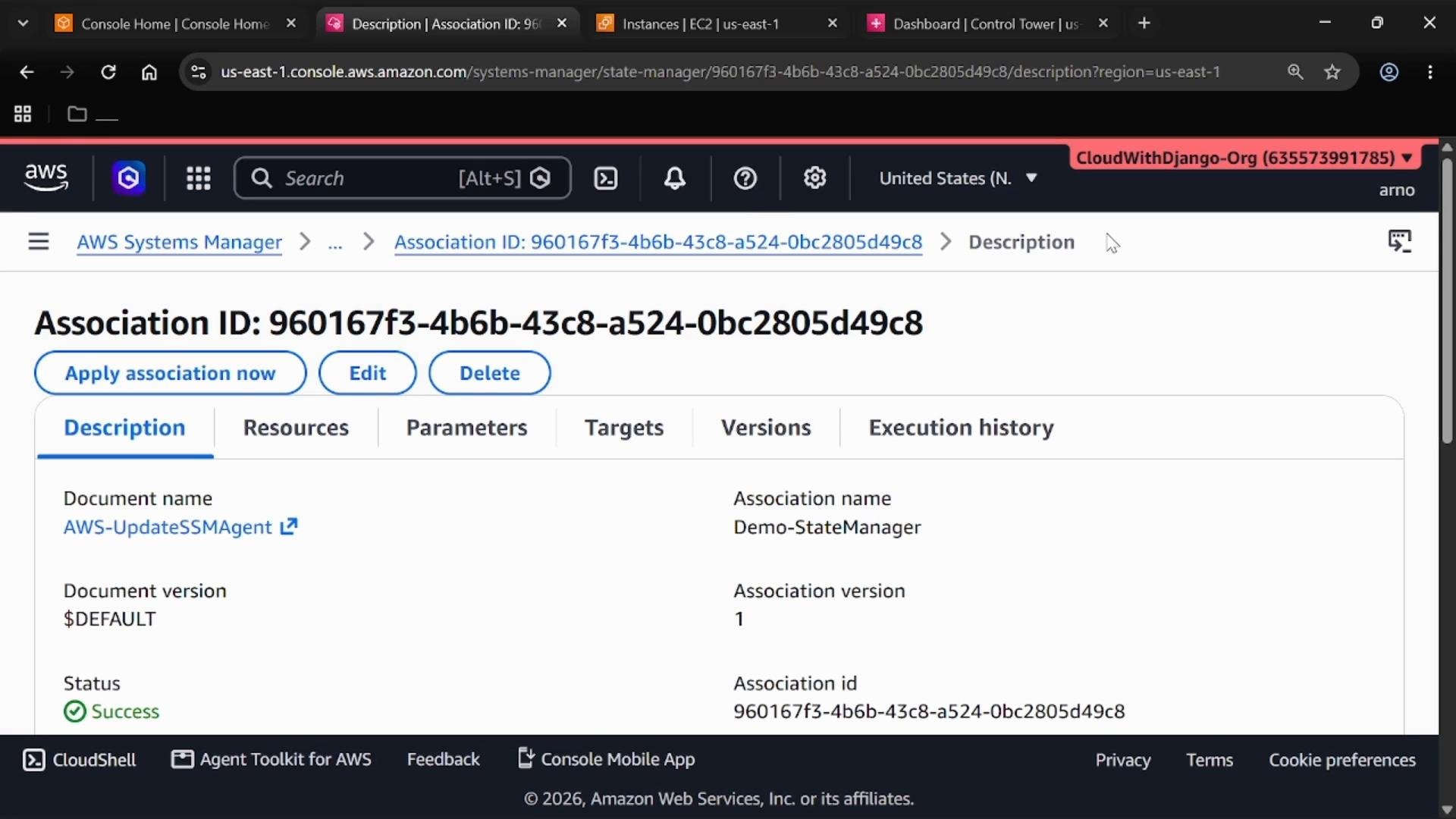
7. Create and review the association
After creating the association:- View details such as targets, document version, parameters, and execution history.
- Use Apply association now to run immediately against current targets.
- Edit or delete the association as requirements change.
Quick comparison: Run Command vs State Manager
Summary
- Use Run Command for immediate, one‑off tasks across managed instances.
- Use State Manager to declare a desired state (via a Systems Manager document) and enforce it on a schedule using associations.
- Combining Run Command and State Manager gives operational flexibility: ad‑hoc troubleshooting and long‑term configuration management.
- AWS Systems Manager Run Command: https://docs.aws.amazon.com/systems-manager/latest/userguide/execute-remote-commands.html
- AWS Systems Manager State Manager: https://docs.aws.amazon.com/systems-manager/latest/userguide/systems-manager-state.html
- SSM Agent documentation: https://docs.aws.amazon.com/systems-manager/latest/userguide/ssm-agent.html
- Amazon S3 documentation: https://docs.aws.amazon.com/AmazonS3/latest/userguide/Welcome.html
- CloudWatch Alarms: https://docs.aws.amazon.com/AmazonCloudWatch/latest/monitoring/AlarmThatSendsEmail.html