

Before you begin, confirm you have an EC2 instance in the running state with passed status checks and an open CloudWatch console in your browser. This walkthrough uses the EC2 instance’s per-instance metrics (CPU, NetworkIn, NetworkOut).
Prerequisites
- An EC2 instance in the Running state with status checks passed.
- AWS Console access with permissions for CloudWatch and SNS.
- CloudWatch open in another browser tab.
Step 1 — Navigate to your EC2 metric
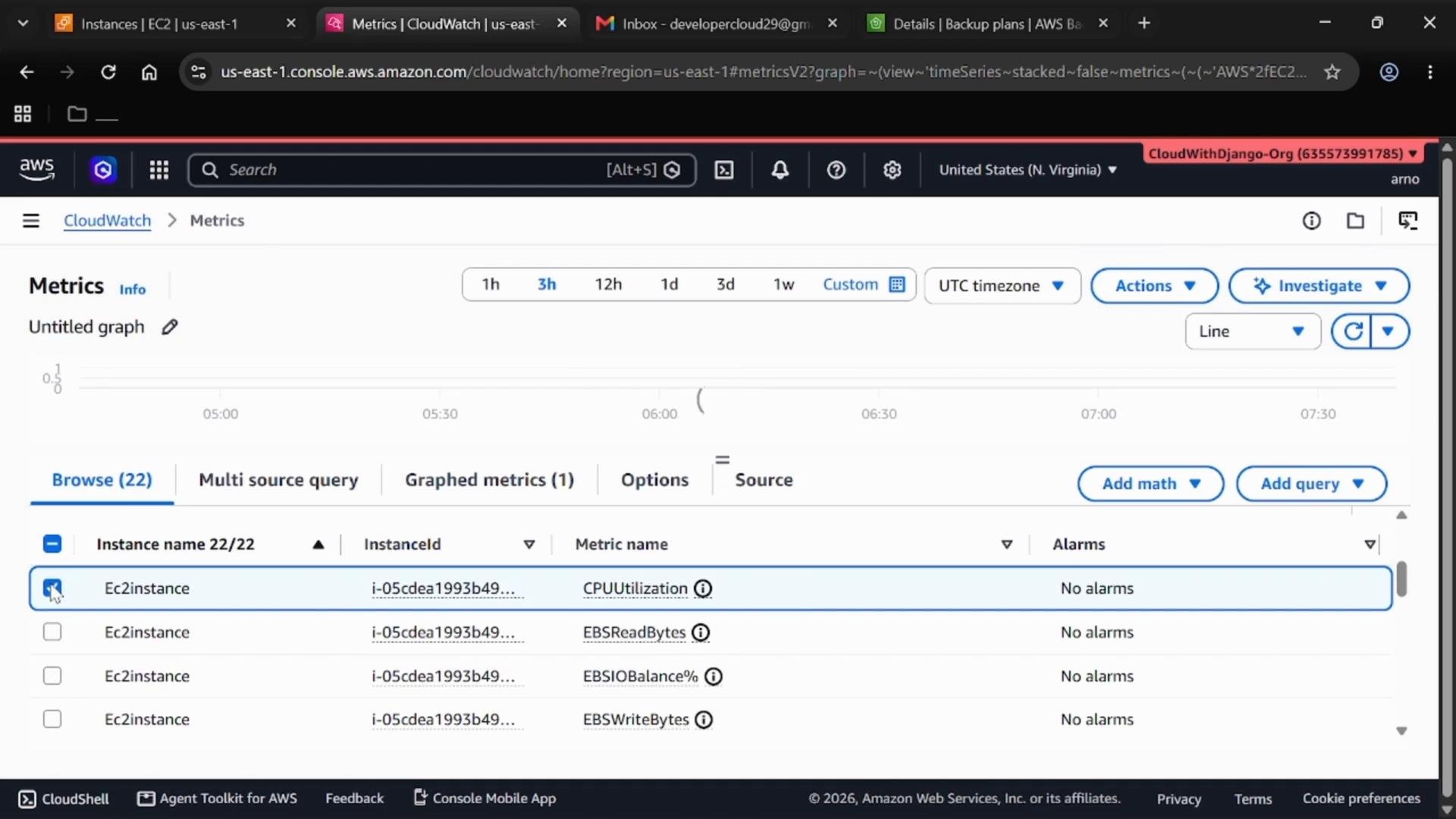
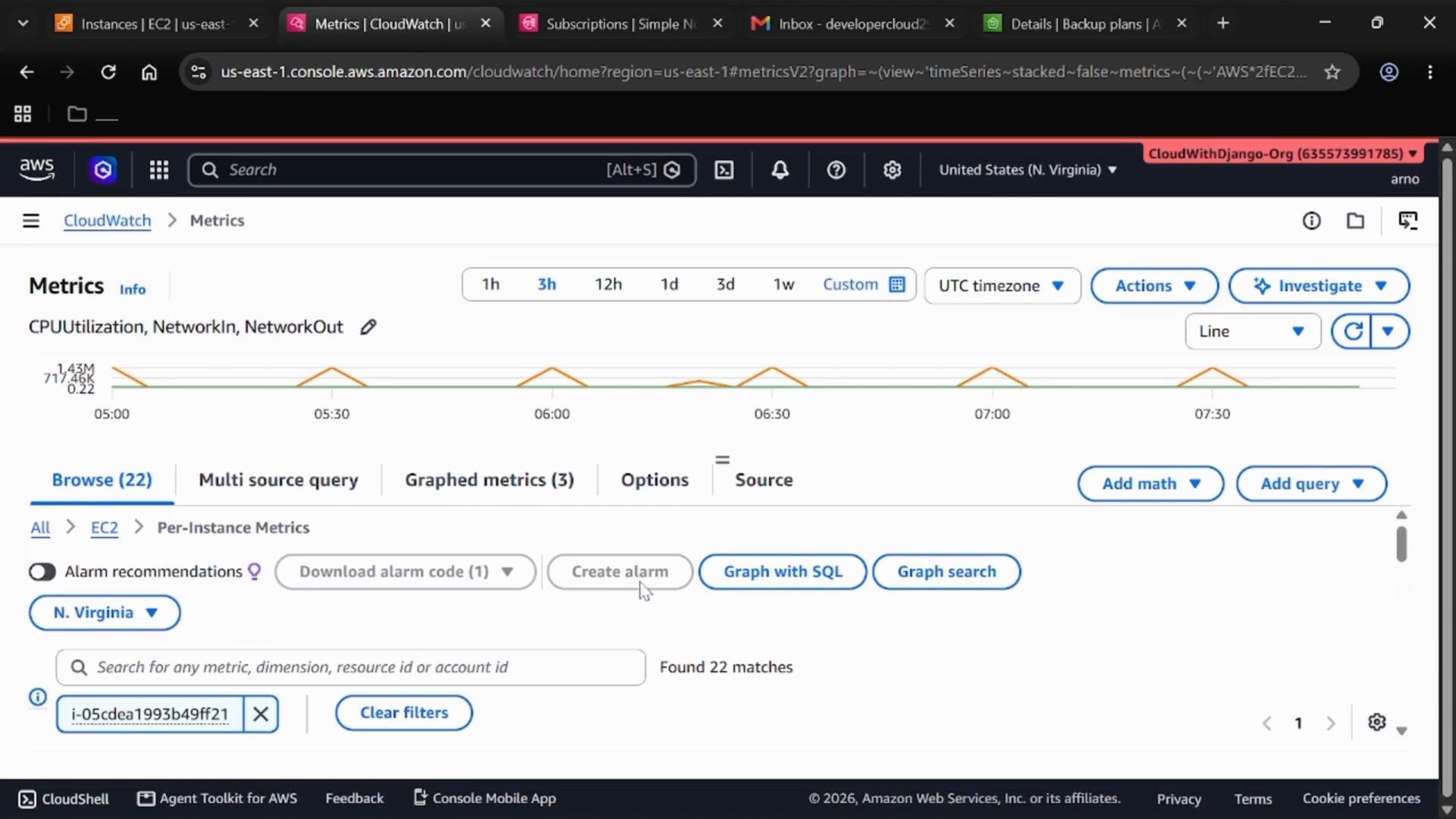
- In the AWS Console, open CloudWatch → Metrics → All metrics.
- Search for
EC2and choose Per-Instance Metrics. - Copy your EC2 instance ID from the EC2 console and paste it into the metric search box, then press Enter. The metrics for that instance will appear (Instance Name and ID are shown).
- Select the checkbox for
CPUUtilization.
Step 2 — Create an anomaly-detection alarm for CPU
Anomaly detection models build an expected range (a prediction band) from historical metric values and trigger only when the metric moves outside that band. This is useful for metrics with consistent historical patterns where a static threshold would either miss anomalies or generate noise.-
With
CPUUtilizationgraphed, click Create alarm (bell icon on the right of the metric). -
In the Create alarm flow:
- Data source: CloudWatch metrics
- Type: Single metric
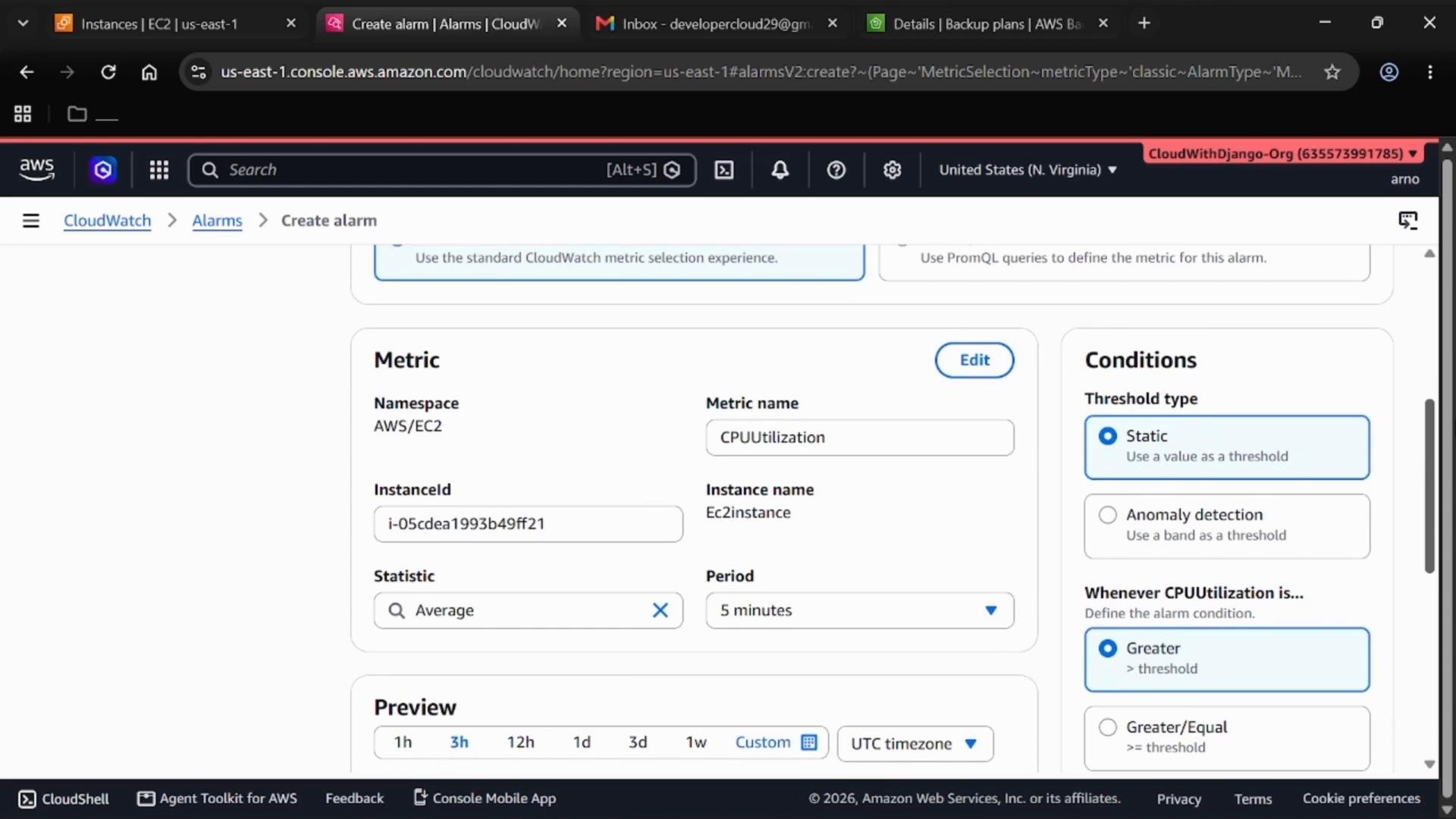
- Metric name:
CPUUtilizationfor your instance - Period/statistic: Use the defaults (for example, 5-minute period)
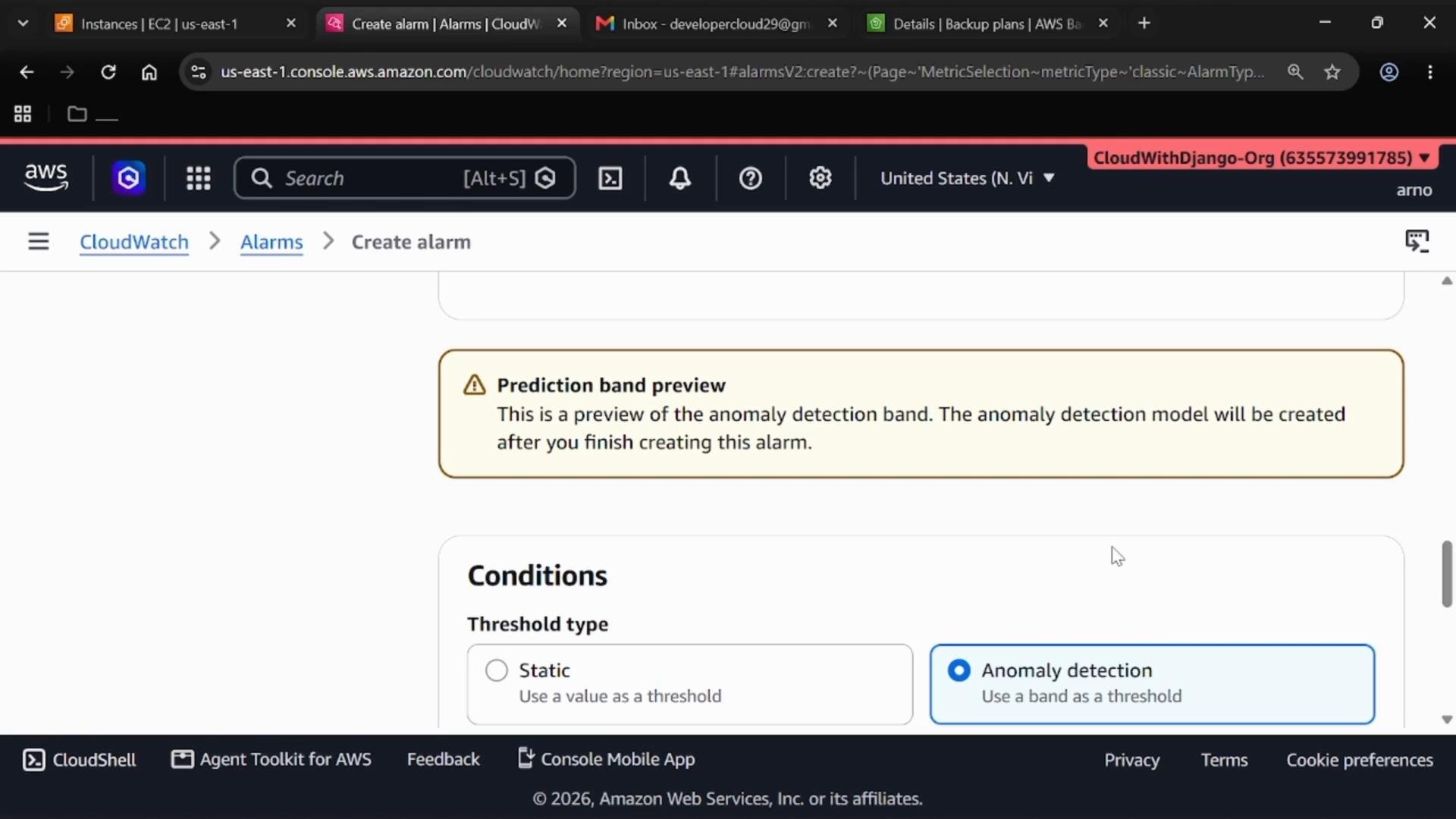
- For Threshold type choose Anomaly detection. The alarm will compare metric values against the predicted band instead of a fixed threshold.
- The preview shows the prediction band (expected range). If the metric moves outside that band, the anomaly-detection alarm will transition to ALARM.
Step 3 — Set evaluation periods (M out of N)
Under Additional configuration set Data points to alarm to 3 out of 5. This means CloudWatch evaluates 5 periods and requires at least 3 breaches to trigger ALARM. This reduces false positives from one-off spikes and detects sustained anomalies.Step 4 — Configure notifications (SNS)
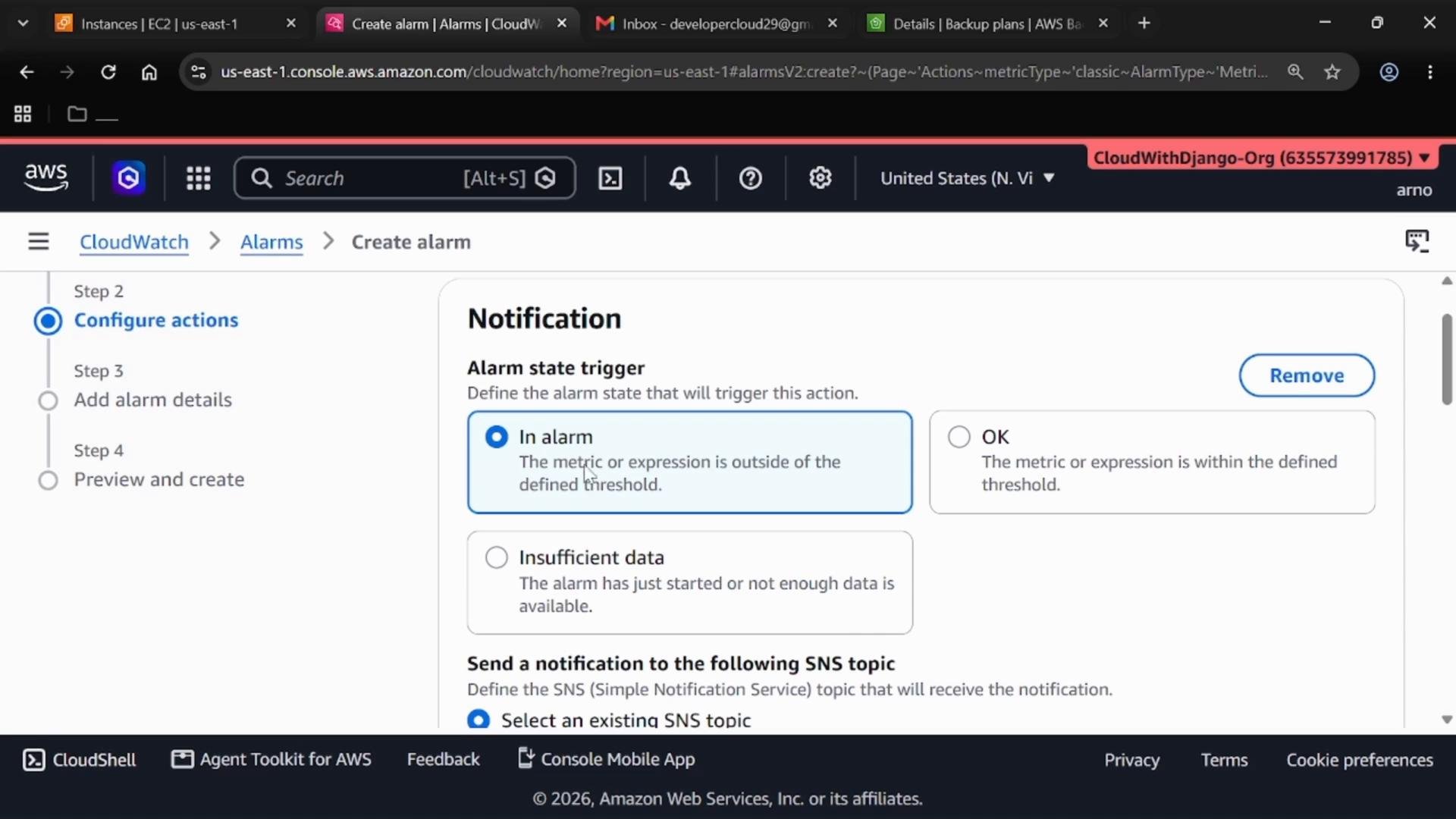
- For Alarm state trigger choose In alarm.
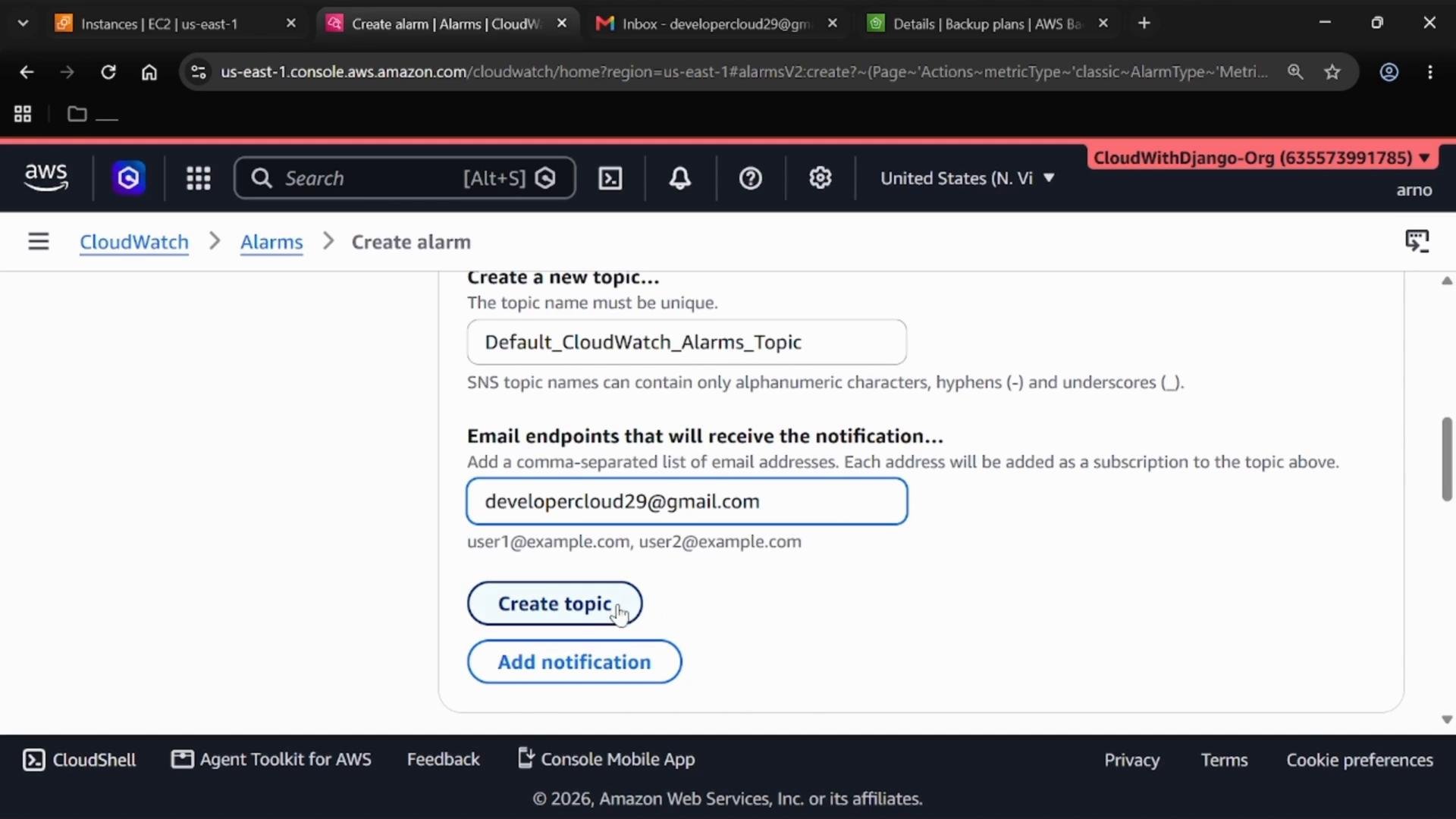
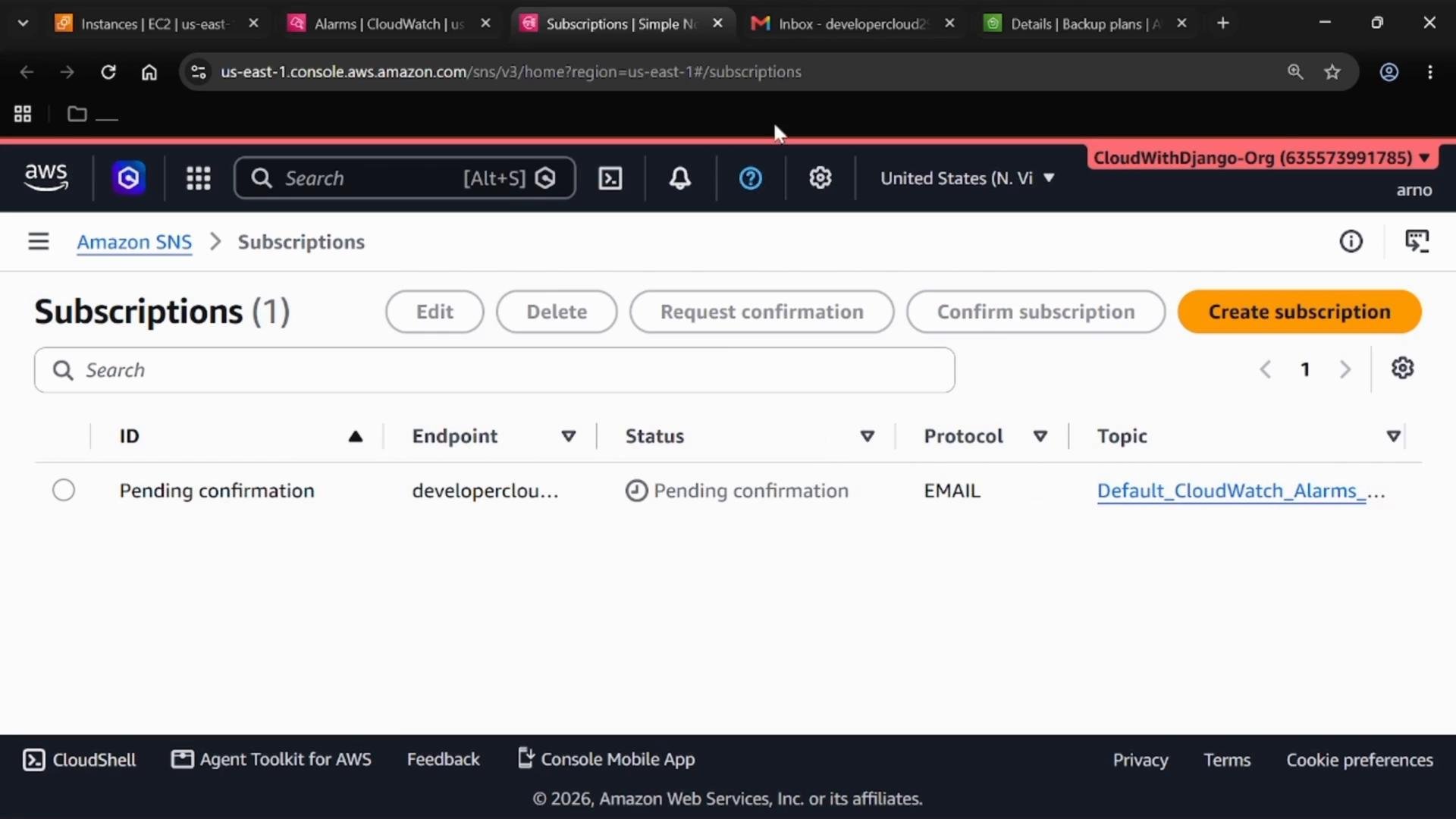
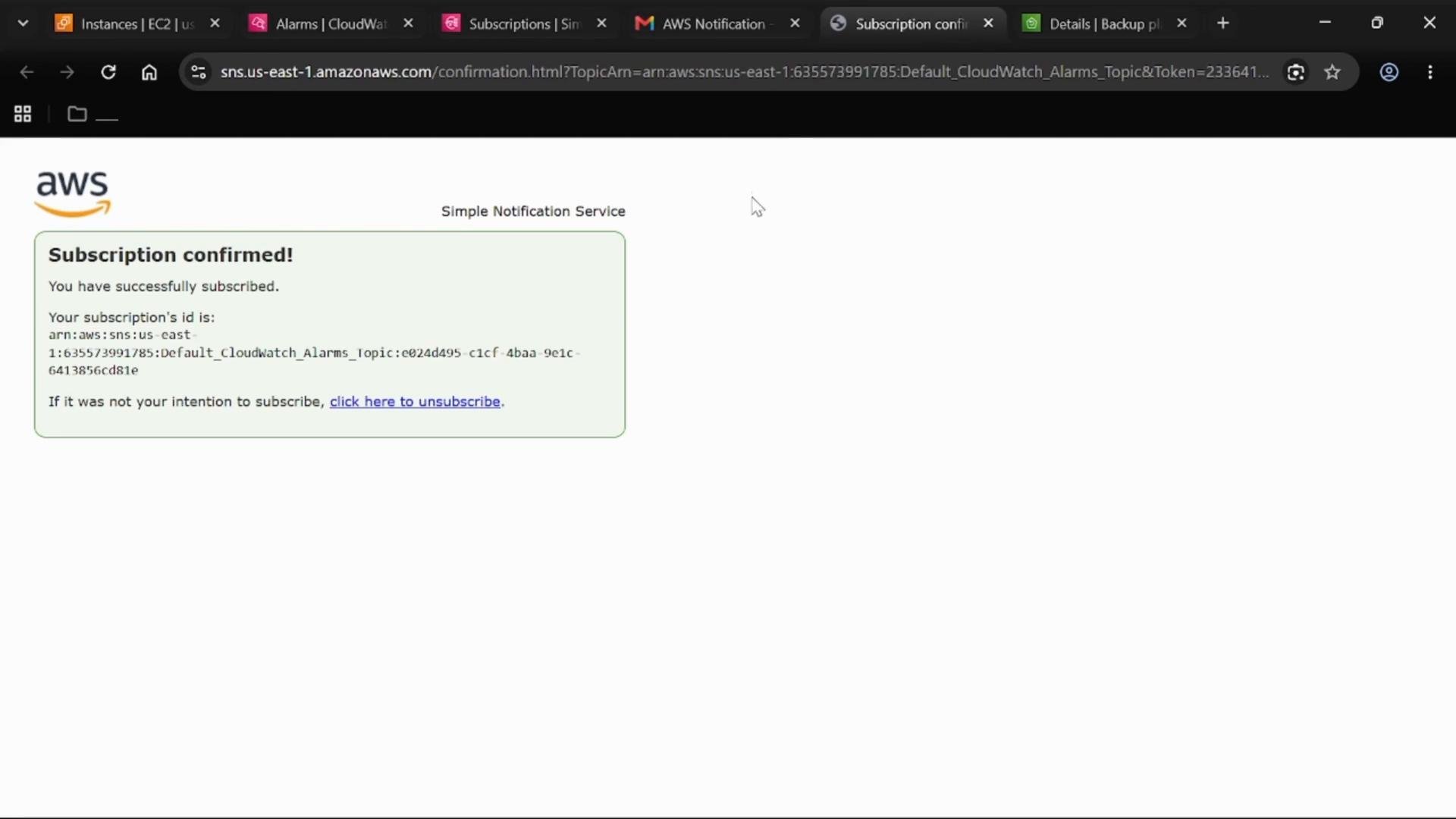
- Choose an SNS topic to receive notifications. If you don’t have one yet, create a new SNS topic and add an email endpoint. Note: subscriptions must be confirmed from the recipient email before SNS will deliver notifications.
Create the SNS topic and confirm subscription
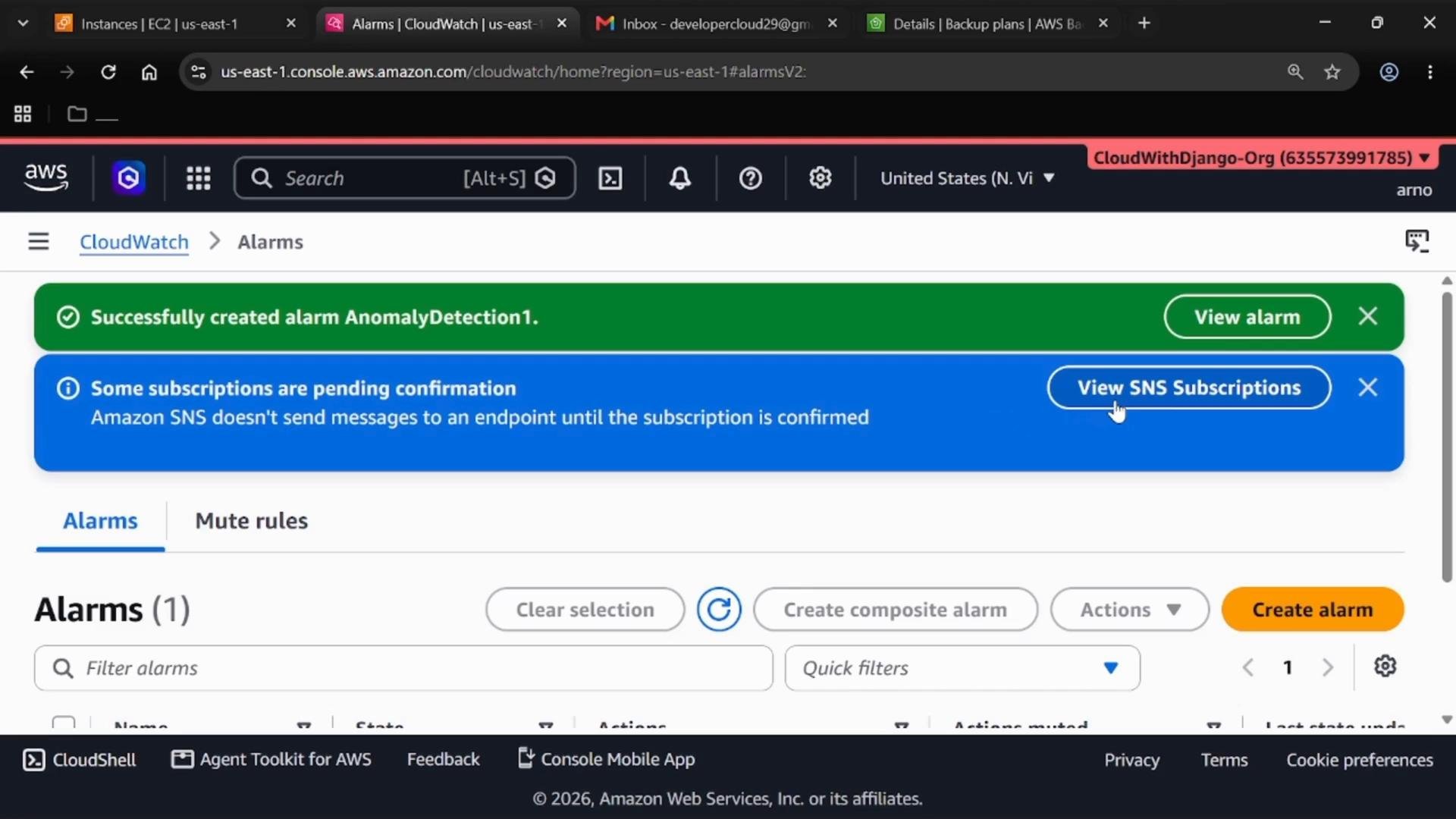
- Create the topic, add your email endpoint, and finish the alarm creation. The CloudWatch UI shows that some subscriptions are pending confirmation. Confirm the subscription from the email you receive so notifications will be delivered.
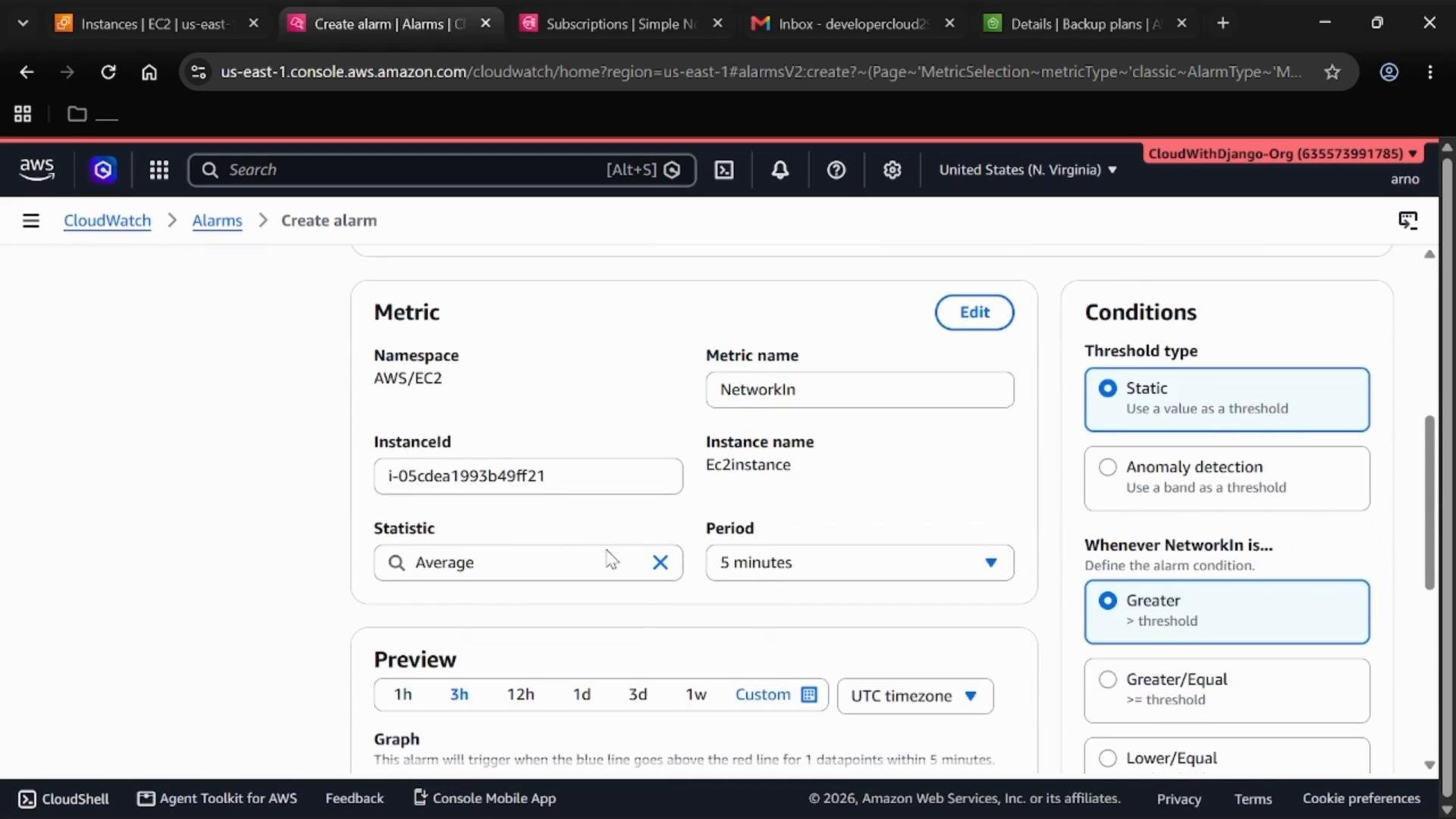
Step 5 — Create additional metric alarms (NetworkIn and NetworkOut)
We’ll create two static threshold alarms and later combine them into a composite alarm.- In CloudWatch Metrics, browse to your instance and select
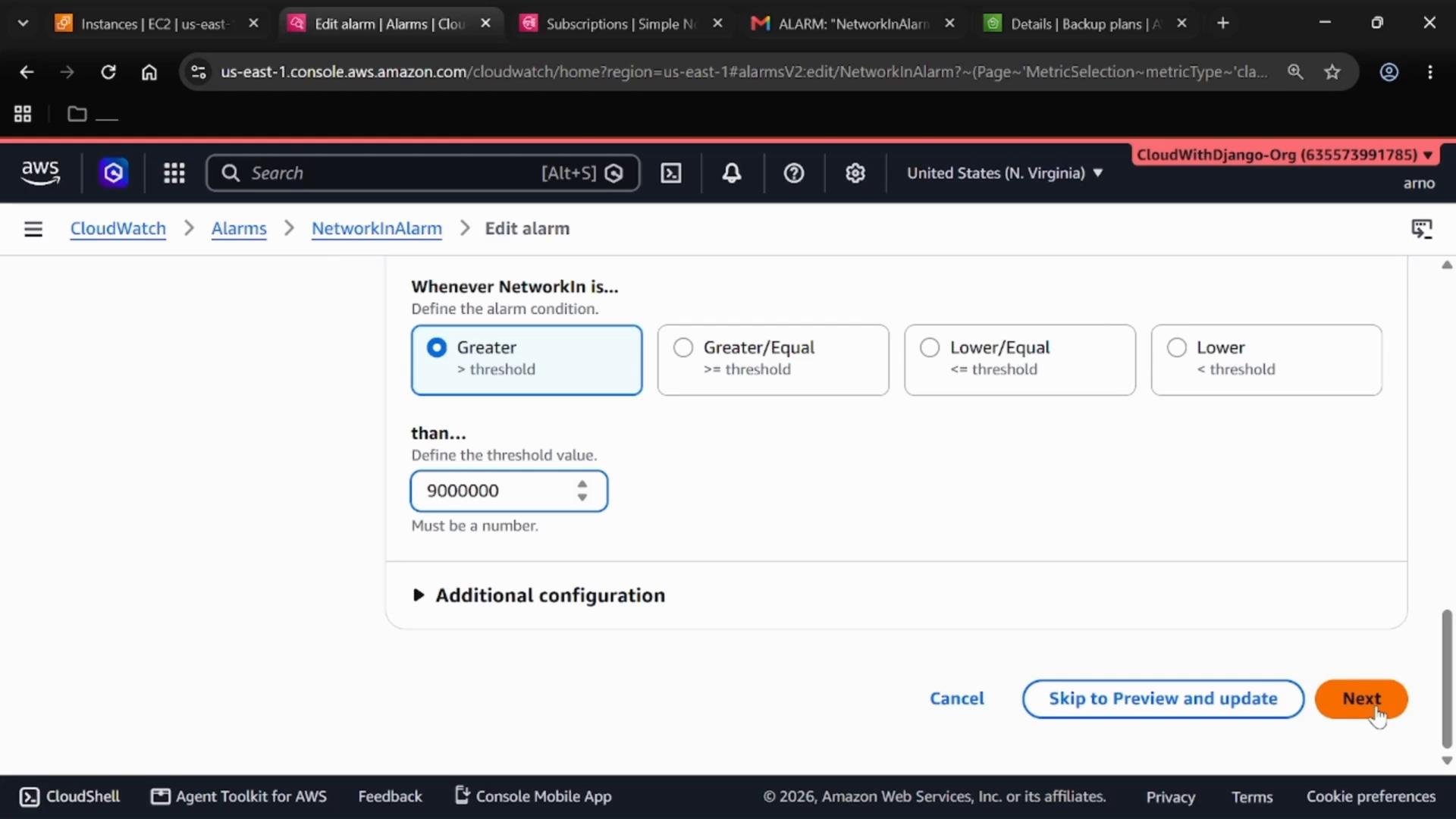
NetworkIn. Click Create alarm.- Use a Static threshold (for example: Greater than 1,700,000 bytes for the evaluation period).
- Select the same SNS topic (or another) for notifications.
- Name it
NetworkInAlarm.
- Repeat for
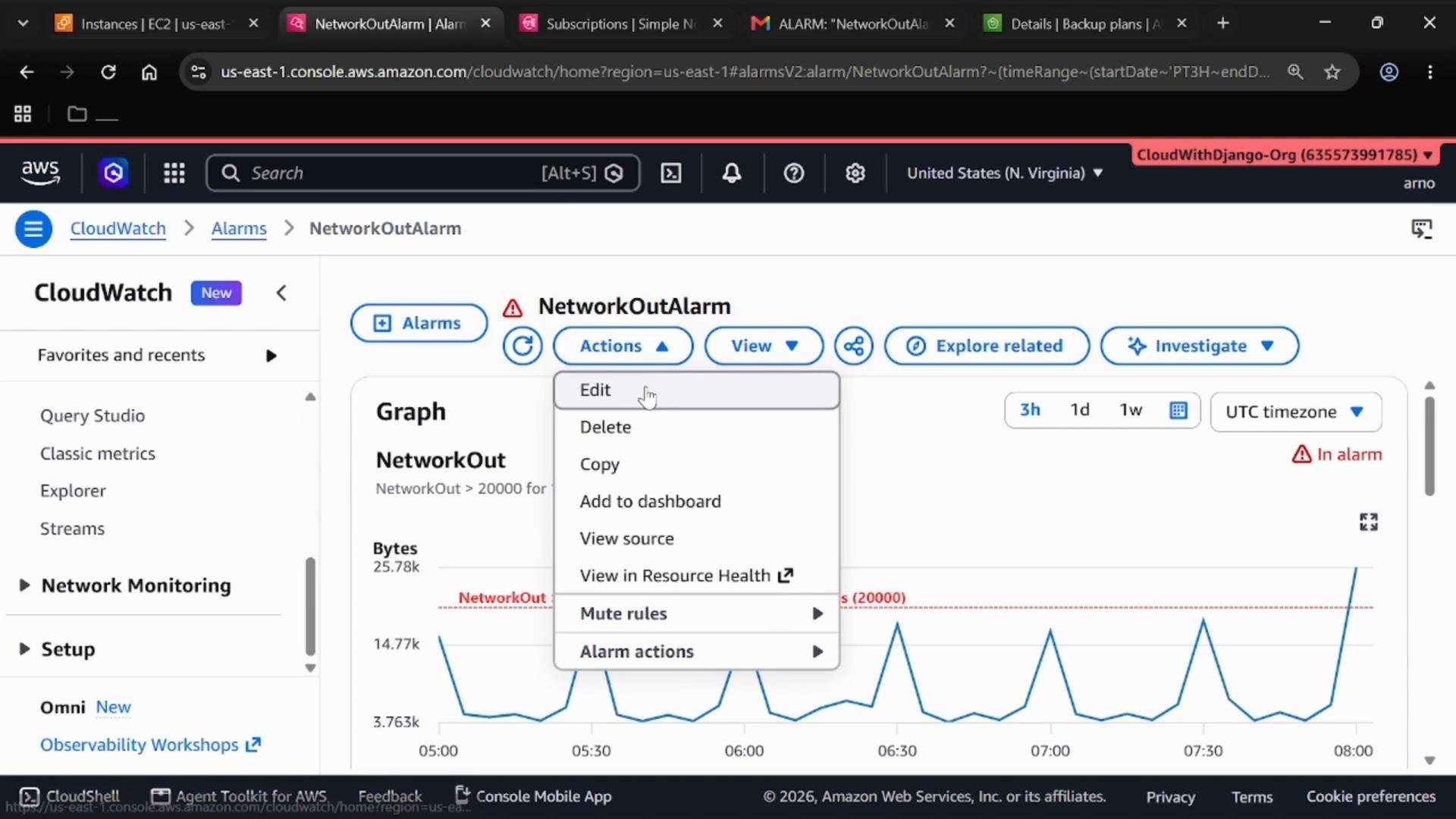
NetworkOutand createNetworkOutAlarm. For example, set a static threshold like 20,000 bytes if appropriate for your workload.
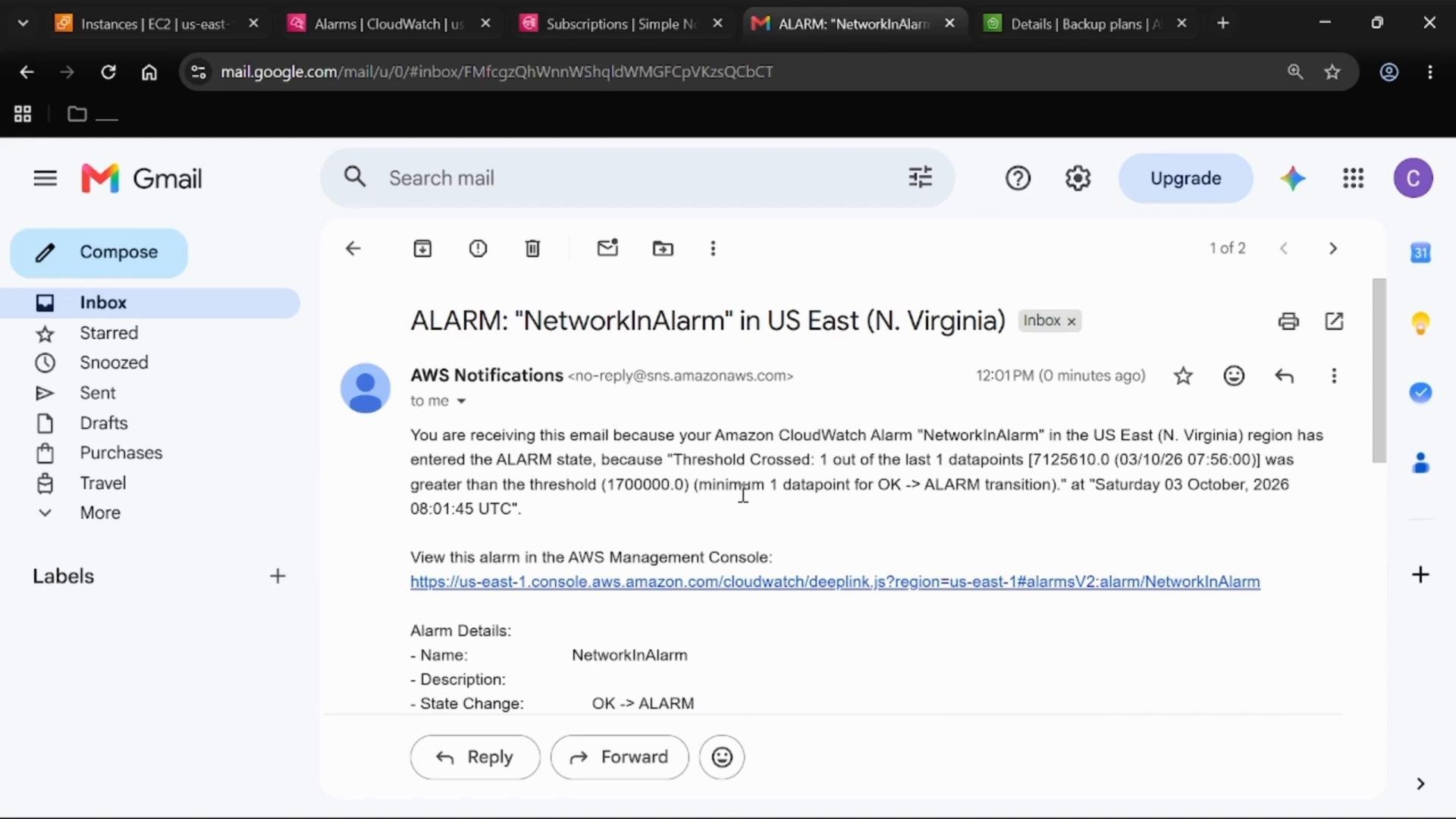
Confirm alarms firing
If thresholds are exceeded and subscriptions are confirmed, you should receive notification emails forNetworkInAlarm or NetworkOutAlarm.
Step 6 — Create a composite alarm
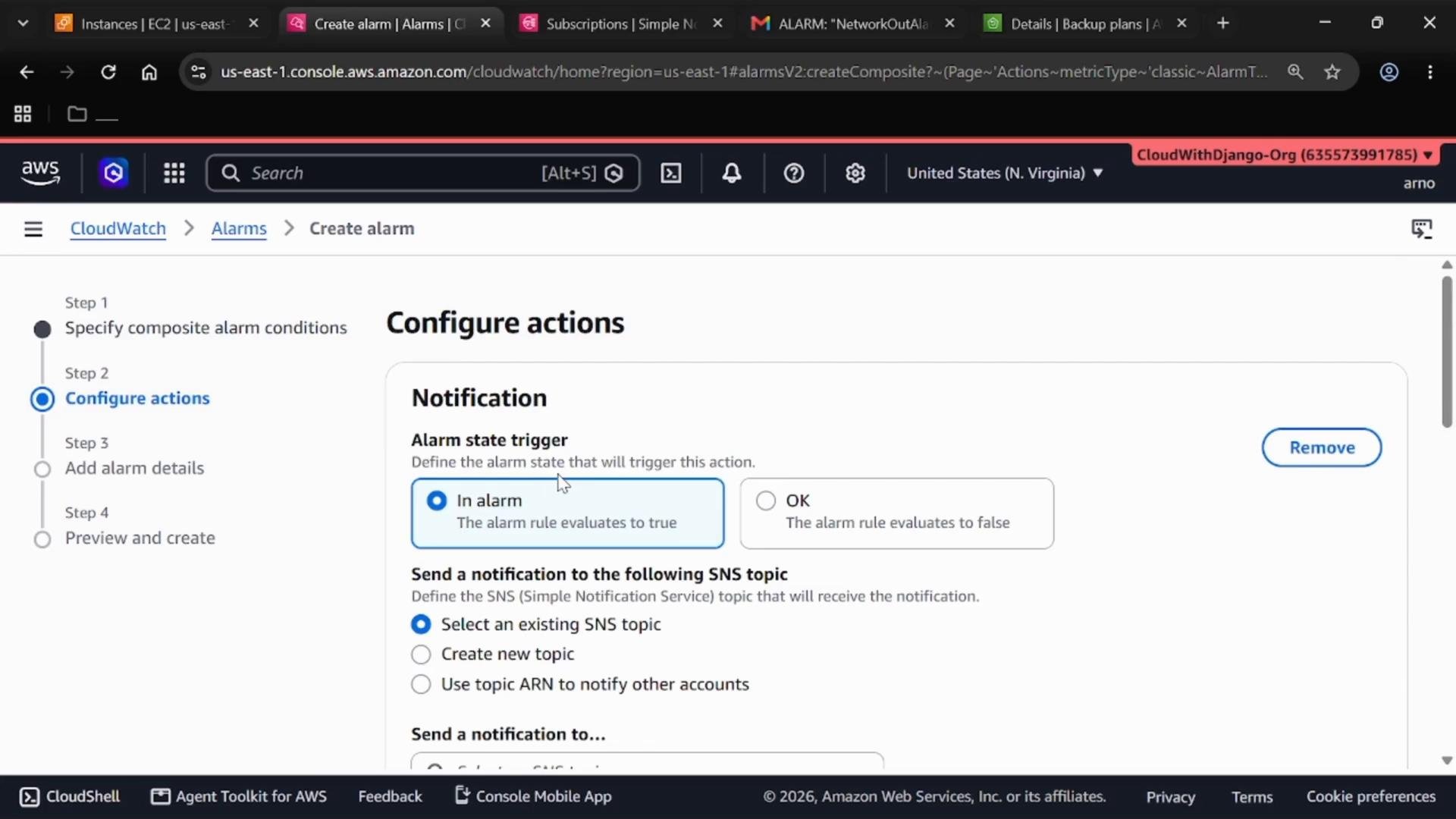
Composite alarms evaluate the states of other CloudWatch alarms (child alarms) using boolean logic (AND/OR). Composite alarms do not evaluate metrics directly; they operate on child alarm states.- In CloudWatch Alarms, choose Create composite alarm.
- Select the member alarms (e.g.,
NetworkInAlarm,NetworkOutAlarm). - Define the logic expression:
- OR: triggers if any child alarm is ALARM.
- AND: triggers only if all child alarms are ALARM.
- Configure the In alarm action (SNS topic), name the composite alarm (e.g.,
CompositeAlarm1), and create it.
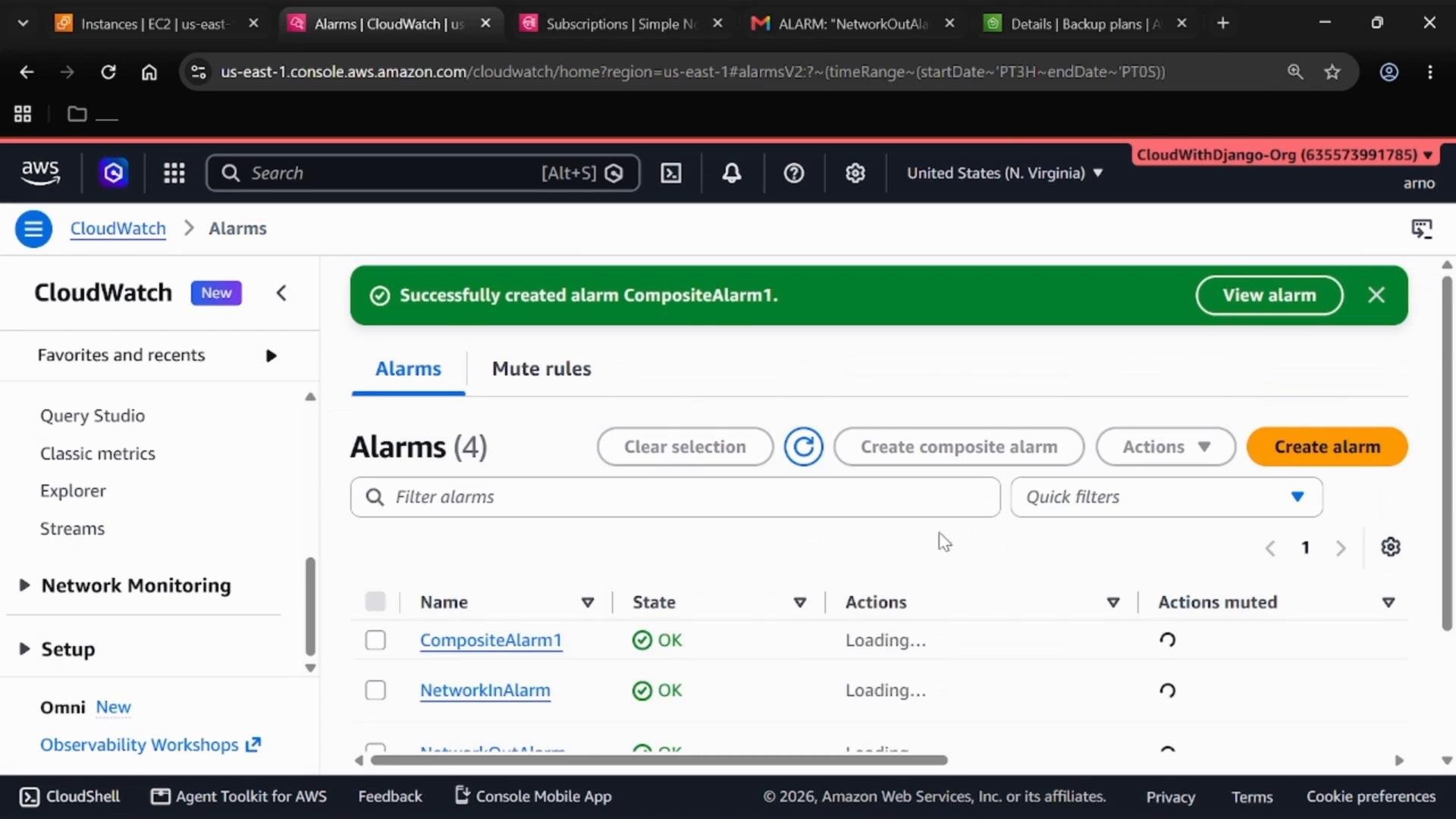
Composite alarm view
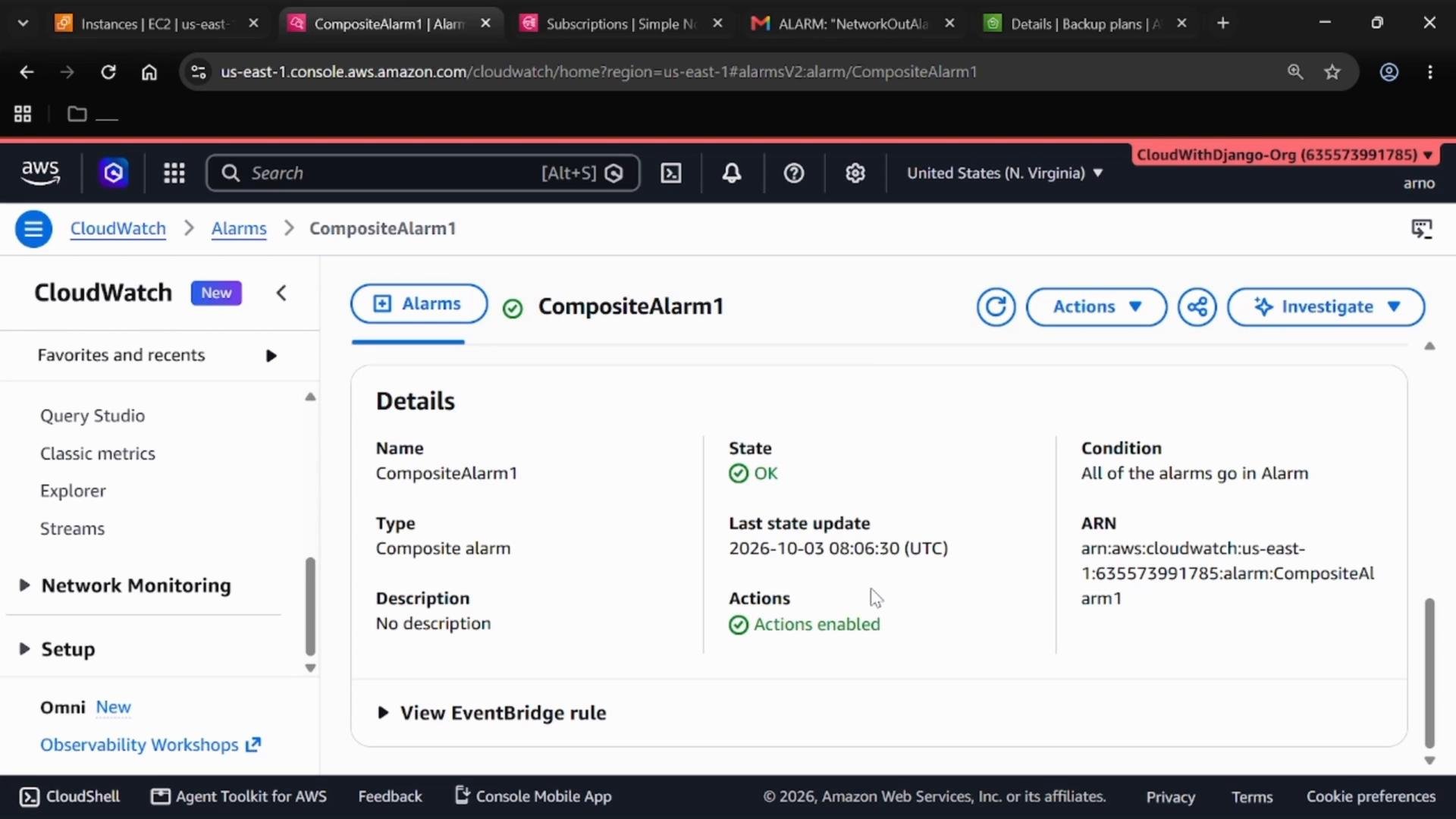
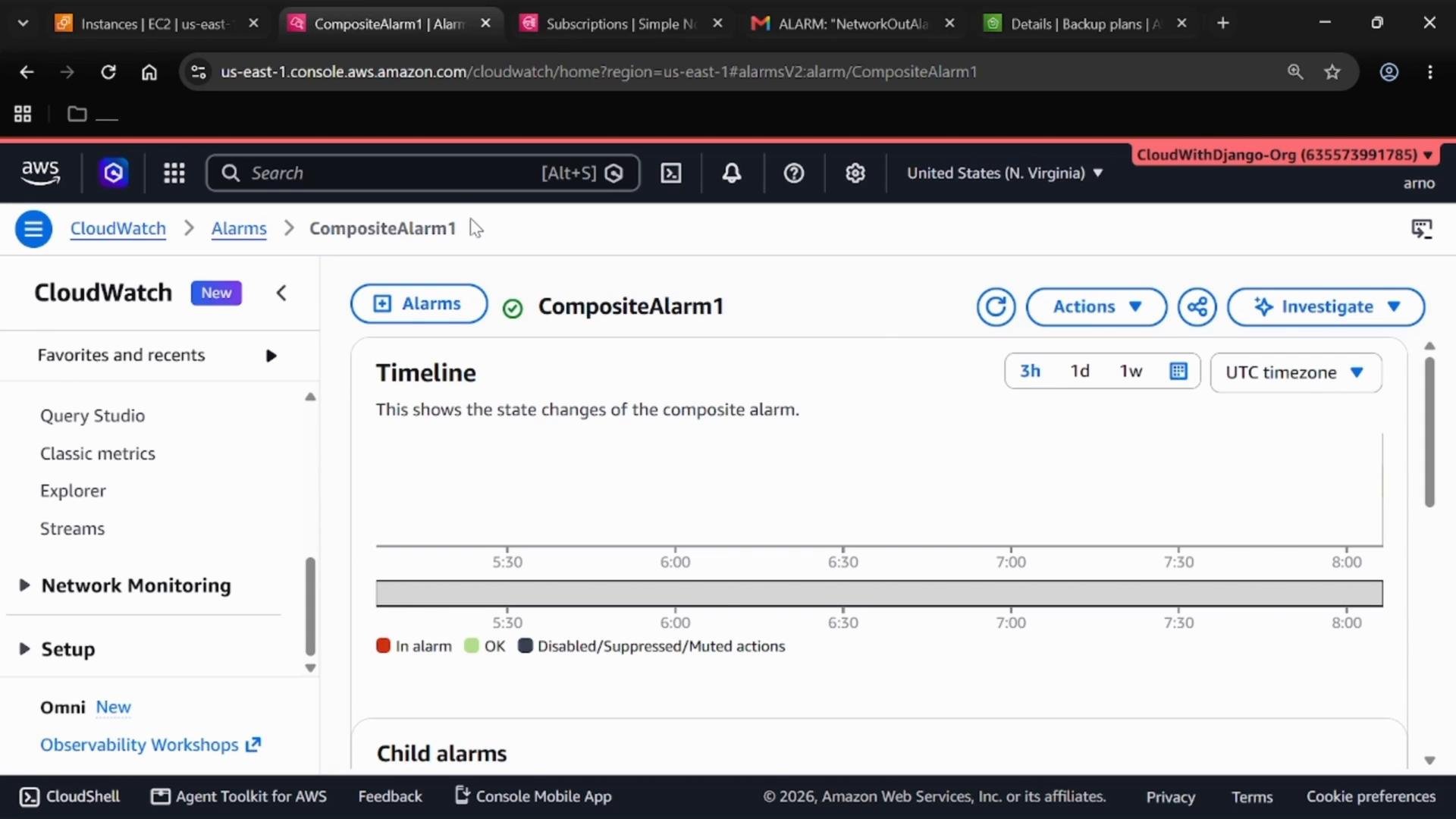
The composite alarm details show it as a parent alarm and list its child metric alarms. Composite alarms display state timelines (not metric time series).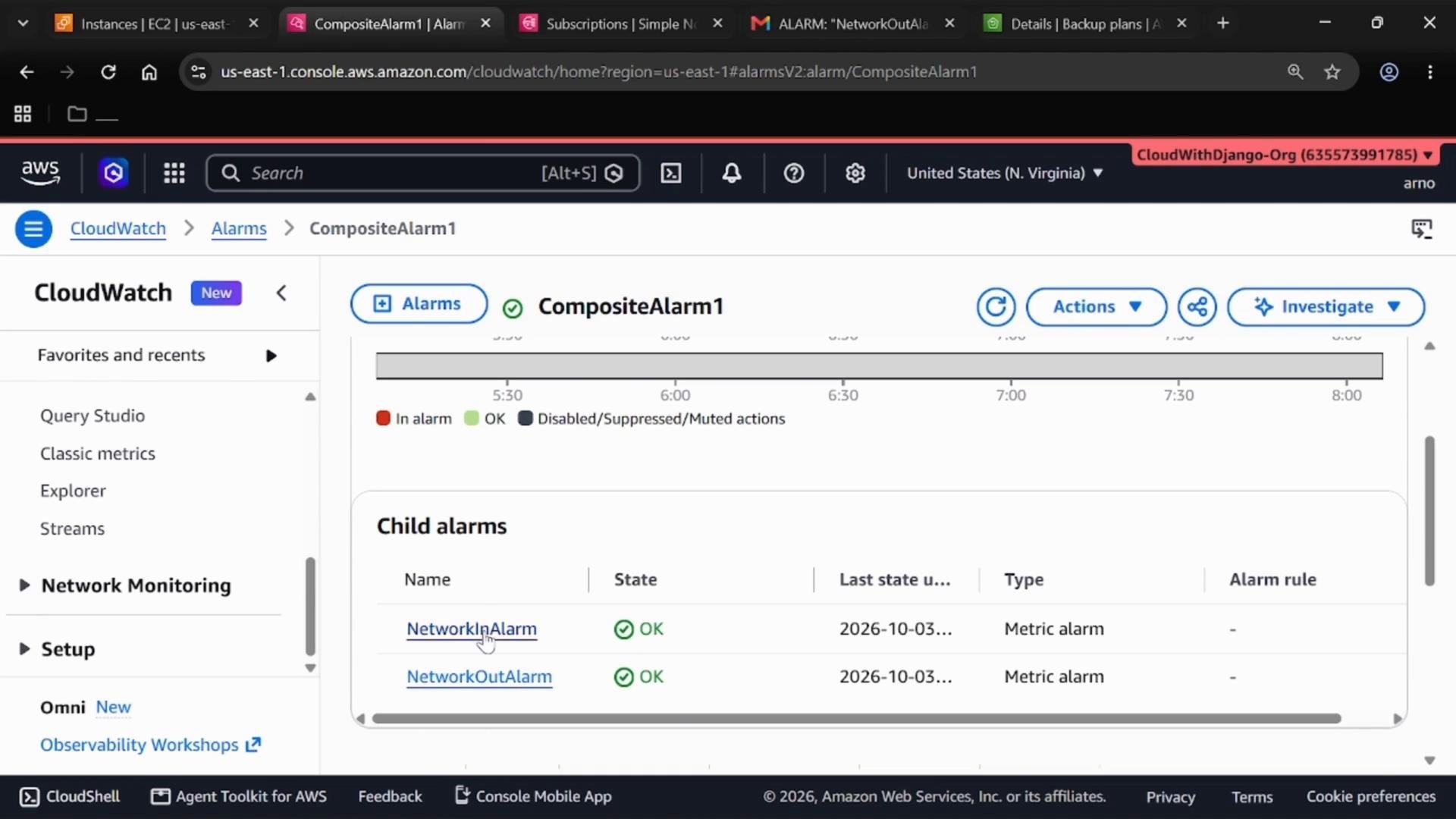
Important: Deleting composite and member alarms (order-of-operations)
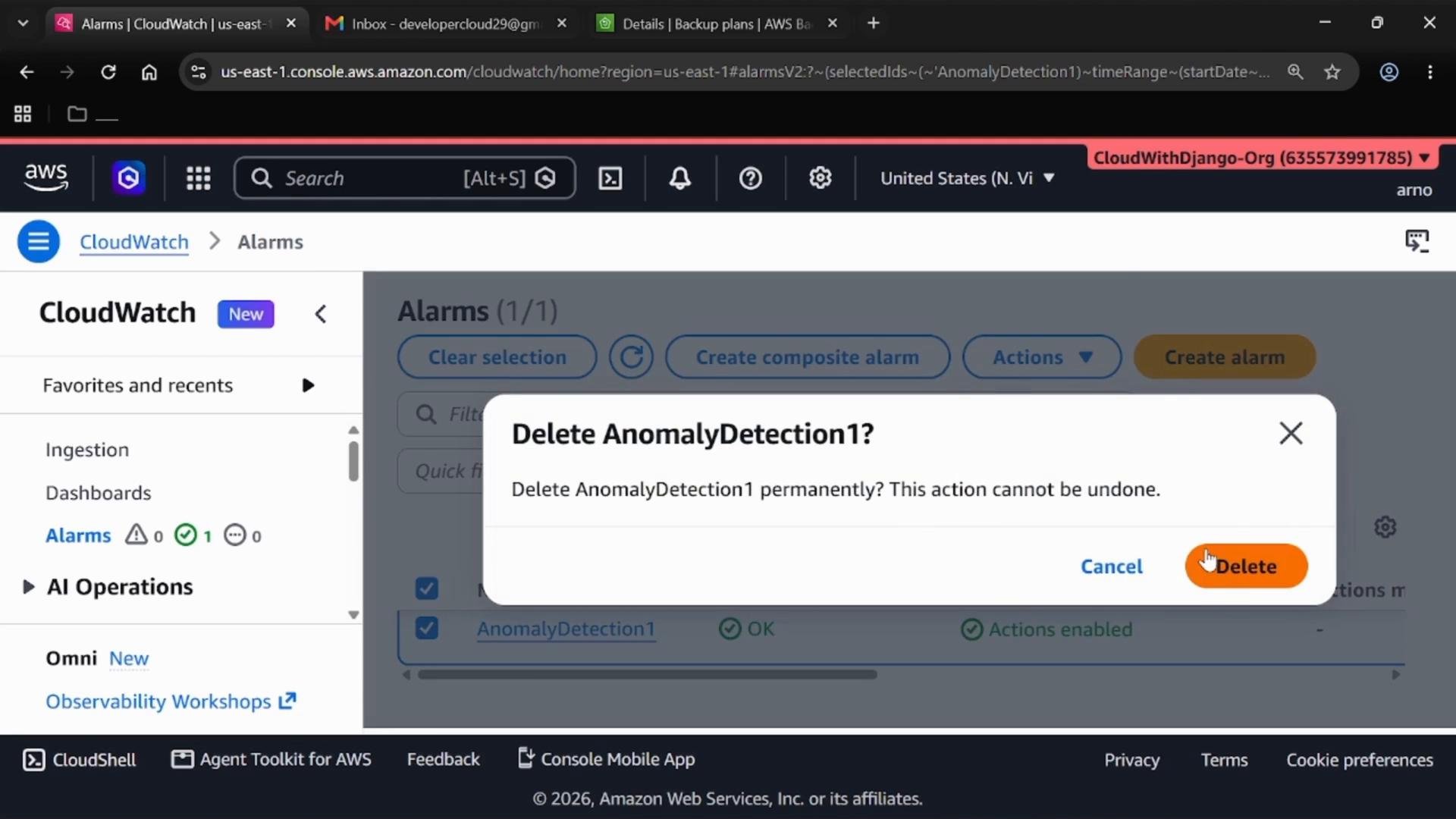
Composite alarms reference member alarms. You must delete composite alarms before deleting the child metric alarms that are part of them; otherwise the delete operation will fail.Delete composite alarms first. Only after removing the composite alarm can you delete the member metric alarms (e.g.,
NetworkInAlarm, NetworkOutAlarm).- In CloudWatch Alarms, select the composite alarm (e.g.,
CompositeAlarm1) → Actions → Delete. - After the composite is deleted, select and delete the individual metric alarms.
- Finally, delete the anomaly detection alarm and any SNS topics/subscriptions if no longer needed.
Removing anomaly detection models from graphed metrics
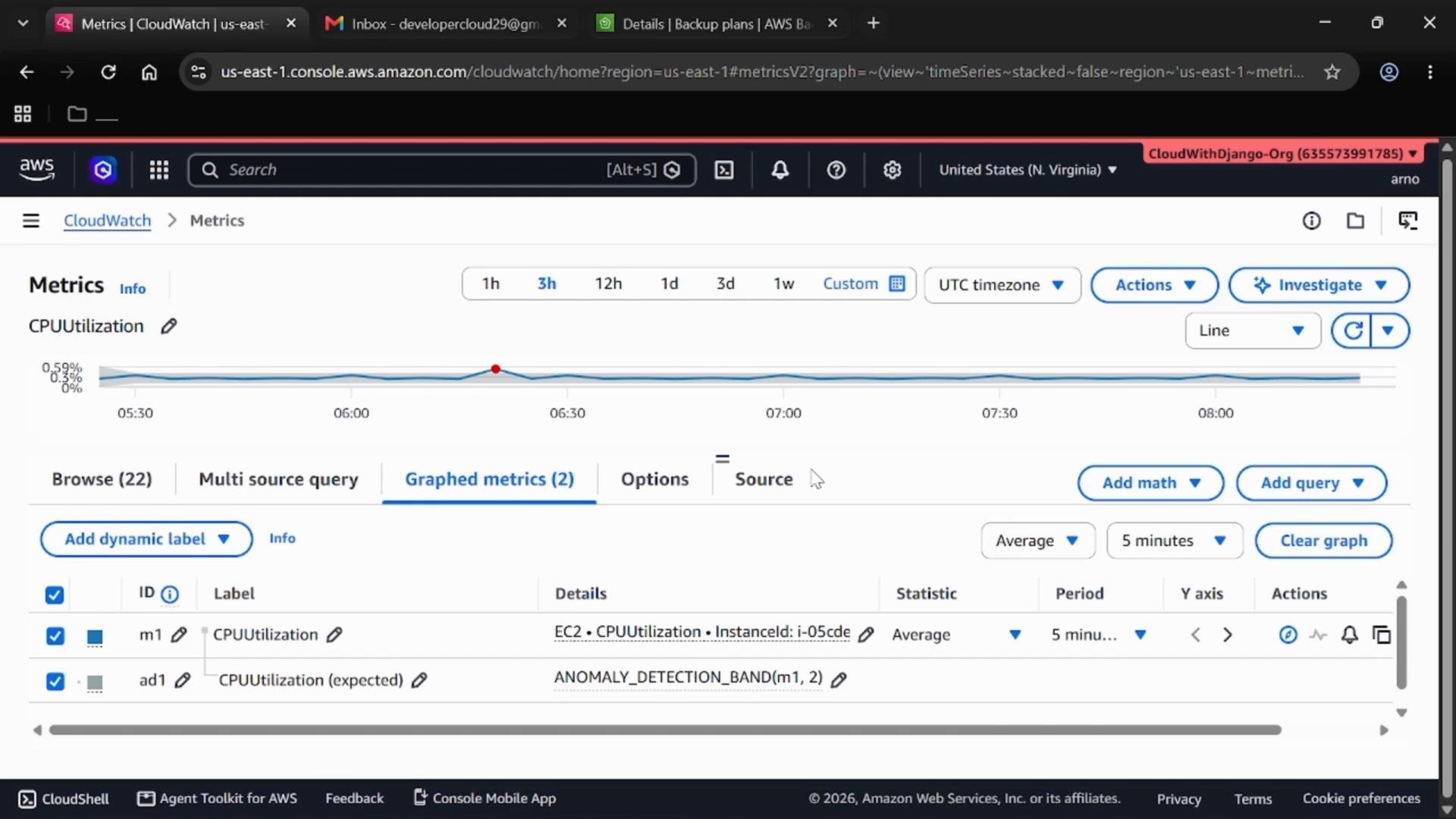
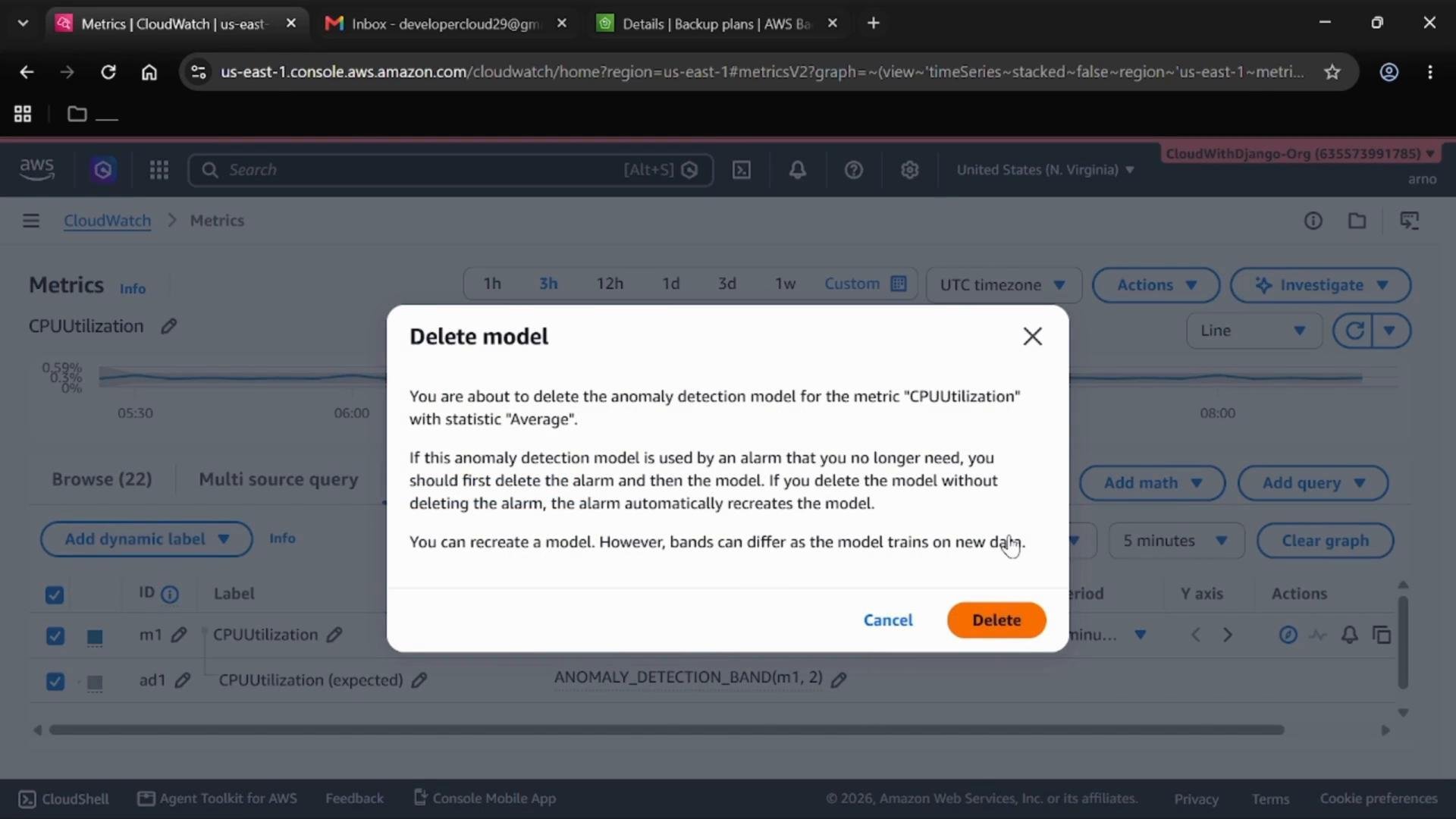
Deleting an anomaly-detection alarm does not always remove the prediction band from a graphed metric. To remove it entirely:- Open Metrics → Graphed metrics, select the metric (e.g.,
CPUUtilization) and delete the anomaly detection model from the graphed metrics list.
Quick reference — alarm types and when to use them
Final notes & links
- Use anomaly detection for metrics with clear historical patterns where adaptive thresholds reduce false positives.
- Use static thresholds for simple, fixed limits that indicate definite violations.
- Composite alarms model higher-level conditions across signals and help reduce alert noise by applying boolean logic to child alarm states.
- Remember deletion order: delete composite alarms first, then member alarms, and then any SNS topics/subscriptions if needed.
- Amazon CloudWatch Anomaly Detection: https://docs.aws.amazon.com/AmazonCloudWatch/latest/monitoring/CloudWatch_Anomaly_Detection.html
- CloudWatch composite alarms: https://docs.aws.amazon.com/AmazonCloudWatch/latest/monitoring/CompositeAlarm.html
- Getting started with Amazon SNS: https://docs.aws.amazon.com/sns/latest/dg/sns-getting-started.html
- Creating a CloudWatch alarm that sends an email: https://docs.aws.amazon.com/AmazonCloudWatch/latest/monitoring/AlarmThatSendsEmail.html