

-
Open the CloudWatch console
- In the AWS Console search bar type “CloudWatch” and select it.
- In the CloudWatch navigation pane choose Dashboards.
-
Create a new dashboard
- Click Create dashboard.
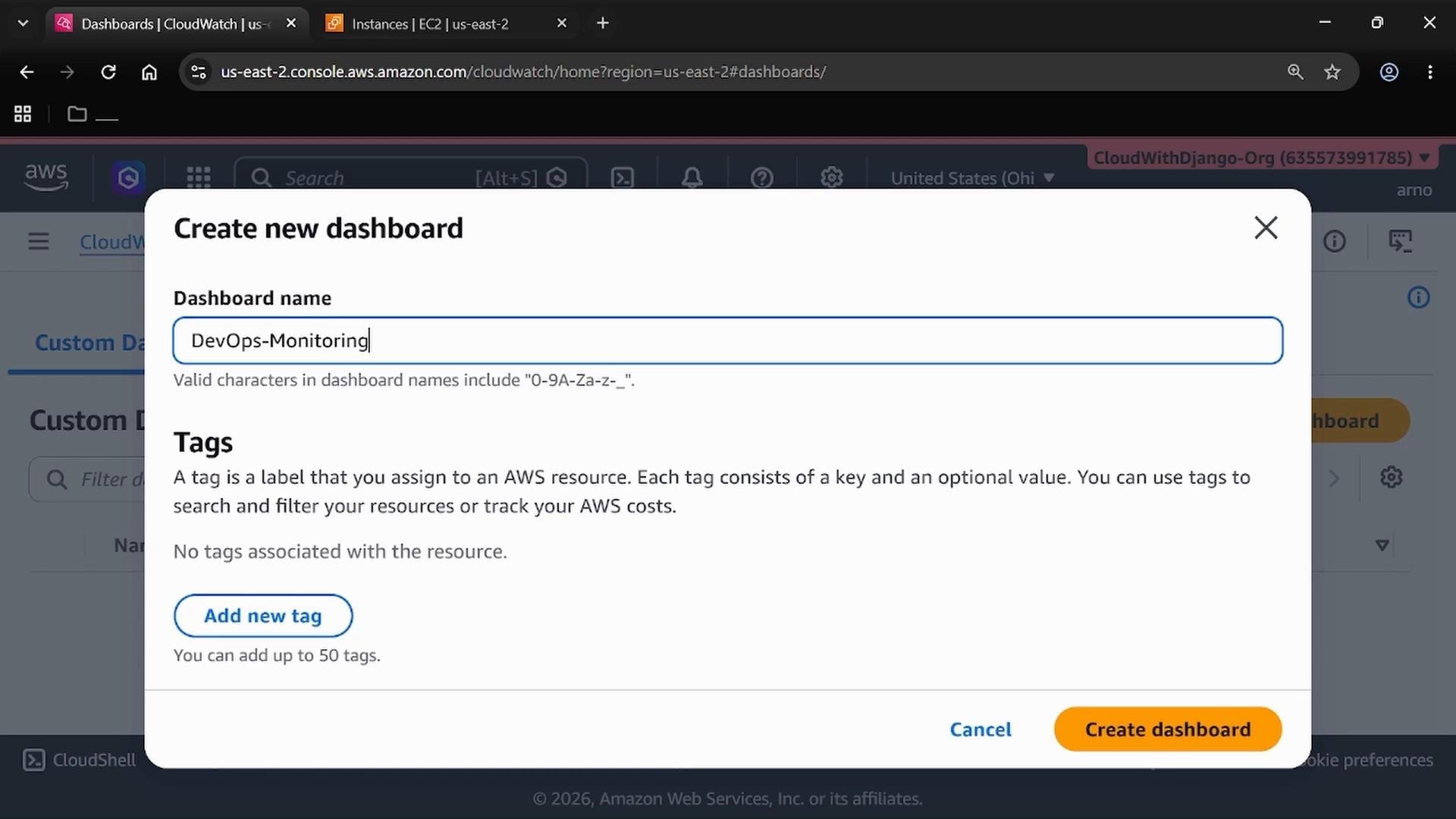
- Enter a name for the dashboard, for example
DevOps-Monitoring, then click Create dashboard.
- Add the first widget (CPU utilization — line chart)
- If prompted after creating the dashboard, choose to add a widget; otherwise open the dashboard and click Add widget.
- Data source: Metrics.
- Experience: Metrics console.
- Widget type: Line (or choose another chart type as needed). Click Next.
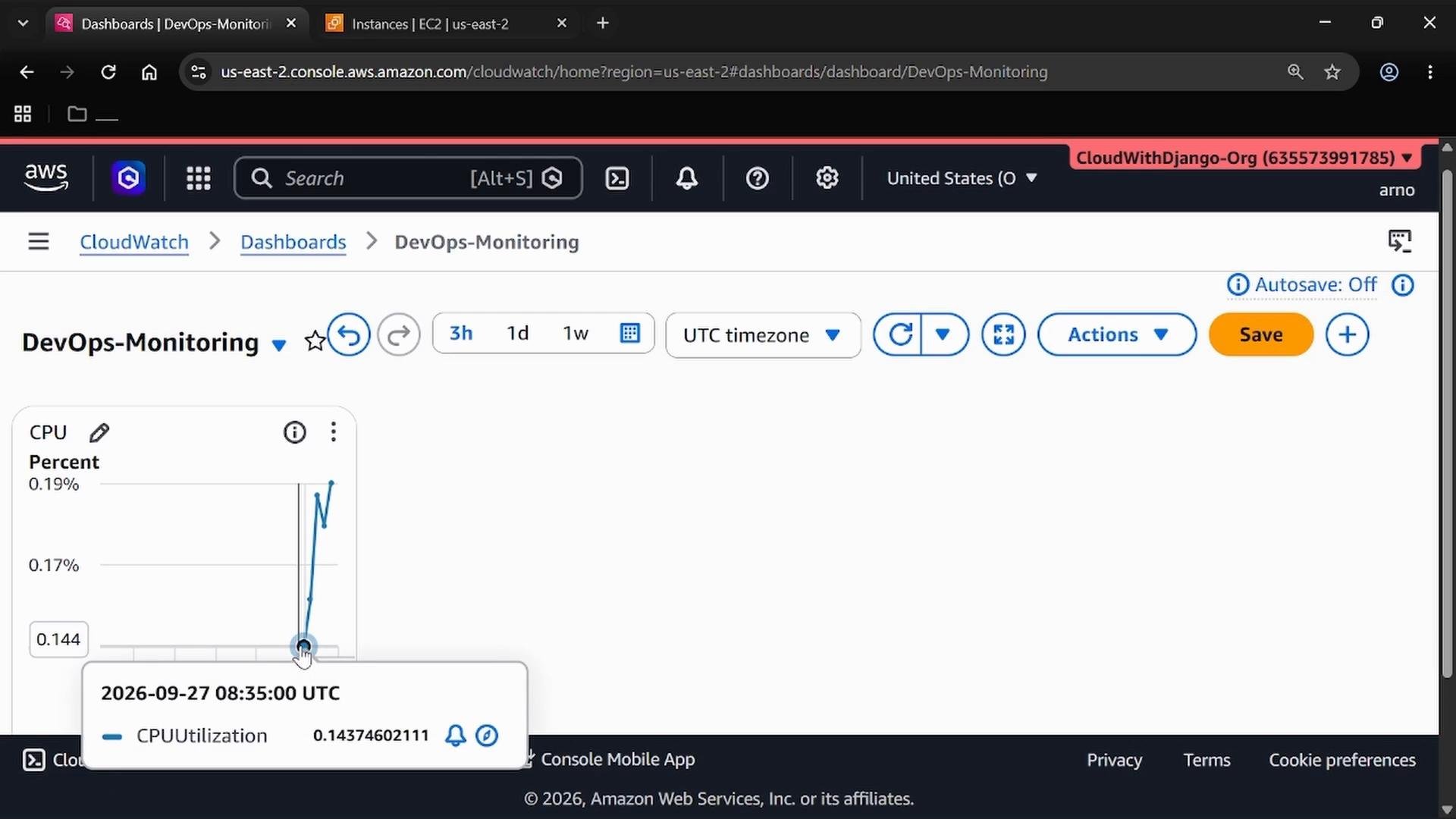
- Label: give the widget a descriptive label such as
CPU. - Confirm the region matches your EC2 instance region (US East (Ohio) in this demo).
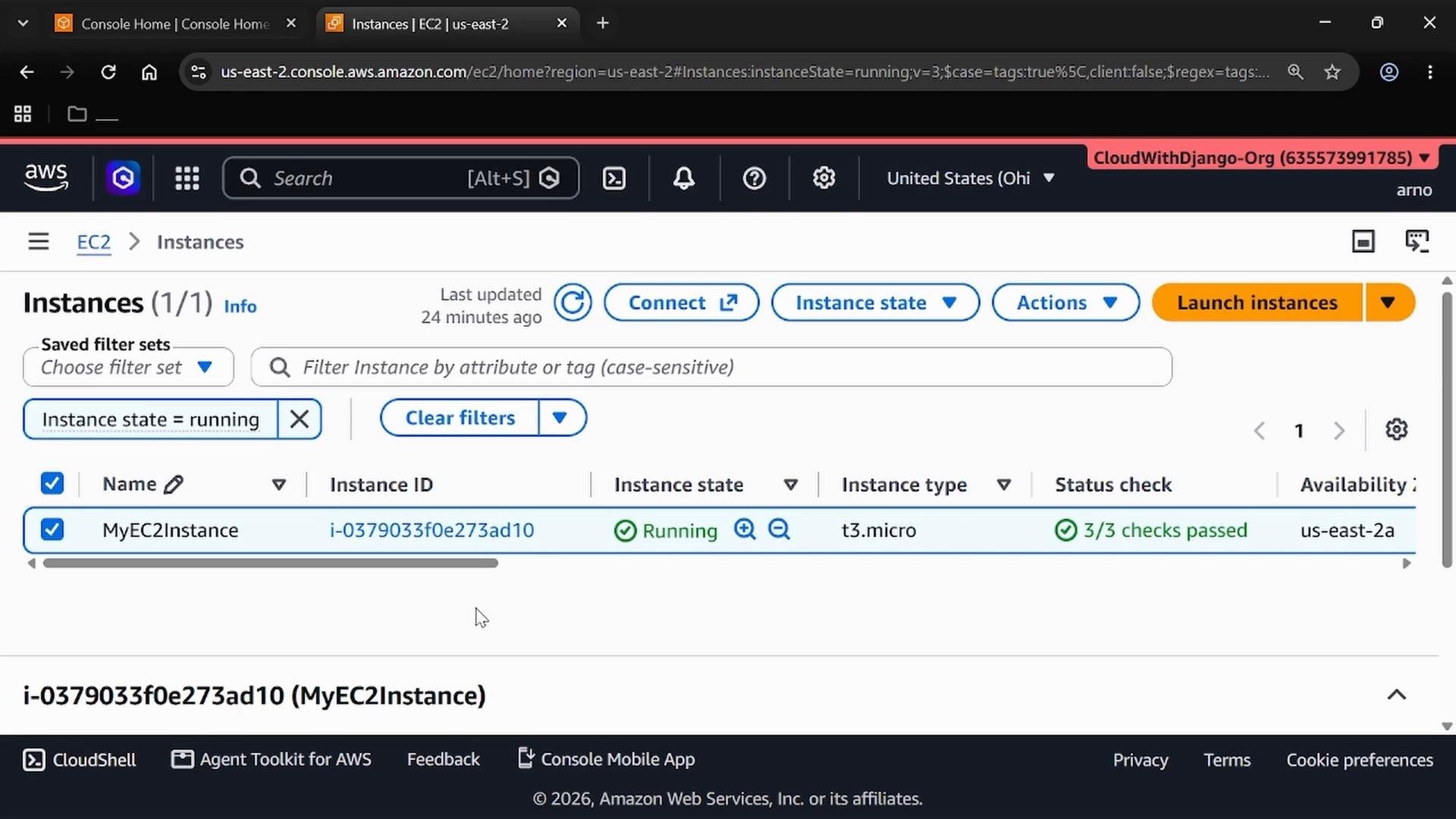
- Navigate to EC2 -> Per-Instance Metrics. Use the search box to filter by your EC2 instance ID.
- Select
CPUUtilizationand click Create widget.
DevOps-Monitoring dashboard showing metric values and timestamps.
- Add additional metrics to the dashboard
- Click the plus (+) icon and choose Add widget.
- Repeat: Data source -> Metrics -> Metrics console -> EC2 -> Per-Instance Metrics -> search by your instance ID.
- Example: select
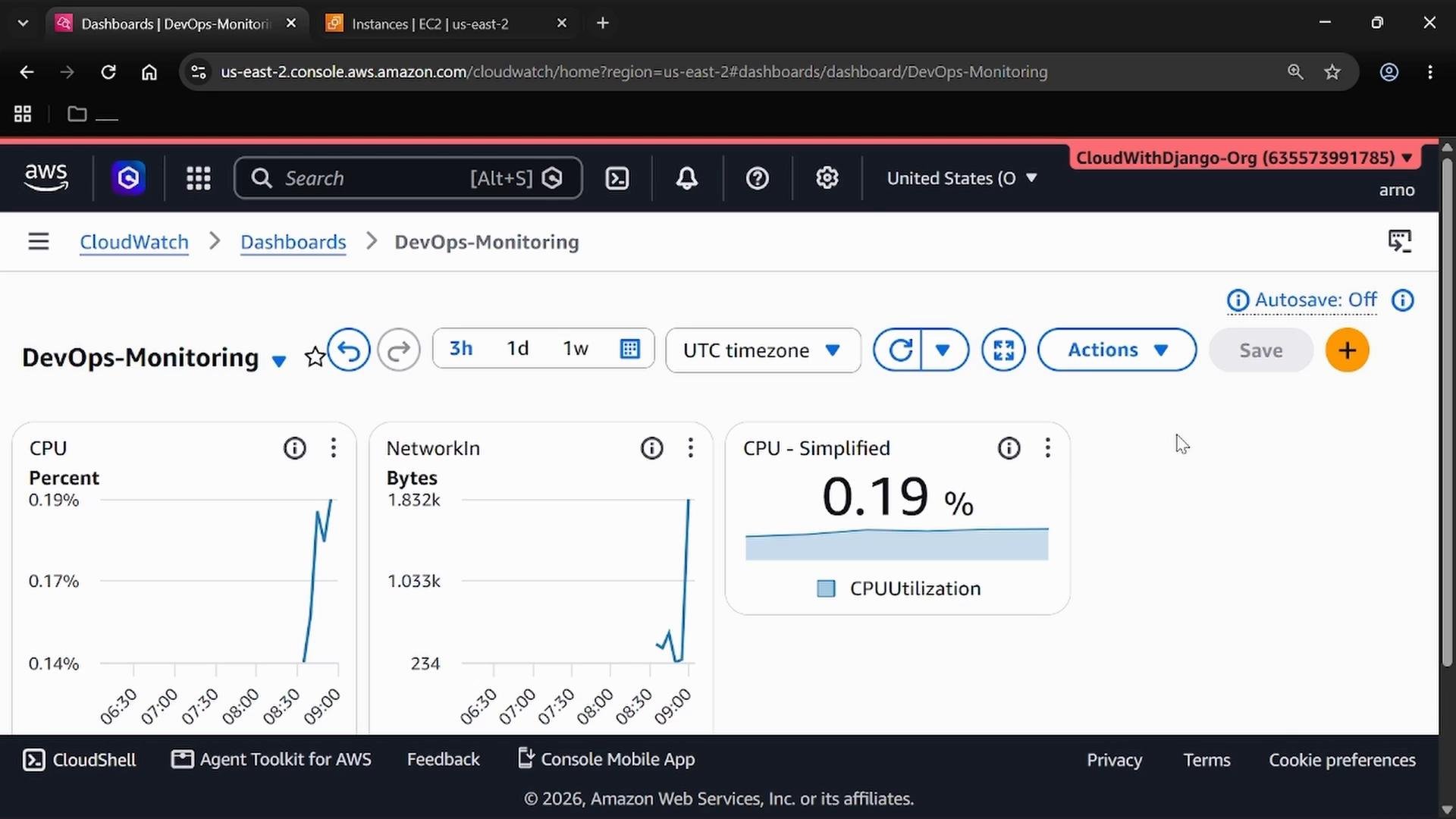
NetworkInand add it as a line widget to visualize incoming network bytes over time, then Create widget.
NetworkOut, DiskReadBytes, or custom application metrics. Each widget’s X-axis represents time; the Y-axis shows the metric value.
- Add a numeric (quick-value) widget
- Click Add widget -> Number -> Next.
- Choose Metrics console and select the EC2 Per-Instance metric
CPUUtilization(or another metric that yields a single value). - Create the widget. The Number widget displays an immediate, human-readable value (e.g., CPU %), useful for quick health checks.
- Save the dashboard
- When you’re done arranging widgets, click Save to persist the dashboard layout and widgets.
Best practices and quick summary
Tip: Ensure the CloudWatch region you select matches the AWS region where your resources (
EC2, RDS, etc.) run. Some dashboard features can show cross-region metrics, but filtering by the correct region simplifies selecting per-resource metrics and avoids confusion.- CloudWatch = AWS monitoring service for metrics and logs.
- Metrics = measurements like
CPUUtilization,NetworkIn,DiskReadBytes. - Dashboards = customizable visual layouts that aggregate metrics into widgets.
- Widgets = individual displays (line charts, number widgets, gauges, etc.) for specific metrics.
- AWS CloudWatch documentation: https://docs.aws.amazon.com/cloudwatch/
- EC2 metrics overview: https://docs.aws.amazon.com/AWSEC2/latest/UserGuide/viewing_metrics_with_cloudwatch.html