

AWS-StartEC2Instance, EC2 remediation, SSM agent.
Before you begin
- Confirm the target EC2 instance is in the
stoppedstate. - Verify the instance is a managed instance (SSM Agent installed).
- Ensure the instance has an instance profile with the
AmazonSSMManagedInstanceCorepolicy or equivalent permissions. - Make sure your user has permissions to execute Automation runbooks and to start EC2 instances. Automation may prompt you to select or create an Automation execution role when running the document.
Prerequisites: ensure the target EC2 instance is a managed instance (SSM Agent installed) and has an instance profile with
AmazonSSMManagedInstanceCore (see AWS setup guidance: https://docs.aws.amazon.com/systems-manager/latest/userguide/setup-instance-profile.html). Also confirm your user has permissions to use Systems Manager Automation and to start EC2 instances. If Automation requires an execution role, you can select or create one when executing the runbook.- Locate the AWS-provided Automation document named
AWS-StartEC2Instance. - Execute the document and provide the target EC2 instance ID(s) as input.
- The runbook performs an
aws:changeInstanceStateaction (start) and may run follow-up verification steps such as status checks. - Review the Automation execution details and verify the instance status in the EC2 console.
AWS-StartEC2Instance runbook
- Open the Systems Manager console and navigate to Change Management Tools → Automation. Click “Execute Runbook” and use the document filter to find the AWS-managed document named
AWS-StartEC2Instance. Select it to view the document details and execute it.
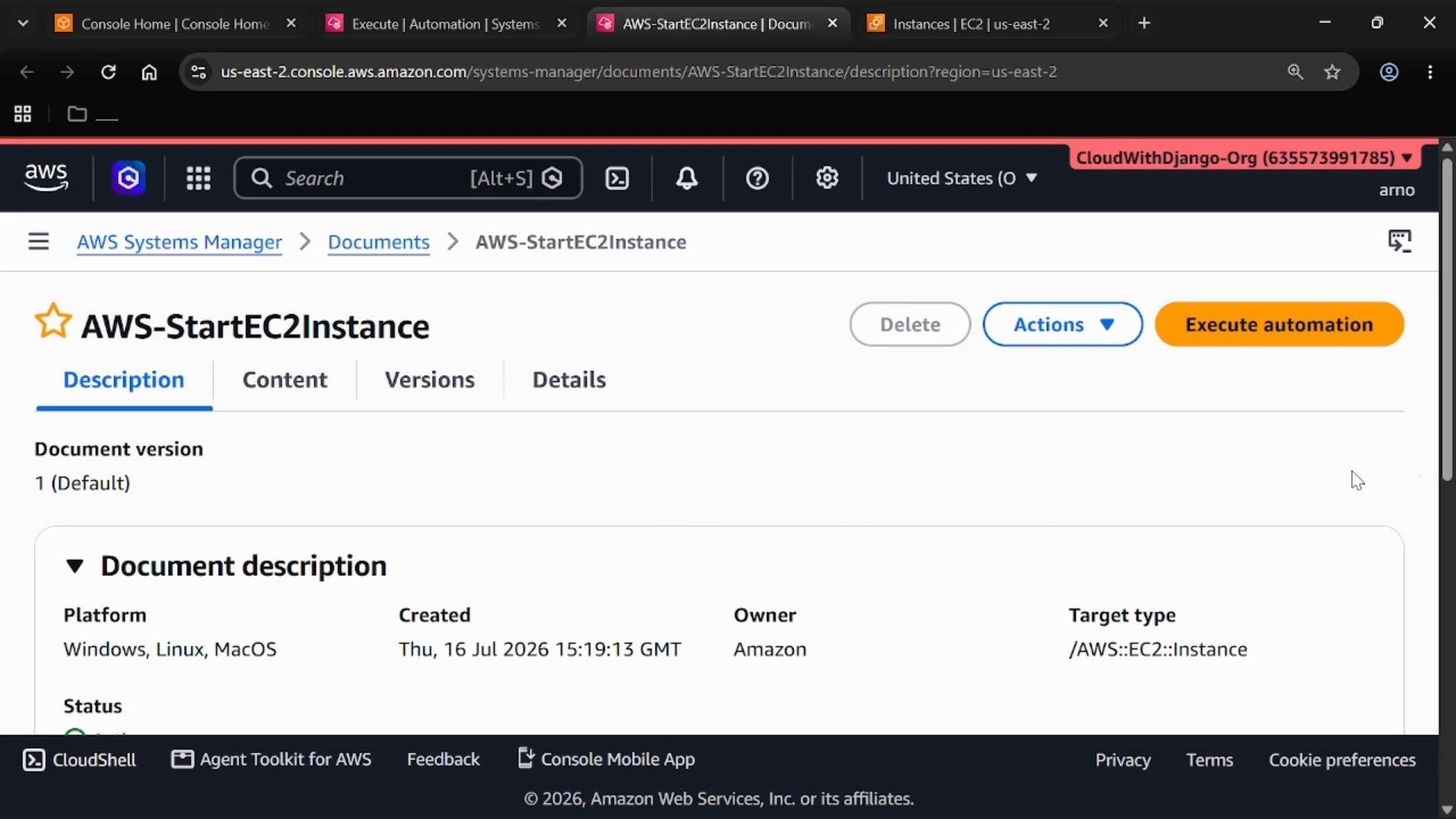
- Click “Execute automation.” When prompted for inputs, the most important field is the target instance(s). You can select “All EC2 instances” and then choose the specific instance(s) from the list, or supply one or more instance IDs directly. Confirm you’ve selected the correct instance(s) to remediate.
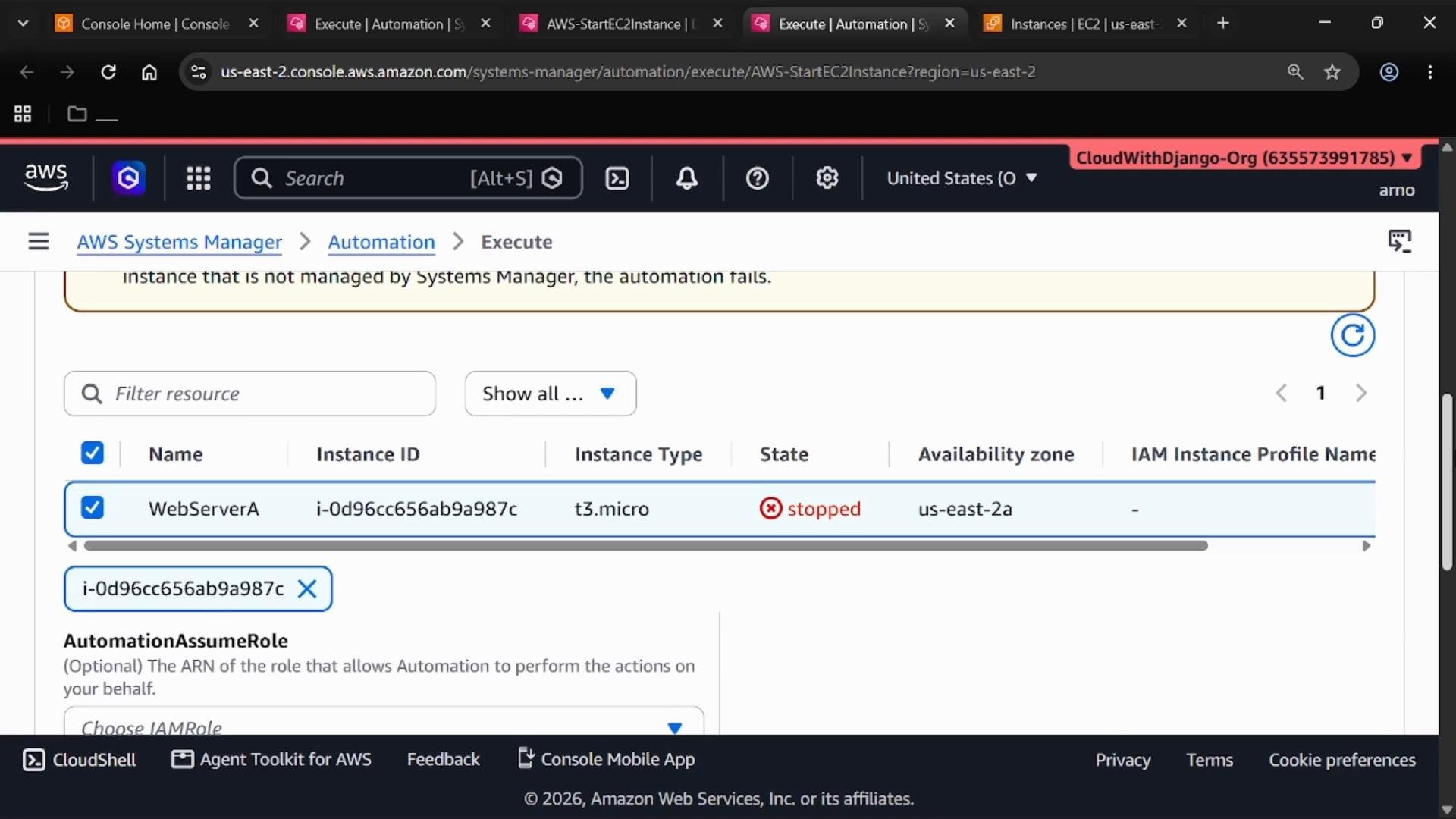
-
Start the execution. The runbook runs the
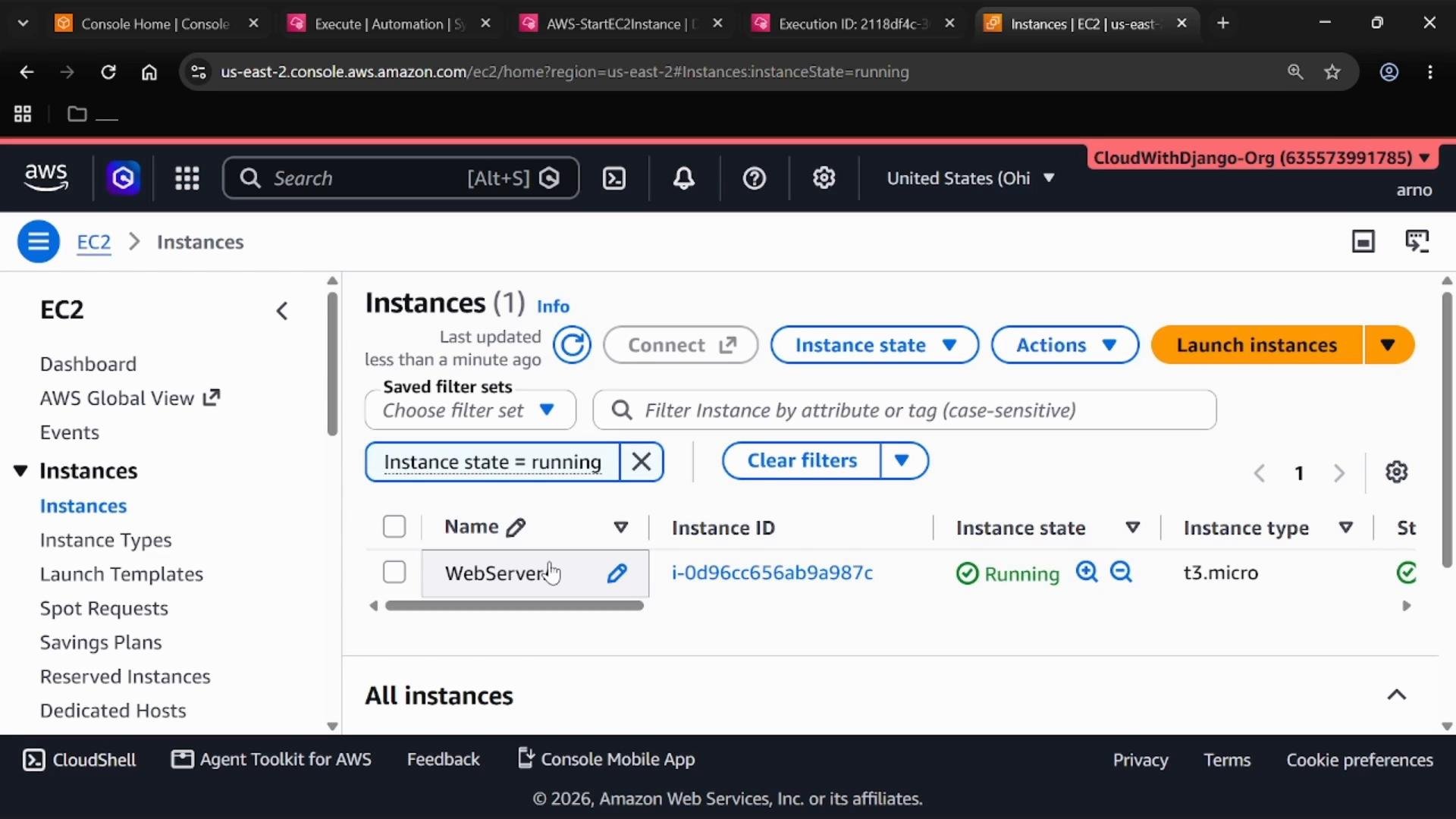
aws:changeInstanceStateaction (for example, thestartInstancesstep) to change the EC2 instance state torunning. The EC2 console may show the instance asrunningbefore Automation finishes because the state change itself is immediate; Automation will continue any verification or follow-up steps until the runbook completes. -
Monitor the execution on the Automation execution page. You’ll see step-level details such as step name (e.g.,
startInstances), action (aws:changeInstanceState), and individual step statuses. Wait for the overall execution status to showSuccess.
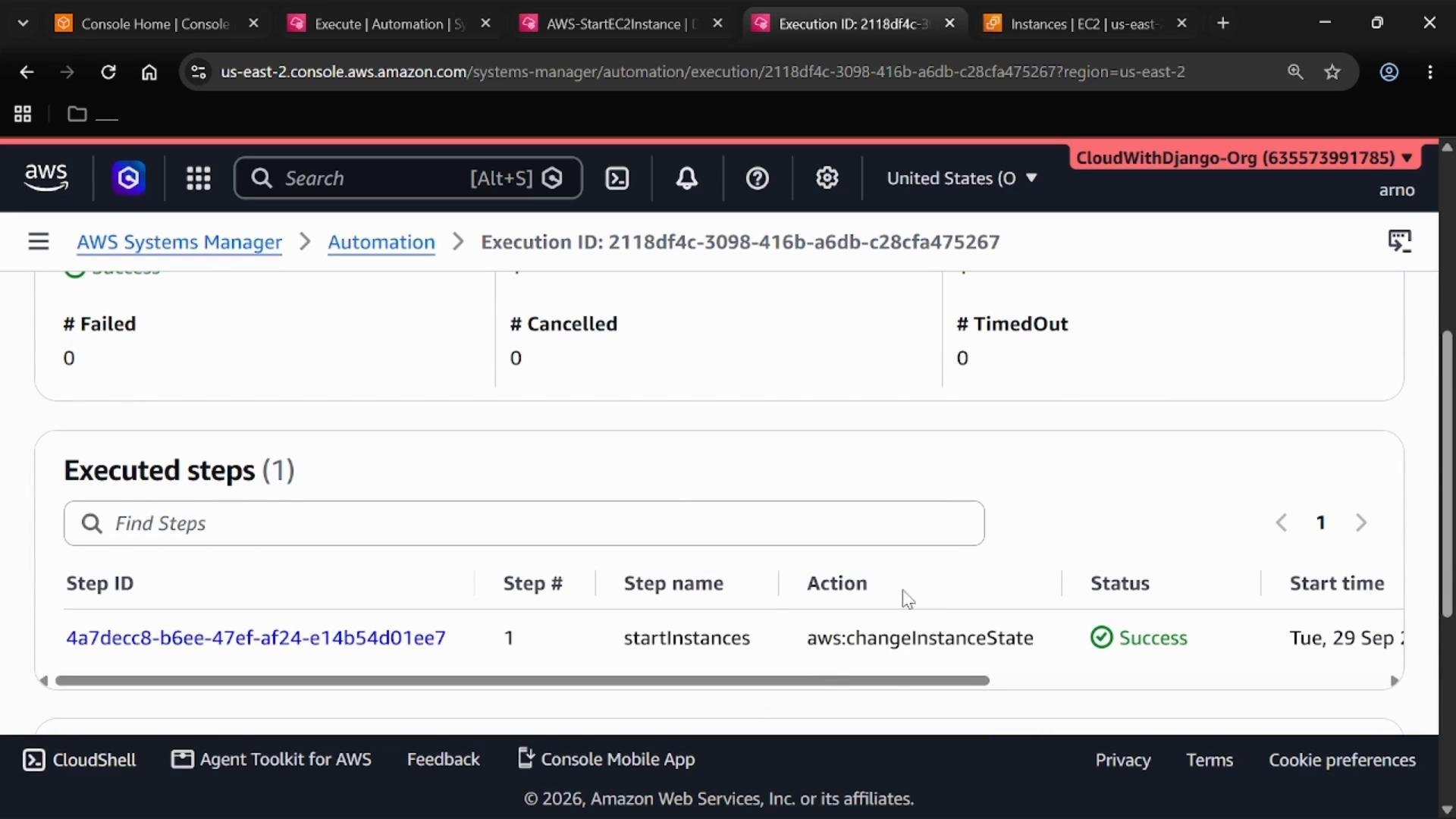
- After the runbook succeeds, verify the instance status and health checks in the EC2 console. The Automation execution serves as an auditable record of the remediation and can be reviewed or re-run as needed.
- Automate recurrent remediation by invoking Automation runbooks from EventBridge rules to trigger on specific CloudWatch alarms or events.
- Use Automation execution history for auditing and to diagnose recurring issues.
- If the runbook requires cross-account or elevated privileges, configure a dedicated Automation execution role with least-privilege permissions.
- Test runbooks in a non-production account or on test instances before applying them widely.
Links and references
- Systems Manager Automation documentation
- Amazon EventBridge overview
- AWS setup guidance for SSM instance profile: https://docs.aws.amazon.com/systems-manager/latest/userguide/setup-instance-profile.html