

- Create a symmetric KMS key (customer-managed).
- Inspect the key policy that governs key administration and usage.
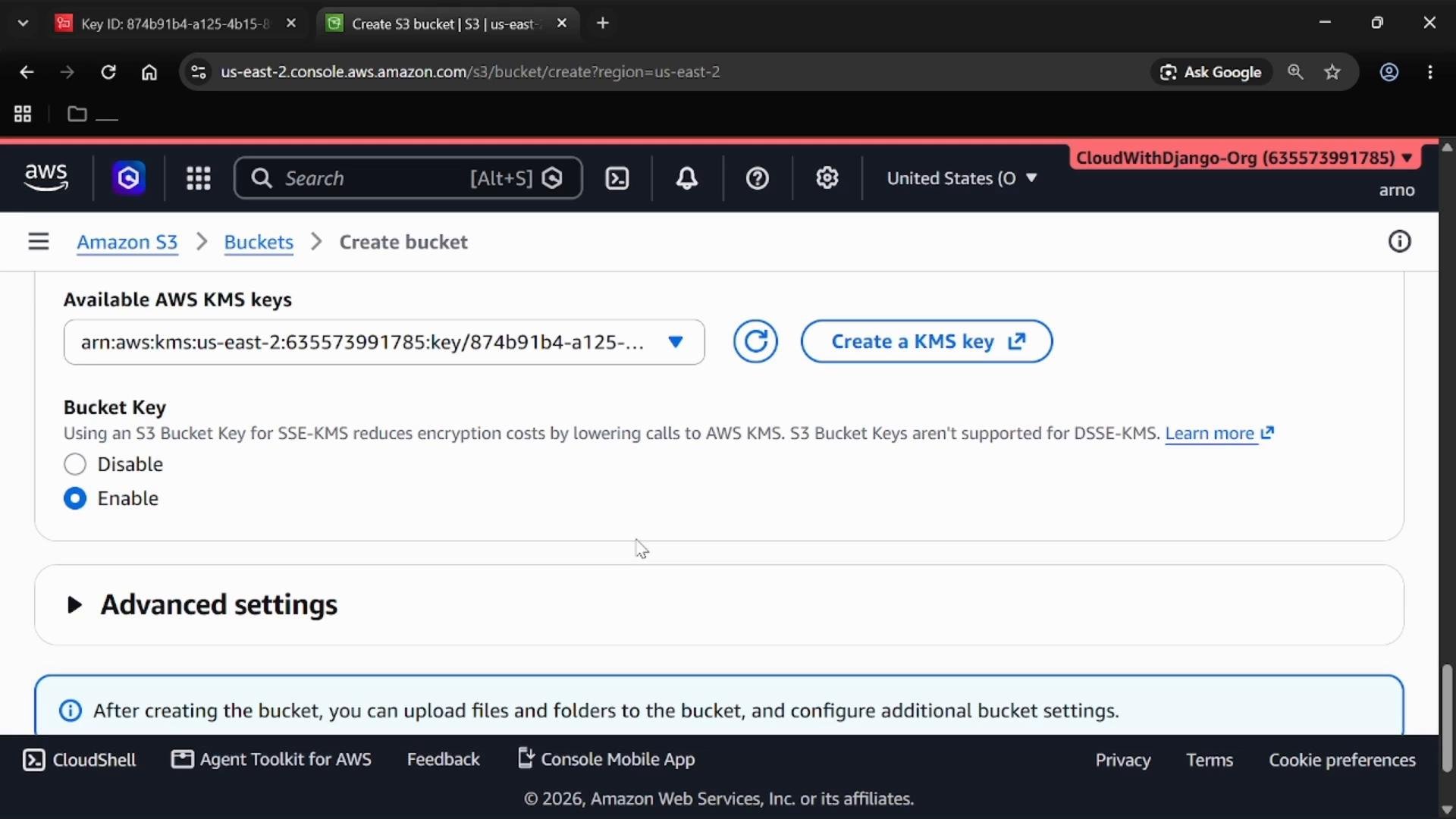
- Configure an S3 bucket to use SSE-KMS with that key.
- Create and encrypt an EBS volume with the same KMS key.
kms:* for key admin tasks and ec2:*, s3:* for resource creation).
1) Create a customer-managed KMS key
Open the AWS Key Management Service (KMS) console, select Customer managed keys, and click Create key. Recommended choices during creation:- Key type: symmetric (used for both encryption and decryption).
- Key usage: Encrypt and decrypt.
- Alias: provide a friendly alias (example:
demo-encryption-key). - Description: short description of the key purpose.
- Administrators: assign one or more IAM users or roles who can manage the key.
- Key usage permissions: grant IAM principals permission to use the key for encrypt/decrypt operations.
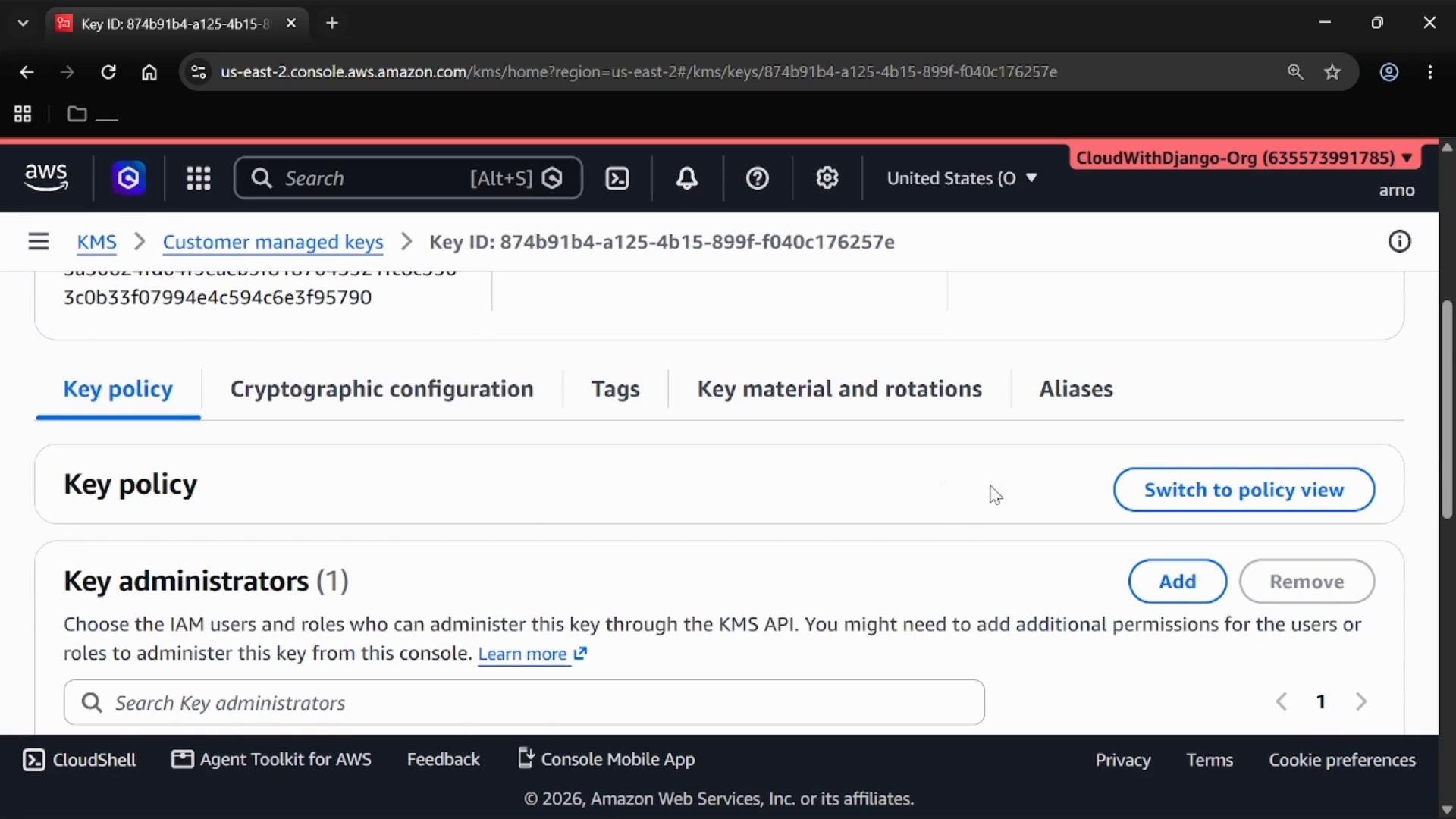
KMS key policies are the authoritative control for who can administer and use a customer-managed key. Often the default key policy together with IAM policies is sufficient; for stricter separation of duties create a custom key policy. See the AWS KMS documentation for examples and policy structure.
Be careful with key deletion and policies. If you delete or disable a KMS key (or remove all principals from its policy), any data encrypted with that key (S3 objects, EBS snapshots, etc.) can become permanently inaccessible.
2) Configure an S3 bucket with SSE-KMS
To enable server-side encryption using your KMS key:- Open the Amazon S3 console and create a new bucket (choose the target region, e.g.,
us-east-2). - Specify a globally unique bucket name (example:
eden-geeking-encrypt-test-bucket). - Under Default encryption, choose Server-side encryption with AWS KMS (SSE-KMS).
- Select the customer-managed KMS key you created (choose by alias or paste the key ARN).
3) Encrypt an EBS volume using KMS
You can also encrypt EBS volumes with the same KMS key. This provides at-rest encryption for volume data and ensures snapshots created from the encrypted volume are encrypted as well. Steps in the EC2 console:- Go to Elastic Block Store → Volumes and click Create volume.
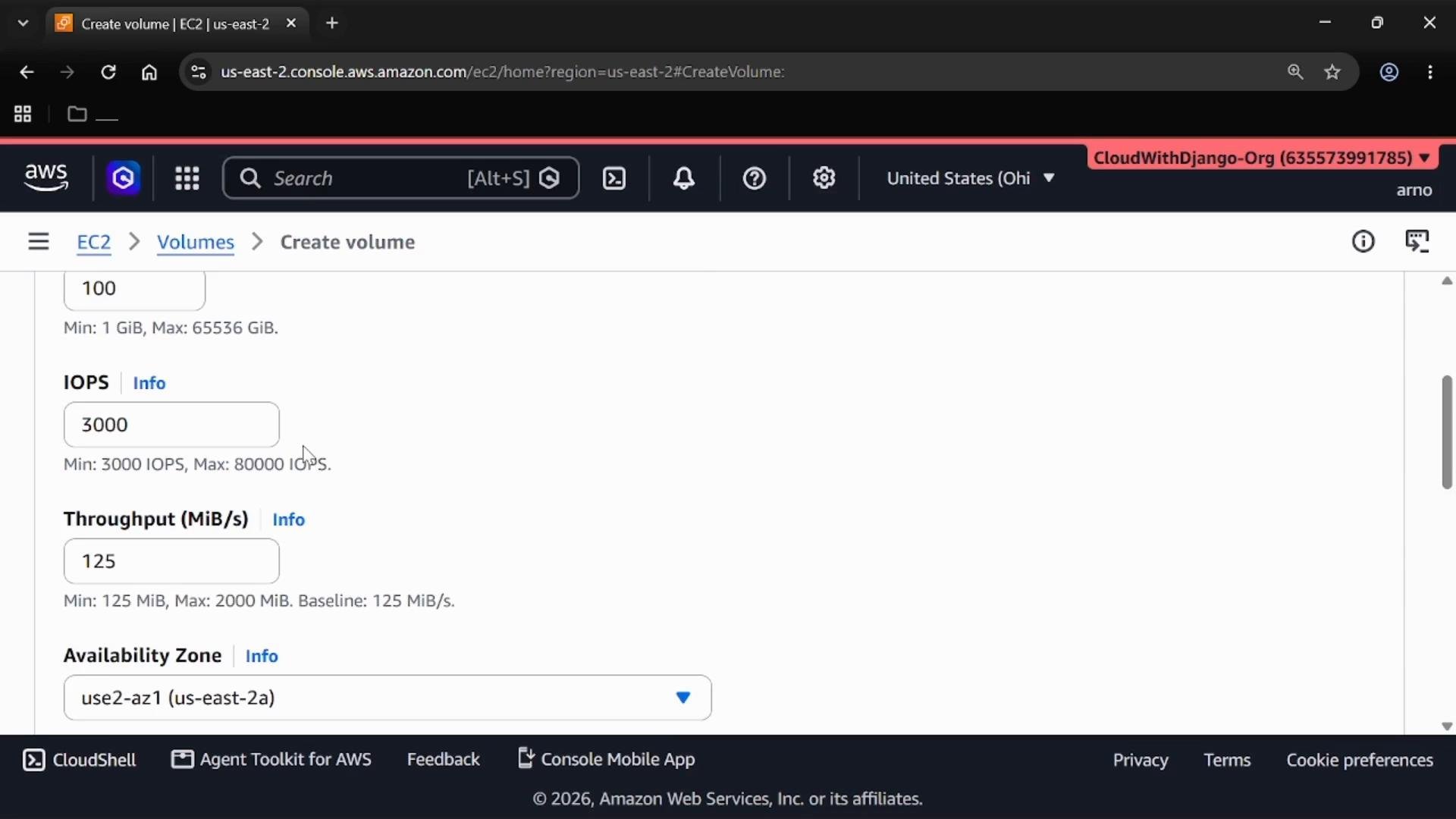
- Choose volume characteristics:
- Volume type (e.g., General Purpose SSD (gp3) or Provisioned IOPS).
- Size (GiB) and IOPS/Throughput as required.
- Availability Zone (must match the instance if you intend to attach immediately).
- Enable encryption: check Encrypt this volume.
- Select the customer-managed KMS key (alias/ID/ARN will appear in the selection).
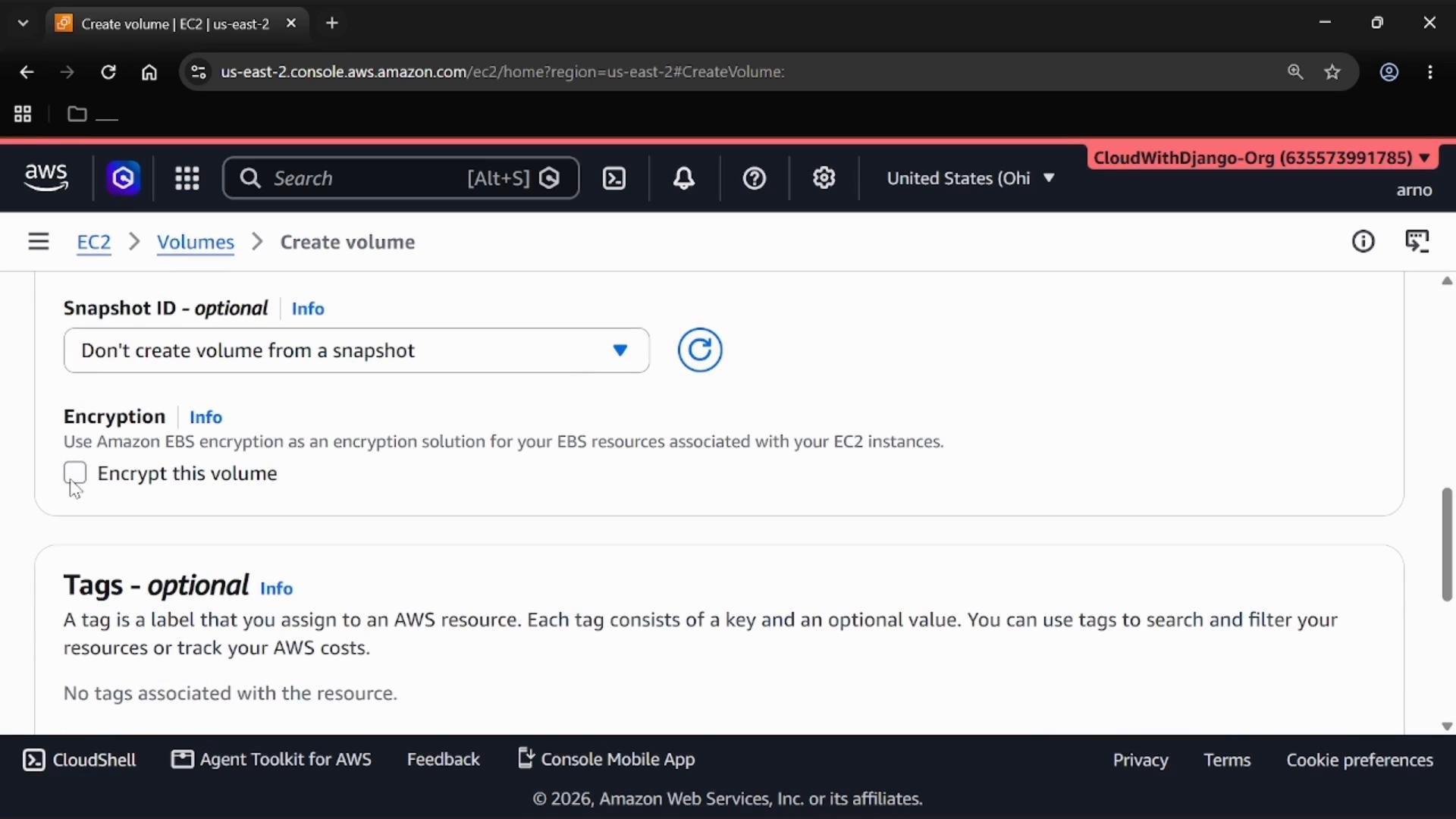
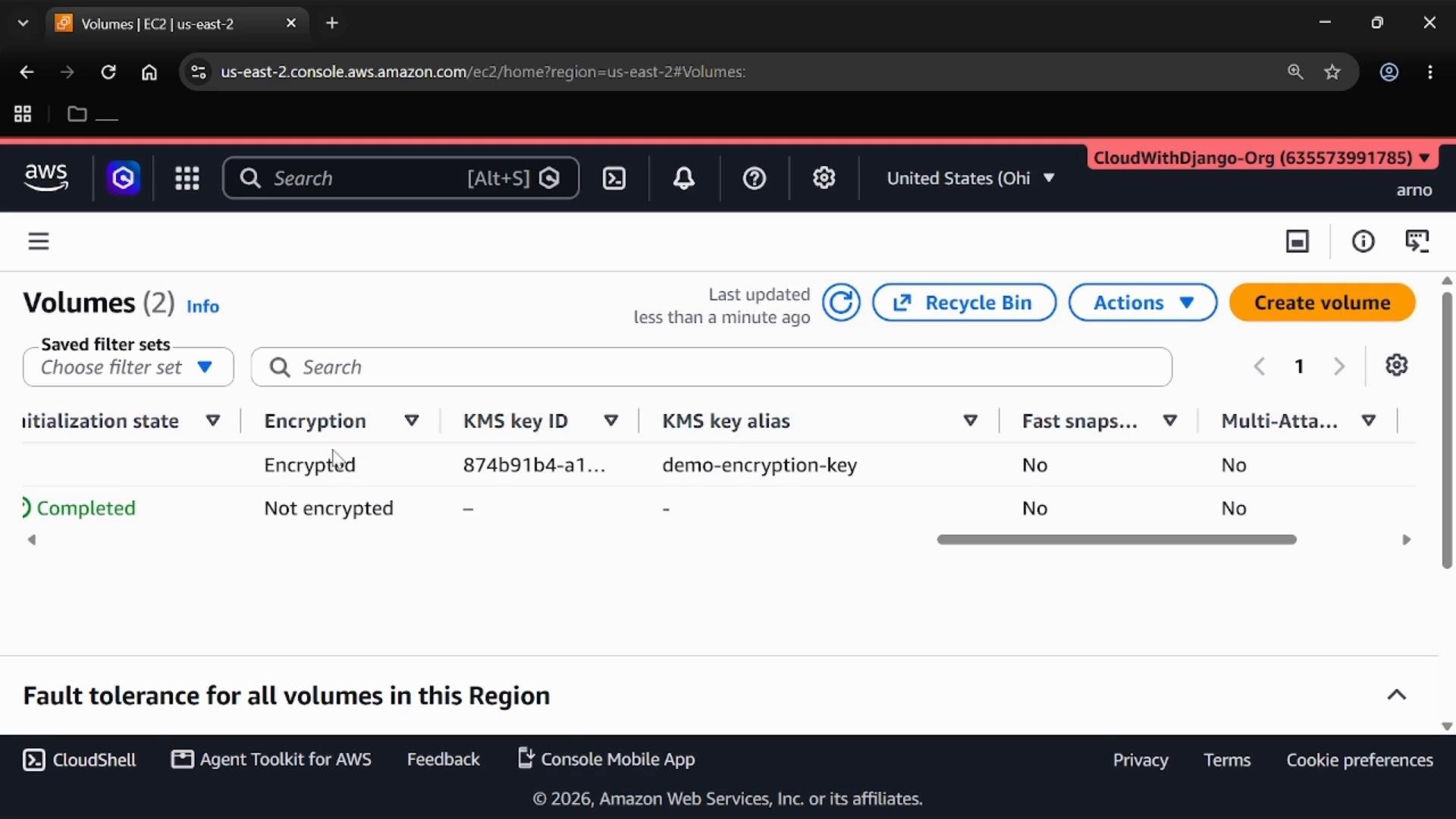
- Encrypted EBS volumes: data stored at rest, disk I/O, and snapshots are encrypted.
- You can specify the KMS key when creating a snapshot or let AWS use the same key automatically for snapshot encryption.
Quick reference: S3 SSE-KMS vs EBS encryption
Summary / Exam tips
- KMS (AWS Key Management Service) is the centralized service for managing cryptographic keys across AWS services.
- Server-side encryption for S3 (SSE-KMS) uses KMS to protect data keys and provide auditability via AWS CloudTrail.
- EBS encryption can be enabled per-volume using a KMS key; snapshots of encrypted volumes remain encrypted.
- KMS key policies (together with IAM policies) determine who can administer and use a key — understanding key policies is important for exams and real-world access control.
- Always consider key lifecycle and recovery: disabling or deleting a KMS key can make encrypted data inaccessible.