

Step 1 — Find AWS Training and Certification
- Open your browser and go to the AWS Training & Certification hub: https://www.aws.training/.
- Look for the “Get Certified” or “Schedule an Exam” link/button and follow it to begin scheduling.
- The scheduling flow redirects to sign-in. Use an AWS Builder ID to continue. If you don’t have one, create it — the process is straightforward and will guide you through email verification and any required MFA enrollment.
- During sign-in you may be prompted to complete multi-factor authentication (MFA) or other account protections.
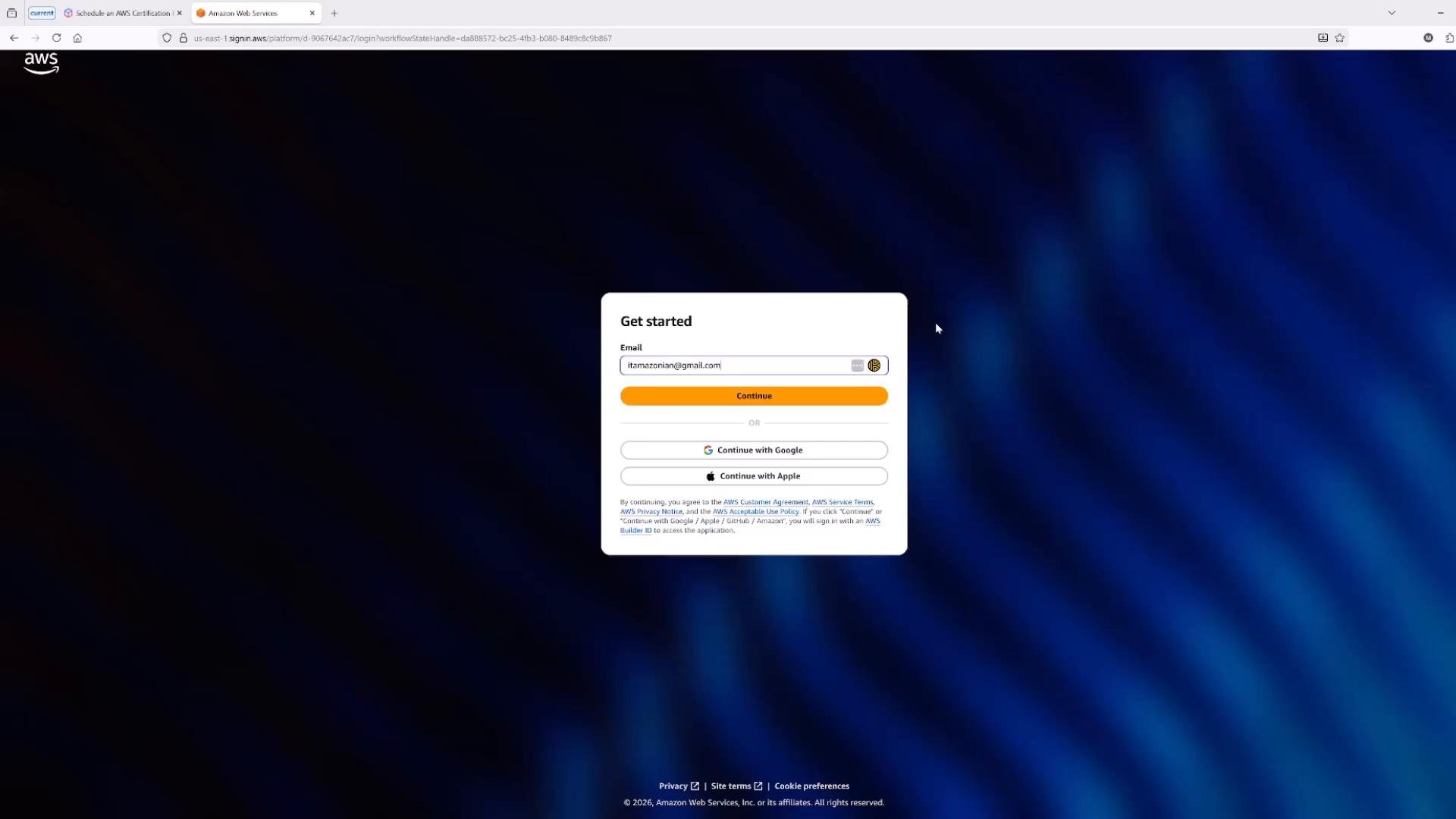
- Click “Schedule an Exam” and pick the certification you plan to take. The scheduling flow is the same across AWS exams (for example, AWS Certified DevOps Engineer – Professional).
- You’ll be offered delivery options: in-person at a test center or online via Pearson VUE’s OnVUE platform. Consider the pros and cons of each.
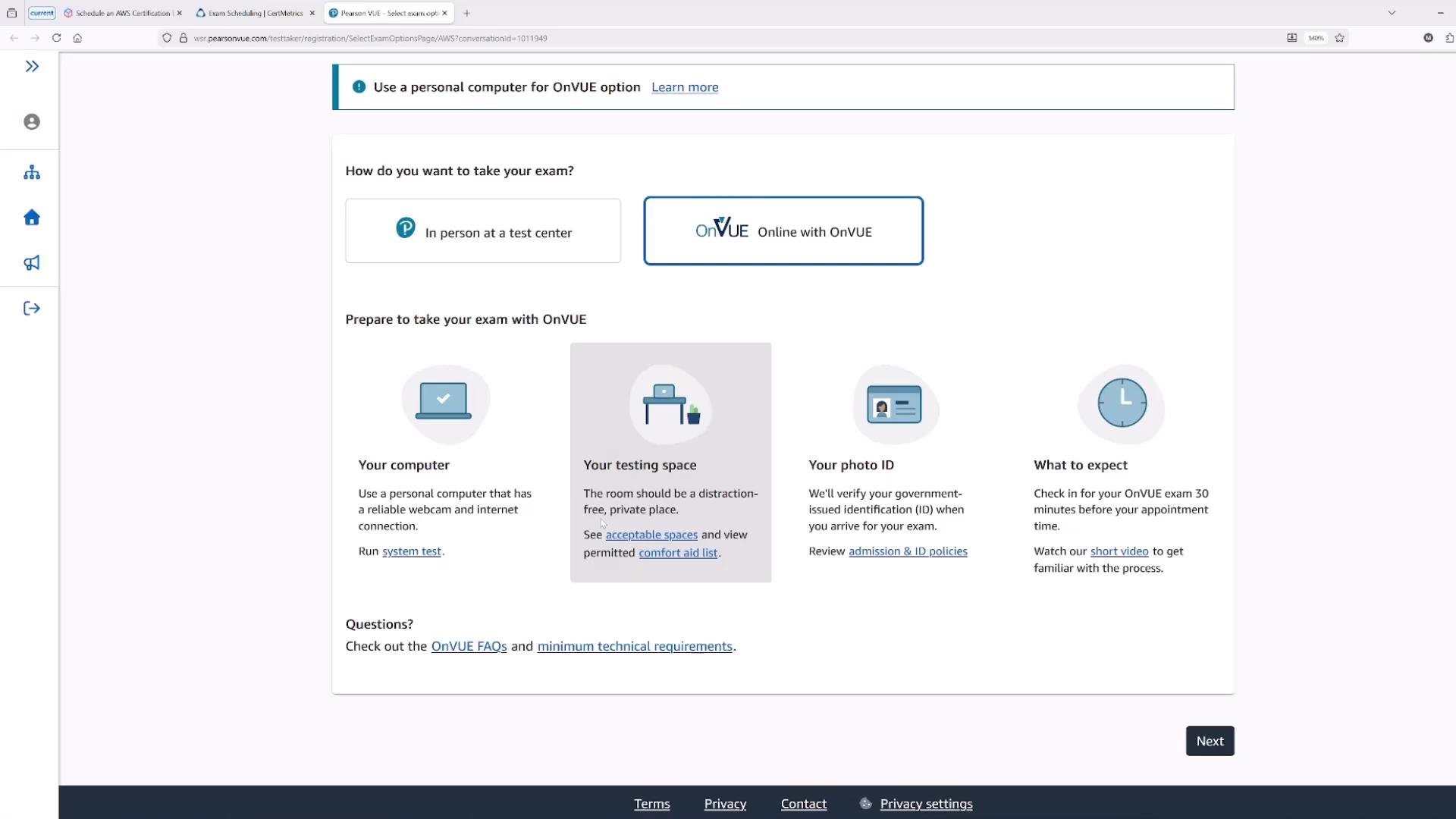
Online proctoring enforces strict rules: no extra monitors, no one else in the room, no pets, no phones, and restricted or no breaks depending on the exam. Review online proctoring policies before choosing the online option.
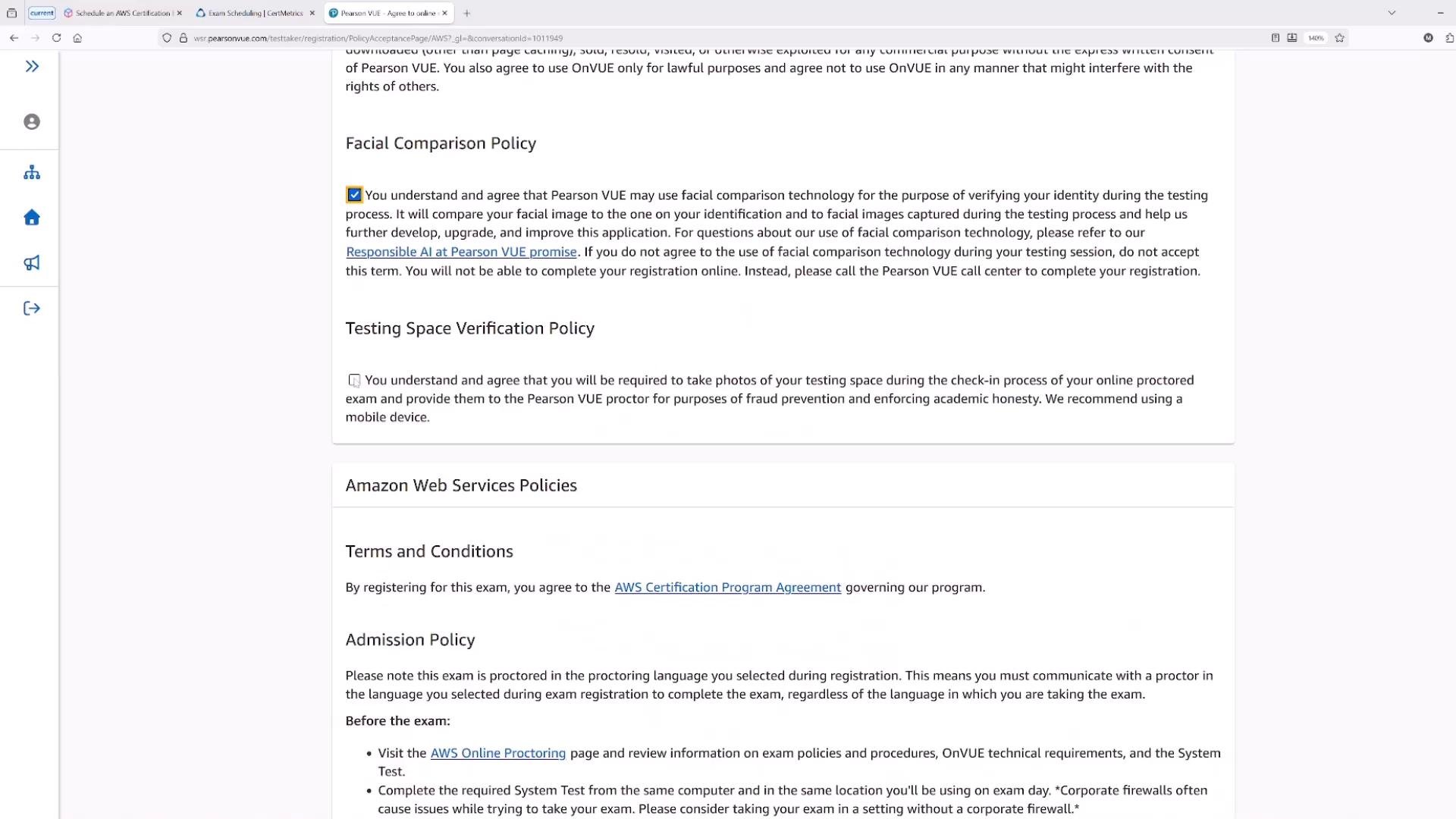
- If you select online proctoring, you must accept the Terms & Conditions and policies such as the Limited License, Facial Comparison, and Testing Space Verification policies.
- These policies explain how your identity and testing environment are verified (including photo capture), what forms of ID are acceptable, and rescheduling/cancellation rules (e.g., many exams cannot be rescheduled within 24 hours).
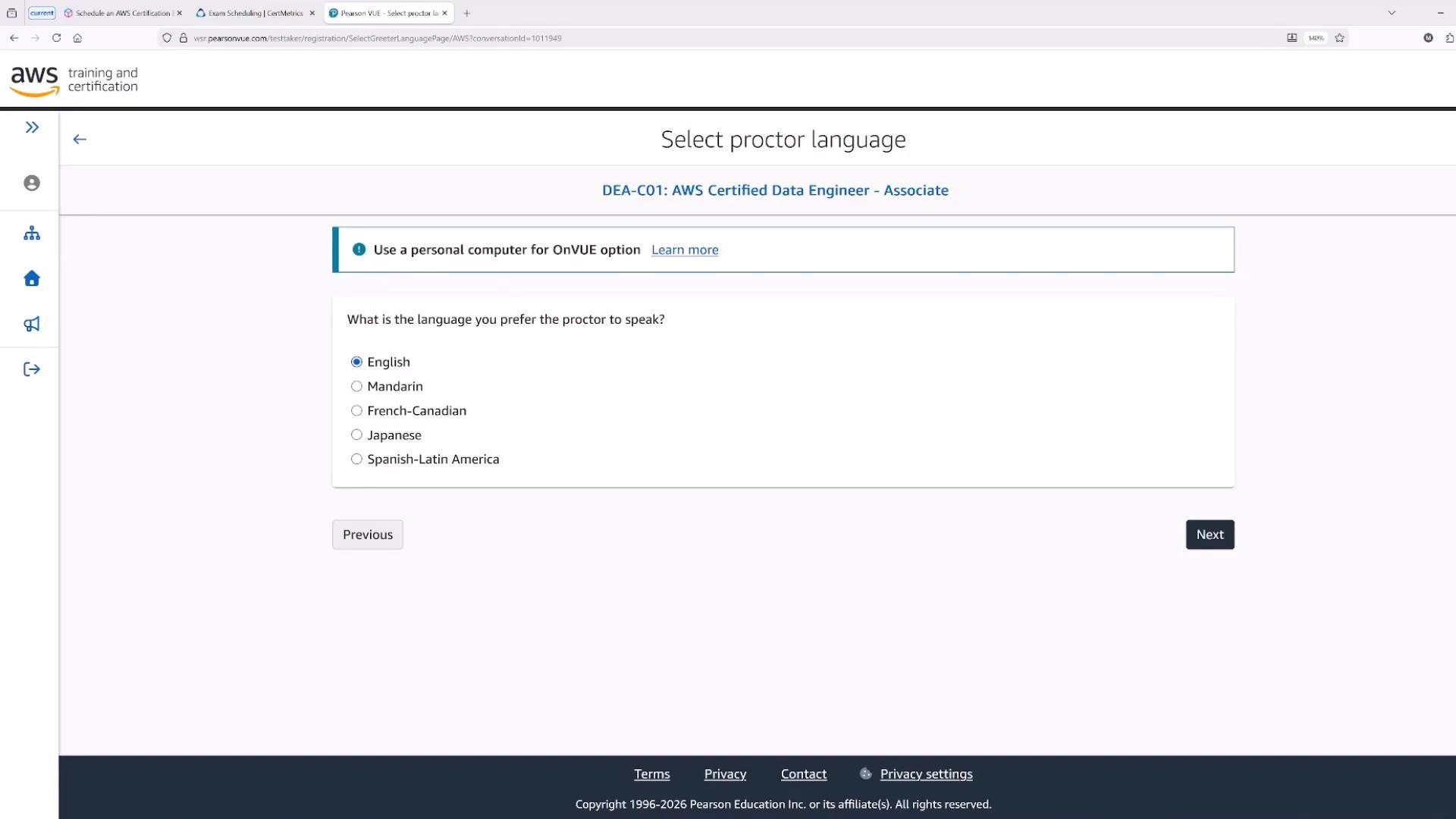
- Choose the exam language and the proctor communication language. These can be different if you prefer the exam in one language and proctor support in another.
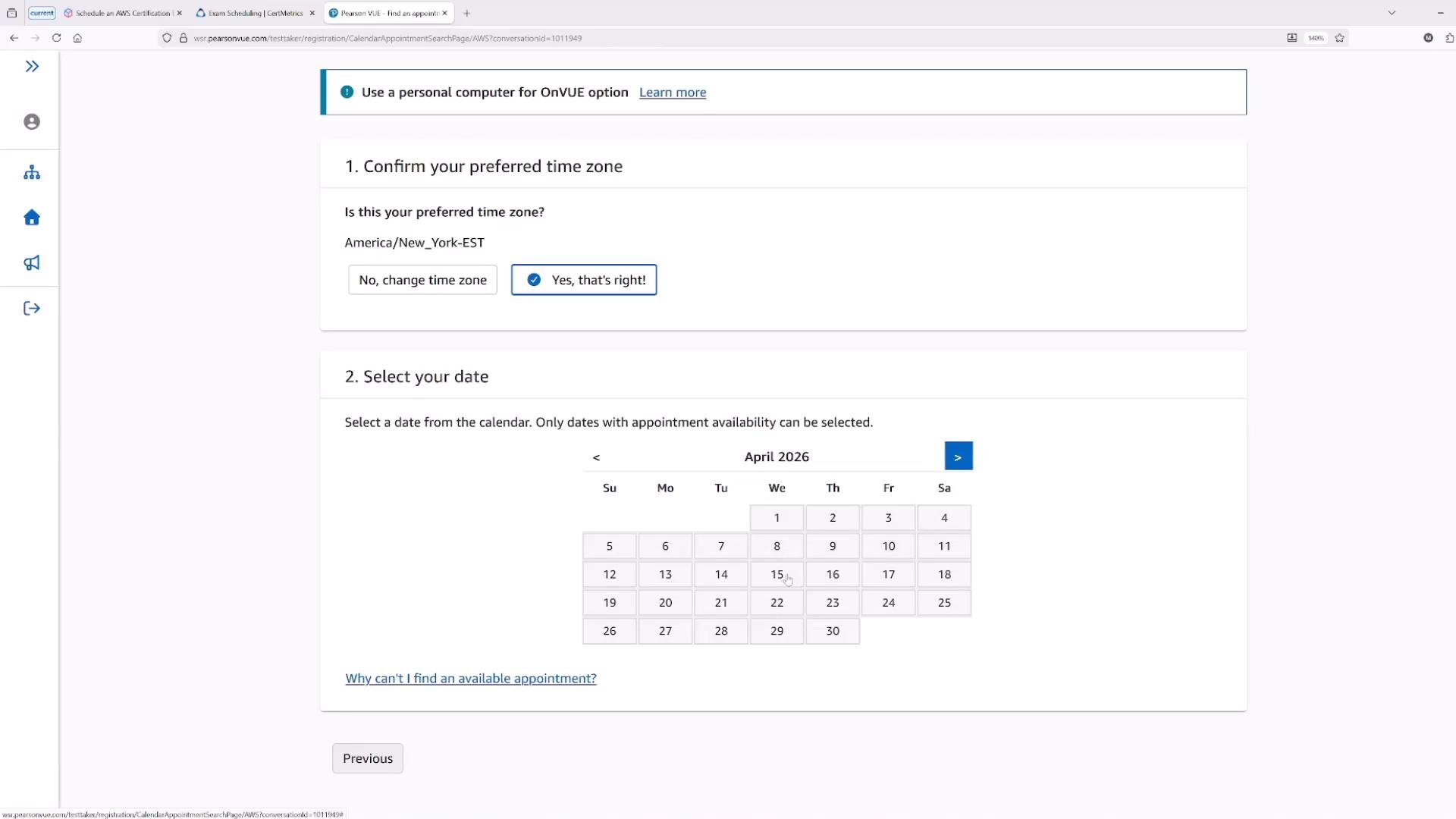
- Confirm your preferred time zone (for example, America/New_York) and select an available appointment date and time that fits your schedule.
- If you anticipate travel or a busy period, schedule well in advance to secure your preferred slot.
- Review the appointment summary (date, start time, check-in time, time zone) and the exam fee. Checkout shows the price and estimated total due.
- Note the check-in time (you’ll typically need to join early to complete identity and environment checks).
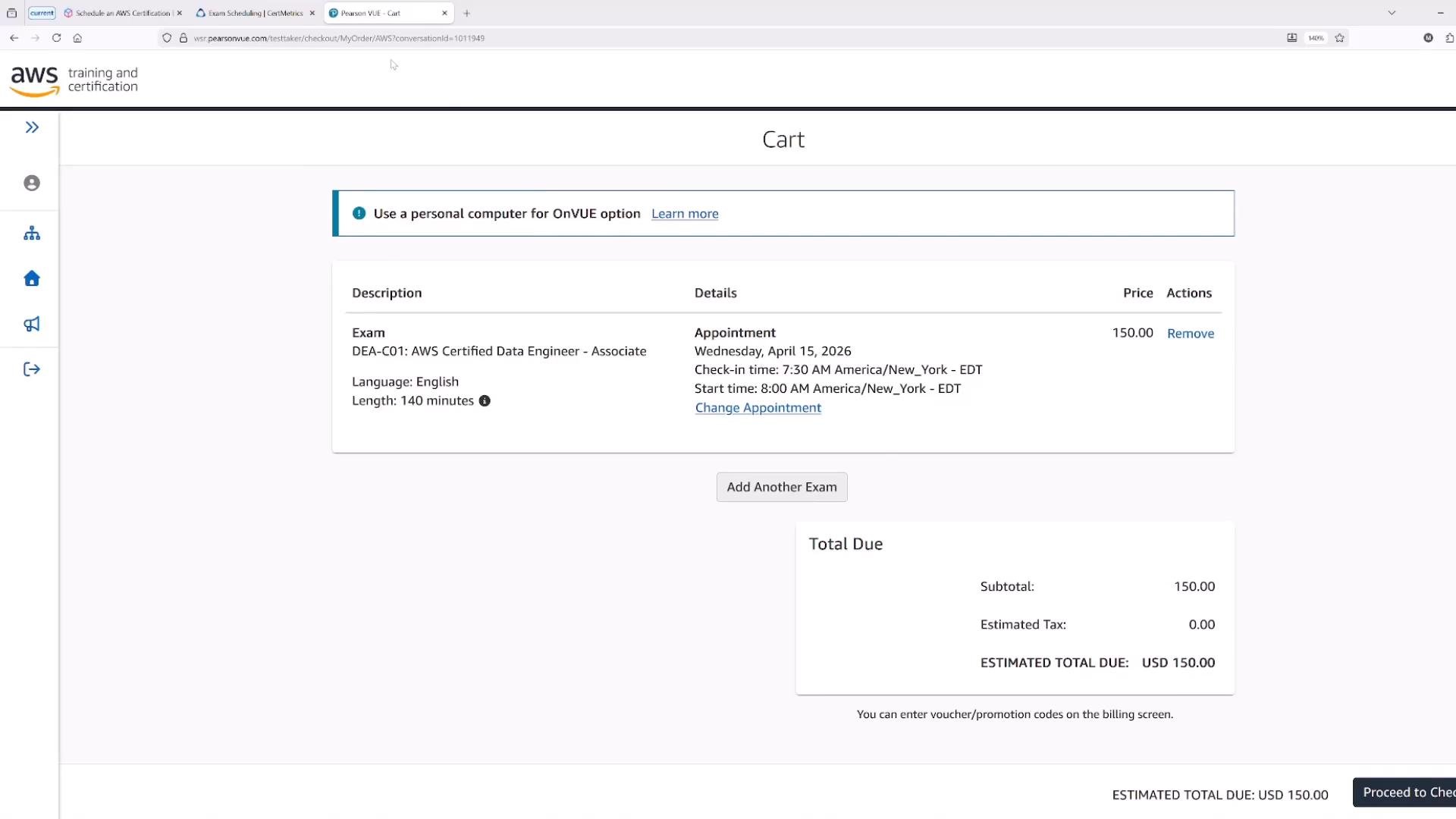
- If you have certification benefits—such as a 50% discount voucher—apply the voucher code on the checkout page to reduce the fee.
- Find available vouchers under Certification Benefits in your AWS/Alpine dashboard. Each voucher displays an expiry date and whether it’s claimable or already used.
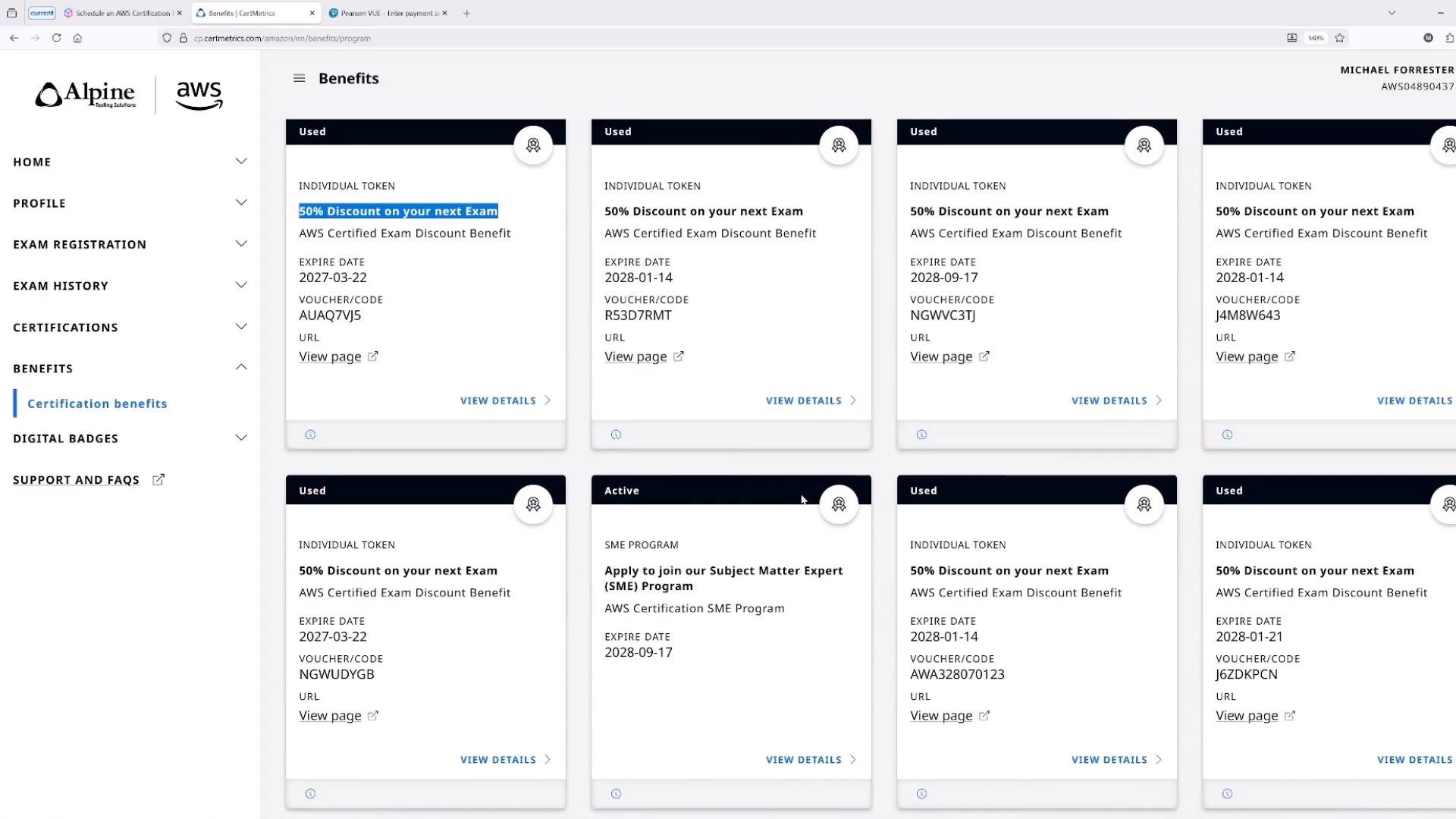
If you have a 50% discount voucher, claim and apply it at checkout to reduce the exam fee. Always verify the voucher’s expiry date and claim status—only active, unused vouchers can be applied.
- Provide payment information and complete the checkout to confirm your appointment.
- For online exams, you’ll usually be offered Pearson VUE’s OnVUE system check (recommended) to verify your computer, webcam, microphone, and testing space before exam day. Run the system test well ahead of the appointment.
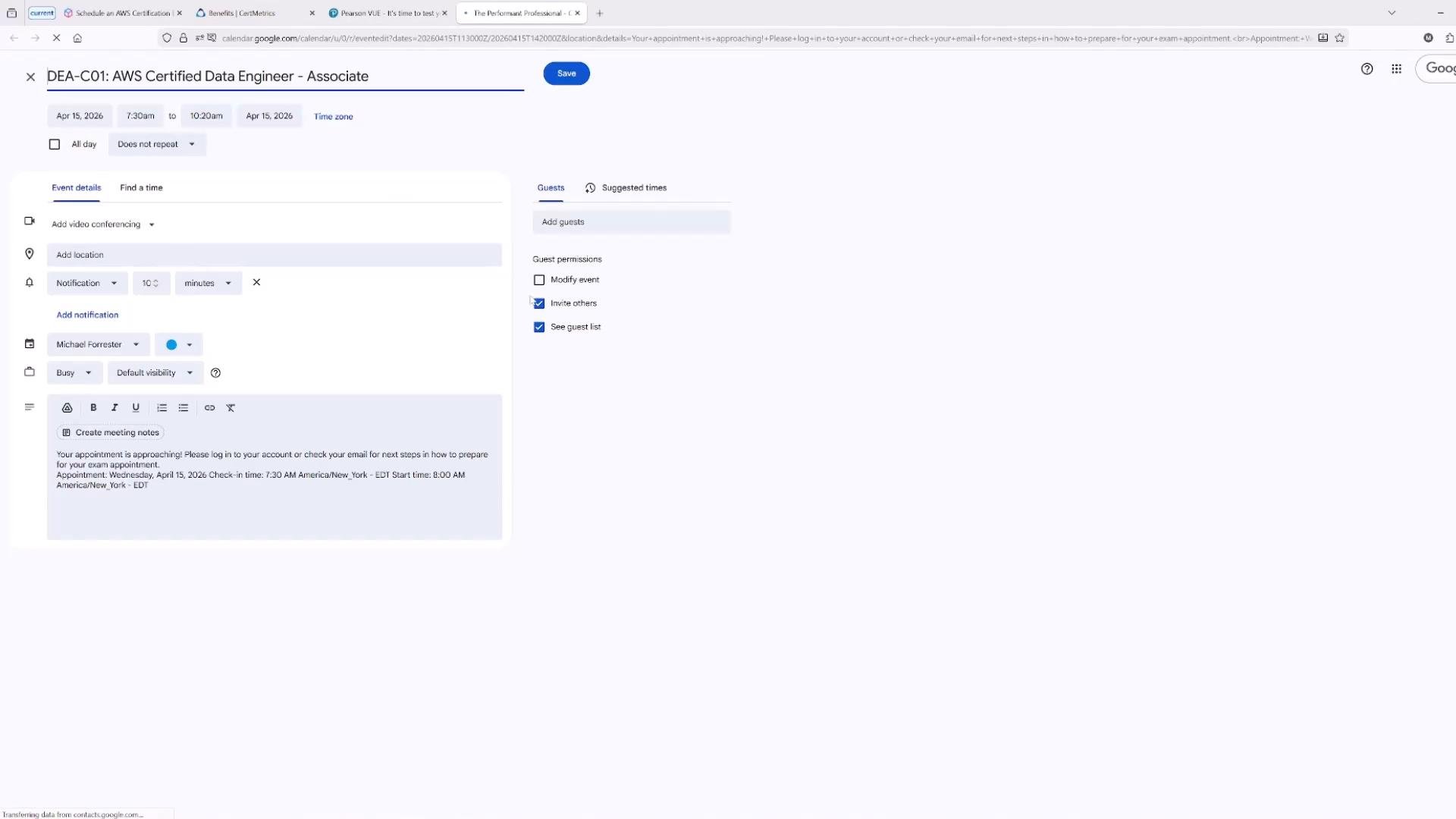
- Add the confirmed appointment to your calendar (Google Calendar, Outlook, etc.) so you receive reminders for check-in and start times.
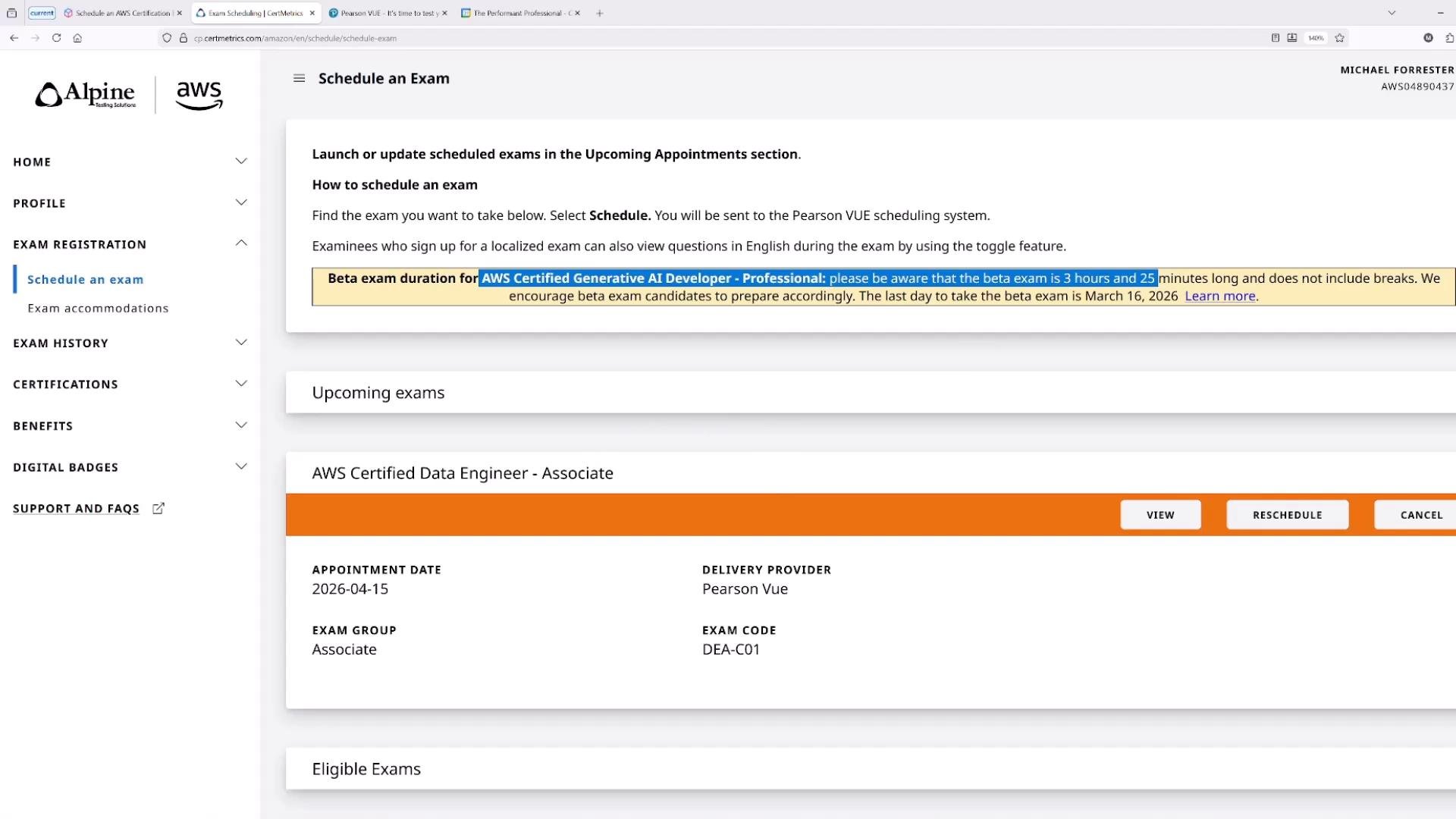
- When you go back to the AWS Training and Certification dashboard, you’ll see upcoming appointments and quick links to manage or start the exam. Use the dashboard to access OnVUE system checks, exam details, and any certification benefits.
- Some exams require additional authorizations or acknowledgements before scheduling (for example, new beta exams or some professional-level exams with special rules).
- If an exam doesn’t appear in the scheduler, check for required acknowledgements in your dashboard or the exam details page.
- Verify your AWS Builder ID login and MFA works.
- Confirm the exam delivery option (test center vs. OnVUE) and review related policies.
- Run the OnVUE system check at least 24–48 hours before the test (for online exams).
- Have the required ID ready and accessible per the proctoring guidelines.
- Apply any vouchers and confirm payment/payment receipt.
- Add the exam event to your calendar and confirm check-in time.
- AWS Training & Certification: https://www.aws.training/
- Pearson VUE OnVUE: https://home.pearsonvue.com/onvue
- Example training: AWS Certified DevOps Engineer – Professional