

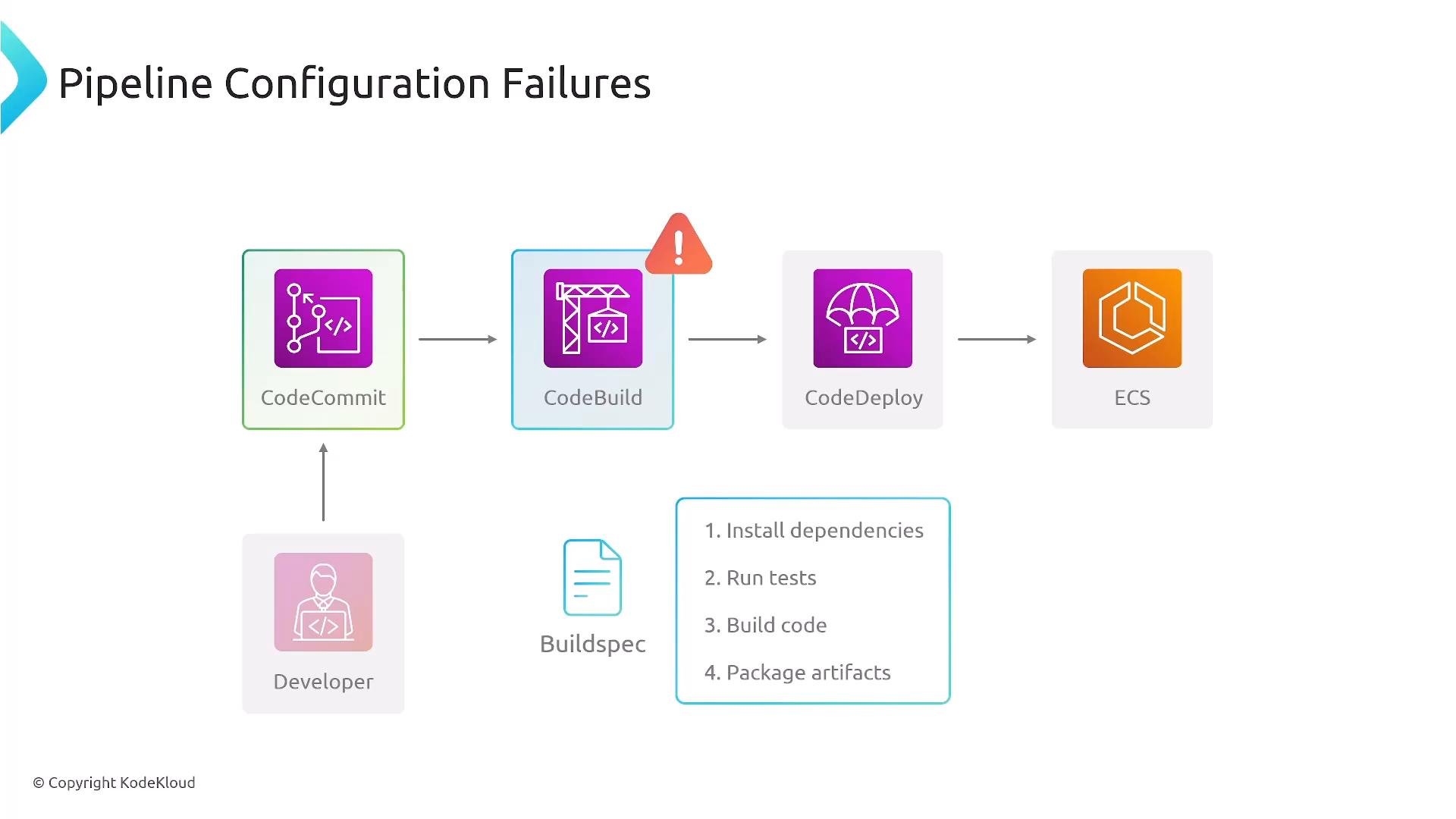
Common CodeBuild failures and root causes
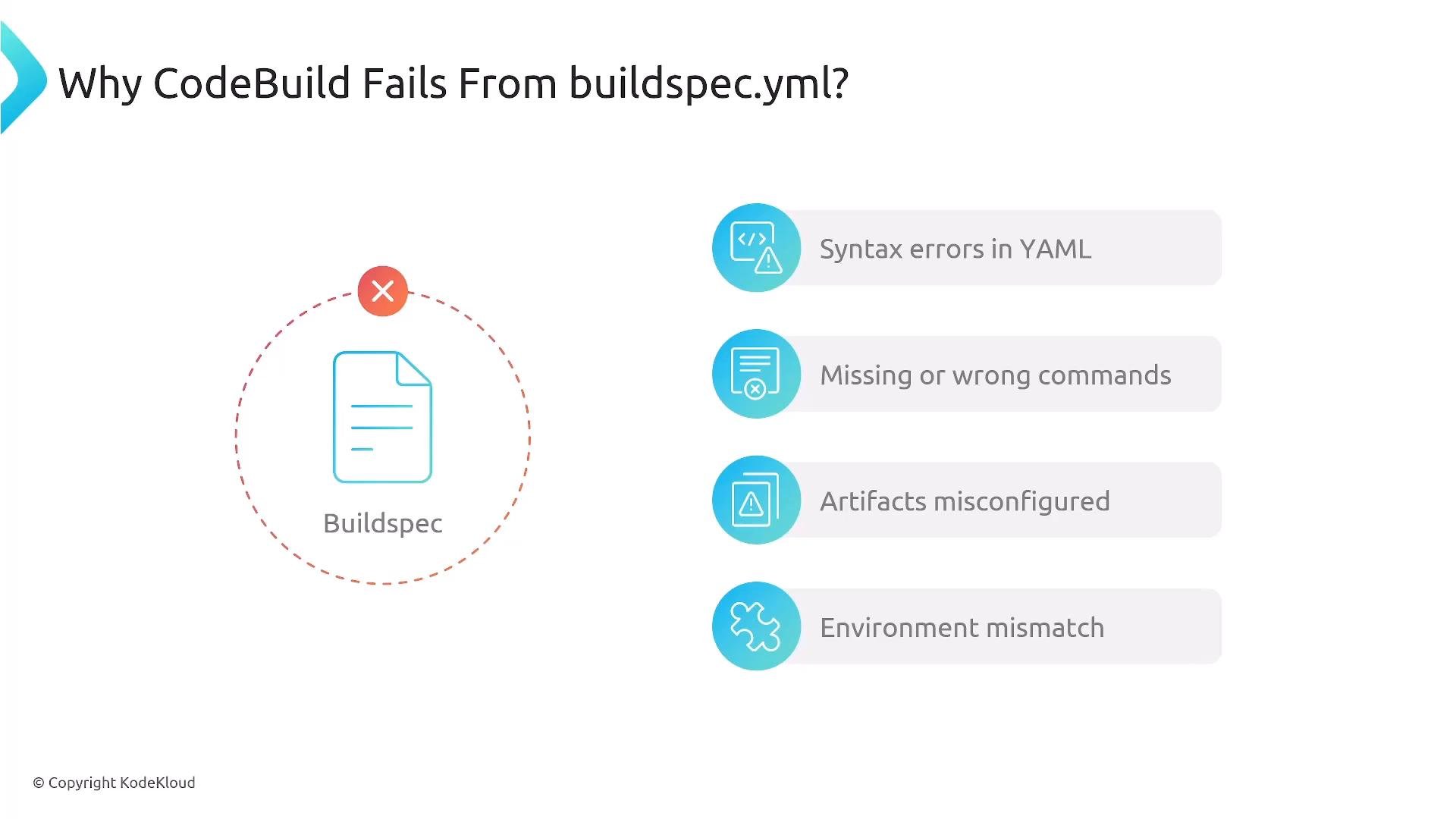
CodeBuild issues often originate from problems inbuildspec.yml or the build environment:
- YAML syntax errors that cause stages or phases to be skipped.
- Incorrect/missing build commands that fail or produce no artifacts.
- Misconfigured artifact paths so CodeBuild cannot find/upload outputs.
- Environment mismatches (e.g., using production variables in a dev build) that make tests or runtime fail.
- Permissions to read/write storage, registries, or secret stores.
- Failing command lines shown in CodeBuild logs.
- “No such file or directory” or “artifact not found” messages when paths are wrong.
- “Access denied” errors when permissions are missing.
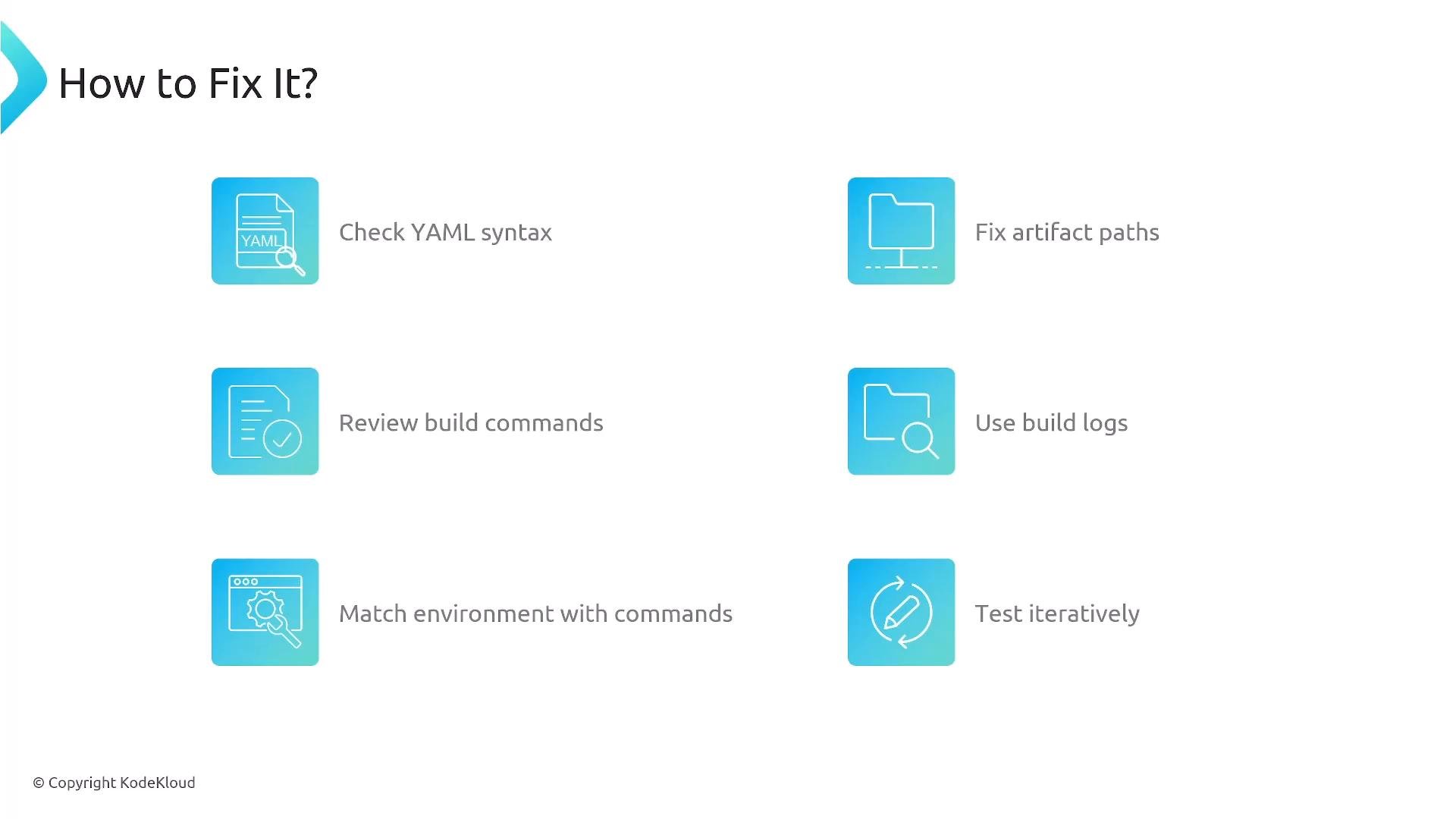
How to diagnose and fix buildspec/build failures
- Lint and validate
buildspec.ymlfor YAML syntax issues before committing. - Reproduce build commands locally or in an ephemeral container to isolate failures.
- Echo or log non-sensitive environment variables to confirm values are set.
- Verify artifact/output paths — make sure the build writes files to exactly what CodeBuild expects.
- Inspect CodeBuild logs and AWS CloudWatch for the failing command and context.
buildspec.yml layout (adjust phases and artifacts to your project):
- Confirm
artifacts.filespatterns match the actual output directory. - If using
secondary-artifacts, ensure each artifact name maps correctly in the pipeline stage. - For Docker images: ensure
docker buildoutputs match your expected tag and that you push to ECR with the right repository and tag.
Always keep build steps small and test them iteratively. Use logs to isolate the failing phase quickly and, where possible, reproduce commands locally before pushing changes.
Permissions: the most common real-world cause
Permission problems frequently manifest as build or deploy failures:- No access to Amazon S3 for artifact upload/download.
- No ECR push/pull permissions, so image pushes fail or deploy cannot pull.
- No access to CodeArtifact repositories for private packages.
- Secrets Manager or Parameter Store read access denied.
- Inspect the IAM role used by CodeBuild and the pipeline execution role.
- Grant least-privilege permissions required (narrow resource ARNs and necessary actions).
- Prefer using resource-scoped policies and role assumptions over overly broad policies.
![A diagram titled "IAM Permissions Issues" showing an AWS CI/CD pipeline: CodeCommit -> CodeBuild (flagged with a warning) -> CodeDeploy -> ECS. It also shows AWS Secrets Manager returning "[Access Denied: No permission]" indicating an IAM permissions problem.](https://mintcdn.com/kodekloud-c4ac6d9a/deef86LW8w1XLb8X/images/AWS-Certified-DevOps-Engineer-Professional/Domain-1-SDLC-Automation/Troubleshooting-Common-Failures-in-Advanced-Deployments/iam-permissions-secrets-access-denied.jpg?fit=max&auto=format&n=deef86LW8w1XLb8X&q=85&s=1985a45ef2a642d659f7ba1884e51466)
Do not echo or log sensitive secrets. When you validate environment variables, log only non-sensitive values or masked indicators to avoid credential leaks.
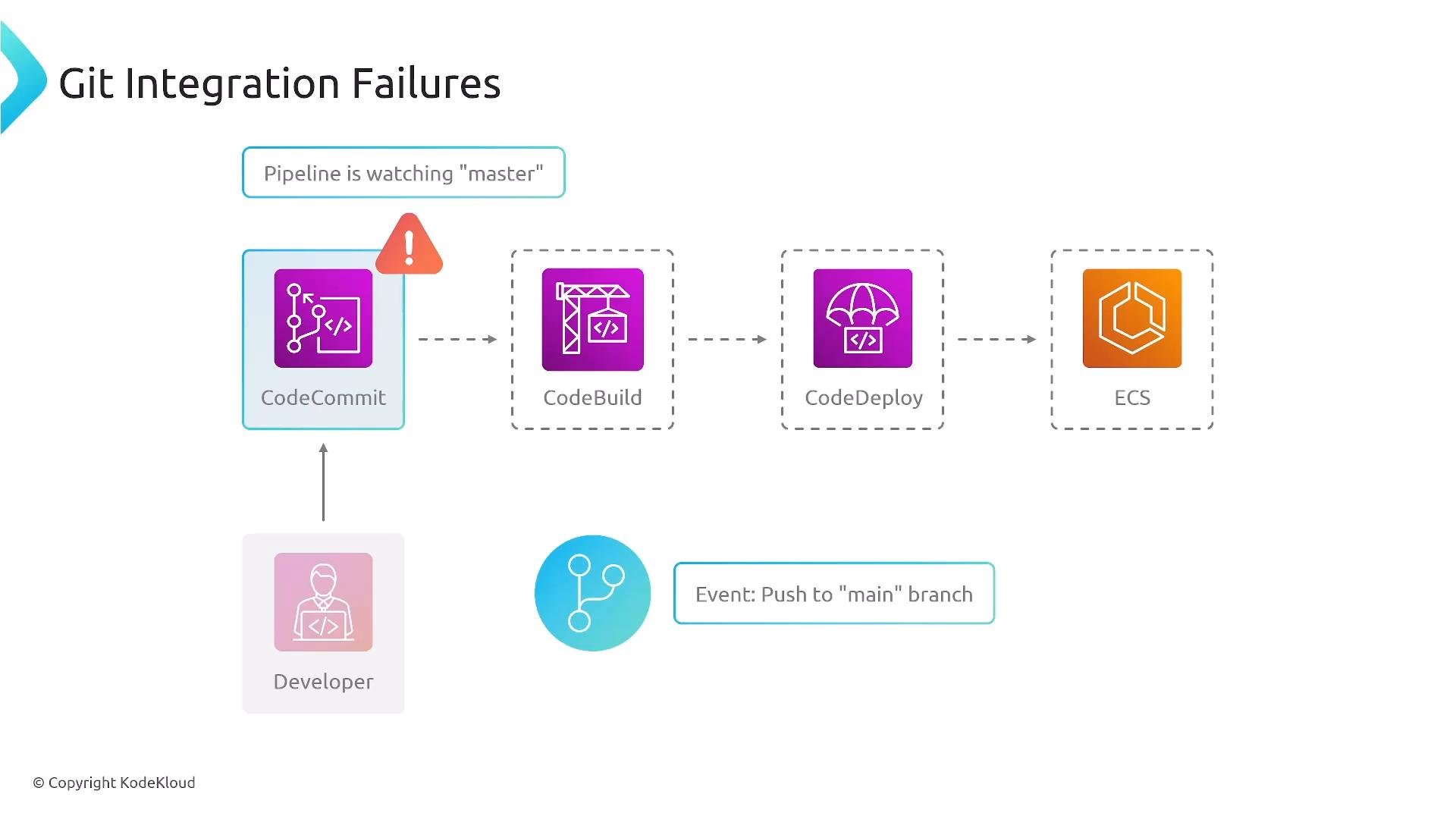
Git integration and trigger configuration
Pipeline triggers and branch configuration can cause unexpected behavior:- Pipeline configured to watch
masterwhile developers push tomain— changes won’t trigger the pipeline. - Misconfigured repository webhook or event mapping prevents triggers.
- Lack of permission for CodeBuild to invoke CodeDeploy (or vice versa) breaks the integration step.
- Branch names in pipeline source stage are accurate (
mainvsmaster). - Webhook delivery status and repository events.
- Role permissions for cross-service invocations.
Deployment target misconfiguration
Deployment targets can fail for reasons downstream of a successful build:- Wrong image tag or image not pushed to ECR — CodeDeploy/ECS cannot pull the container.
- Misconfigured target group, service, or cluster stops deployments.
- For Lambda container deployments: incorrect image references or missing ECR images prevent updates.
Infrastructure and provisioning failures
CloudFormation or other IaC tools may fail during resource provisioning for several reasons:- Deployment role lacks permission to create or modify resources.
- Templates reference missing AMIs, Docker images, or other assets.
- Resource quotas or account limits prevent allocation (e.g., instance types, ENIs).
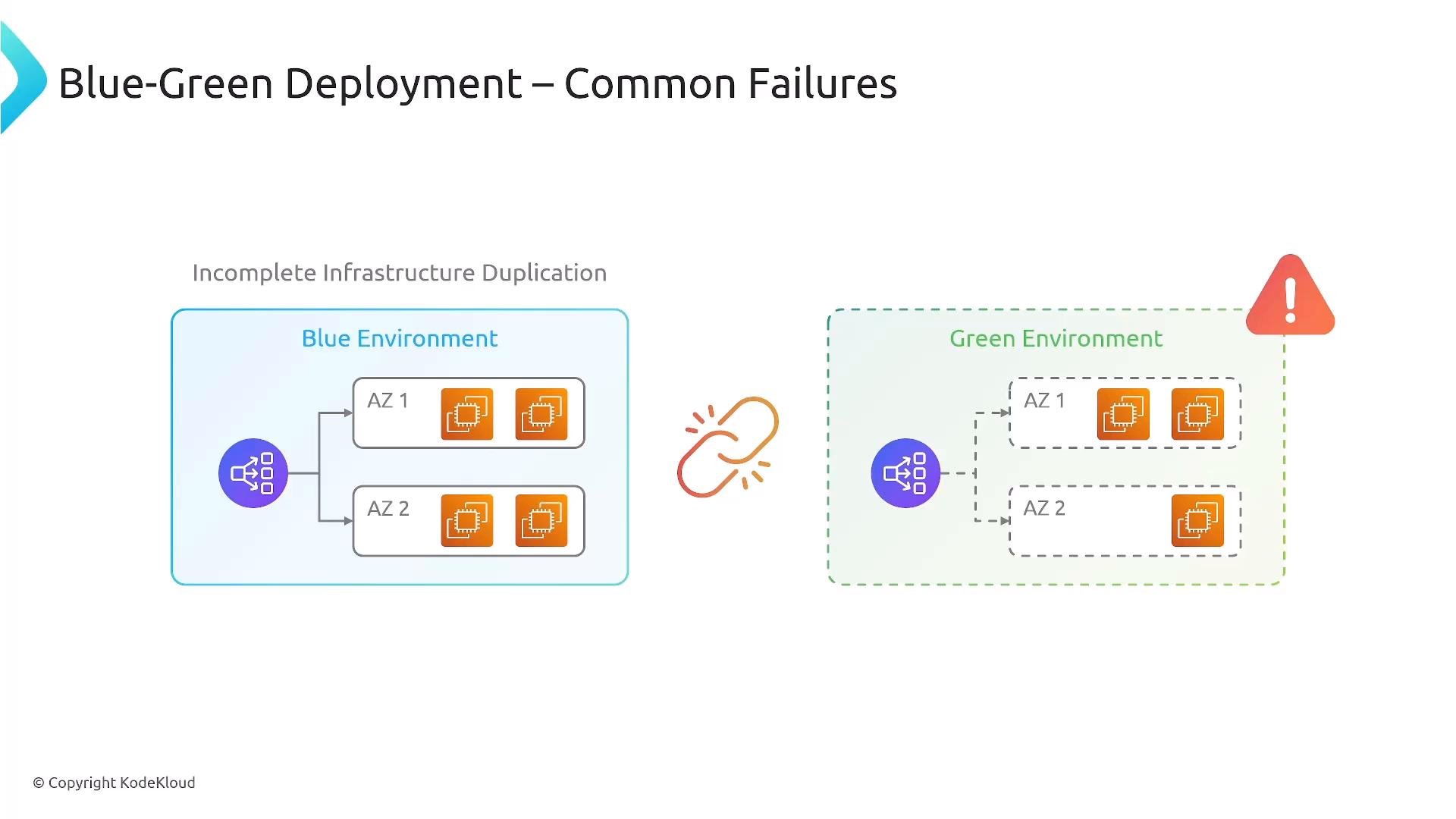
- Blue/green environment differences — incomplete duplication causes capacity or config drift.
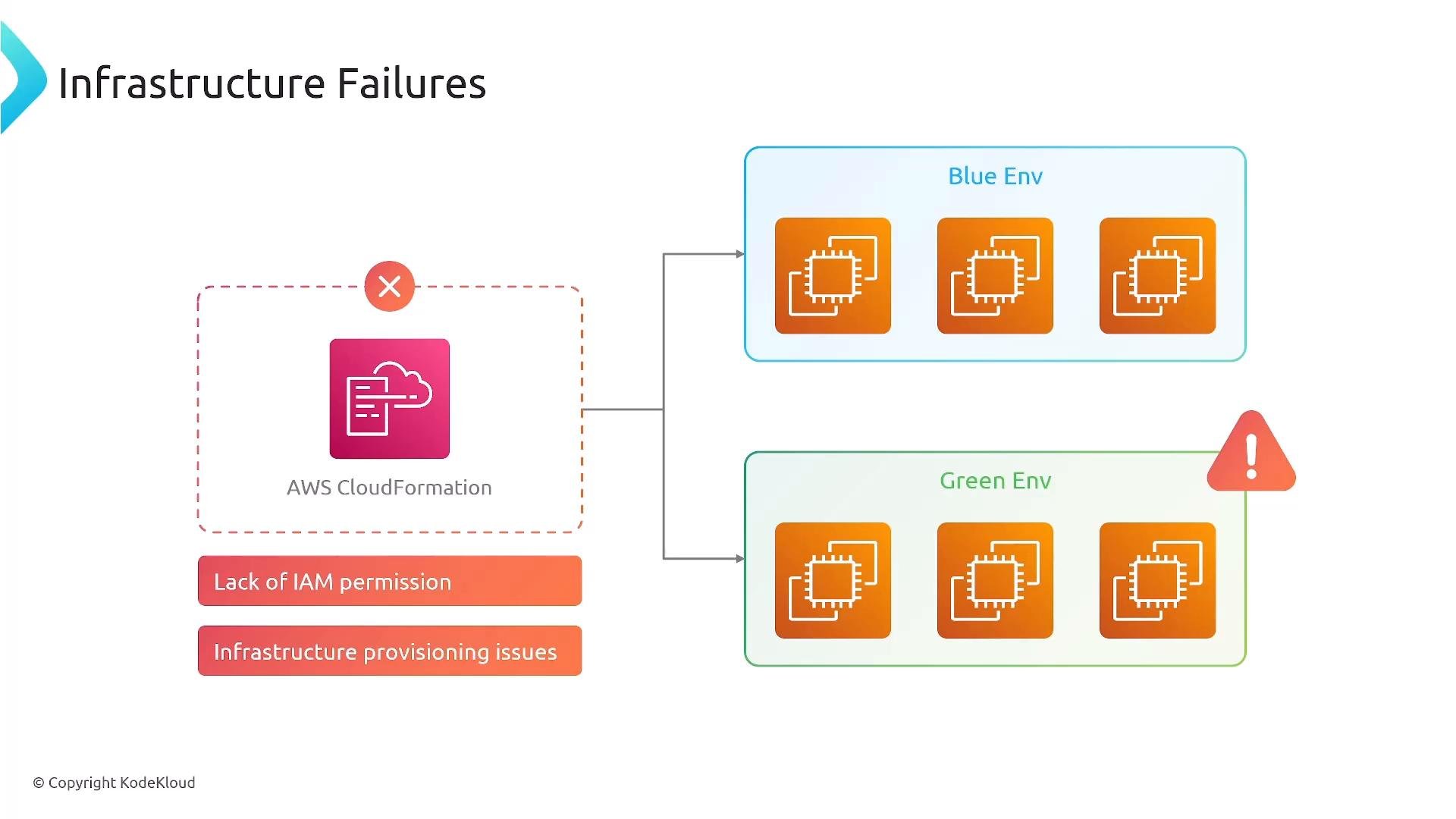
Blue/green deployment caveats
Blue/green deployments need parity between environments. If the green environment lacks instances, AZ coverage, or correct configuration, a cutover can fail or expose runtime issues. Validate that:- Both environments have identical capacity and AZ distribution.
- Target groups and health checks are configured consistently.
- Deployment tests run against the green environment before traffic switch.
Troubleshooting checklist
Use this checklist when a pipeline fails — investigate in this order for faster root cause discovery:Quick reference links
- AWS CodePipeline (CI/CD Pipeline)
- Amazon Elastic Container Service (ECS)
- AWS CloudWatch
- AWS IAM
- AWS CloudFormation
- Amazon S3
- AWS Lambda