

Step 1 — Open the RDS / Aurora console and choose an engine
Search for RDS in the AWS Management Console and open the RDS / Aurora service. The console shows both Amazon Aurora and the managed RDS engines (MySQL, PostgreSQL, MariaDB, Oracle, SQL Server). Select the engine that matches your requirements — this demo uses the PostgreSQL‑compatible Aurora option.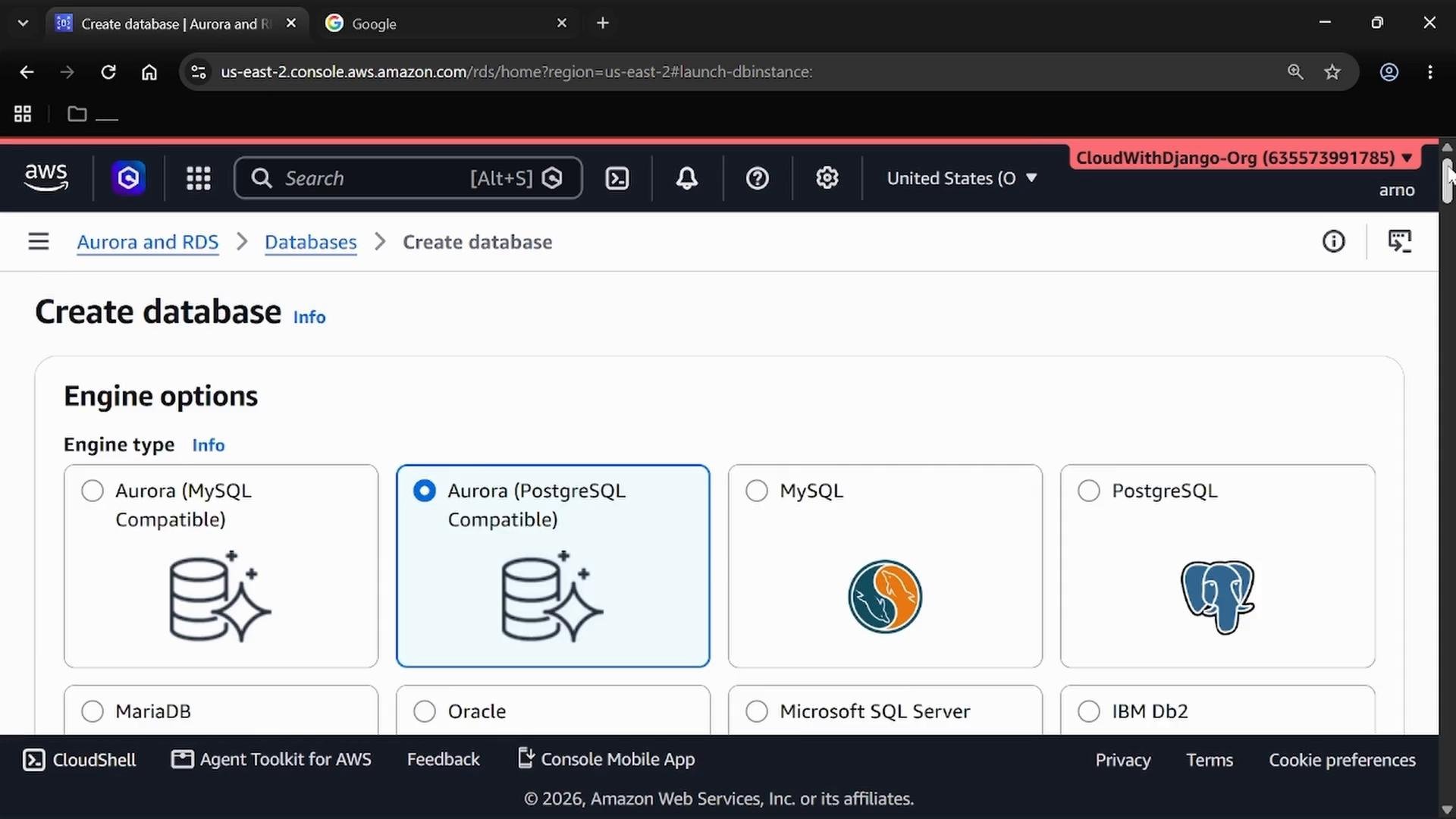
Step 2 — Use the Full configuration flow
Choose the Full configuration option so you can see and control templates, availability, networking, storage, and other advanced options.Using the Full configuration gives you visibility into Availability & durability, networking, and other settings needed for production-like deployments. Use the simplified flow only for quick tests.
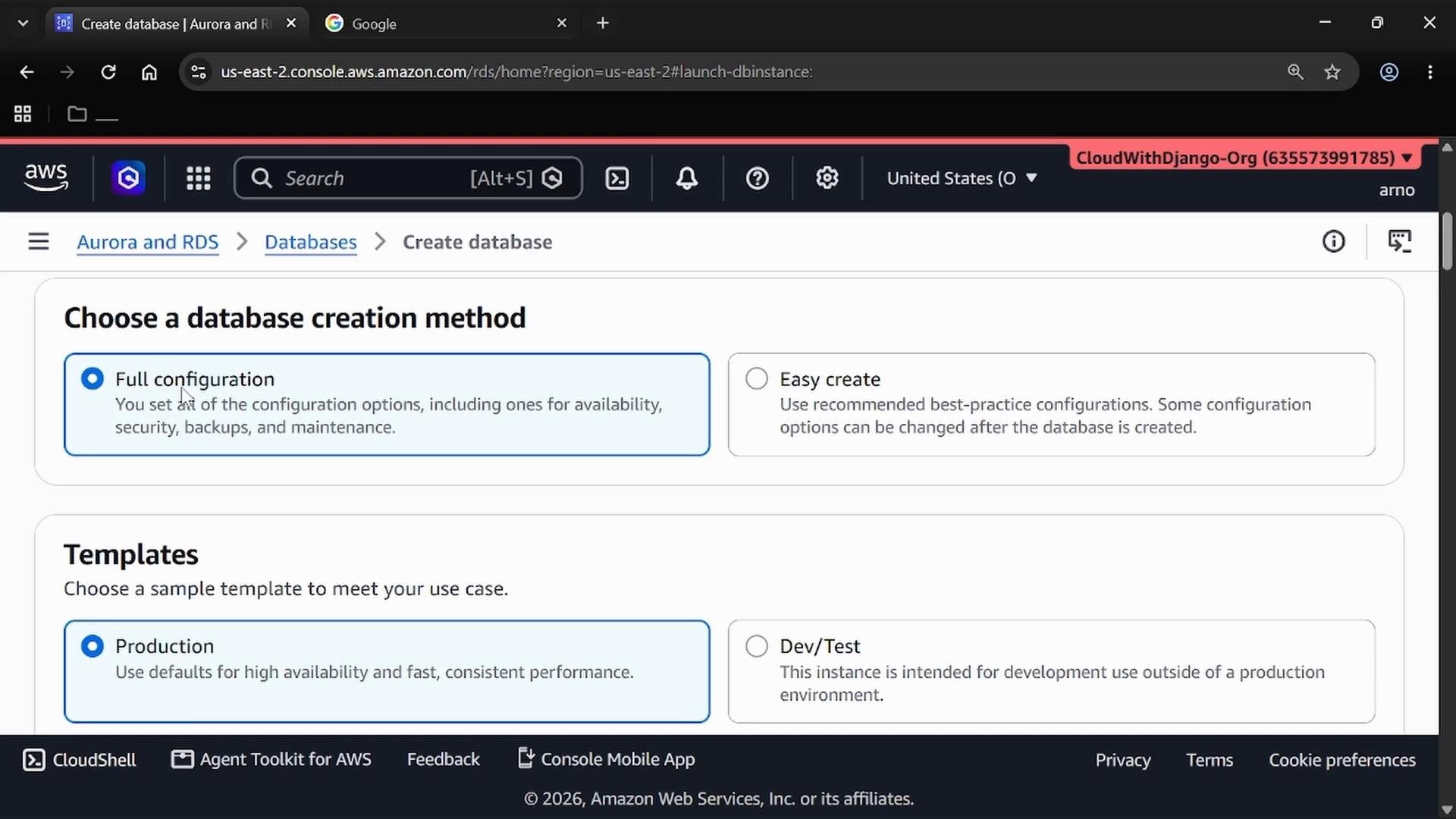
Step 3 — Select a template and enable Multi‑AZ if needed
- For this demo pick Dev/Test (or Production if you need full feature set). Avoid the Free Tier template if you require Multi‑AZ or other premium options.
- Under Availability & durability, enable Multi‑AZ DB instance deployment to provision a standby instance in a different Availability Zone for automated failover.
Cost warning
Creating Multi‑AZ databases or larger instance types incurs AWS charges. Follow along in the console if you want, but be mindful of costs and always delete resources when finished.
Step 4 — Engine version, identifiers, and post‑creation waits
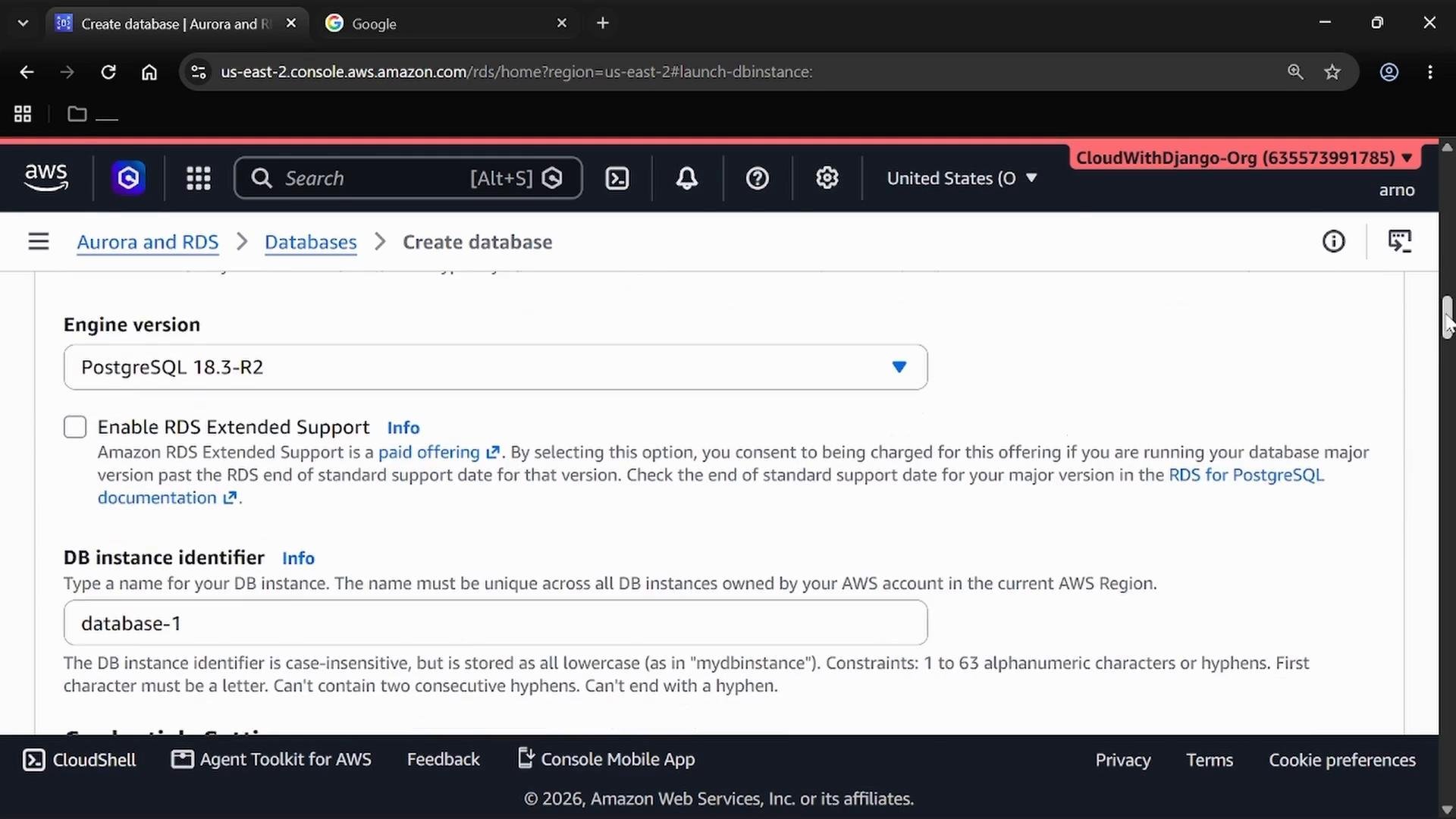
Choose the engine version (for example, Aurora PostgreSQL 18.x) and set a meaningful DB identifier (for example,database-1). Most options can remain default unless you have specific networking, storage, or parameter requirements.
Step 5 — Credentials and access
Choose whether to have AWS manage credentials using AWS Secrets Manager or to use a self‑managed master password. For simplicity this demo uses a self‑managed password entered in the console. If you choose Secrets Manager, plan for secret rotation and application integration. Public access: enable only if you need direct internet access to the endpoint — prefer private VPC access for production.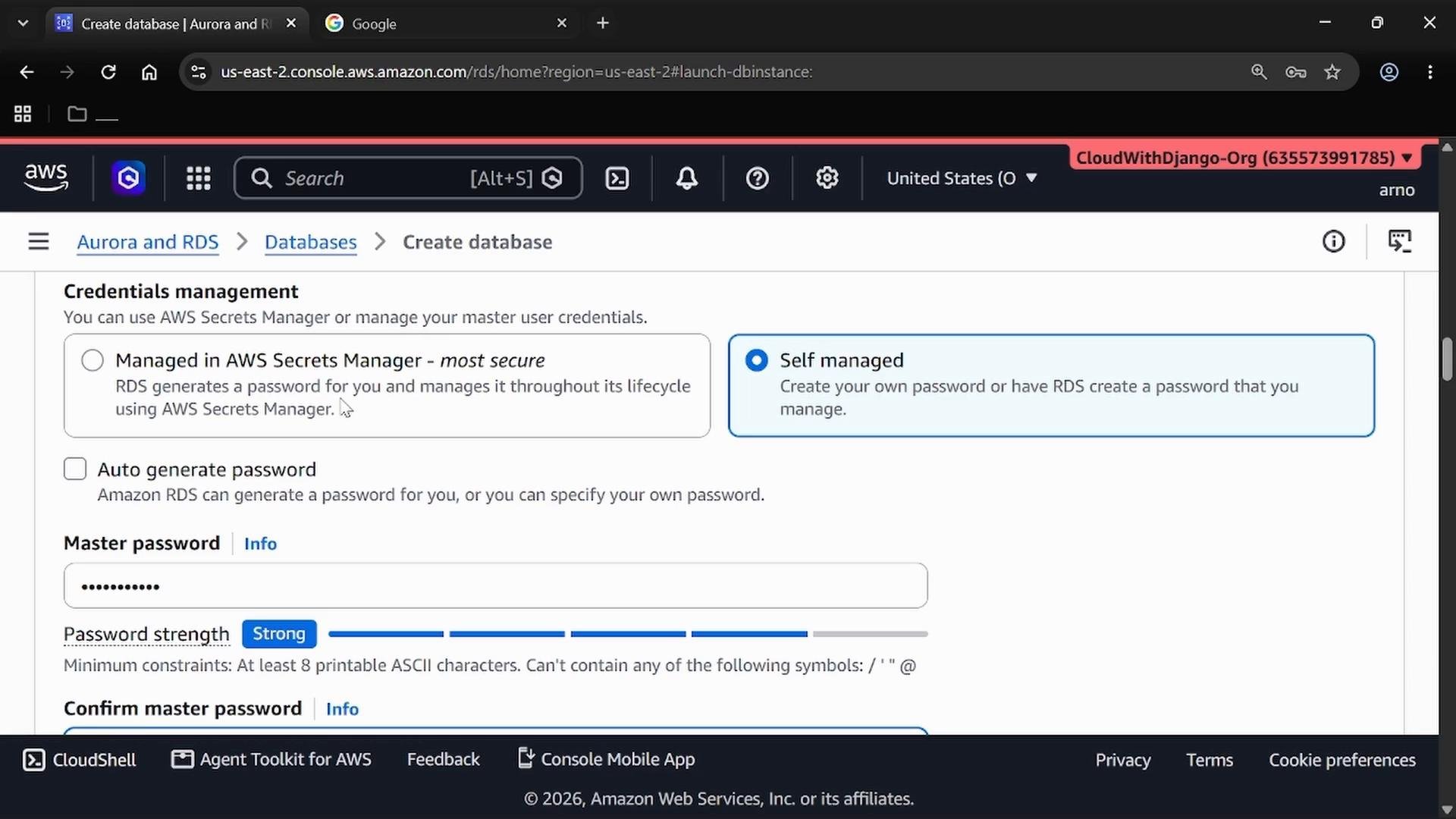
Step 6 — Create the database and monitor provisioning
Click Create database. Provisioning typically takes several minutes. While provisioning, remember Multi‑AZ for managed RDS engines uses synchronous replication to keep the standby up‑to‑date; the standby is managed by RDS and is not directly visible as a separate readable instance.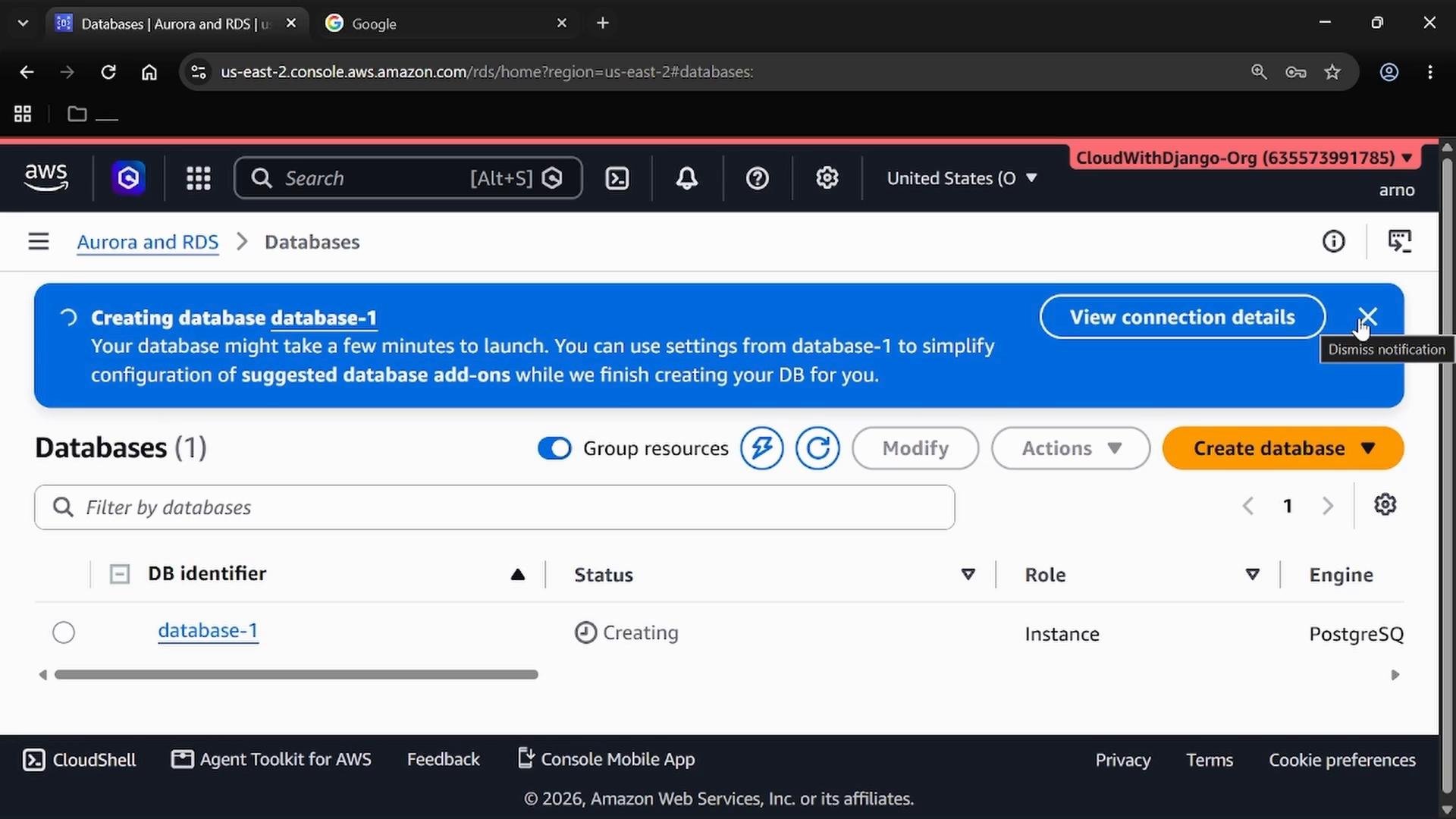
Step 7 — Create a read replica to offload read traffic
Read replicas are separate, readable instances created from a primary/source database and optimized for read scaling (reports, analytics, read‑heavy workloads). Ensure the primary is in an Available state before creating a replica. Steps:- Select the primary database in the Databases console.
- Choose Actions → Create read replica.
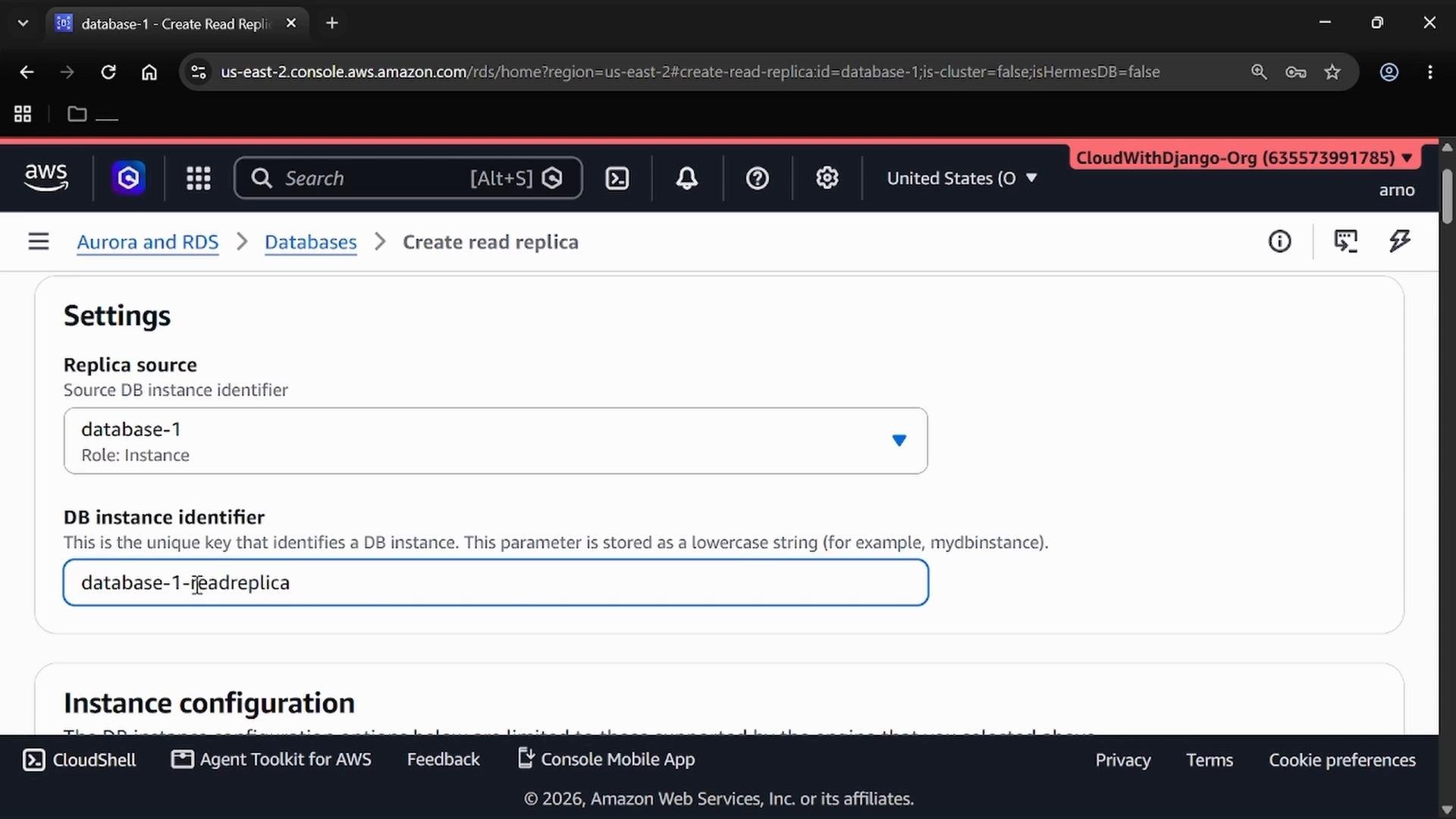
- Set a DB instance identifier (for example,
database-1-readreplica) and choose deployment options (Single‑AZ for lower cost, Multi‑AZ for replica availability if needed).
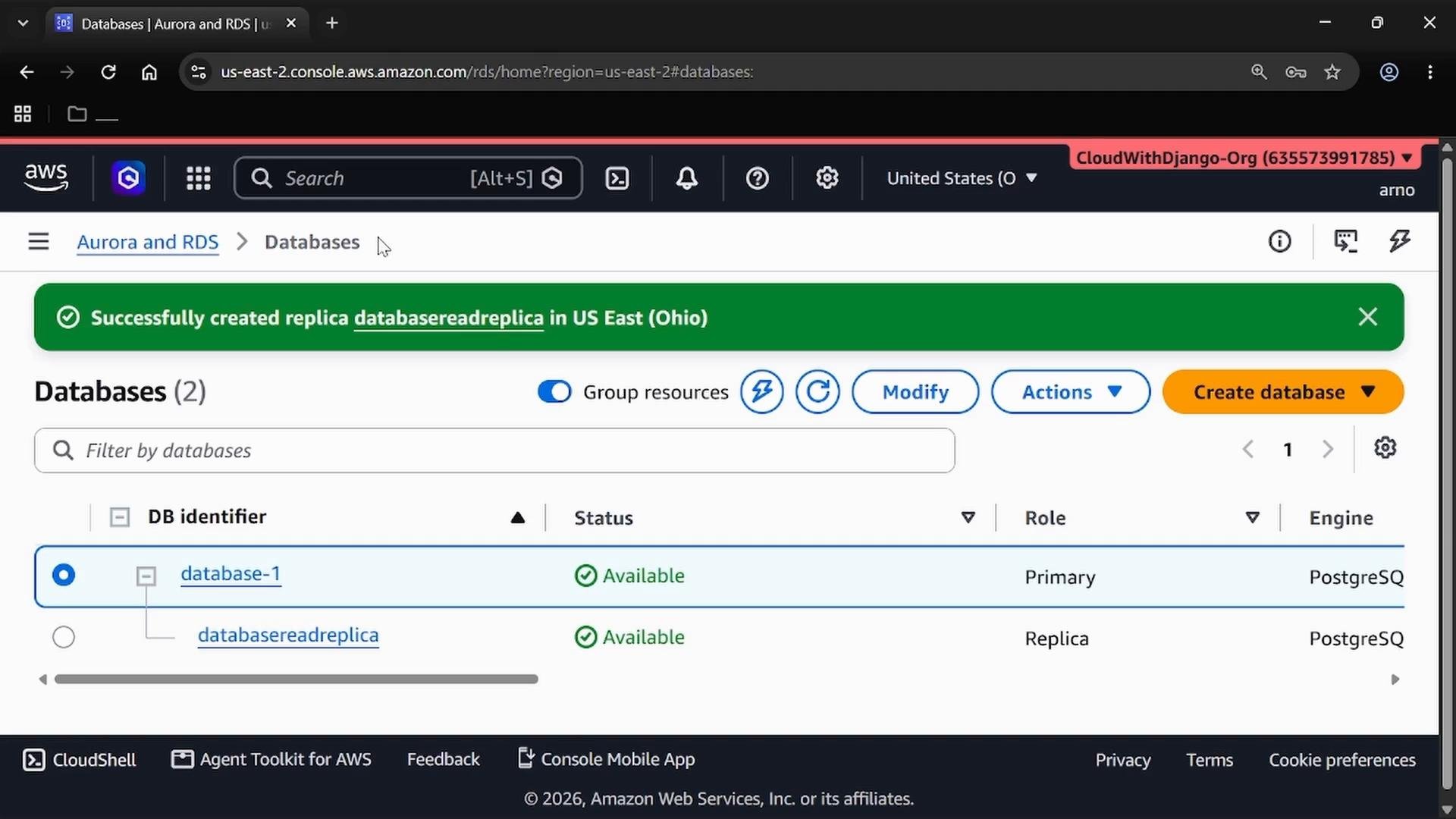
Quick comparison — Multi‑AZ vs Read Replicas
Deleting demo resources
When finished, delete the read replica first, then delete the primary. The Delete DB Instance flow will prompt for confirmation and ask whether to create a final snapshot or retain automated backups. If you do not want any backups or snapshots, acknowledge the warnings and proceed.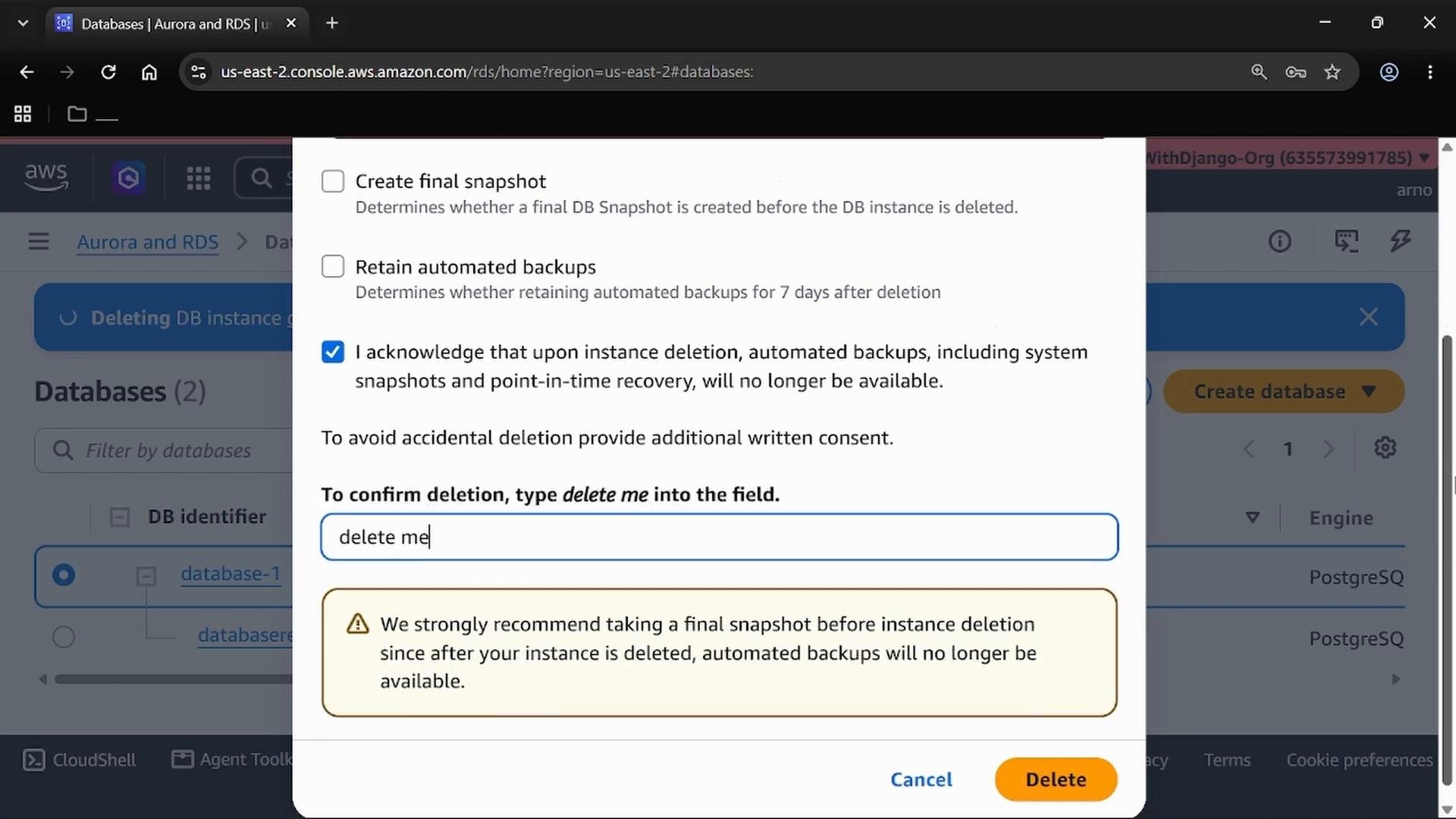
Additional tips and references
- Multi‑AZ focuses on availability and automated failover; the standby replica is not readable. Read replicas focus on read scaling and are readable.
- Aurora handles replication and high availability at the storage layer and offers additional features (cluster endpoints, reader endpoints) — refer to engine‑specific docs for design patterns.
- AWS docs: Amazon RDS User Guide, Amazon Aurora User Guide.