

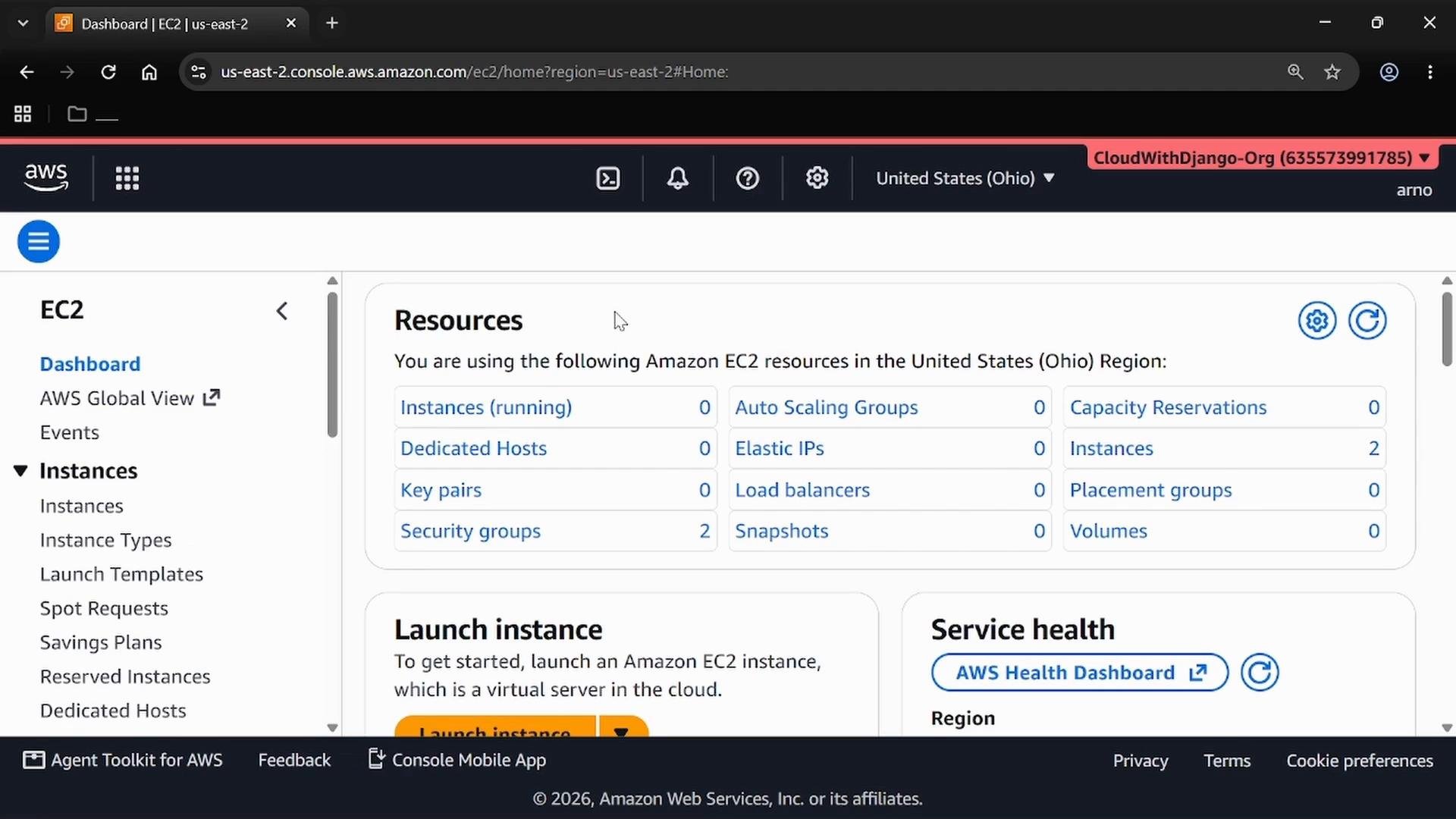
What you’ll create
- A Launch Template that defines the instance configuration and user data.
- An Auto Scaling Group that manages EC2 capacity.
- An Application Load Balancer that distributes HTTP traffic and provides health checks.
Create a Launch Template
A launch template is a reusable blueprint for instances launched by Auto Scaling. It captures AMI, instance type, security groups, key pair, and user data that run at boot. Click Create launch template and fill out the core fields.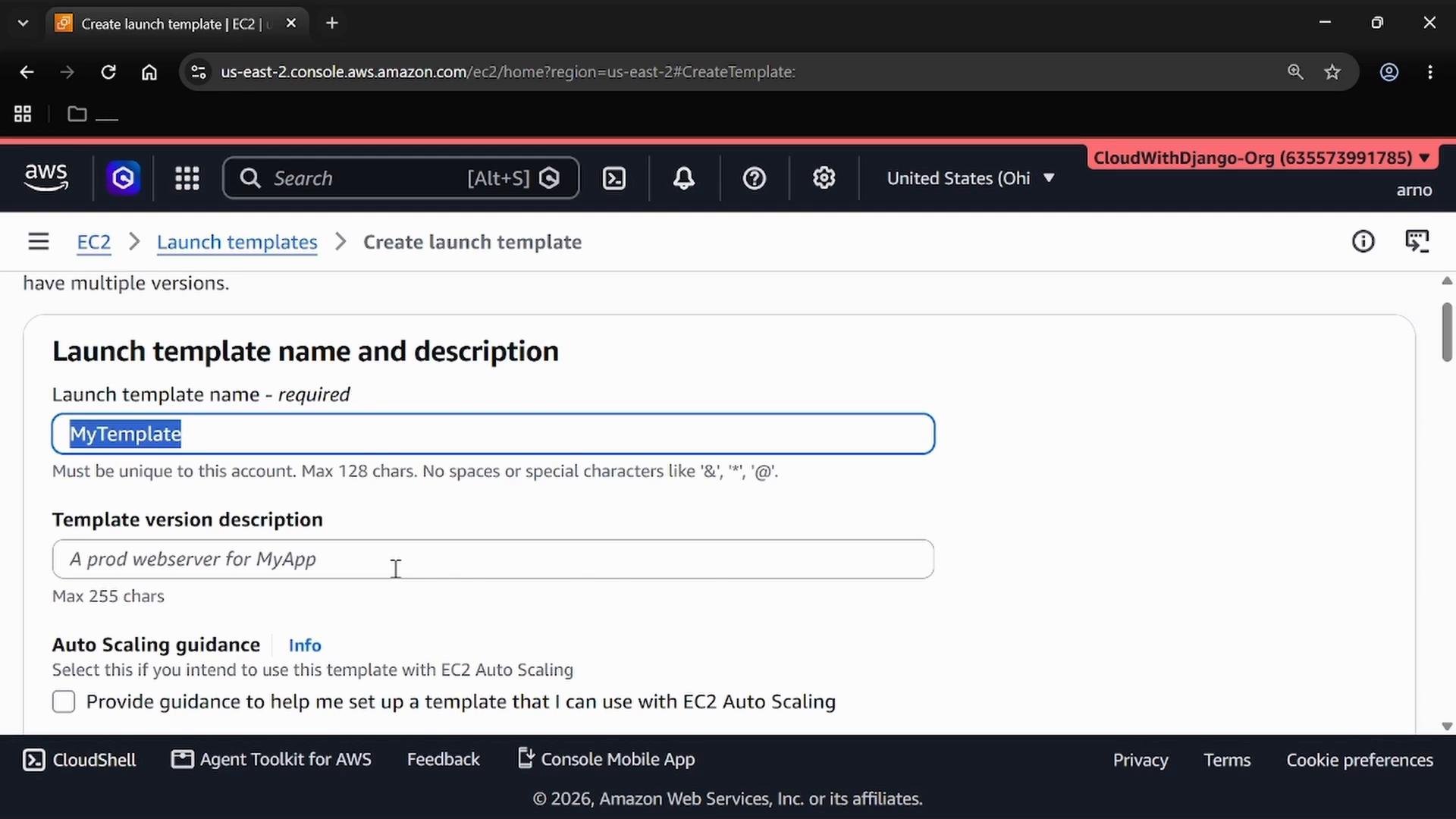
- Launch template name and optional description (example:
MyTemplate). - AMI: choose an image (this example uses Amazon Linux from Quick Start).
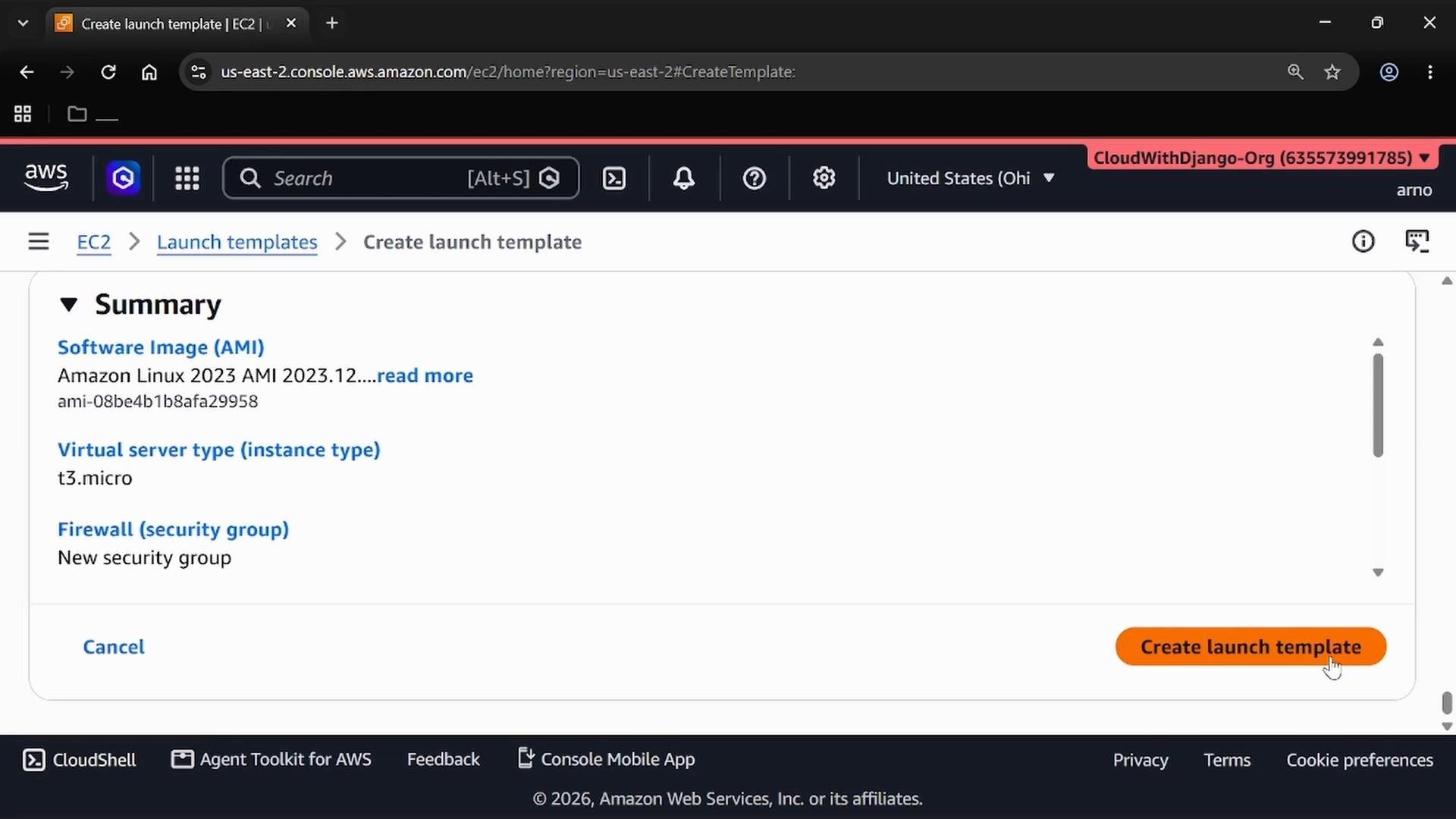
- Instance type:
t3.microis a good small-test choice;t2.micromay be included in the Free Tier. - Key pair: optional for this demo — you can leave blank if you don’t need SSH access.
- Security group: create or select one that allows HTTP (port 80). Example security group rules:
- Type: HTTP
- Protocol: TCP
- Port: 80
- Source:
0.0.0.0/0
Create an Auto Scaling Group
Start Create Auto Scaling group and configure the basics:- Name the group (example:
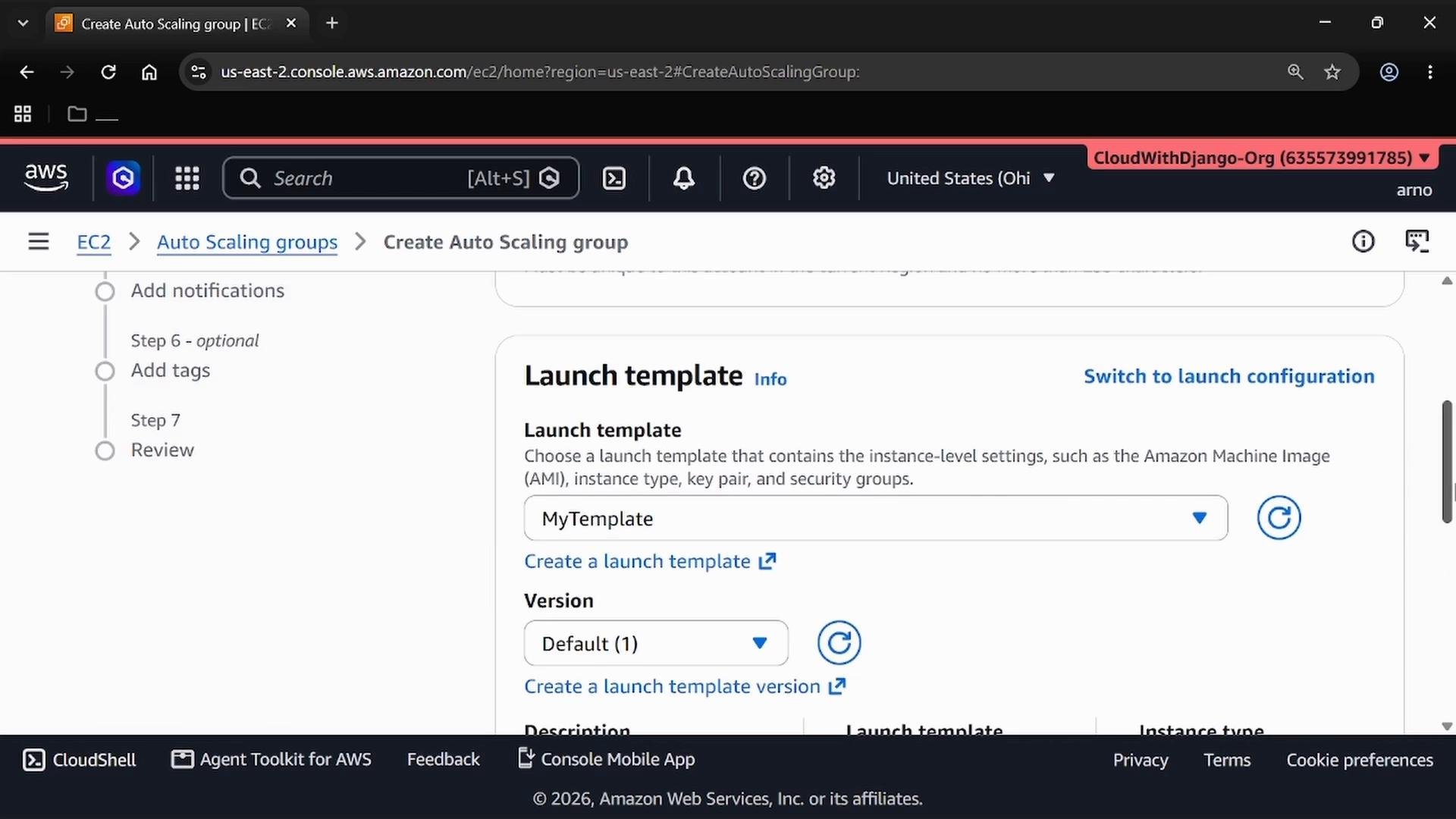
MyASG). - Select the launch template you created (
MyTemplate) and the appropriate version.
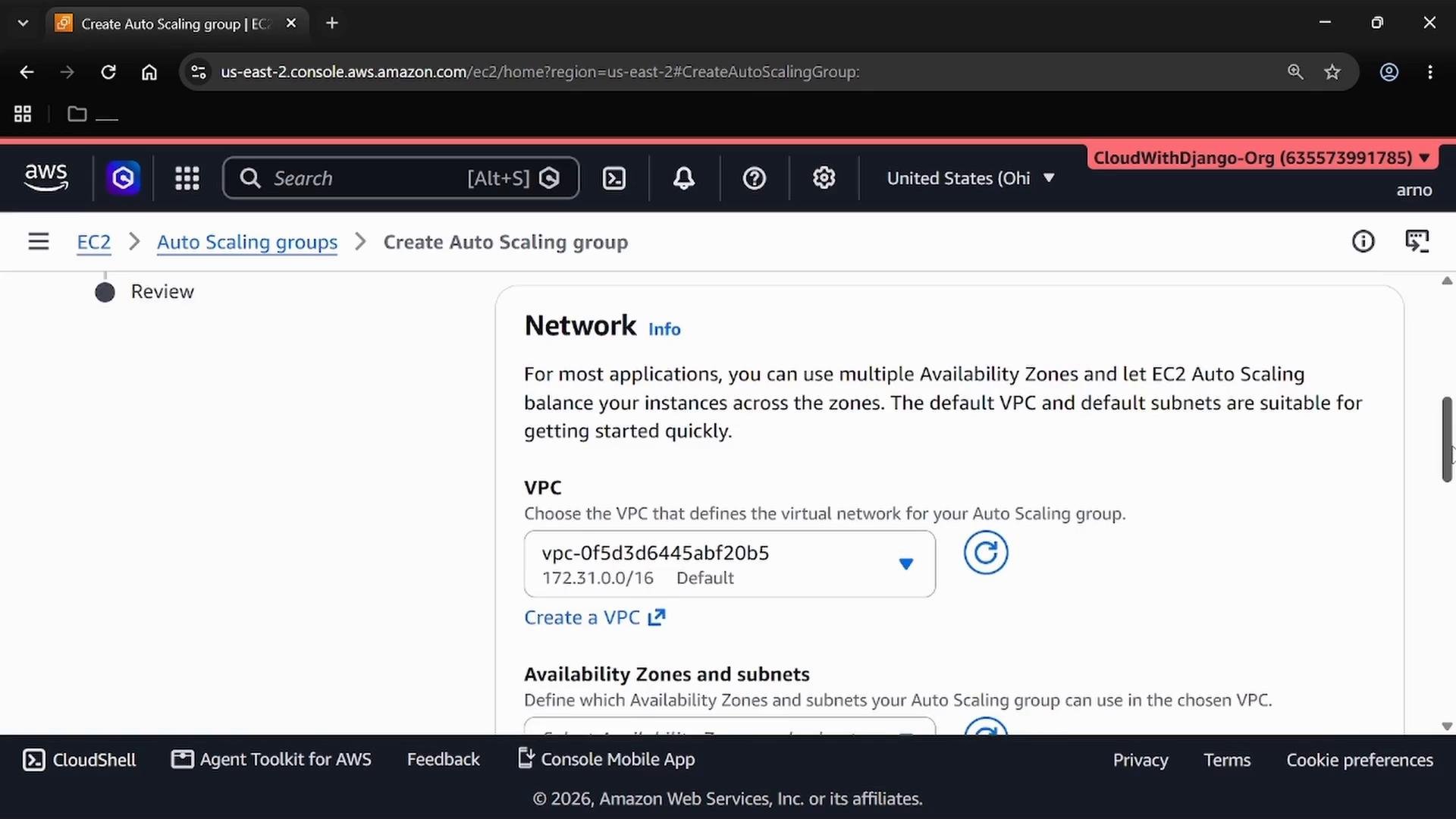
- Choose your VPC and select multiple subnets across AZs for high availability (in this demo:
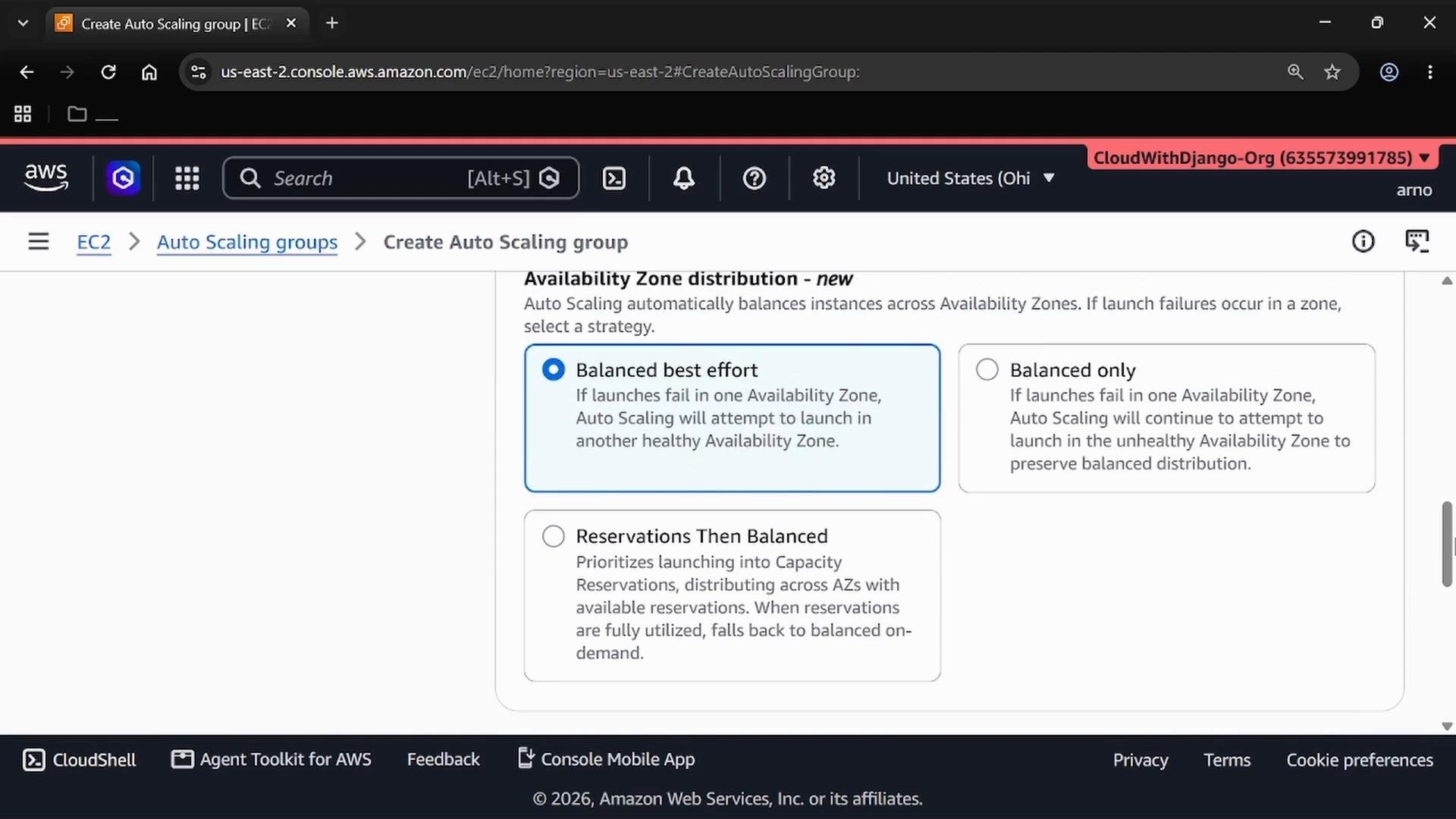
2a,2b,2c). - Keep Availability Zone distribution at the default Balanced (best effort).
Attach an Application Load Balancer
Attach an ALB to distribute traffic and provide health checks for the ASG:- Choose to attach a new load balancer and select Application Load Balancer.
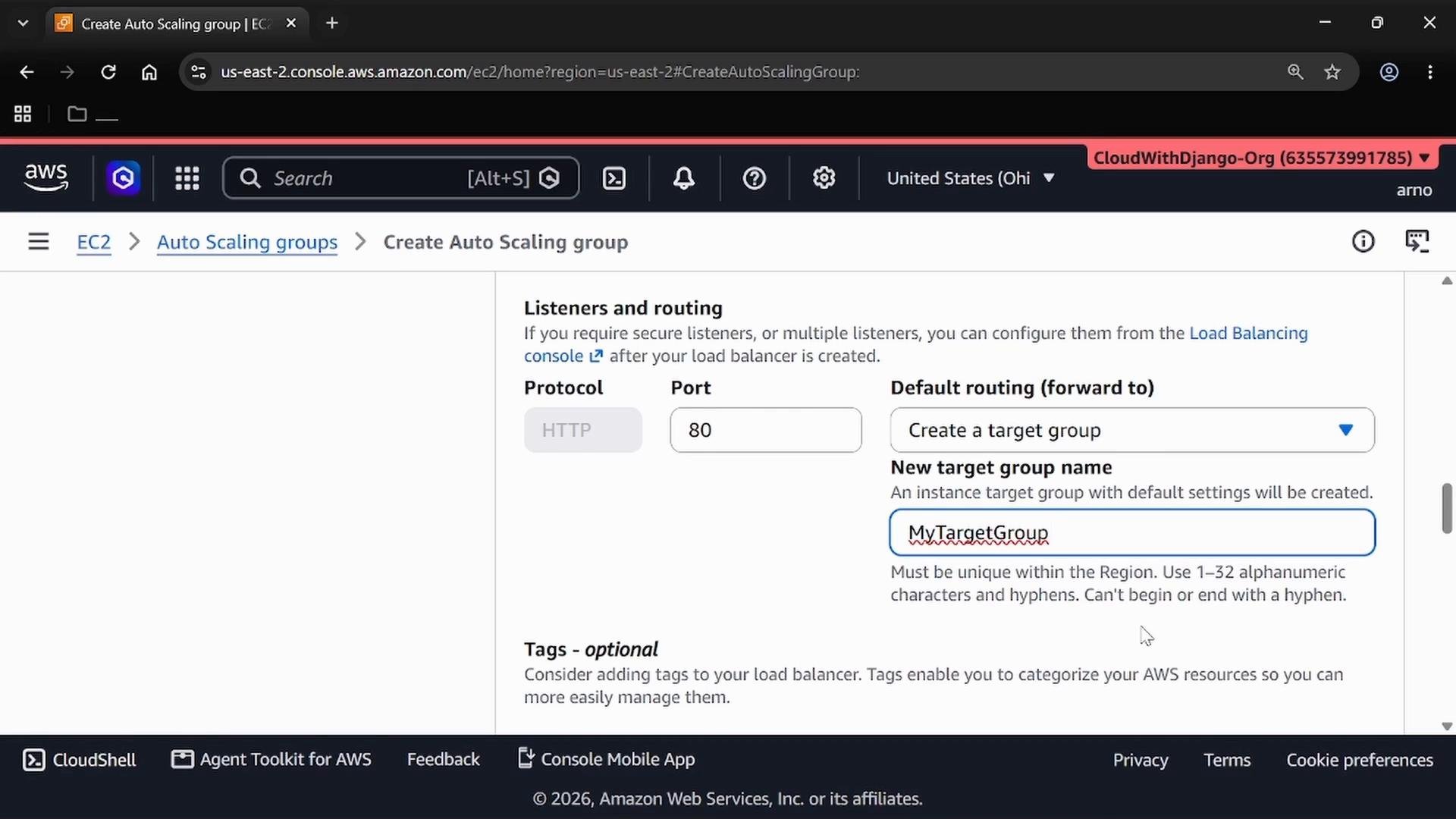
- Name the load balancer (example:
MyLB) and create a target group (example:MyTargetGroup) that will register instances. - Configure an HTTP listener on port 80 and forward traffic to the target group.
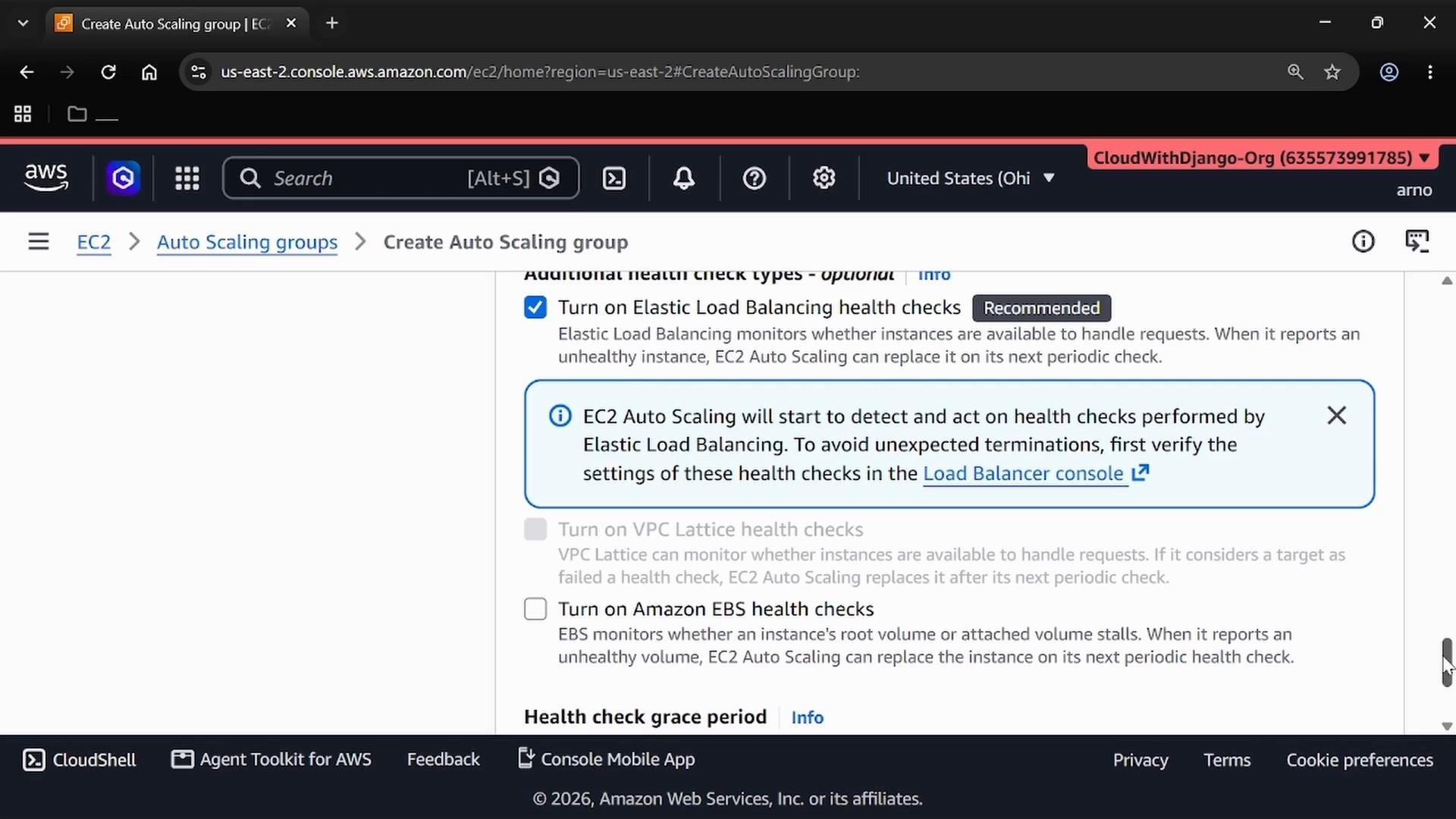
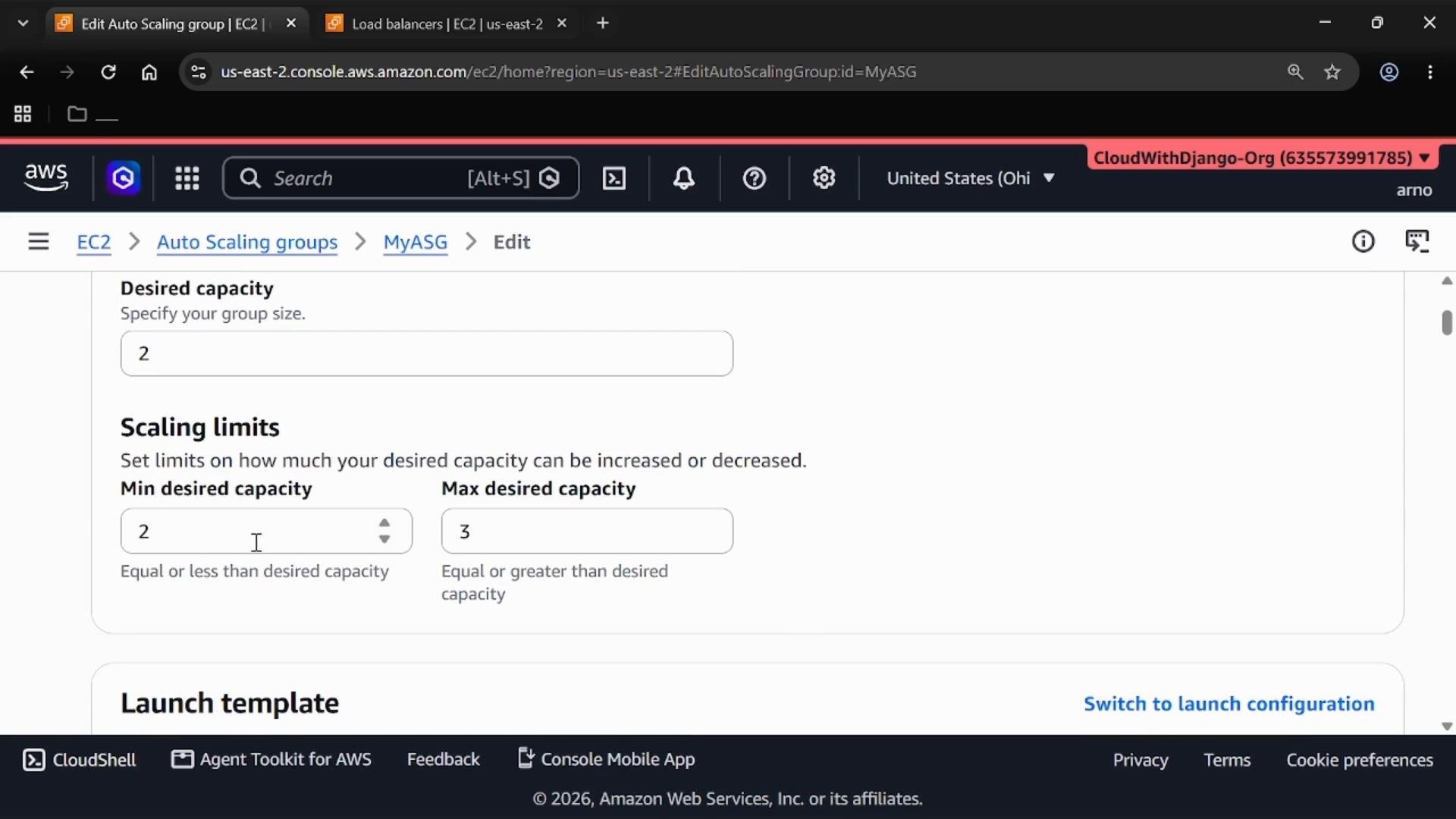
- Minimum capacity: minimum number of instances to keep running.
- Desired capacity: target number of instances Auto Scaling aims to maintain.
- Maximum capacity: hard upper limit for scaling out.
- Min = 2, Desired = 2, Max = 3
Wait for Load Balancer Provisioning
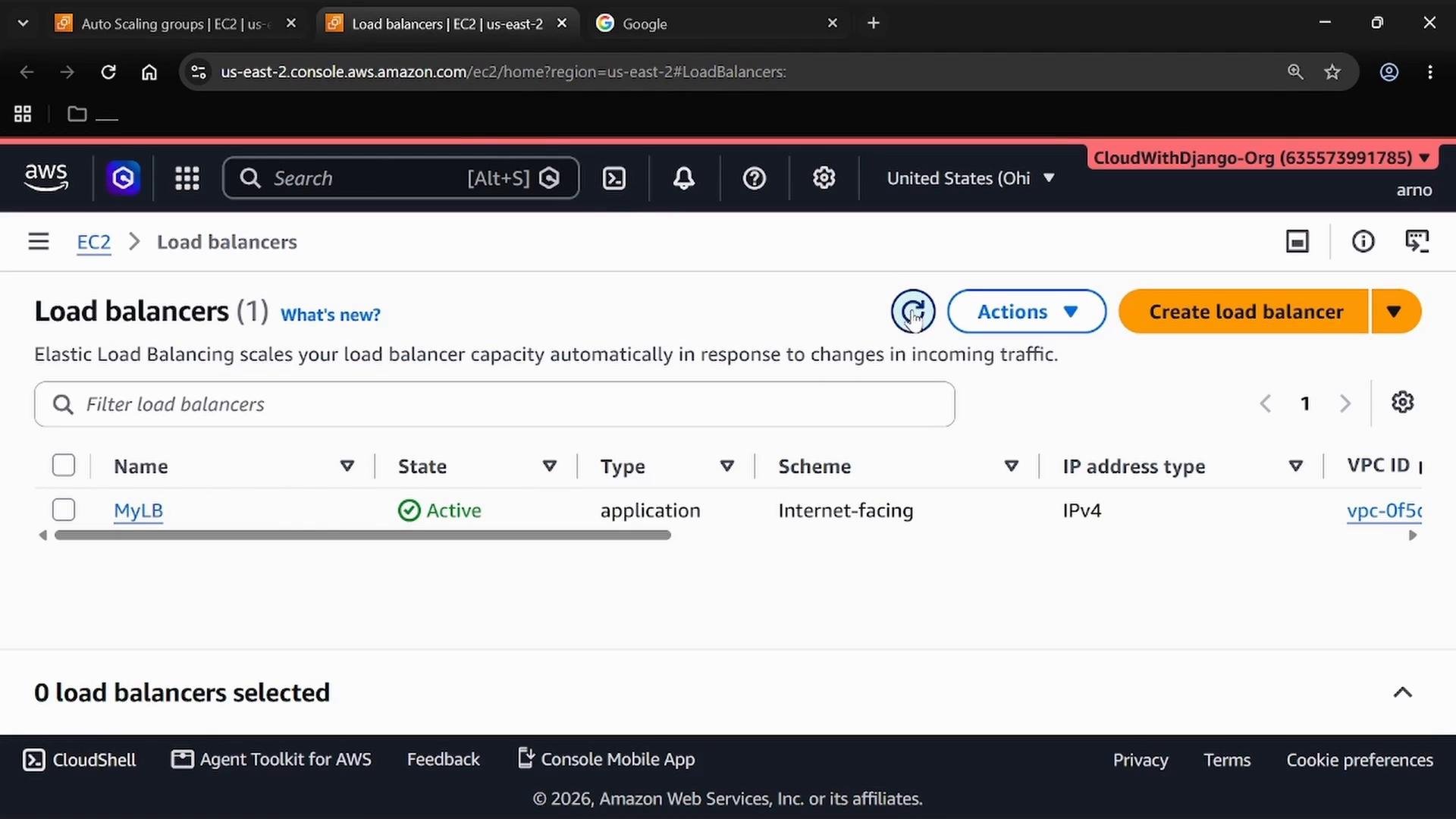
Creating an Application Load Balancer can take several minutes (commonly 5–10). Refresh the Load Balancers view after a short wait.ALBs may take a few minutes to show as Active. While waiting, you can monitor provisioning progress in the Load Balancers console or continue configuring other resources.
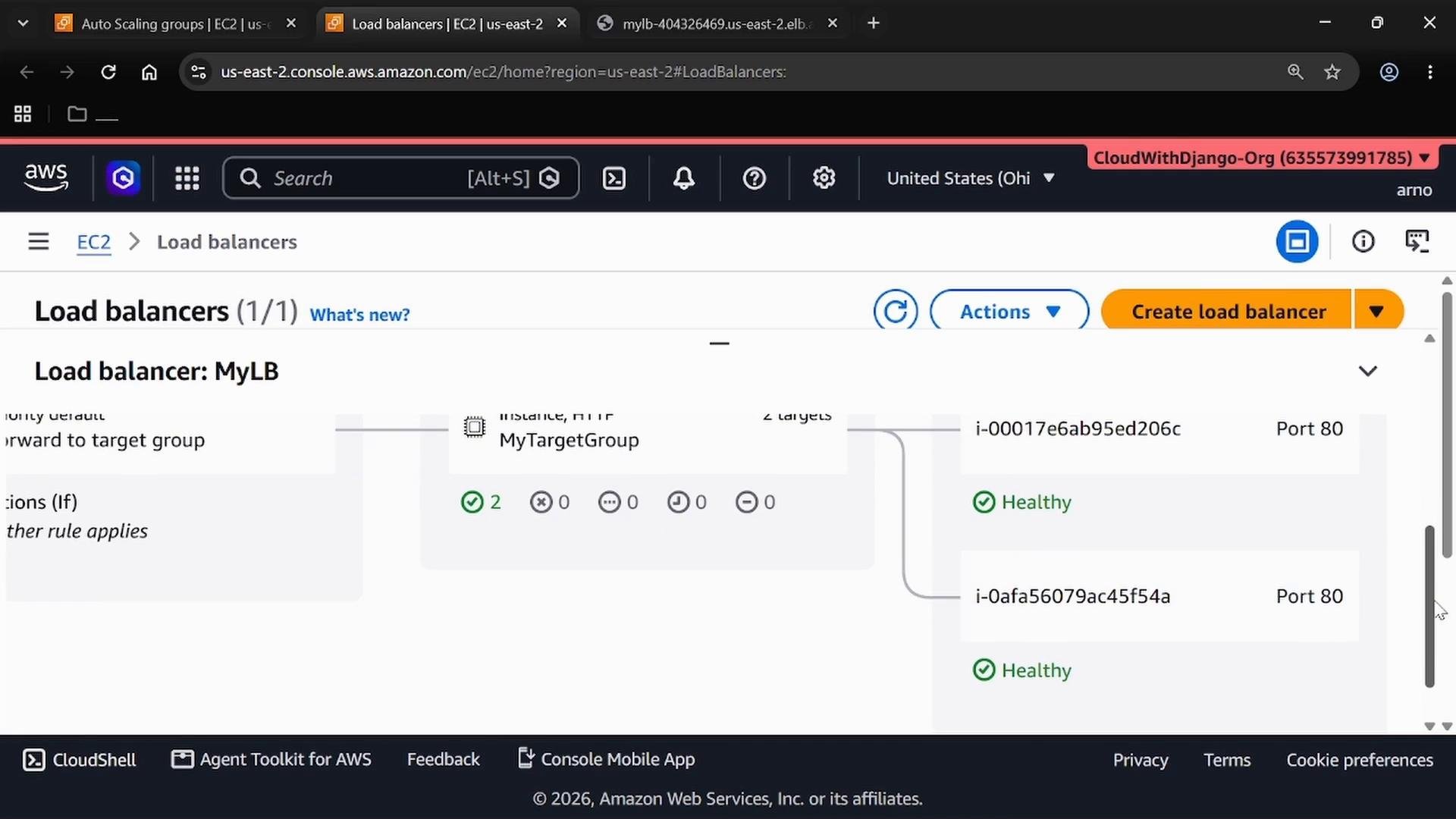
http:// followed by the DNS name, for example:
http://mylb-404326469.us-east-2.elb.amazonaws.com
The page should show the index content created by the user data script, which identifies the instance:
Clean up resources to avoid charges
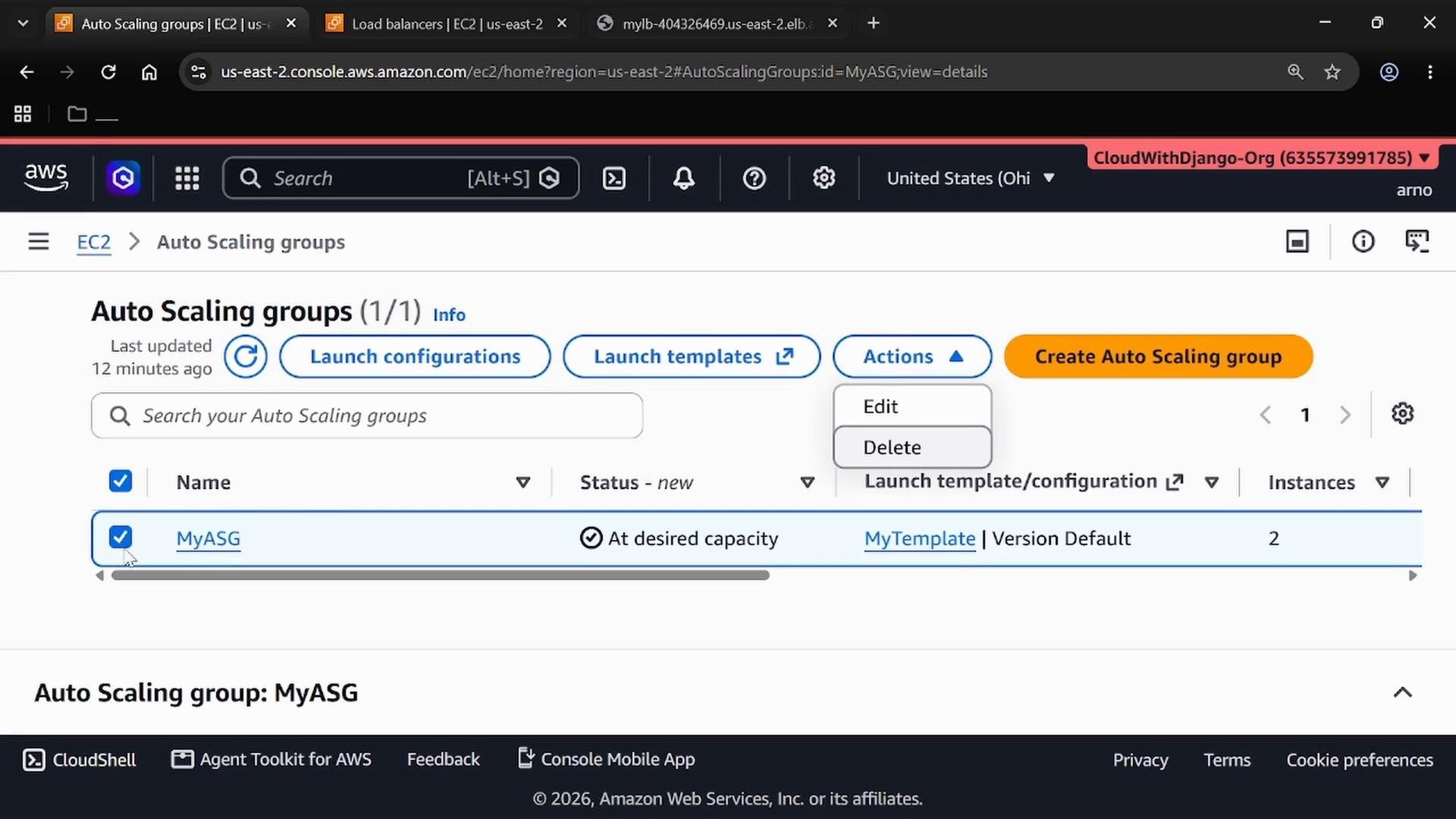
To avoid ongoing charges, delete the resources you created:- Auto Scaling Group: select the group → Actions → Delete.
- Load Balancer: select the ALB → Actions → Delete.
- (Optional) Delete the launch template and any security groups created for the demo.
Always terminate demo resources when finished. Leaving ALBs and running instances can incur charges even if usage is light.
Manually scaling in and out
Auto Scaling supports manual capacity changes and policy-driven automatic scaling (CloudWatch alarms, target tracking, scheduled actions). Two quick ways to edit capacity:- Select the scaling group → Actions → Edit → update Desired/Min/Max → Save.
- Open the group’s Details panel and click Edit there.
- Scale out: set Desired = 3 and Max = 4 → Update. The ASG launches instances to reach Desired.
- Scale in: reduce Desired (and optionally Min) → Update. The ASG terminates instances to match the new target.
Quick settings reference
That completes the flow: create a launch template with user data, create an Auto Scaling Group attached to an Application Load Balancer, verify traffic distribution via the ALB DNS, and manually scale the group as needed.