

Use the Management account to administer AWS Organizations and to launch Control Tower. If you prefer automation, many steps shown here can be performed using the AWS CLI, AWS SDKs, or Infrastructure-as-Code tooling (for example, Terraform with the AWS provider).
Overview: Organizations vs Control Tower
- AWS Organizations provides the foundational multi-account structure: a Root, a Management account, and Organizational Units (OUs) to group member accounts.
- AWS Control Tower builds on Organizations to deliver a preconfigured “landing zone” with centralized governance, guardrails, account provisioning, and centralized logging.
Open AWS Organizations and create an OU
- Open the AWS console and search for AWS Organizations, then select it.
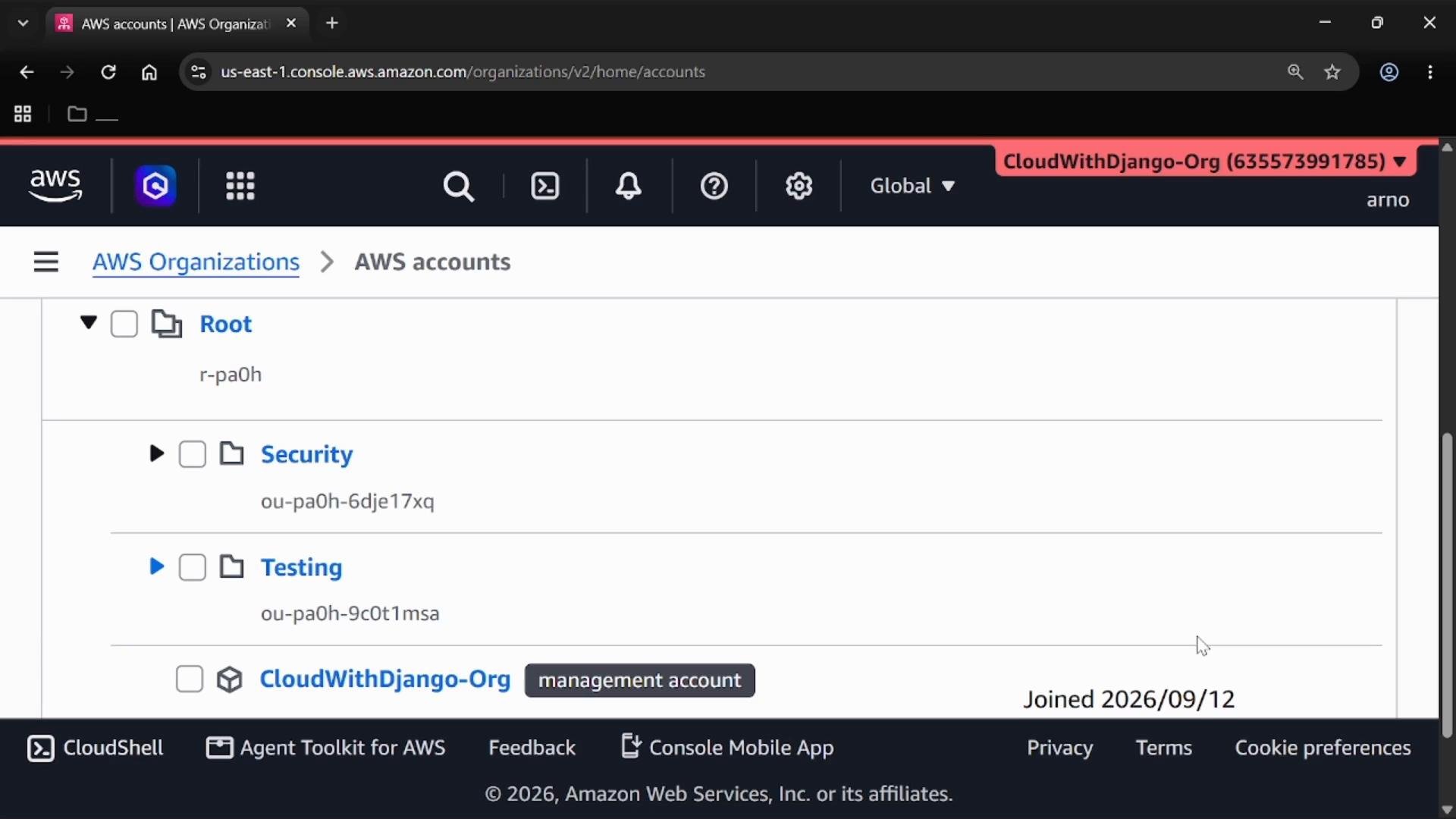
- If this is your first time, you may see an introductory page. Open the left panel and choose AWS accounts to view your organization structure.
- You will see the top-level
Rootand the Management account for the organization. The Management account administers the organization. - To create an OU:
- Select the
Root. - From the Actions menu choose Create organizational unit (or Create new).
- Provide a name (for example,
testing) and create it.
- Select the
In production environments, member accounts are typically placed inside OUs. This demo uses OUs as structural examples and does not cover adding member accounts; use Account Factory or the Organizations API to provision member accounts into OUs.
Open and prepare AWS Control Tower
Return to the console and open AWS Control Tower. Control Tower uses your Organization to deploy a multi-account landing zone with security, governance, and logging configured. Control Tower setup builds a landing zone that typically includes:- A Security OU that contains centralized logging and auditing accounts.
- A Log Archive account and an Audit account for centralized logs and audit access.
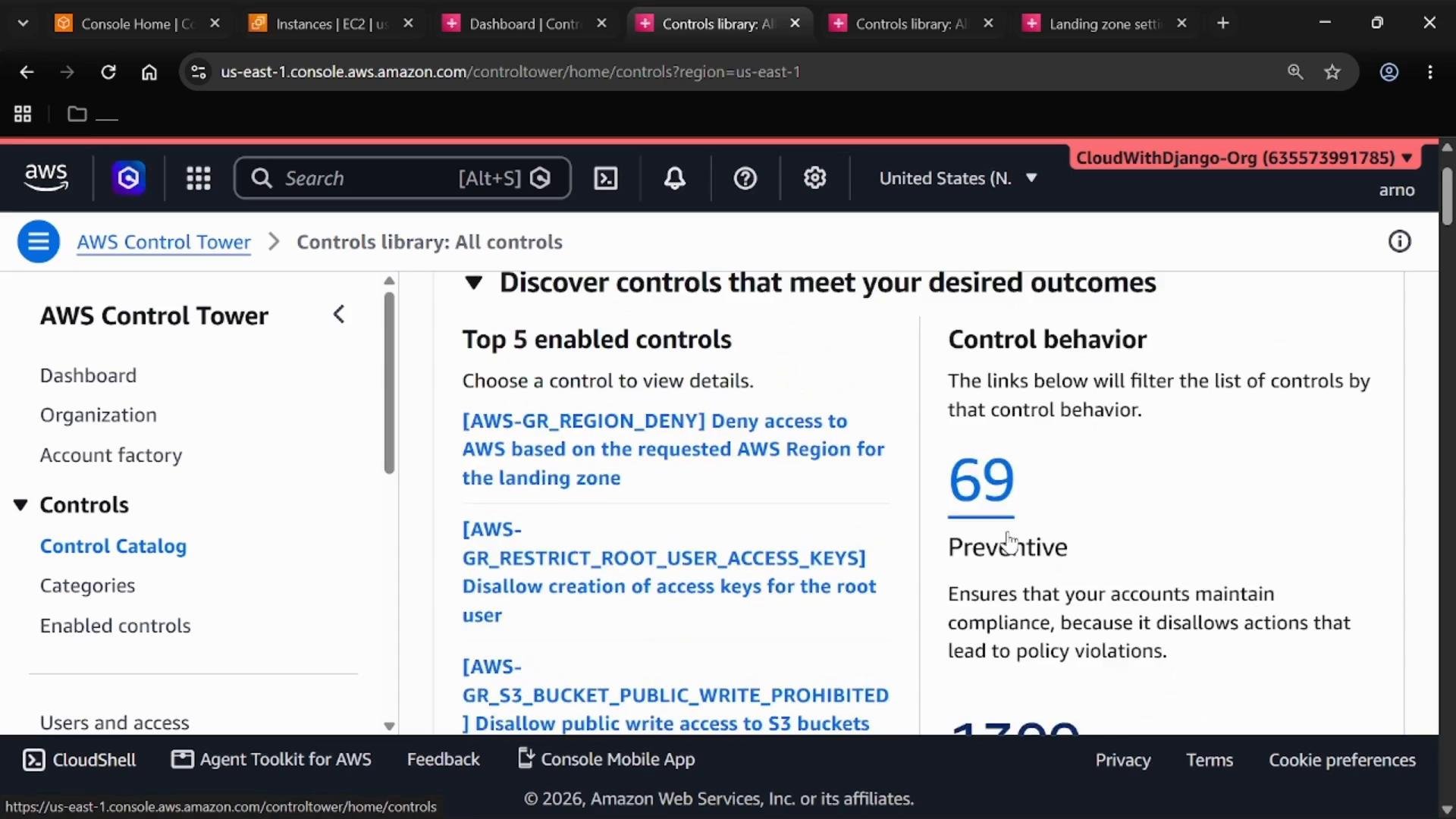
- Guardrails (Controls) from the Controls catalog which can be preventive, detective, or proactive.
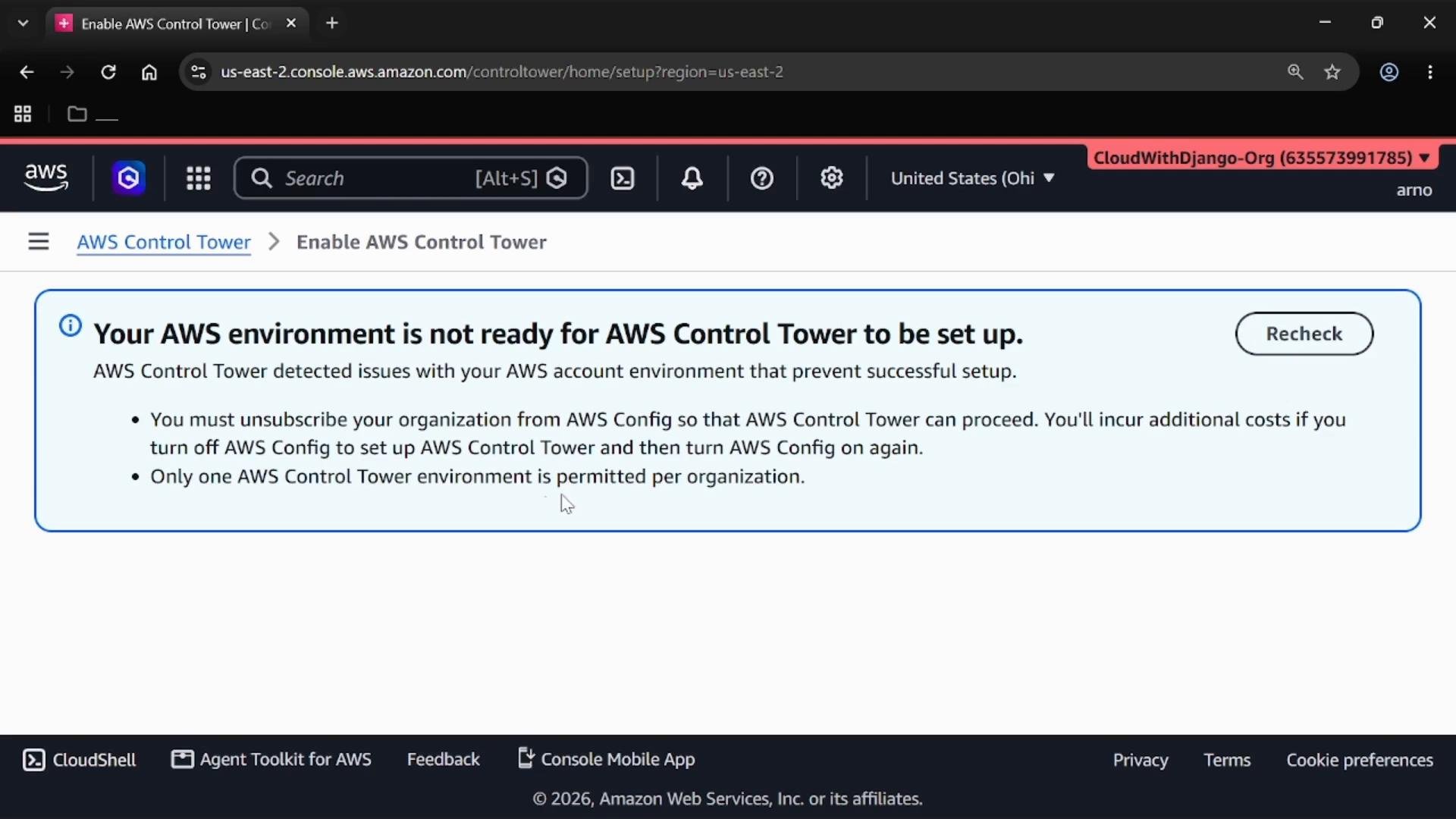
If you have organization-wide AWS Config enabled in the same region, Control Tower may refuse to enable there. Workarounds:
- Choose a different home region for Control Tower (for example,
US East (N. Virginia) (us-east-1)), or - Disable the organization-wide AWS Config setup in that region before enabling Control Tower.
Control Tower setup flow
When you begin Control Tower setup you’ll move through several steps:- Setup preference — choose the type of environment. For a full landing zone, select the complete environment.
- Home region — select the primary region for the Control Tower landing zone (
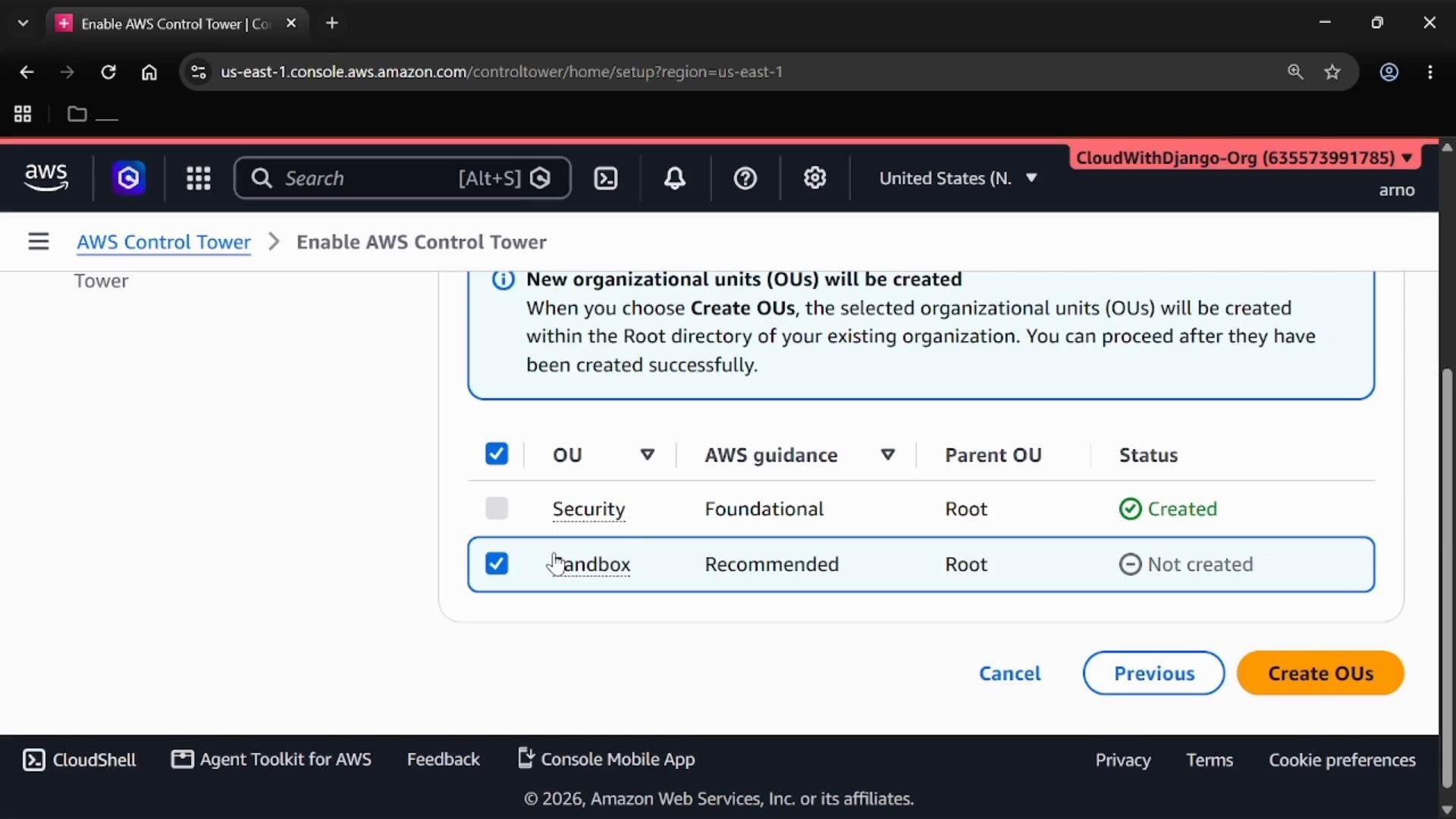
us-east-1is a common choice). - Organizational units — Control Tower will present foundational OUs (e.g., Security, Sandbox). Choose which OUs to create or manage.
Configure service integrations
Next is the Configure service integration step. Here you select which AWS services to integrate and choose the default OU for those integrations. By convention, the Security OU is often chosen as the default OU so logging, auditing, and security-related integrations are centralized.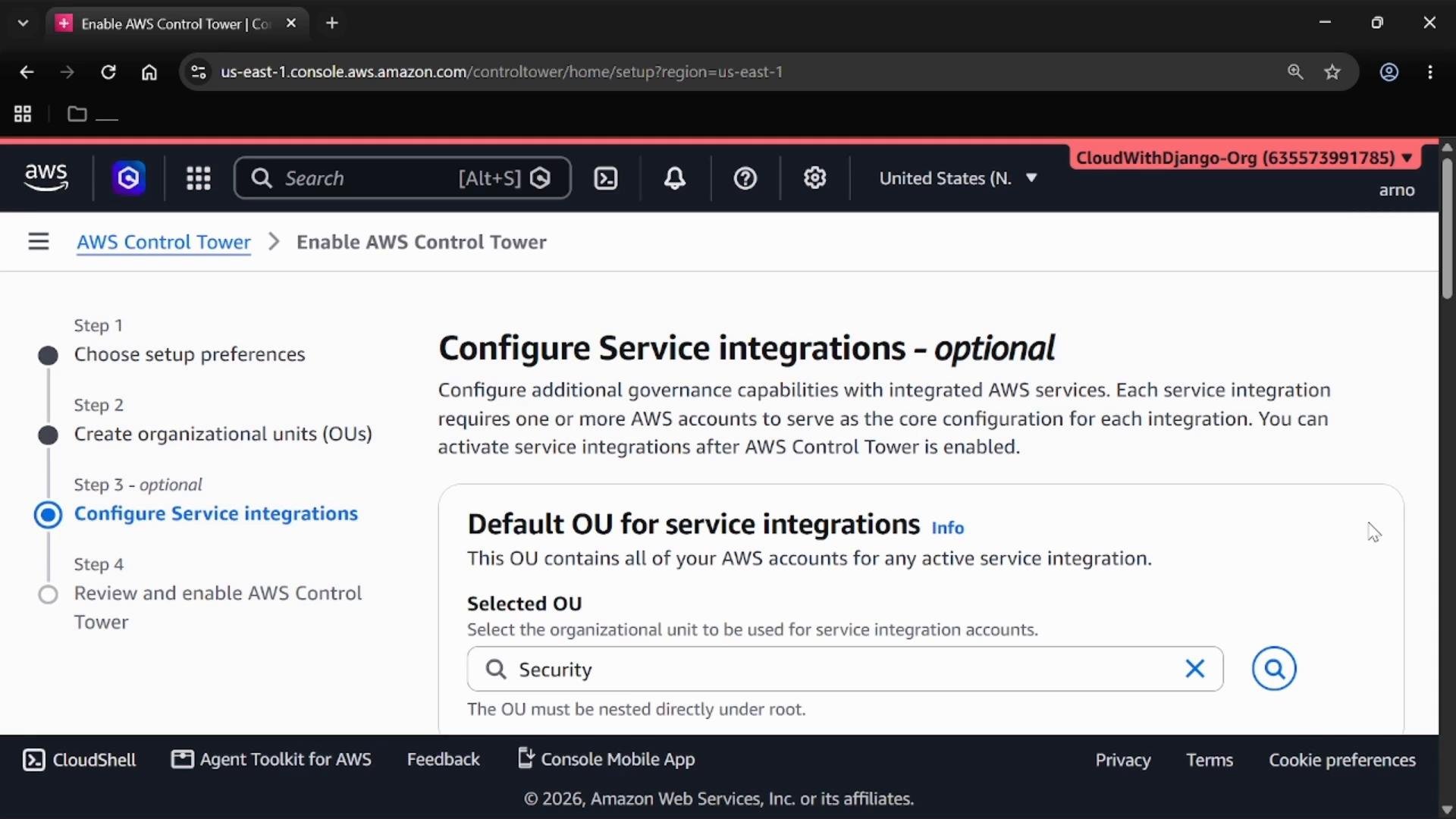
Centralized logging with AWS CloudTrail
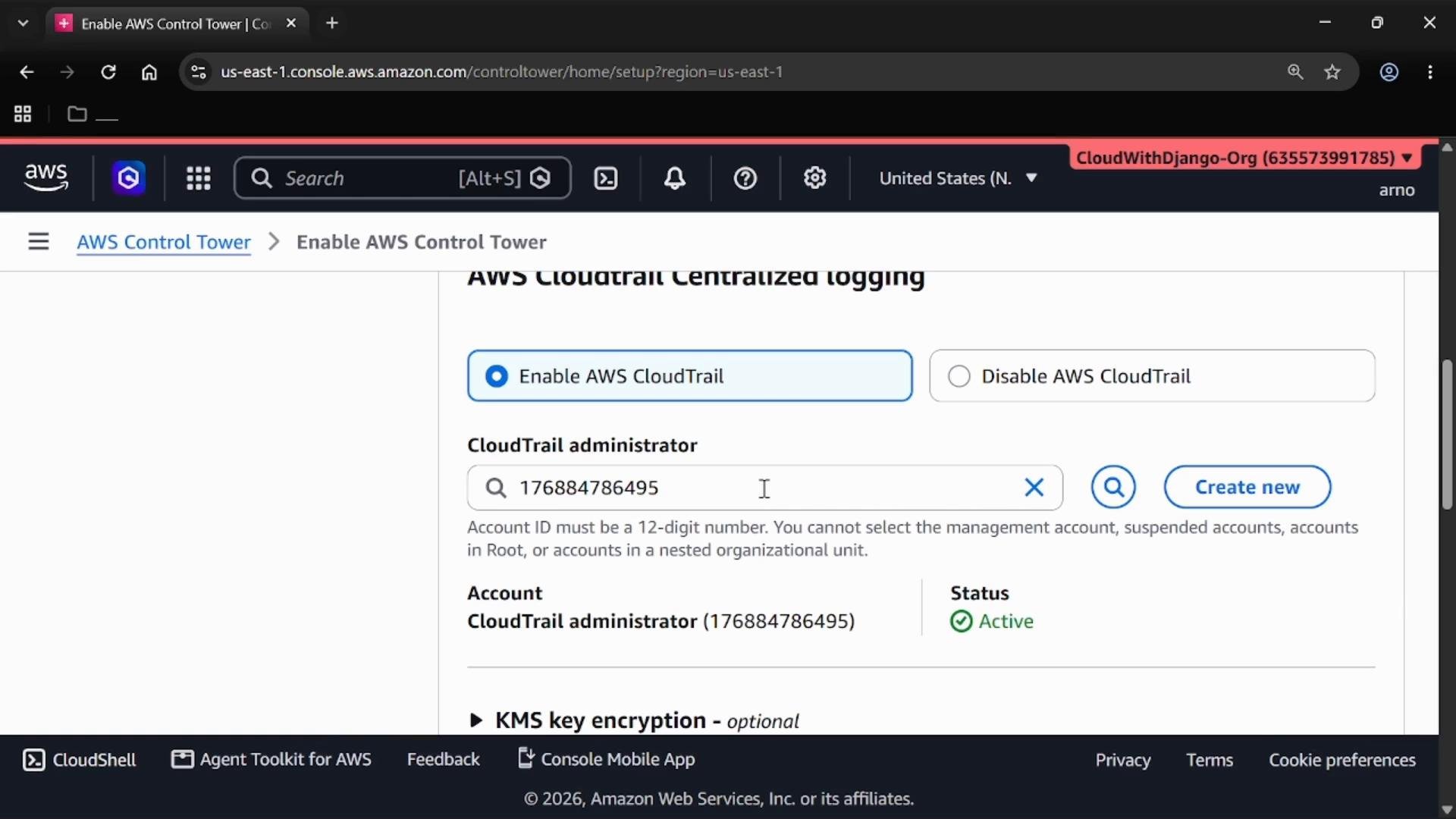
For centralized logging, enable AWS CloudTrail centralized logging. Control Tower will ask you to designate a CloudTrail administrator account. Best practice is to create a dedicated CloudTrail administrator account separate from the Management account. This account will hold centralized CloudTrail logs centrally and securely.- Create the CloudTrail administrator account by providing an email and account name.
- Ensure the account status is
Activebefore proceeding.
Review and enable Control Tower
Review the configuration summary and enable AWS Control Tower. Building a landing zone can take significant time (the console often shows an estimated duration, for example ~35 minutes). Monitor progress in the Control Tower console and wait for the setup to complete. After setup, Control Tower governs your multi-account environment, using Organizations for account/OUs and applying guardrails across accounts.Inspect Organization and Controls in Control Tower
Use the Control Tower organizational and resources views to inspect the OUs, accounts, and the status of controls and resources created by Control Tower.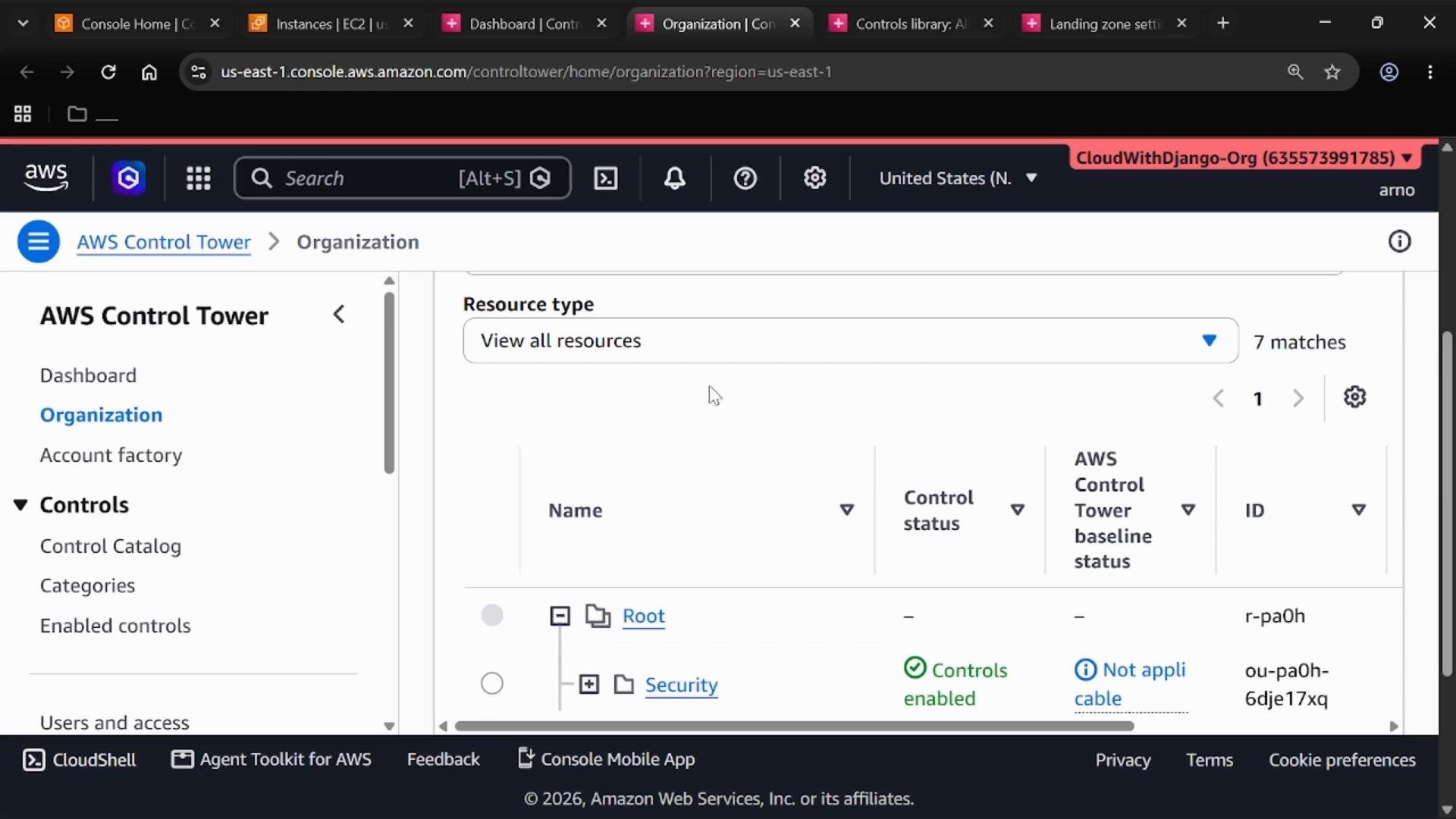
Provision accounts with Account Factory
Account Factory is the Control Tower feature for provisioning new accounts in a standardized, governed manner. Define account configuration templates (networking, SSO settings, tags, etc.) so newly provisioned accounts inherit required settings and guardrails.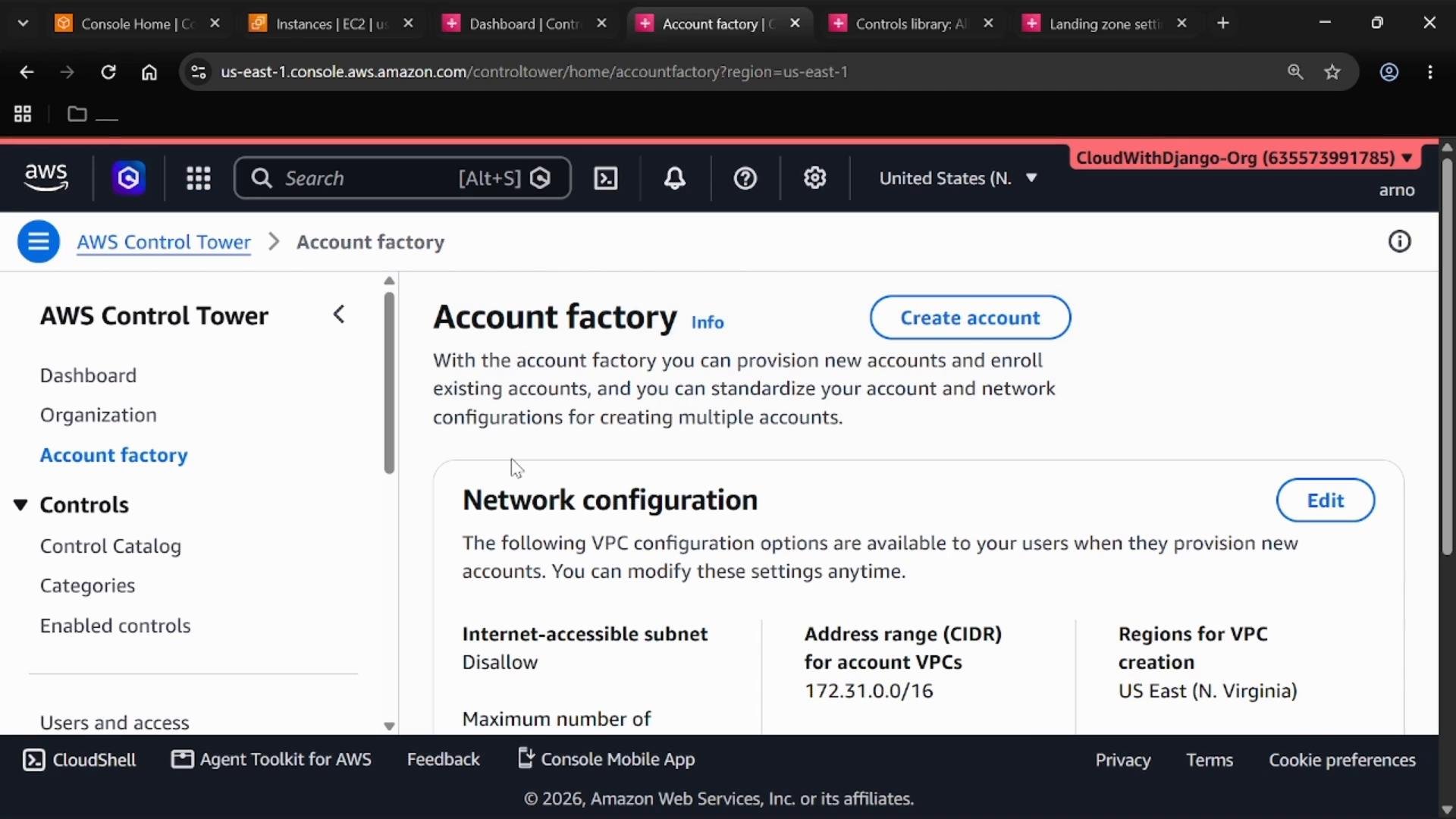
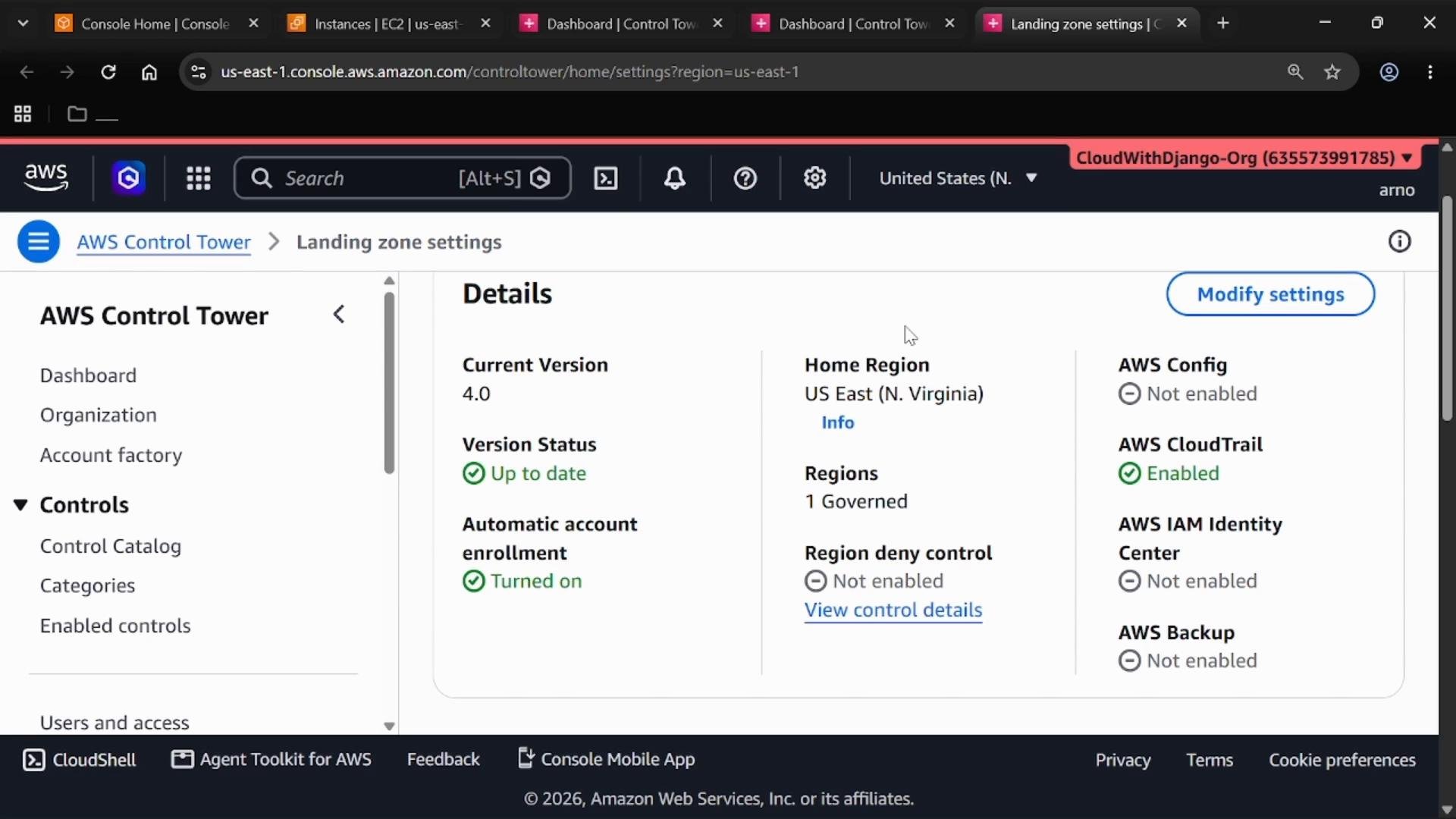
Landing Zone settings and governance
From the Control Tower dashboard, review your Landing Zone settings. These settings display:- The Control Tower version
- The Home region (primary region for Control Tower, e.g.,
US East (N. Virginia) — us-east-1) - The list of governed regions and enabled services (for example, AWS CloudTrail)
Quick troubleshooting and best practices
- If Control Tower setup fails due to AWS Config, either pick a different home region or remove organization-wide AWS Config in the target region.
- Use a dedicated CloudTrail admin account to isolate audit logs.
- Use OUs to group accounts by lifecycle or responsibility (for example, Security, Sandbox, Production).
- Automate account provisioning via Account Factory or the AWS Organizations API to keep accounts compliant at creation.
Links and references
- AWS Organizations — Introduction
- AWS Control Tower — What is Control Tower?
- Control Tower — Landing zone overview
- Account Factory (Control Tower)
- AWS CloudTrail — User guide
- AWS Config — What is AWS Config?