

- Creating an ECS cluster (Fargate)
- Creating a task definition using a public HTTP server image
- Creating an ECS service with a desired count of 2 tasks and distributing them across two subnets (two AZs)
- Configuring a security group to allow HTTP access
- Basic cleanup: draining the service, deleting the cluster, deregistering the task definition
1. Create an ECS cluster (Fargate)
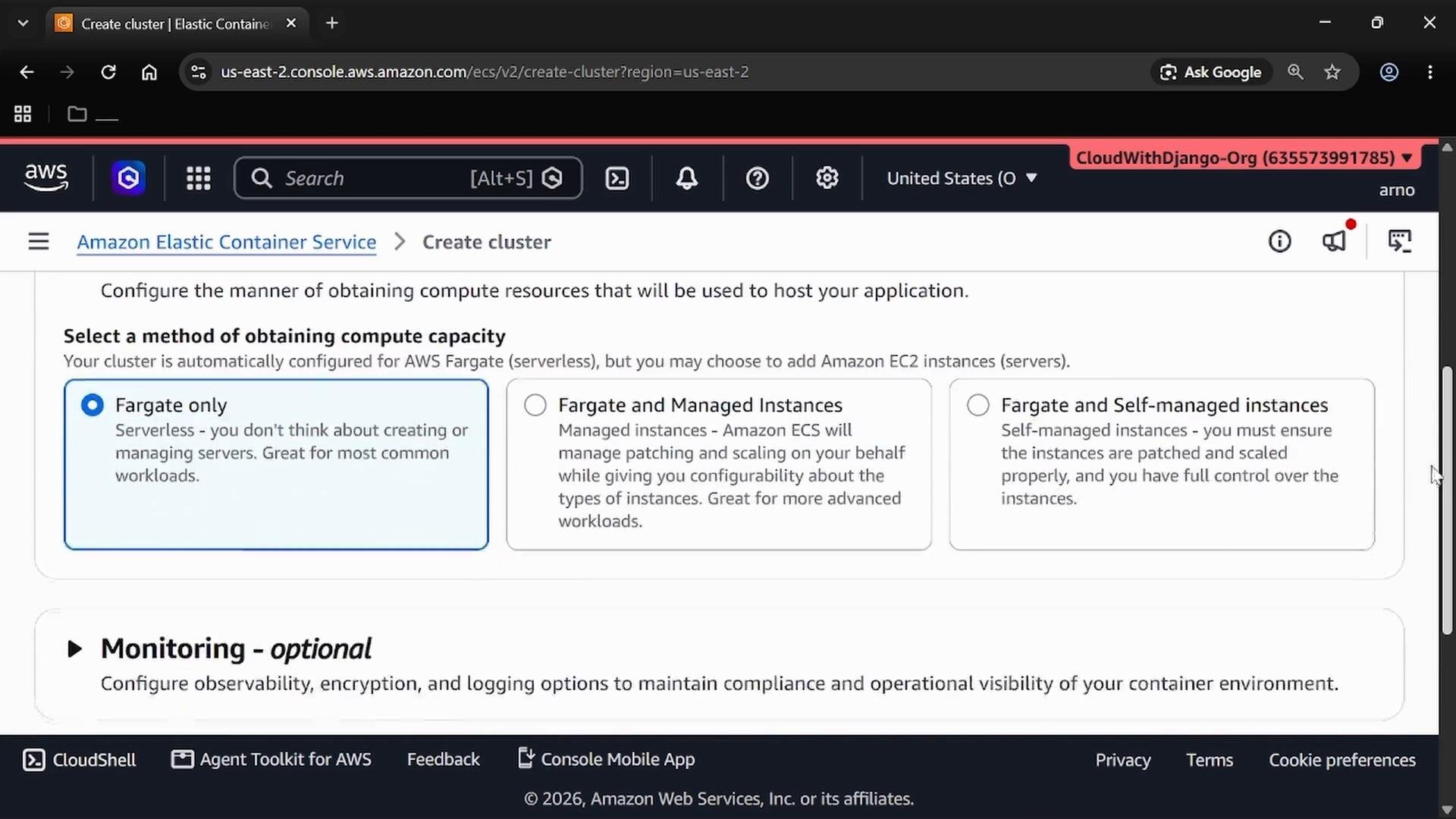
Open the Amazon Elastic Container Service in the AWS console and go to Clusters → Create cluster. Replace the default cluster name with something meaningful (for example,DemoCluster) and choose the Fargate infrastructure option so AWS manages the underlying compute.
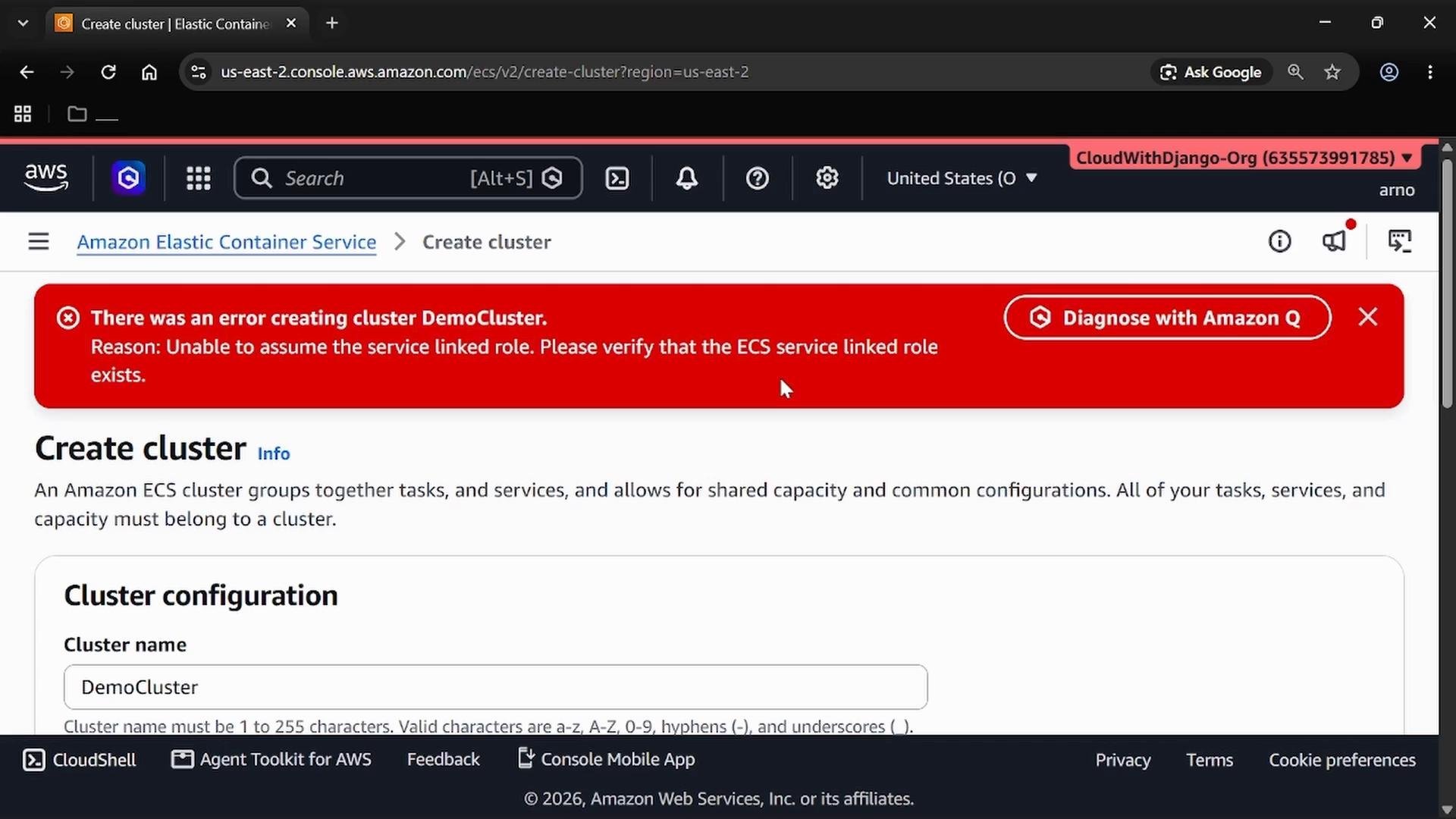
If you see “Unable to assume the service-linked role” when creating your first ECS cluster, recreate the cluster once. AWS will automatically create the ECS service-linked role on the retry and you shouldn’t see the error again.
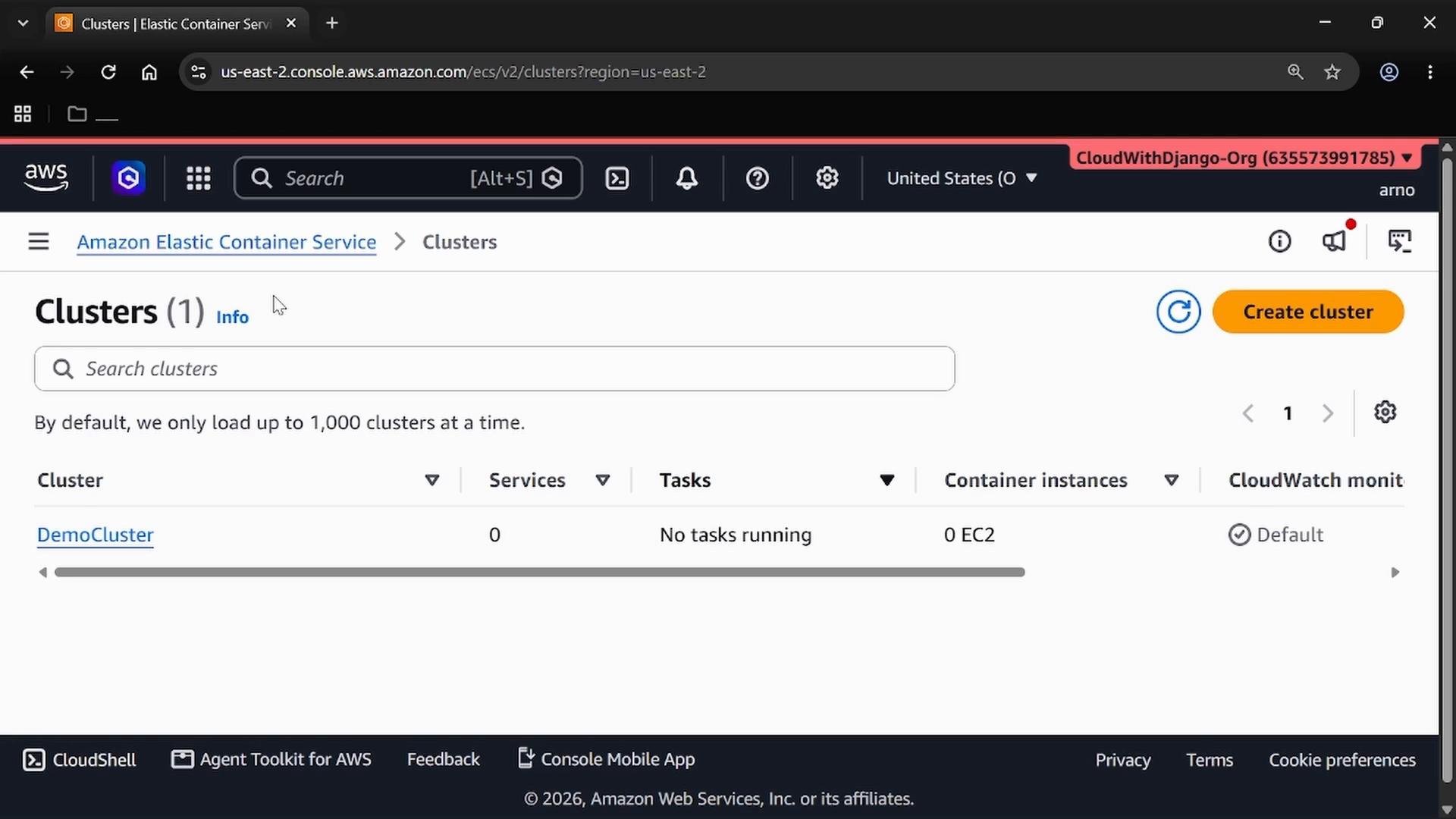
DemoCluster) and initially zero tasks.
2. Create a Task Definition (Fargate)
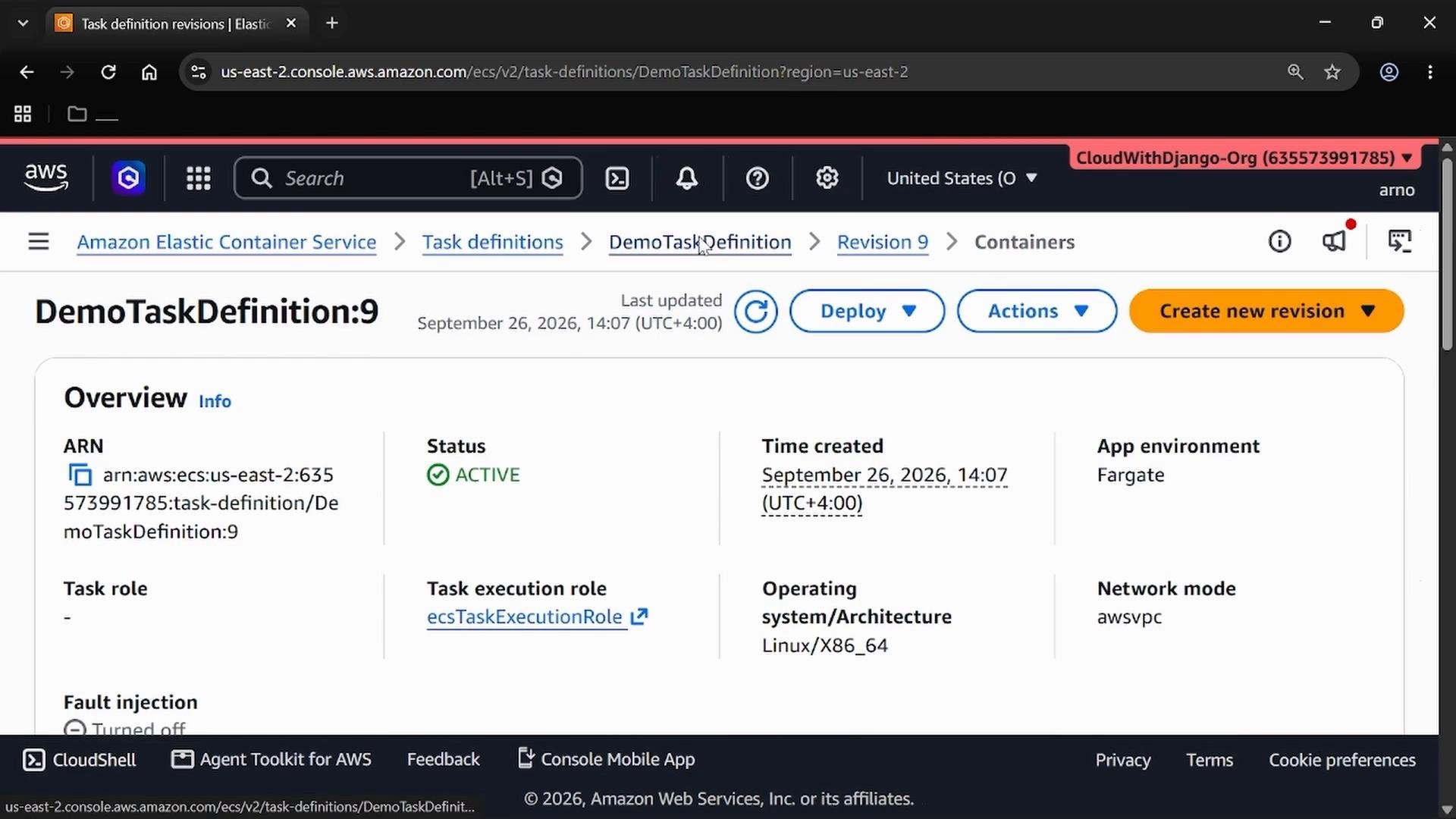
A task definition is the blueprint that tells ECS how to run your containers.- In the left navigation, choose Task Definitions → Create a new task definition.
- Select Launch type: AWS Fargate.
- Choose CPU and memory (defaults are fine for this demo; e.g., 1 vCPU, 3 GB).
- Leave the task execution role and task role as defaults unless you require additional IAM permissions.
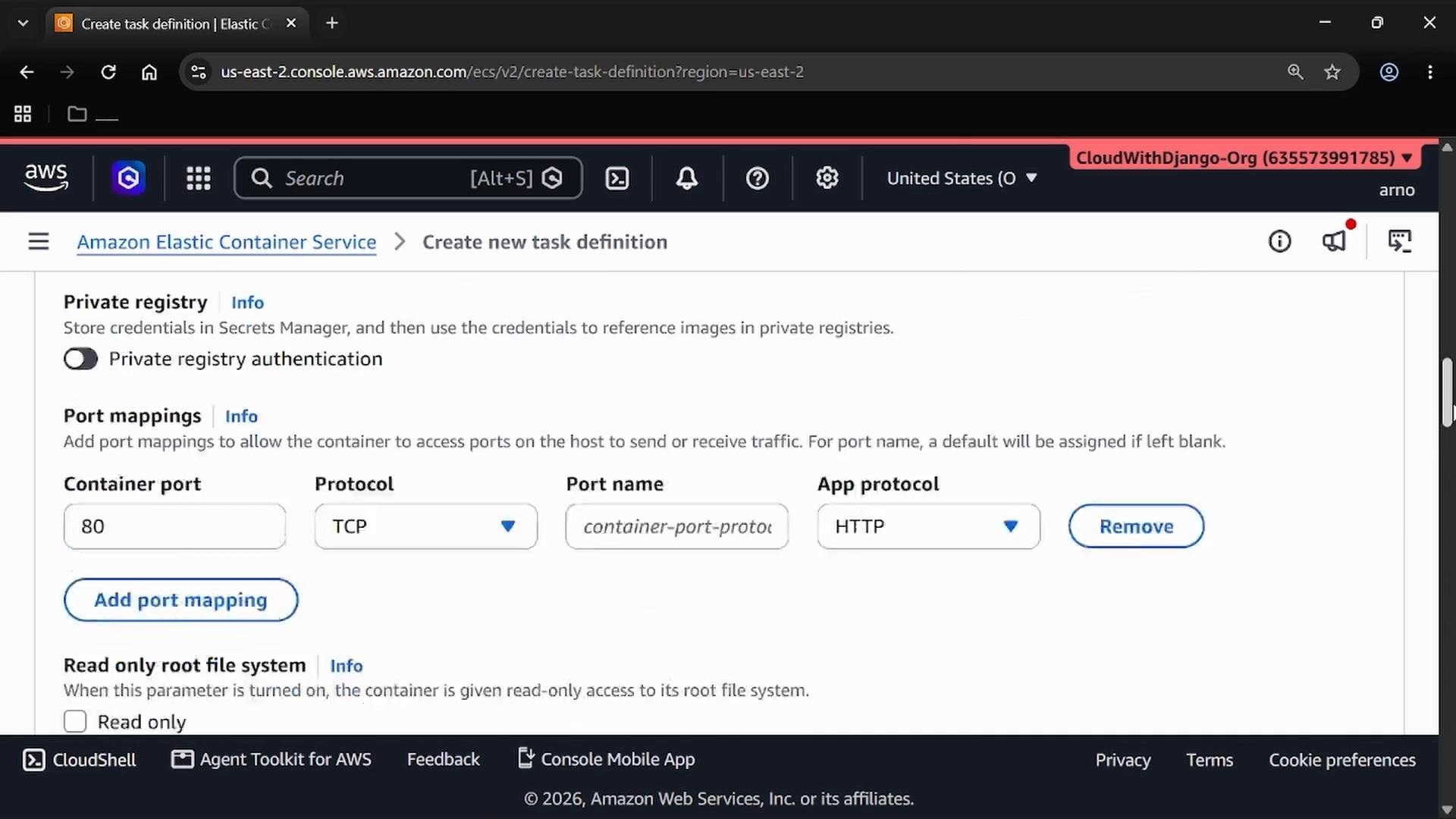
DemoContainer) and set the image to the public Apache HTTP Server image:
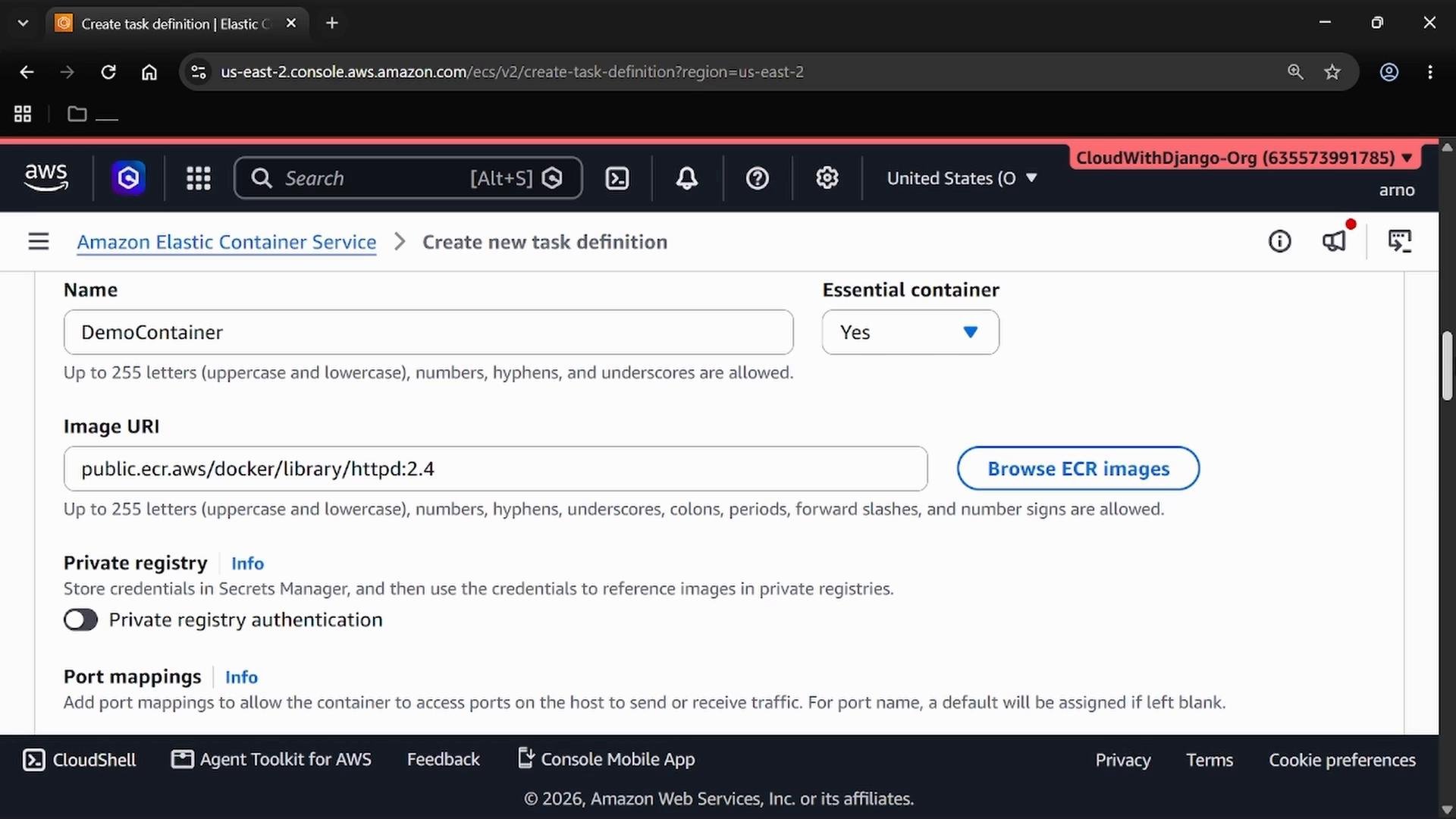
80, protocol TCP, and app protocol HTTP.
3. Create an ECS Service (desired count + multi‑AZ subnet selection)
An ECS service maintains the desired number of running task copies and replaces failed tasks.- Open your cluster → Create → Create service.
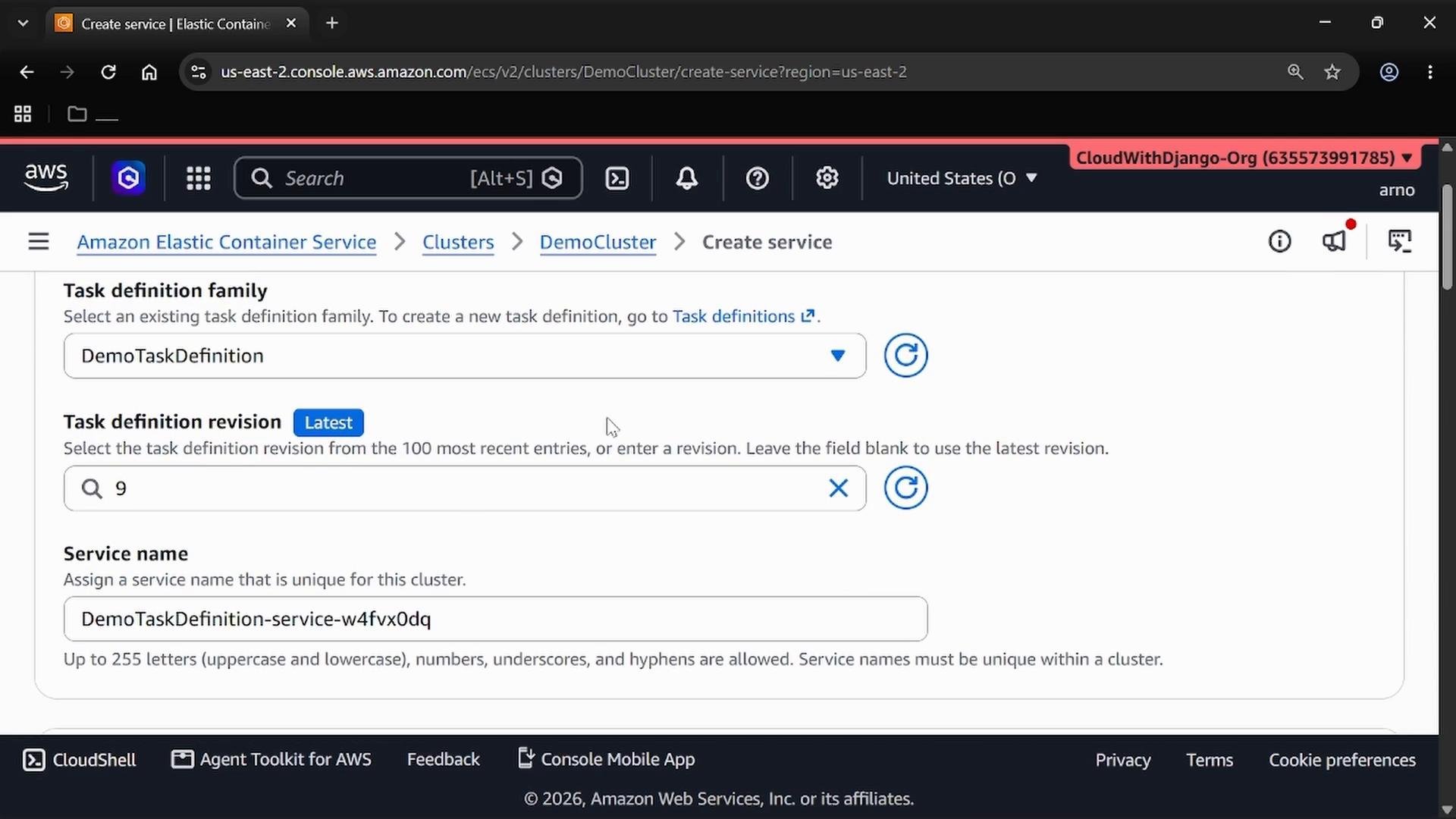
- Select the Task definition family (e.g.,
DemoTaskDefinition) and revision (or leave it at Latest). - Name the service (e.g.,
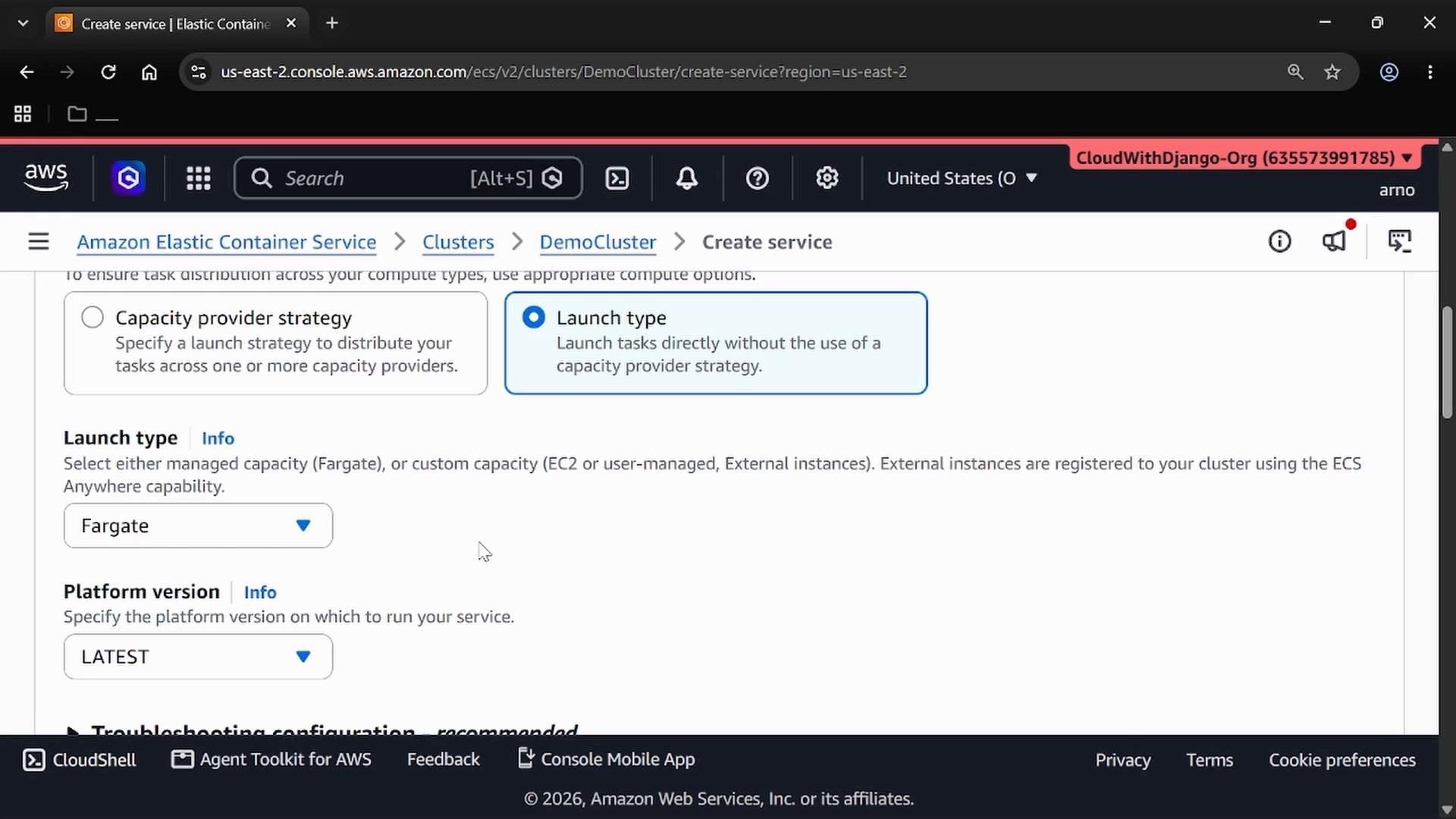
DemoService). - Choose Launch type: Fargate and set Platform version to
LATESTif prompted.
2. To distribute tasks across Availability Zones:
- Under Networking, select the VPC to use.
- Choose two subnets that belong to different AZs (for example, two subnets in AZs
us-east-2aandus-east-2b). - If you set desired count to 3, select three subnets across three AZs.
Security group for HTTP access
If you don’t have a security group that allows inbound HTTP, create one here or in the EC2 console. A basic inbound rule for public access:- Type: HTTP
- Port: 80
- Source:
0.0.0.0/0(adjust as needed for security)
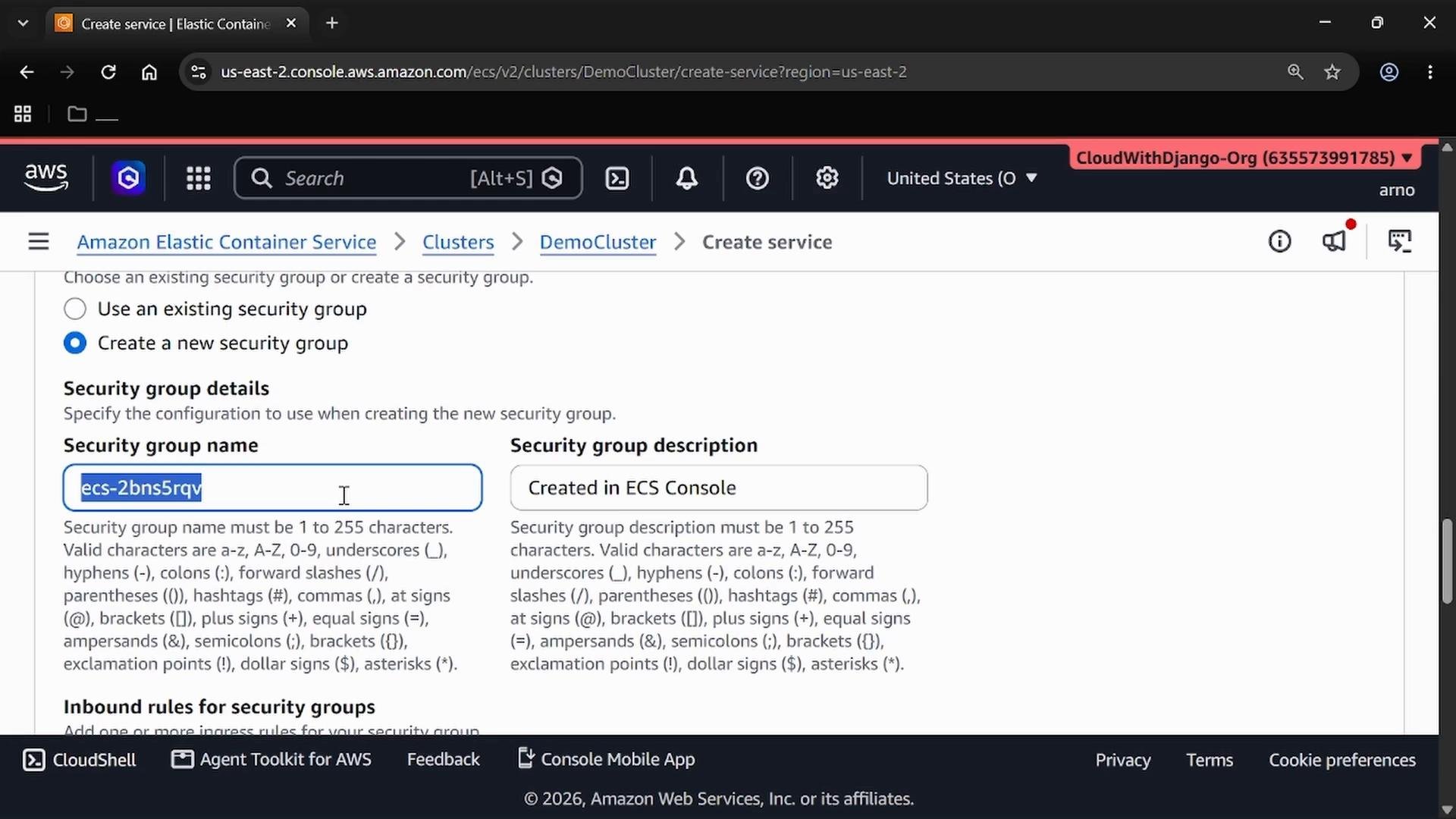
Recommended networking configuration
4. Verify & Test
After creating the service, ECS will launch the tasks on Fargate and attempt to balance them across the selected subnets/AZs. For basic testing:- If tasks have public IPs, access the container via the task ENI public IP on port 80.
- For production scenarios, attach an Application Load Balancer (ALB) to the service and use the ALB DNS as the stable endpoint. An ALB provides better traffic distribution and a stable single endpoint.
5. Cleanup
To remove the demo resources:- Delete the ECS service (this will stop tasks and drain them).
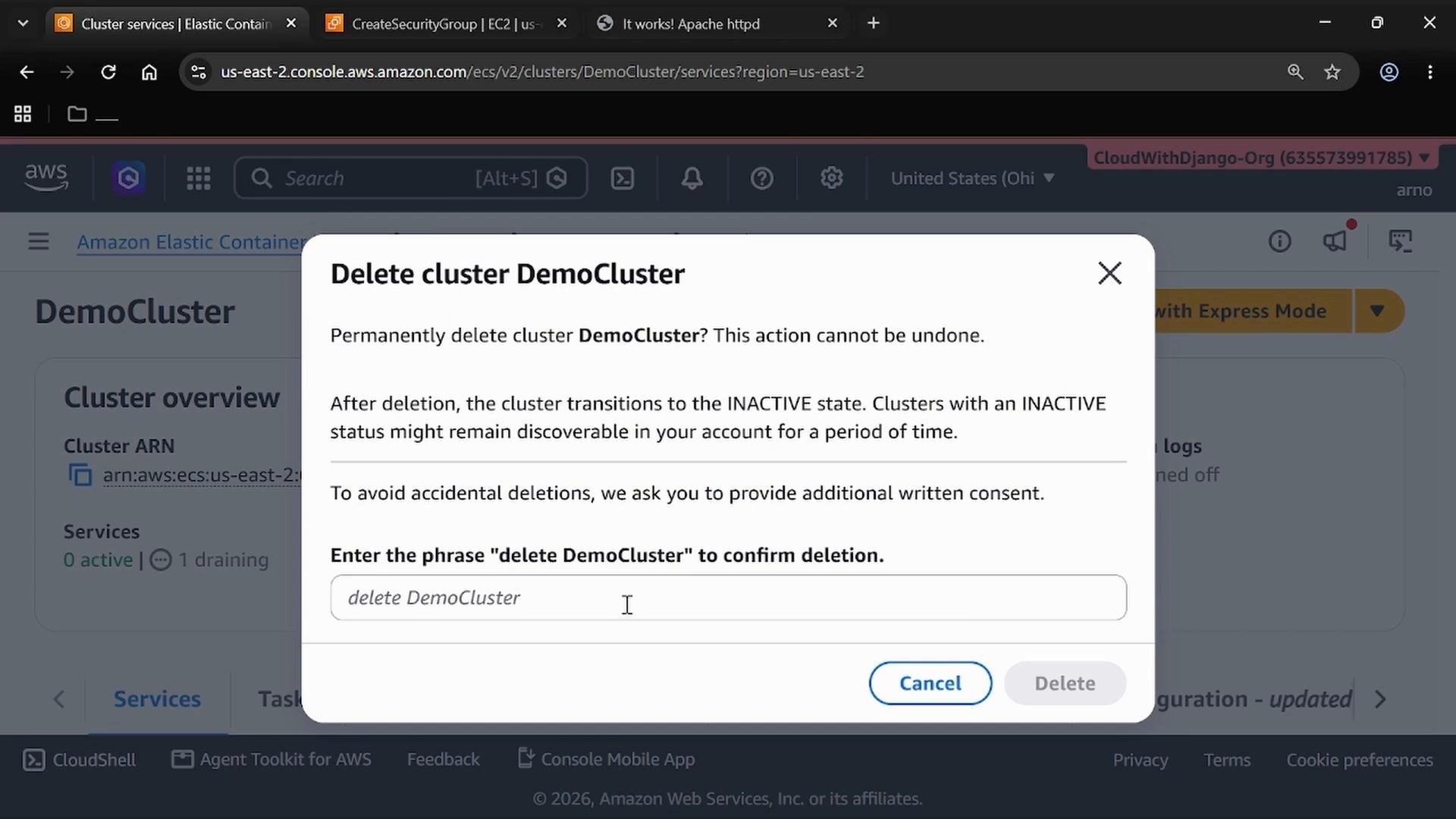
- Delete the cluster (the console requires confirmation by typing the cluster name).
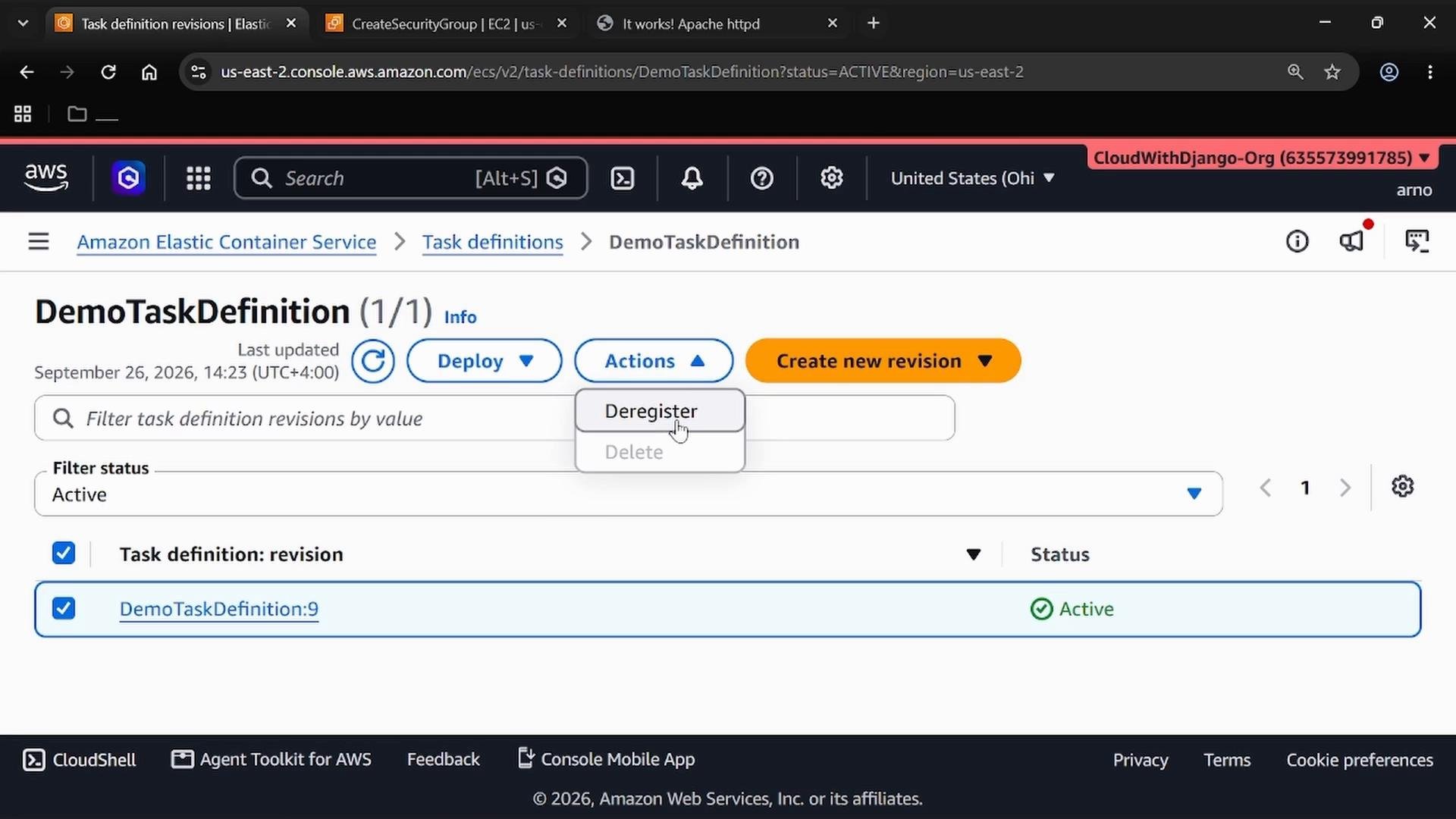
- Deregister any task definition revisions you no longer need.
Tips and production considerations
- Use an Application Load Balancer for a stable endpoint and health-based routing.
- Restrict security group inbound rules to only the necessary sources.
- Consider using ECS service autoscaling and target tracking for production load handling.
- For sensitive workloads, use dedicated VPCs and private subnets with NATs for outbound access.
Links and references
- Amazon ECS documentation: https://docs.aws.amazon.com/ecs/
- Fargate documentation: https://docs.aws.amazon.com/AmazonECS/latest/developerguide/AWS_Fargate.html
- Public ECR images: https://gallery.ecr.aws/ (public.ecr.aws/docker/library/httpd:2.4)