

- Create a Kinesis Data Stream.
- Grant CloudWatch Logs permission to write to the stream.
- Configure a CloudWatch Logs subscription filter to forward log events to the stream for near‑real‑time processing.
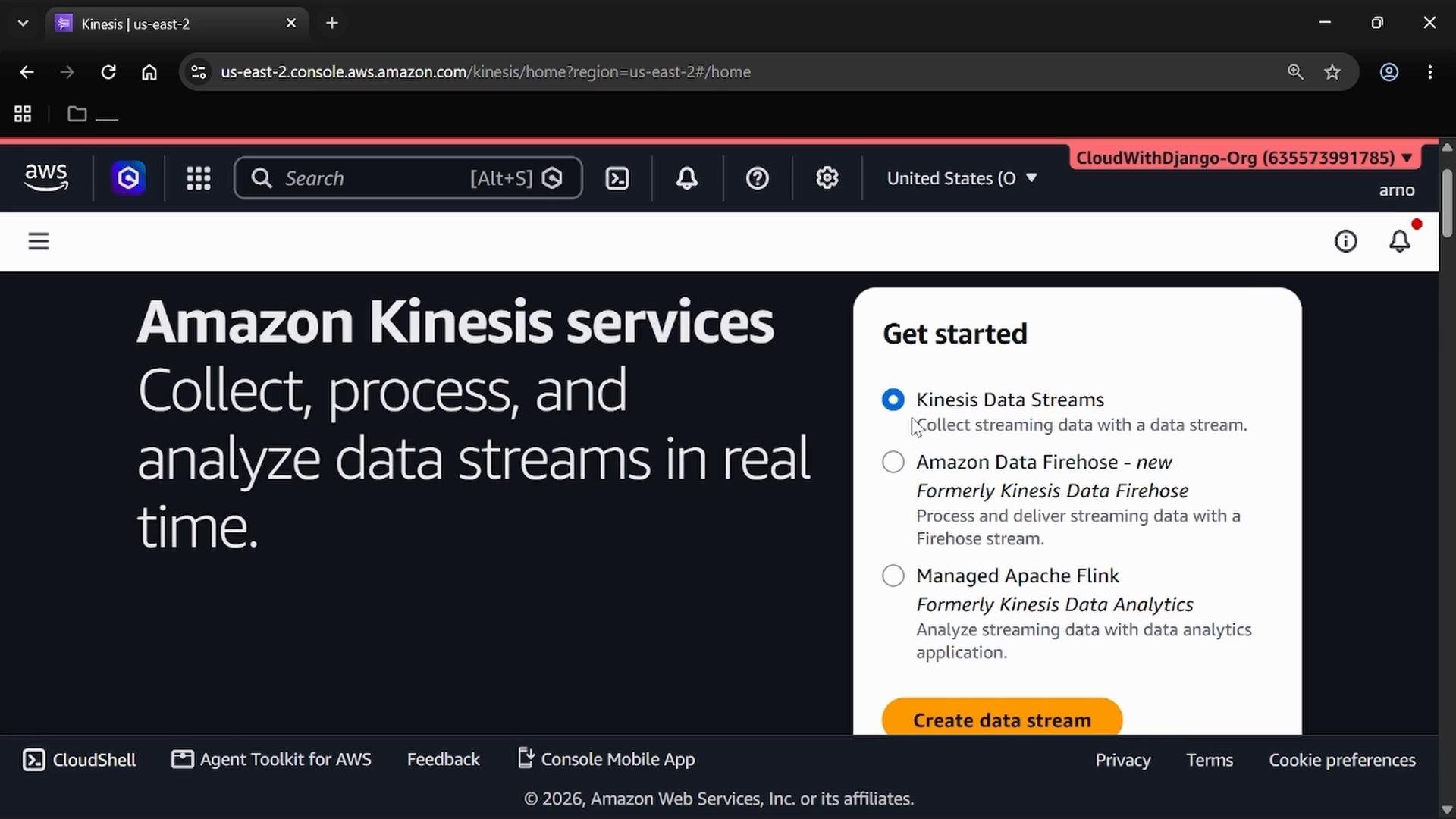
- In the AWS Console, search for Kinesis and ensure “Kinesis Data Streams” is selected.
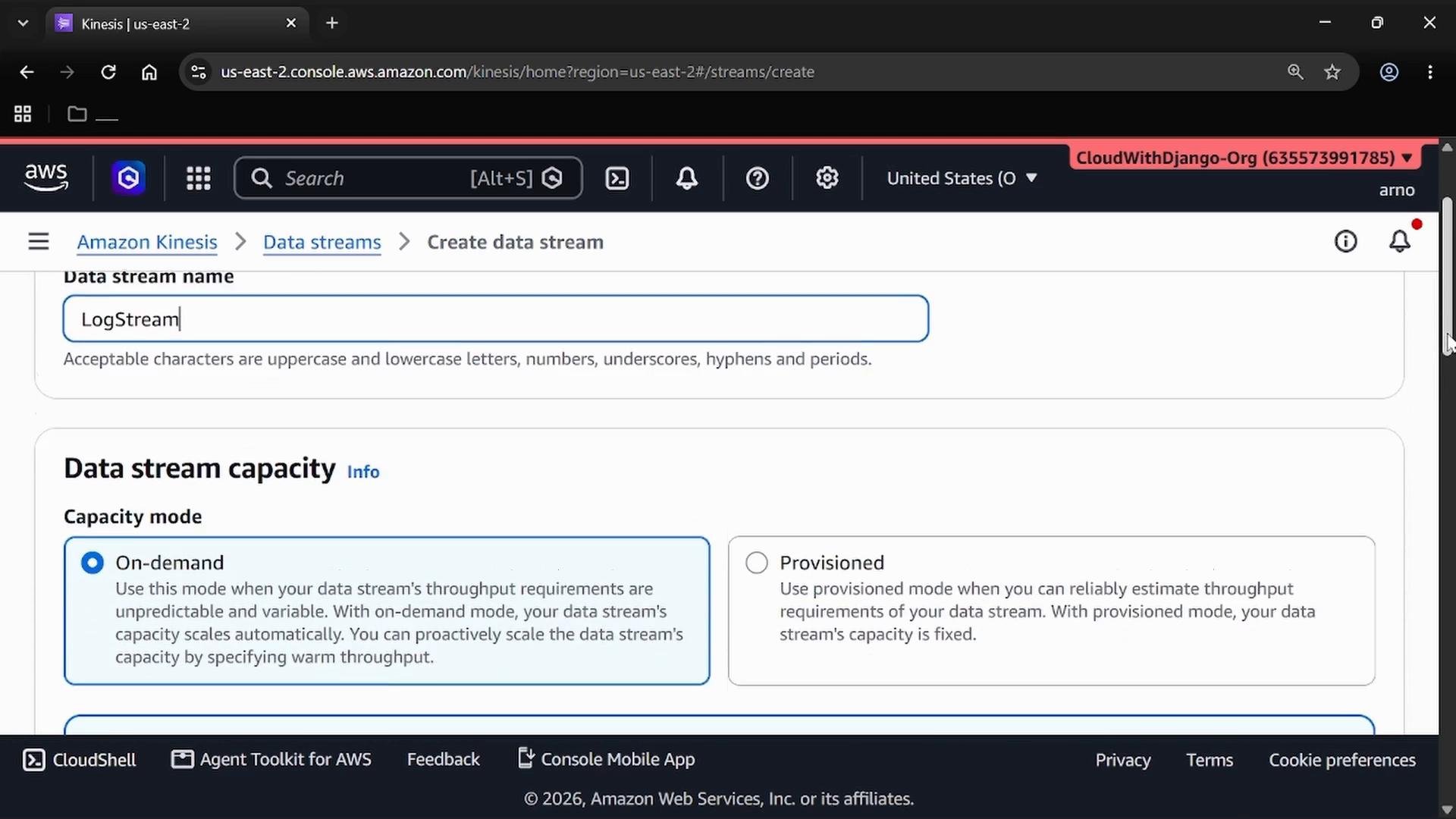
- Click Create data stream and give it a name (for this lesson we’ll use
LogStream).
- For Data stream capacity choose either:
- On-demand — no shard provisioning required; ideal for development and unpredictable workloads.
- Provisioned — you specify shard count for predictable throughput and predictable cost.
- For record distribution, choose:
- User-specified (partition key) — preserves ordering by key (maps to shards).
- Auto — balances records across shards; use this when ordering is not required.
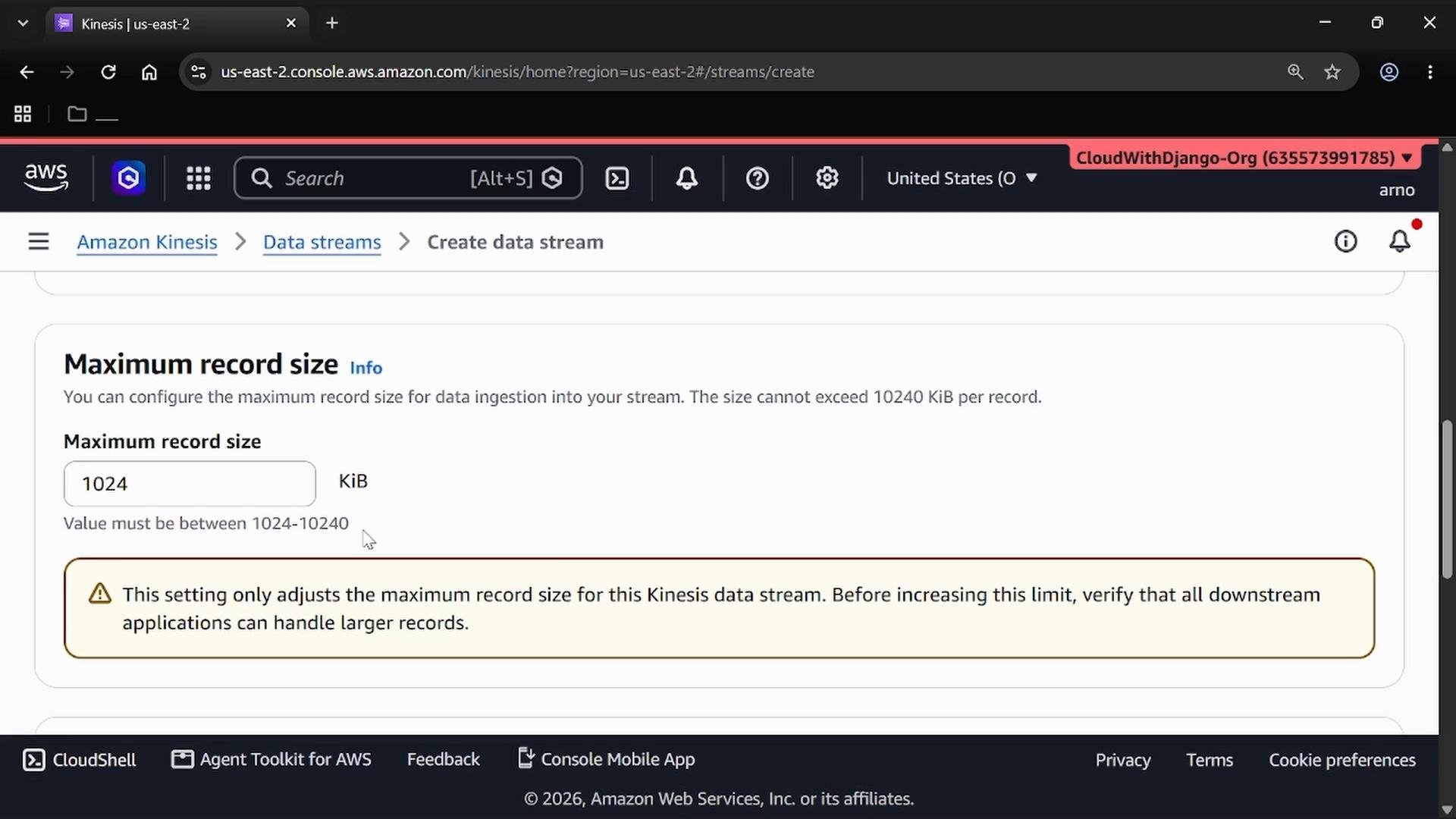
- The default maximum record size is 1024 KiB. If you increase this, verify every downstream consumer (Lambda, Firehose, custom consumers) can handle the larger records.
- Large record sizes increase memory and throughput requirements; consider batching small log events into a single record instead of increasing the record size.
- Review your settings and create the stream.
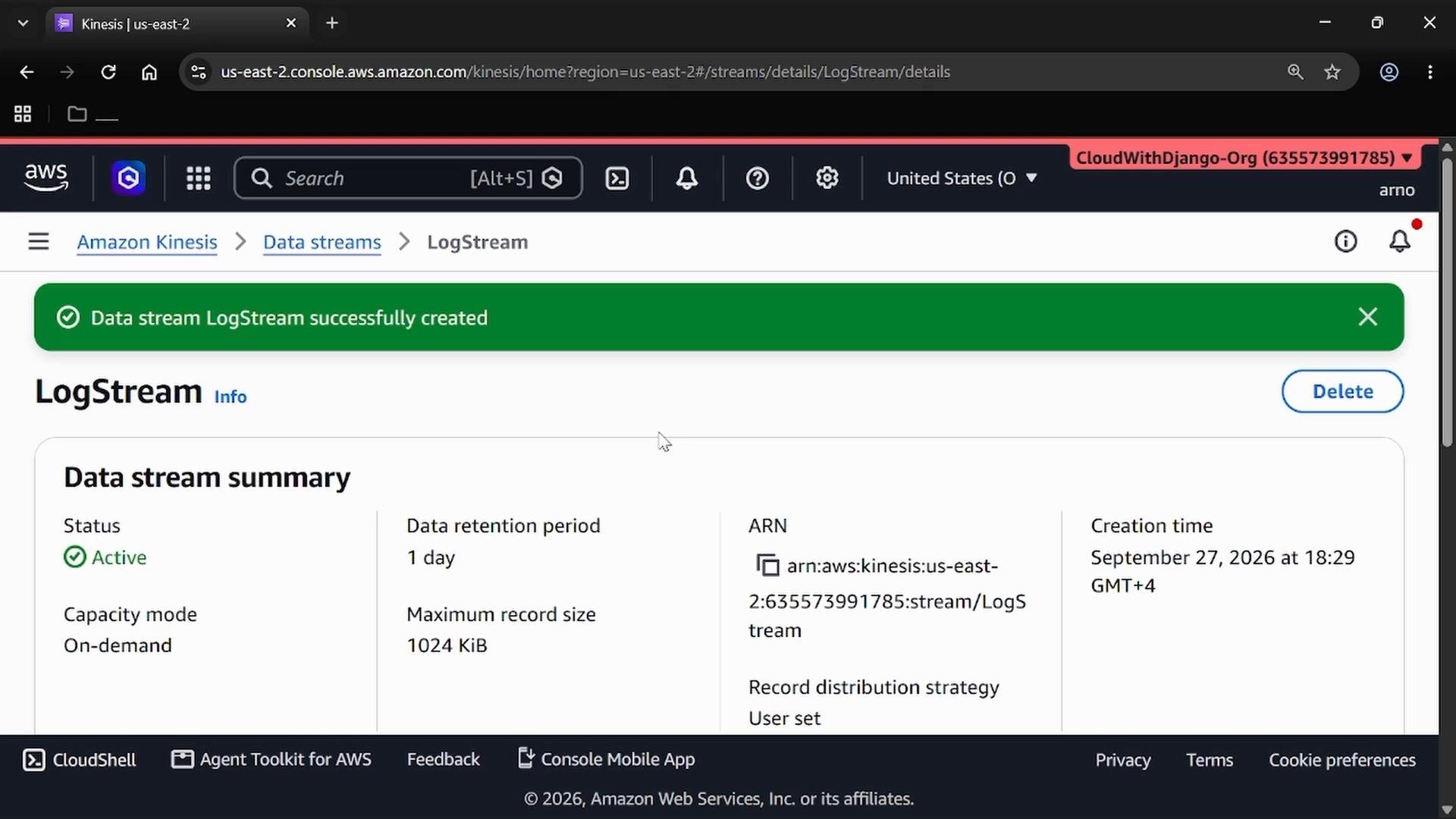
- Stream creation can take a few minutes (sometimes up to 10 minutes). When ready the stream status will be Active and you can view the configuration summary.
kinesis:PutRecord) to deliver log events to your stream. You accomplish this by creating an IAM role with:
- A trust policy that allows the CloudWatch Logs service (
logs.amazonaws.com) to assume the role. - A permissions policy attached to the role that grants Kinesis write actions on your specific stream ARN.
- Navigate to IAM → Roles → Create role.
- For the trusted entity, select AWS service and configure a trust policy that allows the CloudWatch Logs service to assume the role. Example trust policy:
- Attach (or create an inline) permissions policy that lets the role write to your Kinesis stream. Replace the ARN below with your stream’s ARN (copy it from the Kinesis stream details). Example permission policy:
- Give the role a descriptive name, for example
CloudWatchLogs-to-Kinesis-role, and finish creating it.
Trust vs permission policies:
- The trust policy controls which principal (service) can assume the role.
- The permission (or inline) policy controls what the assumed role can do (for example, call
kinesis:PutRecord).
- In the AWS Console go to CloudWatch → Log Management → Log groups.
- Open the log group you want to stream and choose Subscription filters → Create Kinesis subscription filter.
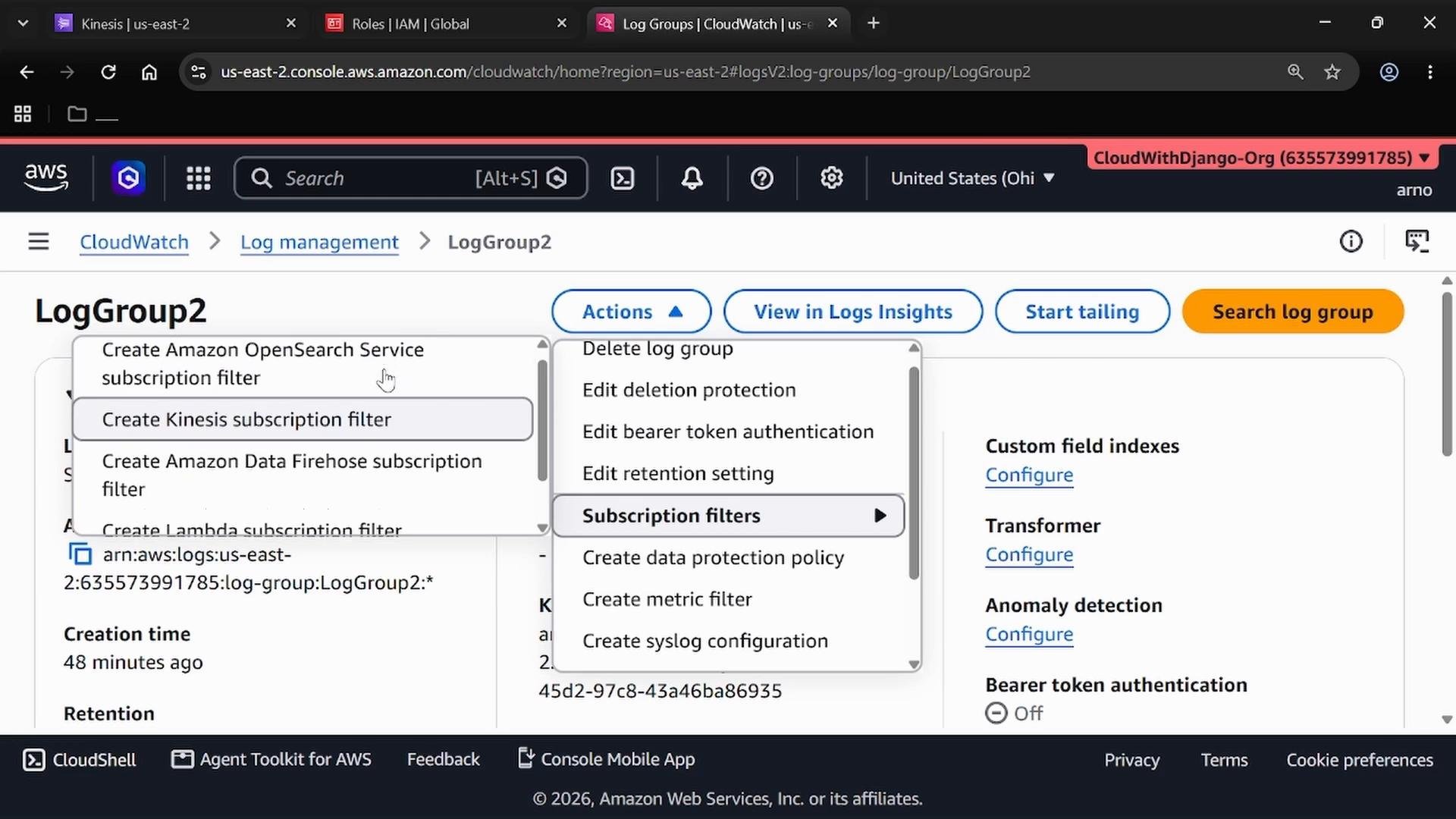
- Destination: Choose the current account and select the Kinesis Data Stream (
LogStream) you created. - Permissions: Select the role you created (
CloudWatchLogs-to-Kinesis-role) instead of allowing CloudWatch to create a default role. - Distribution method: Choose how records are distributed across shards:
- By log stream — preserves ordering per log stream.
- Random — spreads records across shards without per-stream ordering. For log sources where ordering per source matters, choose “By log stream”.
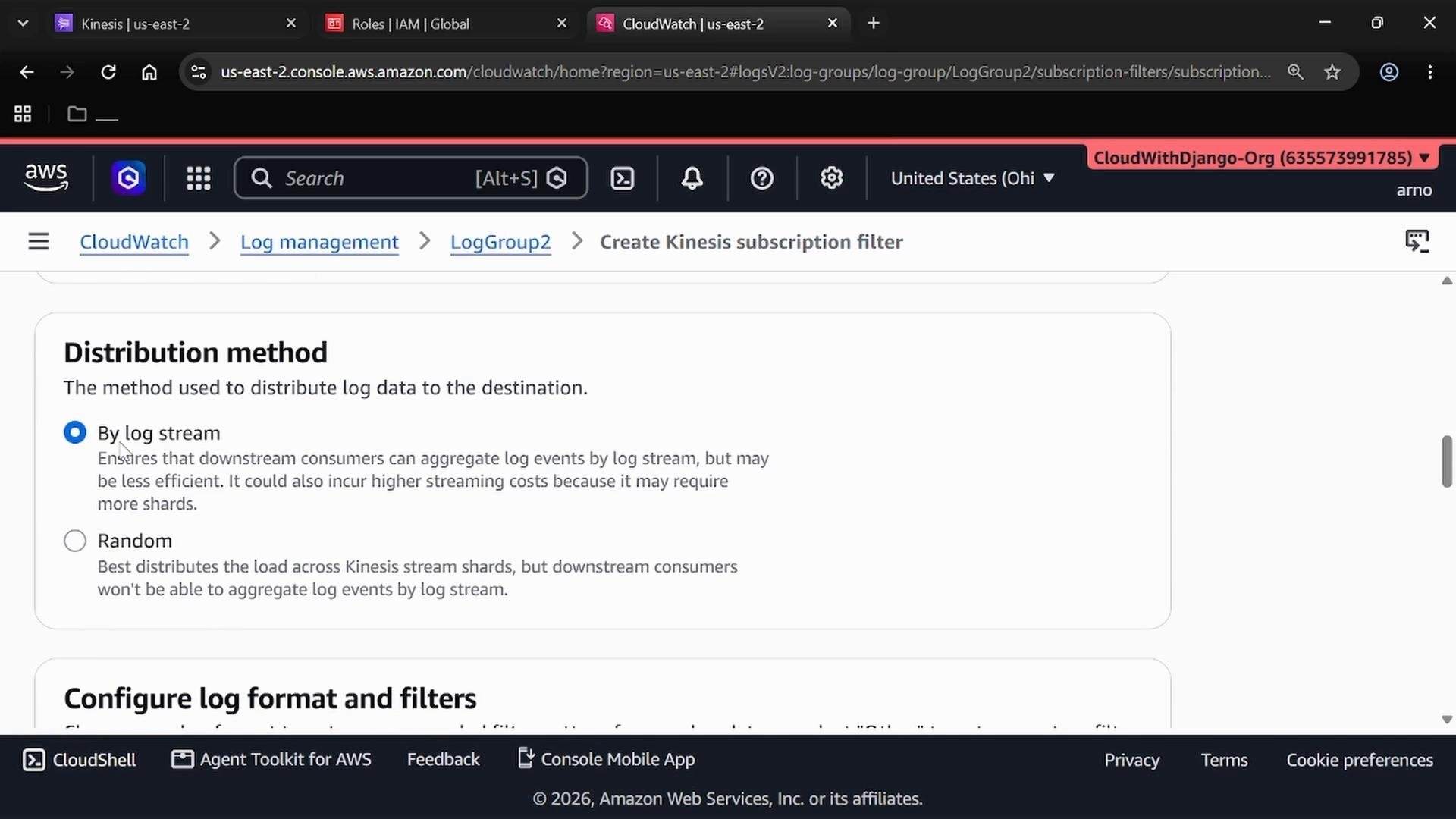
- Provide a filter name (for example,
KinesisSubscriptionFilter). - The filter pattern can be left blank to forward all log events. To forward only specific events, define a filter pattern.
- Example log lines for reference:
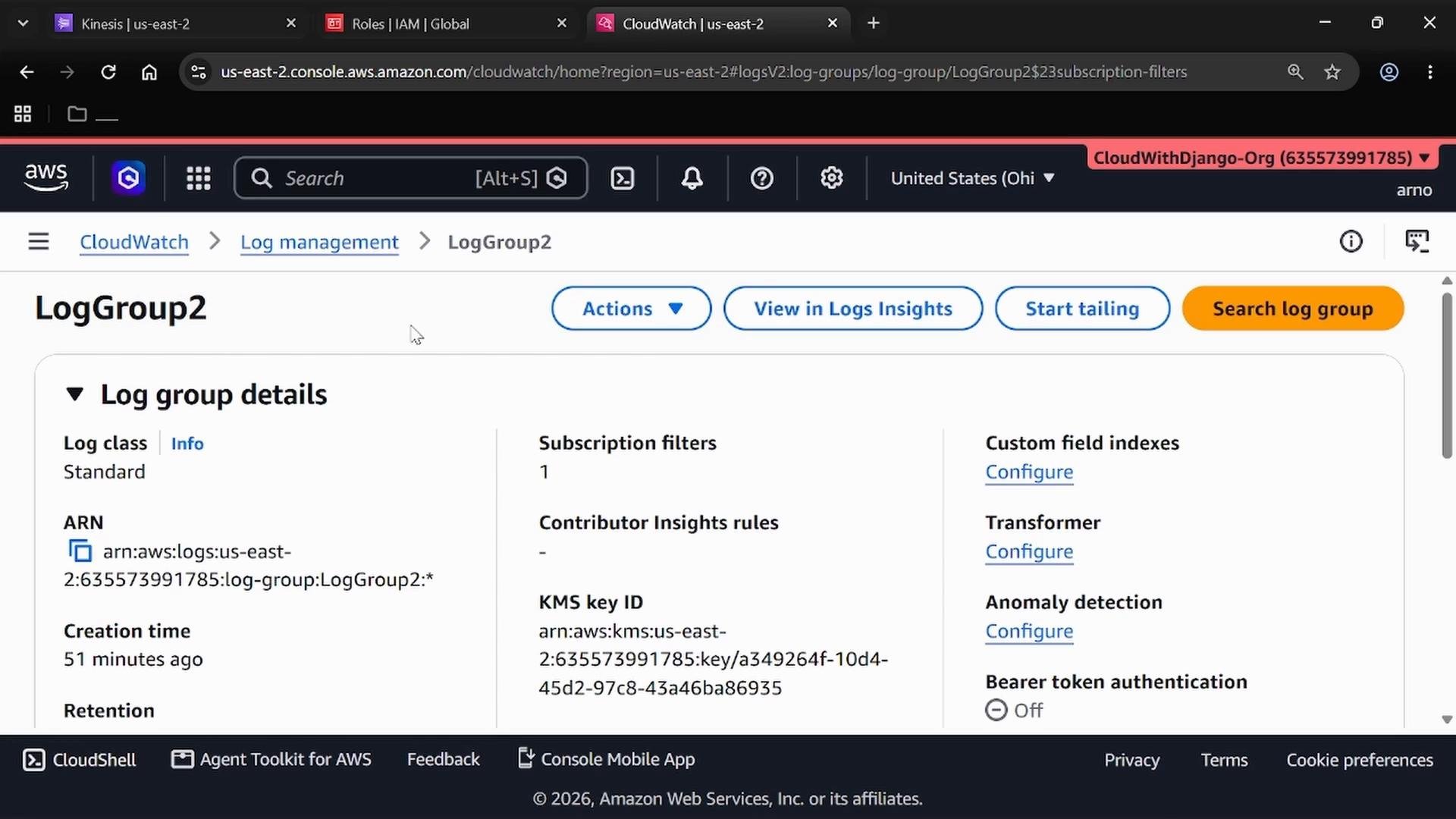
- In the log group’s Subscription filters section you will see the subscription target and configuration.
- When new log events arrive, CloudWatch evaluates them against the filter pattern and forwards matching events to your Kinesis stream using the IAM role you provided.
- Monitor CloudWatch Logs and Kinesis metrics for delivery errors (e.g., throttling or permission denied).
- Create a Kinesis Data Stream (e.g.,
LogStream). - Create an IAM role with:
- A trust policy allowing
logs.amazonaws.comto assume the role. - A permission policy allowing
kinesis:PutRecordon your stream ARN.
- A trust policy allowing
- In CloudWatch Logs, create a subscription filter for your log group targeting the Kinesis stream and using your IAM role.
- Leave the filter pattern blank to forward all events, or provide a pattern to filter. Choose distribution method according to ordering requirements.
Make sure the IAM role you select in the subscription is the role you created. If you allow CloudWatch to create a role automatically, it may not match the least-privilege permissions you intend.
- CloudWatch Logs uses subscription filters to send events to Kinesis Data Streams. The role must be assumable by the CloudWatch Logs service (trust policy) and must have permission to call
kinesis:PutRecordon the target stream (permissions policy).
- Amazon Kinesis Data Streams: https://docs.aws.amazon.com/streams/latest/dev/
- Amazon CloudWatch Logs subscription filters: https://docs.aws.amazon.com/AmazonCloudWatch/latest/logs/SubscriptionFilters.html
- IAM roles and trust policies: https://docs.aws.amazon.com/IAM/latest/UserGuide/id_roles.html