

Best practice: stop or terminate resources you no longer need. Stopping an EC2 instance halts compute charges but does not delete attached EBS volumes (which still incur storage costs). Some services (for example NAT Gateways) bill by the hour plus data processing — only run them when required and delete them when finished.
What commonly accrues AWS charges
Use this quick reference to understand which services typically generate ongoing costs and which do not.
Things that typically do not incur charges:
- IAM users, groups, and policies (configuration only) — https://aws.amazon.com/iam/
- Security Groups and Network ACLs (configuration constructs)
- CloudFormation templates themselves (but resources created by them do incur charges) — https://aws.amazon.com/cloudformation/
Step-by-step signup flow
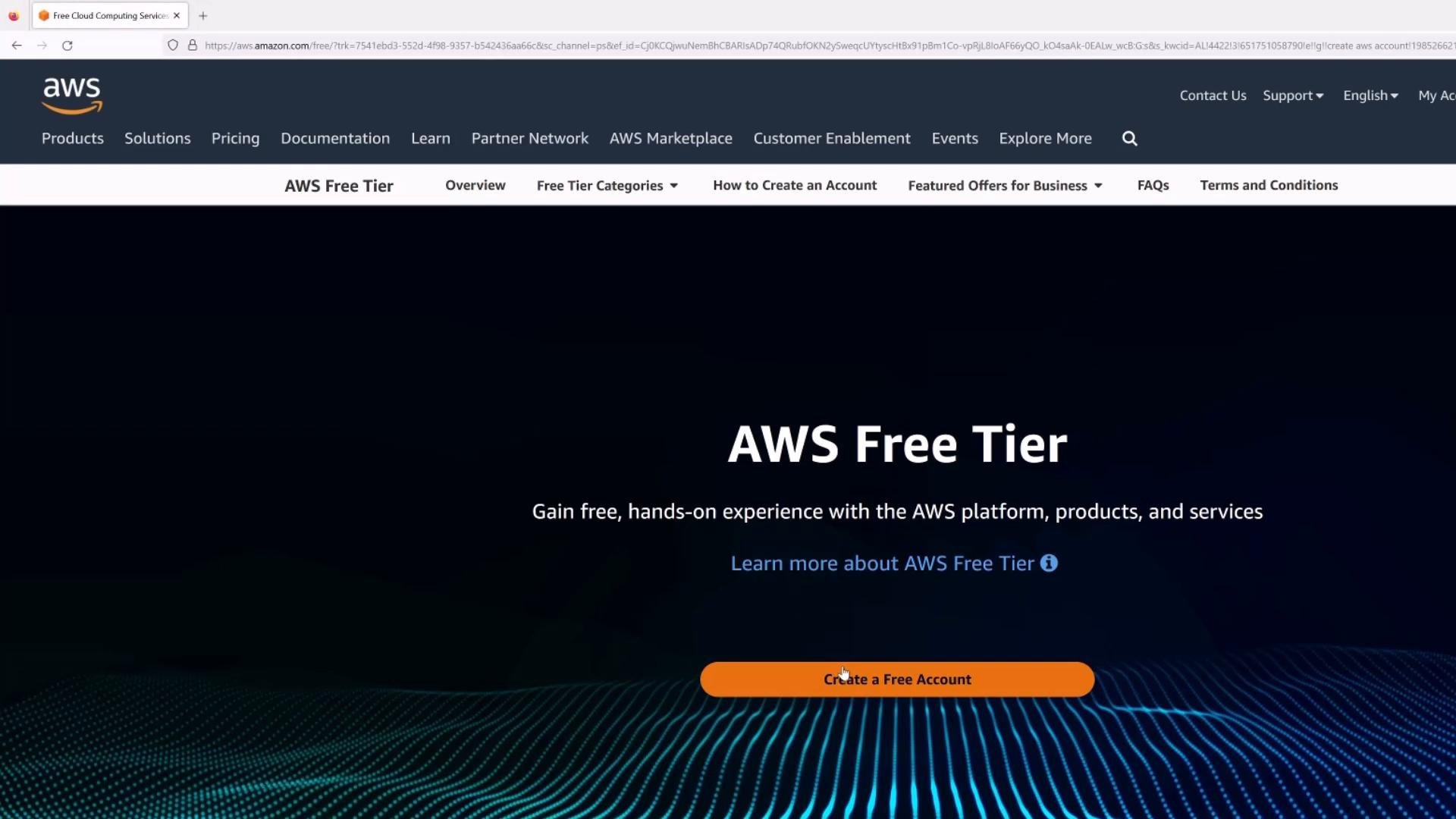
- Start the signup process
- Visit the AWS site and click “Sign up for AWS” or “Create a Free Account”. This begins the registration flow and guides you through email verification, contact information, and payment setup.
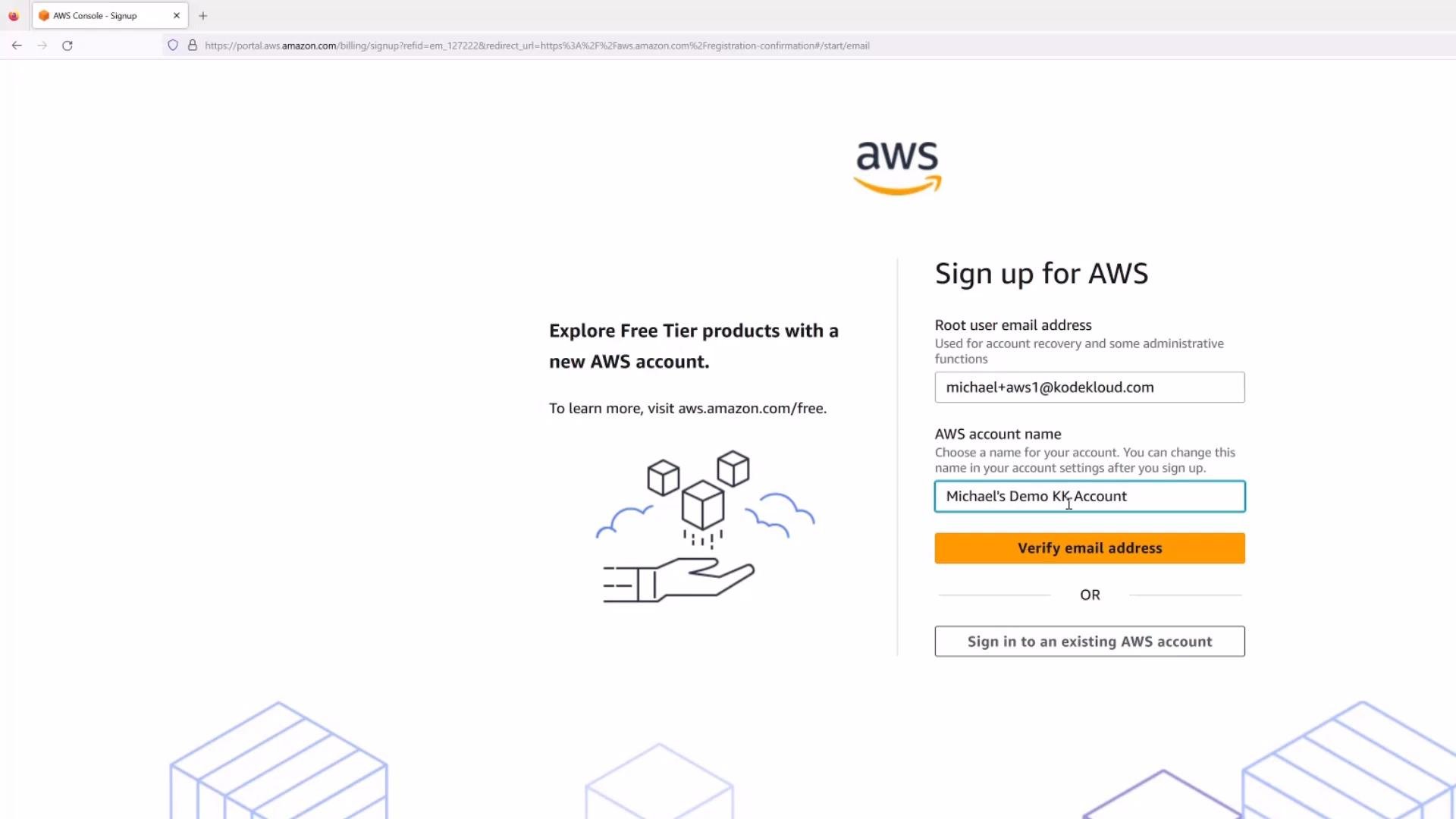
- Email aliasing tip and account name
- If you use Gmail or a provider that supports plus-addressing, you can create multiple apparent addresses that still deliver to the same inbox (for example:
michael+aws1@kodekloud.com). This helps when you manage multiple AWS accounts while keeping communications consolidated. - Choose a descriptive account name (e.g., “Michael’s demo KodeKloud account”) so you can quickly identify the account in lists or billing statements.
- Verify email and create root credentials
- AWS will ask you to verify your email and set a root user password. The root user (the email address you provide) has full account privileges. Use a strong, unique password and protect it securely. Consider using a password manager.
- Enter personal/business details and billing information
- Provide accurate contact and billing information. AWS requires a valid payment method (credit or debit card in most countries) to activate the account.
- You’ll also complete a phone verification step (a short code or automated voice) to confirm identity.
AWS requires a valid payment method to activate accounts. Many services are Free Tier-eligible, but not everything is free. Immediately configure budgets and alerts after signup to avoid unexpected charges.
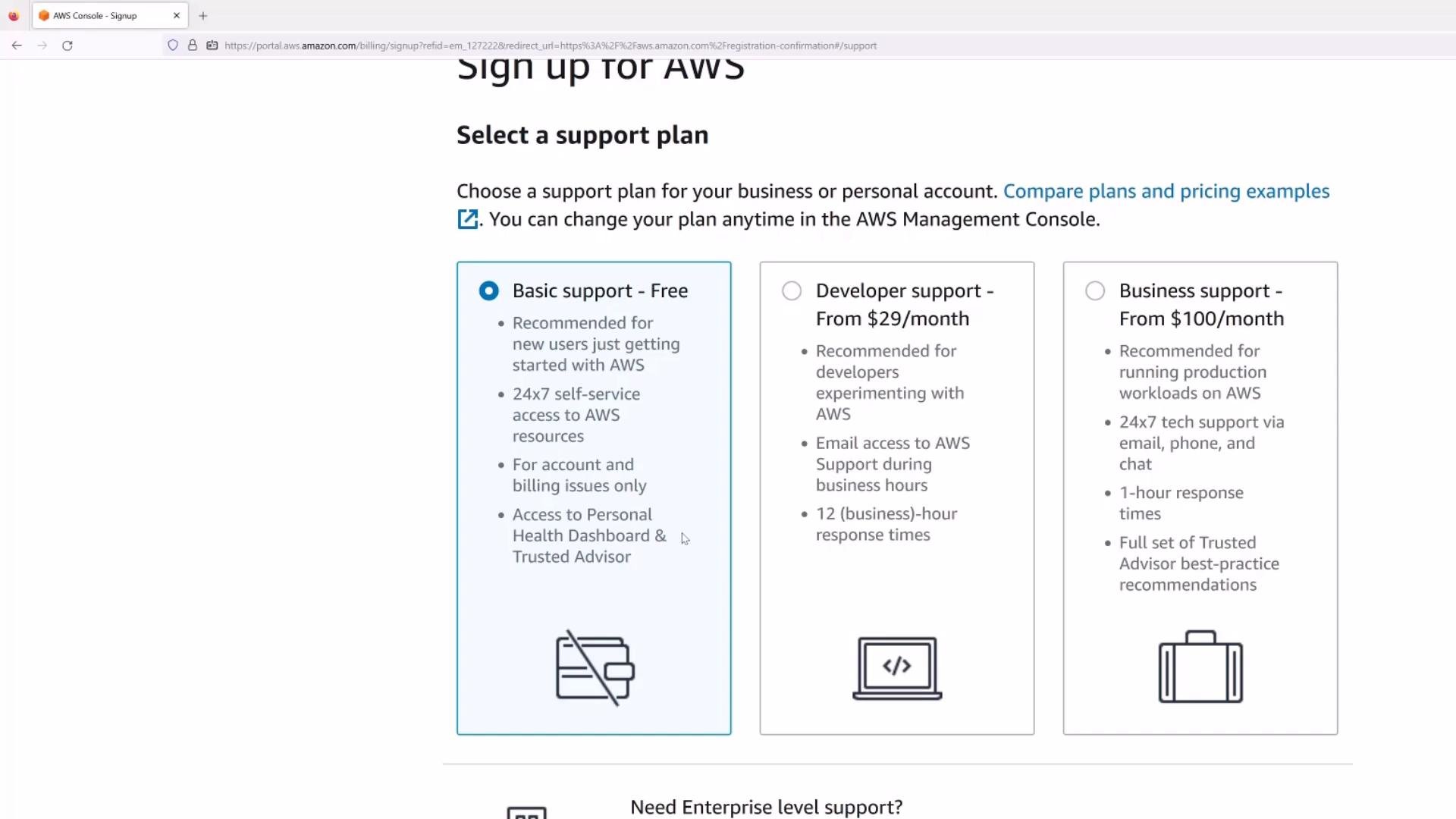
- Select a support plan
- For most hobby or learning accounts, the Basic (Free) support plan is sufficient. You can upgrade later if you need Developer or Business support.
- Activation period
- AWS activates services across regions; propagation can take up to 24 hours in some cases. You’ll receive an email when activation is complete.
- You can attempt to sign in to the AWS Management Console immediately, but some features or global resources may not be fully available until activation finishes.
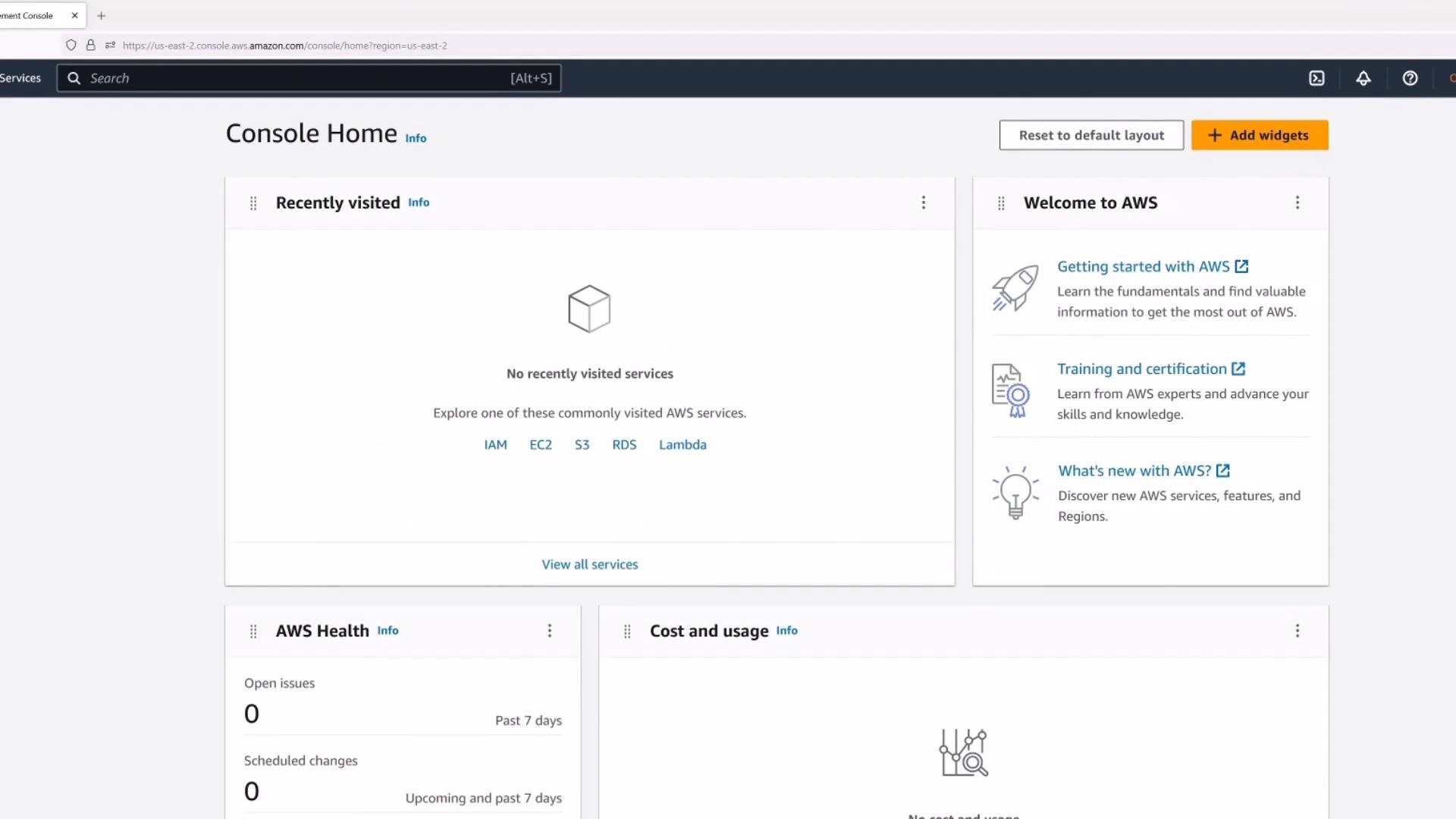
- Sign in to the Console
- Use the root email and password to sign in first. On successful sign-in you’ll land on the Console Home/dashboard where you can access services, billing, and management tools.
Immediate post-signup recommended actions
Use an administrative checklist to lock down access and prevent accidental costs:- Create an IAM administrative user for daily use. Avoid using the root account for routine tasks.
- Enable Multi-Factor Authentication (MFA) on the root account and on all privileged IAM users — https://docs.aws.amazon.com/IAM/latest/UserGuide/id_credentials_mfa.html. Use a hardware or virtual MFA device.
- Set up AWS Budgets and instant alerts to notify you when spend approaches low thresholds (for example: $5 or $10) — https://aws.amazon.com/aws-cost-management/aws-budgets/. Search “AWS Budgets” in the Console to create a budget and notification.
- Review Free Tier limits for planned services to avoid unexpectedly exceeding them — https://aws.amazon.com/free/.
- Tag resources consistently and delete resources when you’re finished. Tags help you find and clean up leftover items that can incur cost.
- Create IAM admin user and test sign-in
- Enable MFA on root and admin IAM accounts
- Create an AWS Budget (set conservative thresholds and email/SNS alerts)
- Review recent resources in the Console and delete anything you don’t need
- Set up billing alerts and enable Cost Explorer if desired
Final tips and reminders
- Be intentional: create, use, and then delete resources when done.
- When you stop EC2 instances, remember to delete any attached EBS volumes or snapshots you no longer need to avoid ongoing storage charges.
- Keep root credentials secure (store offline or in a password manager) and use IAM for day-to-day access control.
- Monitor your Billing & Cost Management dashboard frequently during learning or experimentation periods.
Links and references
- AWS Sign-up and Free Tier: https://aws.amazon.com/
- AWS Management Console: https://aws.amazon.com/console/
- IAM best practices and MFA: https://docs.aws.amazon.com/IAM/latest/UserGuide/id_credentials_mfa.html
- AWS Budgets: https://aws.amazon.com/aws-cost-management/aws-budgets/
- Free Tier details: https://aws.amazon.com/free/
- NAT Gateway docs: https://docs.aws.amazon.com/vpc/latest/userguide/vpc-nat-gateway.html
- EC2: https://aws.amazon.com/ec2/
- EBS: https://aws.amazon.com/ebs/
- Elastic IPs: https://docs.aws.amazon.com/AWSEC2/latest/UserGuide/elastic-ip-addresses-eip.html
- AWS Network Firewall: https://aws.amazon.com/network-firewall/
- AWS CloudFormation: https://aws.amazon.com/cloudformation/