

- Launch two EC2 instances (
WebServerAandWebServerB) in different Availability Zones (for example,us-east-2aandus-east-2b). - Verify both instances reach healthy status checks.
- Review next steps to make the setup production-ready (load balancing, Auto Scaling, and key management).
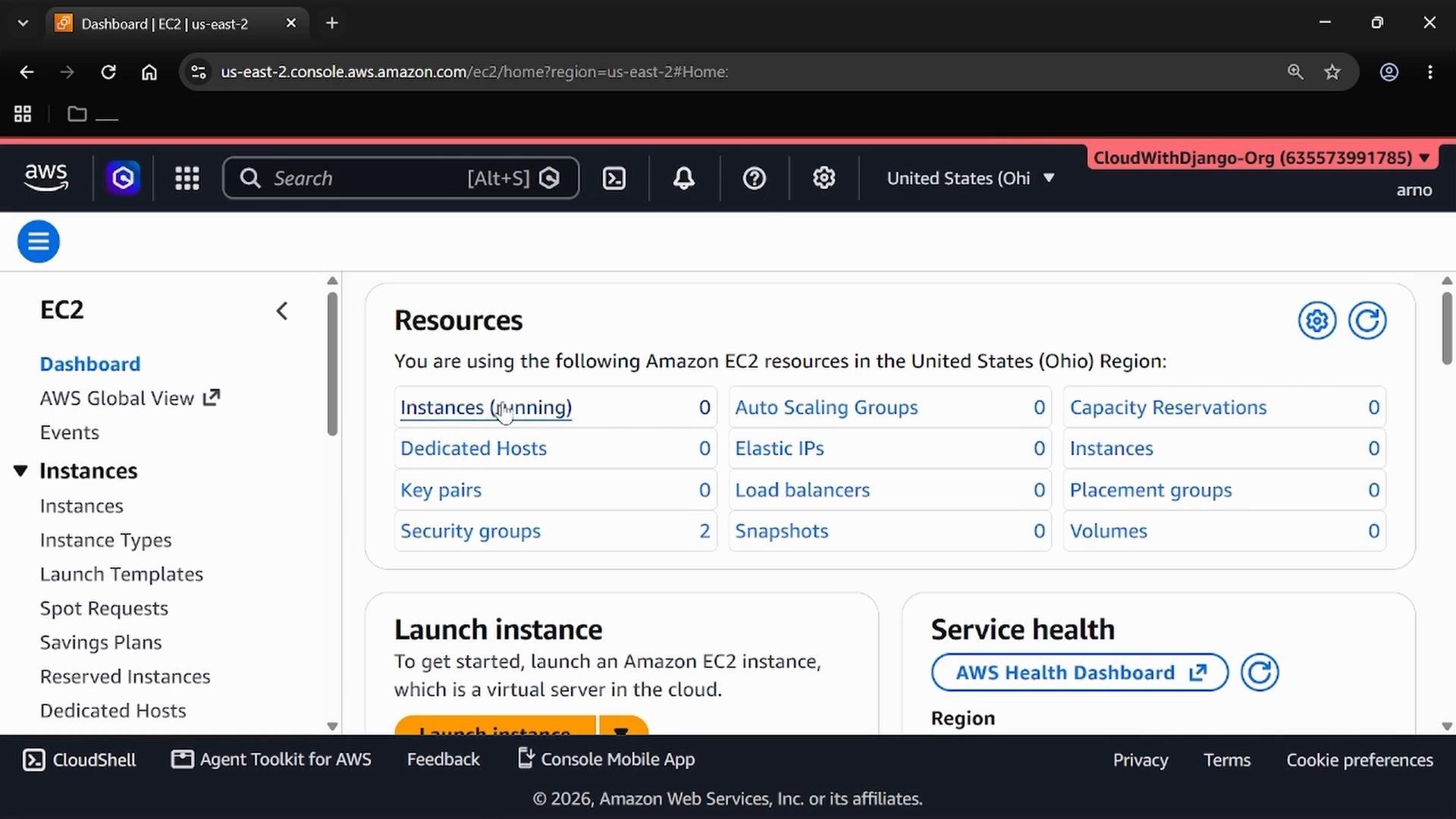
- Open the EC2 console
- From the AWS Management Console search bar, type
EC2and select the EC2 service to open the dashboard. - On the dashboard, click “Instances” in the left navigation to proceed.
- Launch the first instance (Web Server A)
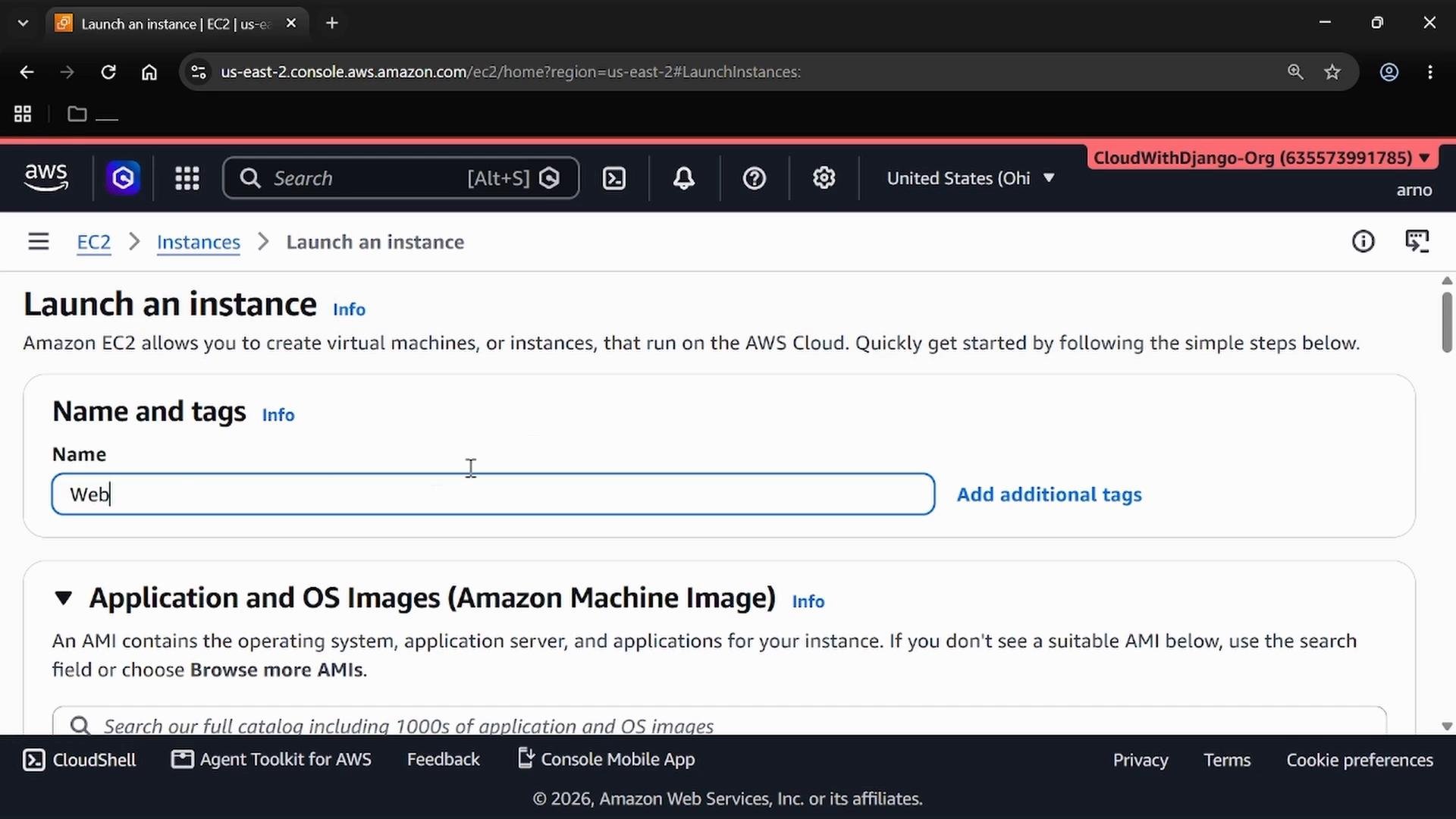
- Click “Launch instances”.
- In the Name and tags step, give the instance a recognizable name such as
WebServerAso it’s easy to identify later.
- For the AMI, use the default Amazon Linux image (commonly free tier eligible).
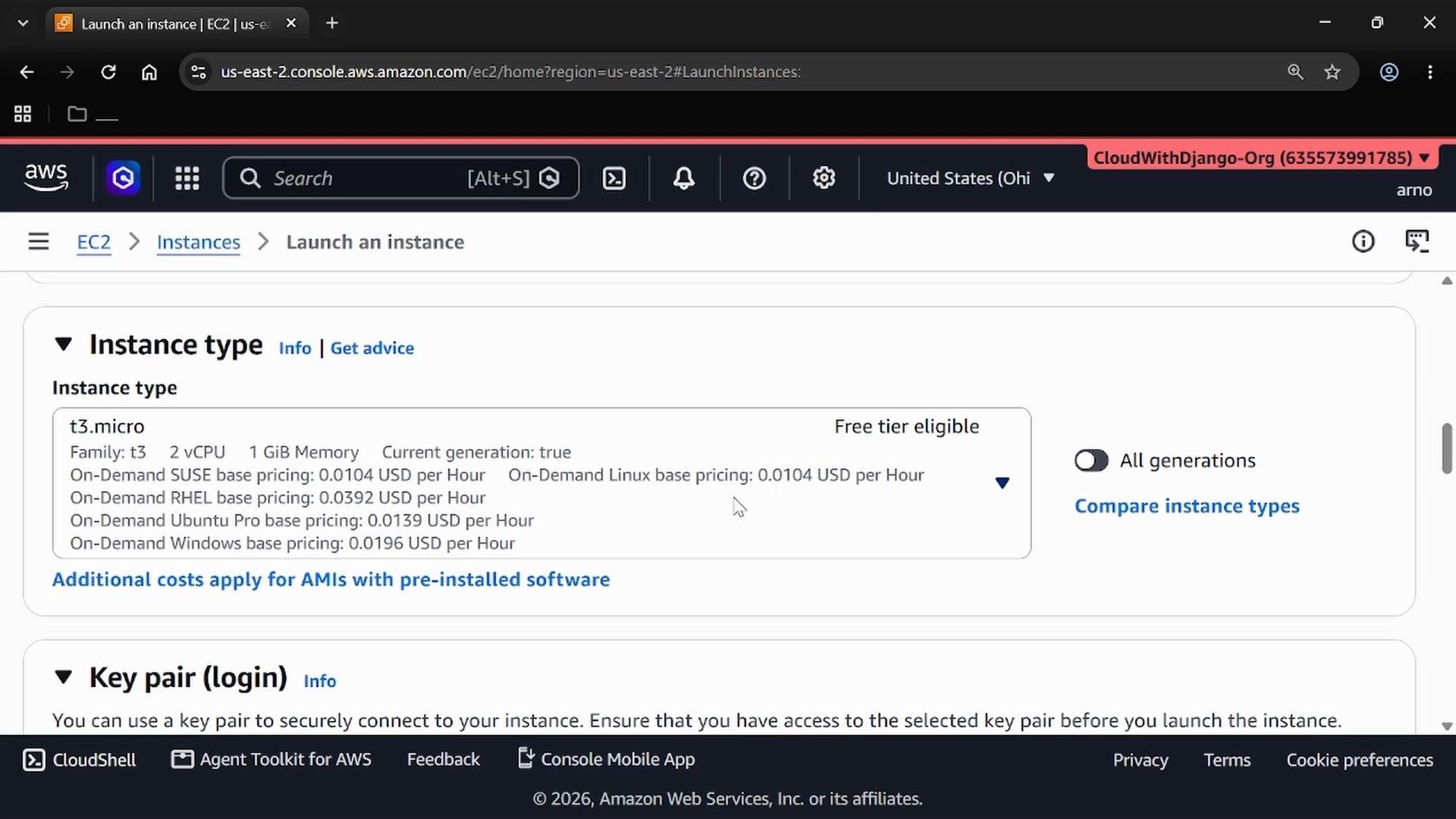
- Choose an instance type appropriate for your needs; for this demo, select a free-tier eligible type such as
t3.microto avoid charges.
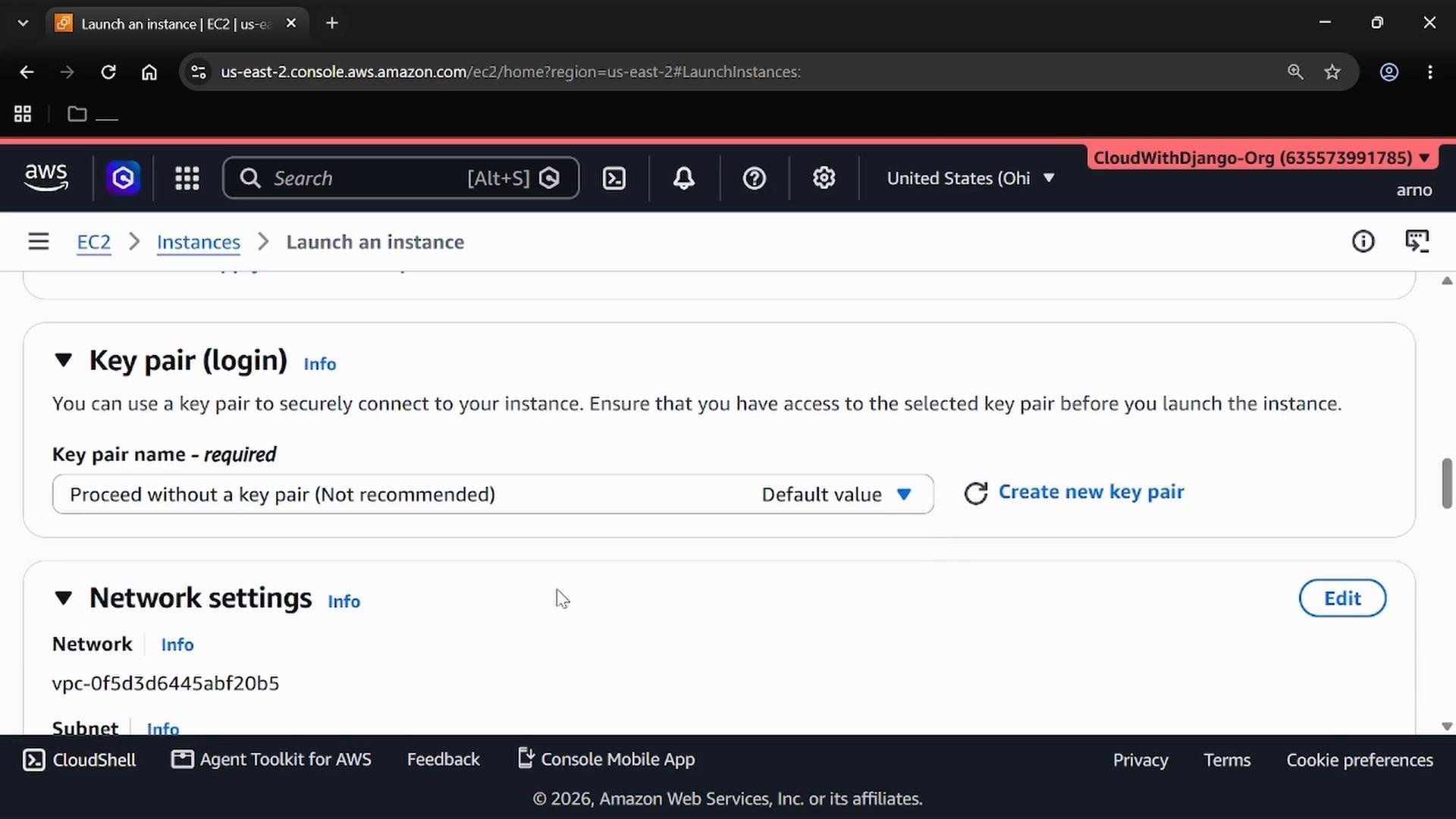
- For Key pair (login) choose “Proceed without a key pair” for this demo to simplify the walkthrough. Do not do this in production—without a key pair you will not be able to SSH into the instance.
Proceeding without a key pair is not recommended for production. Without a key pair you will not be able to SSH into the instance using a private key. Use this option only for demo/testing where direct SSH access is not required.
- Expand Network settings and click “Edit” to explicitly set the Availability Zone. For this example select
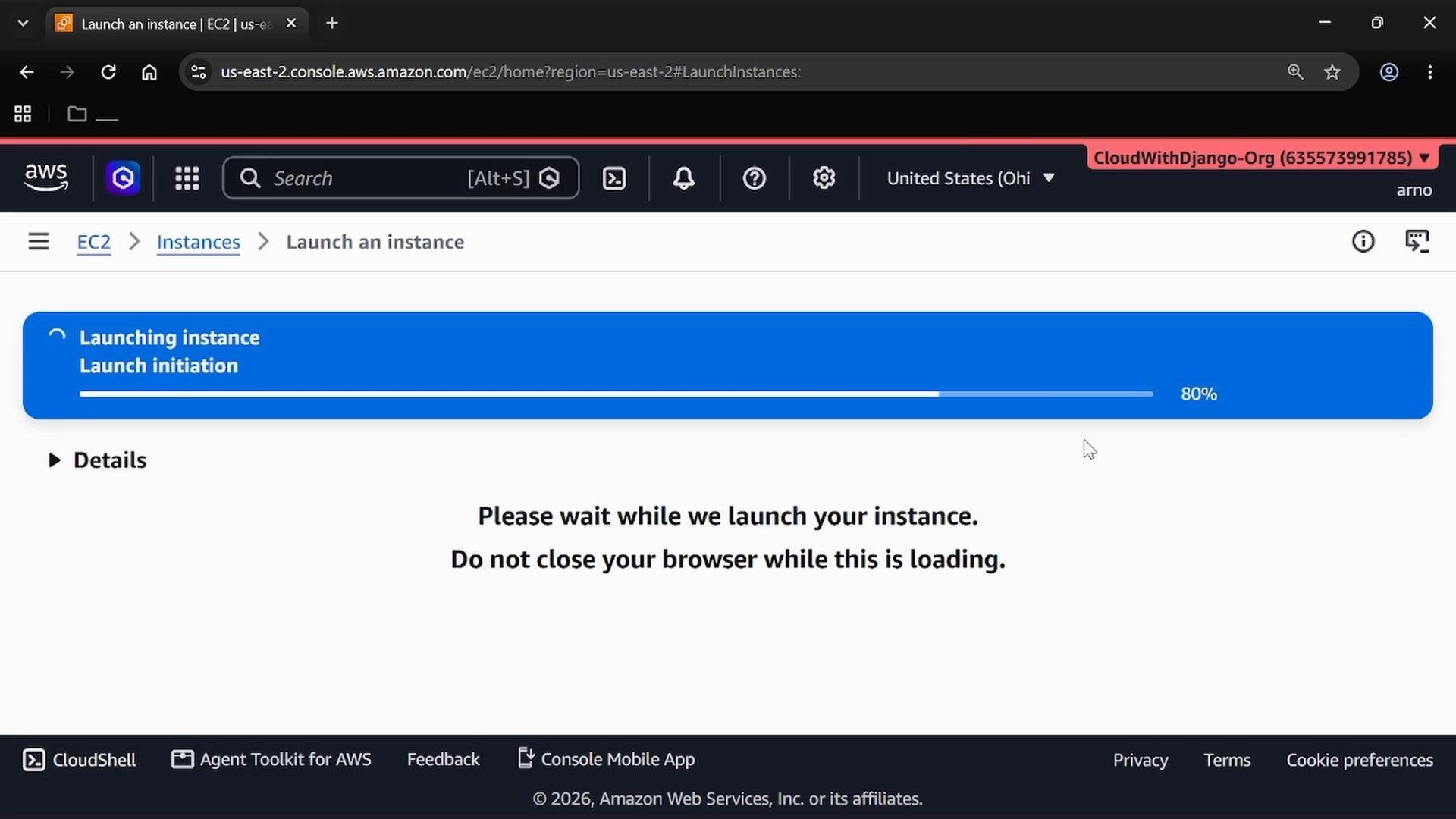
us-east-2a(the exact AZ names vary by region). Leave other network options at their defaults unless you have specific requirements. - Click “Launch” to create the instance. The console will start the launch process and show progress.
- Launch the second instance (Web Server B) in a different AZ
- Repeat the “Launch instances” flow.
- Name this instance
WebServerB. - Use the same AMI and instance type as
WebServerA. - For this demo, you may again select “Proceed without a key pair” (see the warning above).
- Under Network settings → Edit, set the Availability Zone to a different one in the same region, for example
us-east-2b. - Use the same security group as the first instance (or create a security group that allows only the inbound traffic you need, e.g., port 80 and 22 for SSH in production).
- Launch the instance.
- Verify both instances
- Return to the Instances view. You should see both
WebServerAandWebServerBlisted. They may initially show status checks as “Initializing”; refresh after a short wait.
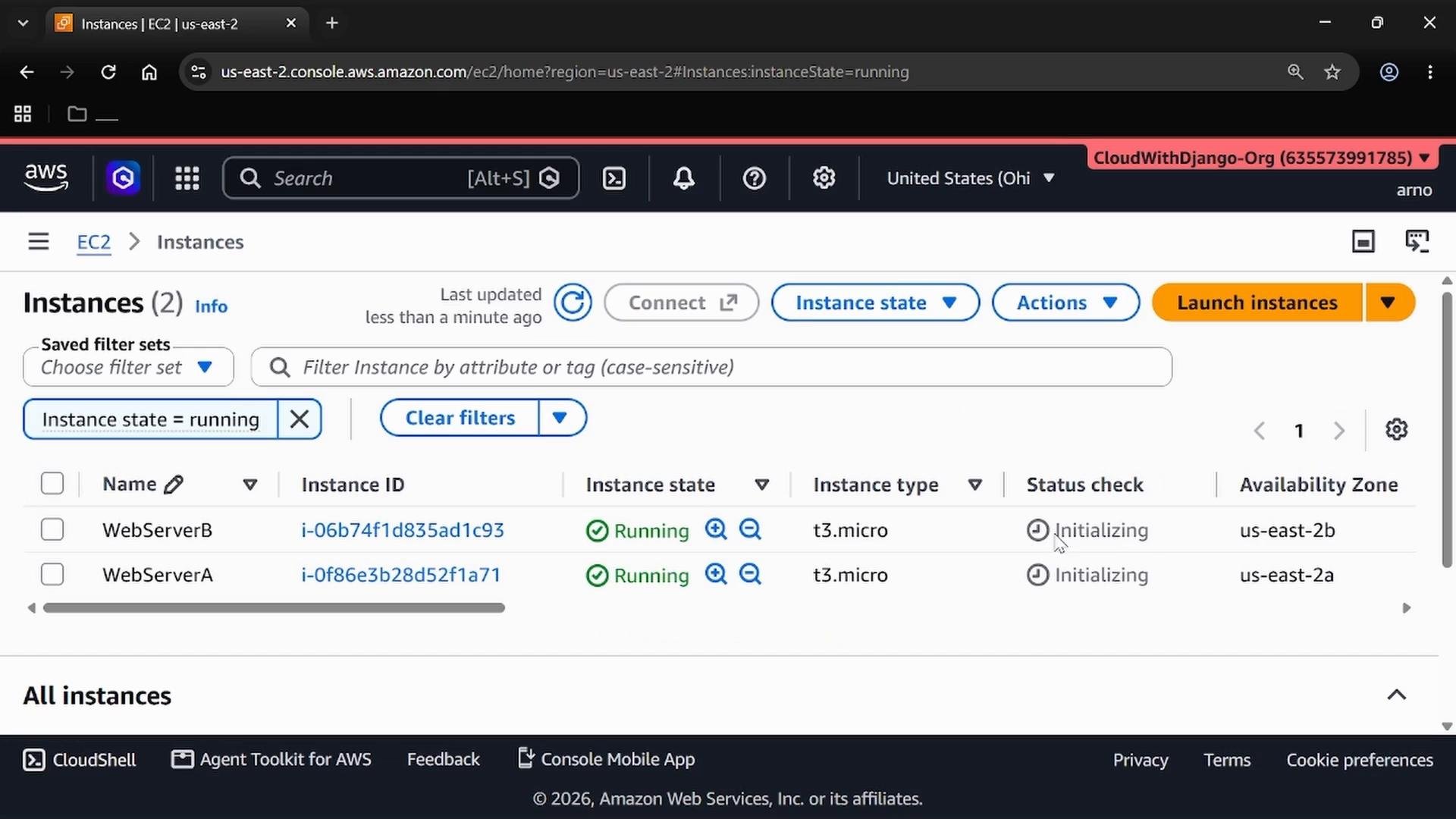
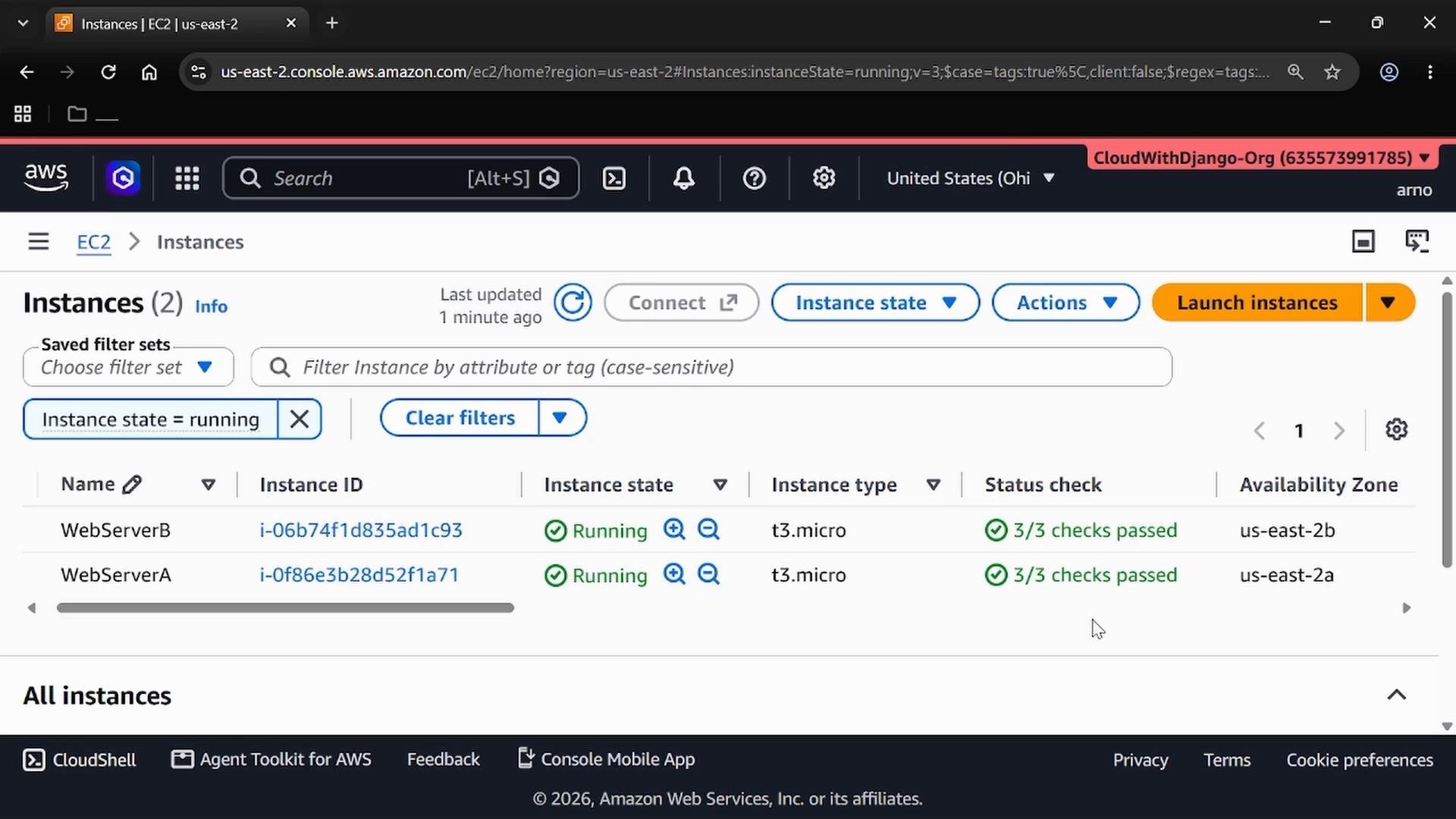
- After initialization completes, both instances should show healthy status checks (for example,
2/2or3/3depending on your account settings).
Summary and next steps
- You have deployed two EC2 instances in the same region but in different Availability Zones (for example,
us-east-2aandus-east-2b). This basic Multi-AZ placement reduces single-AZ dependency and improves availability. - To harden and scale this pattern for production:
- Add an Elastic Load Balancer to distribute traffic across instances and AZs.
- Configure an Auto Scaling Group (ASG) with subnets spanning multiple AZs to maintain instance count and health across failures.
- Use proper key pair management, IAM policies, and secure security group rules.
- Consider using an Amazon Machine Image (AMI) baked with your application and monitoring with CloudWatch.
Deploying instances across multiple Availability Zones is a foundational high-availability pattern. For production, combine this pattern with Elastic Load Balancing, Auto Scaling Groups, proper key management, and monitoring to achieve resilience and operational readiness.
- Amazon EC2 User Guide
- Elastic Load Balancing (ELB) documentation
- Amazon EC2 Auto Scaling documentation