

Quick overview: find the failing stage first
Start by clicking the failed build in the CodeBuild console. The console shows a phase timeline (Submitted, Queued, Provisioning, DOWNLOAD_SOURCE, INSTALL, PRE_BUILD, BUILD, POST_BUILD, UPLOAD_ARTIFACTS, FINALIZING/COMPLETED). The failing phase and its error message typically point to the root cause. If the build cannot create CloudWatch log streams, the failure is frequently a permissions problem. For example:logs:CreateLogStream). Updating the service role’s identity-based policy to allow CloudWatch Logs actions on the appropriate log-group resource normally resolves this.
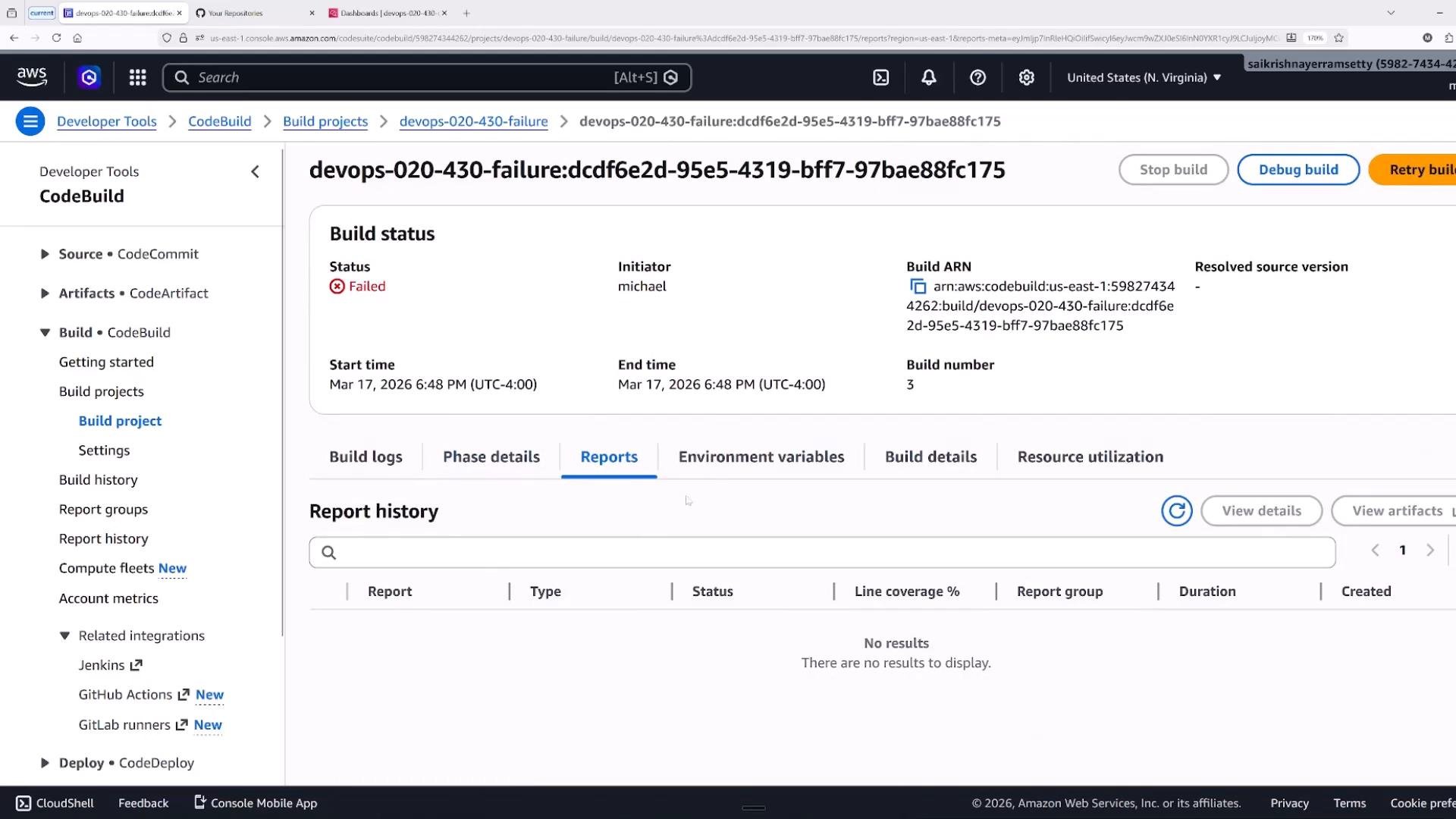
Typical CodeBuild phases
Example: a build start (phases being discovered and executed)
This excerpt shows CodeBuild announcing phases and the commands it runs during setup and build:Comparing failing vs. successful runs
Comparing a failing run’s logs against a successful run’s logs highlights what differs: a missing phase, a failed command, or inaccessible resources. Successful build excerpt example: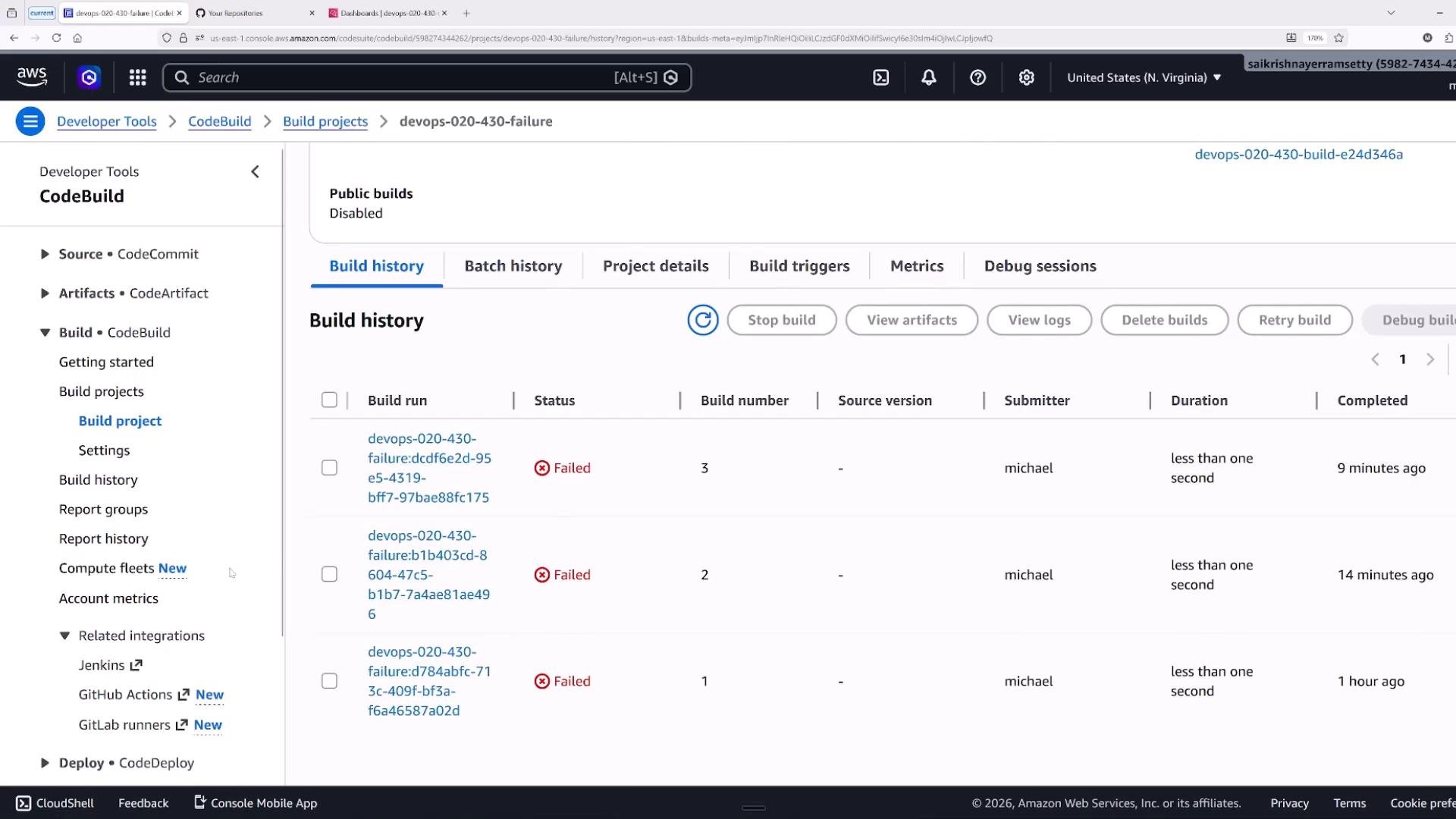
When to open the CloudWatch log stream
- Click the CloudWatch log link from the build details to view the full log stream.
- The stream shows detailed, timestamped output from every phase and container command.
- If the log link is missing or empty, it often means CodeBuild could not create the log stream (permissions) or the run aborted before logs were emitted.
Common failure categories and what to check
Systematic troubleshooting workflow
- Identify the failed component (pipeline, stage, or CodeBuild project).
- Click the specific run in CodeBuild to view the phase timeline and error text.
- Copy the build ID and error message for searches (CloudWatch, CloudTrail, or IAM policy investigations).
- If CodeBuild logs are missing, open CloudWatch and look for the log group
/aws/codebuild/<project-name>. - Compare the failing run timeline and commands with a known-successful run to isolate differences.
- Check for recent changes: IAM policy updates, CI/CD configuration changes, or repository permission changes.
- If permissions are suspected, inspect the CodeBuild project’s service role and ensure policies allow required actions.
- Use CodeBuild’s interactive debug sandbox (SSH/SSM) to reproduce buildspec steps when local reproduction is difficult.
Start troubleshooting by identifying the failed phase. Most issues fall into permissions, configuration, or dependency categories. Use CloudWatch logs and CodeBuild’s debug sandbox for deeper inspection.
Using CodeBuild’s debug sandbox requires SSM permissions on the role that initiates the sandbox. Ensure the service role has the appropriate SSM IAM actions before launching an interactive session.
Helpful tips and links
- Always compare timestamps and the sequence of phases between failing and successful runs — differences often surface quickly.
- Use the build ID when searching CloudTrail or CloudWatch for related events.
- Consider increasing build memory or running resource-heavy steps in separate jobs if you observe OOM or long-running processes.
- AWS CodeBuild documentation: https://docs.aws.amazon.com/codebuild/
- Amazon CloudWatch Logs: https://docs.aws.amazon.com/AmazonCloudWatch/latest/logs/WhatIsCloudWatchLogs.html
- AWS IAM documentation: https://docs.aws.amazon.com/IAM/latest/UserGuide/
- Identify the failing stage first and read the exact error message.
- Compare failing runs to successful runs to spot differences.
- Permissions (CloudWatch Logs, S3, KMS, PassRole) are frequent root causes.
- Use CloudWatch logs and the CodeBuild debug sandbox for deeper, interactive diagnostics.
- Follow a systematic workflow to minimize mean time to resolution.