

Important: IAM Identity Center is managed in the US East (N. Virginia) region —
us-east-1. If your AWS Console is set to another region (for example, Ohio), the console will prompt you to switch to us-east-1 before you can manage Identity Center. Make sure your region is set to us-east-1 before continuing.- AWS: IAM Identity Center (SSO) overview — https://docs.aws.amazon.com/singlesignon/latest/userguide/what-is.html
- AWS: Best practices for managing IAM Identity Center — https://docs.aws.amazon.com/singlesignon/latest/userguide/best-practices.html
Quick overview: Typical workflow
- Create a user in IAM Identity Center.
- Create a permission set (predefined or custom).
- Assign the user (or group) to an AWS Account with the permission set.
- Identity Center provisions an IAM role in the target account that maps to the permission set.
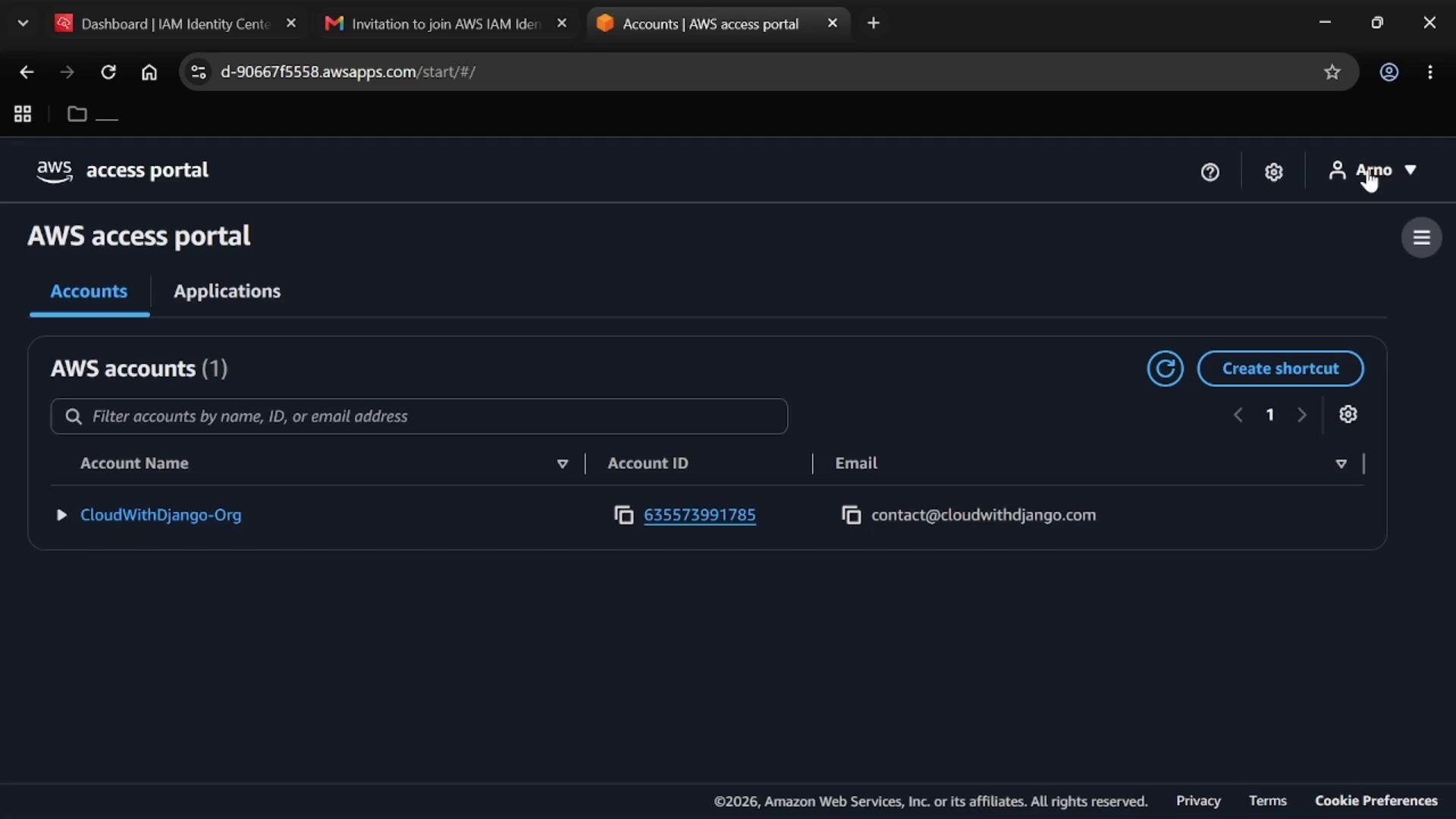
- The user signs in to the AWS Access Portal, configures MFA, and assumes the assigned role to access the account.
Getting started — create a user
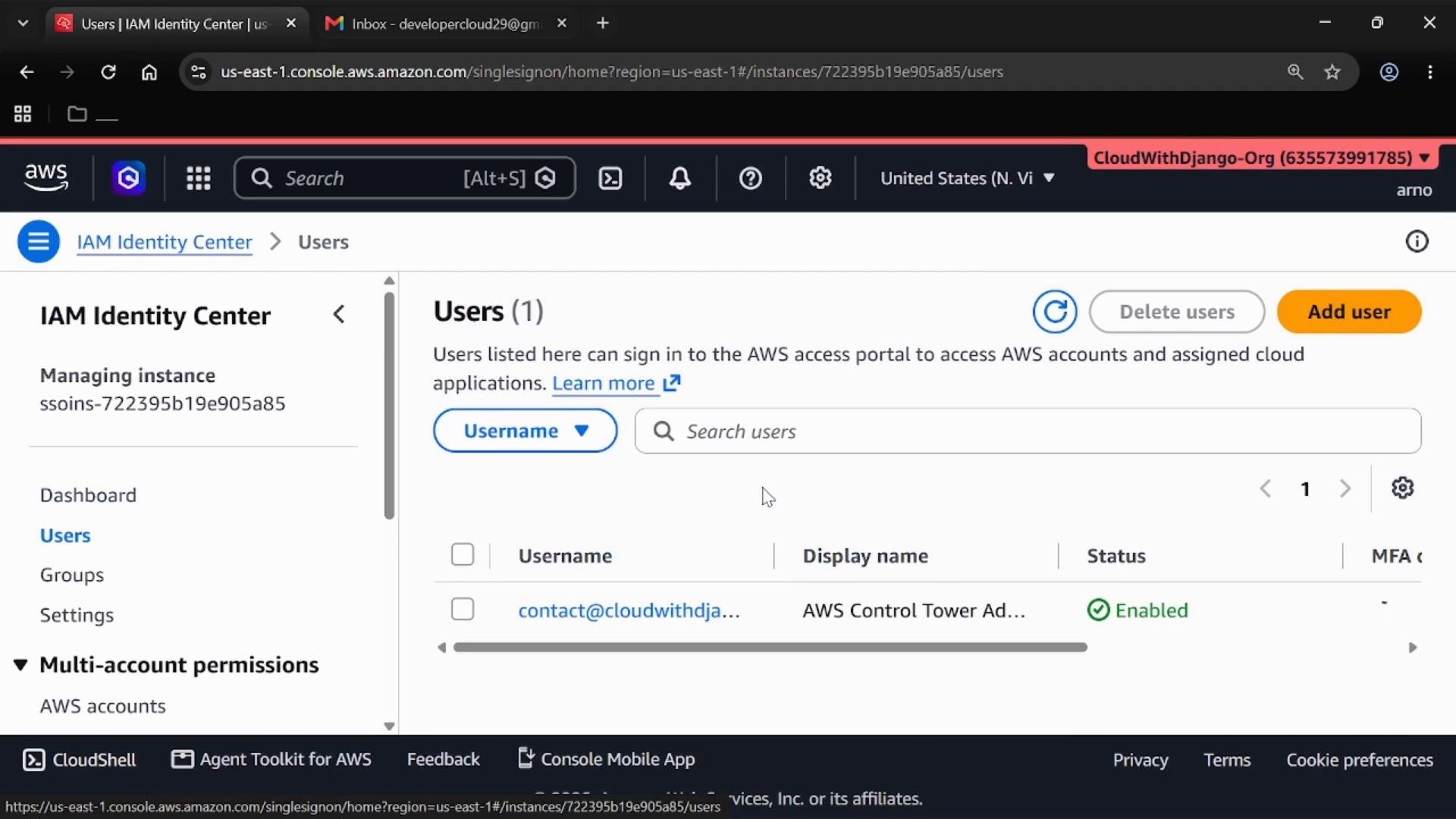
- Open the IAM Identity Center console in
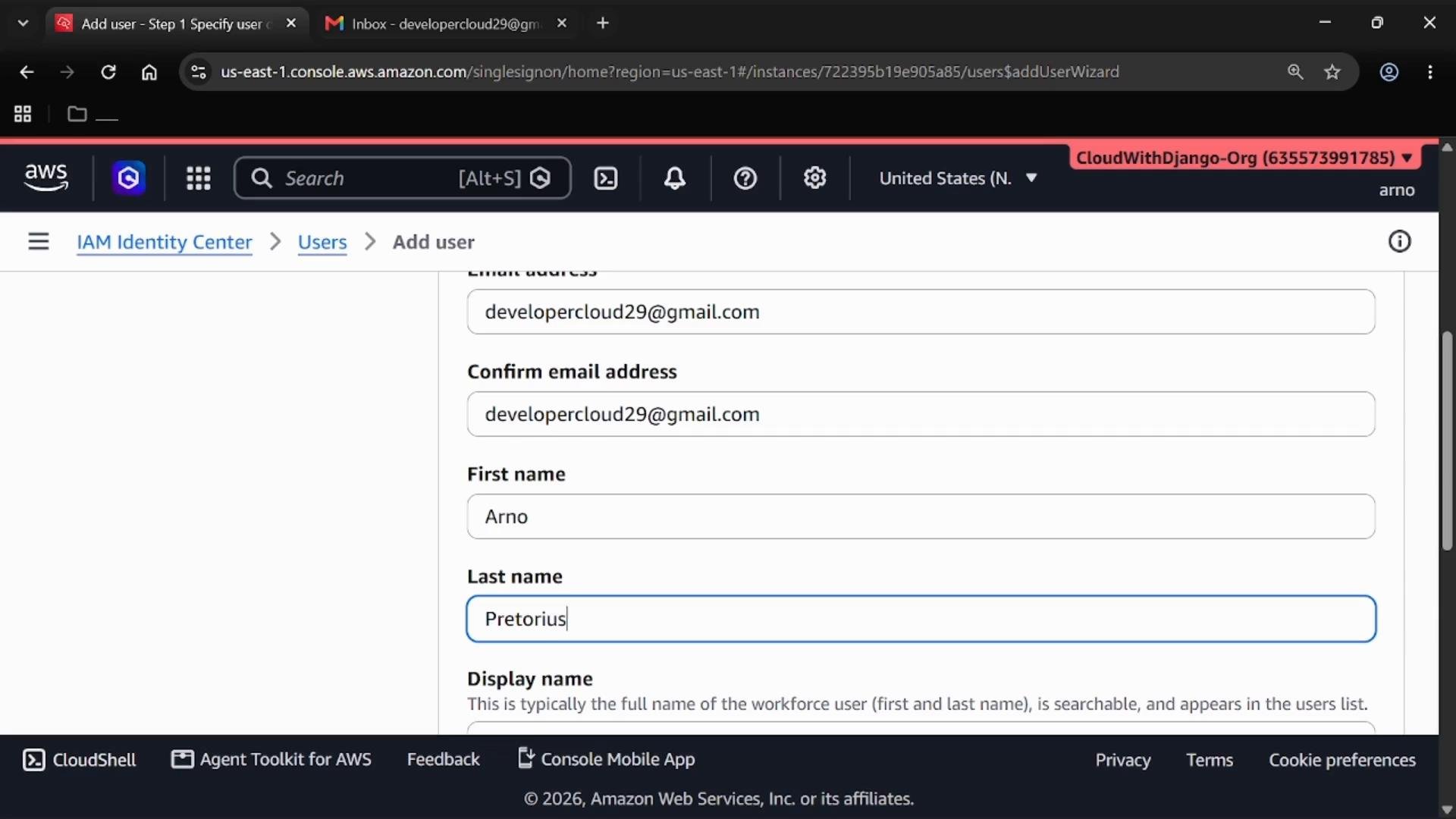
us-east-1, choose Users, and click Add user. - Provide the username, email address (Identity Center sends an invitation to this email), and first/last name for display.
- Choose how the user will receive credentials (typically an email with setup instructions). Optionally assign the user to groups at this time; groups are useful for bulk assignments but are not required.
Create a permission set
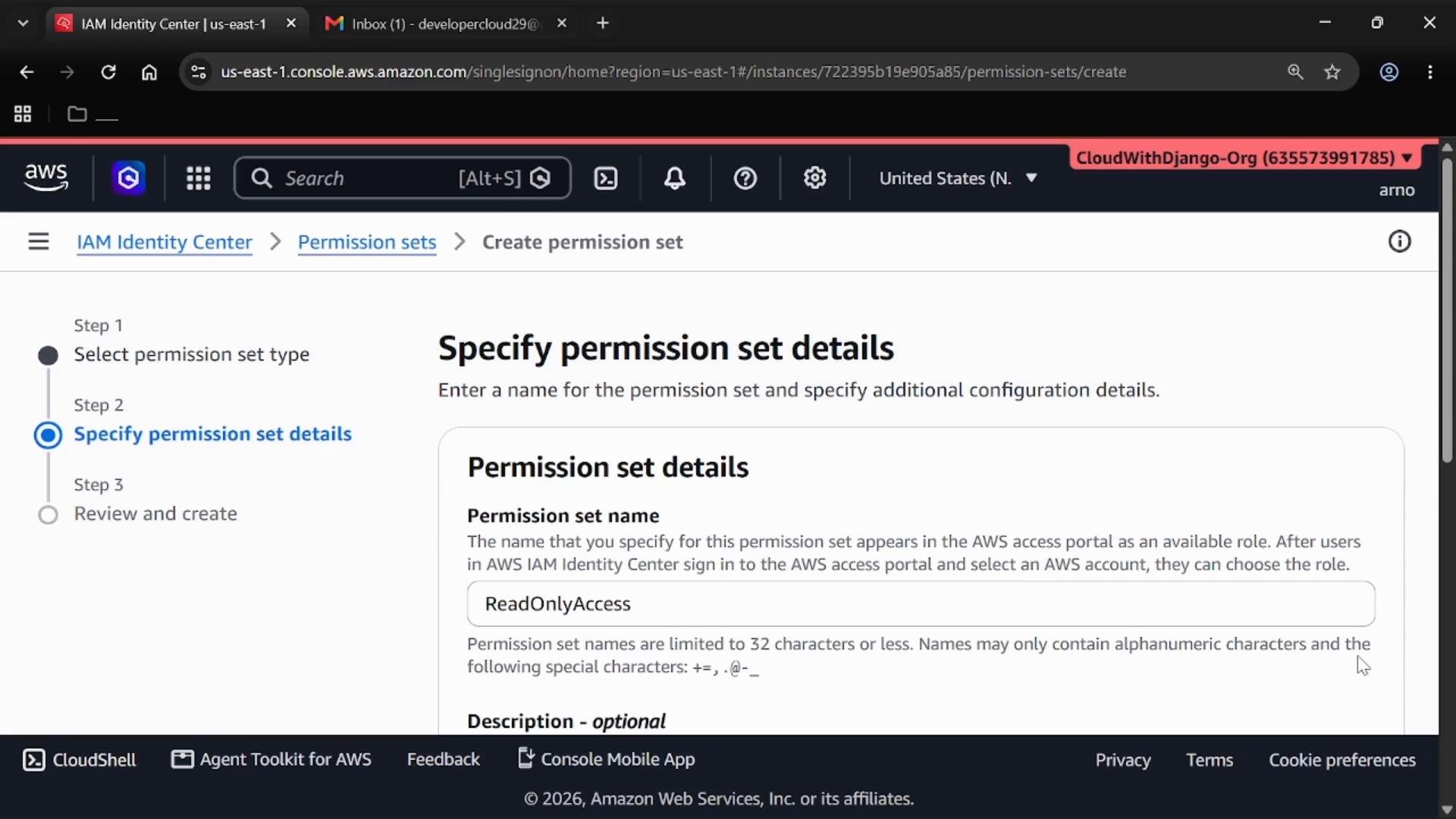
A permission set defines the AWS permissions Identity Center grants when a user assumes the role in the target account. Each permission set maps to an IAM role that Identity Center creates in the account.- In IAM Identity Center, under Multi-account permissions, choose Permission sets and click Create permission set.
- Select a predefined AWS managed policy or build a custom permission set. For this demo, choose the predefined
ReadOnlyAccesspermission set (grants read-only access to AWS services and resources). - Enter a permission set name and an optional description, review the configuration, and create it.
Assign the user to an AWS account
- In the left menu, choose AWS accounts.
- Select the target account checkbox (for example, an account under Root or your organization).
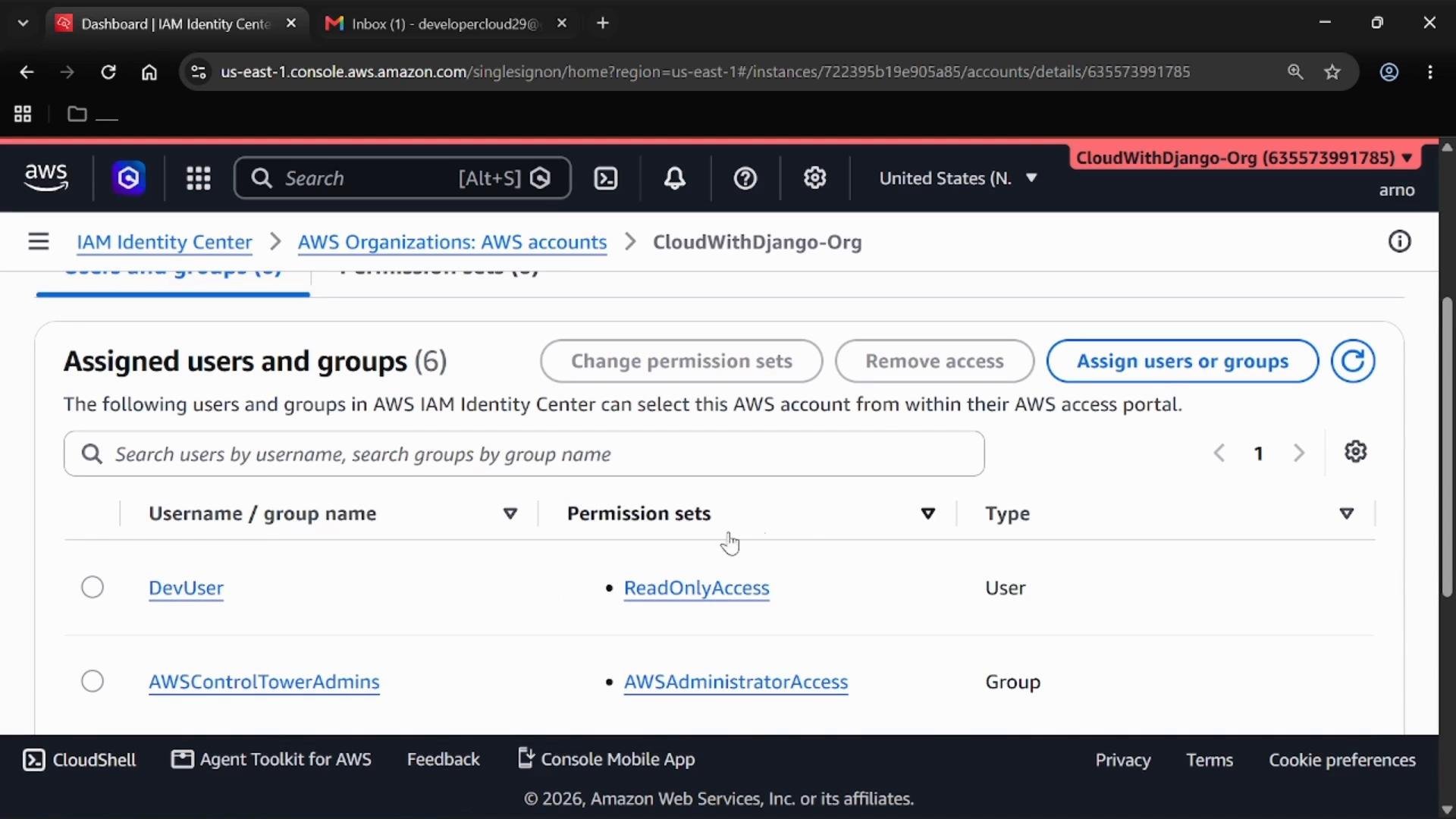
- Click Assign users or groups, choose the user(s) you created, and select the permission set (for example,
ReadOnlyAccess). - Review and submit the assignment.
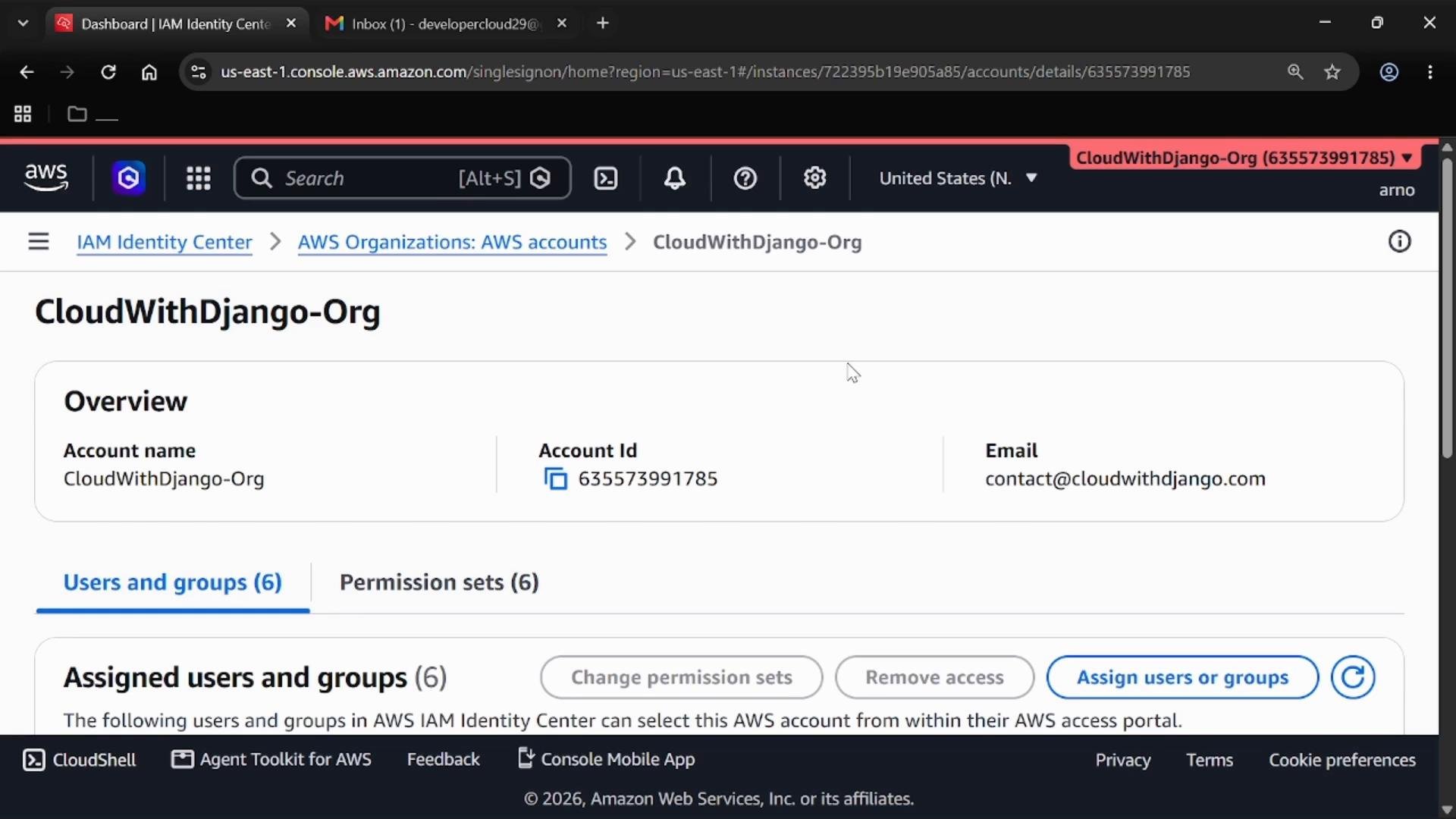
User onboarding — accept invite, set password, and enable MFA
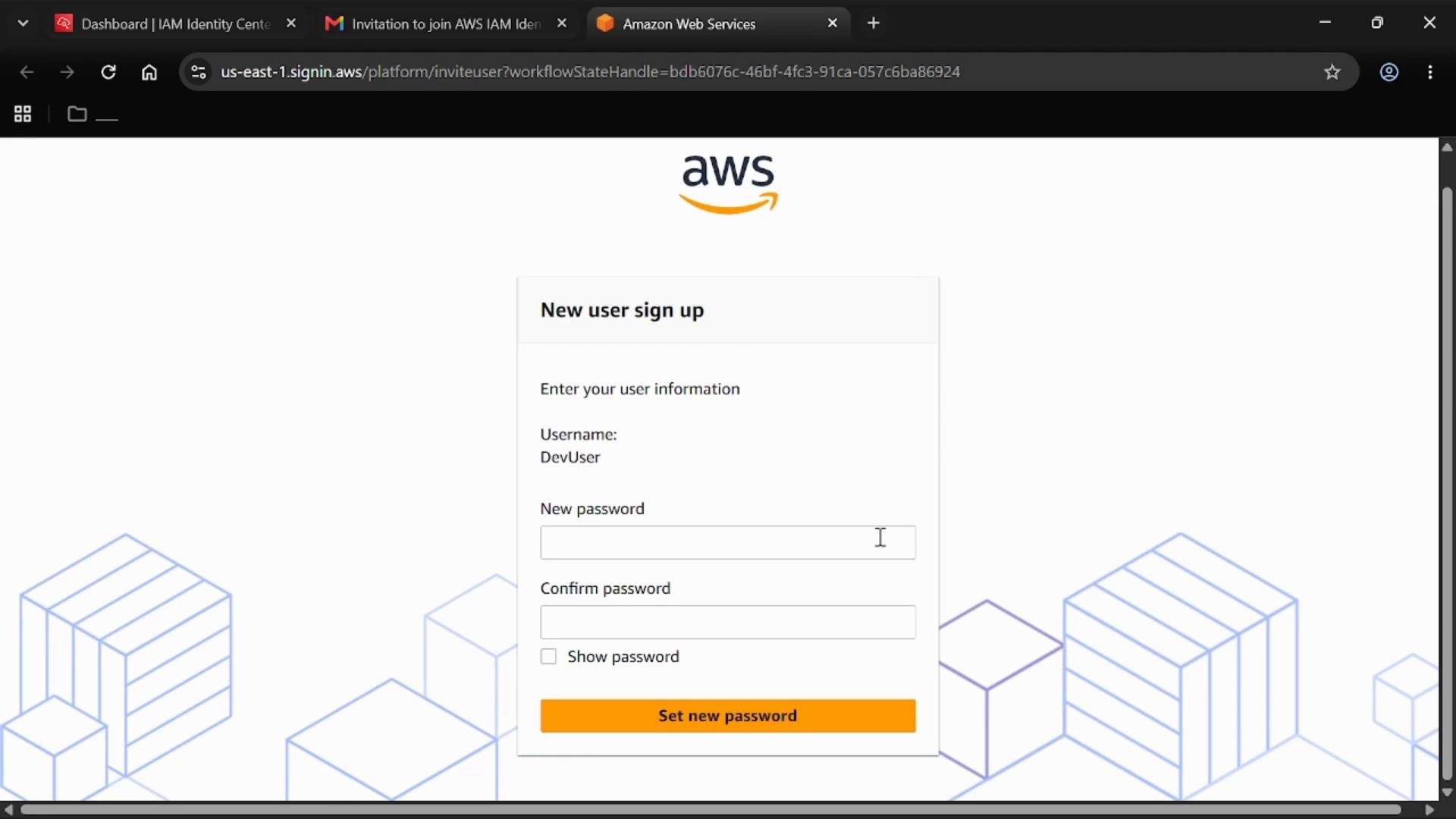
- The invited user opens the email invite and clicks the link to join IAM Identity Center.
- On the AWS Access Portal sign-up page they set and confirm a new password.
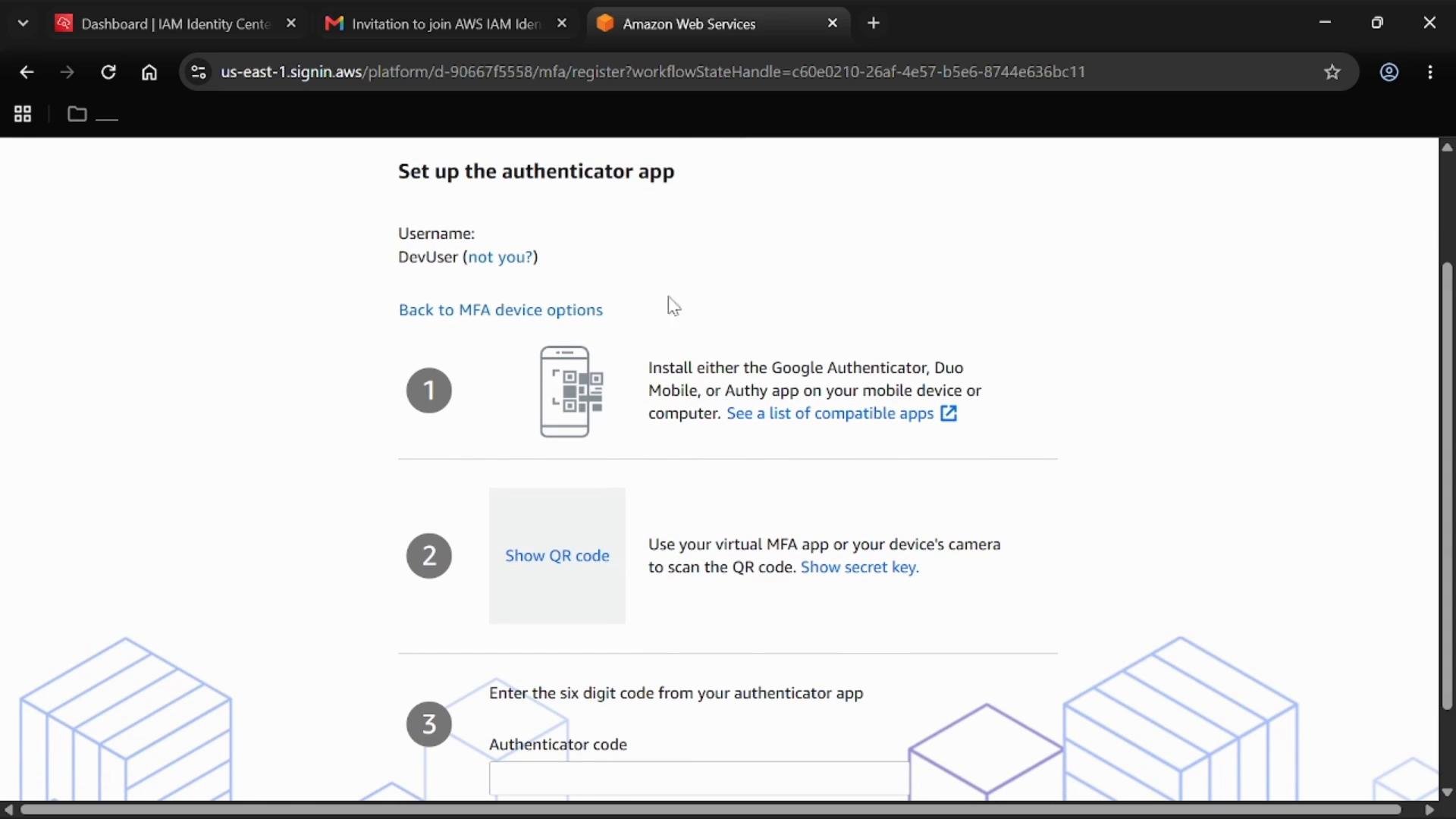
- After setting the password, the user is usually prompted to configure multi-factor authentication (MFA).
- If the portal shows a different username (for example, a cached session), choose Not you and sign in with the newly created credentials.
- Choose Authenticator app, scan the QR code with an authenticator app on the mobile device, and enter the six-digit code to register MFA.
Reference summary
Key takeaways & exam tip
- IAM Identity Center centralizes workforce access across AWS accounts and provisions IAM roles in target accounts automatically.
- Workflow: create User → create Permission set → assign User (or Group) to AWS Account → Identity Center creates IAM role in account.
- Use permission sets to maintain least-privilege access and avoid creating IAM users in every account.
Exam tip: Remember the three main entities in IAM Identity Center — User, Permission Set, and AWS Account — and that Identity Center provisions the IAM role in the account to enforce the permission set. Keep
us-east-1 in mind as the management region.