

- Create a security group with an intentionally insecure inbound SSH rule (source
0.0.0.0/0). - Enable the AWS Config recorder so it captures resource configuration.
- Add the managed AWS Config rule
restricted-sshand scope it to the created security group. - Configure an automatic remediation action using the SSM Automation runbook
AWS-DisablePublicAccessForSecurityGroup. - Provide an automation role with the required SSM Automation and EC2 permissions.
- Re-evaluate the rule to trigger remediation and verify the inbound SSH rule is removed and the security group becomes compliant.
Resources and further reading
Step 1 — Create an insecure security group
- Open the EC2 console in the region you will use (the demo uses
us-east-2). - Create a new security group (for example,
config-sg). - Add an inbound SSH rule (TCP port 22) with source
0.0.0.0/0so SSH is allowed from anywhere. This is intentionally insecure for demonstration purposes.
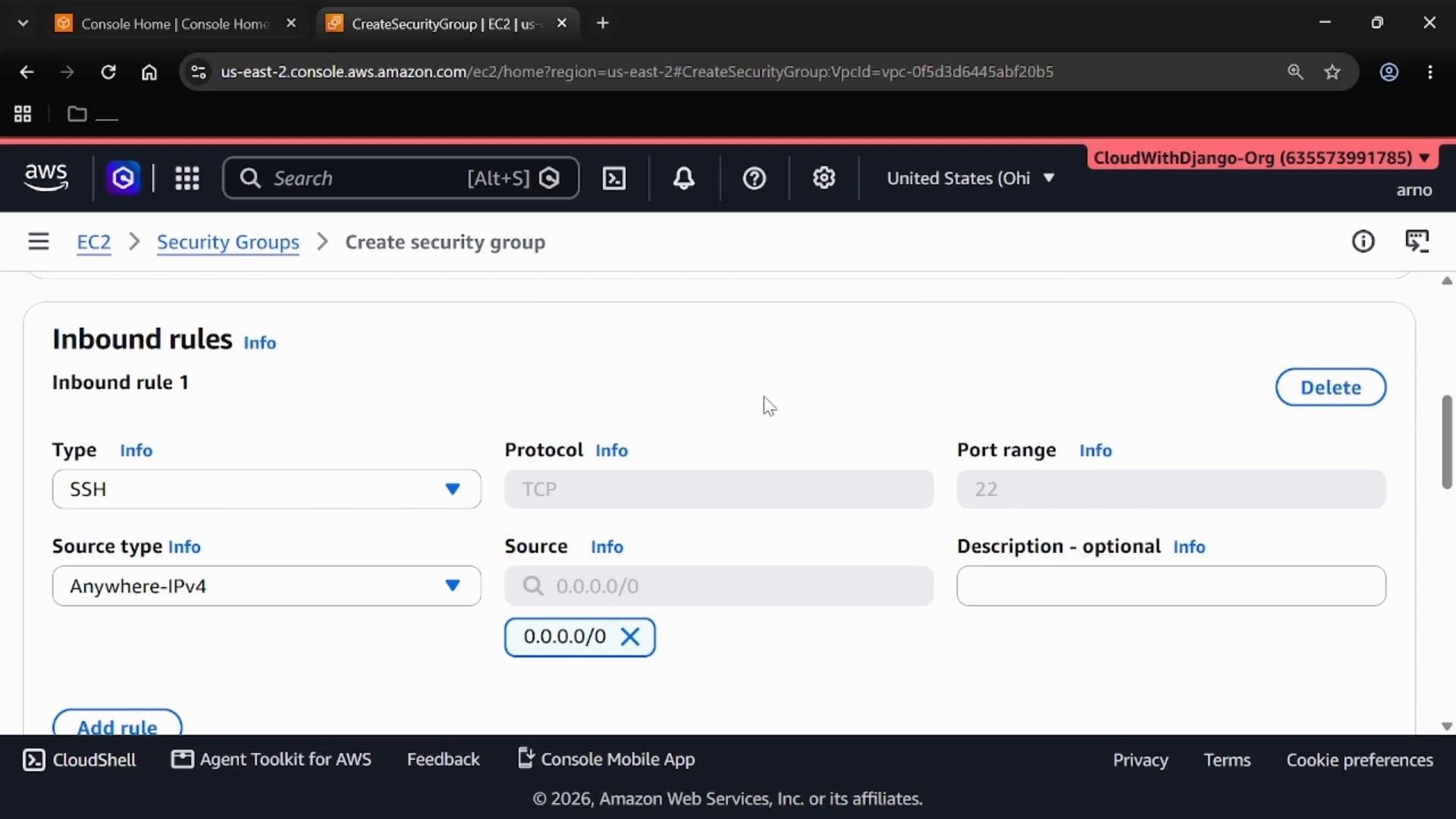
0.0.0.0/0 allows anyone on the internet to attempt connections to hosts using this security group. Use this configuration only in a controlled lab environment.
After creating the security group, keep the security group details page open — you will need the Security Group ID in a later step.
Step 2 — Note the region and Security Group ID
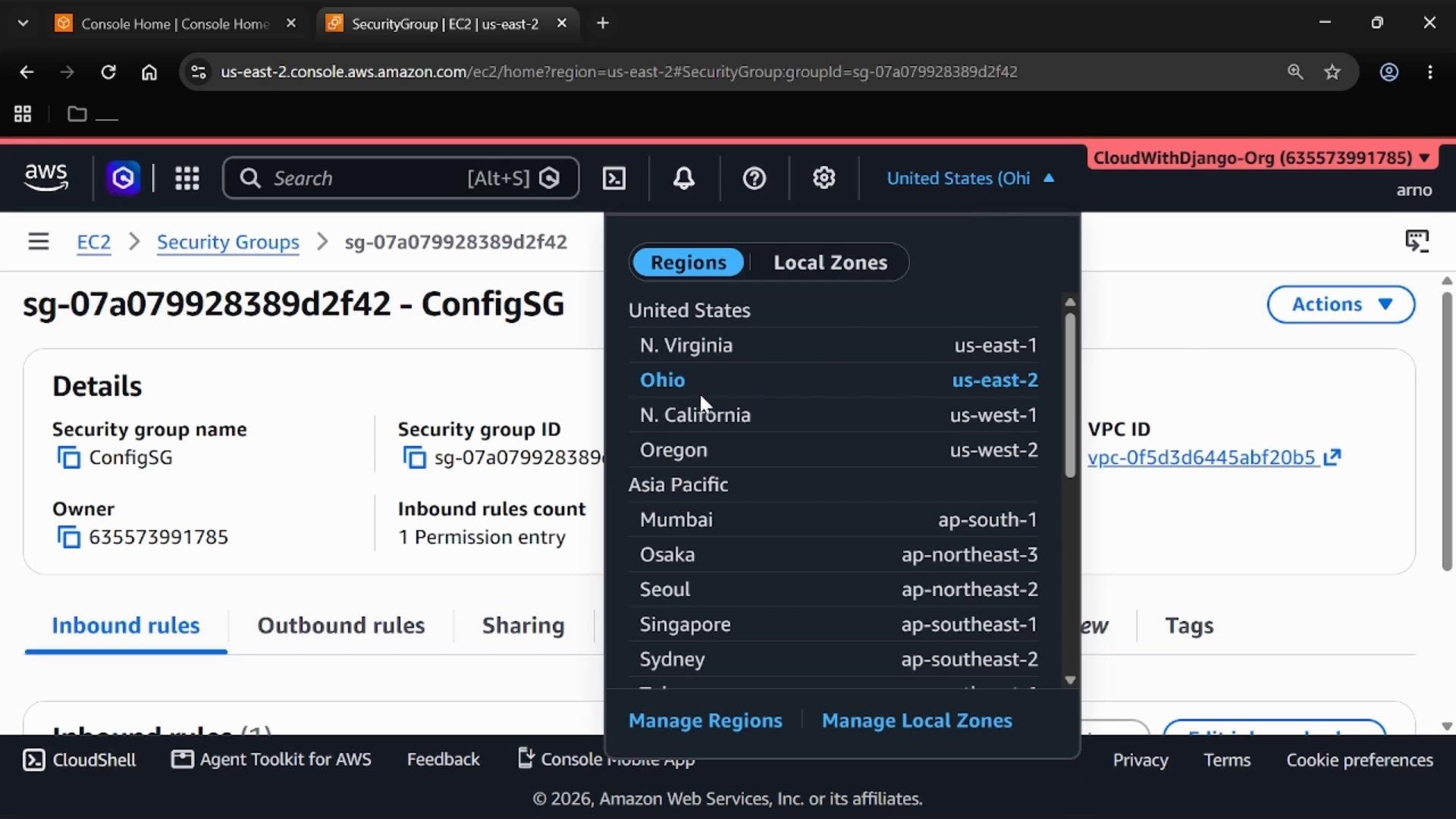
- Confirm the region shown in the console (example: Ohio,
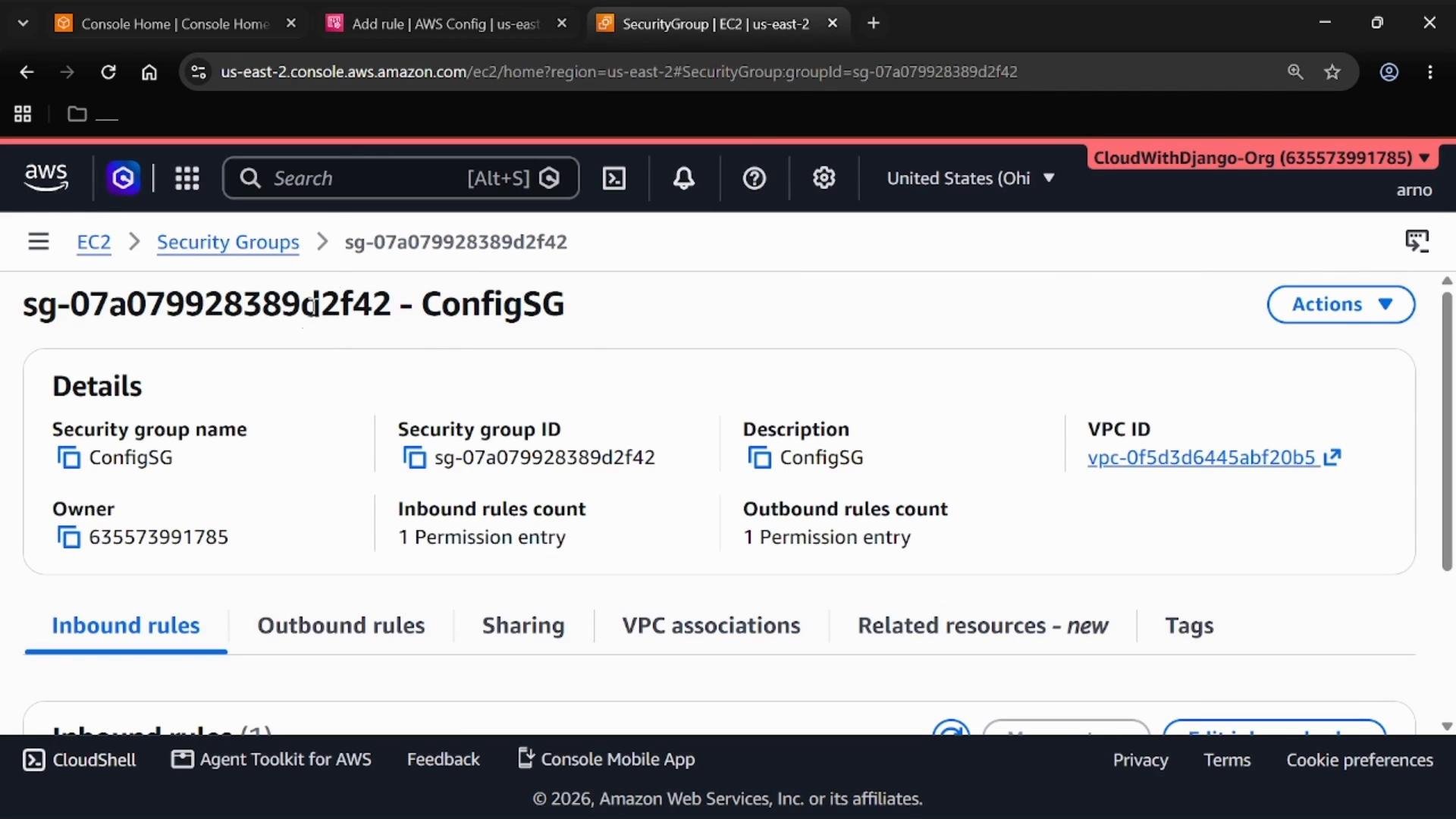
us-east-2). - Copy the created Security Group ID (for example,
sg-07a079928389d2f42) for later use in the AWS Config rule and remediation parameters.
- Open AWS Config in the same region (
us-east-2). - Under Settings, verify that the Recorder is enabled and that a Delivery Channel exists. AWS Config must be recording configuration changes for evaluation and remediation to work.
Ensure both the Recorder is ON and a Delivery Channel is configured so recorded configuration snapshots and notifications can be delivered. If the recorder was OFF when you created the security group, recreate or modify the security group after enabling the recorder so Config captures the resource state.
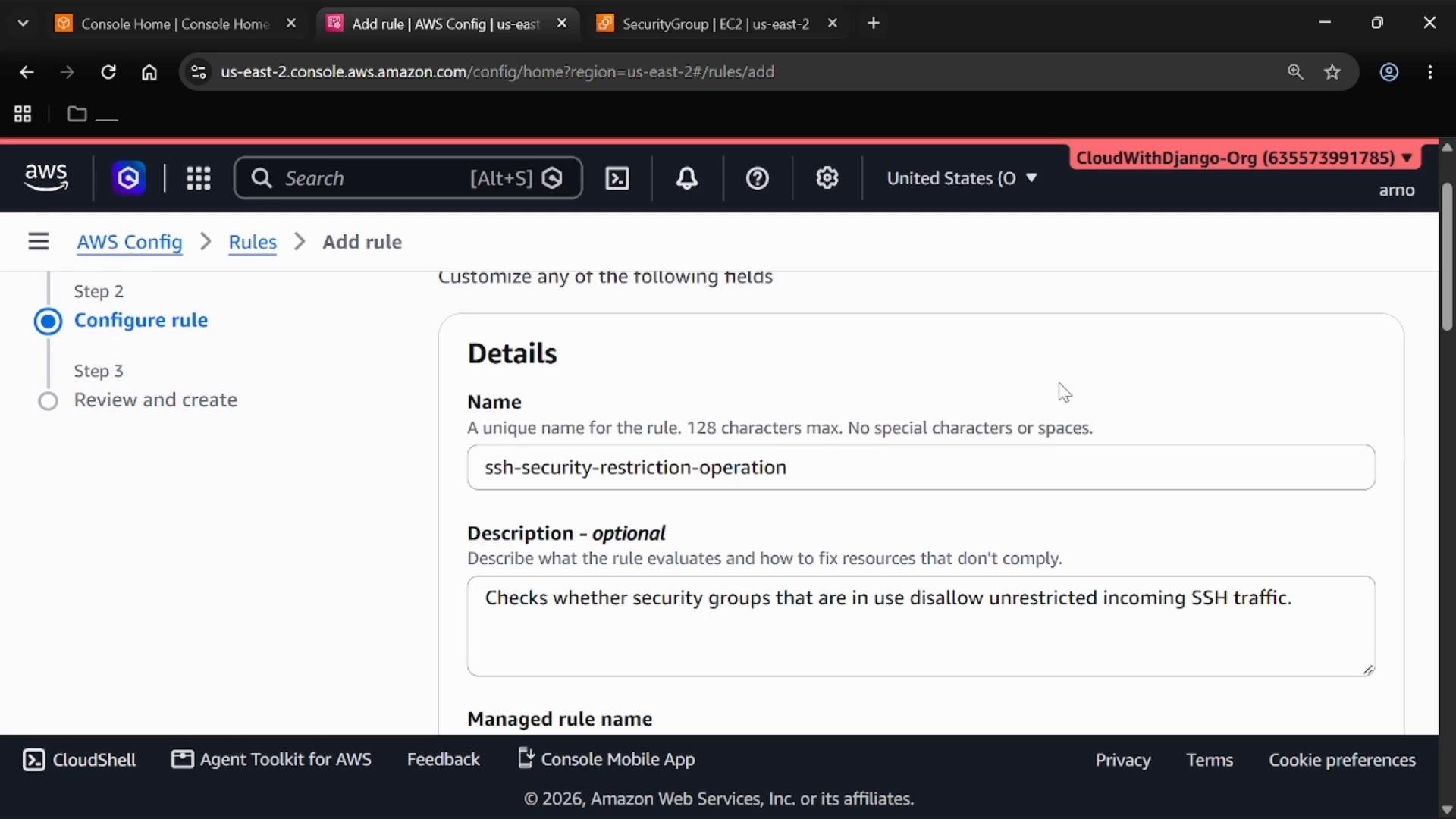
- In AWS Config, navigate to Rules → Add rule.
- Search for
restrictedand choose the managed rulerestricted-ssh(may appear as “Restricted SSH” orrestricted-ssh). - Give the rule a descriptive name such as
ssh-security-restriction-operation. Leave other defaults unless you require a different scope or evaluation frequency.
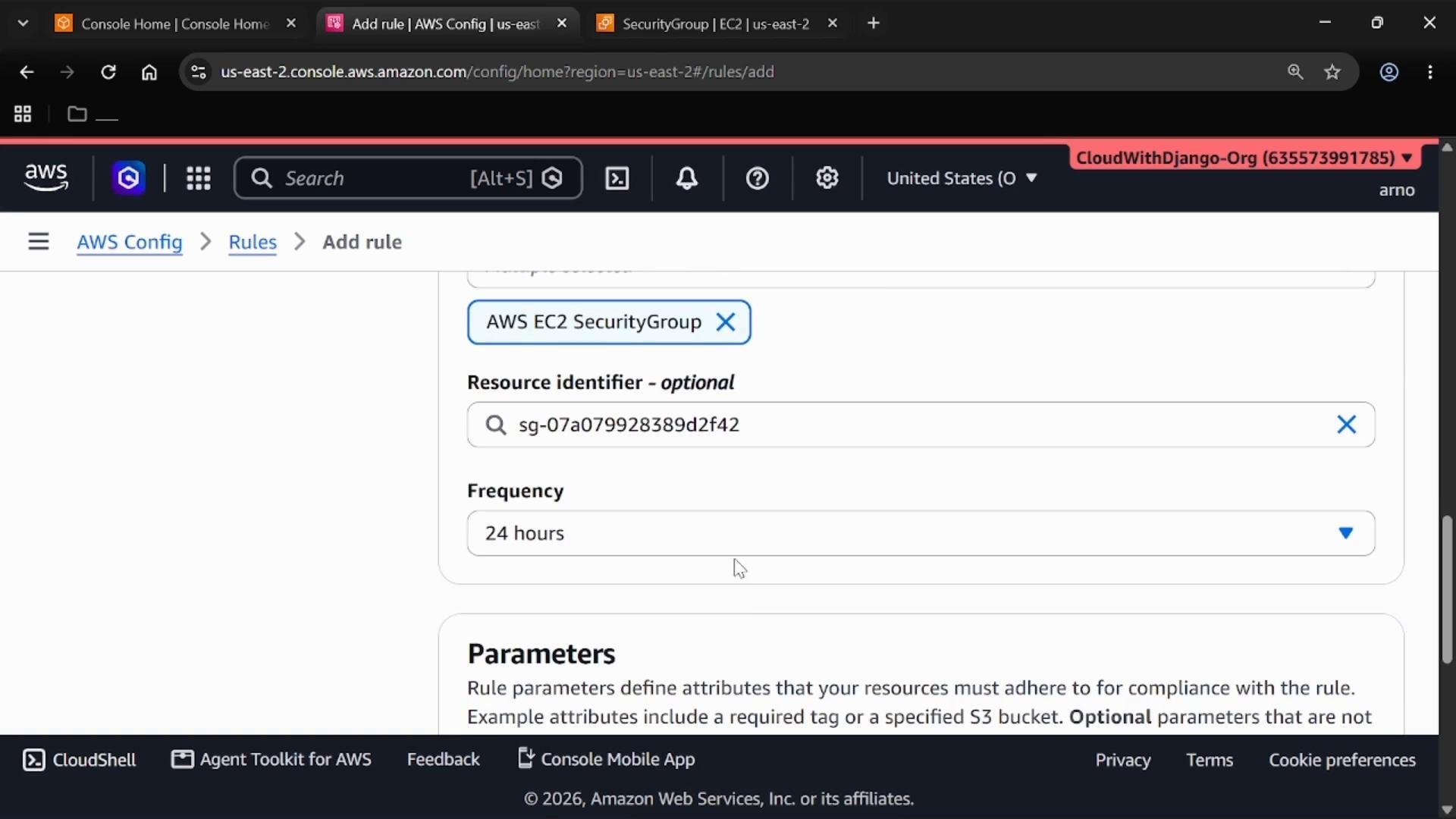
- In the rule configuration Resources section, set the resource type to
AWS::EC2::SecurityGroup. - Paste the Security Group ID you copied (e.g.,
sg-07a079928389d2f42) into the Resource Identifier field so the rule evaluates only that specific security group. - Keep the evaluation frequency at the default (e.g., 24 hours) or choose on-change if you need near real-time checks. Save the rule.
- From AWS Config → Rules, select the rule you created.
- Choose Actions → Re-evaluate to force an immediate evaluation.
- After a short time the rule should evaluate the security group and mark it as NON-COMPLIANT because of the
0.0.0.0/0SSH rule.
aws configservice start-config-rules-evaluation --config-rule-names ssh-security-restriction-operation
Step 7 — Configure automatic remediation
- In the rule details, choose Actions → Manage remediation and select Automatic remediation.
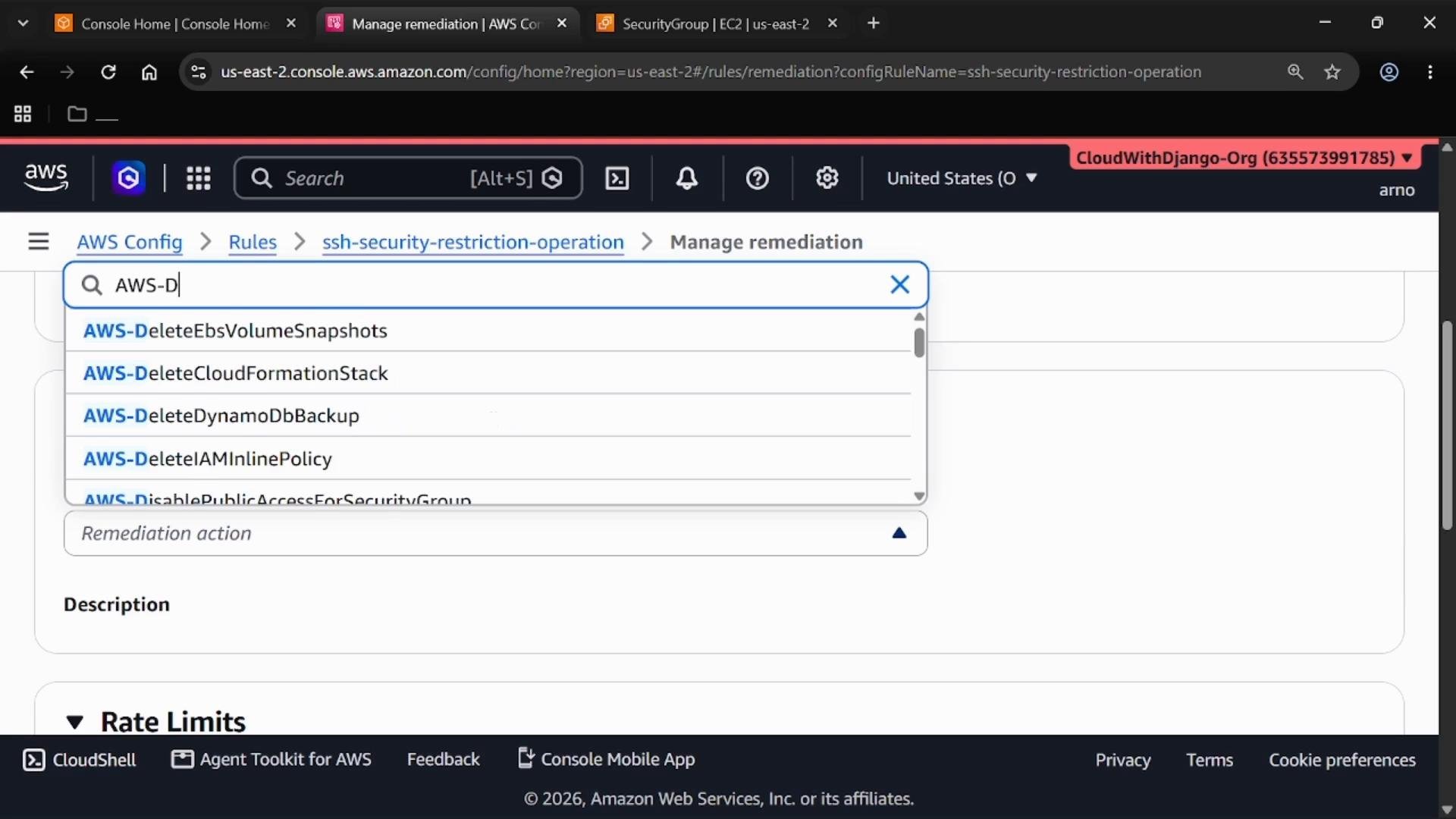
- For the remediation action, choose the Systems Manager Automation runbook
AWS-DisablePublicAccessForSecurityGroup. This built-in runbook removes public access entries such as0.0.0.0/0from the specified security group. - In the Parameters section, set
GroupIdto the Security Group ID (for example,sg-07a079928389d2f42). - Provide an Automation assume role (the IAM role that SSM Automation will assume to make the changes). You will create this role in the next step.
- In the IAM console, create a role for the AWS service Systems Manager. Choose the Systems Manager / Automation use case when creating the role.
- Attach the AWS-managed policy
AmazonSSMAutomationRoleto provide baseline SSM Automation permissions. - For this demo, attach
AmazonEC2FullAccessso the runbook can modify security groups. In production, replace this with a least-privilege policy that allows only the specific EC2 actions needed to modify security group rules. - Name the role clearly (for example,
config-automatic-remediation-role) and create it. - Copy the role ARN and paste it into the remediation action’s Automation assume role field, then save the remediation configuration.
The demo uses
AmazonEC2FullAccess for simplicity. In production, create and attach a narrowly scoped policy that grants only the required EC2 actions (for example, ec2:RevokeSecurityGroupIngress, ec2:AuthorizeSecurityGroupIngress) to follow the principle of least privilege.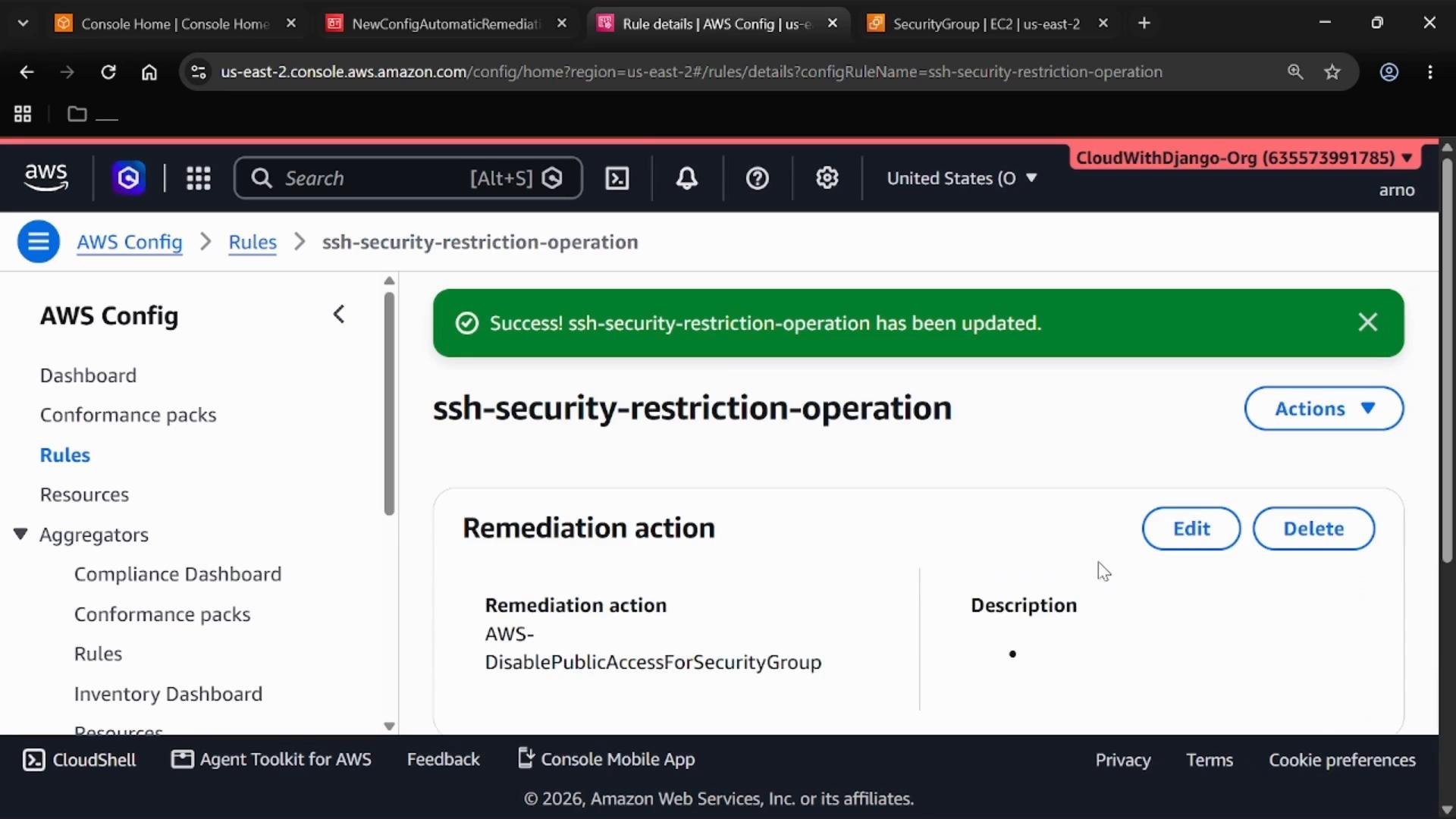
- With remediation configured, go back to the rule and choose Actions → Re-evaluate to re-run the compliance check.
- If the security group is NON-COMPLIANT, AWS Config will start the Systems Manager Automation execution using the runbook
AWS-DisablePublicAccessForSecurityGroupand the role you provided. - Open Systems Manager → Automation to view the execution history and details. The runbook execution should show as successful once it completes.
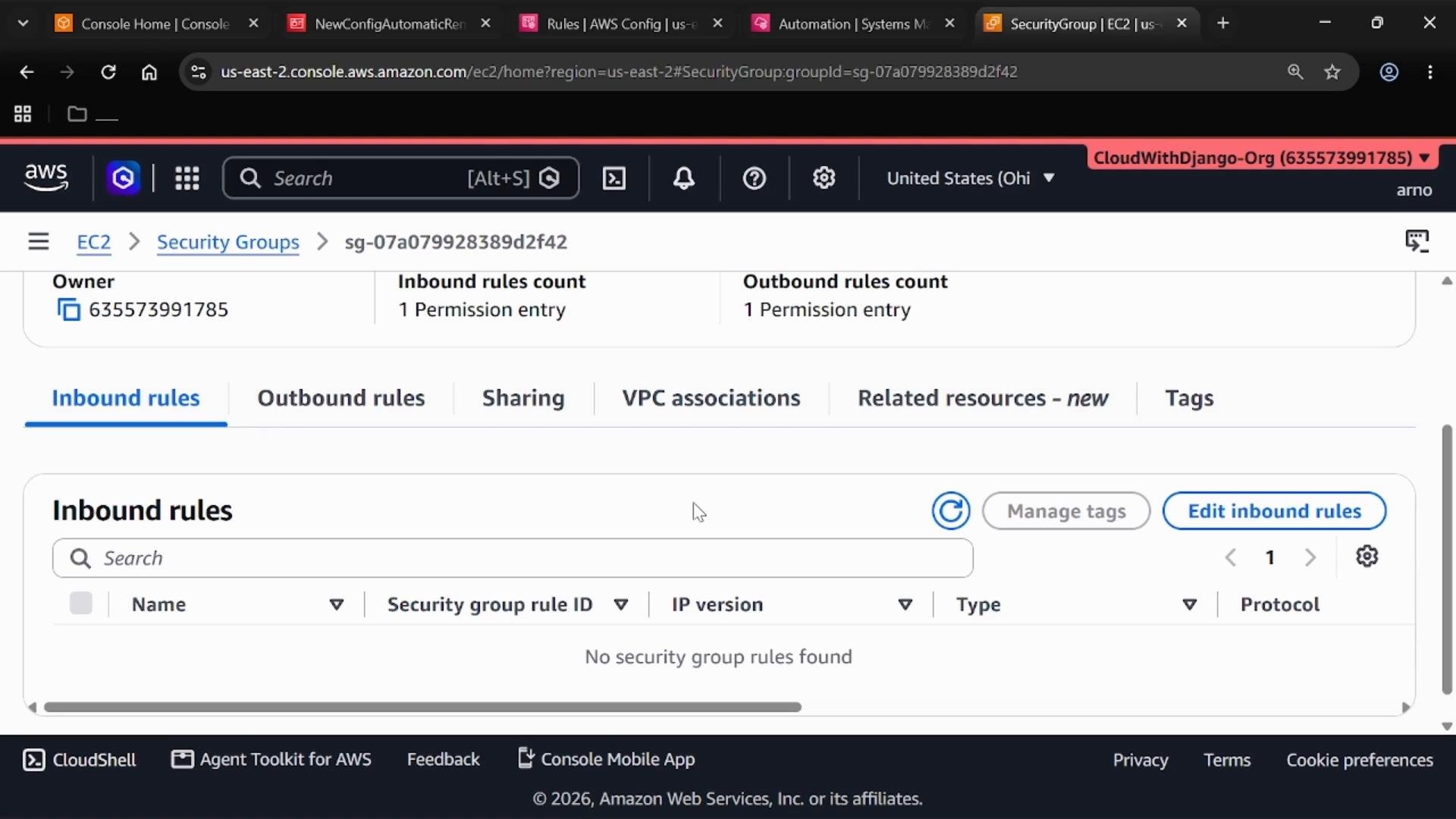
- Refresh the security group Inbound rules tab in the EC2 console. The public SSH rule (
0.0.0.0/0on port 22) should be removed — the security group may show no inbound rules or at least no unrestricted SSH rule. - Re-evaluate the Config rule one more time (Actions → Re-evaluate). After the automation completes, the rule should report the security group as COMPLIANT.
- AWS Config Rules Overview
- AWS Systems Manager Automation Runbooks
- IAM best practices — least privilege