

AWS::CloudFormation::Stack and a TemplateURL. This example demonstrates:
- Two simple child templates (each creating an S3 bucket)
- Uploading those templates to S3
- A parent template that references the children as nested stacks
- An AWS account with permissions to create S3 buckets and CloudFormation stacks.
- Clean up any previous demo resources (existing demo stacks and buckets) to avoid naming or resource conflicts.
- Reuse and modularize infrastructure
- Simplify large templates by splitting them into logical components
- Improve template maintainability and collaboration
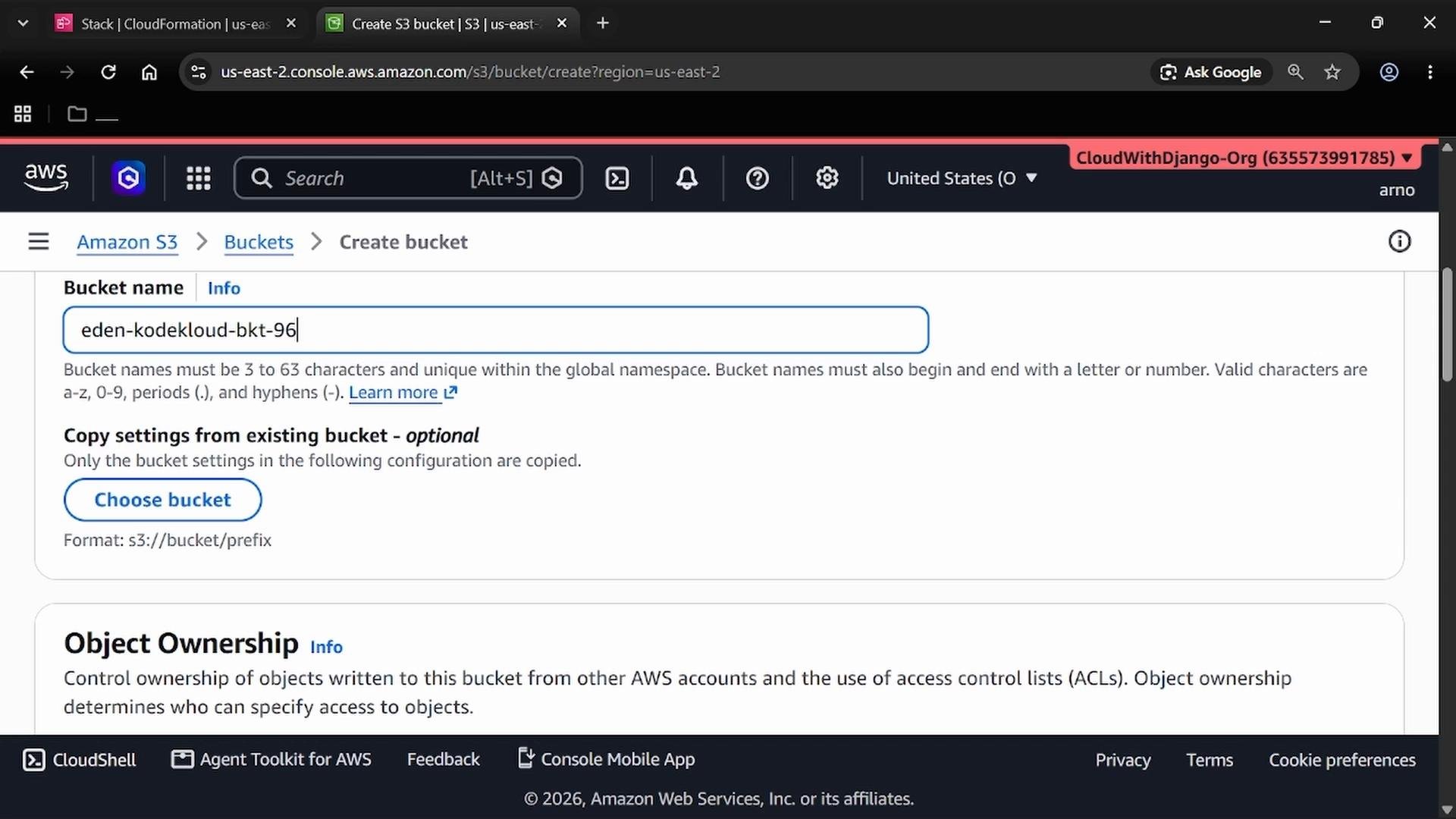
- Create an S3 bucket to store your CloudFormation templates. The bucket name must be globally unique.
- In this demo the example bucket name is
eden-kodekloud-bkt-961.
- Example upload commands (run from the folder containing your template files):
first-s3-bkt.yamlsecond-s3-bkt.yaml
- We deliberately omit explicit
BucketNamevalues so CloudFormation generates unique physical names for each bucket. - You can extend these templates to include versioning, encryption, lifecycle rules, or other S3 properties.
Step 3 — Upload the child templates to the S3 bucket
- Upload
first-s3-bkt.yamlandsecond-s3-bkt.yamlto youreden-kodekloud-bkt-961bucket (or the unique bucket you created). - After upload, open each object in the S3 console and copy the Object URL (the HTTPS URL). Example metadata for
first-s3-bkt.yaml:
first-s3-bkt.yaml and second-s3-bkt.yaml. These full URLs are required in the parent template.
Step 4 — Create the parent template
Create a file called parent.yml (or parent.yaml) that defines two AWS::CloudFormation::Stack resources. Each nested stack’s TemplateURL must be the full HTTPS S3 object URL for the corresponding child template.
parent.yml
TemplateURLmust include the full HTTPS S3 object URL (including the filename).- Templates must be accessible by CloudFormation — typically placing them in an S3 bucket in the same AWS account and region is sufficient.
- You may also upload the parent template to S3 and point CloudFormation to its S3 URL when creating the stack.
- Upload
parent.ymlto the same S3 bucket if you prefer to reference it from S3 in the CloudFormation console. - In the CloudFormation console, choose to create a new stack and specify the Amazon S3 URL of the parent template. CloudFormation will load the parent template and then create the two nested stacks, which create the two S3 buckets.
parent.yml file:
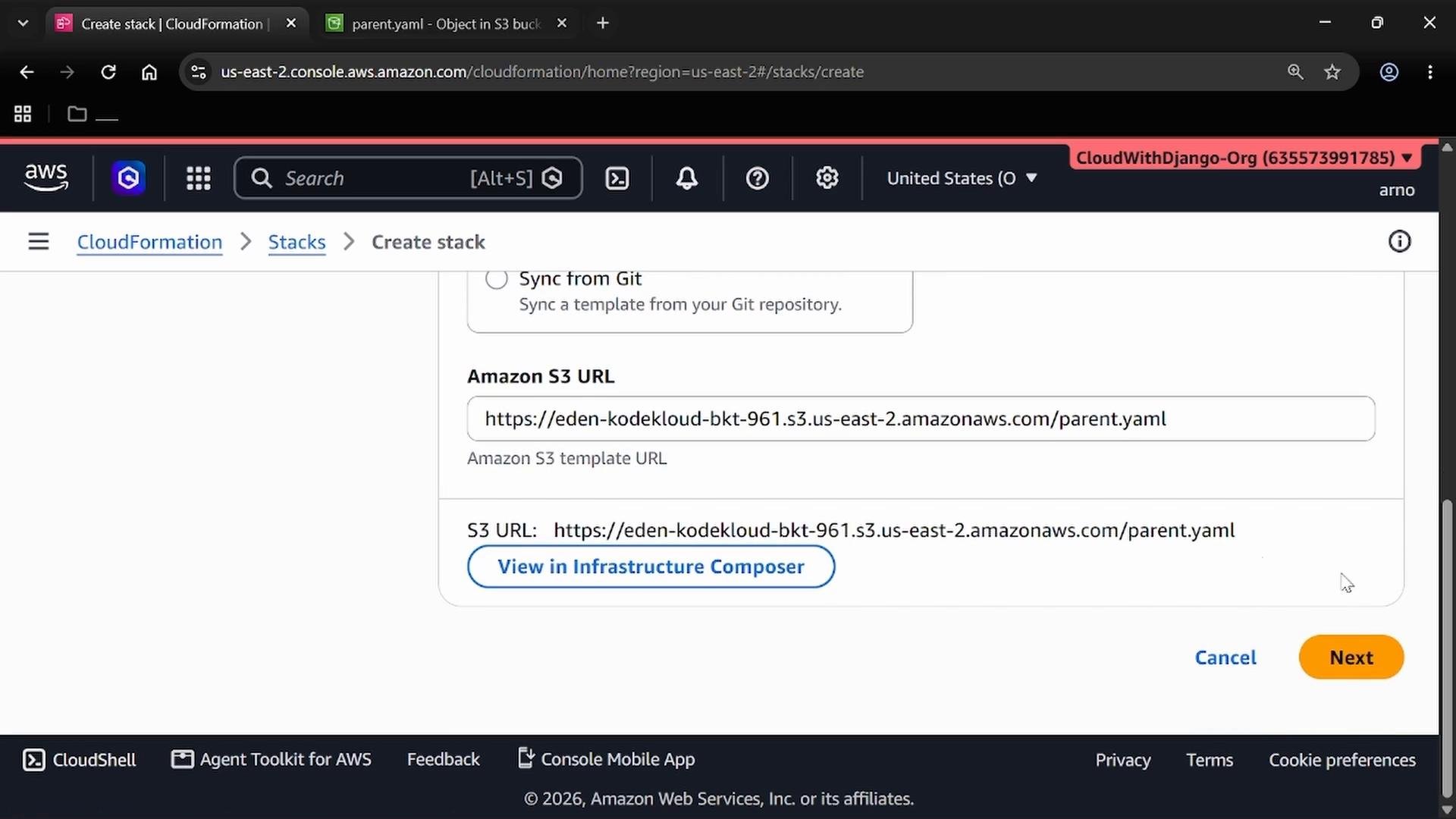
- Give the stack a name (for example
demo-stack) and proceed. - CloudFormation will create the parent stack and then call the two nested stacks (
FirstS3StackandSecondS3Stack) according to theTemplateURLvalues.
- If stack creation fails with a
TemplateURLor access error:- Verify the S3 object URL is correct and includes the filename.
- Ensure the objects are in the same AWS Region as the stack (or that CloudFormation can access them).
- Check S3 bucket/object permissions and block public access settings — CloudFormation needs service access to read the templates.
- For cross-account or cross-region access, consult AWS docs on permitted access patterns and necessary IAM roles/policies.
- Deleting the parent stack will also delete the nested child stacks and their resources (unless you set DeletionPolicy to retain resources). Remove demo resources when finished to avoid unexpected charges.
Template URLs must be full HTTPS S3 object URLs (including filenames), and the templates should be in a region accessible by CloudFormation (typically the same region as the stack). If CloudFormation cannot access the template object, stack creation will fail.