Creating the REST API
Start by searching for API Gateway in the AWS Management Console to access the API Gateway service page. Here, you can choose from HTTP APIs, WebSocket APIs, and REST APIs (public or private). For this demo, we will create a REST API. Click Build to create a new API rather than importing or cloning an existing one.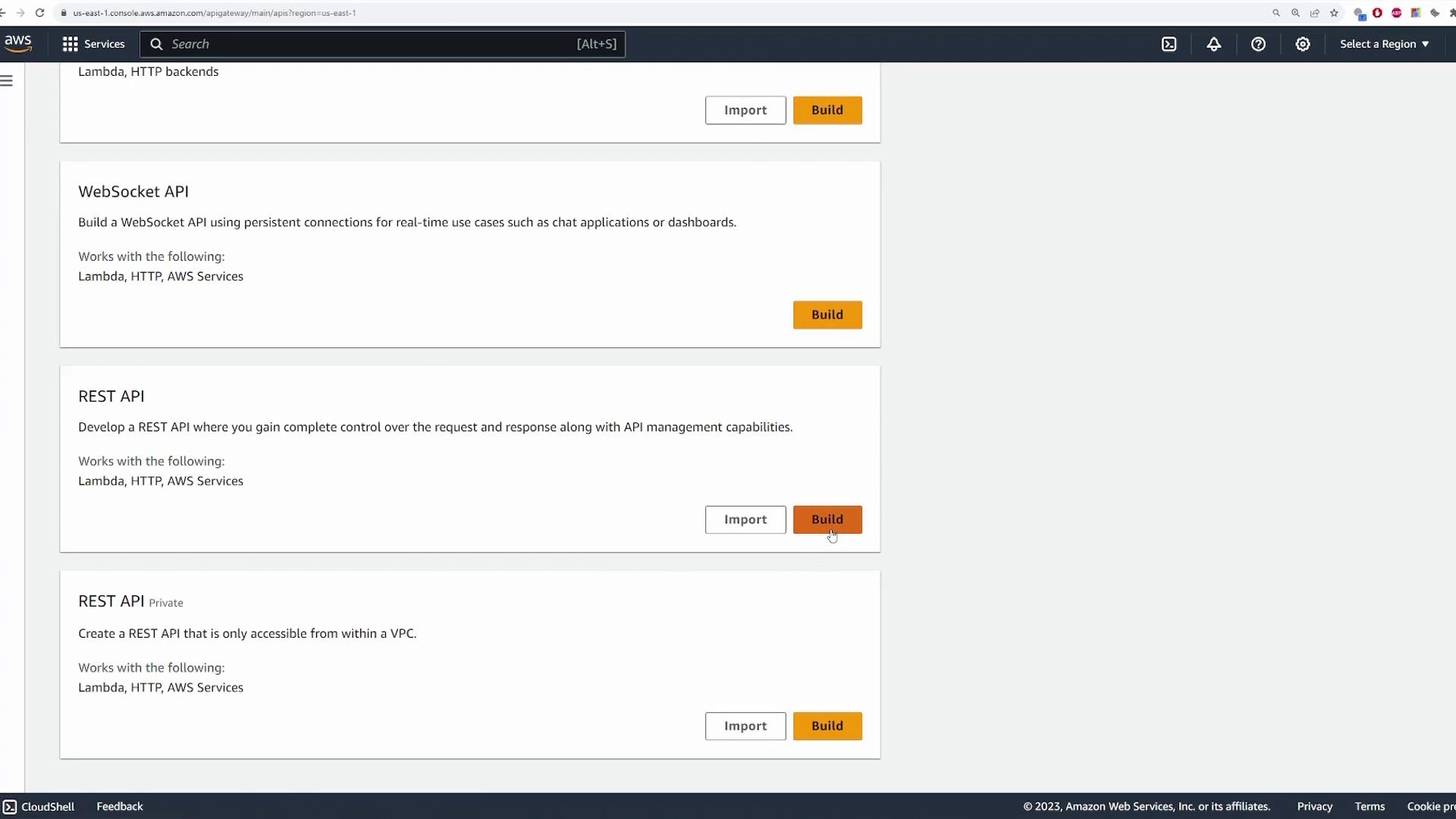
Defining a Resource
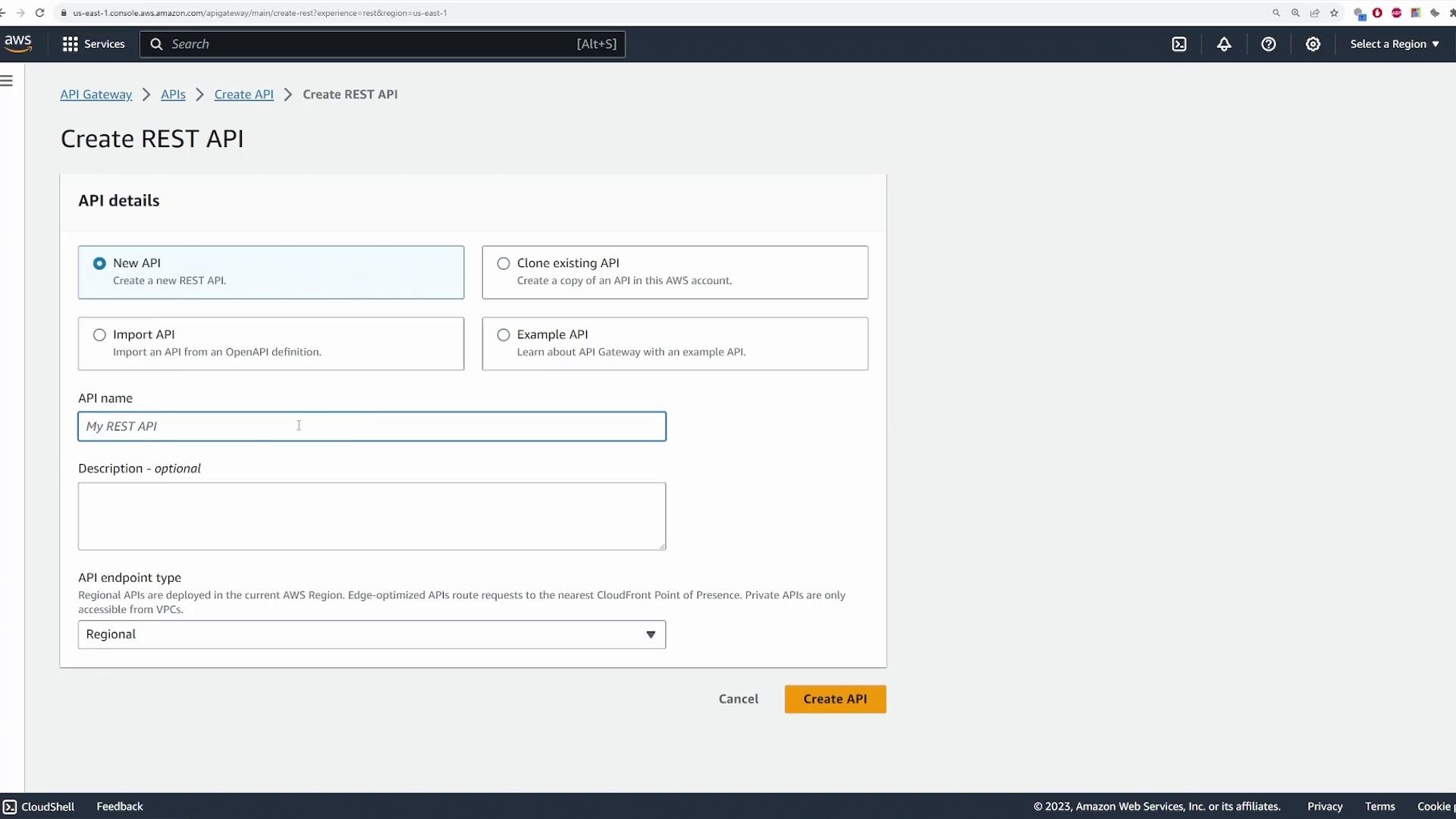
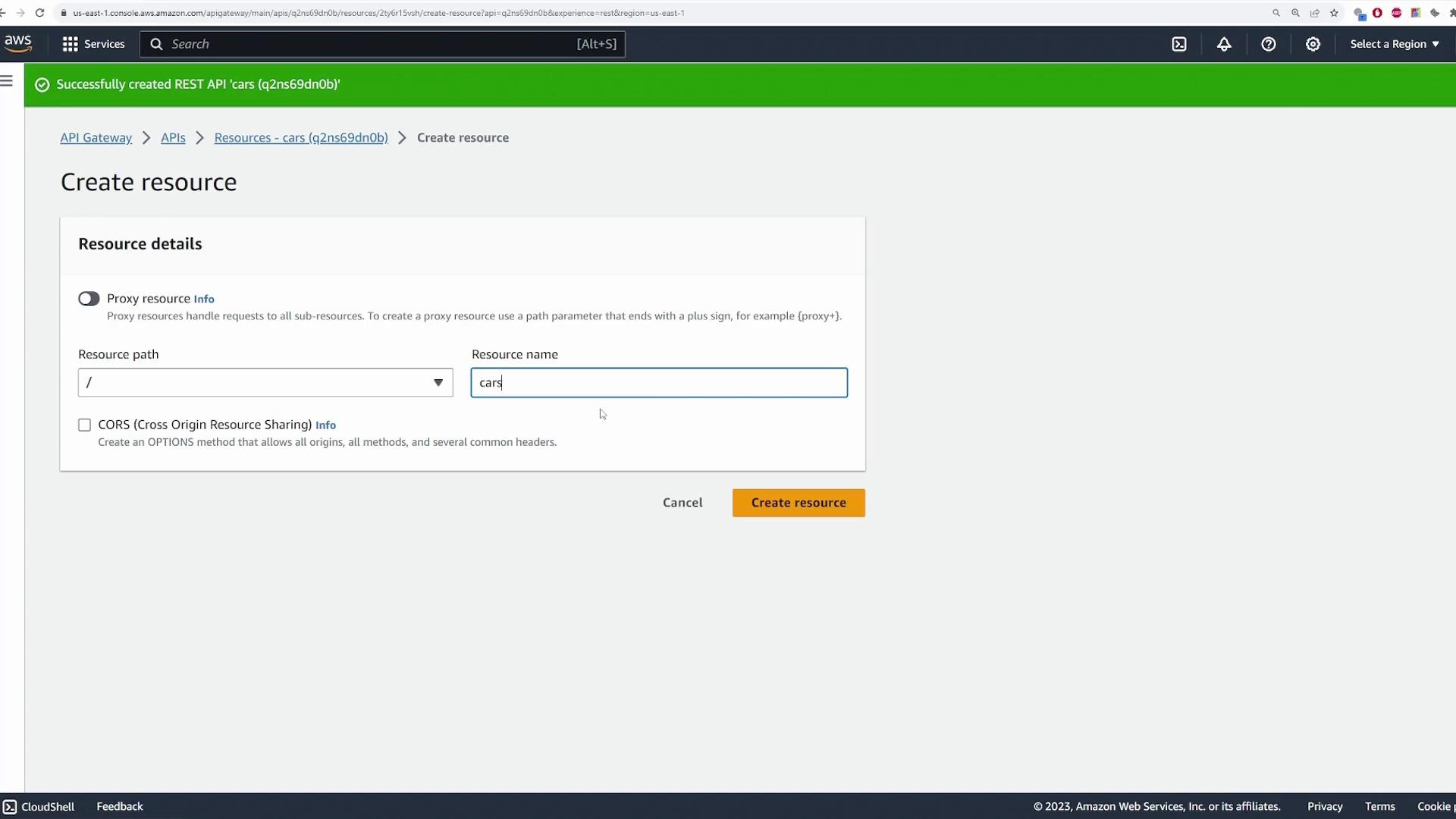
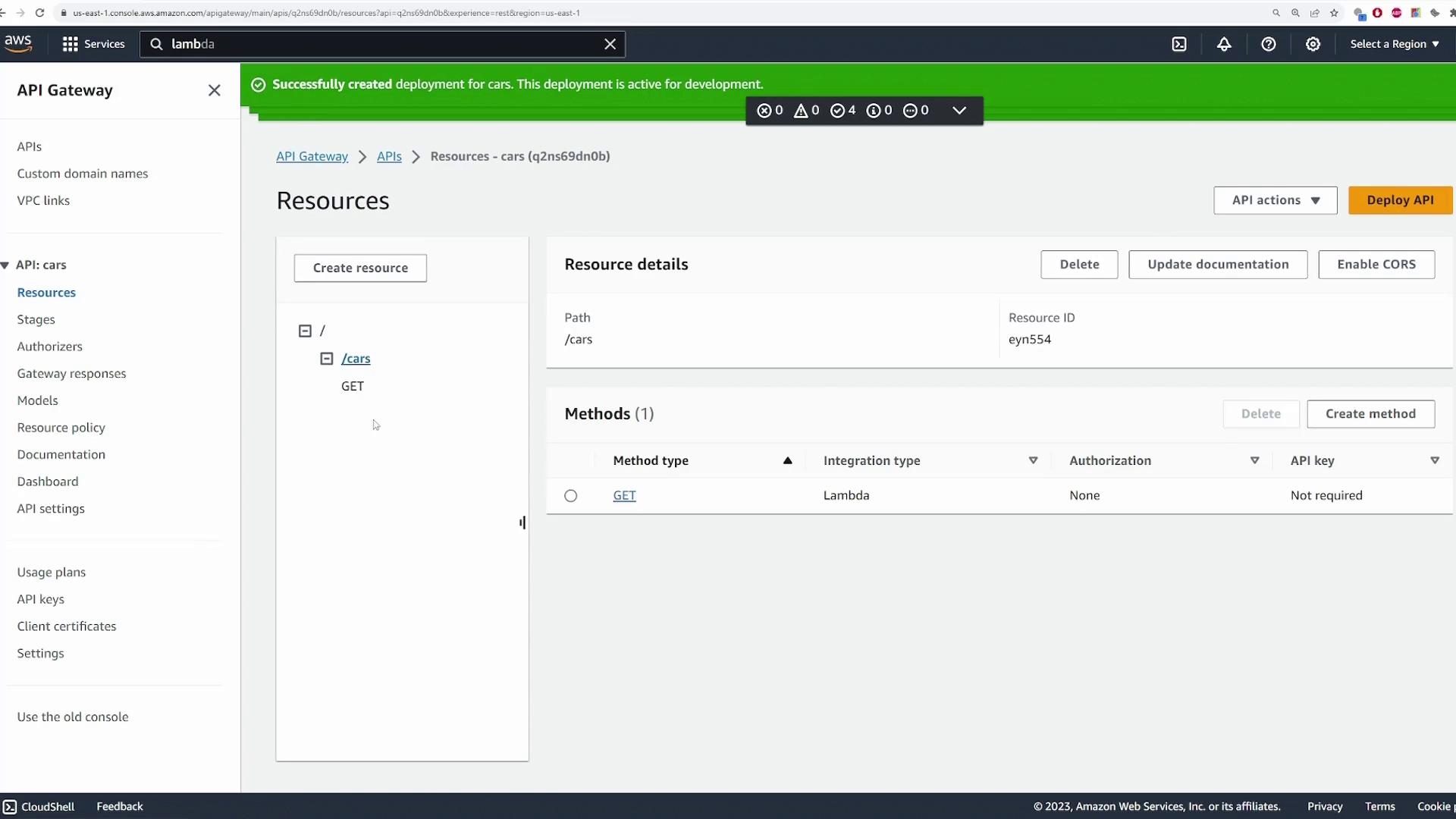
Next, define a resource representing a specific path in your API. In this example, all requests target the/cars endpoint. This configuration helps route HTTP methods to their corresponding Lambda functions.
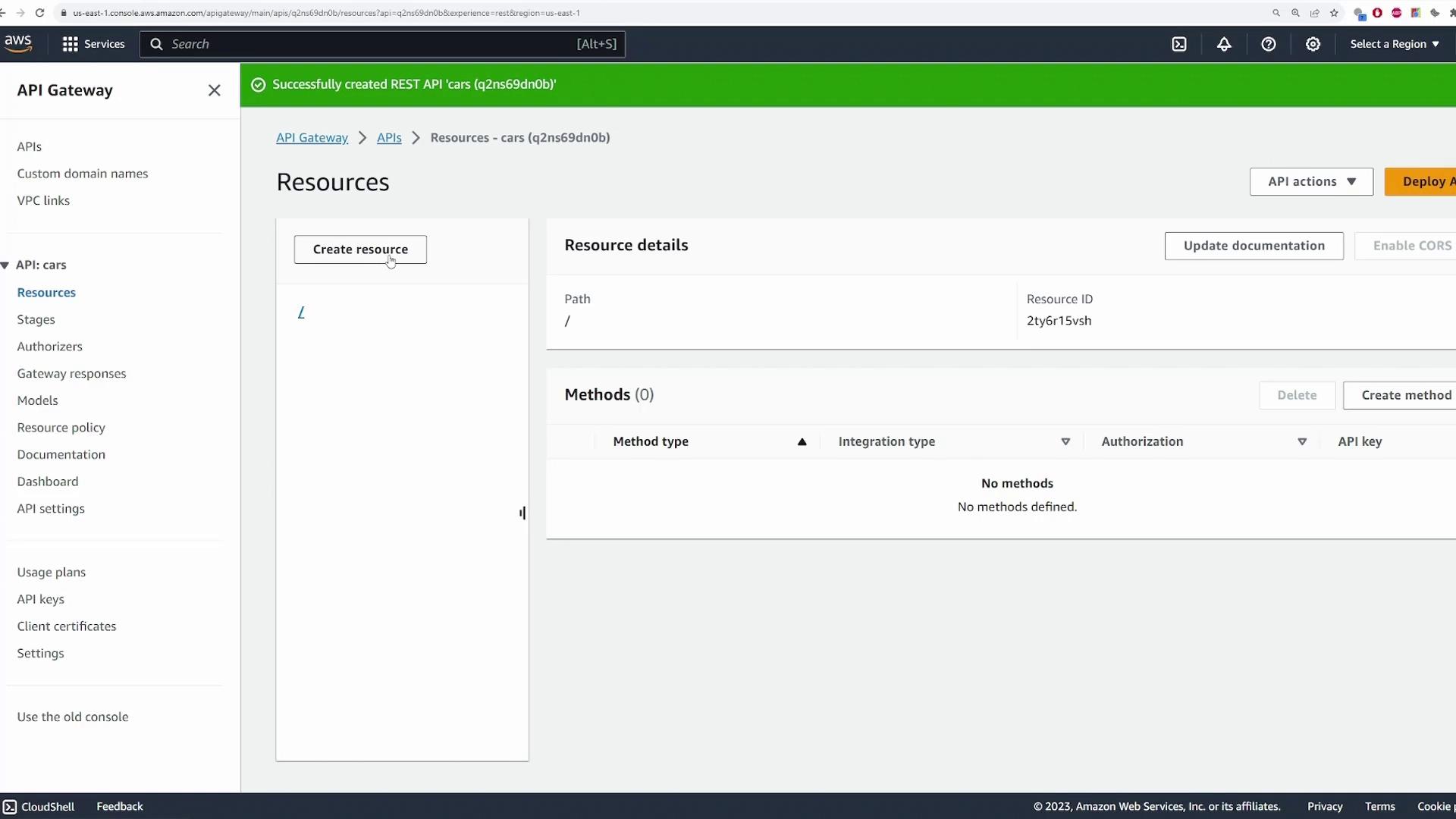
Select your API and create a resource with the path /cars. For this demonstration, you can leave CORS settings unchecked. Click Create Resource to proceed.
Configuring the GET Method
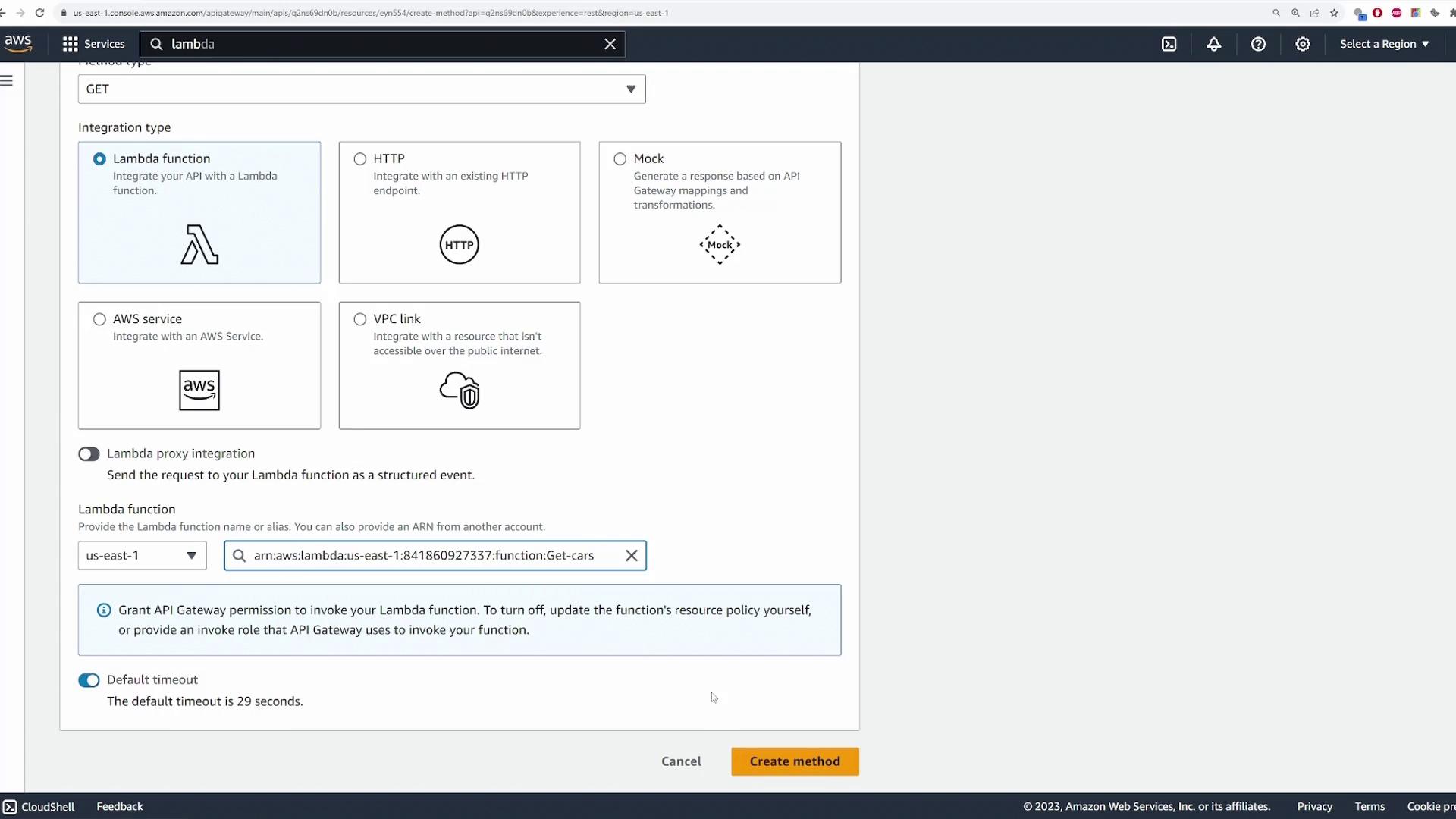
Under the/cars resource, create a GET method that links to a preconfigured Lambda function. Open the AWS Lambda console in another browser tab and verify that you have a function (named “GetCars” in this demo) returning a fixed list of cars. The simplified Lambda function example is shown below:
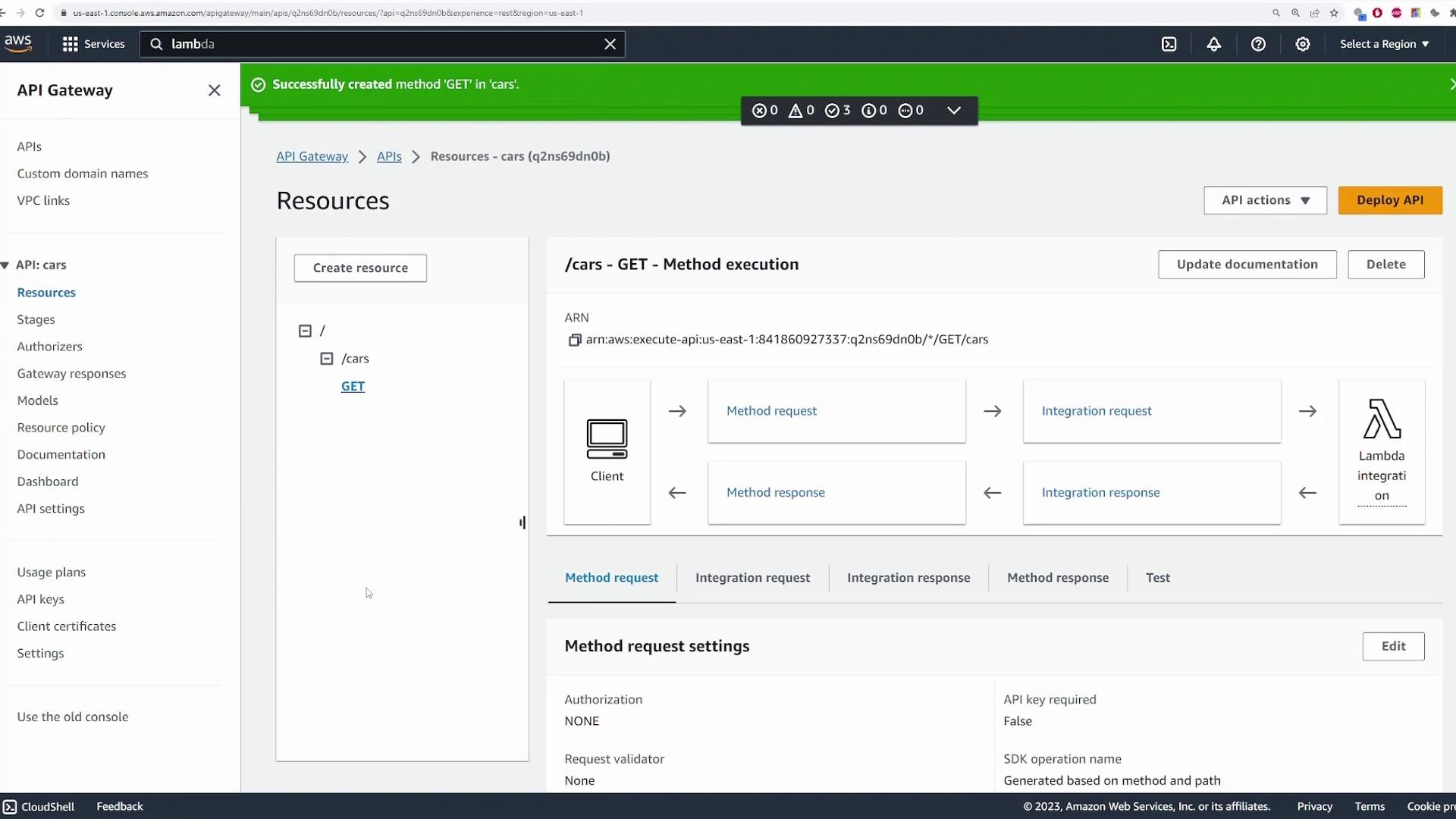
/cars resource by clicking Create Method. Choose GET as the HTTP method. Set the integration type to Lambda Function and enable Lambda Proxy Integration to pass the complete event to Lambda. Finally, select your “GetCars” Lambda function and create the method.
/cars will trigger the “GetCars” Lambda function.
Deploying the API
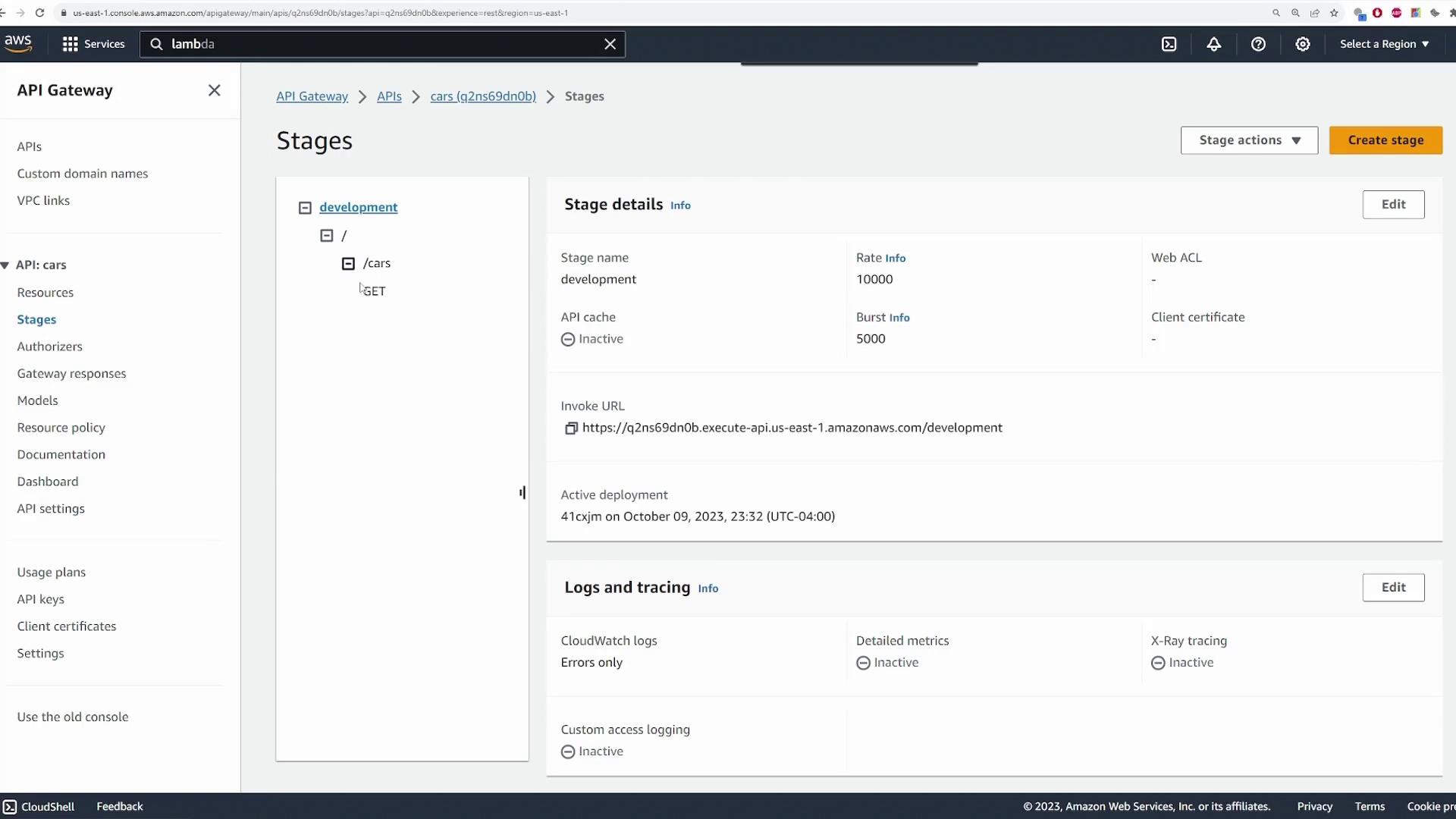
Before testing, deploy your API. Click the Deploy API button, choose a stage (e.g., development), and deploy it. Once deployed, you will receive an invoke URL for sending requests.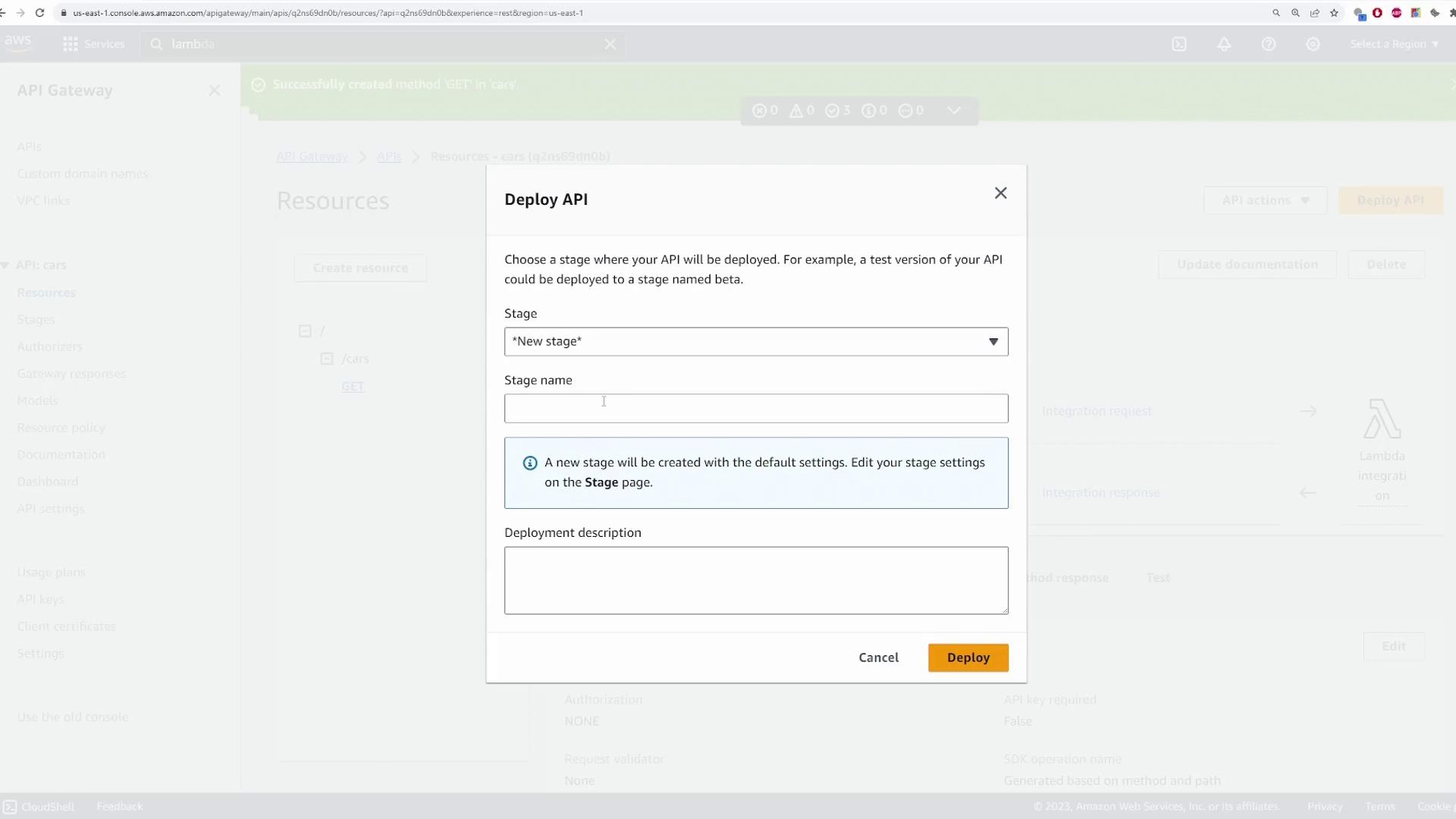
/cars (since testing the root URL may result in a “Missing Authentication Token” error):
Ensure you append
/cars to your invoke URL, as leaving it out may trigger an incorrect response due to missing endpoint context./cars.
Creating the POST Method to Add Cars
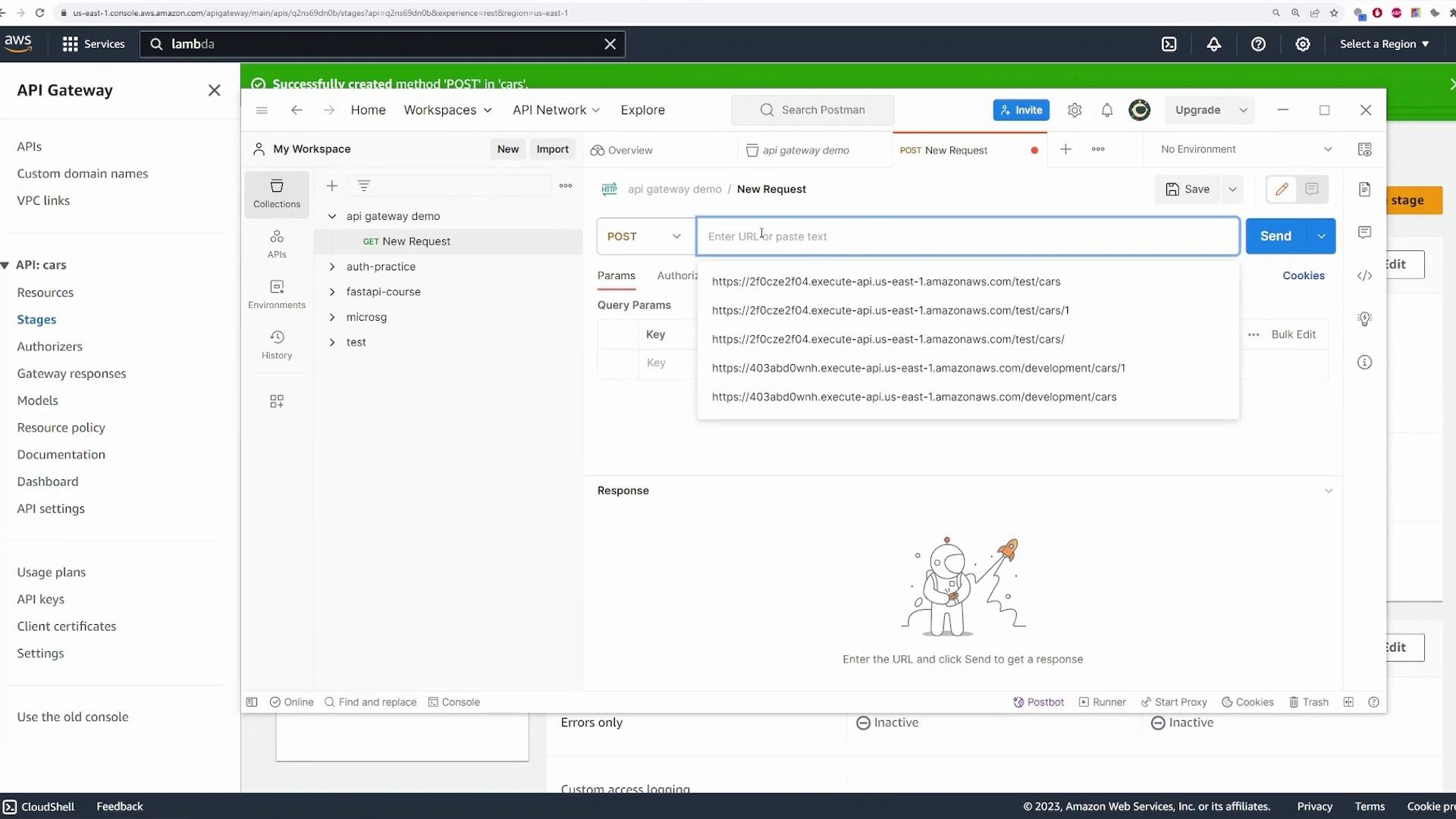
To add a new car entry, create a POST method under the/cars resource. Select the /cars resource (which currently has the GET method) and click Create Method, then choose POST. Configure it with Lambda proxy integration and select your “CreateCars” Lambda function.
/cars. Include a JSON payload in the body, for example:
/cars).
Your “CreateCars” Lambda function should parse and process the request body. Here’s a sample implementation:

Implementing the PATCH Method for Updating Cars
To update a car entry, add a PATCH method under a resource that includes a path parameter. First, under the/cars resource, create a sub-resource with the path /{id} where {id} serves as a placeholder for the car’s unique identifier.
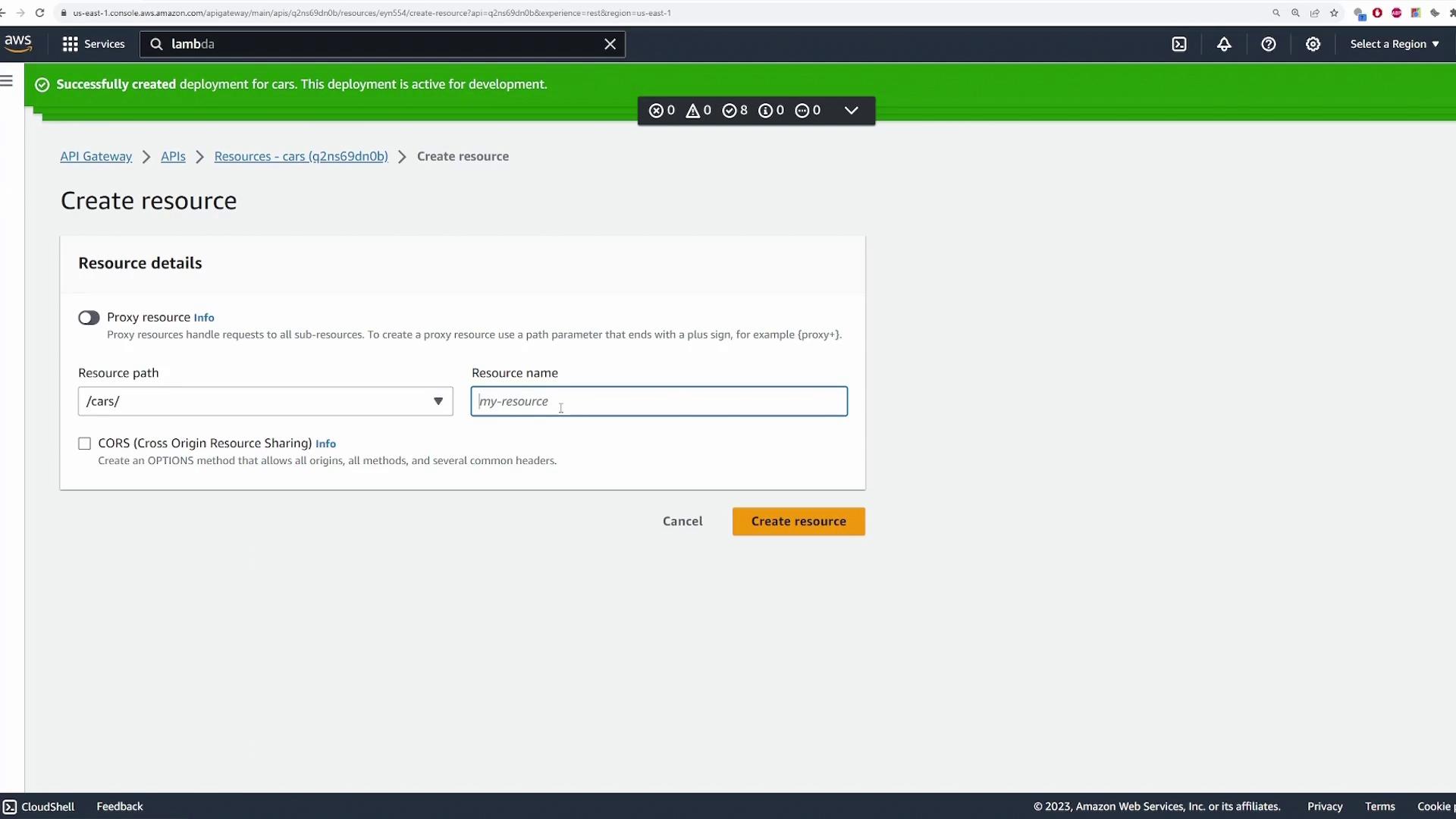
/{id} resource, create a PATCH method. Select PATCH as the HTTP method and integrate it with your “UpdateCars” Lambda function using Lambda proxy integration.
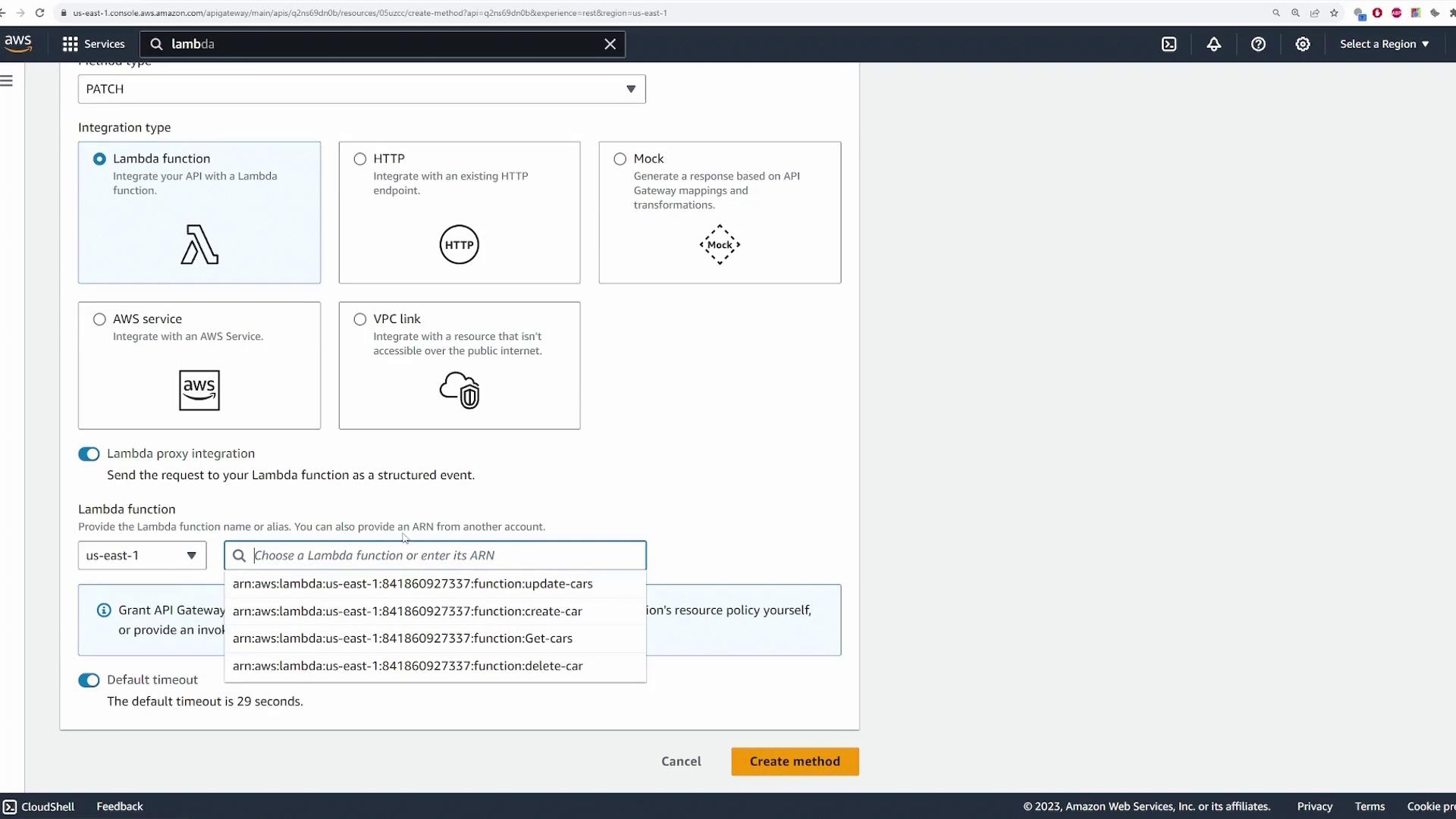
To test the PATCH endpoint, replace
{id} in your invoke URL (e.g., /cars/5) with an actual car ID and send a PATCH request with the updated JSON data.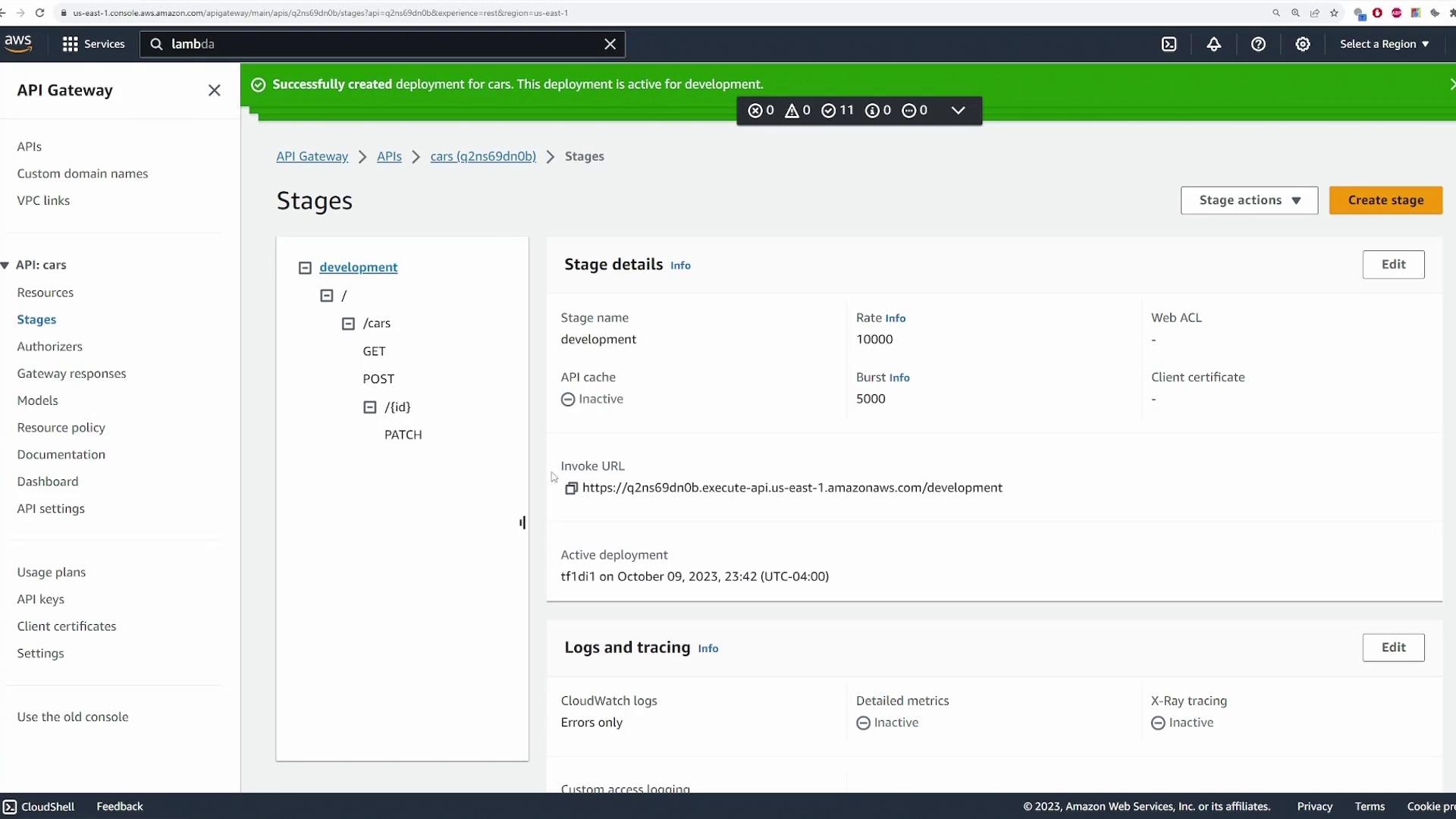
Setting Up the DELETE Method
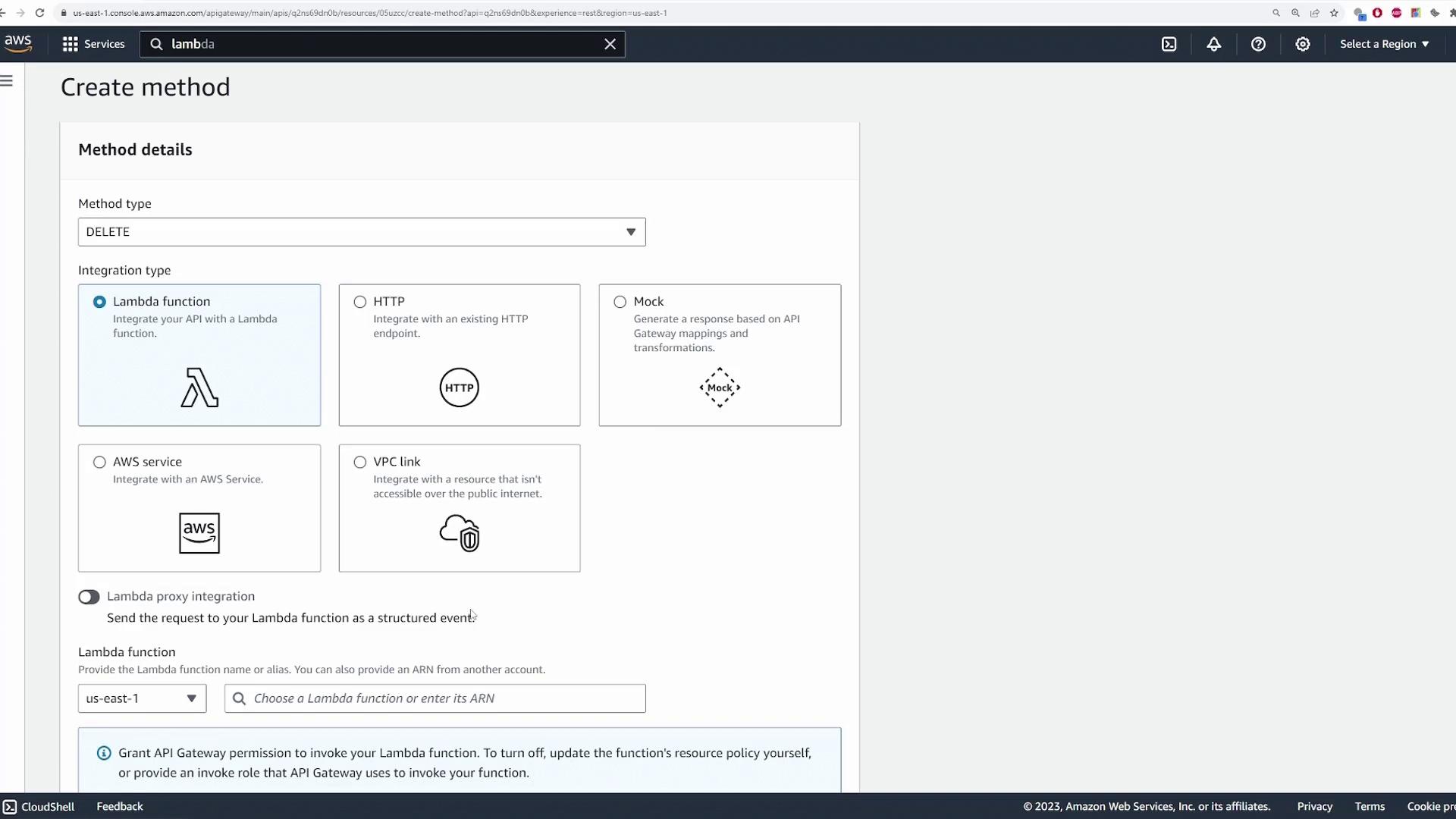
Following REST conventions, you can delete a car by specifying its ID. Under the/{id} resource (or directly under /cars if using query parameters), add a DELETE method and integrate it with the corresponding Lambda function responsible for deletion.
After creating the DELETE method, you can test it by sending a DELETE request with the car’s ID. API Gateway will handle the routing and the Lambda function will execute the deletion logic.