

Table design: keys and access patterns
When creating a DynamoDB table you must choose a partition key, and optionally a sort key. These keys determine how items are grouped and how you should query them efficiently (Query vs Scan). Good key choices enable point queries and range queries without expensive scans. For this demo:- Partition key:
customerId(String) — fetch all orders for a specific customer. - Sort key:
orderId(String) — uniquely identifies an order for a given customer and enables ordering or range queries.
Partition key decides the logical grouping of items. The composite key (
partition key + sort key) must be unique per item. Table design in DynamoDB is broad — study partition/sort key patterns and when to use Query vs Scan. See the official AWS DynamoDB documentation for best practices.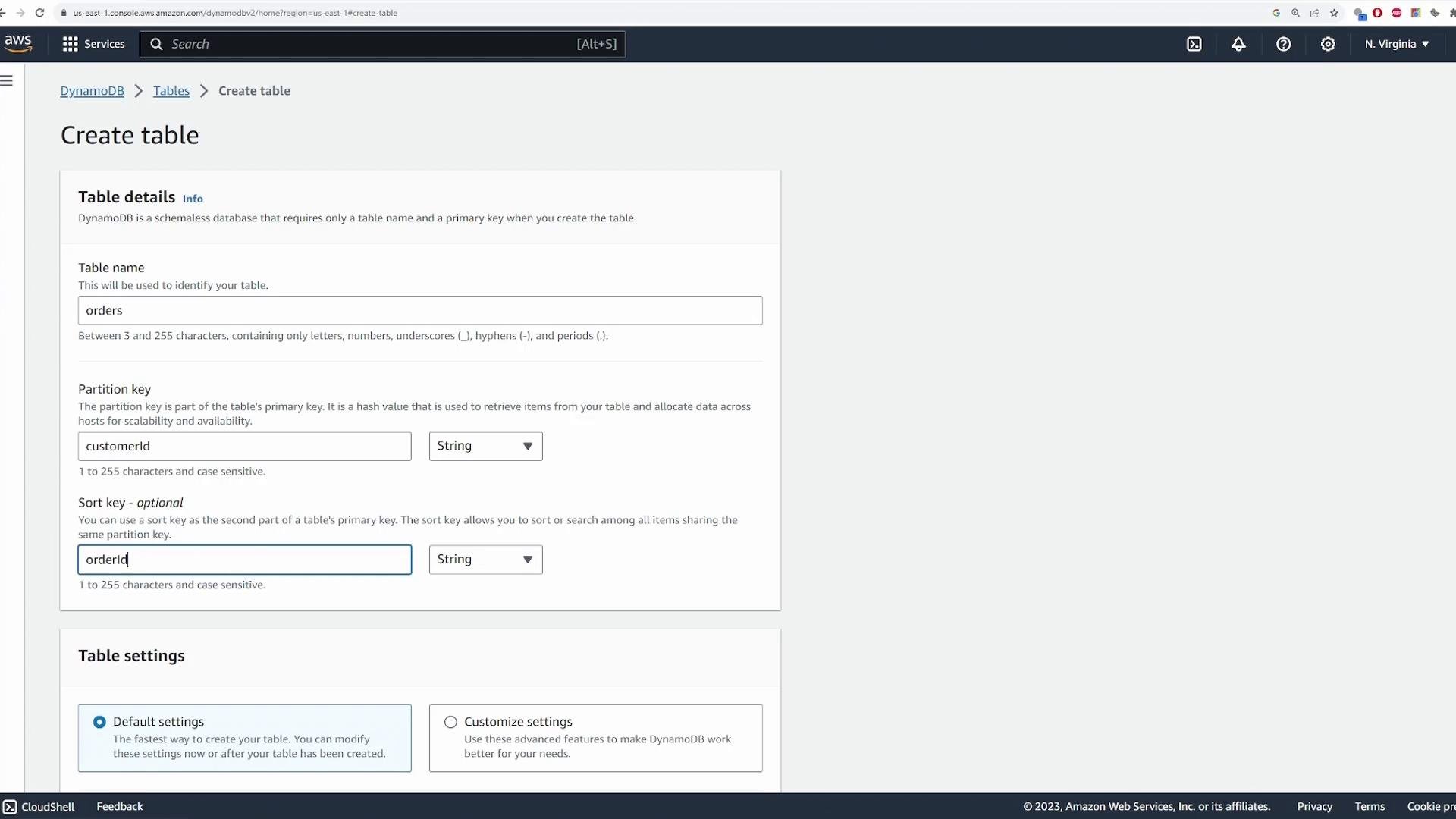
Table classes and capacity modes
Choose a table class and capacity mode based on access patterns and cost. Table classes:
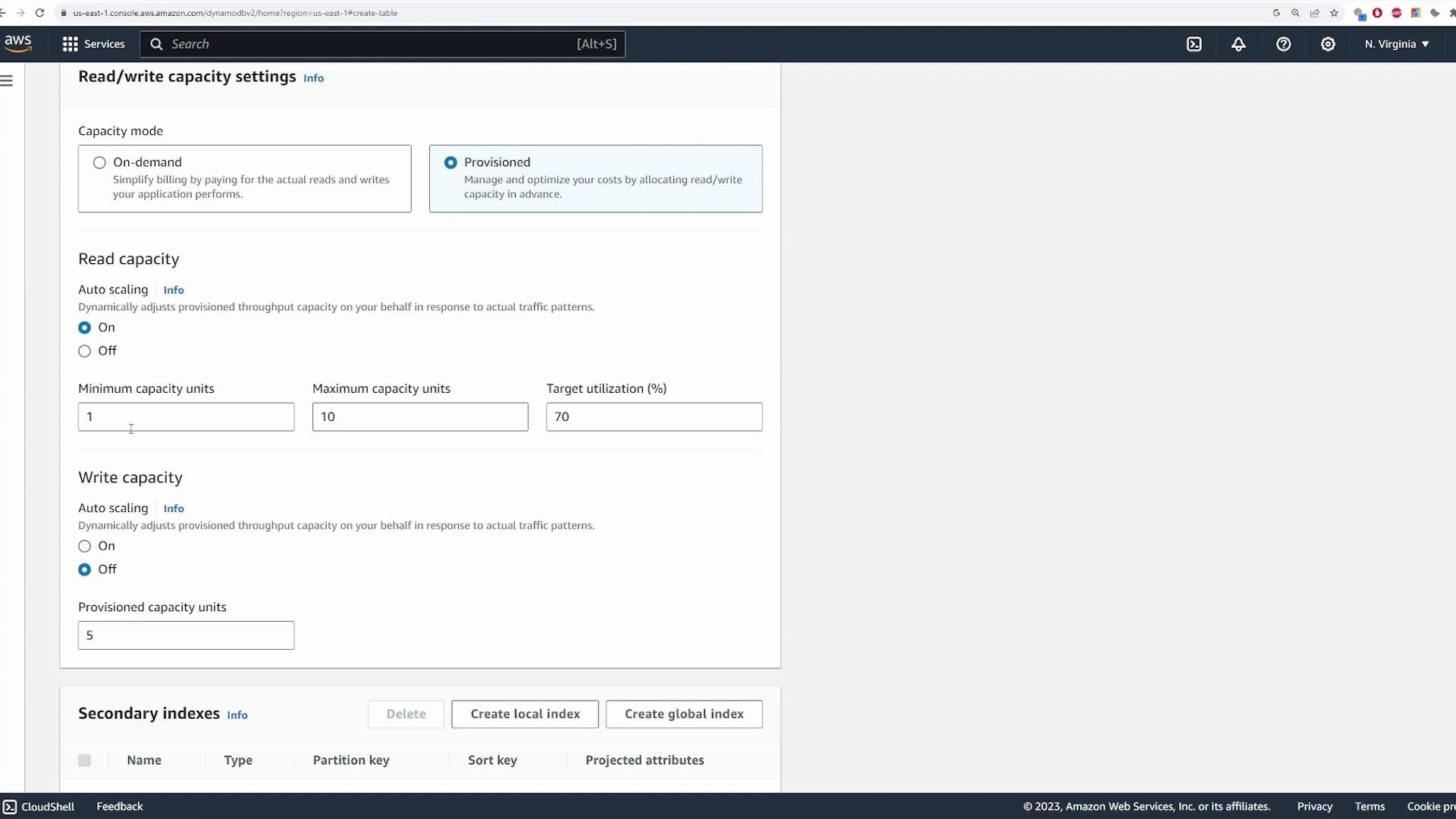
Capacity mode options:
If you enable auto scaling, configure:
- Minimum capacity units — lower bound the table can scale down to.
- Maximum capacity units — upper bound the table can scale up to.
- Target utilization — target percentage (for example, 70%) that drives autoscaling decisions.
After table creation
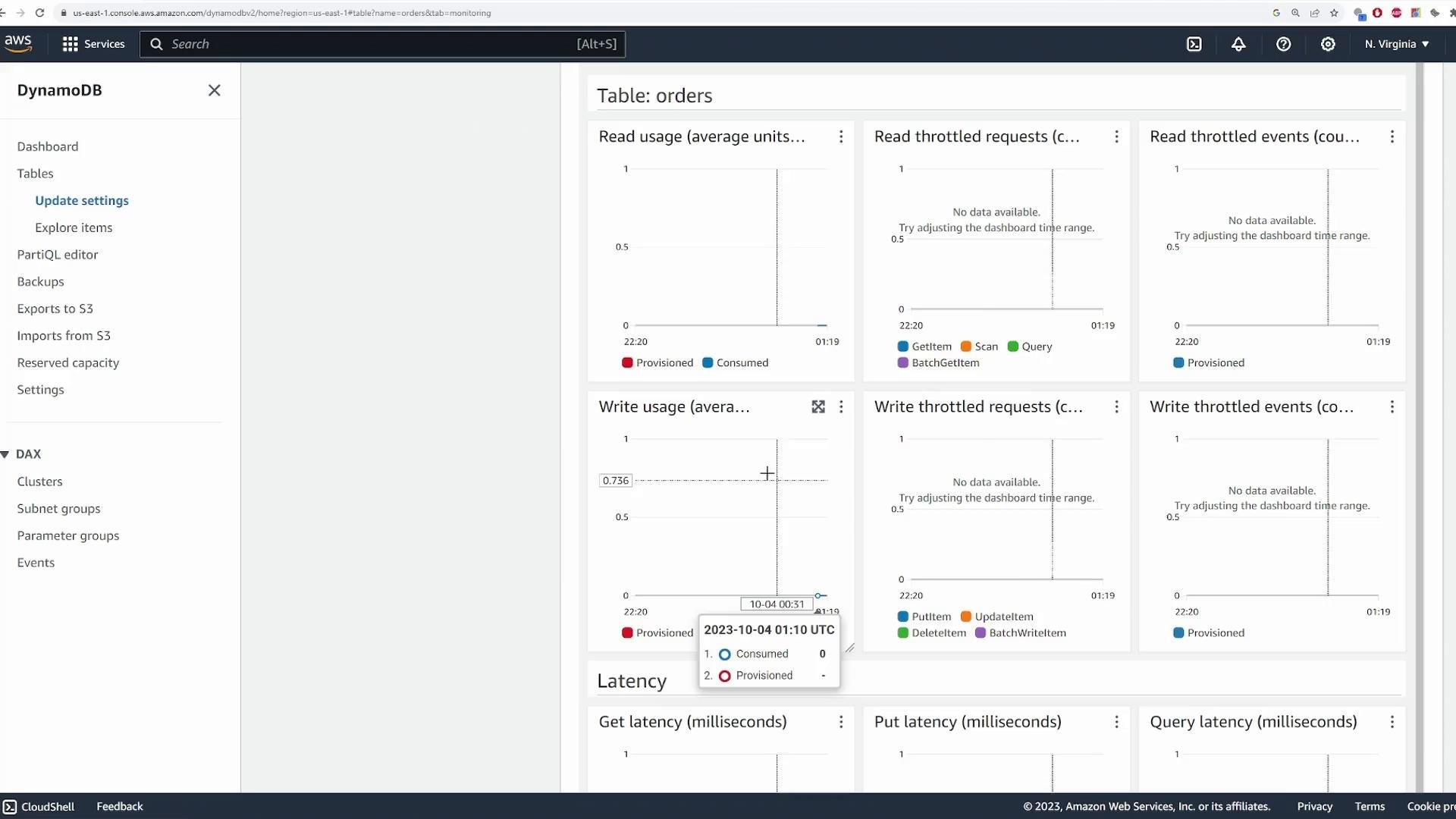
Once created the table will typically become Active in a few seconds. Open the table to review configuration, keys, capacity mode, item count, and other metrics.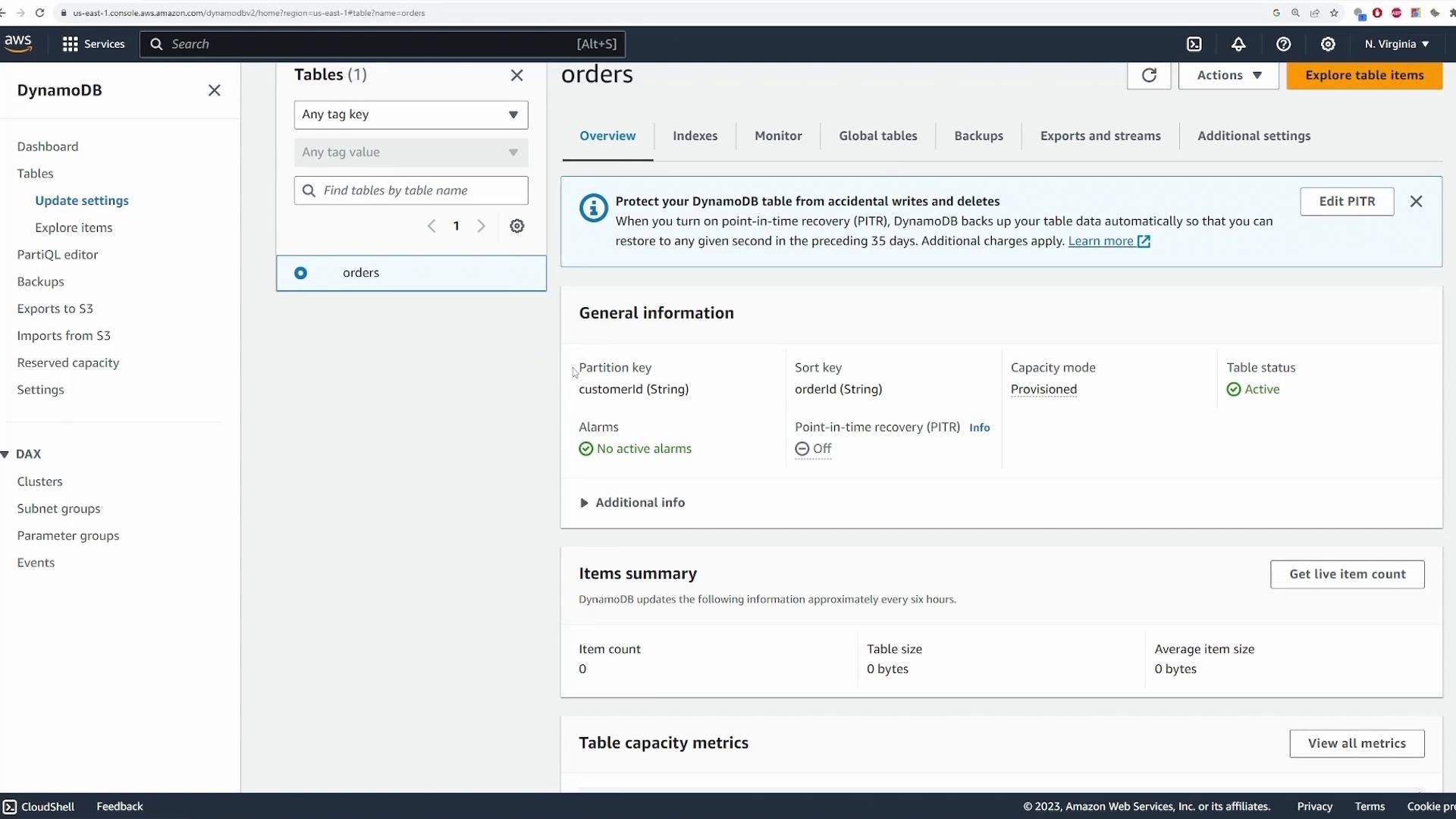
Insert items (Console, CLI, or SDK)
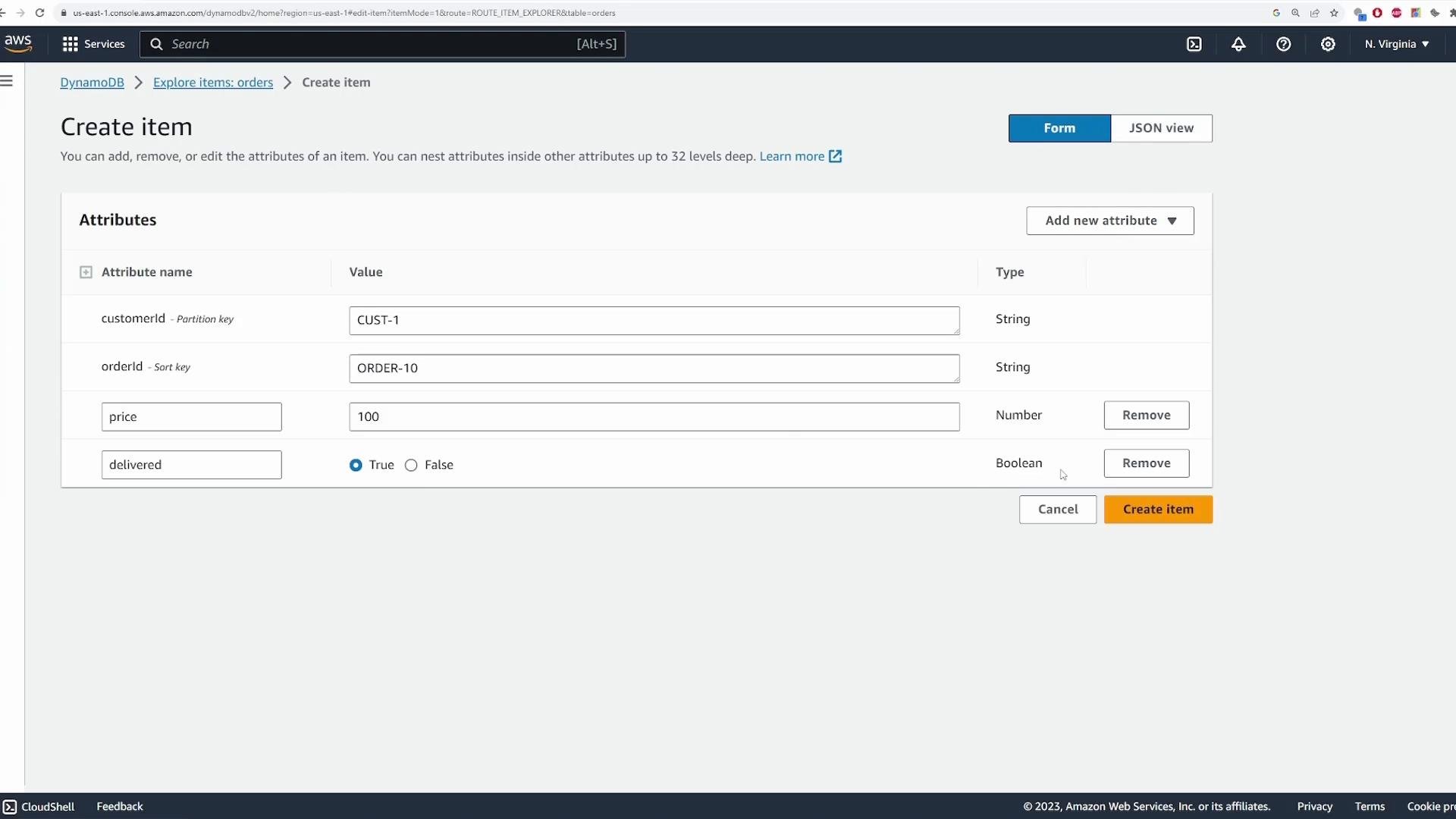
You can insert items using the console, AWS CLI, or any AWS SDK. Items must include the primary key attributes (customerId, orderId) and can include arbitrary additional attributes (for example price, delivered, items, createdAt, etc.).
For this demo, add these example items via the console:
customerId = CUST-1,orderId = ORDER-10,price = 100,delivered = TruecustomerId = CUST-1,orderId = ORDER-2,price = 50,delivered = TruecustomerId = CUST-2,orderId = ORDER-30,price = 35,delivered = False
put-item (JSON attributes must be passed in string or file form). Example format:
Query vs Scan — efficient retrieval
Prefer Query when you know the partition key. Query can also include sort key conditions (e.g. range queries) and non-key filters. Important: filter expressions are applied after DynamoDB reads matching items, so filtered-out items still consume read capacity units. Console example: fetch all orders forCUST-1. To further restrict results by price use a Filter condition such as price > 60.
PartiQL (SQL-like) example to fetch all orders for CUST-1 with price greater than 60:
Edit and delete items
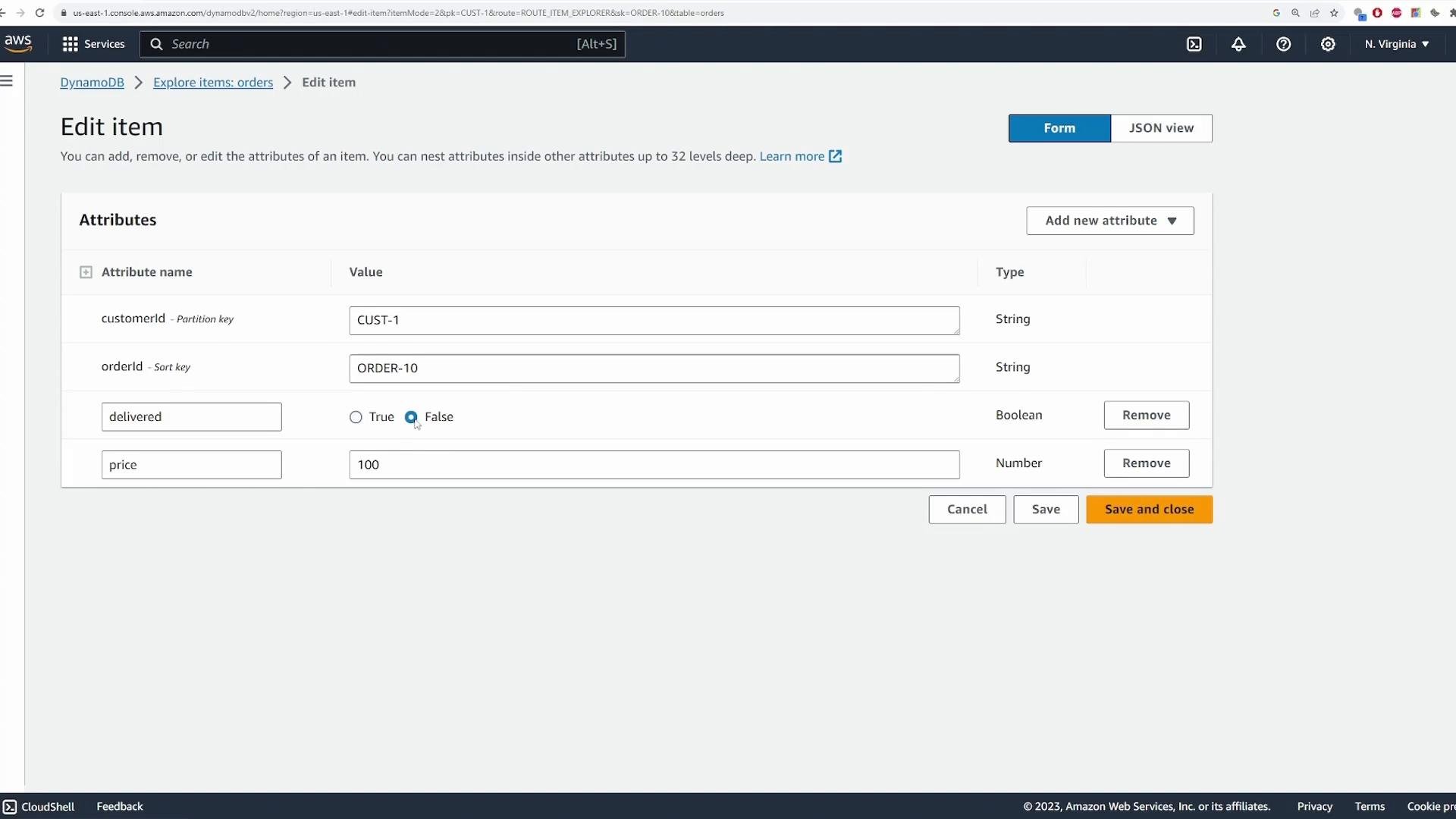
To edit an item in the console: select the item → Edit item → change attribute values → Save. Example: updateprice from 100 to 120.
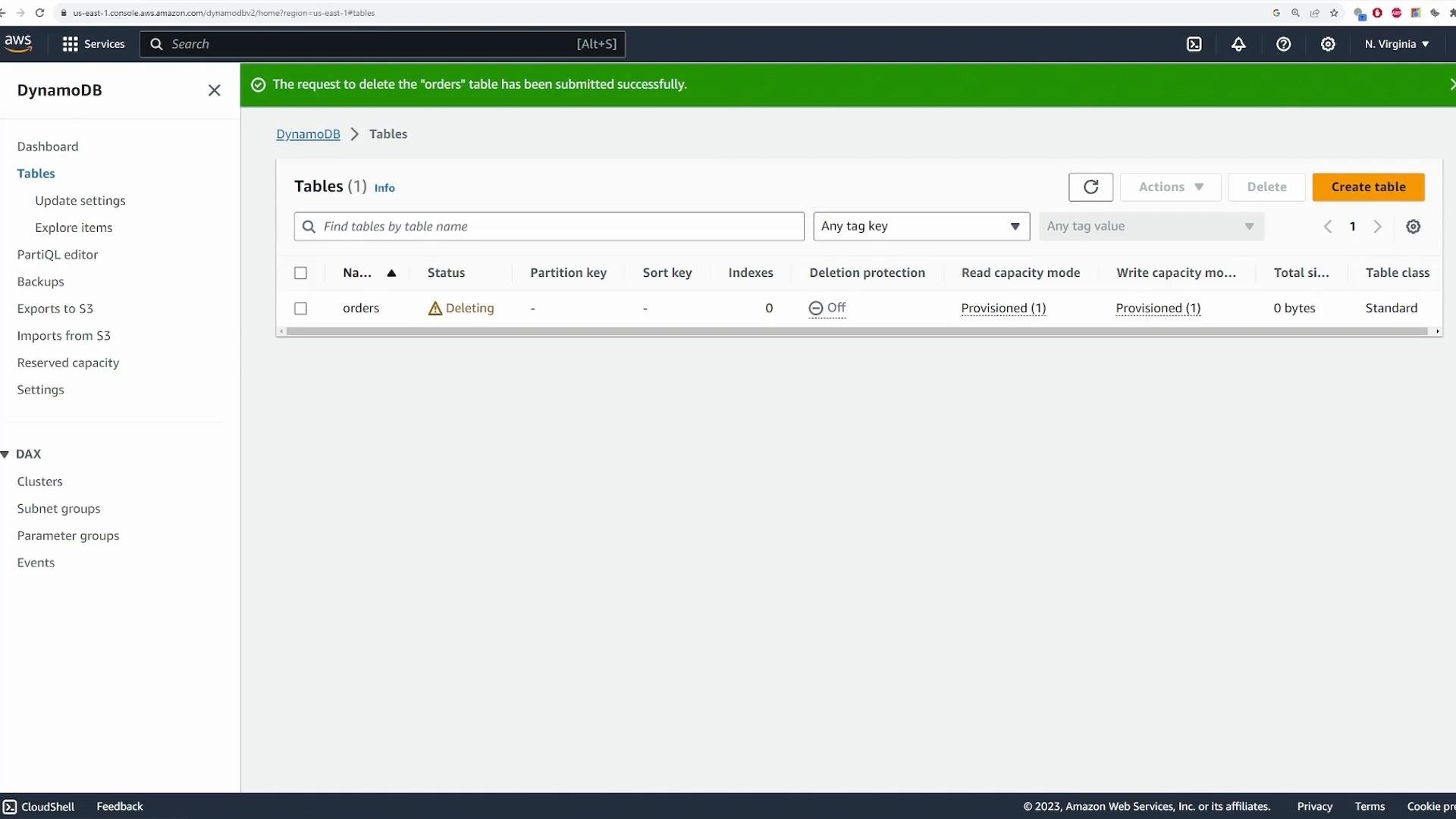
Deleting a DynamoDB table is irreversible. If you need to retain data, create backups or enable point-in-time recovery before deleting.
Quick checklist: console workflow
- Create table — choose primary key(s), table class, and capacity mode.
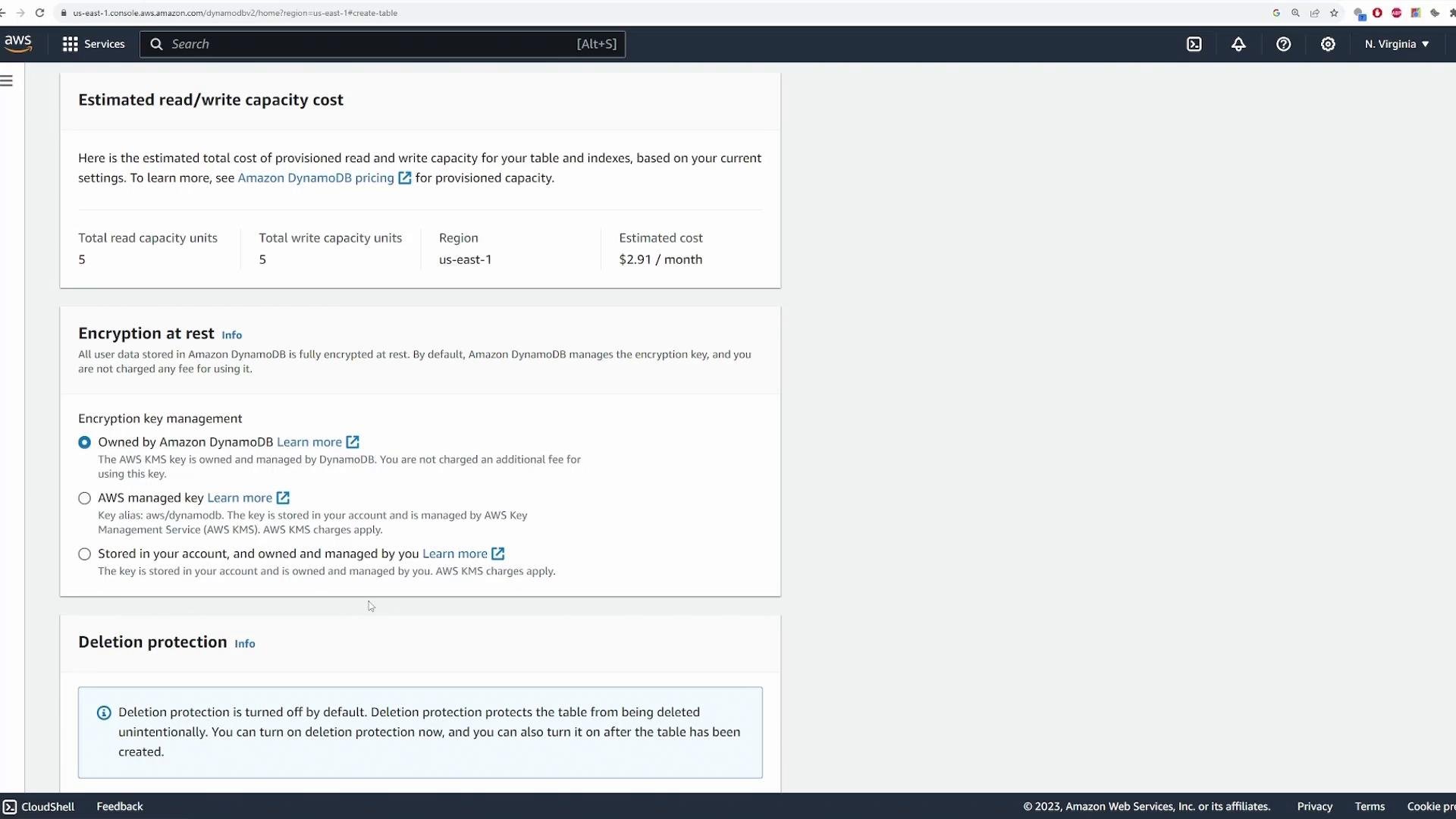
- Review encryption and enable deletion protection if desired.
- Insert items (console, CLI, or SDK).
- Use Query or PartiQL for efficient lookups (avoid Scan).
- Monitor CloudWatch metrics and configure autoscaling if provisioned.
- Backup or enable point-in-time recovery before any destructive actions.
- Delete items or the table when finished (be mindful of deletion protection).
Links and references
- AWS DynamoDB documentation: https://docs.aws.amazon.com/dynamodb/
- PartiQL for DynamoDB: https://docs.aws.amazon.com/amazondynamodb/latest/developerguide/ql-reference.html
- AWS CLI DynamoDB commands: https://docs.aws.amazon.com/cli/latest/reference/dynamodb/index.html