

- Create a unified view of resources that match specific criteria (tag key/value pairs or custom queries).
- Filter the console to show only resources that belong to a group (for example, all resources for App A or for
Environment=Prod). - Enable safer, more efficient bulk operations and reporting for application- or environment-scoped resources.
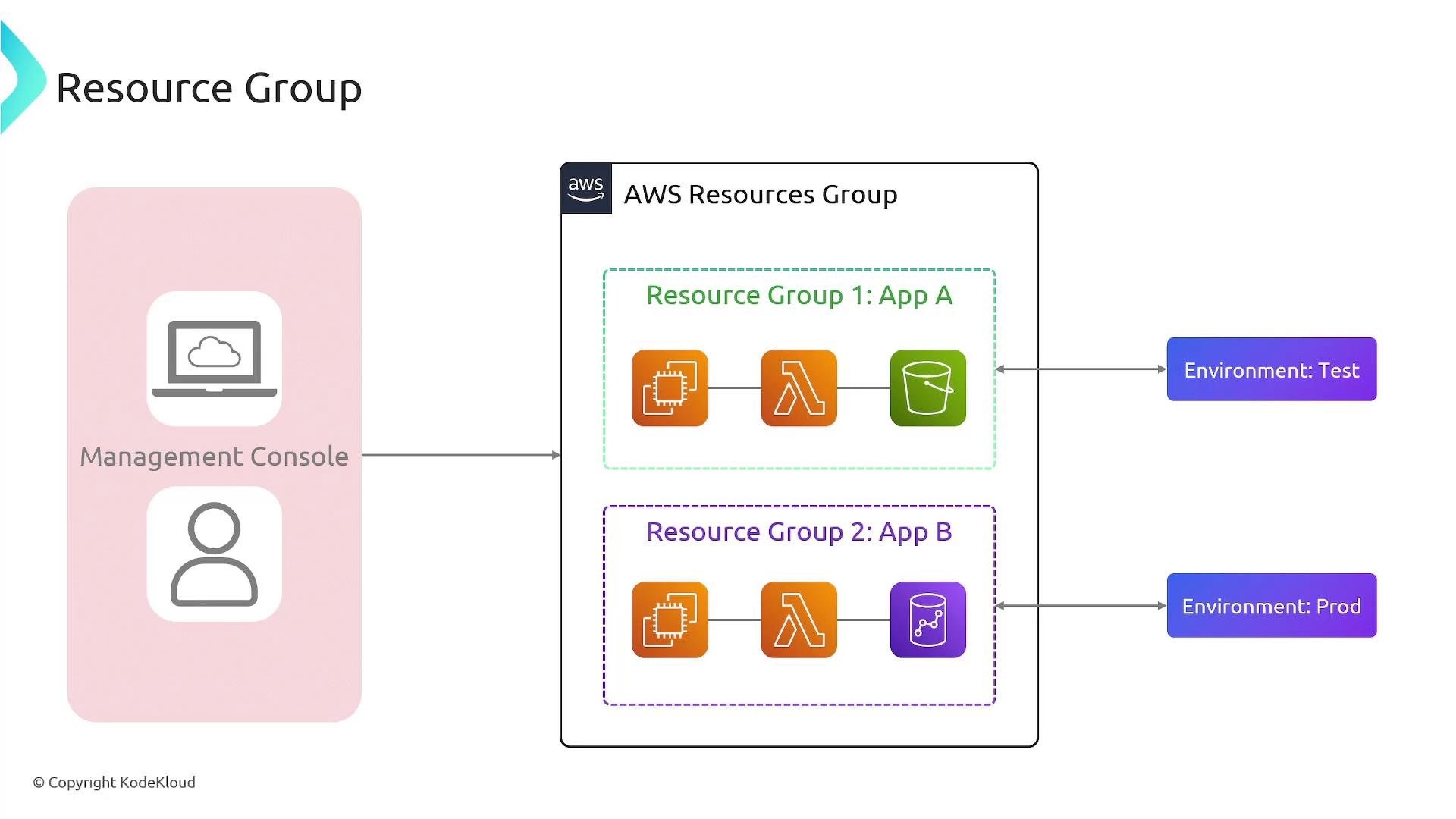
Common use cases for Resource Groups and tagging
- Environment separation: Tag resources as
Environment=Dev,Environment=Test, orEnvironment=Prodand create Resource Groups per environment to isolate views and operations. - Project or team separation: Use
Project,Owner, orDepartmenttags so teams see only their resources. - Bulk operations and automation: Perform actions at scale (for example, patching multiple EC2 instances or applying network/security policies to all group members).
- Cost allocation and reporting: Use tags to attribute costs by project, team, or environment.
The Tag Editor — discover and edit across regions/accounts
The AWS Tag Editor (part of the Resource Groups & Tag Editor console) scans resources across specified regions and accounts and helps you discover, add, or edit tags in bulk. Use it when you need to find untagged resources, normalize tagging, or apply tags consistently. Quick workflow with Tag Editor:- Open the Resource Groups & Tag Editor in the AWS Management Console.
- Choose regions and resource types to include in the search.
- Filter by tag key/value pairs or search for untagged resources.
- Select matching resources and choose “Manage tags of selected resources” to add, edit, or remove tags in bulk.
Best practices for tagging and Resource Groups
- Define a concise, consistent tagging taxonomy and naming conventions. Keep the number of tag keys manageable.
- Apply tags at resource creation using automation such as AWS CloudFormation or your CI/CD pipelines (for example, AWS CodePipeline (CI/CD Pipeline)).
- Enforce tagging via policies and automated checks (guardrails) to prevent drift.
- Regularly audit tags and Resource Groups to ensure accuracy and usefulness for operations and cost reporting.
Use a consistent tagging scheme with a small set of standardized keys (for example
Environment, Project, Owner) to make Resource Groups effective and to simplify automation, cost reporting, and access control.