

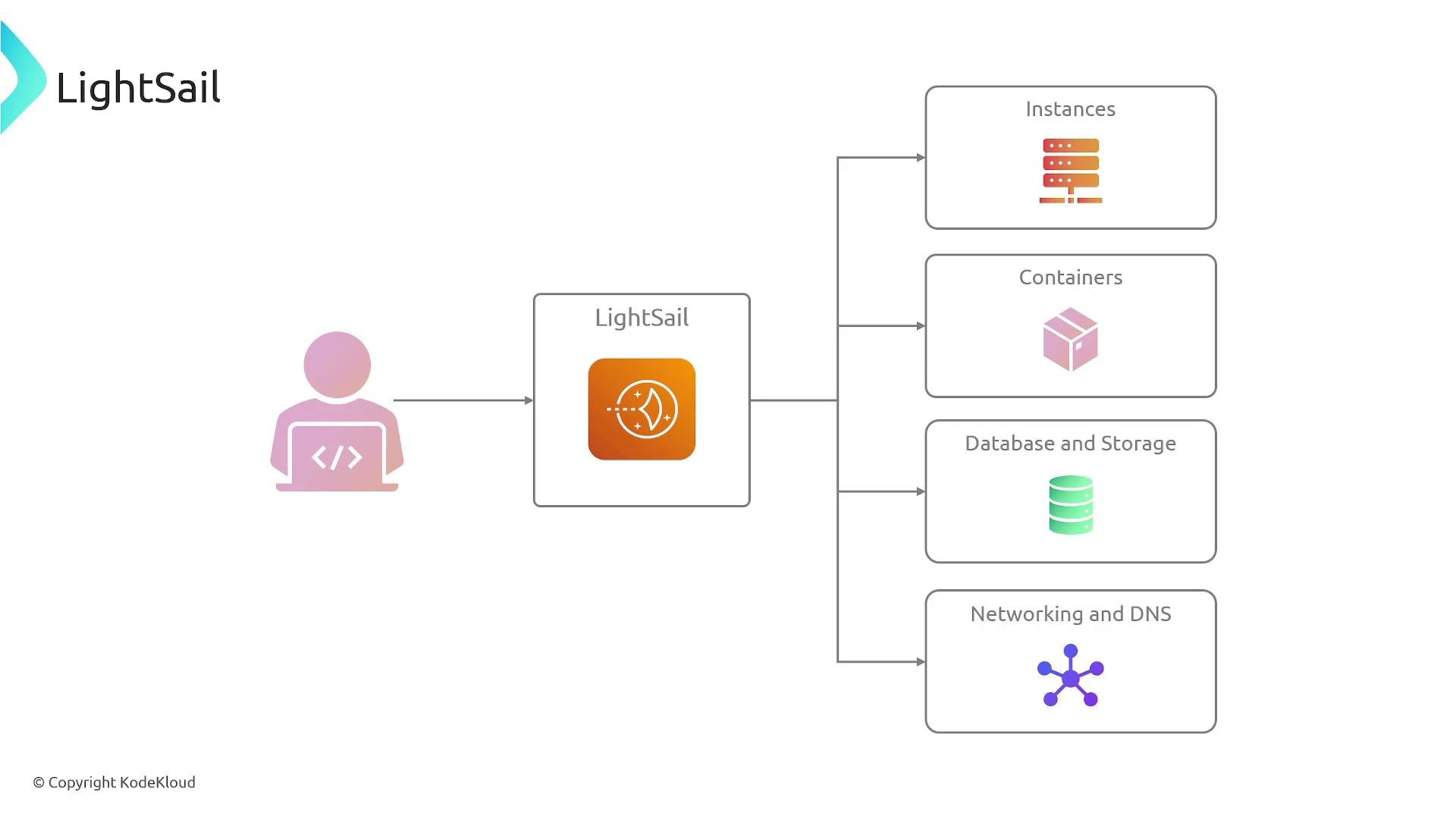
What Lightsail provides
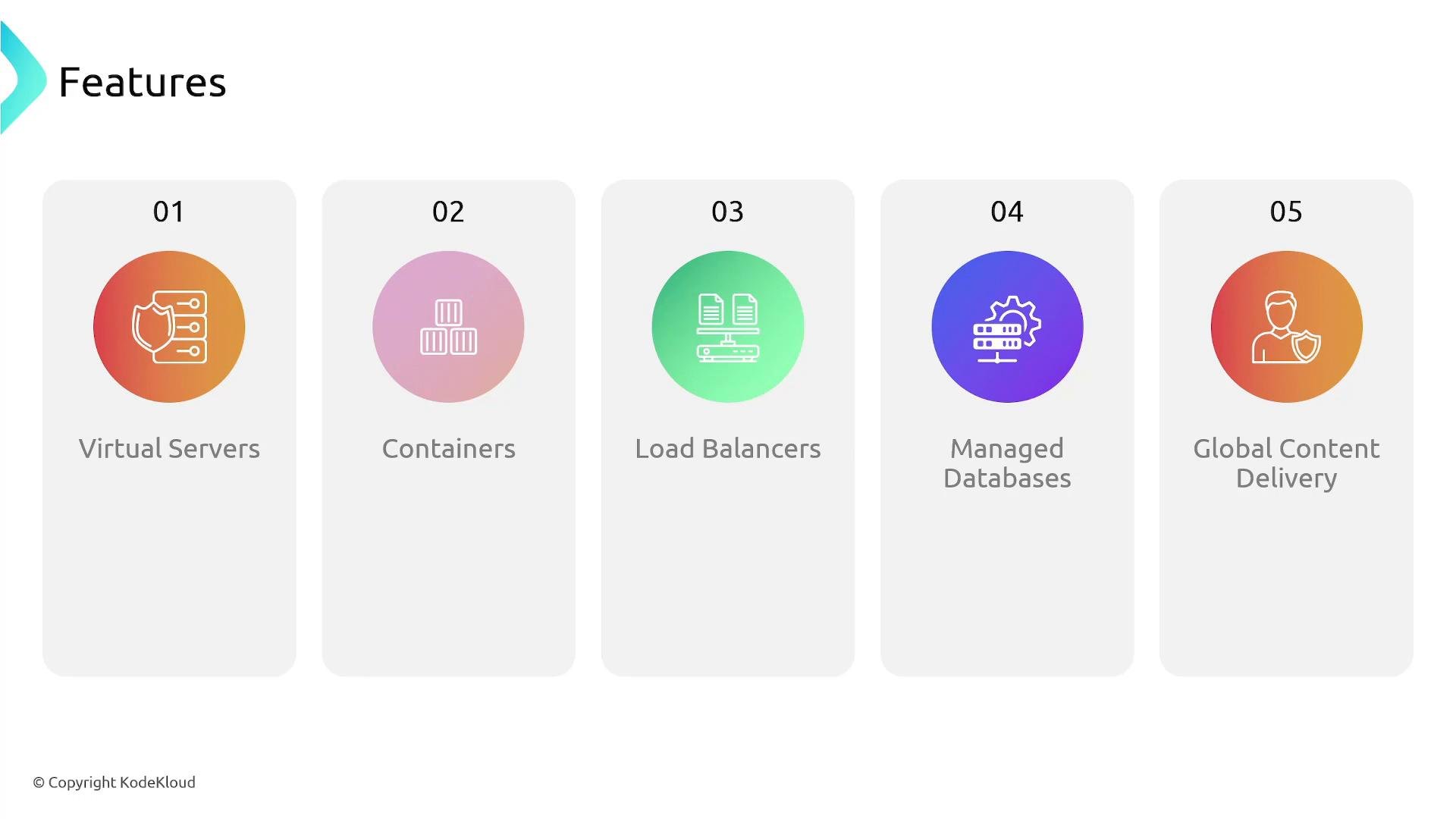
Lightsail exposes a smaller, easier-to-understand set of services compared to the full AWS console. Core offerings include:- Virtual servers (instances) with preconfigured OS or application images (blueprints)
- A managed container service for deploying containerized apps
- Load balancers for simple traffic distribution
- Managed databases (MySQL, PostgreSQL)
- Global content delivery (CDN) integration
- DNS hosting and basic networking controls
Typical workflow: create a Lightsail instance
To launch a server quickly, follow these high-level steps:- Select a region (e.g., US East, Europe) to host your instance.
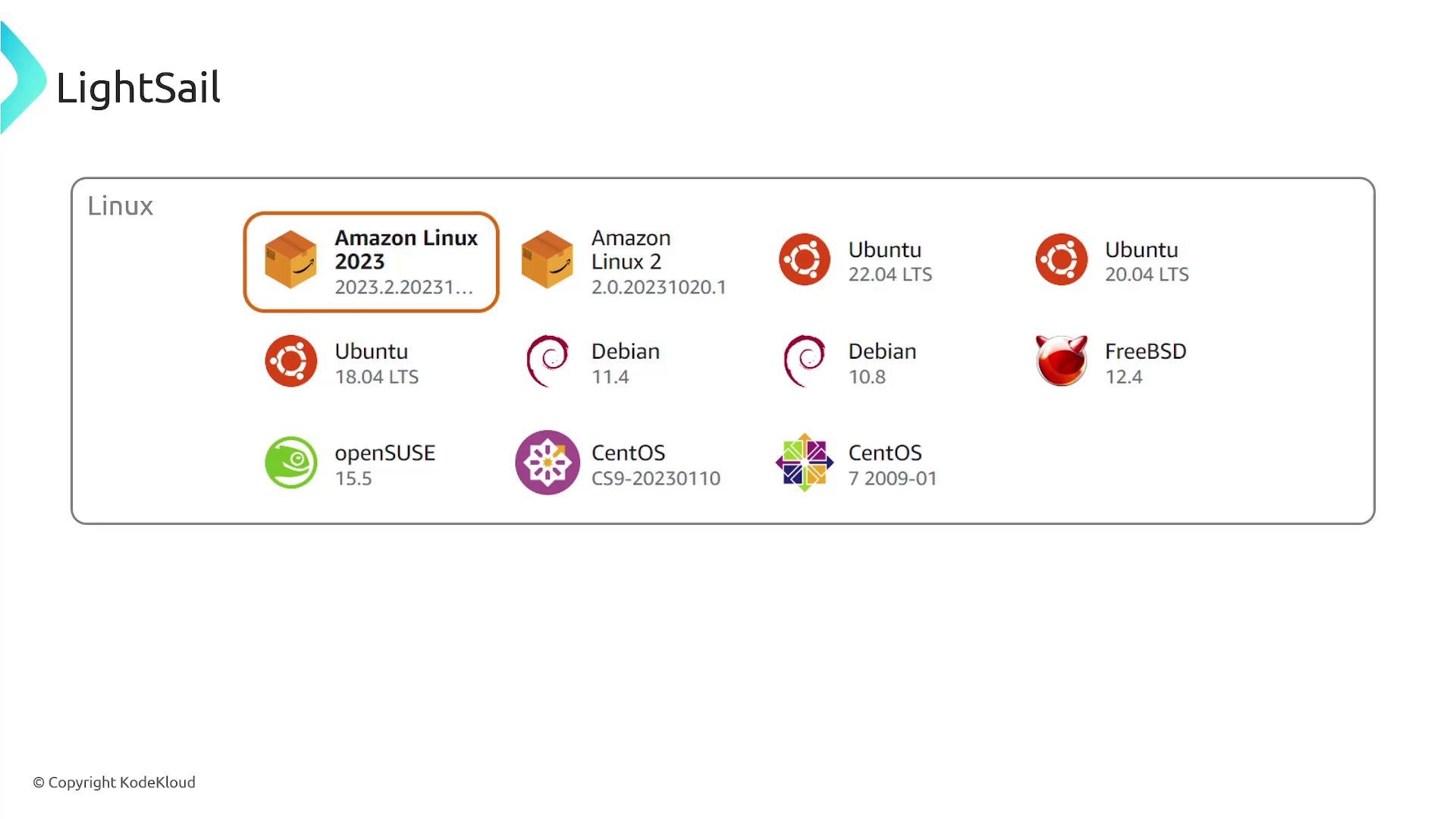
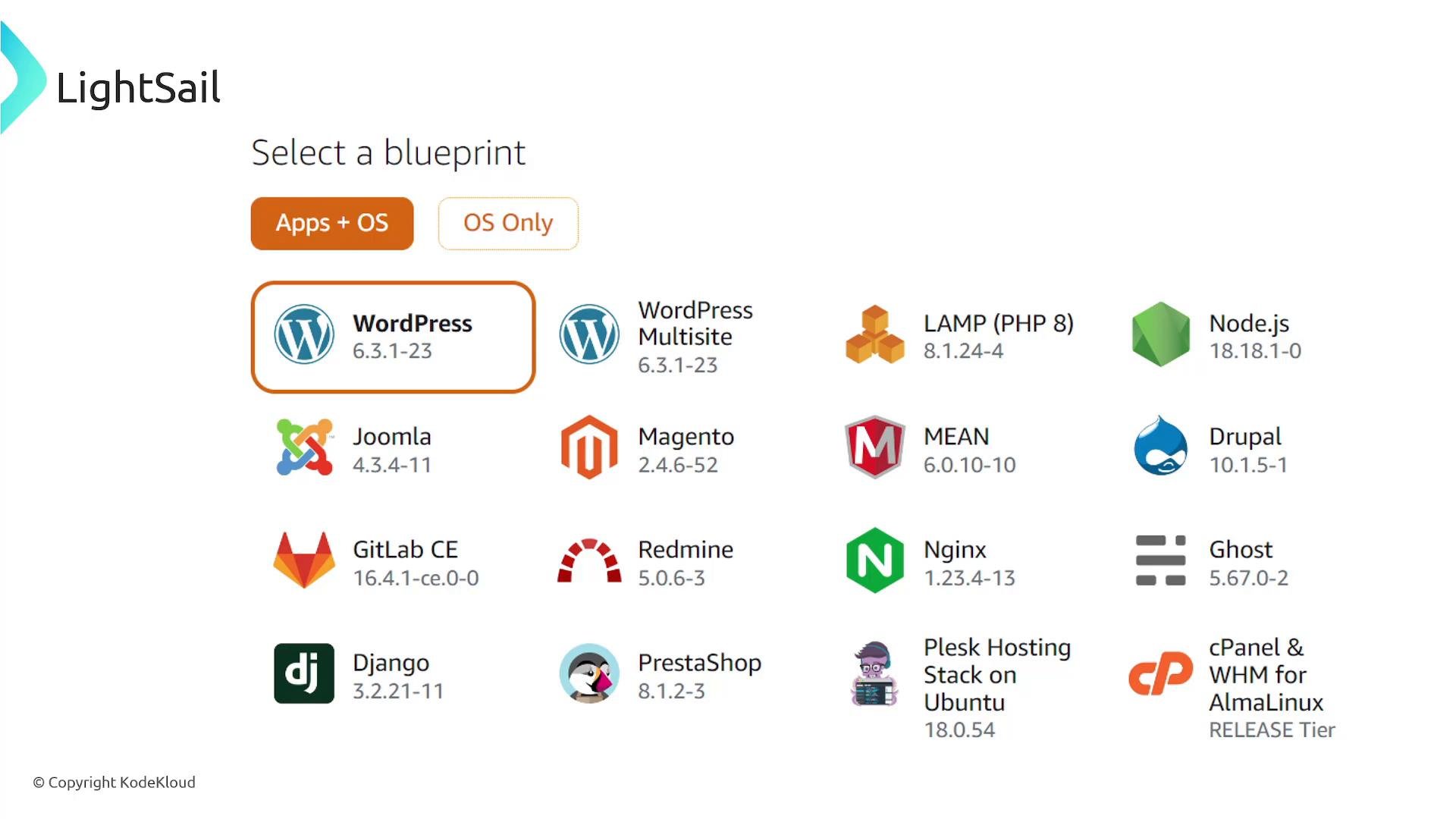
- Choose a platform and blueprint — either a base OS (Ubuntu, Amazon Linux, etc.) or an “Apps + OS” blueprint such as WordPress, LAMP, or Node.js.
- Pick an instance plan (vCPU, RAM, SSD storage, and monthly price).
- Name the instance and click Create Instance.
When to choose Lightsail
Key benefits of Lightsail:- Simplicity — low learning curve to launch web apps or dev environments.
- Preconfigured solutions — app blueprints save manual configuration time.
- Managed options — databases, load balancing, and CDN with minimal setup.
- Built on AWS — reliability and an upgrade path into the broader AWS ecosystem.
Quick comparison: Lightsail vs. EC2
Lightsail is ideal for small to medium workloads, prototypes, and quick deployments. If you require advanced networking, custom VPC topologies, or fine-grained IAM controls, consider migrating to Amazon EC2 and related native AWS services. Lightsail provides a straightforward migration path to EC2 when you outgrow the simplified feature set. See Amazon EC2 resources for details: https://learn.kodekloud.com/user/courses/amazon-elastic-compute-cloud-ec2
Limits and considerations
- Lightsail simplifies many decisions, which is great for speed but can be limiting for complex architectures (fine-grained IAM, custom VPC designs, or very large-scale workloads).
- Pricing is bundled and predictable, but compare instance sizes and managed-service costs if you expect to scale significantly.
- If you plan to integrate deeply with many AWS services, starting in EC2 or other native services may provide more flexibility.
Lightsail is not intended for large-scale, highly specialized enterprise architectures. For workloads that require advanced networking, compliance isolation, or complex autoscaling, prefer EC2 and AWS managed services. Use Lightsail for simpler, faster deployments with predictable pricing.
Lightsail components and common examples
Next steps and resources
- Try launching a Lightsail instance from a blueprint (e.g., WordPress) to see how quickly a stack can be provisioned.
- Use a static IP for production servers to avoid IP changes on instance restarts.
- Consider Lightsail for MVPs and smaller projects, and plan an eventual migration to EC2 or other AWS services as requirements grow.