

Event history vs. a CloudTrail trail
CloudTrail’s Event history gives you quick access to the most recent 90 days of management events in the account. Use Event history when you need to inspect recent activity without configuring a trail. When you open Event history you can inspect individual events. Selecting a CreateUser event shows common metadata (time, actor, event name, source IP, access key used) and the full event payload. Example CloudTrail event (CreateUser):Use Event history for quick troubleshooting and short-term investigations. If you need long-term retention, centralized auditing, or real-time alerting, create a CloudTrail trail and deliver events to durable storage or CloudWatch Logs.
Why create a trail?
Create a CloudTrail trail when you need one or more of the following:- Retain audit logs beyond 90 days.
- Centralize logs (multi-region, multi-account).
- Integrate logs with downstream analysis tools (CloudWatch Logs, SIEM, Athena).
- Enforce compliance with encryption, log validation, and notification options.
- An S3 bucket (durable long-term storage).
- CloudWatch Logs (near real-time searching, metric filters, alarms).
- SNS notifications (optional).
Trail configuration options (what to choose)
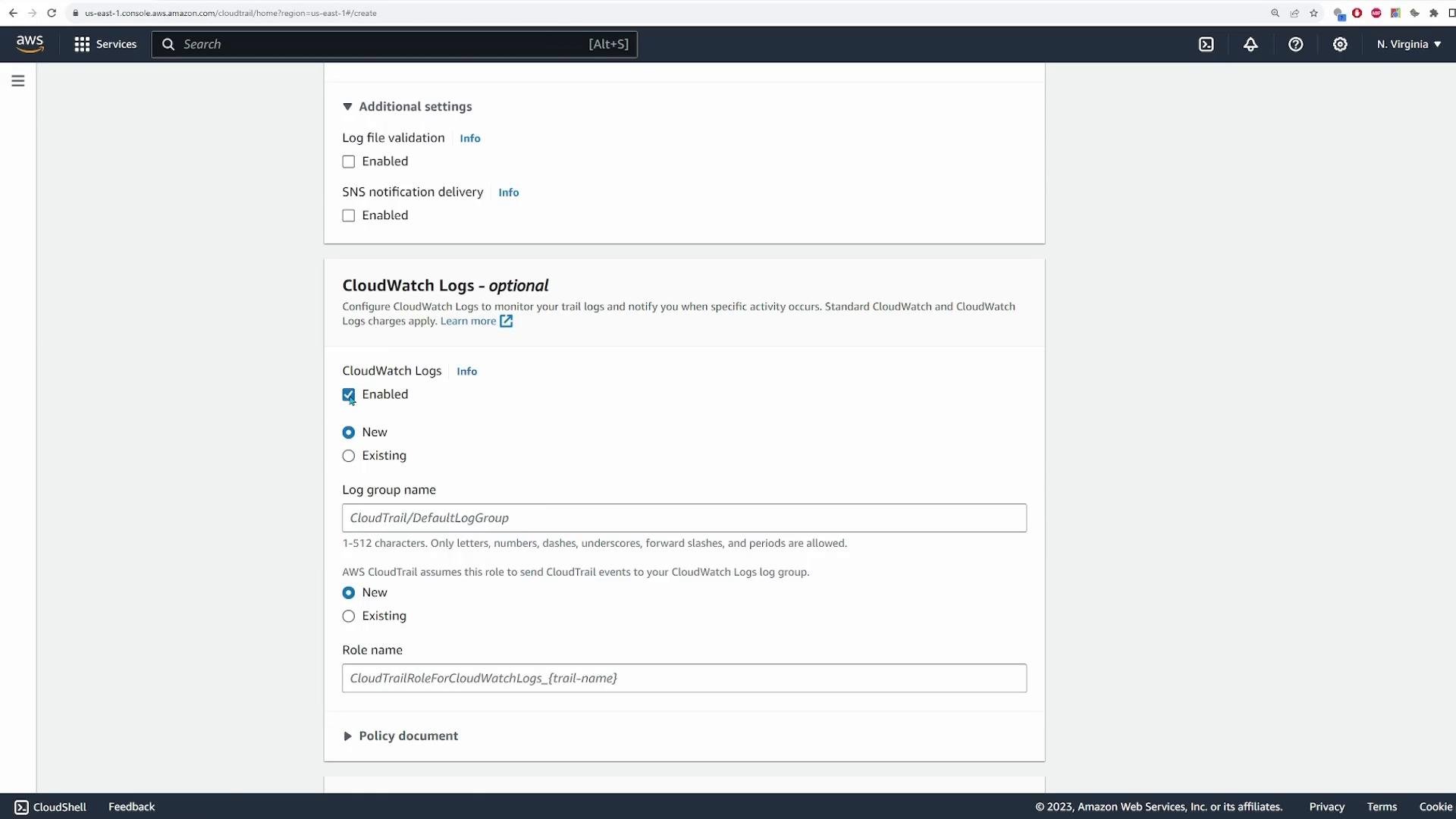
When forwarding to CloudWatch Logs, you must specify or create:
- A CloudWatch Log Group (for example,
/aws/cloudtrail/your-log-group) - An IAM role that grants CloudTrail permission to publish to that log group
After you create the trail
Once you create a trail it appears in the Trails console. The console shows whether the trail is multi-region and whether it is actively logging.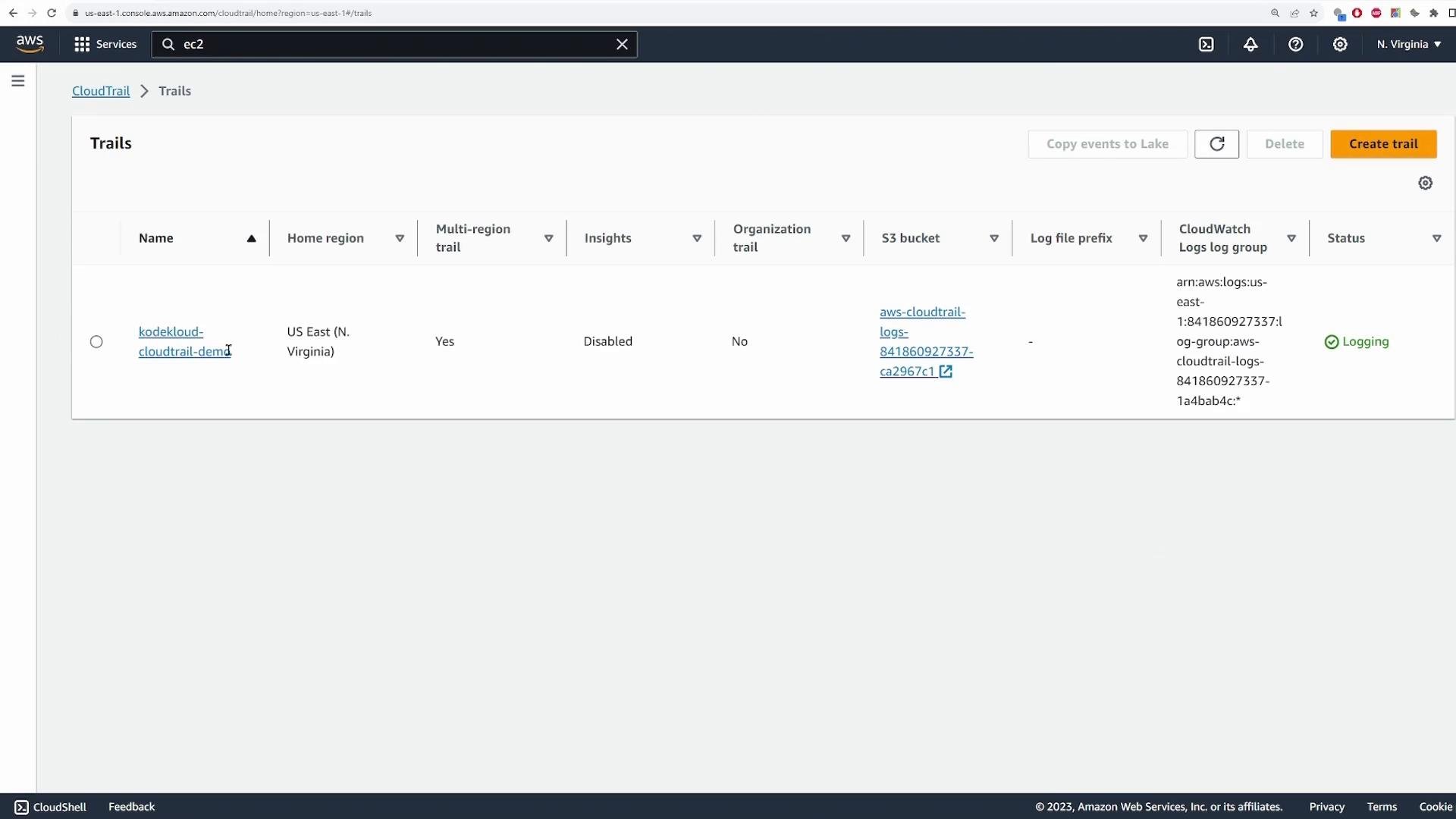
Where CloudTrail stores logs (S3 layout)
CloudTrail delivers compressed log files to the S3 bucket you specify. The typical S3 layout is organized like this:<bucket>/AWSLogs/<account-id>/CloudTrail/<region>/<YYYY>/<MM>/<DD>/…
For single-account setups you will see your account ID folder, then CloudTrail, then the region and date folders. Objects are typically compressed (.json.gz).
Navigate to the S3 console and open the CloudTrail delivery bucket to view the date-based folder structure and compressed JSON log objects.
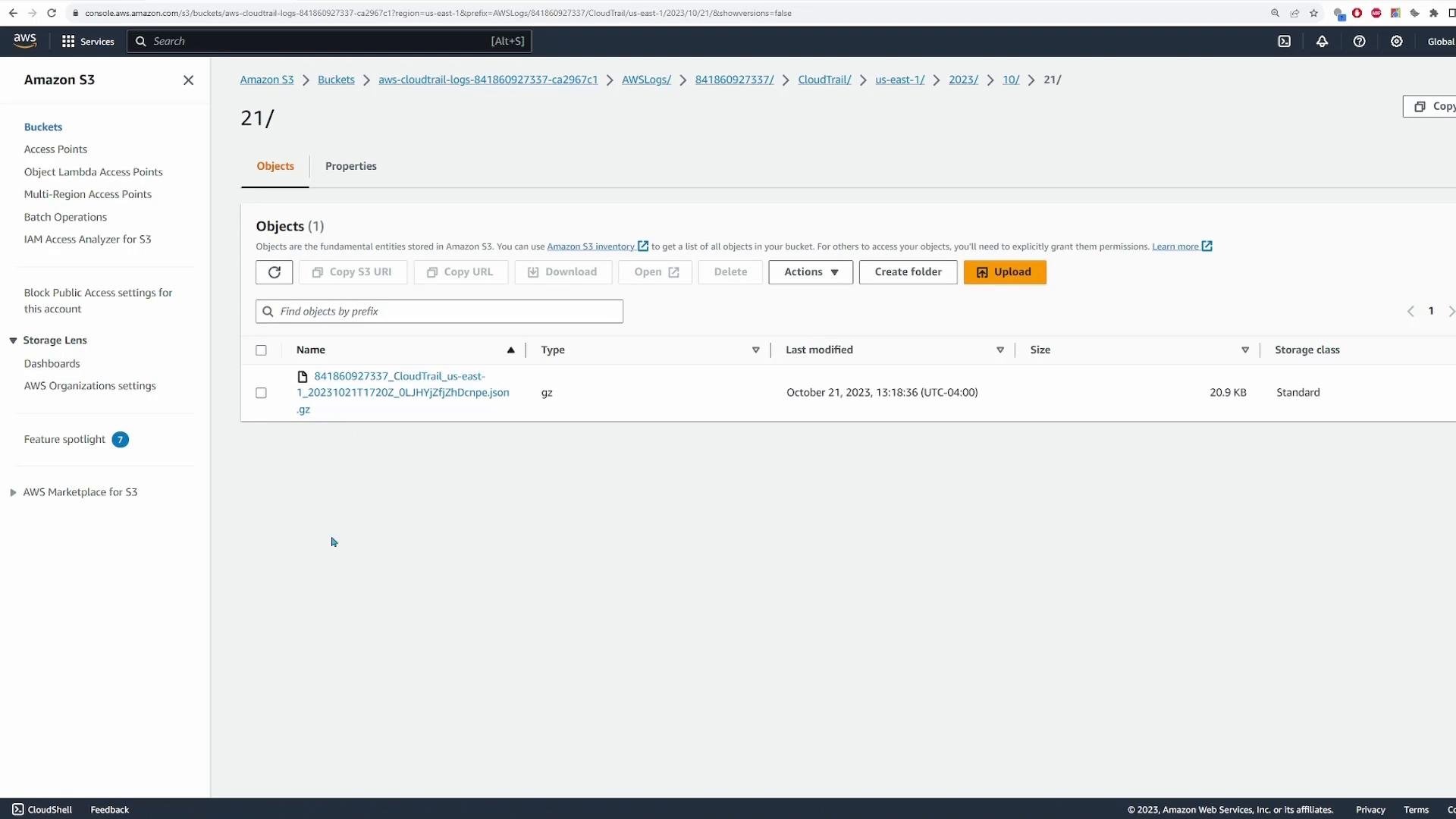
.json.gz objects to inspect raw JSON. Each file typically contains a top-level Records array with multiple event objects.
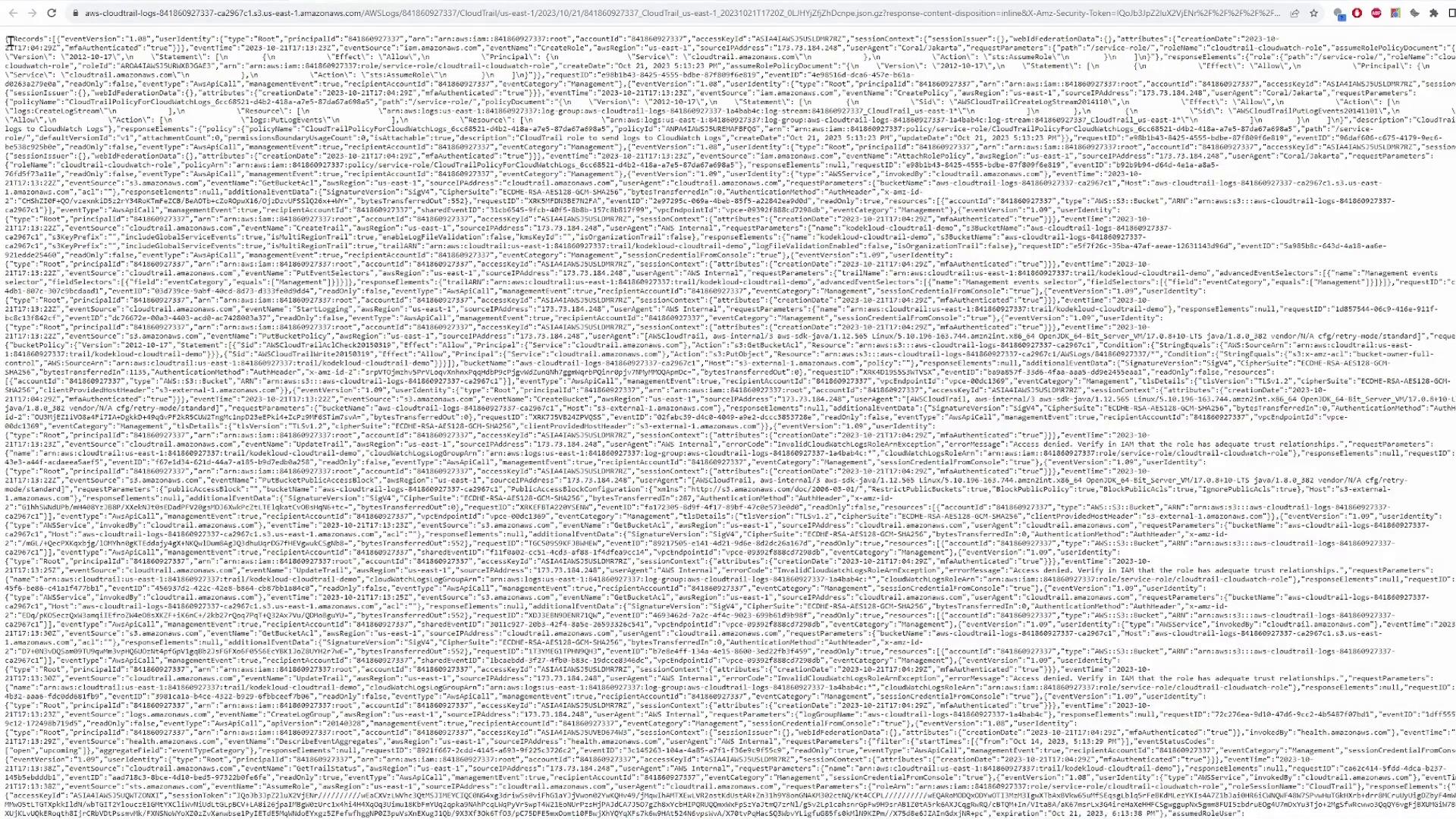
Records array. Example wrapper:
Forwarding to CloudWatch Logs
If you enabled forwarding to CloudWatch Logs when creating the trail, the same events are delivered to the CloudWatch Log Group you selected. CloudWatch Logs enables:- Near real-time search and filtering of CloudTrail events
- Metric filters and alarms based on activity patterns
- Dashboards and integration with other monitoring tools
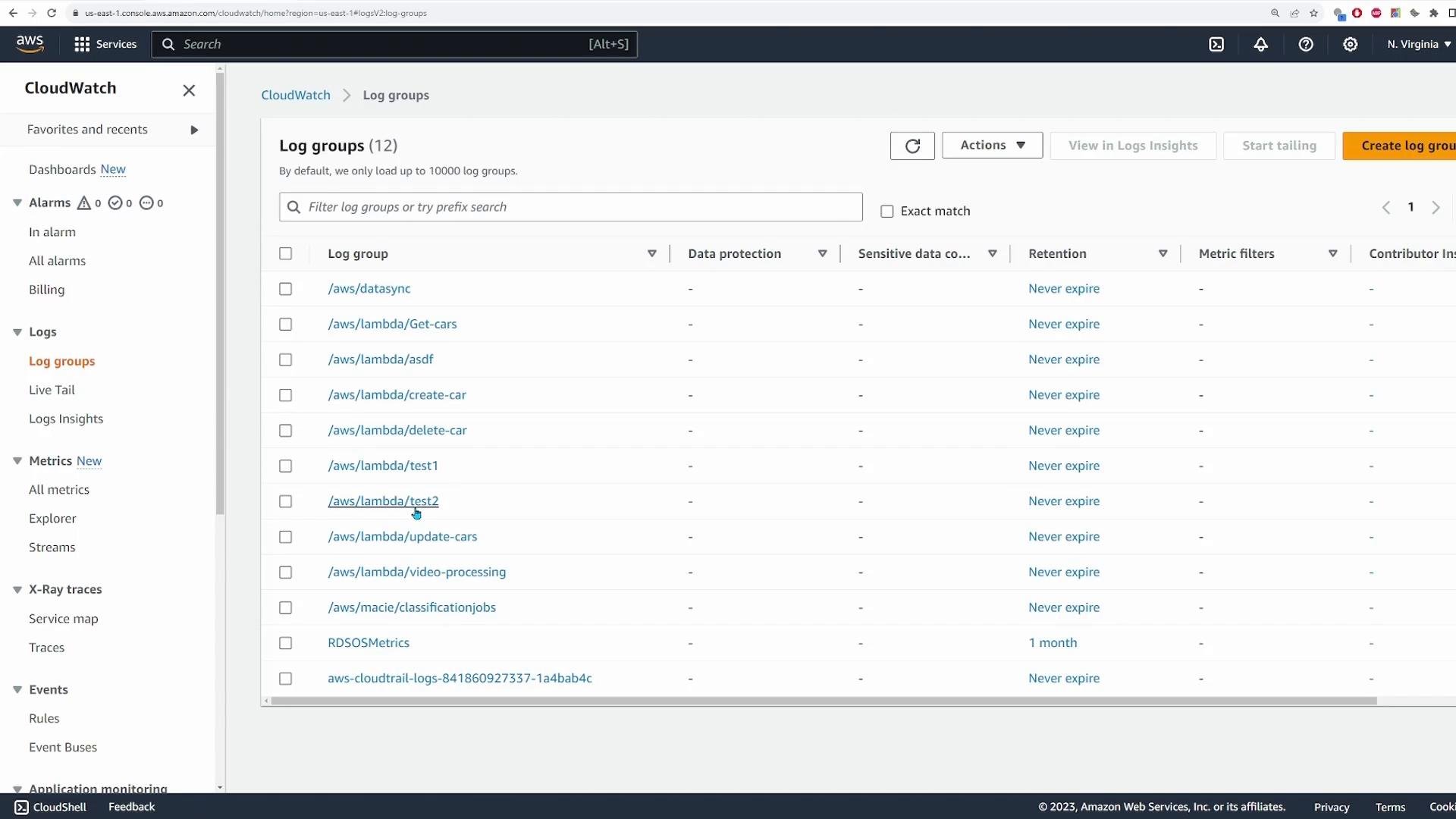
- Open the CloudWatch console.
- Inspect Log Groups — locate the log group used by CloudTrail.
- Open log streams to view the event JSON payloads.
Quick checklist: Set up CloudTrail for production auditing
- Decide whether you need multi-region and/or organization-wide trails.
- Create or choose a centralized S3 bucket (preferably in a separate logging account).
- Enable SSE-KMS encryption and log file validation if required for compliance.
- Enable CloudWatch Logs forwarding if you need near real-time monitoring and alerts.
- Create an appropriate IAM role for CloudTrail to publish to CloudWatch Logs.
- Optionally configure SNS notifications to trigger downstream workflows.
Summary
- Event history provides the last 90 days of management events without a trail.
- Create a CloudTrail trail to deliver logs to S3 for long-term retention and to CloudWatch Logs for near real-time analysis.
- Use multi-region and organization-wide trails for centralized auditing across accounts and regions.
- Enable encryption and log file validation to meet security and compliance requirements.
Best practice: Deliver CloudTrail logs from all regions to a centralized, secure
S3 bucket (ideally in a separate logging account) and enable log file validation and SSE encryption for compliance and tamper detection.Links and references
- AWS CloudTrail documentation
- Amazon S3 documentation
- Amazon CloudWatch documentation
- AWS IAM documentation