

Remember: EBS volumes are created in a specific Availability Zone and can only be attached to EC2 instances in that same Availability Zone. To move a volume between AZs or regions you must use snapshots.
Create and attach an EBS volume to server-one
From the EC2 console (Volumes), create a new EBS volume with these settings:- Volume type: gp2 (or
gp3, depending on your account) - Size: 10 GiB
- Availability Zone:
us-east-1a - Name:
demo-volume(optional) - Encryption: Disabled for this demo
server-one. The console may display the device name as /dev/sdf. On the instance the kernel may rename it (for example to /dev/xvdf) or present it as an NVMe device (for example /dev/nvme0n1). Use the device name shown on the instance (for example from lsblk) when working with the device.
On Linux, device names shown in the console (e.g.
/dev/sdf) may appear as /dev/xvdf (or similar) on the instance. The kernel renames the device; use the device visible on the instance (lsblk) when working with it.server-one and verify the block device list:
data indicates no filesystem exists yet. Create an XFS filesystem on the volume:
/ebsdemo (lowercase) to match the console outputs shown later:
/etc/fstab.
Retrieve the unique identifier (UUID) for the block device and use it in /etc/fstab:
/etc/fstab line:
sudo and tee to safely write as root:
Detach and attach the EBS volume to server-two
EBS volumes are independent resources. You can unmount and detach a volume from one EC2 instance and attach it to another instance in the same Availability Zone. Onserver-one, unmount the filesystem. Make sure you are not inside the mount directory when unmounting:
available, choose Attach Volume and attach it to server-two (must be in the same AZ).
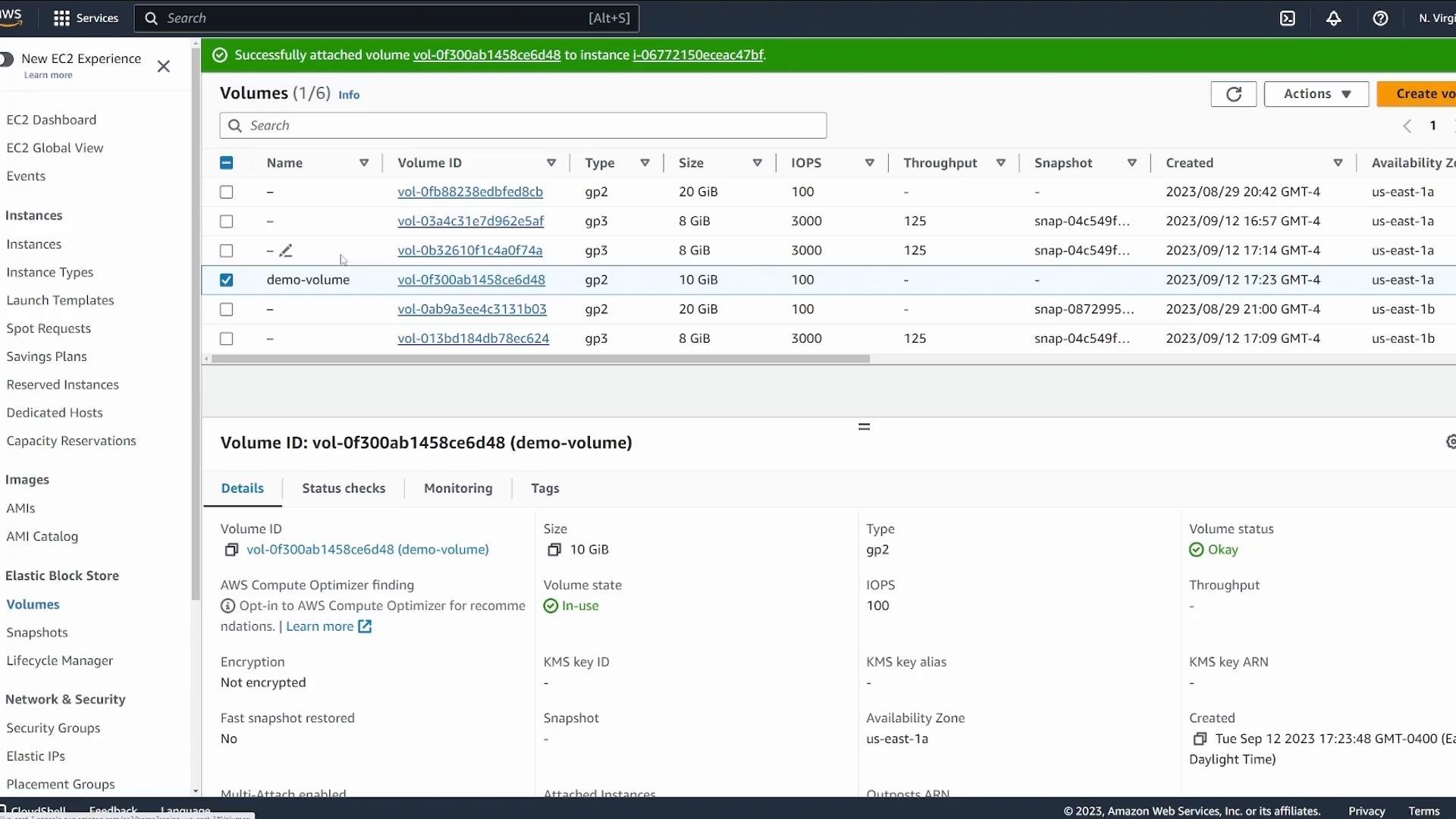
server-two, verify the block device, mount it, and read the file we created on server-one:
Wrap up
This completes the basic EBS attach/detach demo within the same Availability Zone. Key takeaways:- EBS volumes are AZ-scoped: attach only to instances in the same Availability Zone.
- Use
lsblk,blkid, andfile -sto inspect devices and filesystems. - To preserve mounts across reboots, use
/etc/fstabwith UUIDs. - To move a volume across AZs or regions: create a snapshot of the volume, copy the snapshot to the target region (if needed), and create a new volume from that snapshot in the target Availability Zone or region.
- AWS EBS documentation: https://docs.aws.amazon.com/ebs/
- Amazon EC2 documentation: https://docs.aws.amazon.com/ec2/
- XFS filesystem guide: https://access.redhat.com/documentation/en-us/red_hat_enterprise_linux/7/html/storage_administration_guide/xfs
Tip: For production environments, consider enabling encryption, regular snapshots for backup, and lifecycle policies to manage snapshot retention.