

EC2 Setup Overview
Our current setup consists of a simple VPC with two subnets across two availability zones (US East 1A and US East 1B). Each zone runs one t2.micro instance, ensuring redundancy and high availability.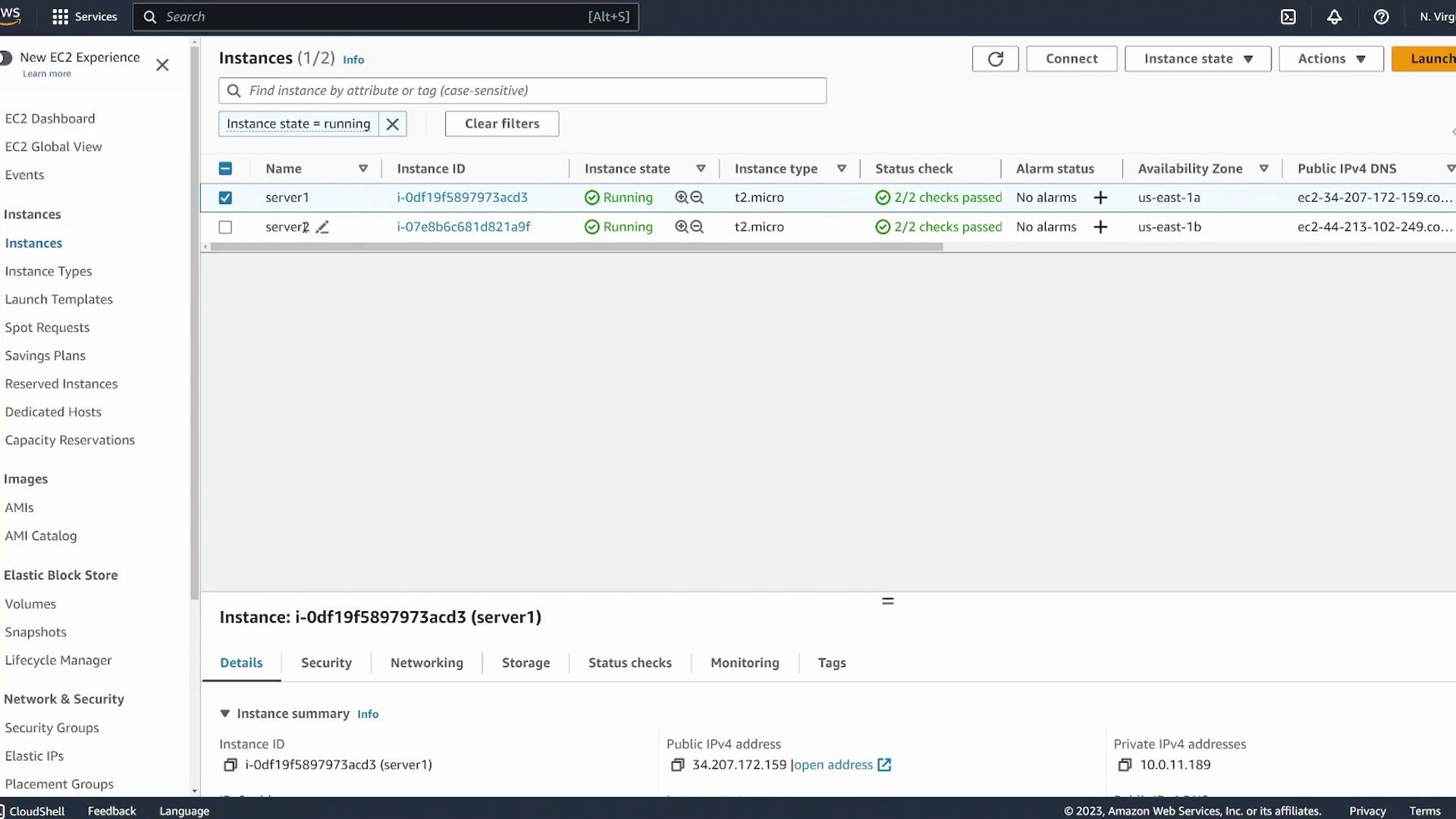
Creating the EFS File System
Begin by navigating to the EFS page in the AWS console and selecting Create File System.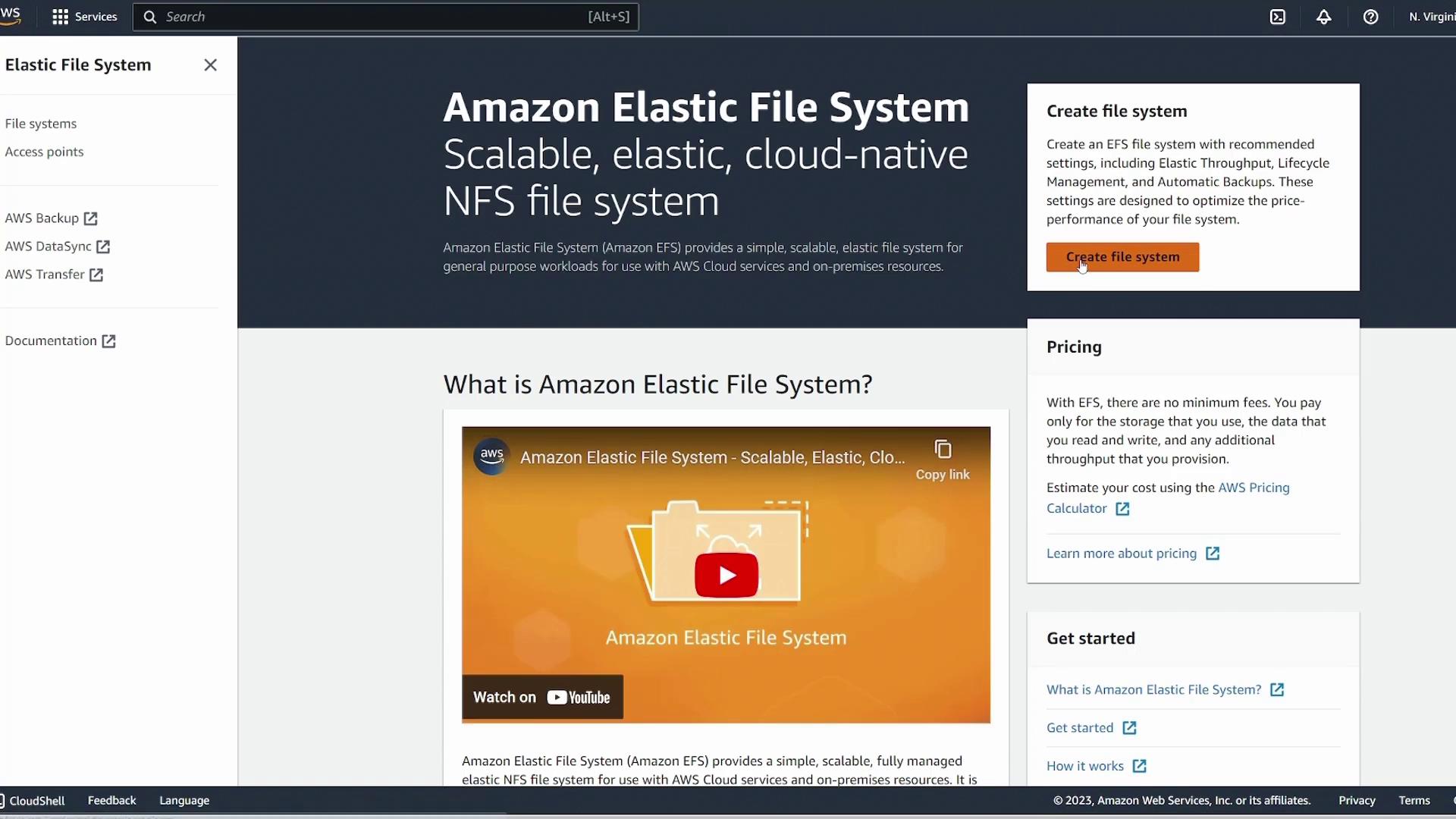
Customizing Your EFS Settings
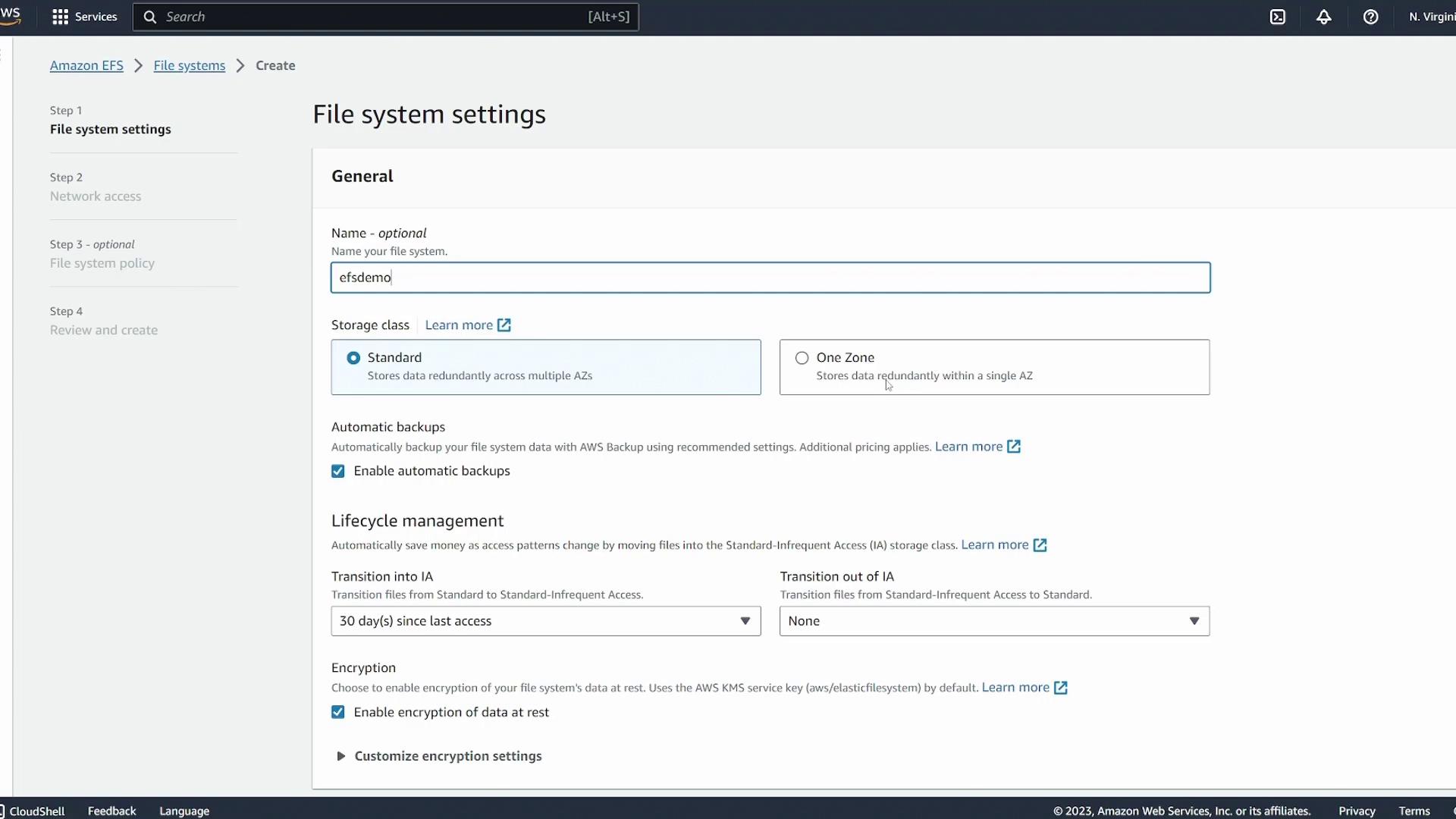
Click Customize to adjust your EFS configuration:- Enter a descriptive name (e.g., “EFS demo”).
- Select a storage class. Choose a multi-zone configuration for enhanced durability, or a single zone option if your workload allows data redundancy limited to one availability zone.
Configuring Network Settings
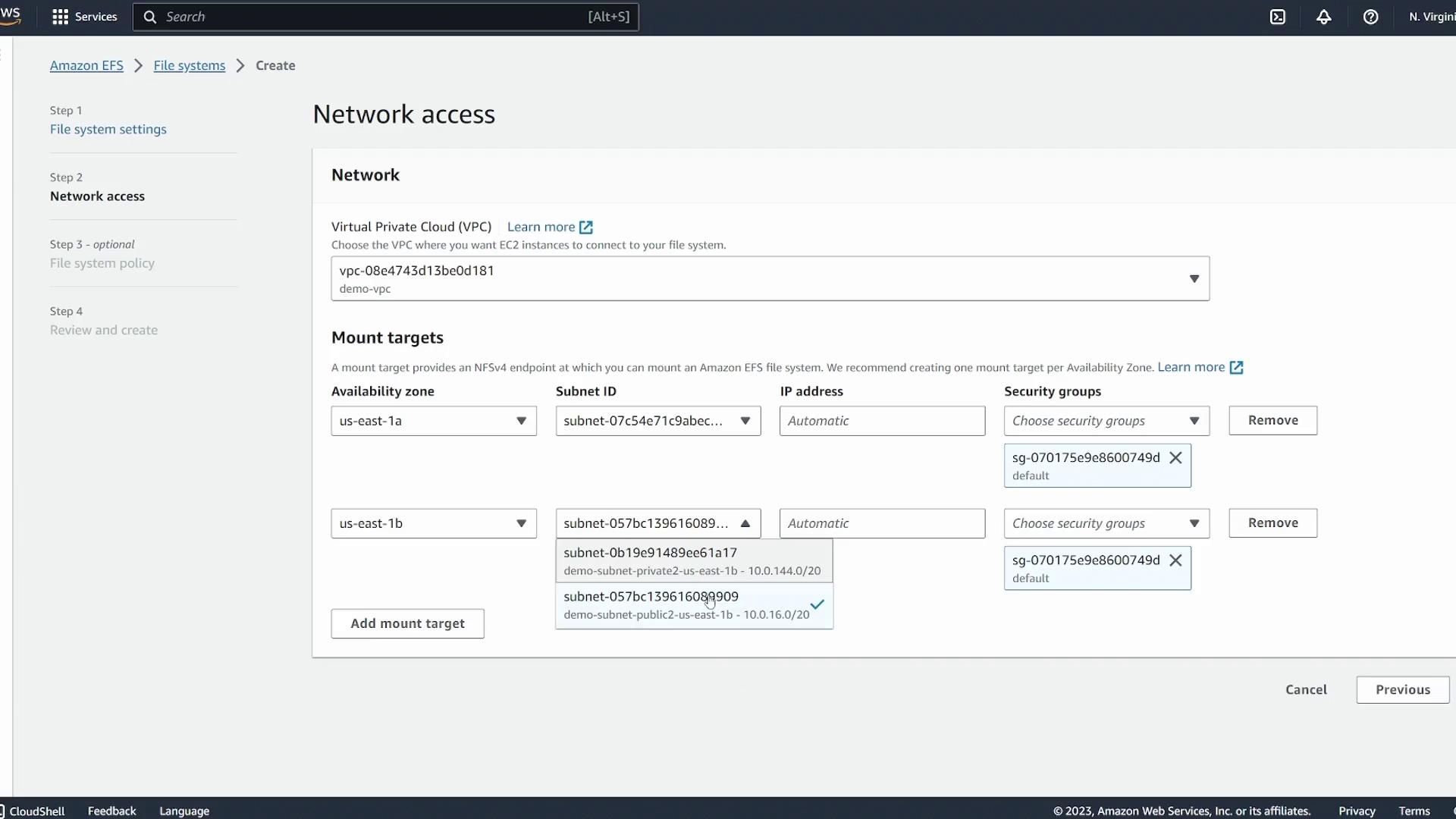
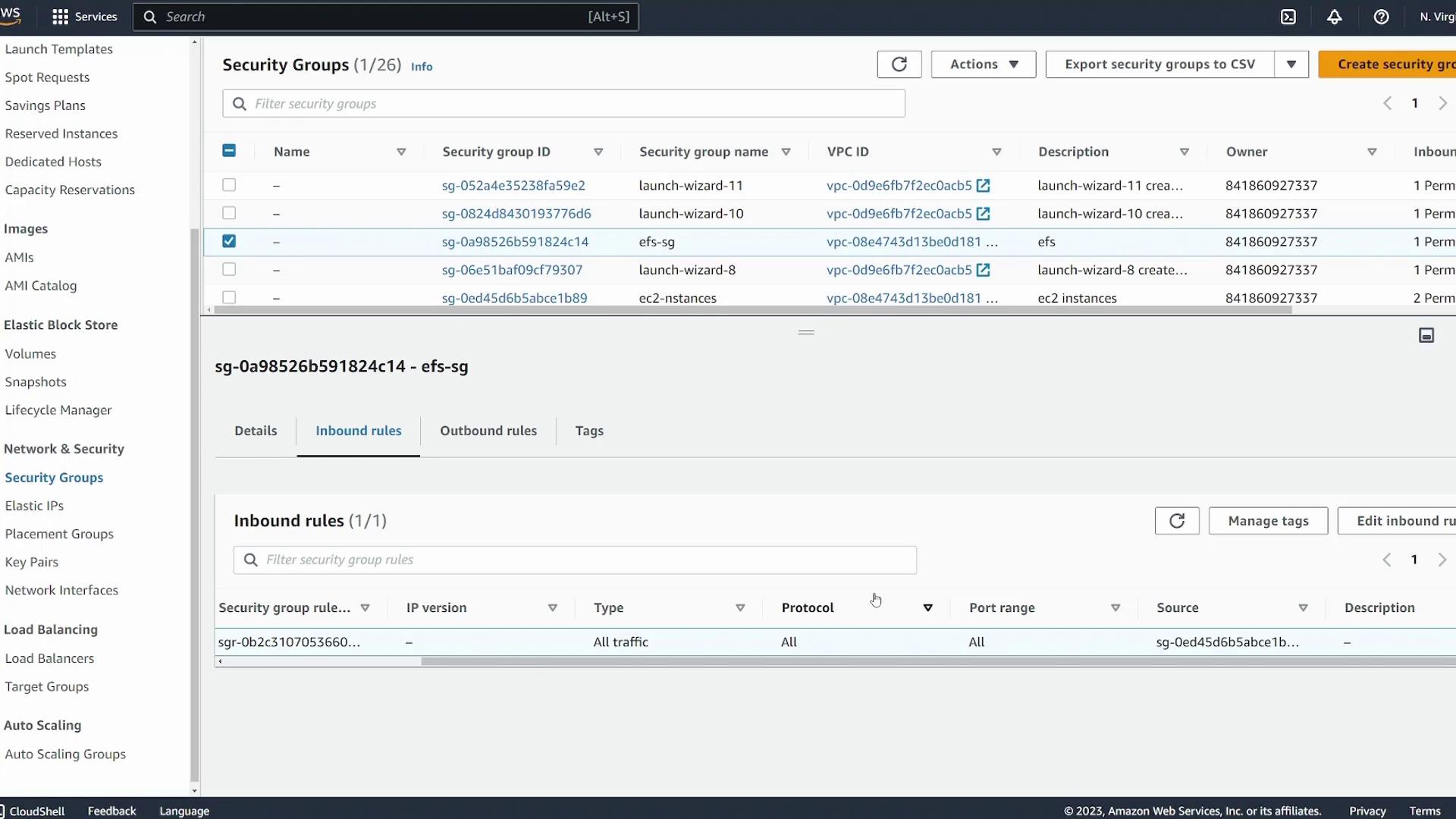
Next, set up the network access:- Choose the VPC used by your EC2 instances (in our demo, “demo VPC”).
- AWS automatically creates mount targets in each availability zone within the selected VPC. Ensure every zone has a mount target to maintain availability.
Configuring EC2 Instances for EFS
Once the file system is active, log into your EC2 instances to complete the setup. The following steps must be performed on each server.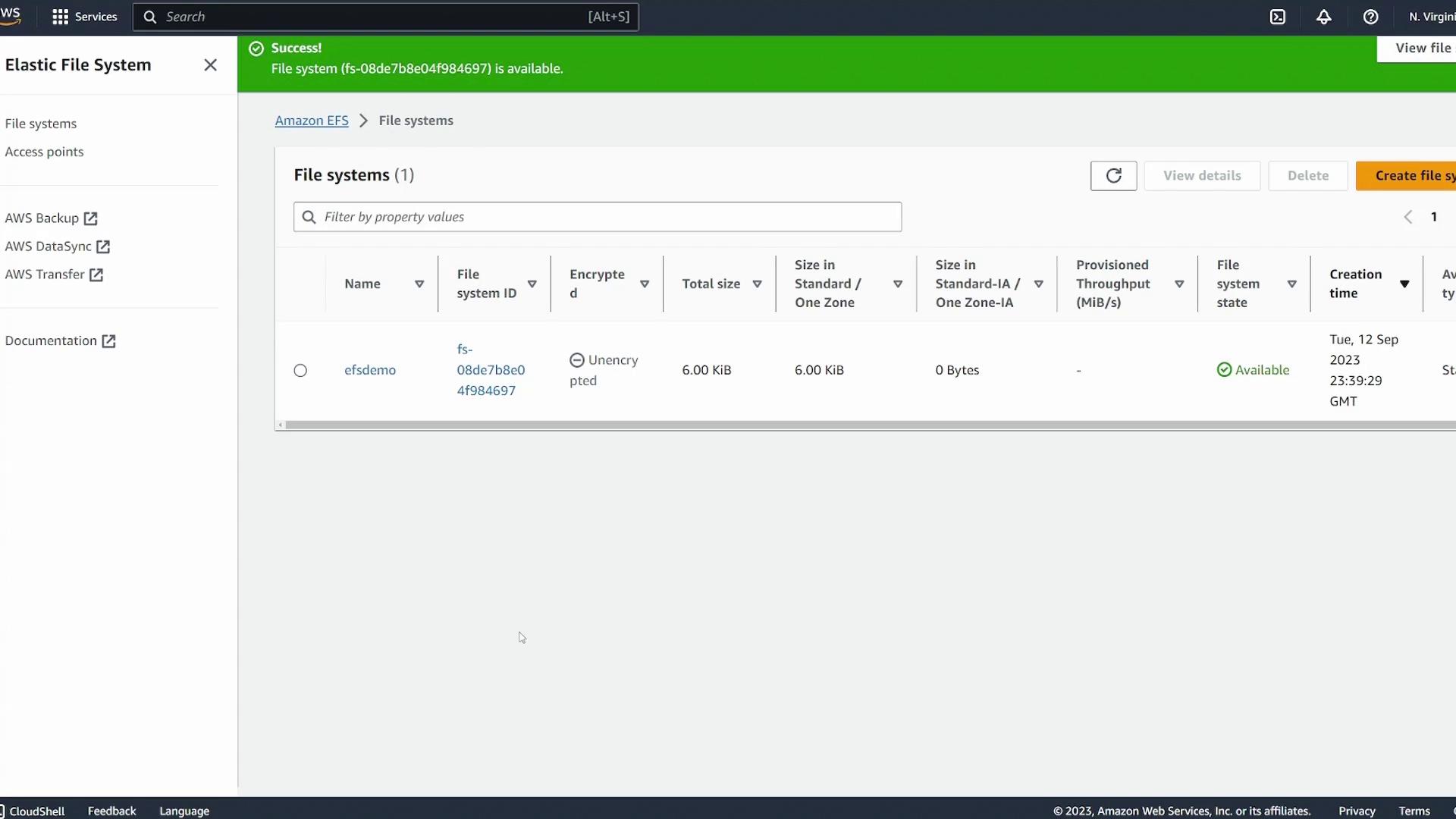
Step 1: Create a Mount Directory
Create a directory that will serve as the mount point for the EFS file system. In this demo, we use/efsdemo:
Step 2: Install Amazon EFS Utils
Install the Amazon EFS Utils package to simplify mounting the file system:Step 3: Mount the EFS File System
Mount the file system using the provided file system ID from the AWS console. Replacefs-08de7b8e04f984697 with your file system ID:
This manual mount is not persistent across reboots. To ensure the EFS mounts automatically after a reboot, add the appropriate entry to your
/etc/fstab file following the AWS documentation.Step 4: Test the Shared File System
To verify the shared access, perform the following tests:-
On the first server, navigate to the mount directory and create a file:
Insert the text: I made this on server1
-
On the second server, check the shared directory:
Summary
In this lesson, you learned how to:- Create an EFS file system with customized settings in the AWS console.
- Configure network settings and security groups to support mount targets in each availability zone.
- Install Amazon EFS Utils on EC2 instances.
- Mount the EFS file system and verify shared file access between multiple servers.
For further details on persistent mounting and additional configuration options, please refer to the Amazon EFS documentation.