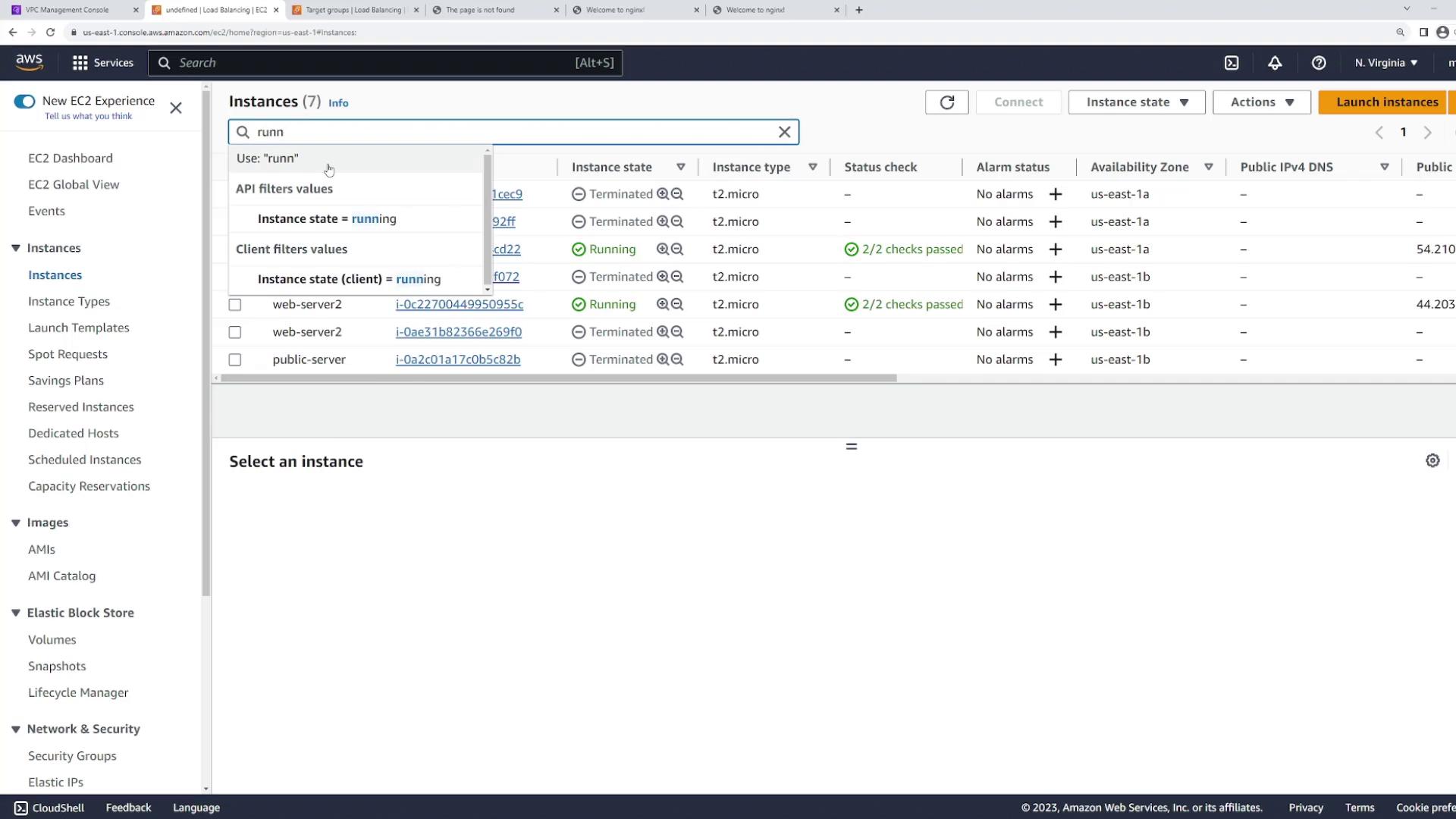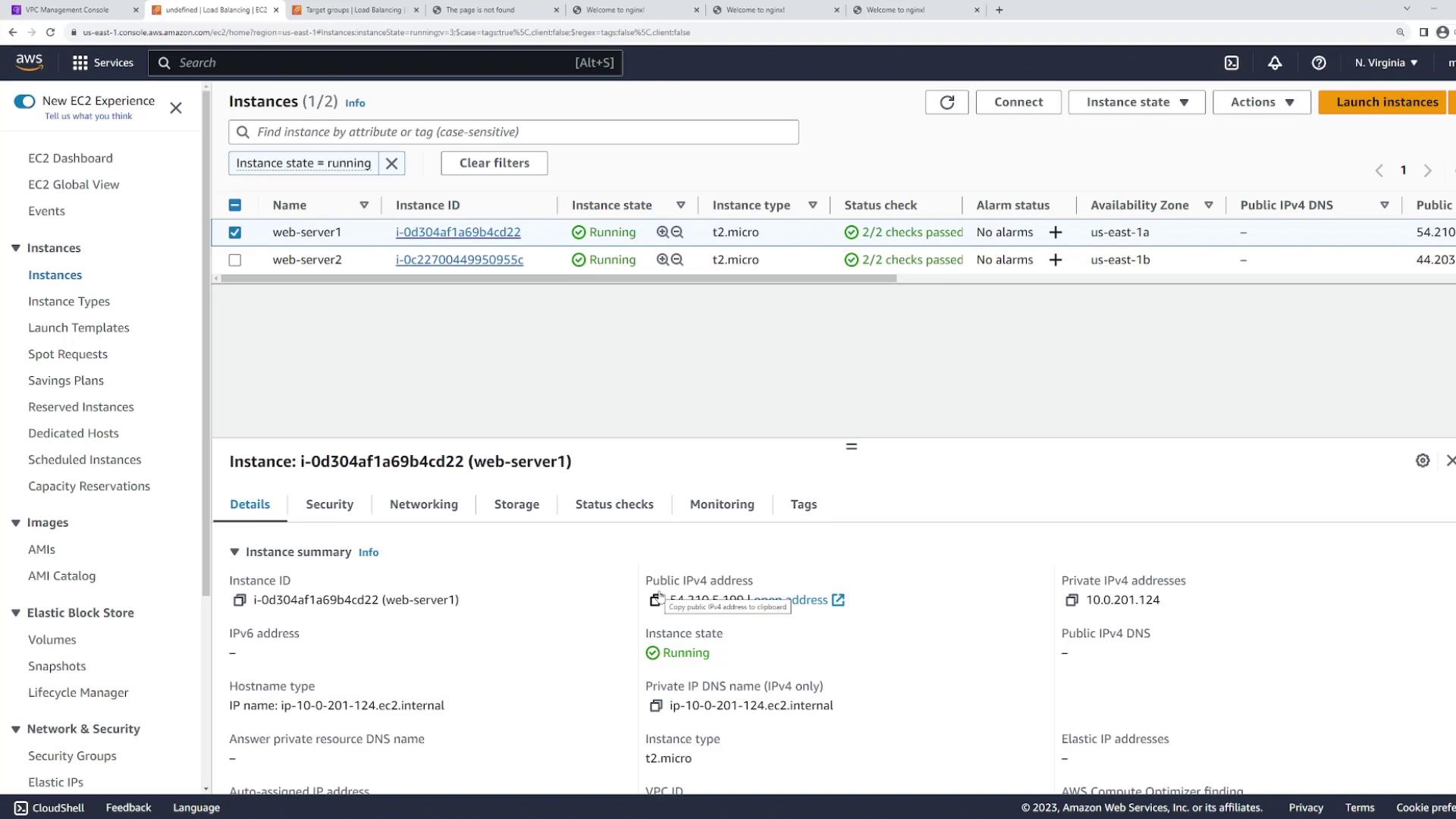
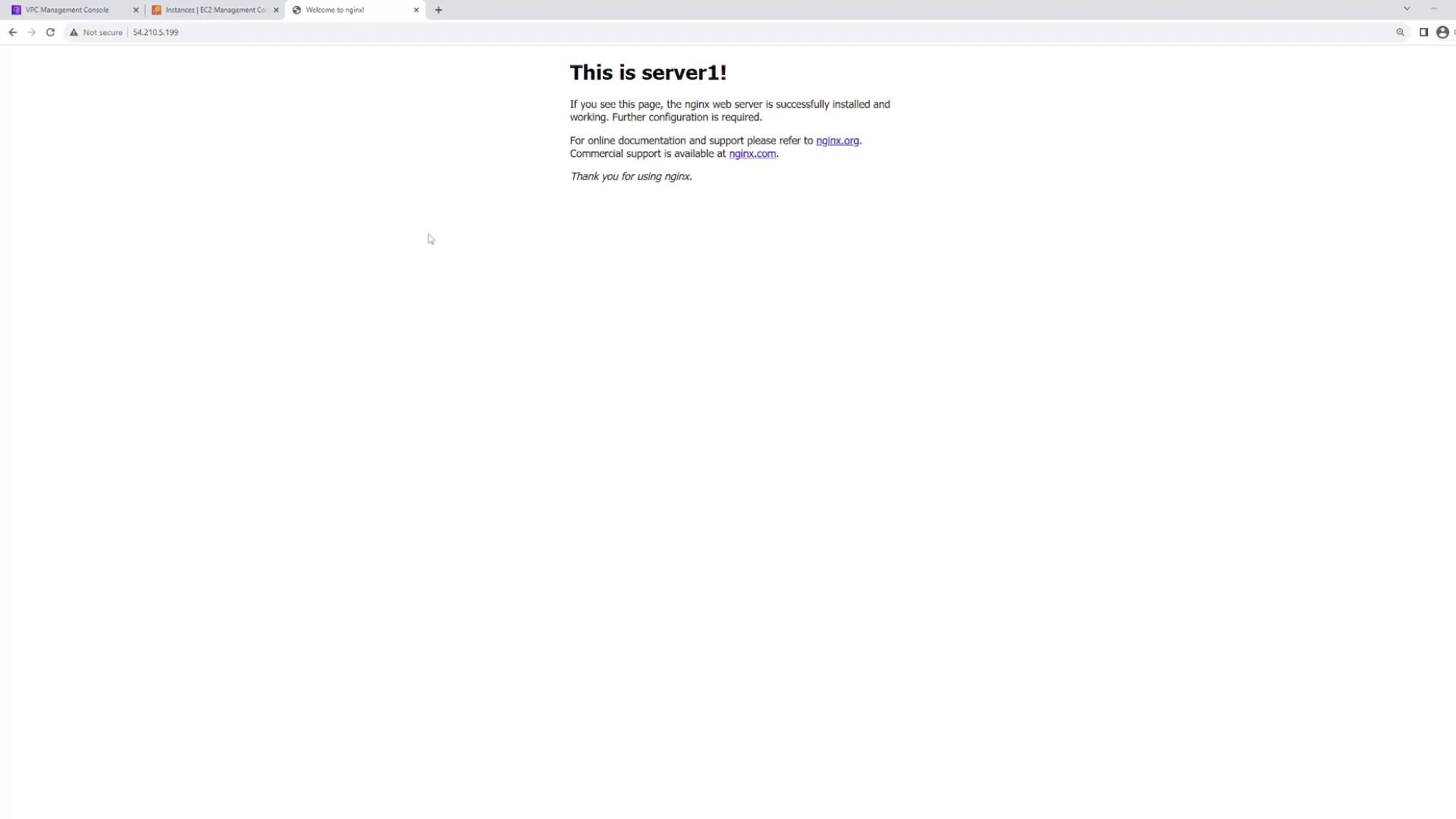
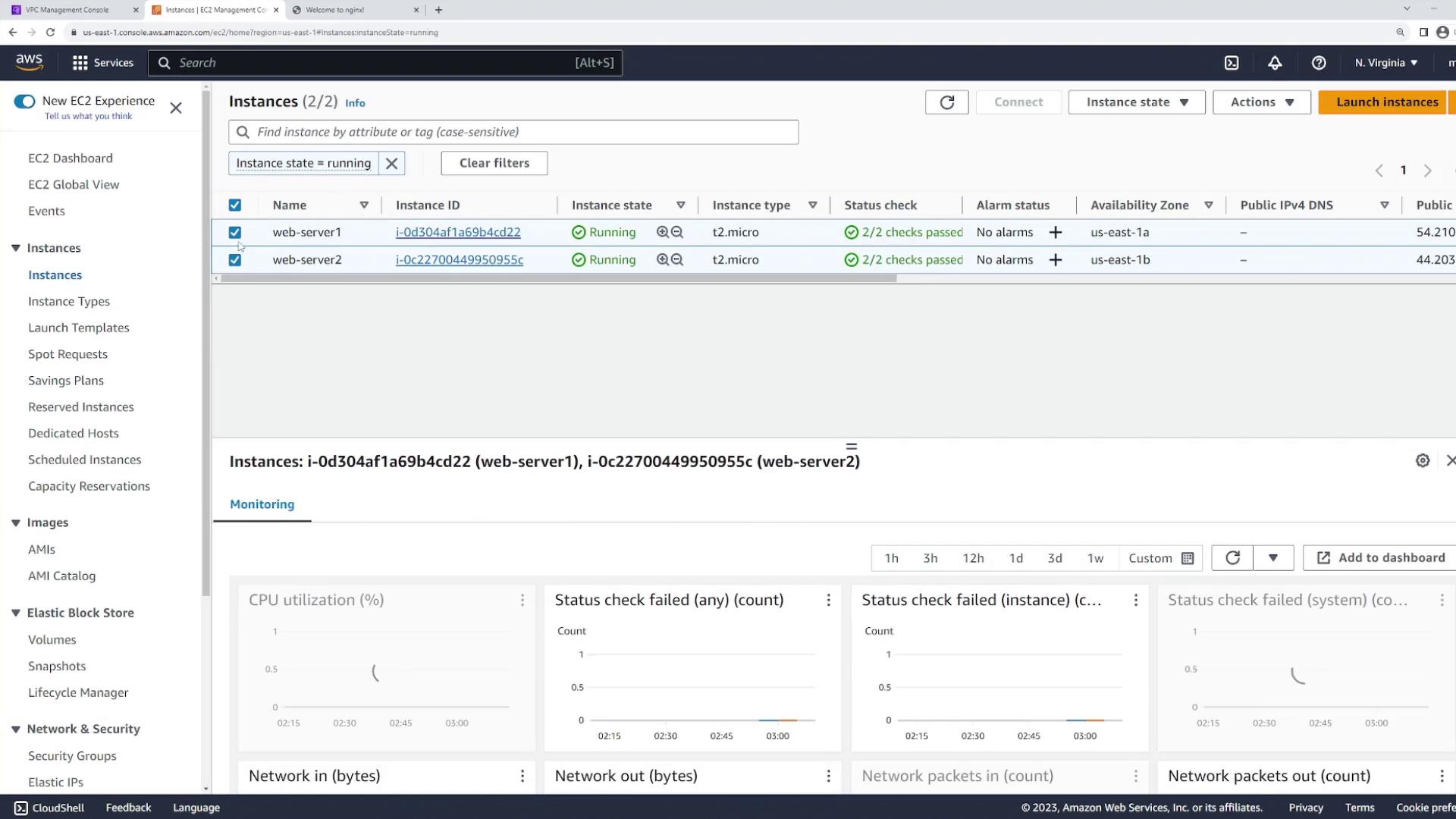
- Web server one is in subnet 10.0.201.0/24 (US East 1A).
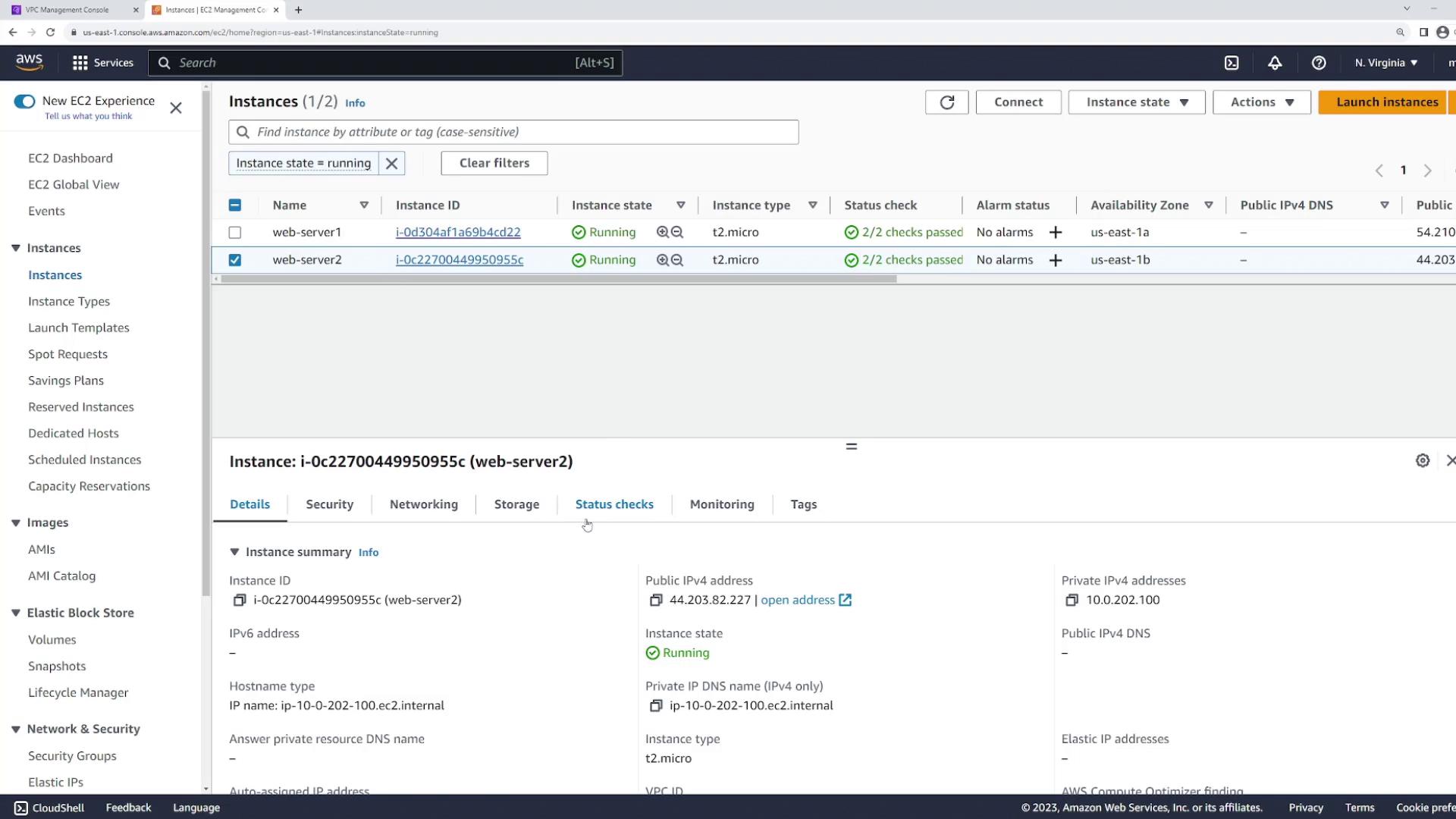
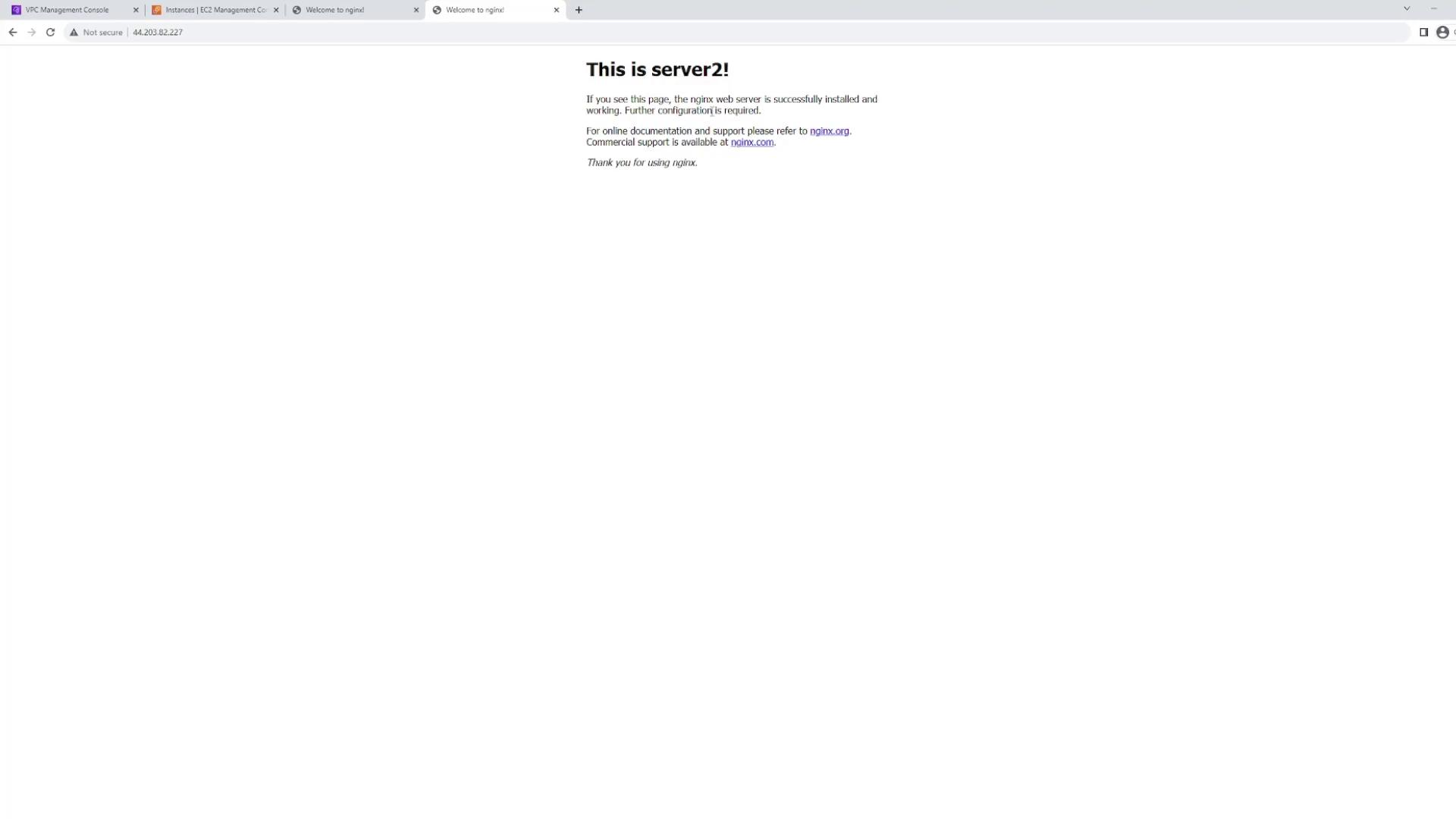
- Web server two is in subnet 10.0.202.0/24 (US East 1B).
The main goal here is to configure a load balancer that provides a unified DNS name, distributing incoming traffic evenly between both web servers.
Creating Dedicated Subnets for the Load Balancer
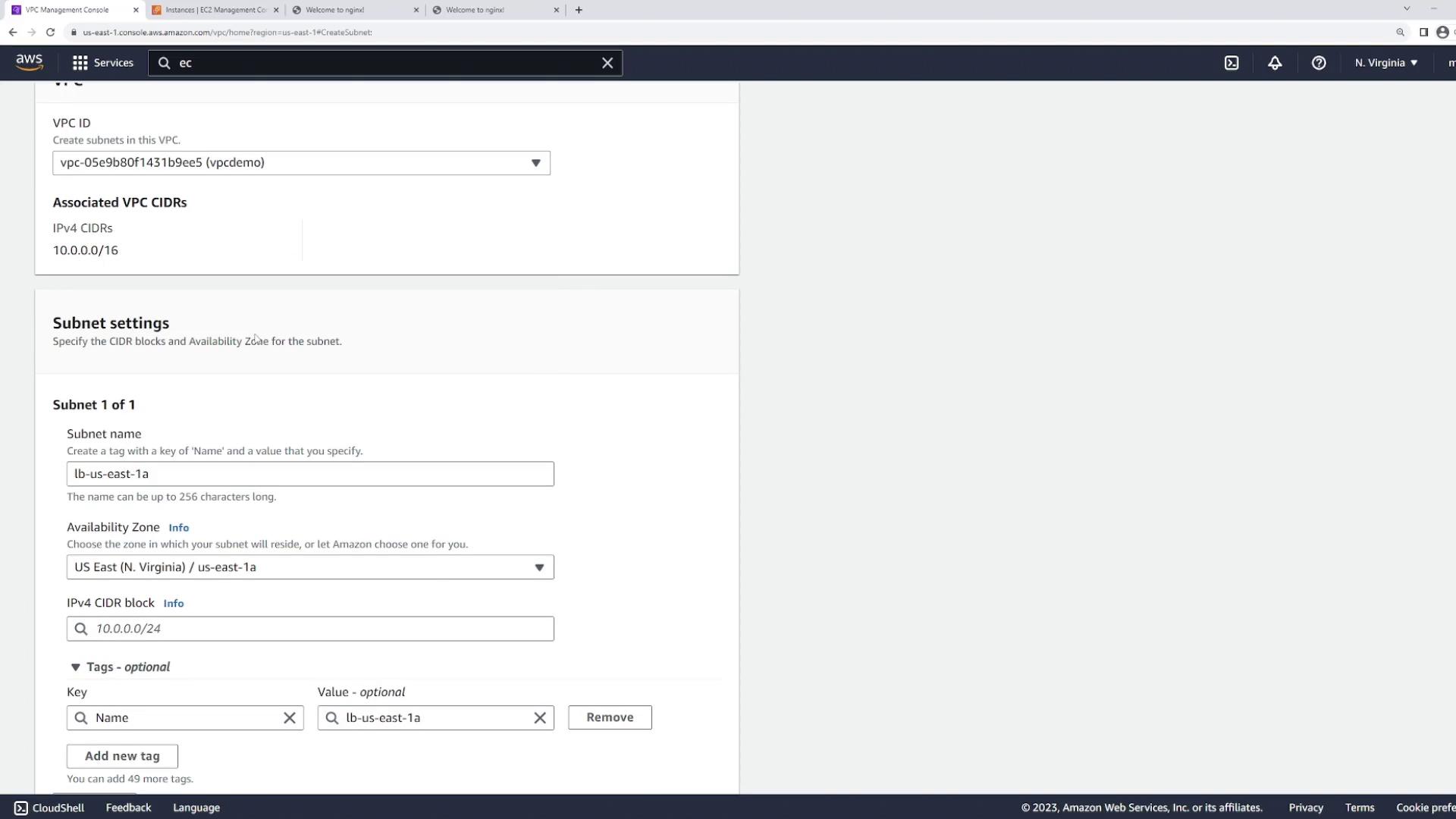
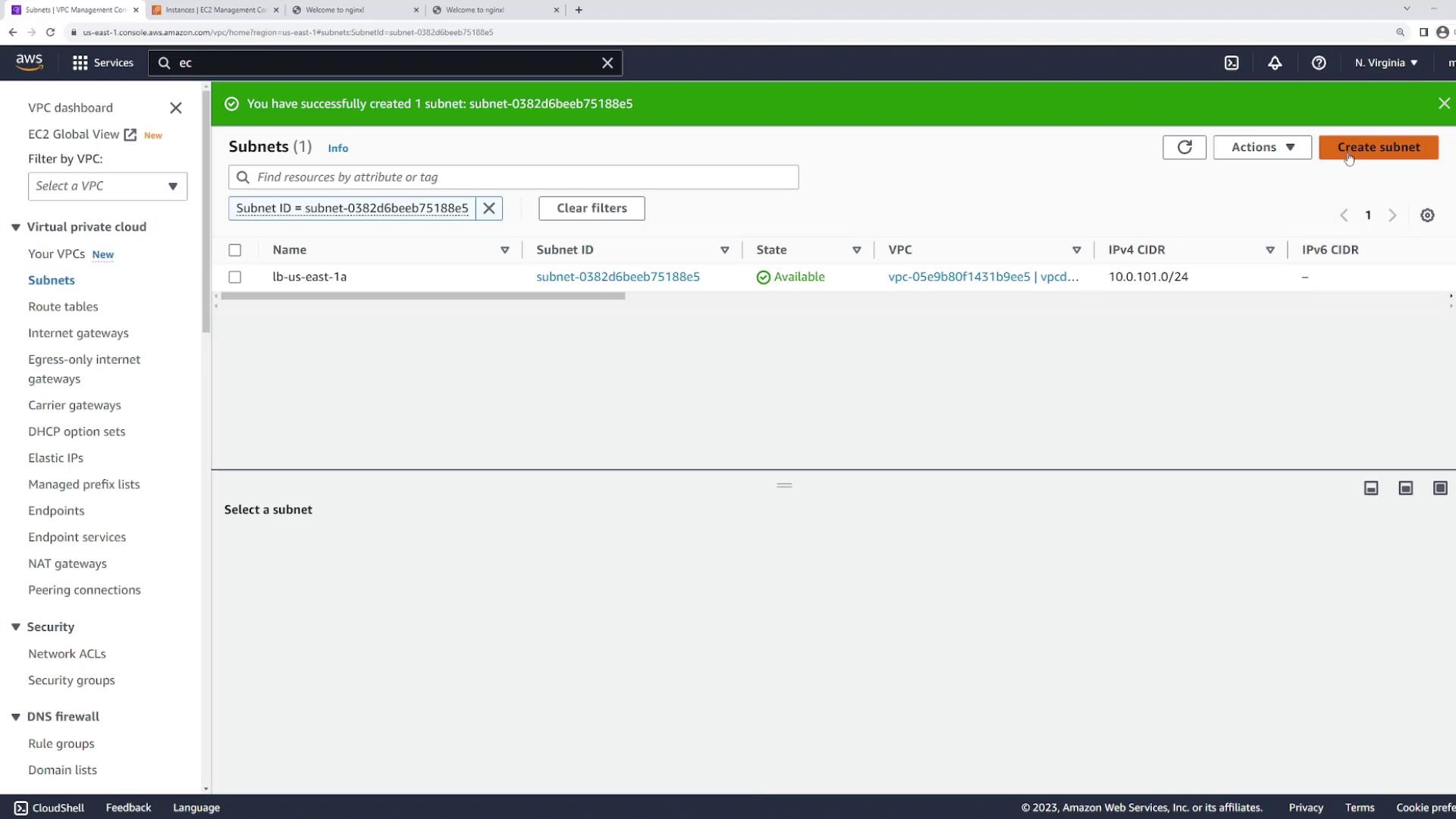
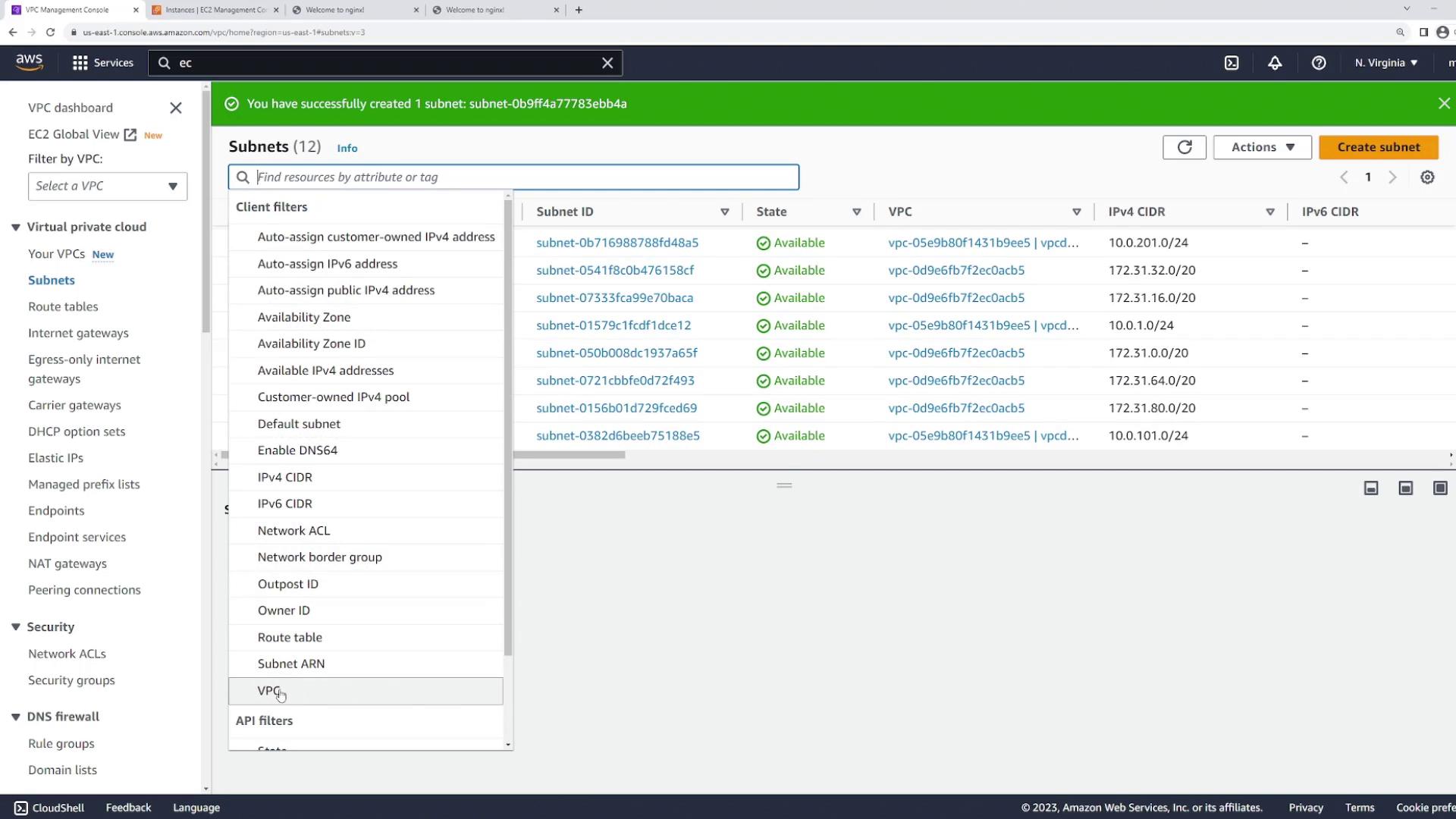
Before configuring the load balancer, you need to create dedicated subnets for its nodes. Since the load balancer will operate in both US East 1A and US East 1B, create one subnet in each Availability Zone:- Create a subnet named “LB” in US East 1A with the CIDR block 10.0.101.0/24.
- Create another subnet named “LB” in US East 1B with the CIDR block 10.0.102.0/24.
Configuring the Load Balancer
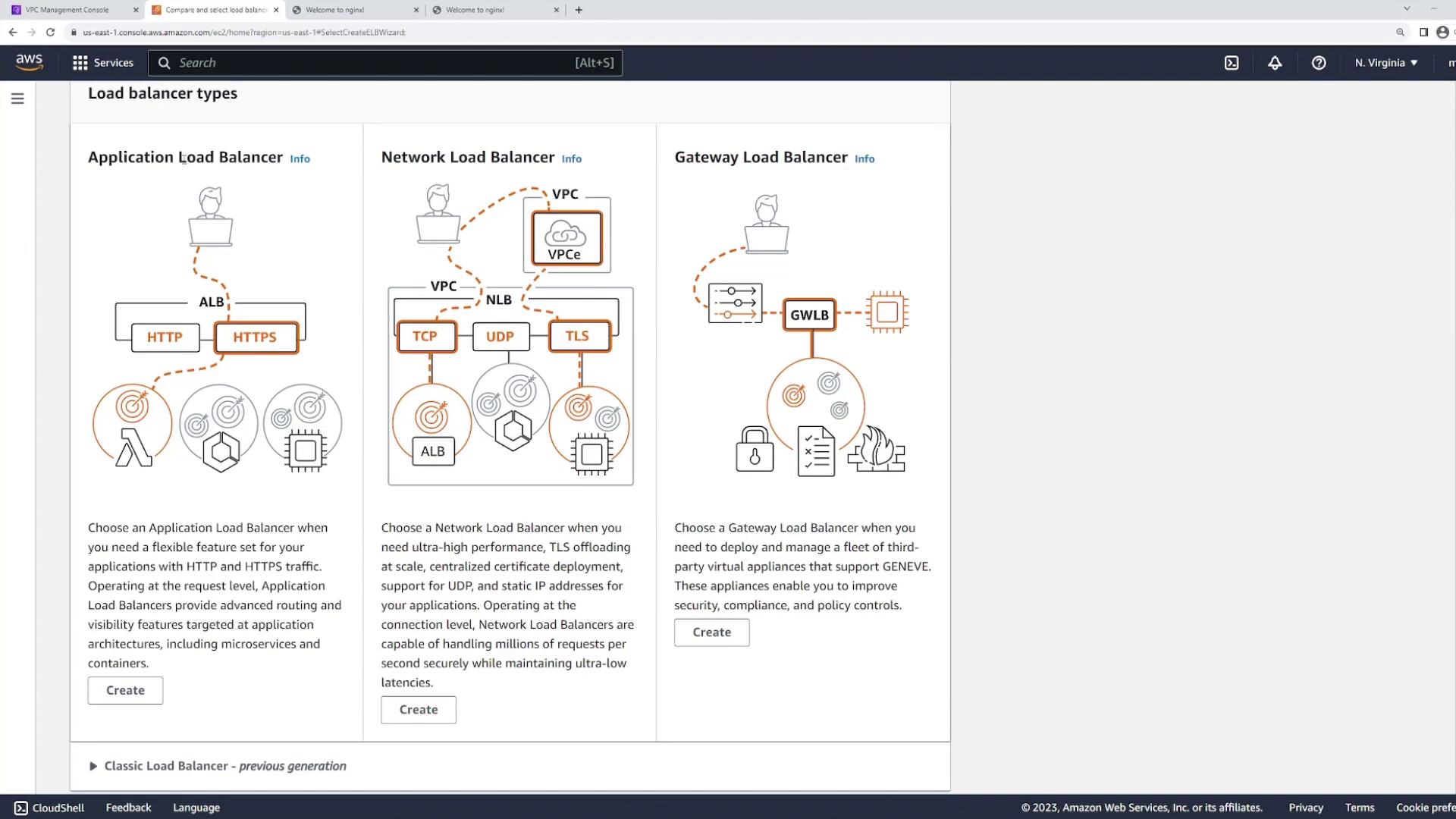
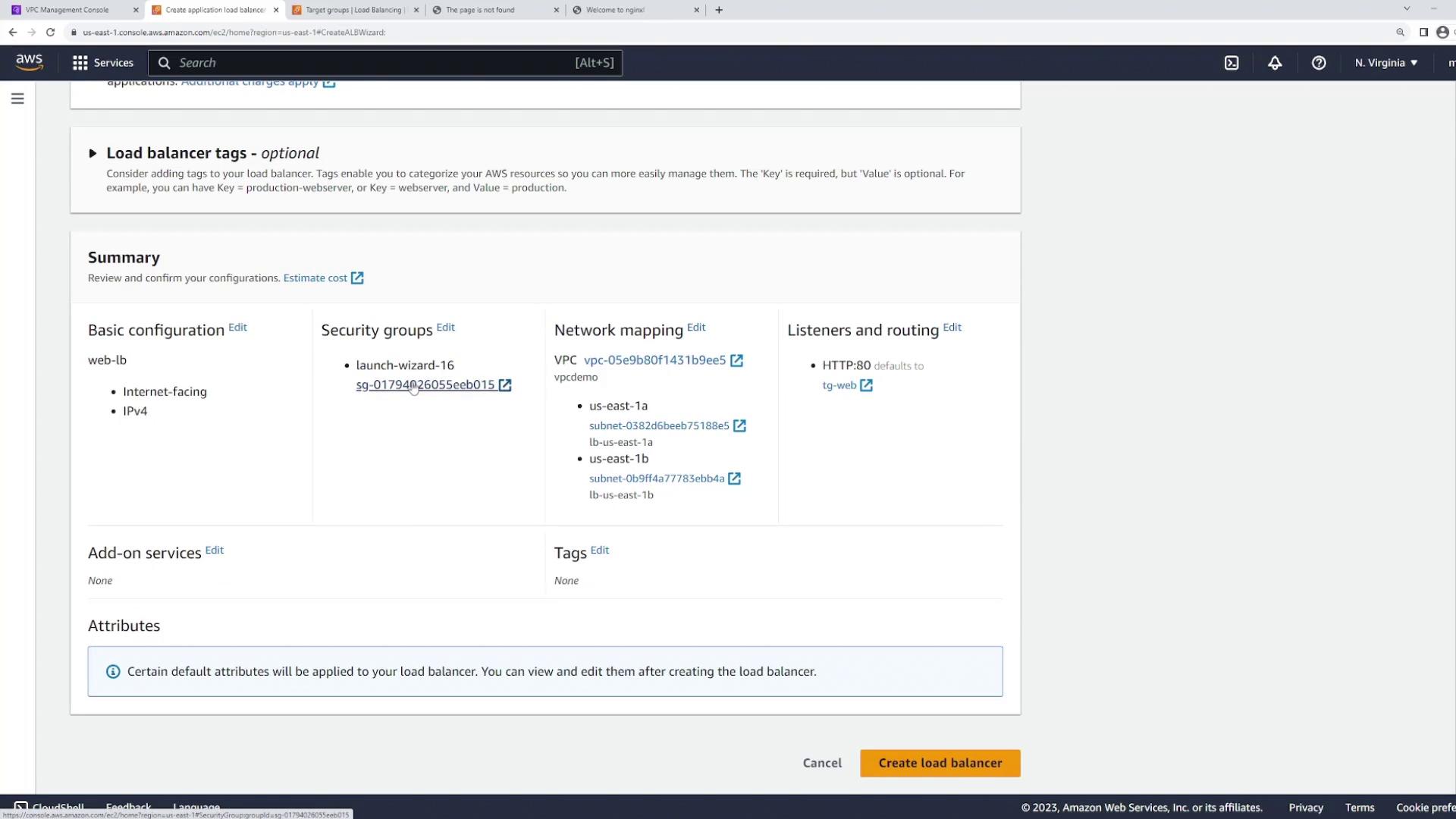
For a website, the load balancer must be publicly accessible. Since the LB subnets are configured as public (with default routes to the Internet Gateway), navigate to the EC2 console and access the Load Balancers section:- Click on “Create Load Balancer” and choose the “Application Load Balancer” option.
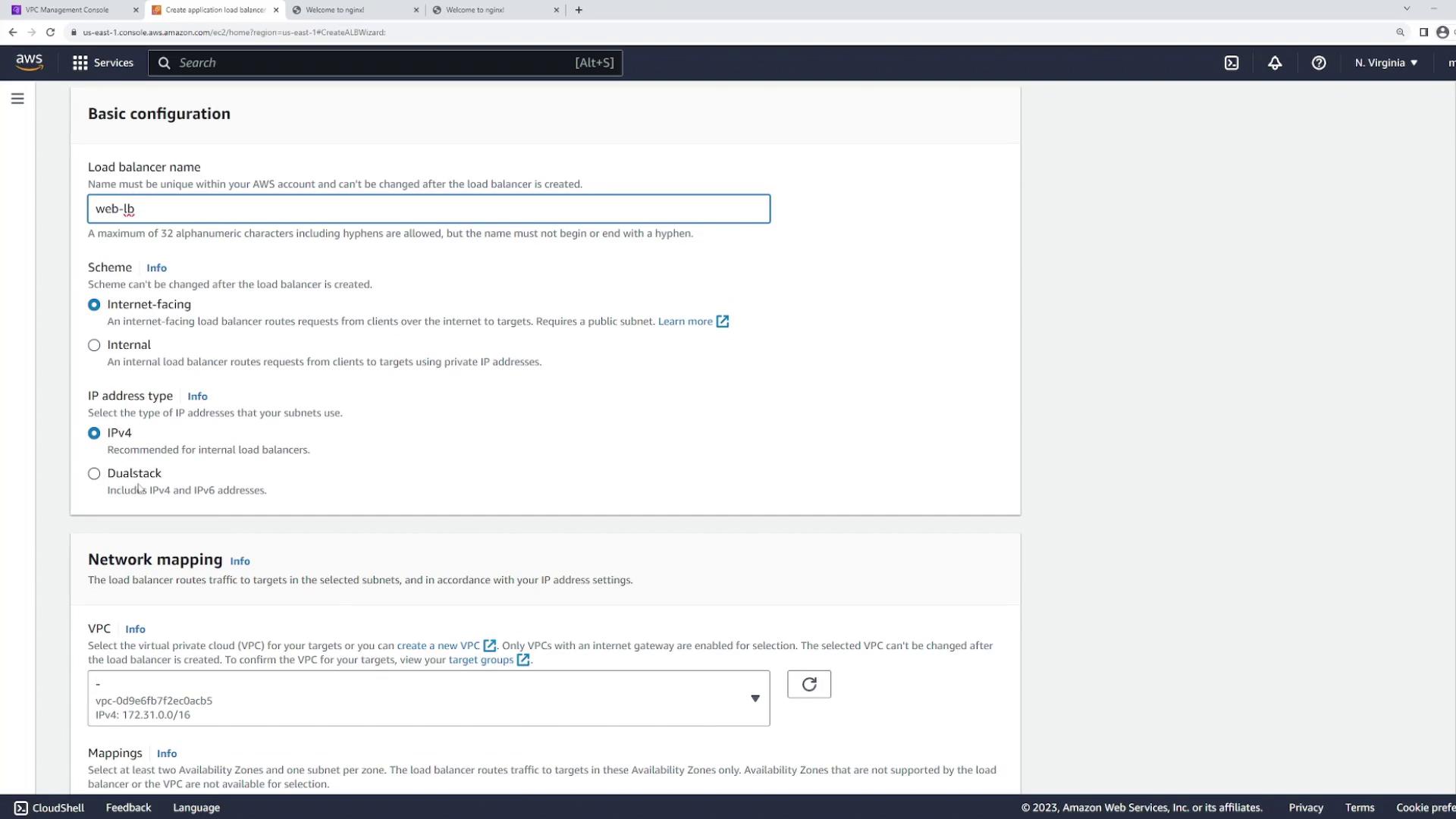
- Enter the following details:
- Name: “web load balancer”
- Scheme: “internet-facing”
- IP address type: IPv4 (or dual stack if IPv6 is also required)
- VPC: Select the VPC (e.g., “demo”)
- For the Availability Zones, select the dedicated LB subnets (one in US East 1A and one in US East 1B) instead of the web server subnets.
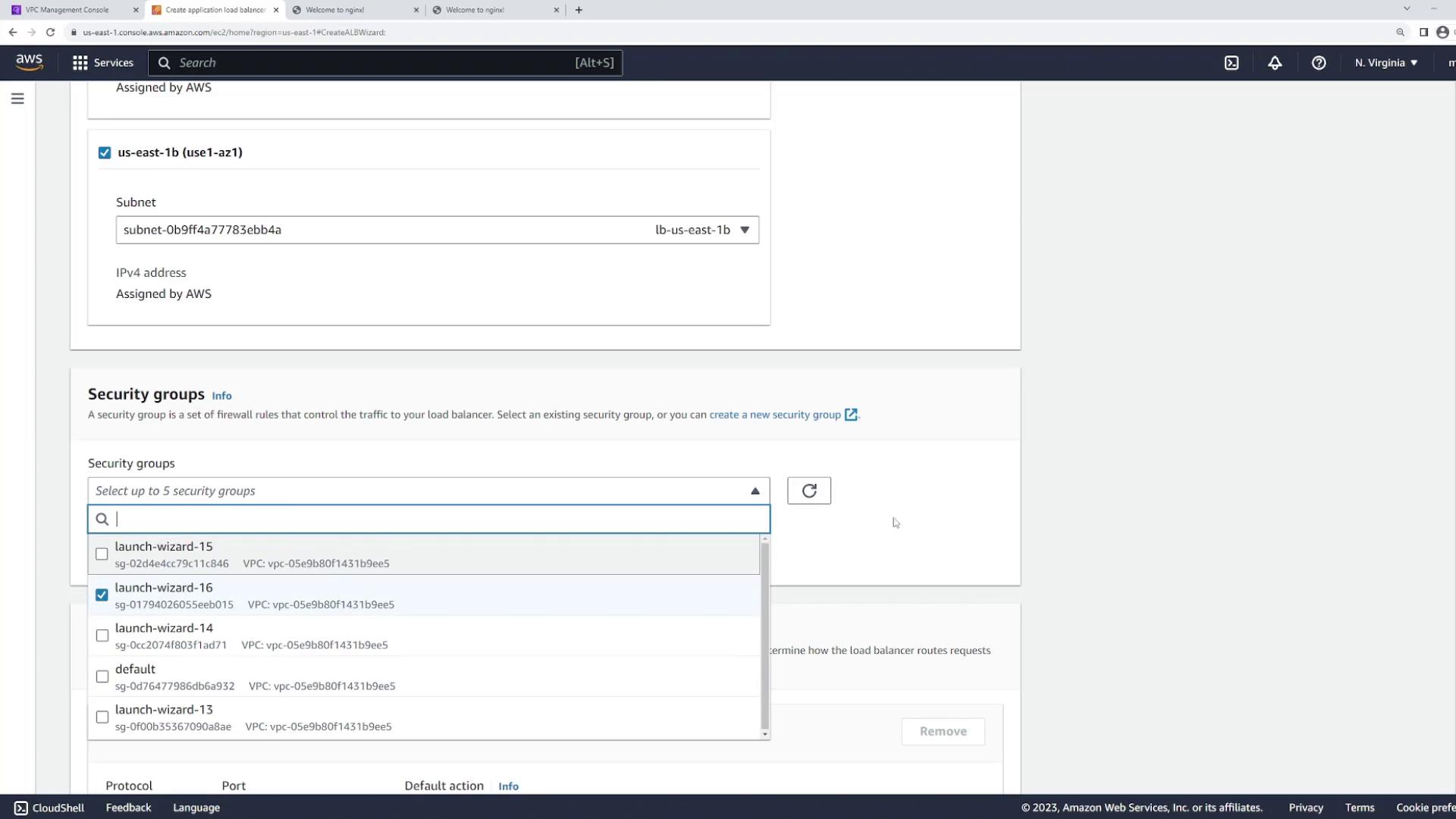
- Configure a preexisting security group that allows web traffic on ports 80 and 443.
Ensure that your security group permits HTTP (port 80) and HTTPS (port 443) traffic so that the load balancer can communicate with end users effectively.
Setting Up Listeners and Target Groups
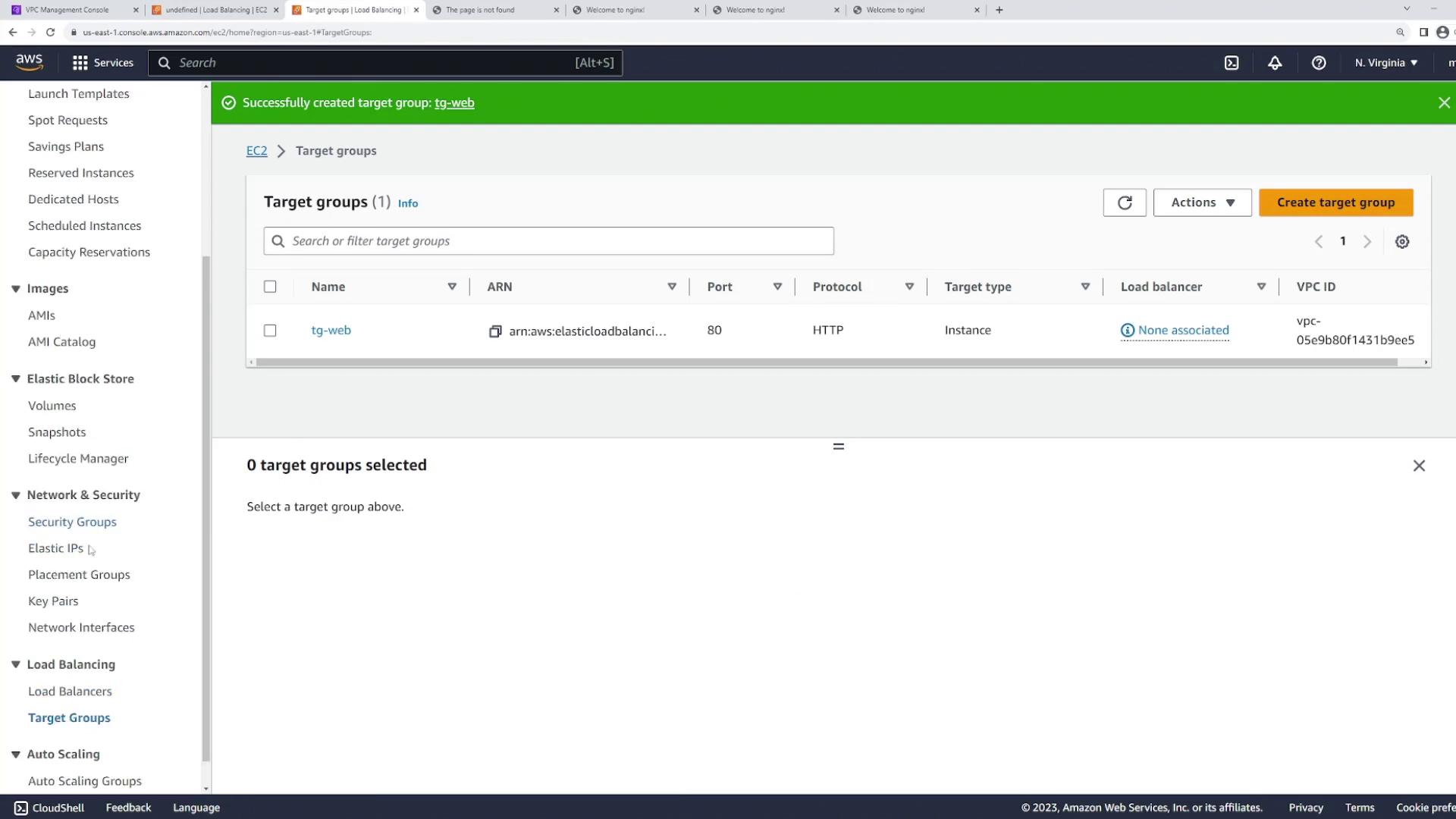
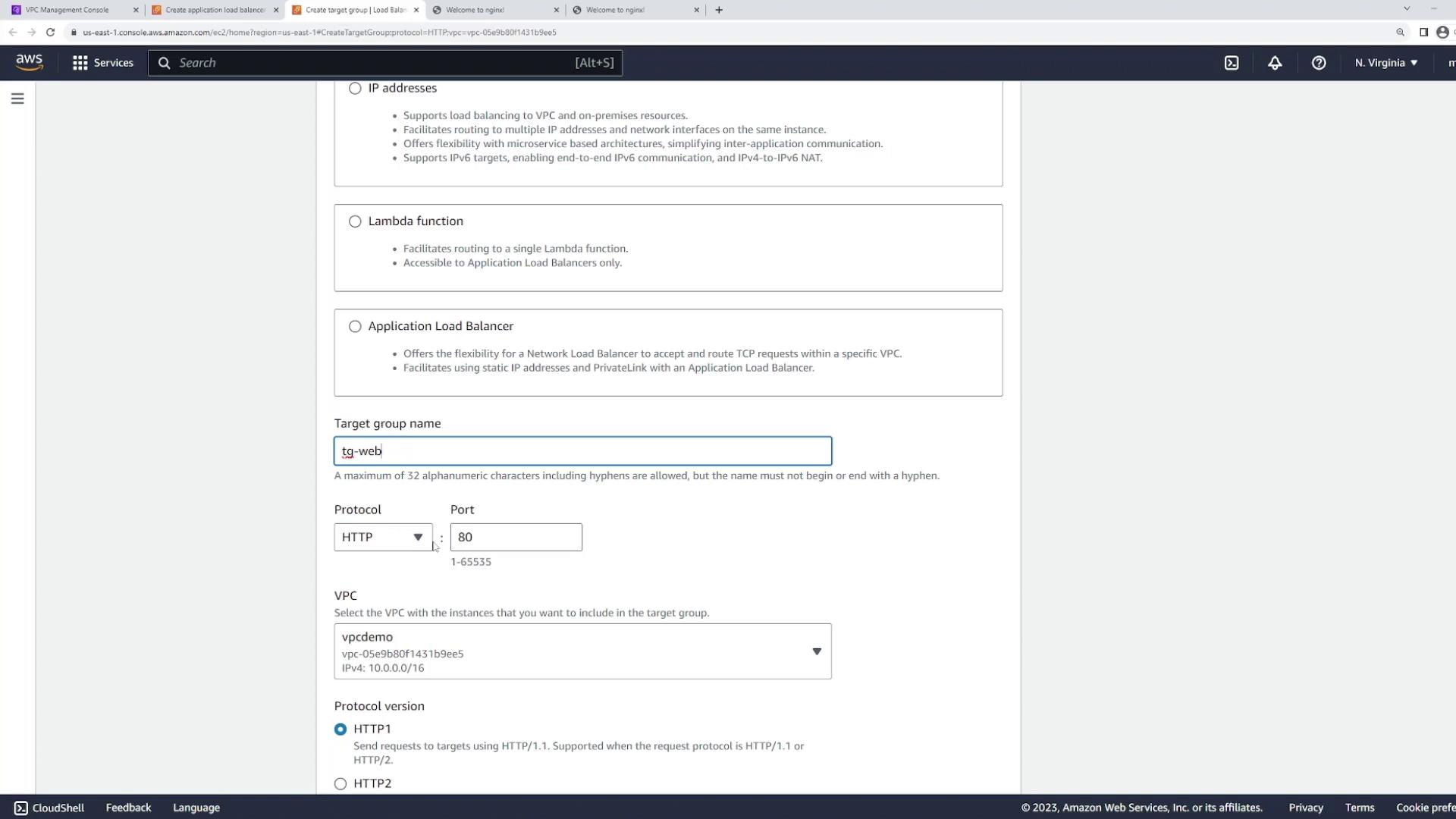
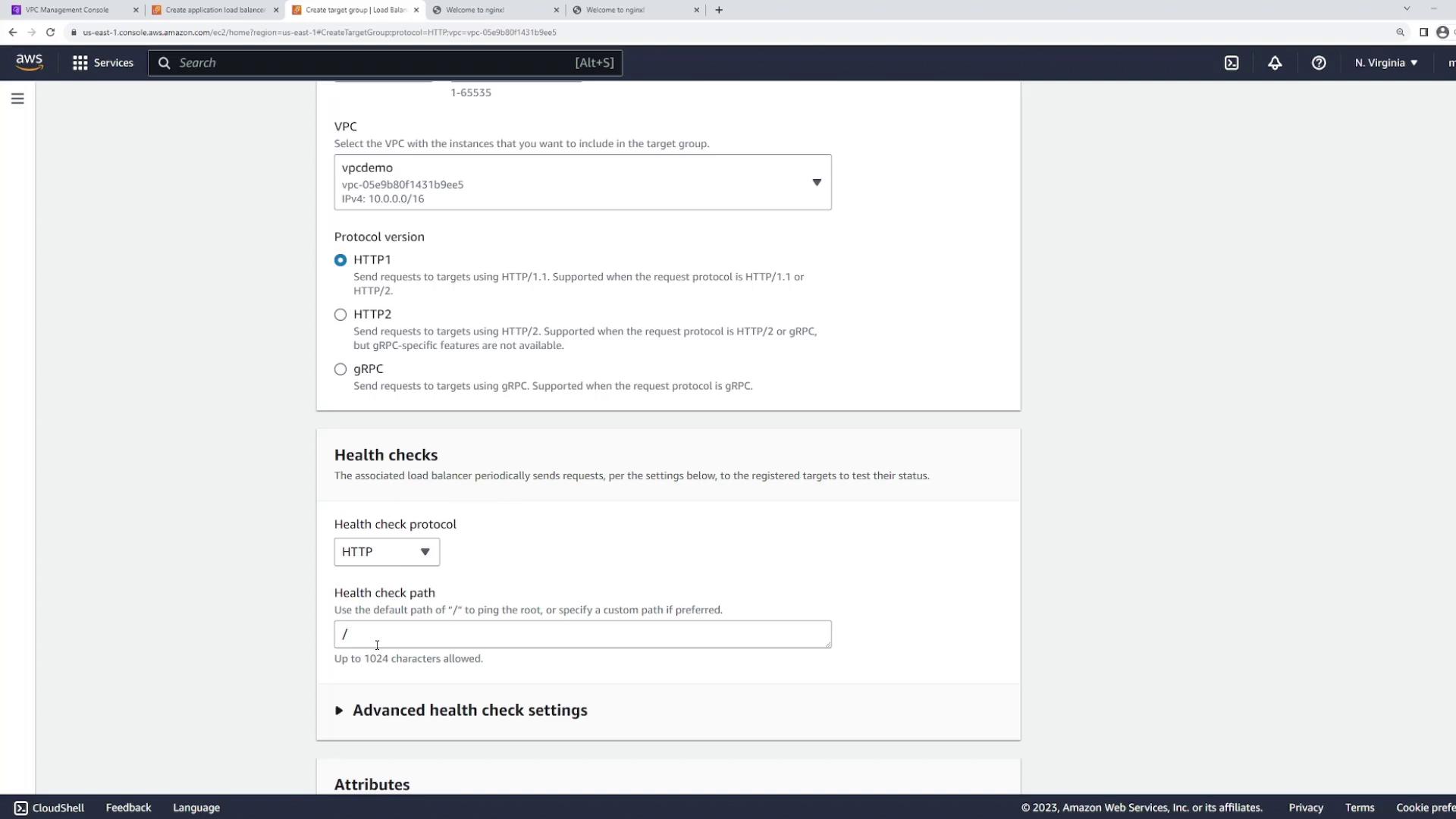
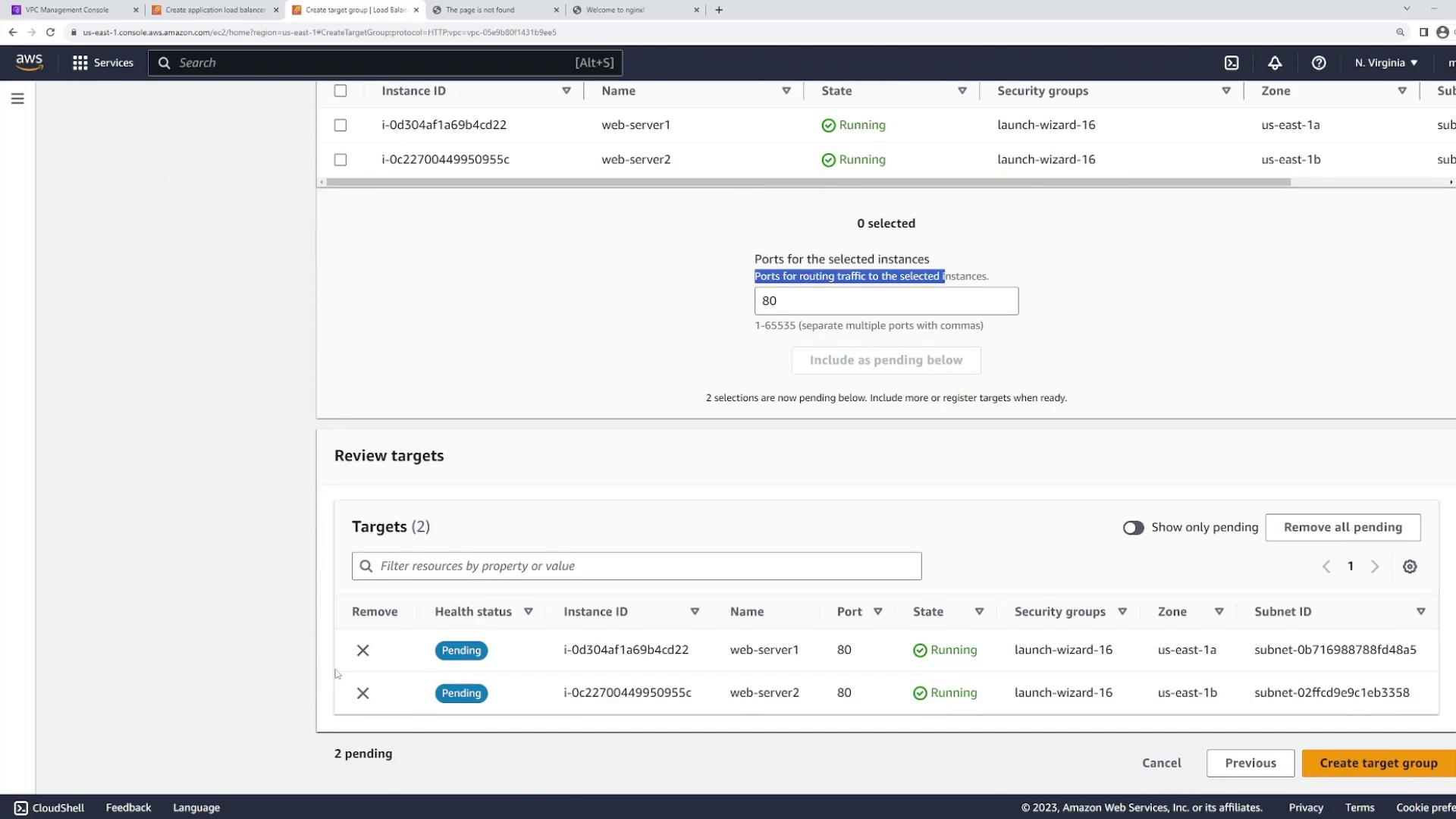
The listener configuration instructs the load balancer on which port to monitor. For this demo, port 80 (HTTP) is used. Next, create a target group that includes the two EC2 web server instances:- Target type: Instances
- Name: “web”
- Protocol: HTTP
- Port: 80
Testing the Load Balancer
Once your load balancer is active, select it in the console to view its details and locate its DNS name. This DNS name is the point of contact for end users. Open a new browser tab, paste the DNS name, and hit refresh multiple times; you should see the following behavior:- One refresh may display “this is server one.”
- Another refresh may show “this is server two.”

Security Considerations
In production environments, direct public access to backend EC2 instances is discouraged. Instead, restrict access to ensure all traffic flows through the load balancer. Consider the following best practices:- Configure the web server security groups to only allow traffic from the load balancer.
- Deploy backend servers in private subnets, ensuring the public load balancer is the sole point of access.