

VPC DNS settings overview
When you select a VPC and choose Actions → Edit VPC settings, there are two key toggles:- Enable DNS resolution — lets instances in the VPC use the Amazon-provided DNS server (AmazonProvidedDNS) to resolve hostnames.
- Enable DNS hostnames — when enabled (and DNS resolution is also on), instances that have a public IPv4 address get a public DNS hostname.
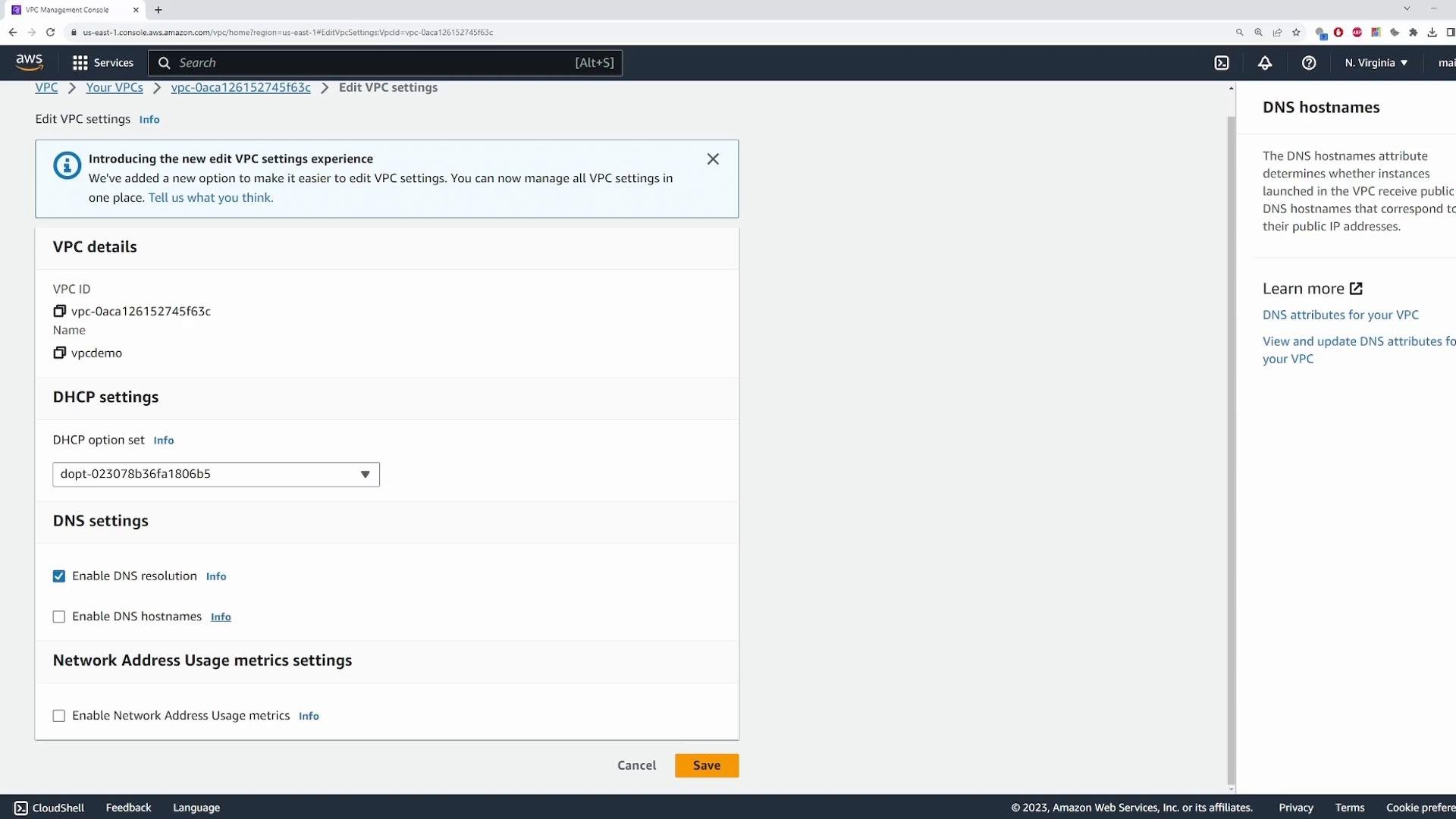
Effect of “Enable DNS hostnames”
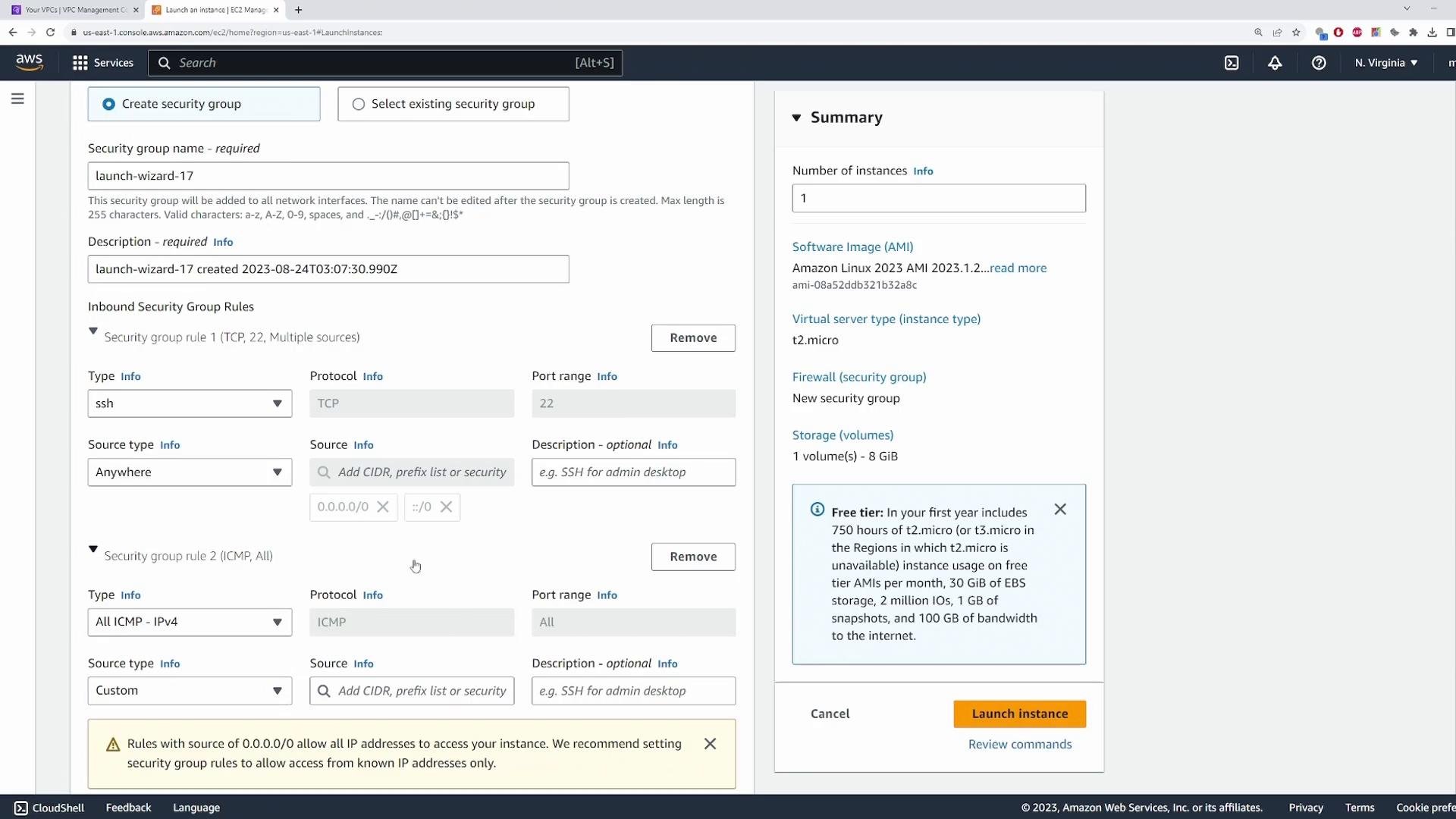
To illustrate DNS hostnames, I launched an EC2 instance named “dns-demo” with these choices during the launch workflow:- Selected the custom VPC (default DNS-related settings untouched)
- Enabled auto-assign public IPv4 address
- Selected a key pair for SSH
- Created/used a security group allowing SSH (port 22) and ICMP (for ping)
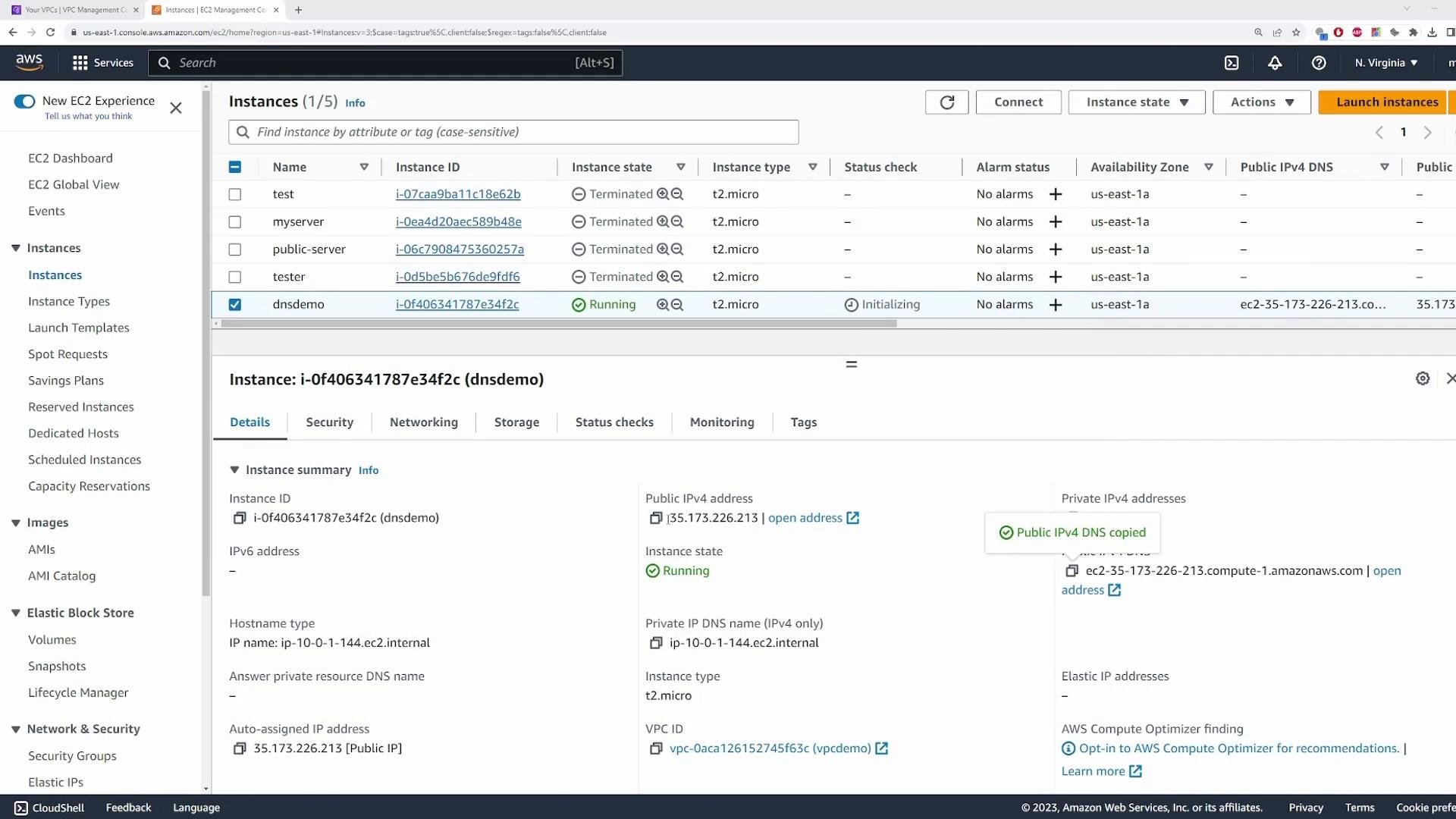
”Enable DNS resolution” and the Amazon-provided DNS server
Next, we examine the AmazonProvidedDNS and the “Enable DNS resolution” toggle. SSH into the instance: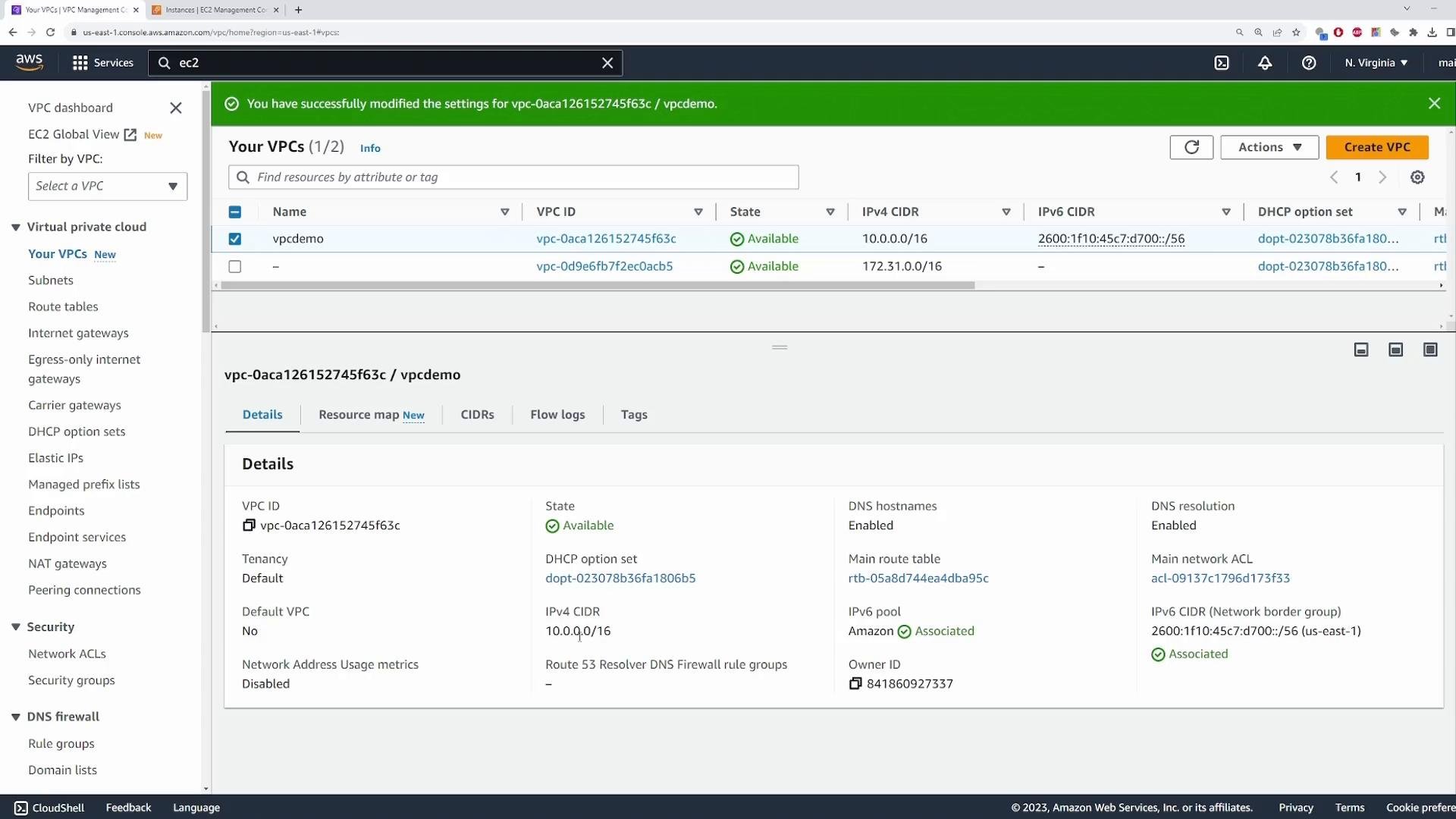
8.8.8.8) or re-enable DNS resolution in the VPC.
Example of a timed-out lookup after disabling DNS resolution:
Quick reference: VPC DNS toggles
Summary
- Enable DNS resolution = makes the Amazon-provided DNS server in the VPC available to instances.
- Enable DNS hostnames = permits assignment of public DNS hostnames for instances that have public IPv4 addresses (only meaningful if DNS resolution is enabled).
Note: For the AWS Solutions Architect exam, be sure you can explain and distinguish “Enable DNS resolution” (availability of AmazonProvidedDNS) and “Enable DNS hostnames” (assignment of public DNS names to public-IP instances).
Links and references
- AWS VPC documentation: https://docs.aws.amazon.com/vpc/latest/userguide/what-is-amazon-vpc.html
- AmazonProvidedDNS information: https://docs.aws.amazon.com/vpc/latest/userguide/vpc-dns.html