

Overview
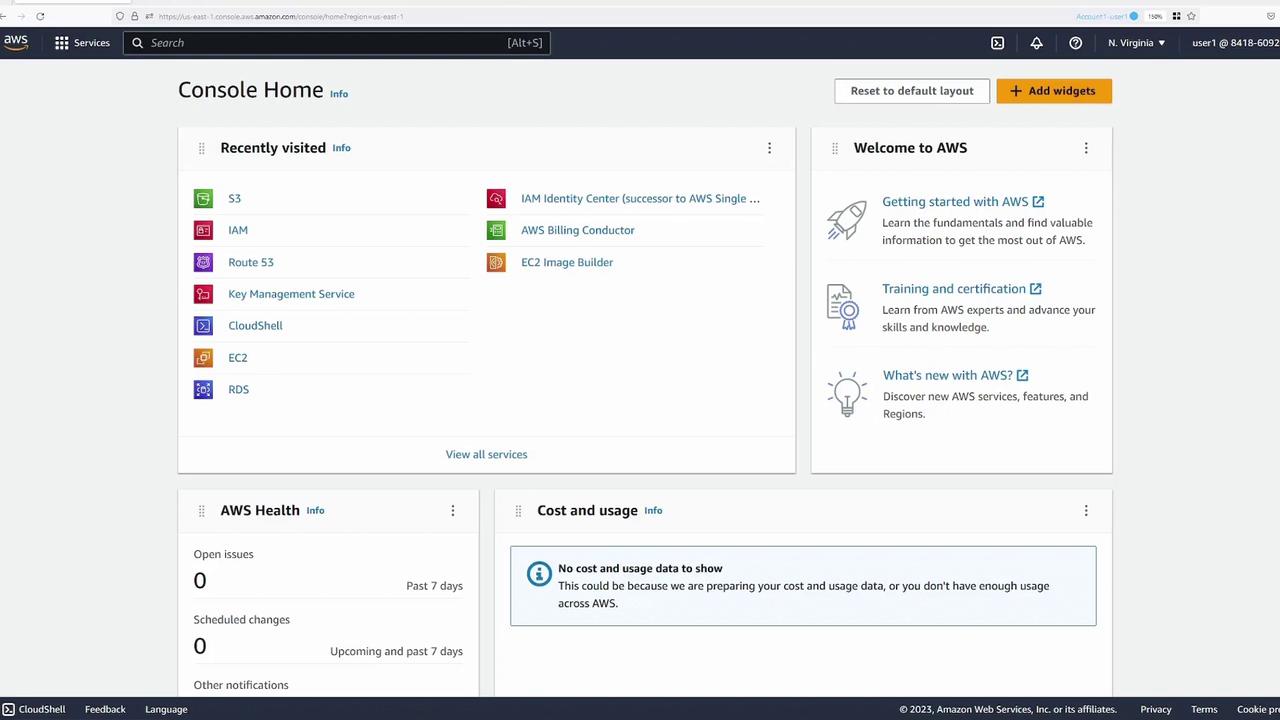
The demonstration involves three different user contexts, represented by distinct colored tabs:- The blue tab represents Account One, User One (the bucket creator).
- The green tab represents Account One, User Two.
- The yellow tab represents Account Two, User Admin (a user from a different account).
Creating the S3 Bucket
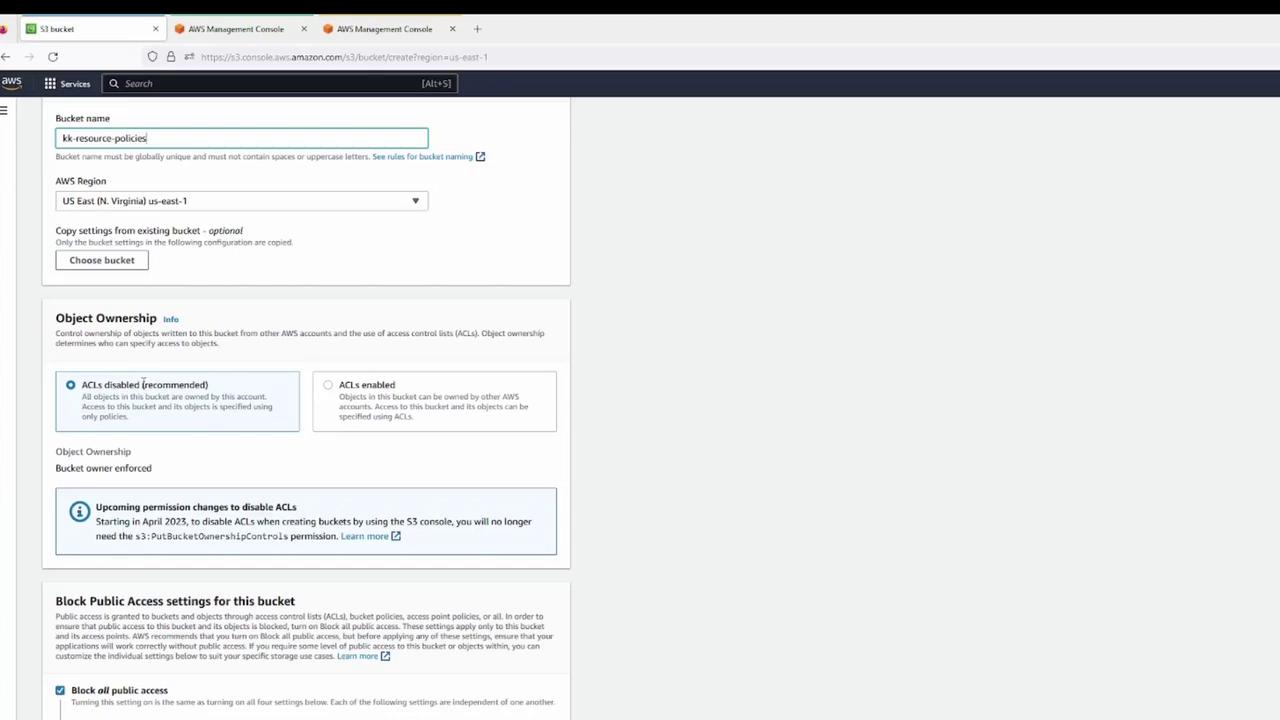
Using Account One, User One (blue tab), we create a demo S3 bucket with default settings. The configuration disables legacy NACLs, versioning remains off, and public access is blocked by default. Once the bucket is created, several files are uploaded.Bucket Creation Process
- Creating the Bucket:
A zoomed view of the bucket creation screen illustrates options for bucket name, region, object ownership, and public access settings.
- Post-creation and Upload:
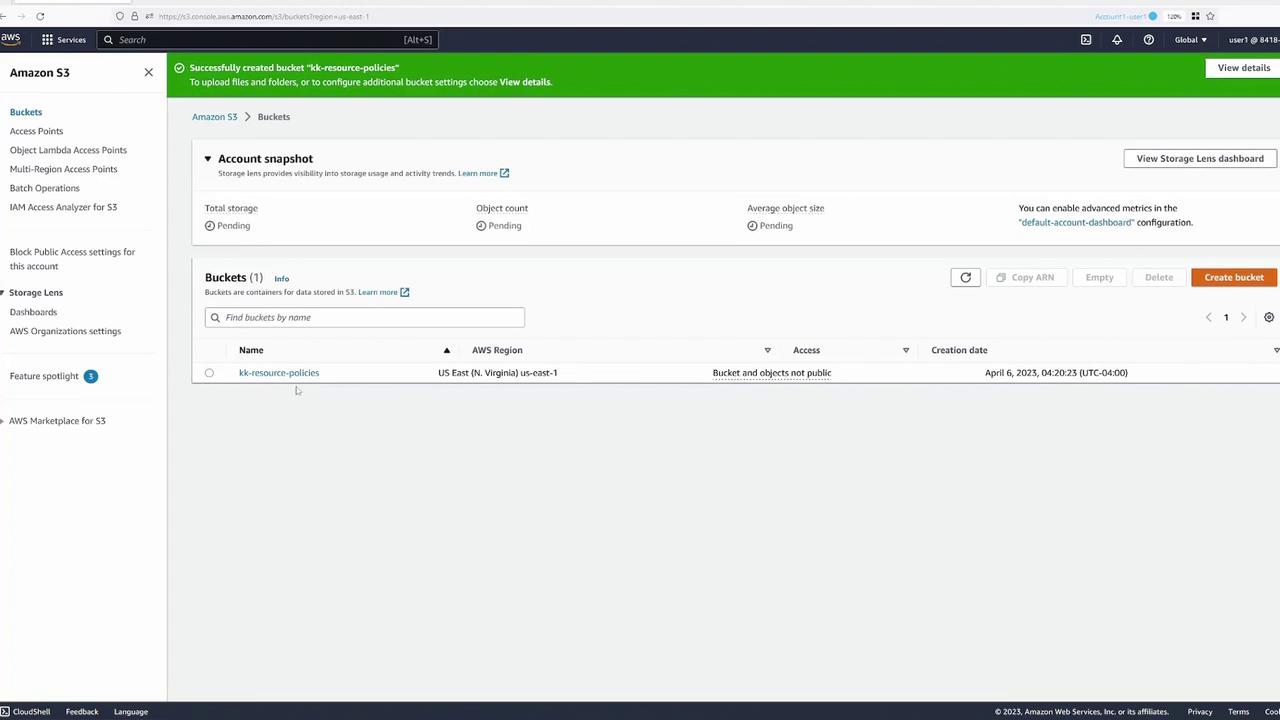
After the bucket is created, you open it to upload files. The following image confirms the successful creation of a bucket named “kk-resource-policies” in the US East (N. Virginia) region, with the uploaded objects remaining non-public.
- Verifying Access:
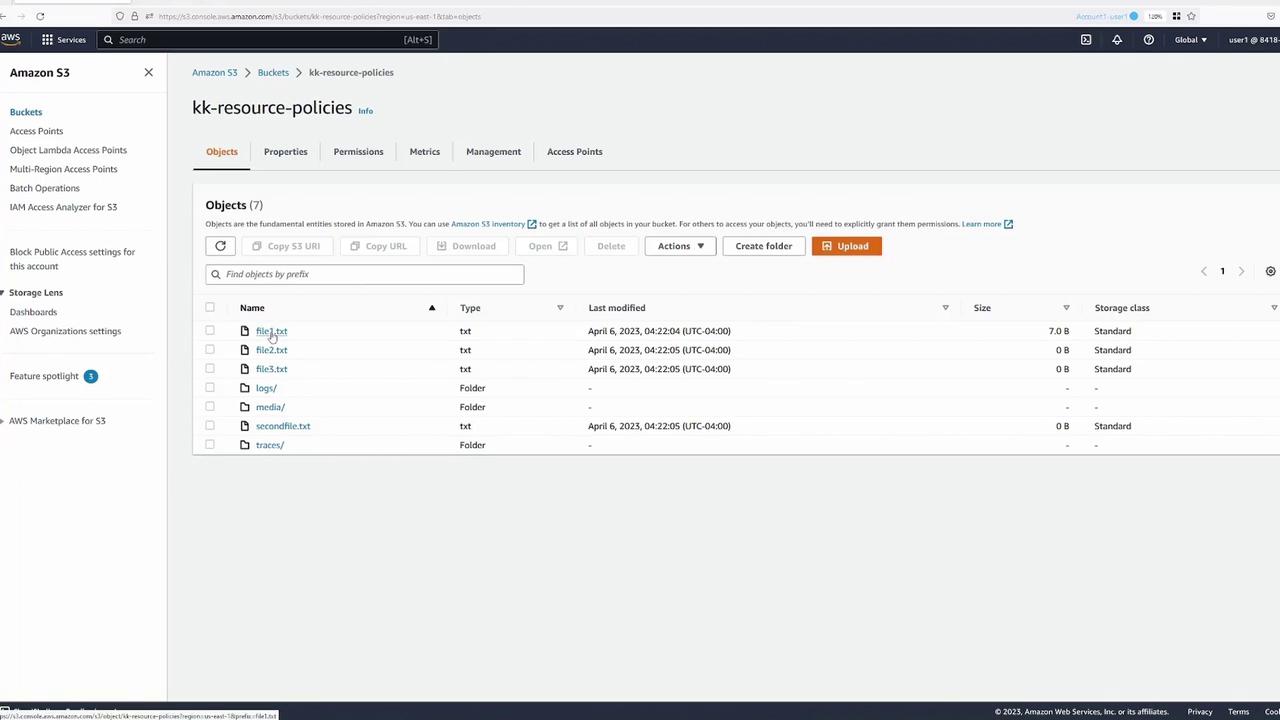
When accessing an object while authenticated as User One, permission is granted. However, accessing the object URL publicly results in an “Access Denied” error.
Testing IAM Policies for User Two
Before switching to User Two (green tab), we review the IAM policy assigned to User Two. The policy permits only listing of all buckets and bucket contents: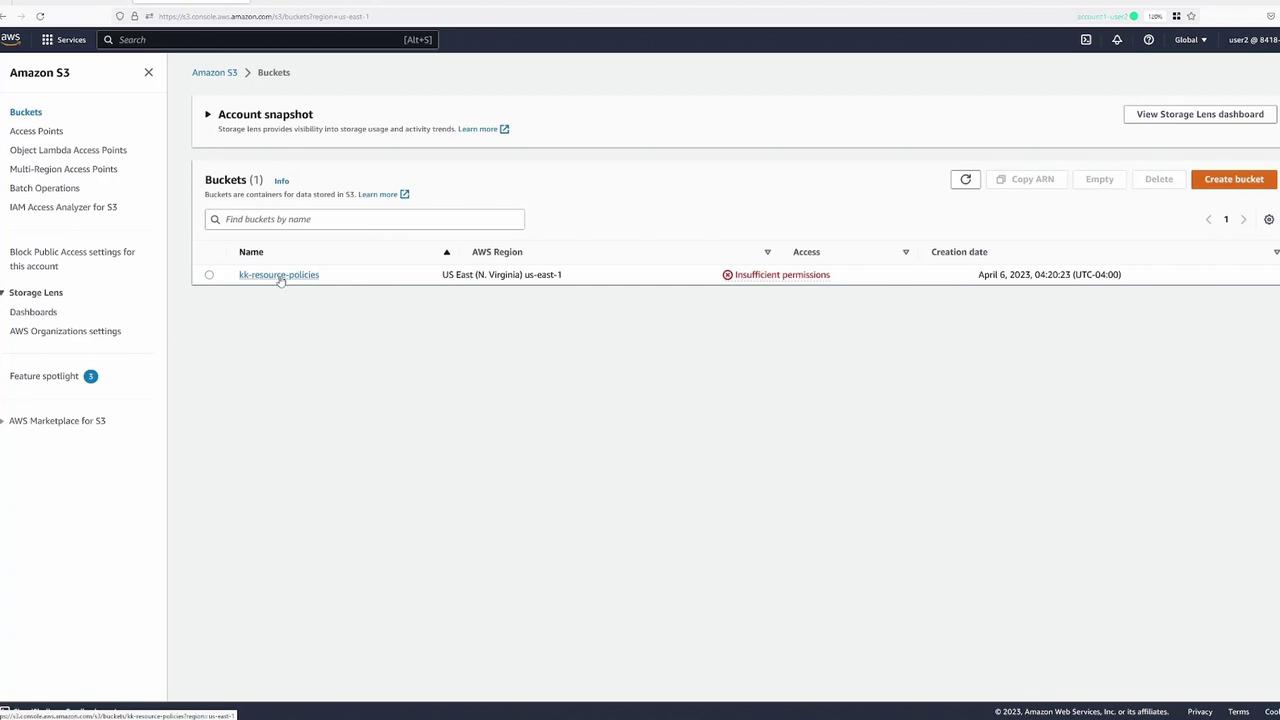
Creating a Resource Policy for Specific Folder Access
Returning to User One (blue tab), we now create a resource policy that permits User Two to access only the “logs” folder within the bucket.Steps to Configure Folder-Specific Access
-
Modify the Bucket Policy:
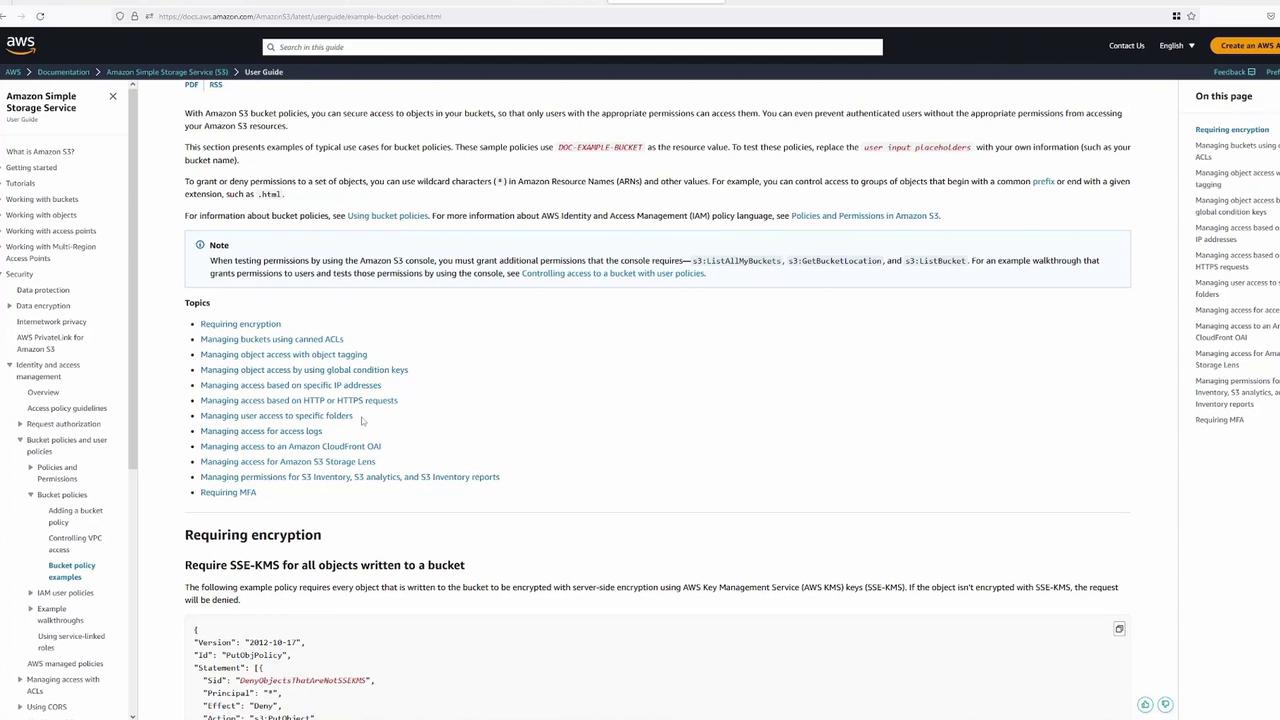
Navigate to the Permissions tab of the bucket and edit the bucket policy using the AWS built-in wizard. Start with the default template shown below: -
Policy Implementation:
Name the policy “user2AllowLogs” and specify the principal using the AWS ARN for User Two. For example:Replace <ACCOUNT_NUMBER> with the actual account number.
This resource policy grants GET access on all objects within the “logs” folder, ensuring that User Two can only view the content within that directory.
- Verification:
After saving the policy, switch to User Two (green tab). Test by navigating to the “logs” folder and opening a log file; the file should download successfully. Attempting access to files outside this folder (e.g., file1.txt) will correctly result in “Access Denied.”
Granting Additional Permissions Using a Combined Policy
Next, we enhance the bucket policy to allow User Two the ability to delete objects from the “traces” folder, while maintaining GET access to the “logs” folder.Updated Combined Policy
The revised bucket policy is as follows:This configuration differentiates between GET and DELETE actions by applying them to specified folders using separate policy statements.
Combining Permissions in a Single Statement
At times, you may wish to combine permissions for different resource types in a single statement. However, combining object-level operations (like “s3:GetObject”) with bucket-level operations (like “s3:DeleteBucket”) in one action can cause errors if applied incorrectly. To resolve this, list both resource ARNs in an array as demonstrated below:Ensure that actions are applied to the correct resource types by segregating bucket-level and object-level operations in your policies.
Allowing Public Access to Specific Folders
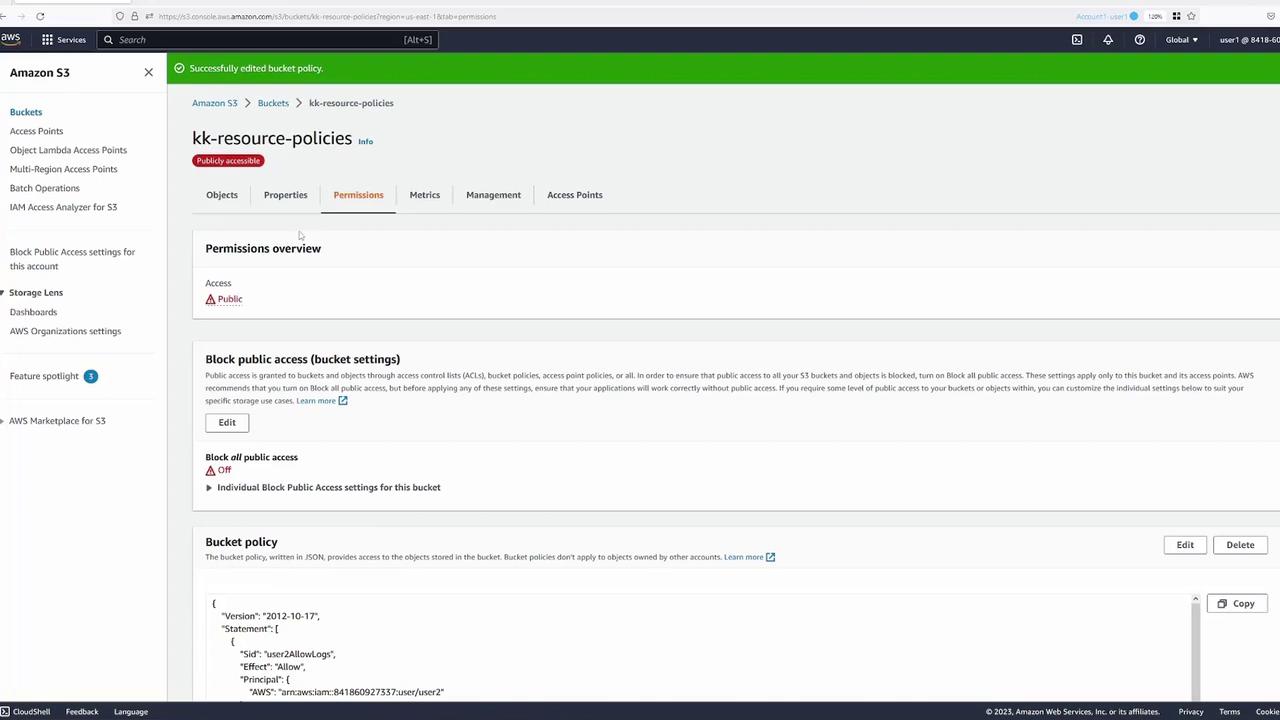
To demonstrate controlled public access, a policy statement is added that allows anonymous GET requests for a designated folder, such as “media.” Before doing so, disable the “Block Public Access” feature for the bucket as required.Public Access Policy Example
Granting Access to a User in a Different AWS Account
Finally, we demonstrate how to grant permissions to an external user (Account Two, yellow tab). Initially, when the external user attempts to list the bucket contents using Cloud Shell, the output is as follows:Updating the Bucket Policy for External Access
To allow access, we add new policy statements to permit Account Two’s “admin” user the ability to list the bucket and delete objects from the “logs” folder. The updated policy snippet is:Conclusion
In this lesson, we demonstrated how to:- Create an S3 bucket and upload objects.
- Use IAM policies to restrict a user’s actions.
- Define granular resource policies to grant GET and DELETE access to specific folders.
- Implement public (anonymous) access for a subset of objects.
- Grant permissions to users in other AWS accounts.