Step 1: Create a VPC and a Public Subnet
Begin by navigating to the VPC dashboard in the AWS Console:- Create a new VPC with a CIDR block of 10.0.0.0/16. You can optionally assign an IPv6 CIDR block if needed.
- Add a subnet to your VPC using the CIDR block 10.0.1.0/24 and give it a descriptive name such as “public subnet”. There is no need to specify an availability zone unless you have a preference.
Step 2: Launch an EC2 Instance for Connectivity Testing
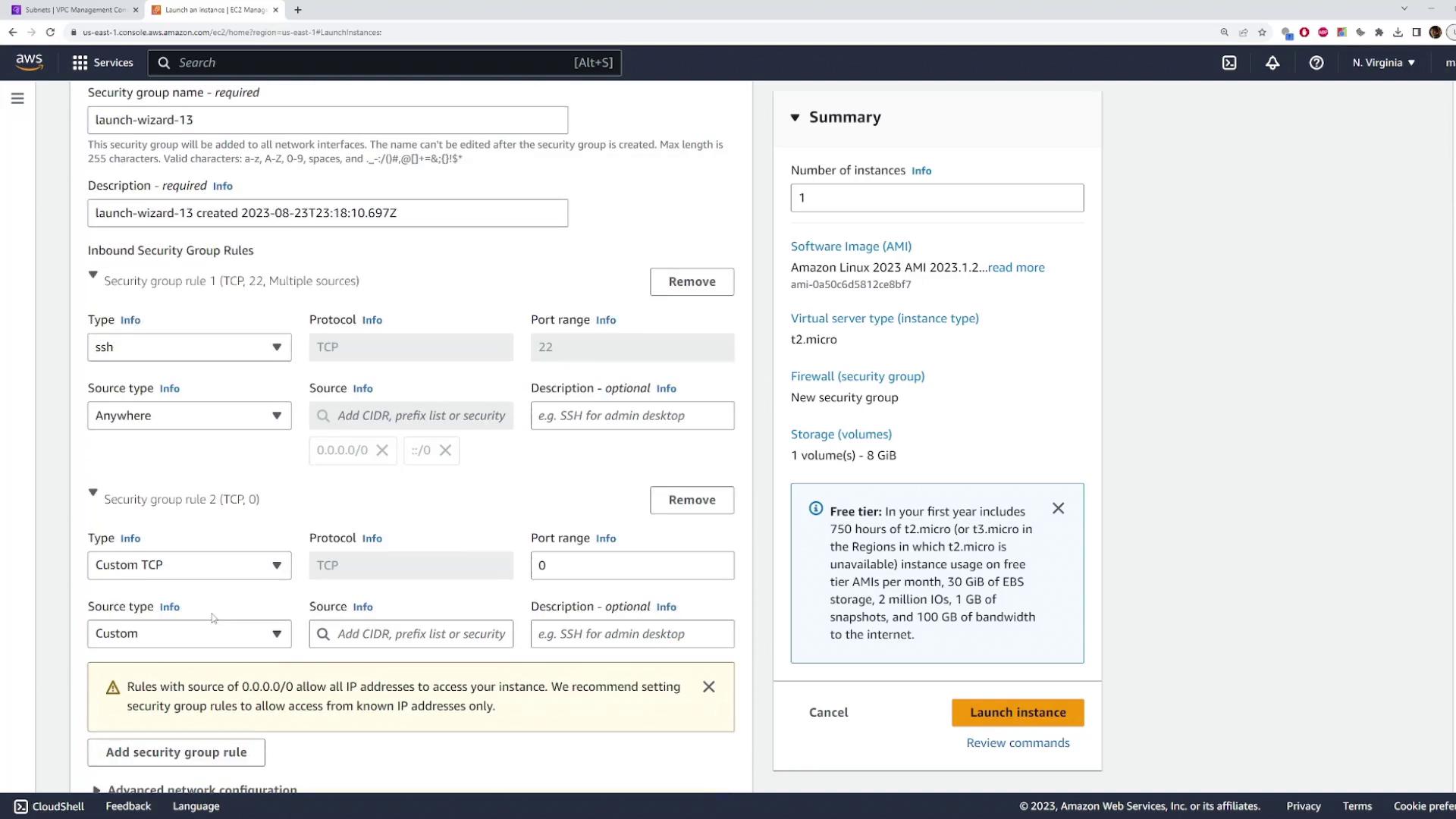
Next, switch to the EC2 dashboard and launch an EC2 instance using the following guidelines:- Select an Amazon Linux AMI.
- Choose the T2 Micro instance type (eligible for the free tier).
- Use your pre-existing key pair (for example, aws-demo.pem) to allow secure SSH access.
- Under network settings, select the VPC you just created along with the corresponding public subnet.
- Ensure that the auto-assign public IP option is enabled so that the instance receives a public IP address.
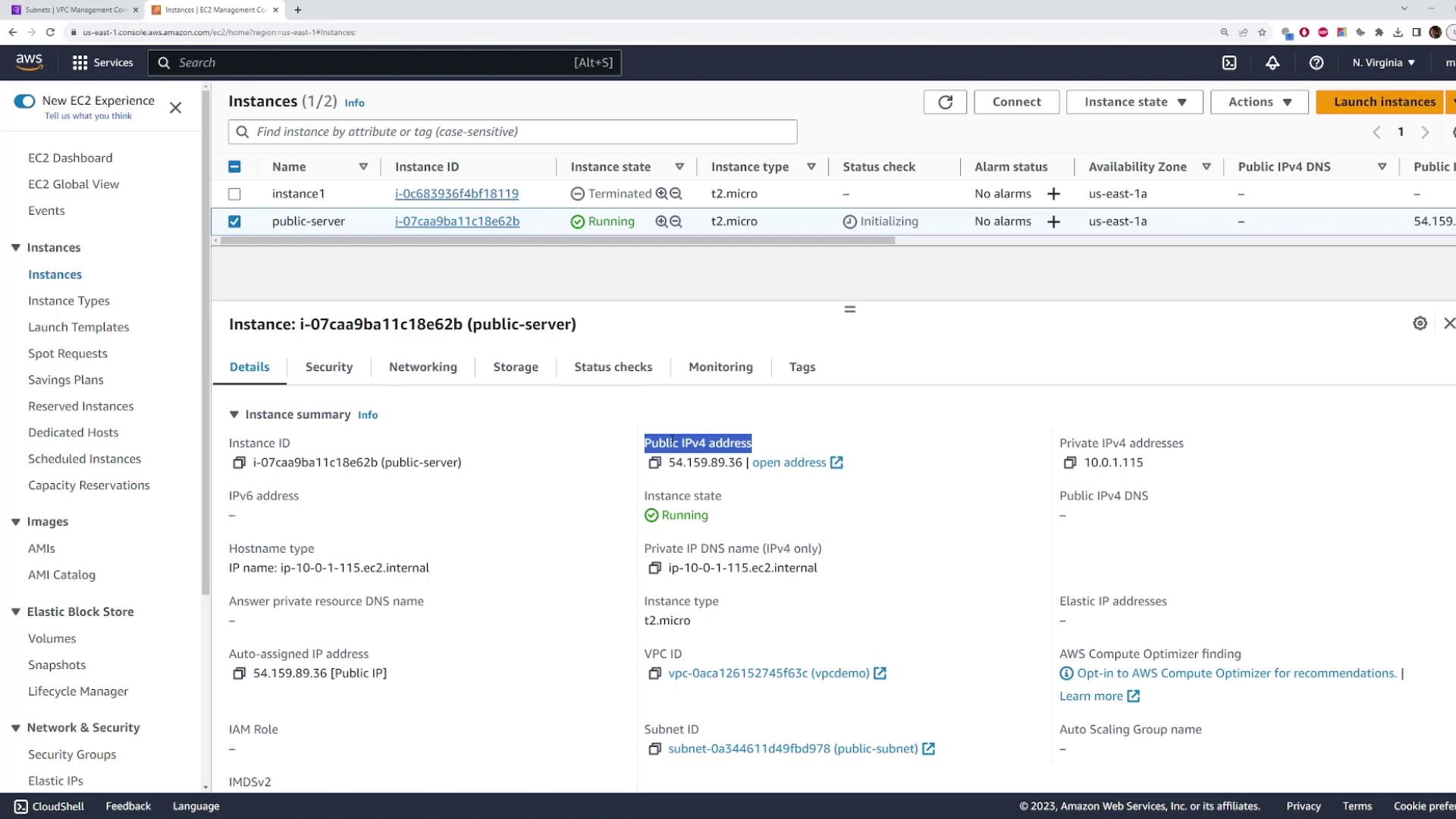
If the ping or SSH commands hang or time out, it is because the subnet is still private by default—even though the instance has a public IP assigned.
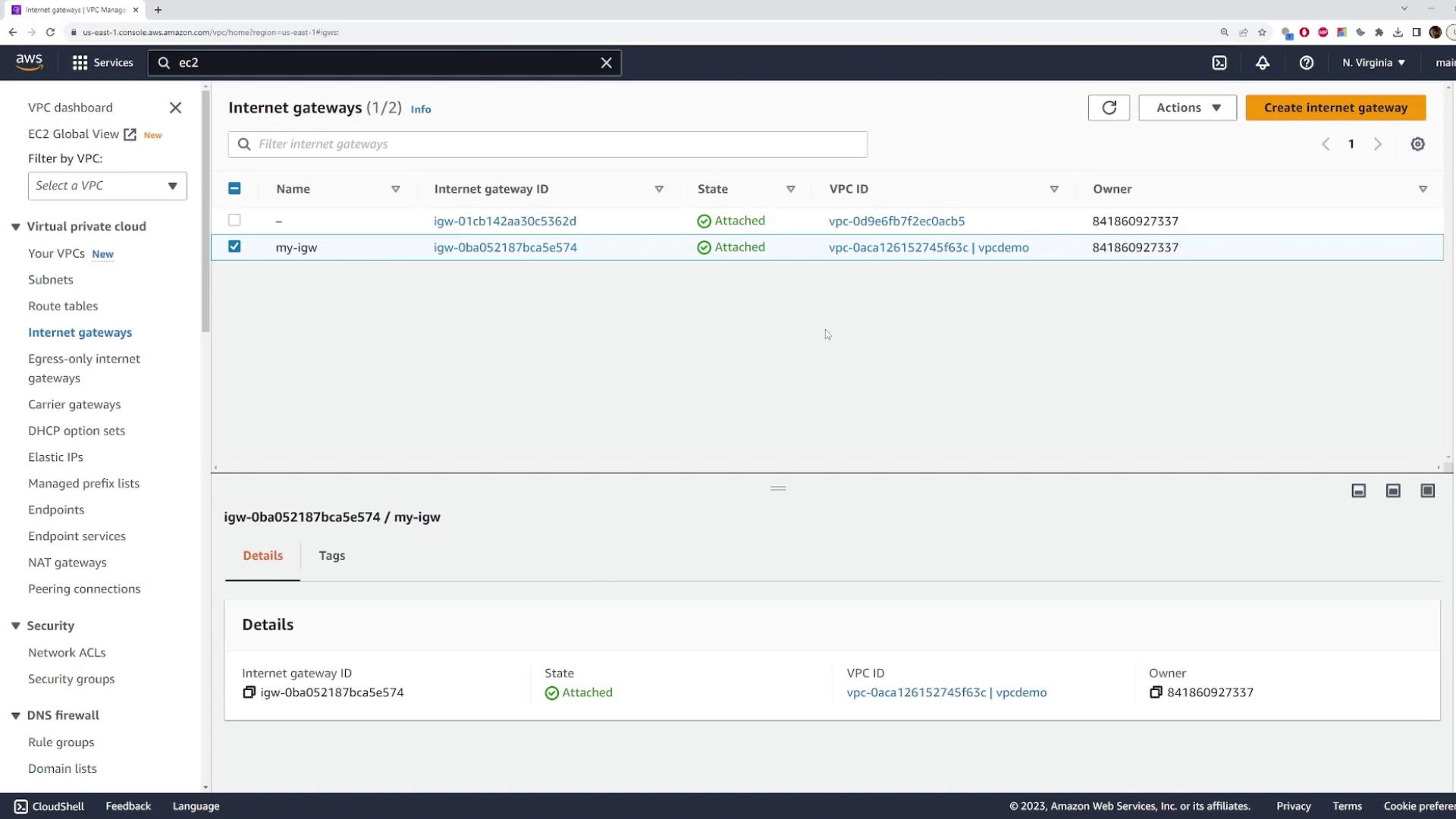
Step 3: Attach an Internet Gateway
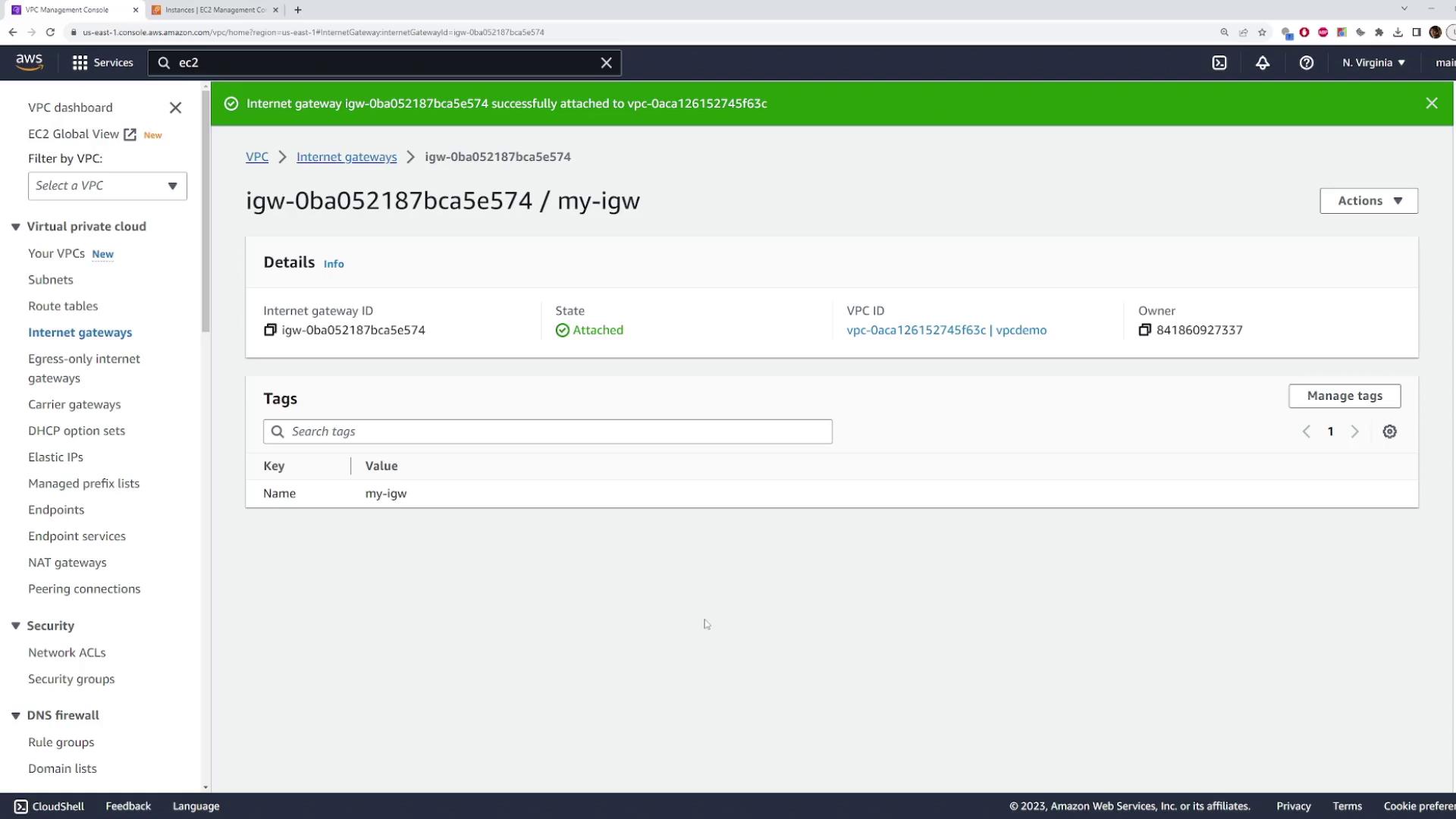
To provide Internet access to your subnet, follow these steps to attach an Internet Gateway (IGW):- In the VPC dashboard, select “Internet Gateway” and click to create a new Internet Gateway. Give it a meaningful name, such as “my Internet Gateway”.
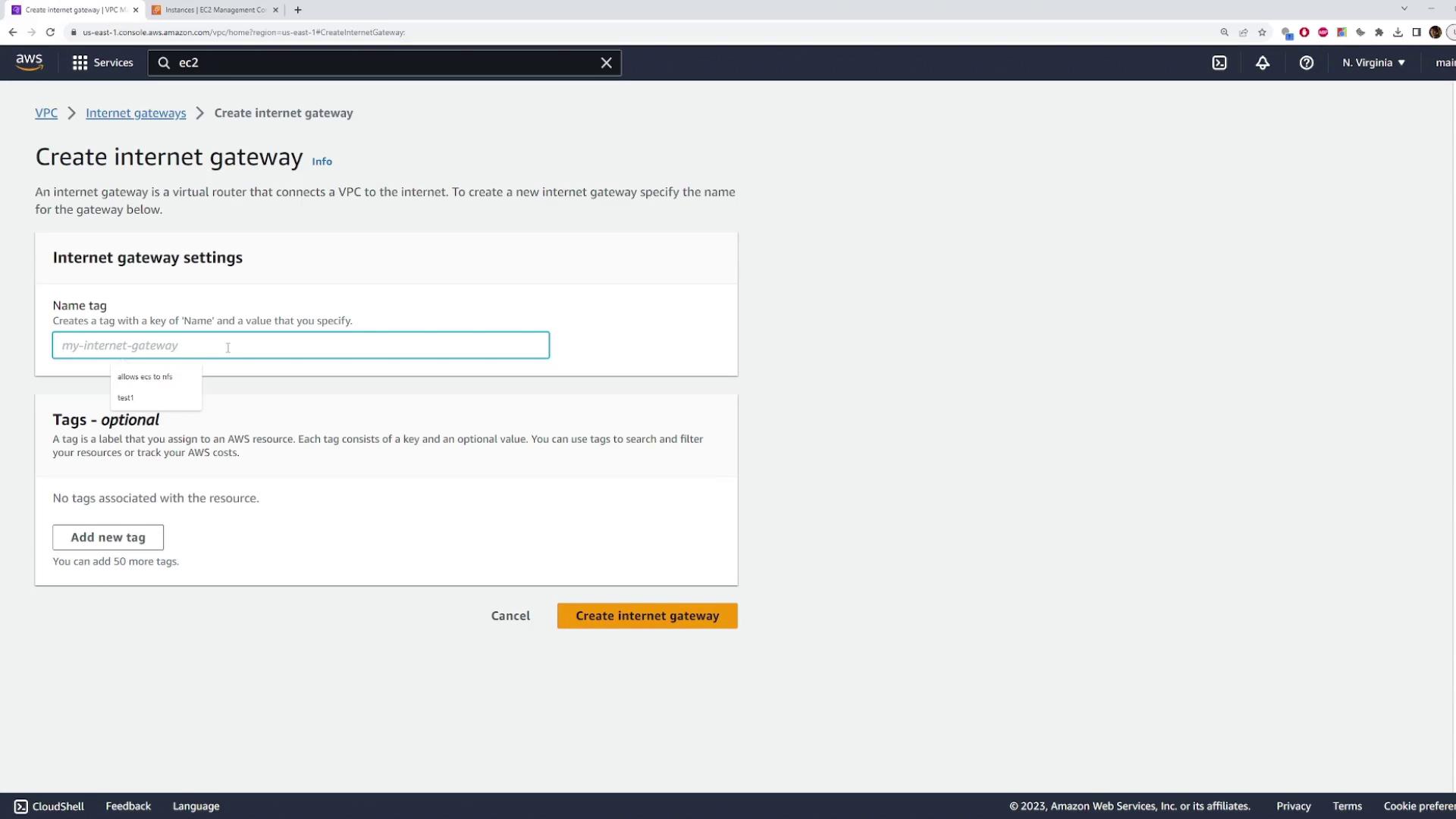
- Once created, attach the Internet Gateway to your VPC by selecting your VPC from the available list.
Step 4: Update the Route Table
To route Internet-bound traffic, update the route table associated with your public subnet:- In the VPC console, locate the route table associated with your public subnet. If your subnet still uses the default route table, consider creating a custom route table for clarity.
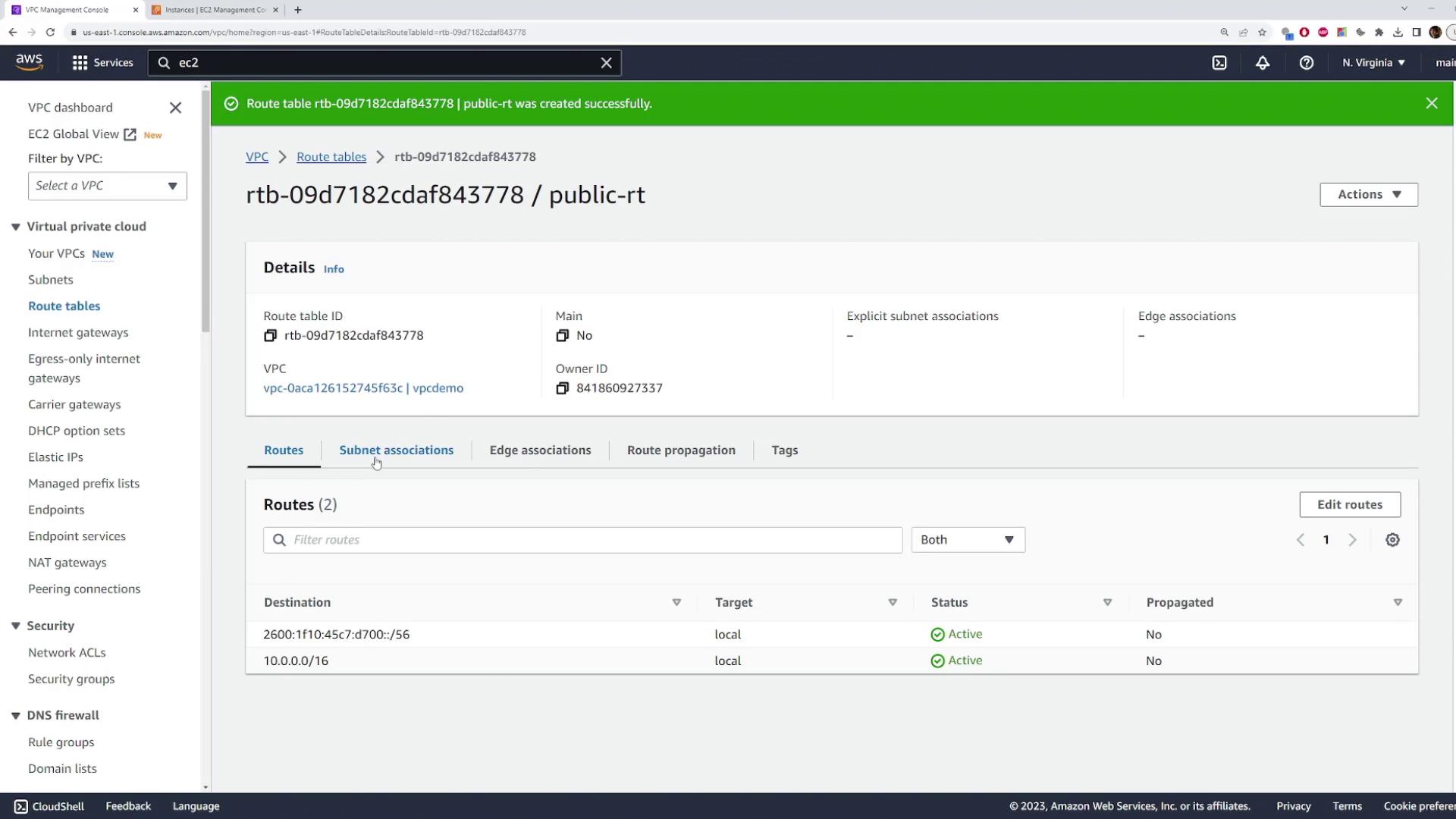
- Create a new route table for your demo VPC and name it (for example, “public route table”).
- Associate your public subnet with this new route table.
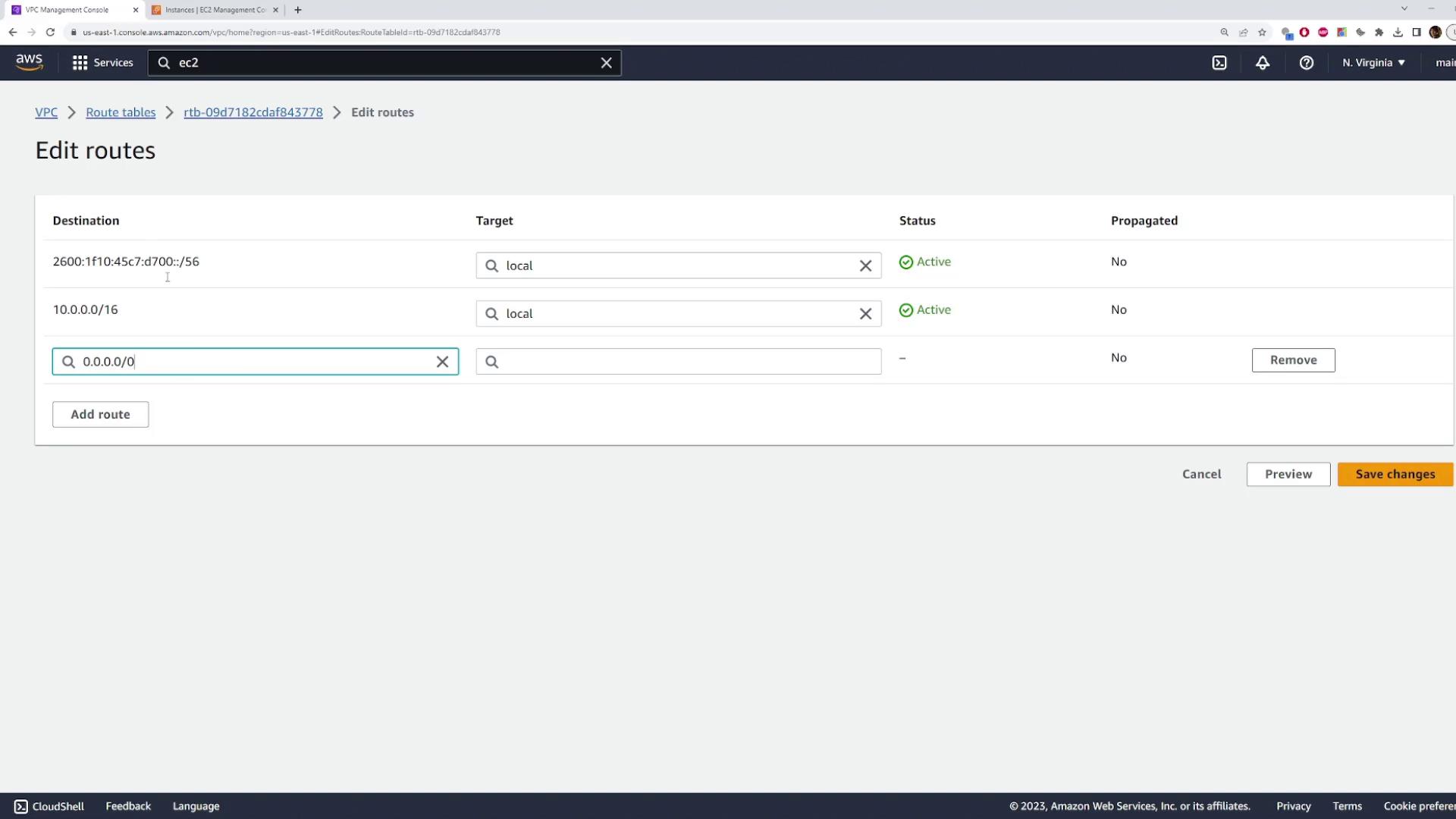
- Edit the route table to add a default route with a destination of 0.0.0.0/0 and set the target to your Internet Gateway.
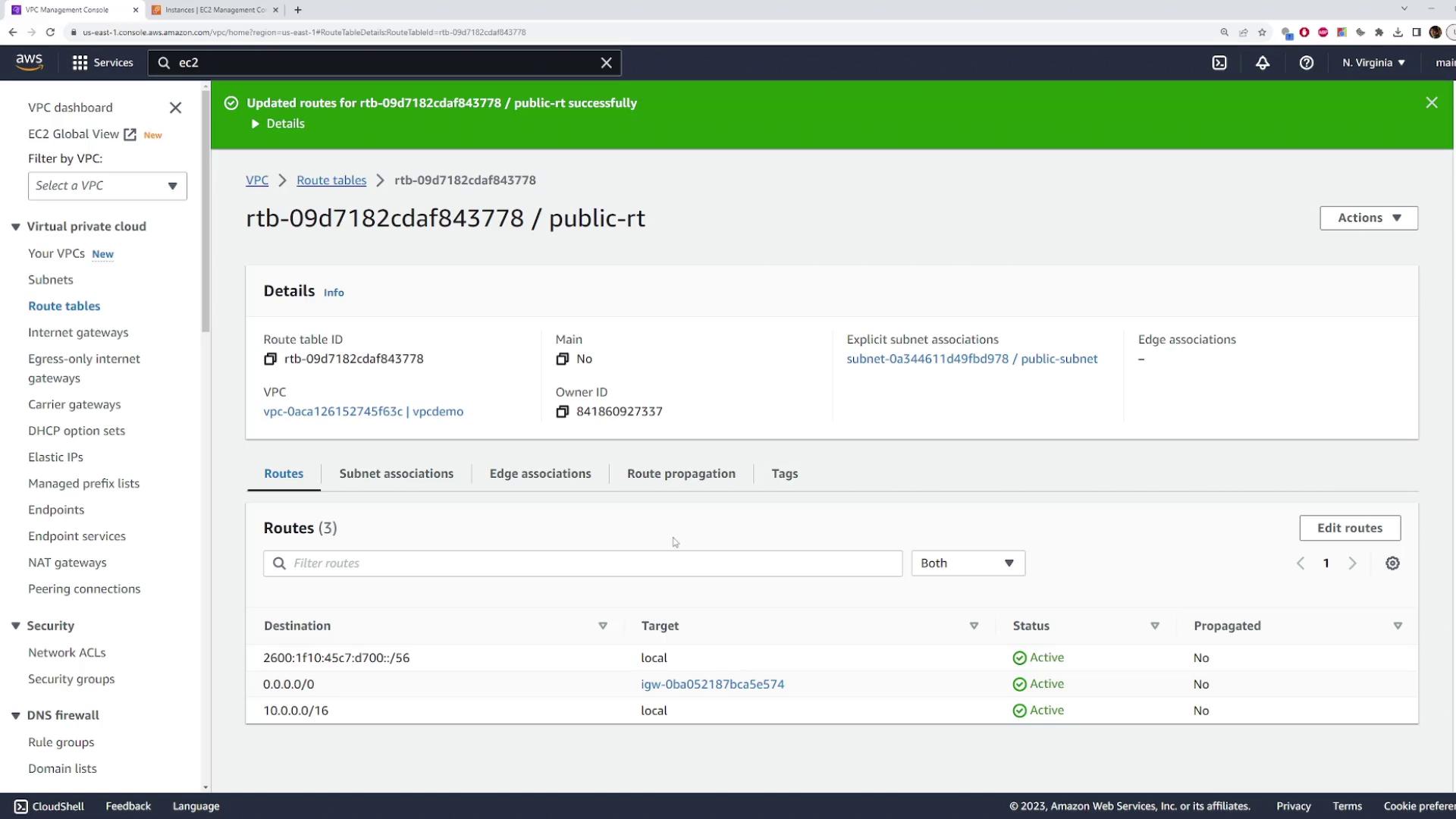
- Save the changes.
Step 5: Verify Internet Connectivity
Once the route table is updated, verify that your EC2 instance is publicly accessible:-
Ping the public IP address again:
-
Attempt an SSH connection:
The successful ping and SSH connection indicate that attaching the Internet Gateway and updating the route table have effectively transformed your private subnet into a public subnet.