This article explains how to configure and use IAM Identity Center for efficient user access management across multiple AWS accounts.
In this lesson, we will walk through the process of configuring and using IAM Identity Center, enabling you to manage user access across multiple AWS accounts efficiently.
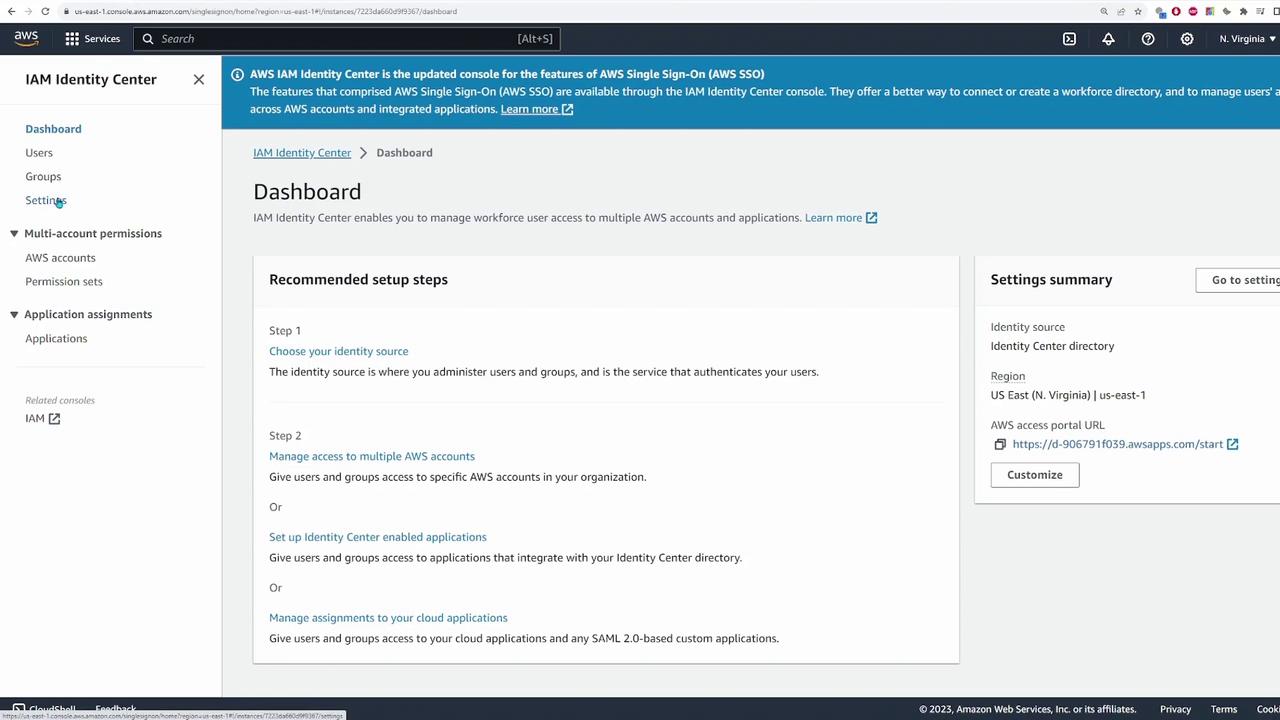
Begin by logging into the AWS Management Console and typing “IAM Identity Center” in the search box. Once selected, you will be directed to the service page. If this is your first time accessing IAM Identity Center, you may see an option to “Enable IAM Identity Center.” Follow the on-screen prompt to enable the service. After enabling, navigate to the settings page to customize your Identity Center configuration.
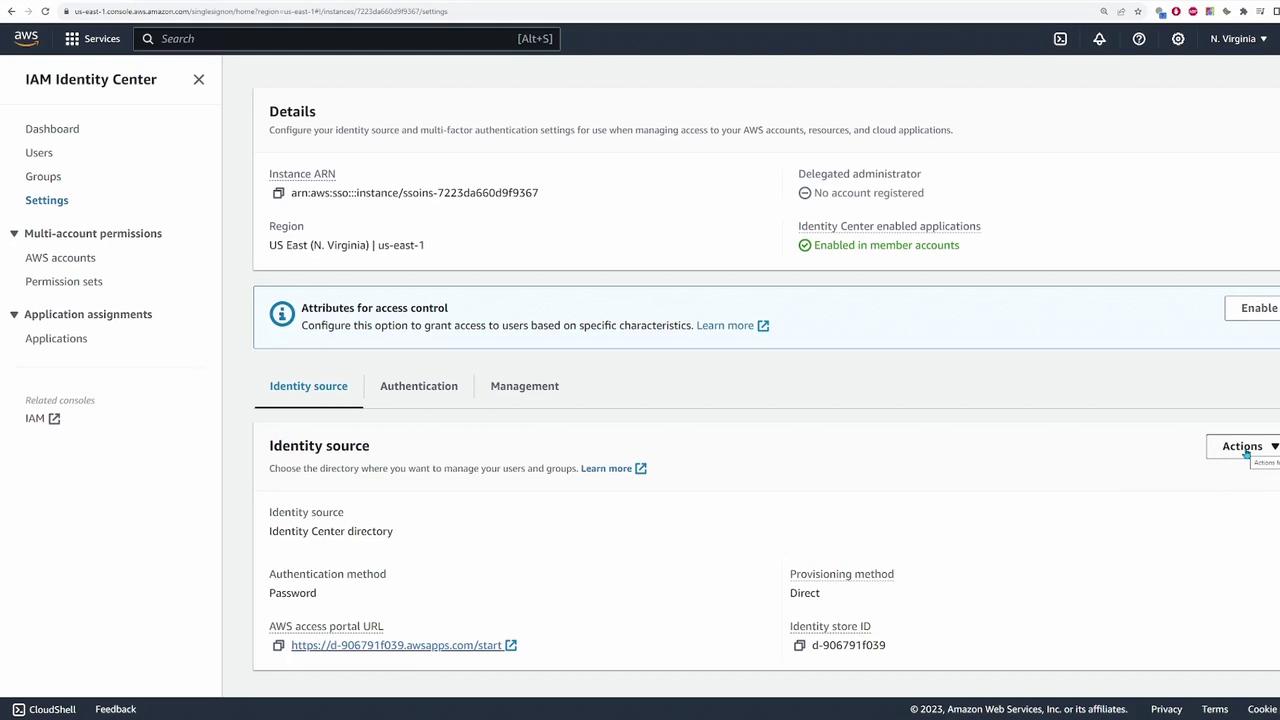
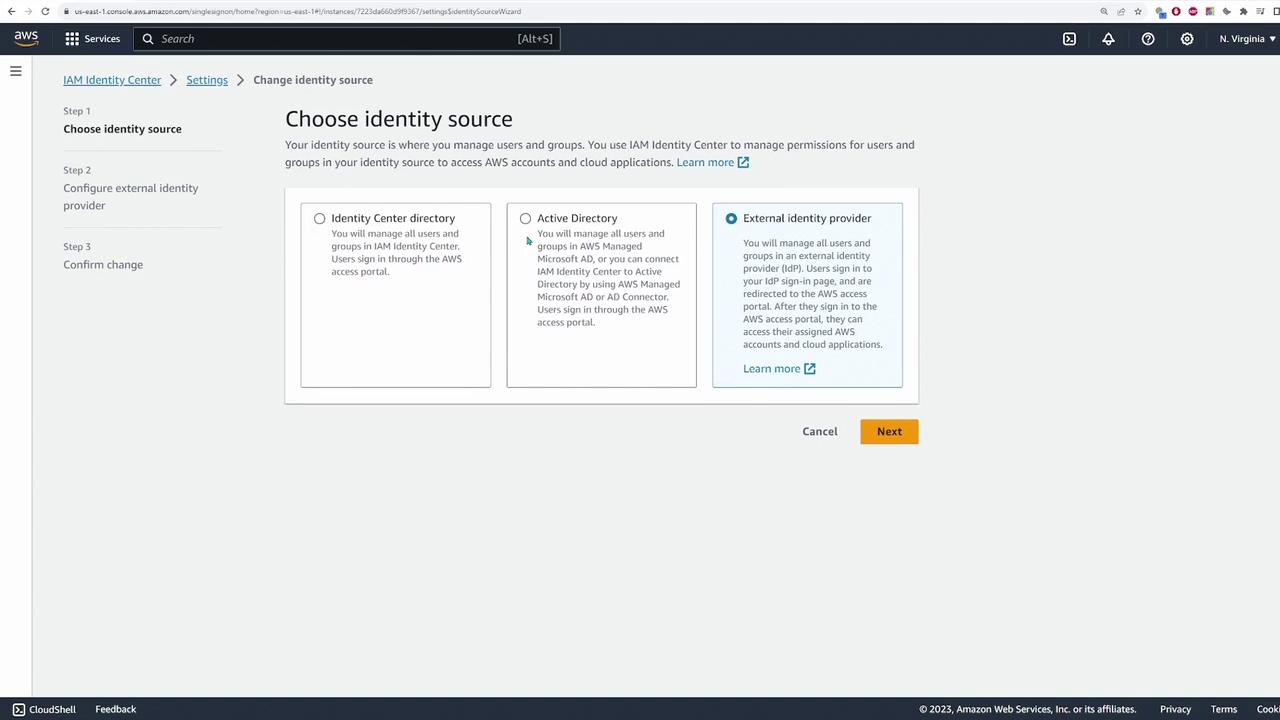
Below the settings section, locate the access portal. This portal serves as the customized login page where users enter their username and password to access their assigned AWS accounts. Use the “Actions” menu to change the identity source by specifying the desired user directory. You can switch between the built-in Identity Center directory, Active Directory, or another external identity provider. In this demo, we are using the Identity Center directory.
For this demonstration, continue using the Identity Center directory and simply cancel any dialogs prompting for a change in identity source.
IAM Identity Center manages users and groups in a manner similar to IAM, with the key difference being that user creation occurs directly within Identity Center. If you decide to integrate a different identity provider, note that user and group management will be handled on that external platform. Additionally, this service enables the management of multiple AWS accounts from a centralized location.
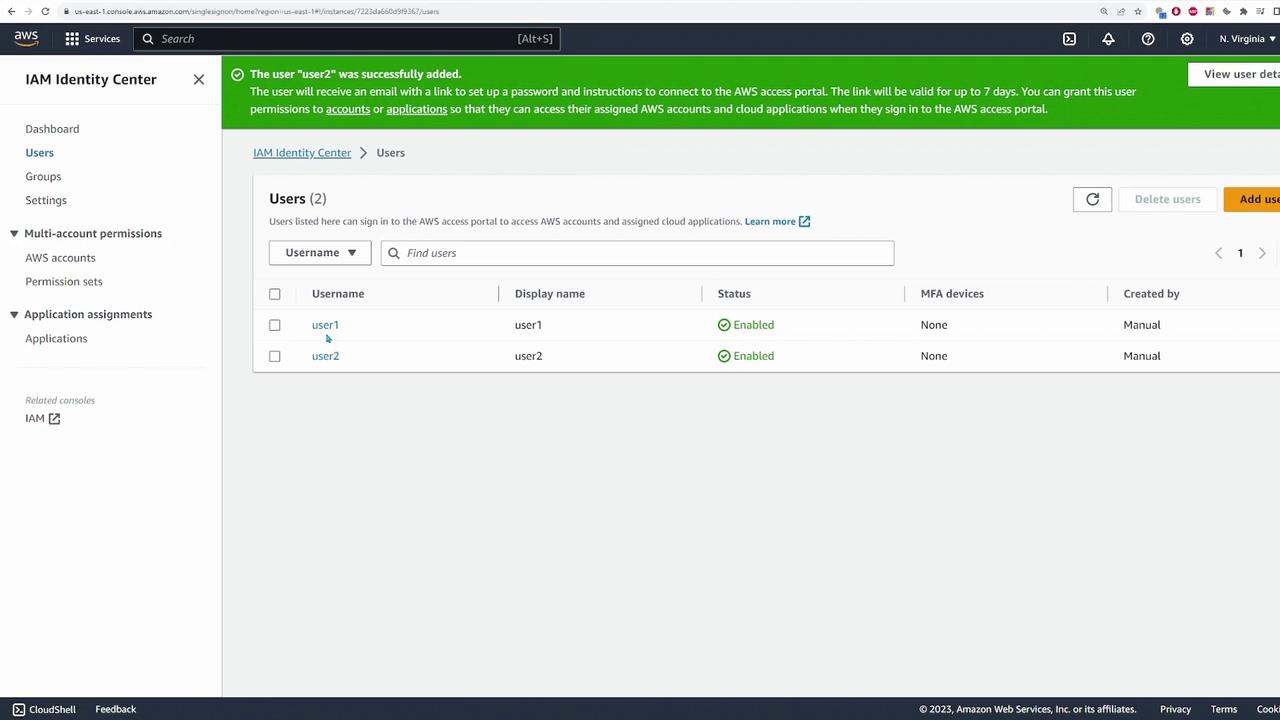
Provide a name (for example, user one) along with a dummy email address.
For this demo, you do not need to assign users to groups.
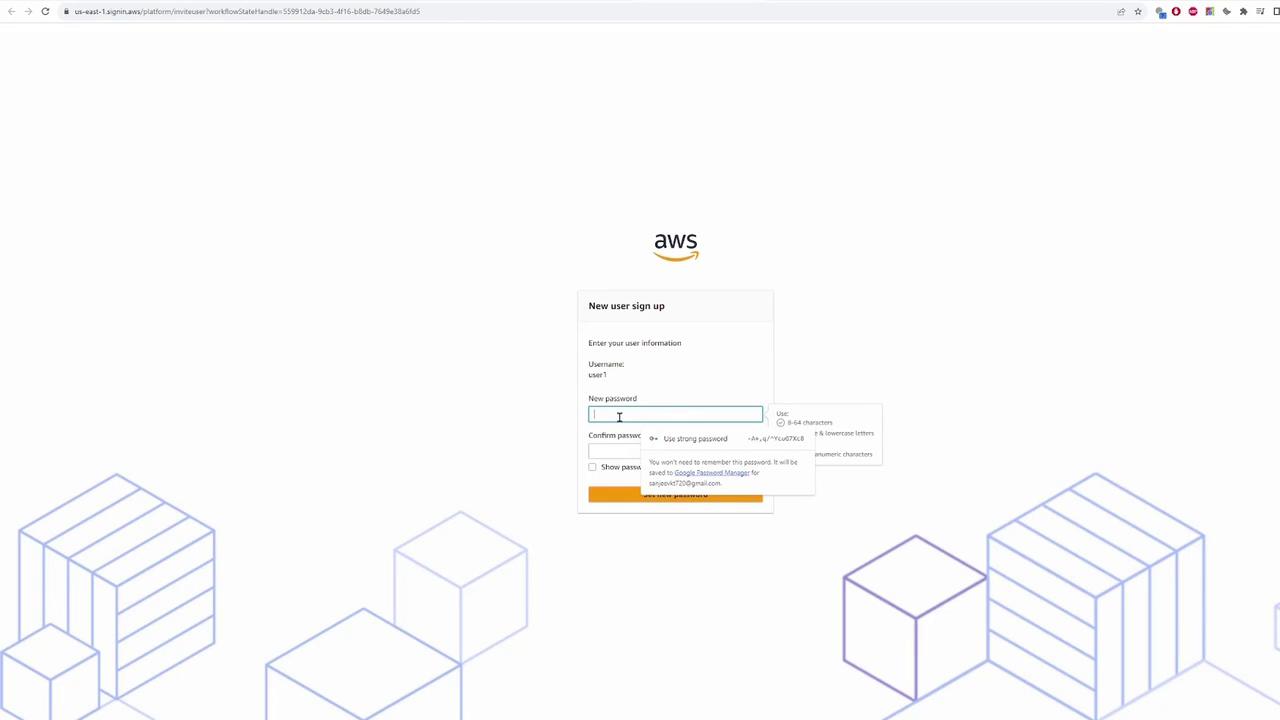
After creation, a registration email will be sent so that the user can set their password.
Repeat the steps to create a second user (for example, user two). When the registration email is received, the user should click on “Accept invitation” and set a password. This completes the user creation process.
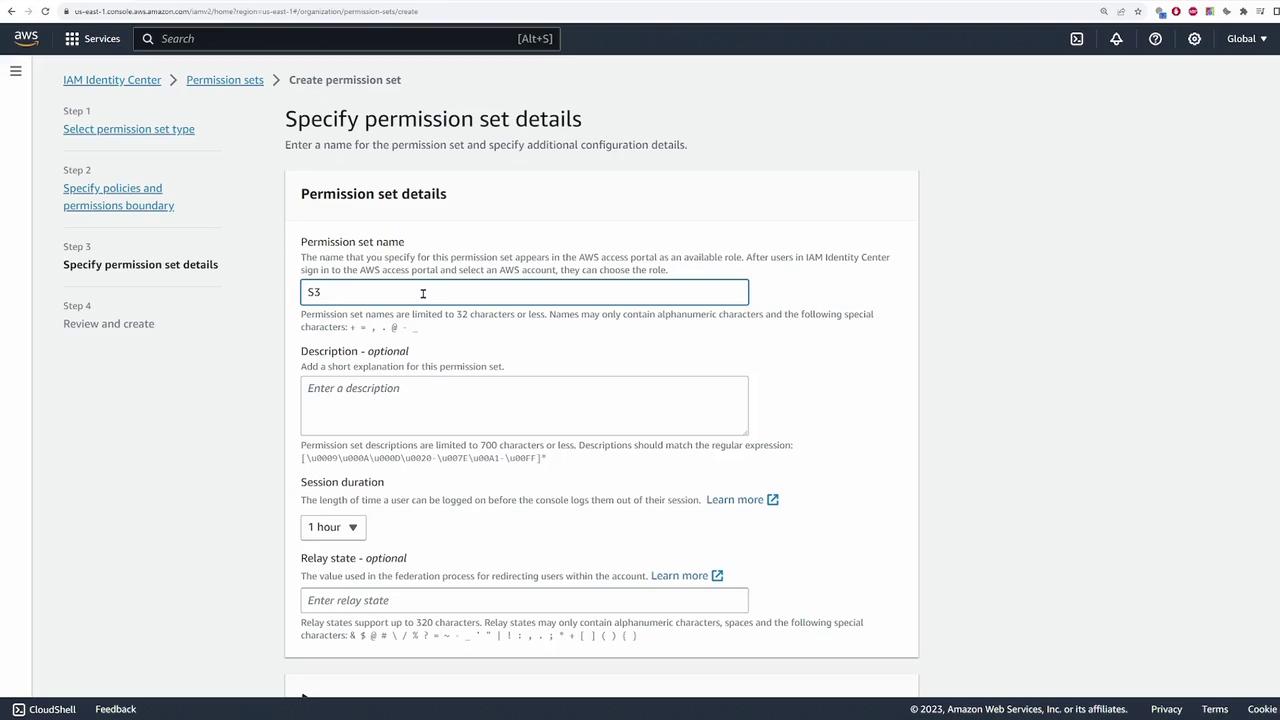
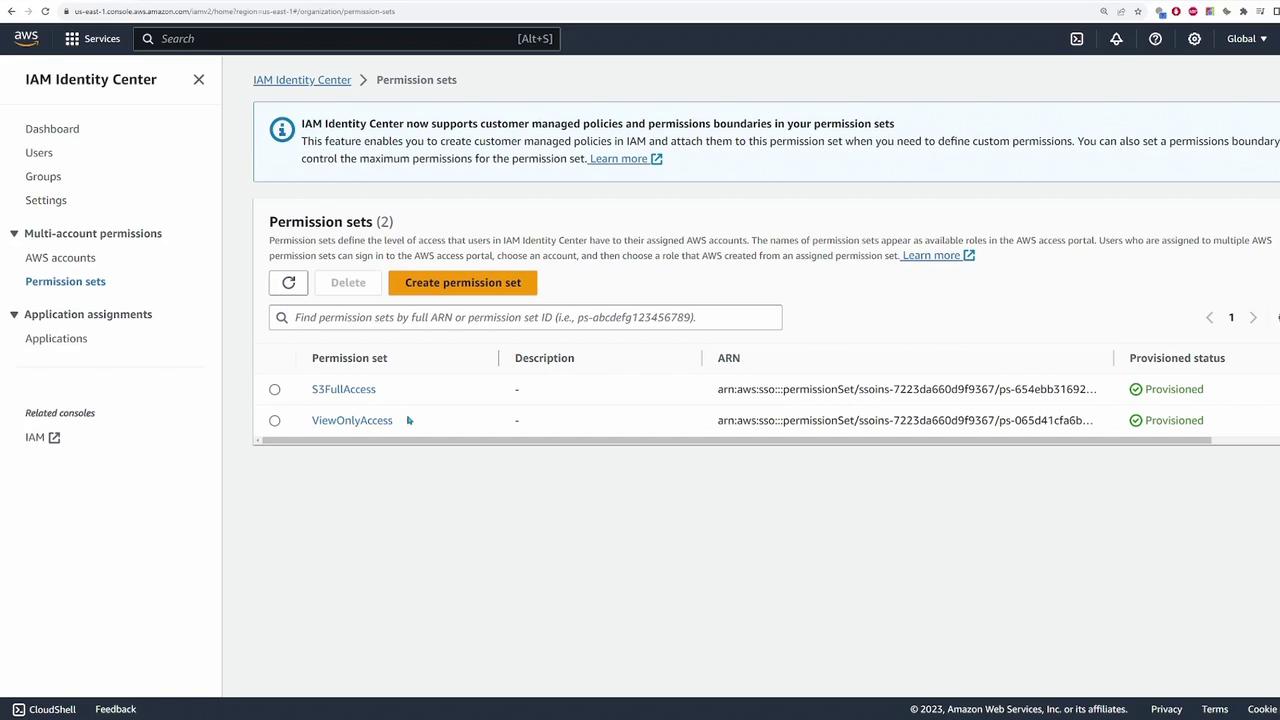
Permission sets in IAM Identity Center allow you to define the scope of operations users can execute within your AWS accounts, functioning similarly to IAM policies.To create a permission set:
Click “Create permission set.”
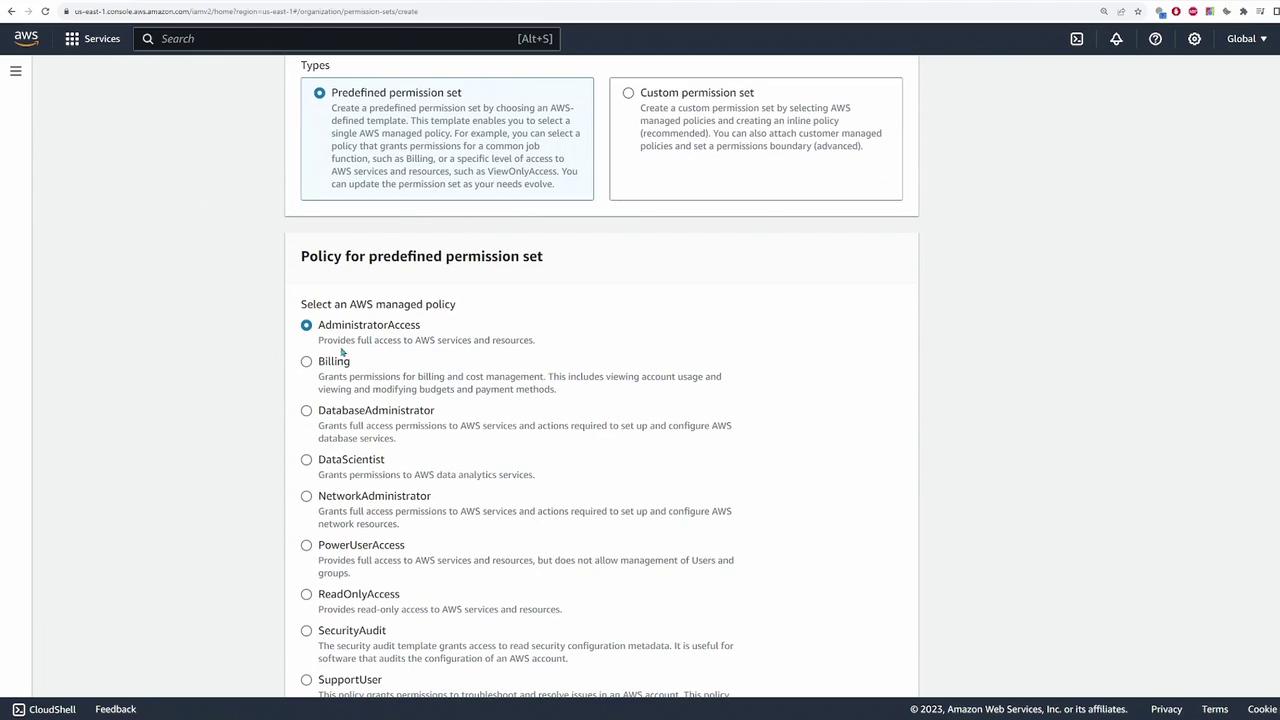
Choose between predefined permission sets (such as AdministratorAccess, Billing, or ViewOnlyAccess) or create a custom permission set.
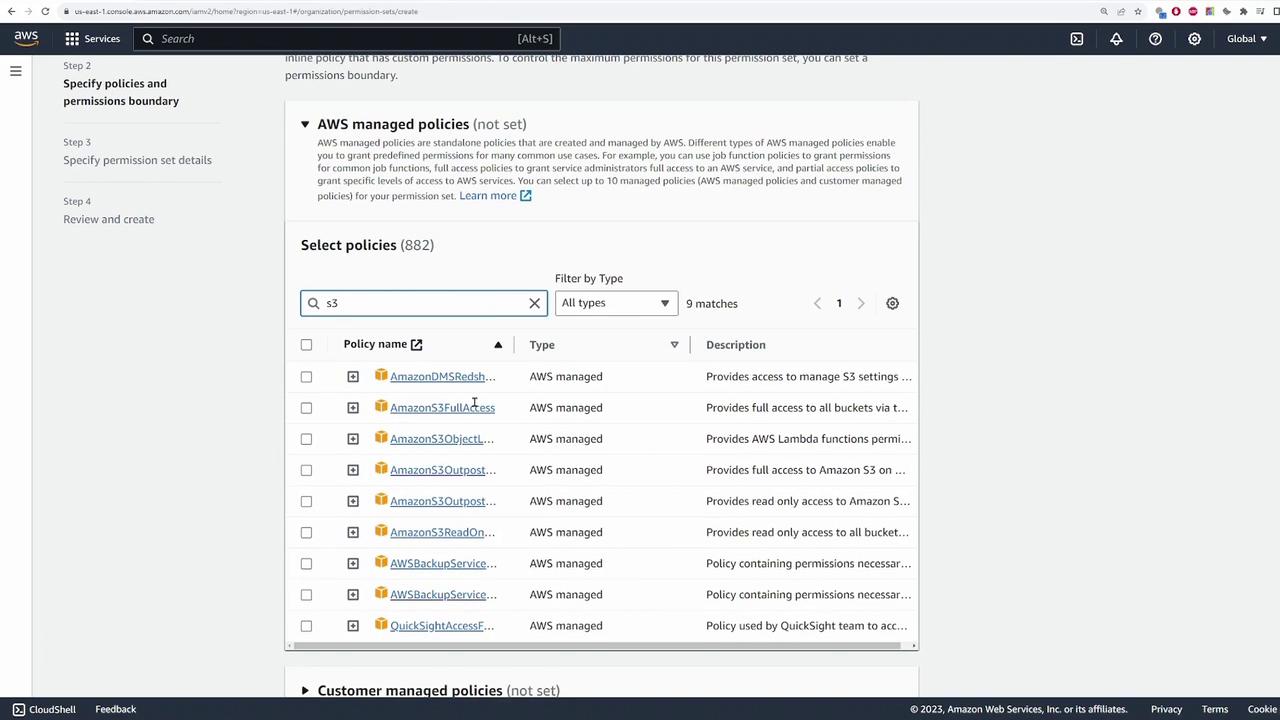
For example, to create a custom permission set that grants Amazon S3 full access:
Select the managed policy “Amazon S3 Full Access” which includes permissions for creating, reading, and editing S3 buckets.
Click “Next,” provide a name (e.g., s3.full.access), and then complete the creation process.
You can also create a predefined permission set for view-only access. Once both permission sets are created, they can be assigned to users across different AWS accounts.
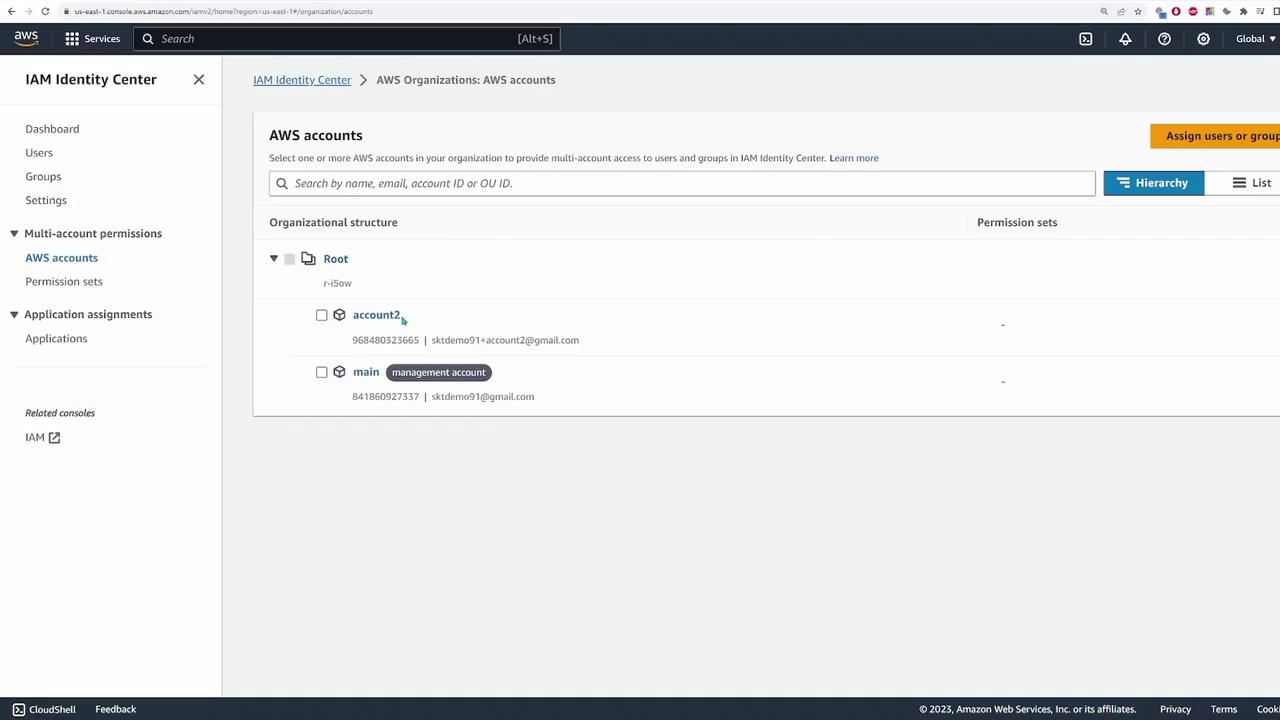
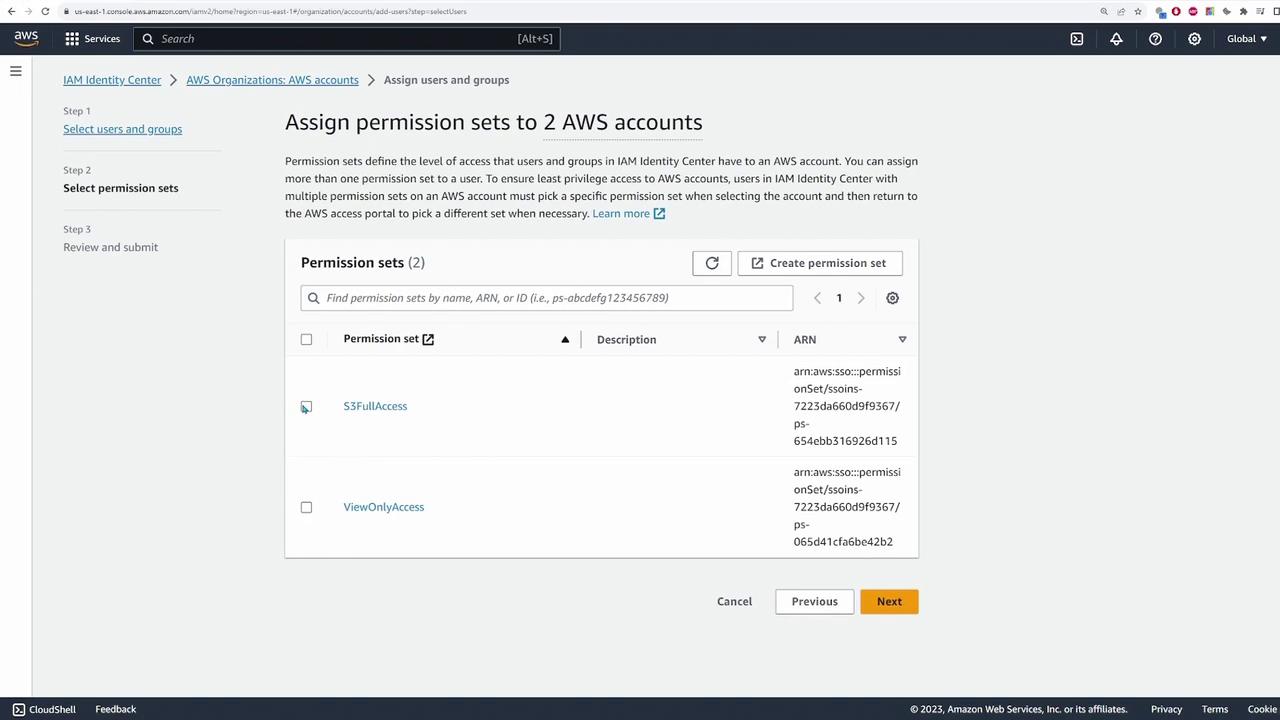
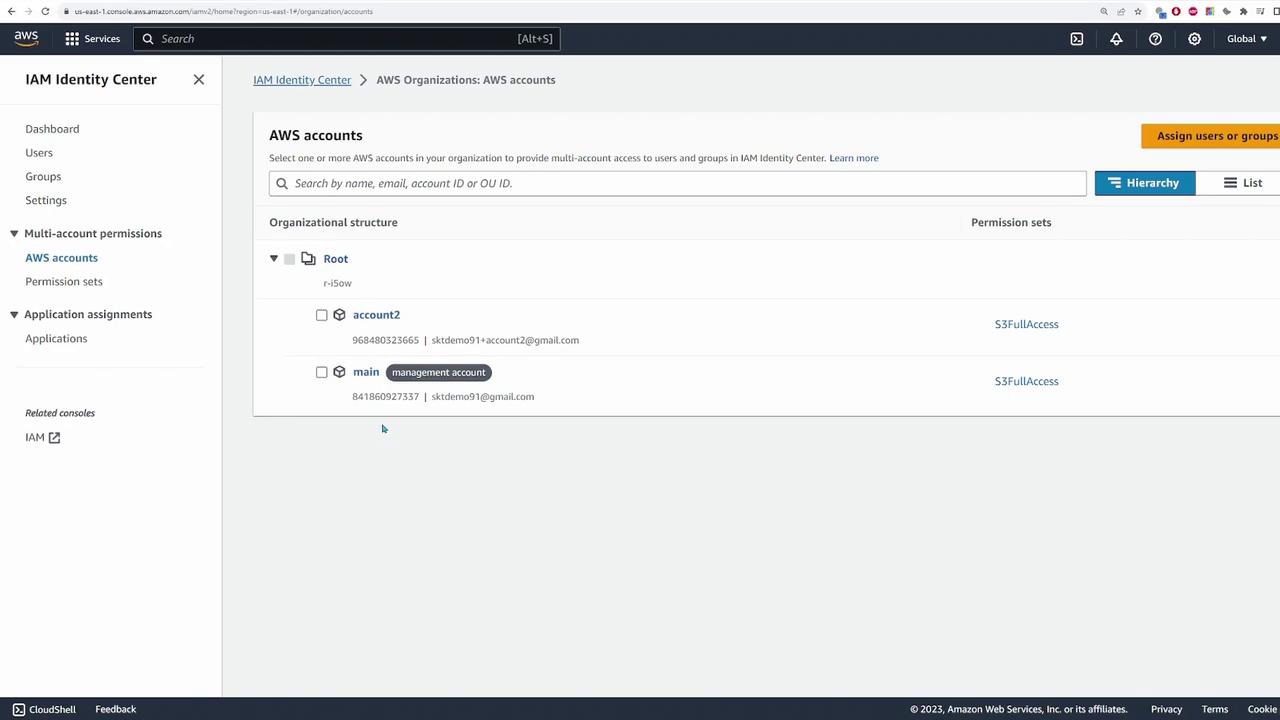
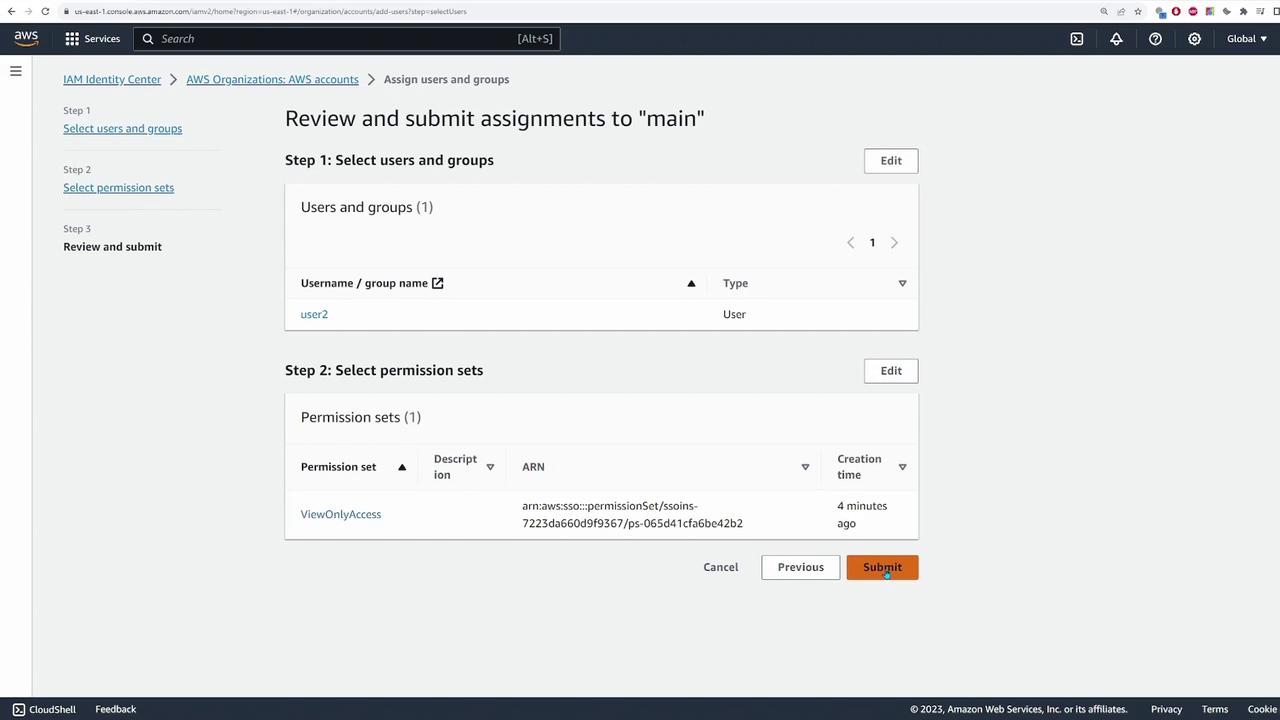
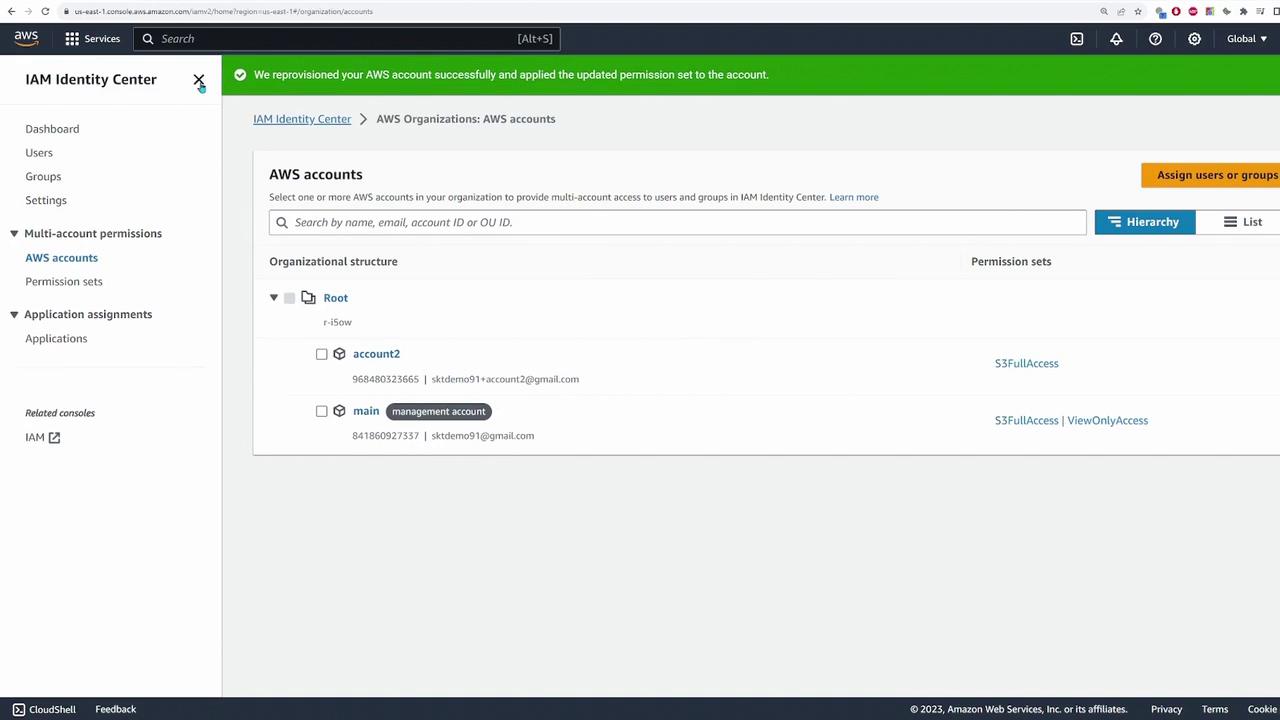
To assign permission sets, navigate to the AWS accounts section in Identity Center. For example, to grant user one full S3 access in multiple accounts:
Select the relevant AWS accounts.
Assign the “S3 Full Access” permission set to user one.
Confirm the assignment to configure the policies accordingly.
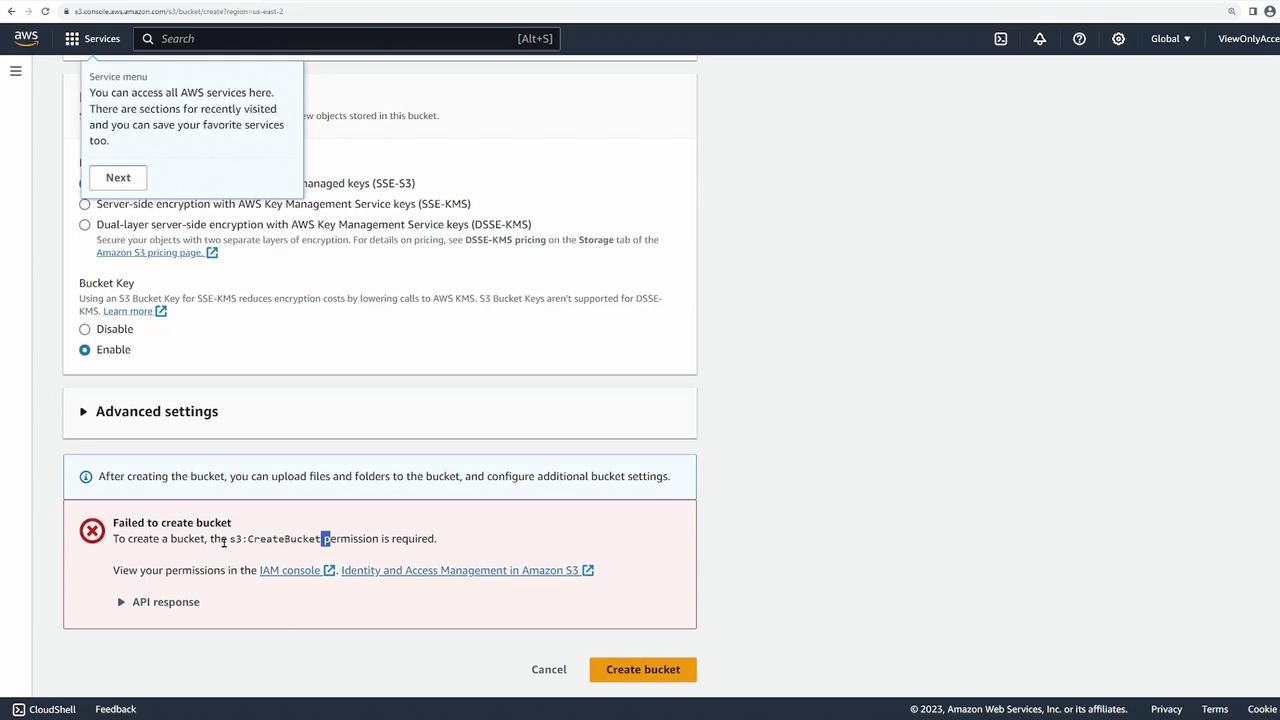
Next, open the access portal in a new browser tab and log in as user one. You will observe that user one has access to two different AWS accounts (for example, the main account and account two), each with the corresponding permissions. To confirm the assignment, log in as user one and attempt to create an S3 bucket in account two.After switching back to the main account, log in as user one and attempt to create another S3 bucket. Successful bucket creation in the respective accounts confirms that permissions have been correctly assigned.
This demo illustrates how IAM Identity Center streamlines access management across multiple AWS accounts by consolidating user and permission management into a single interface. By centralizing management, you can efficiently create users and groups, assign permission sets, and control account access without duplicative administrative overhead.
By centralizing identity and access management tasks, IAM Identity Center minimizes administrative complexity and ensures that users have appropriate access levels across AWS accounts. This lesson has provided you with a clear understanding of the core functionalities of IAM Identity Center, equipping you to manage AWS account access with confidence.Transcribed by: otter.ai