

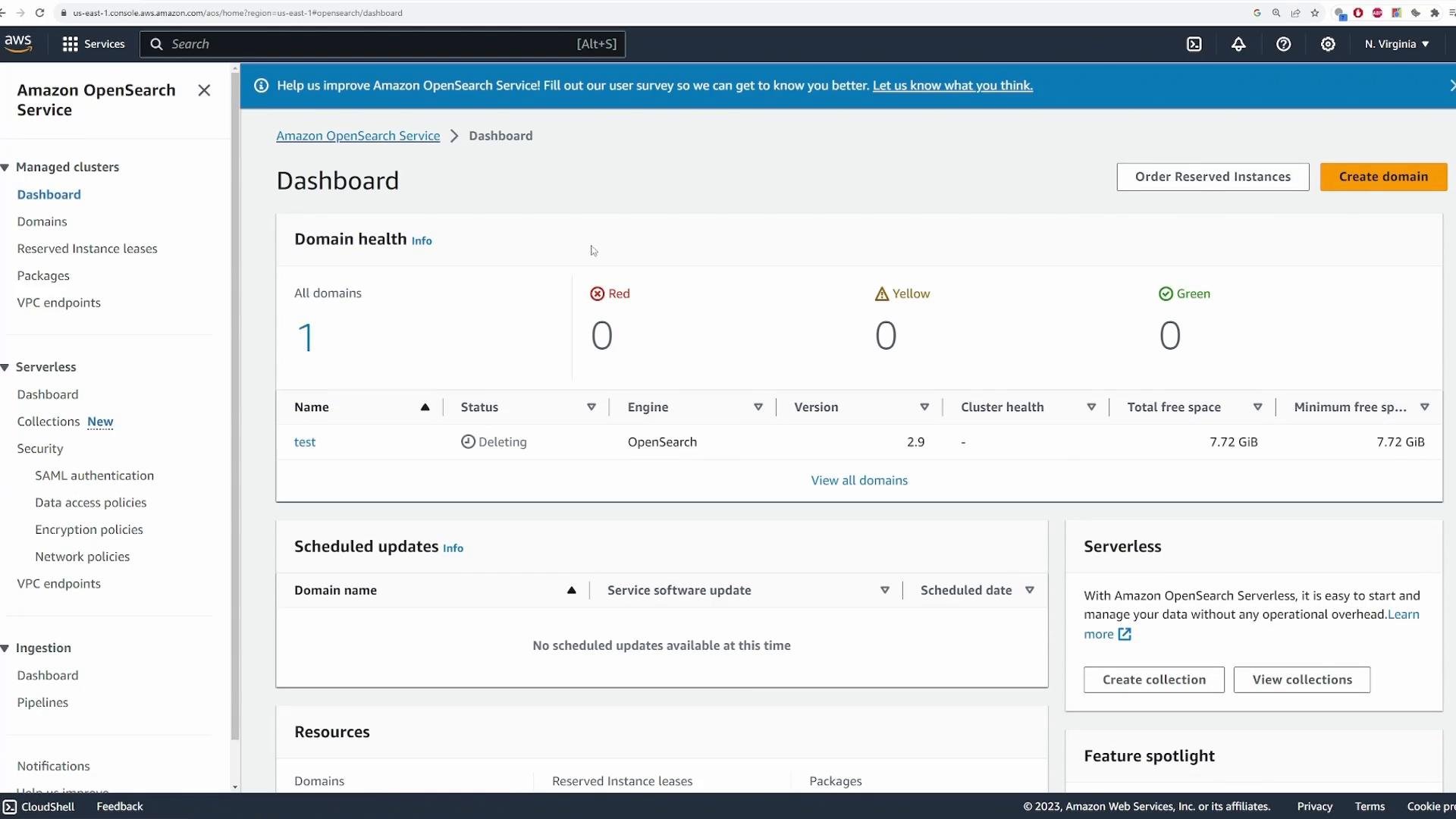
Create an OpenSearch domain
Follow these steps to create a domain nameddemo for this walkthrough. Use Standard create to see all configuration options (Easy create uses sensible defaults and is fine for quick tests).
- Enter a domain name (e.g.,
demo). - Choose a creation path:
- Easy create — fast, with defaults.
- Standard create — full configuration control (used here).
- Select a template:
- Production — resilient defaults for production.
- Dev/Test — lighter-weight defaults for development (choose this for the demo).
- Enable standby nodes only for production-level high availability; skip for the demo.
- Choose the number of Availability Zones — single AZ is OK for development; multi-AZ recommended for production resiliency.
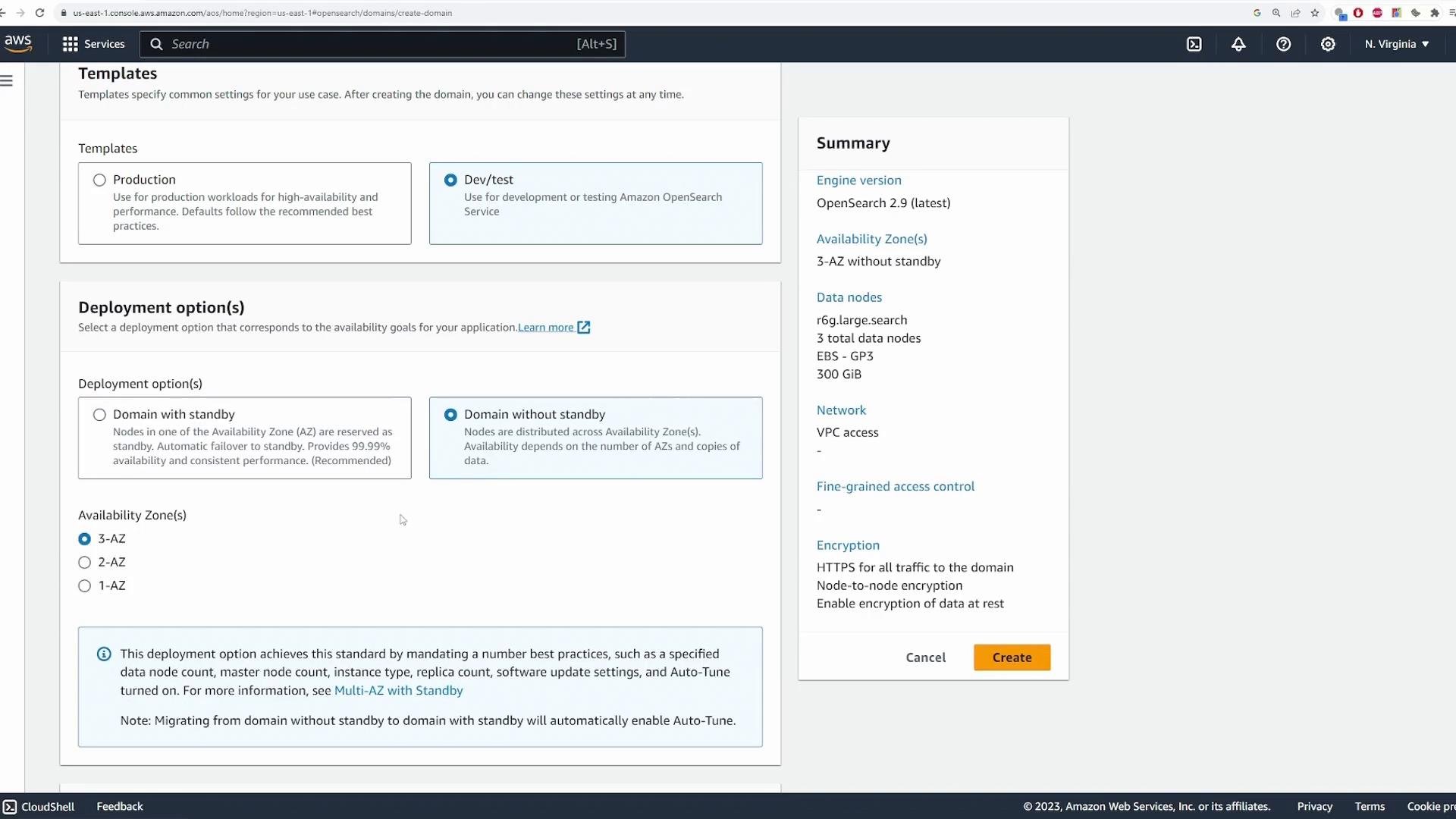
- Engine version: pick a supported version (e.g., OpenSearch 2.9).
- Data nodes: choose an instance class (for demo:
t3.small.search) and nodes per AZ (e.g., 1). - Storage: EBS volumes — choose type and size (demo uses 10 GiB).
- Dedicated master nodes: enable for medium/large clusters; disable for small demos.
- Networking: public access for rapid testing, or VPC access for production.
- Access control: use IAM-based access or create a master user (for this demo we create a master user
adminwith a secure password).
arn:<partition>:iam::<account>:<type>/<id>
Configure fine-grained access control, encryption at rest, TLS for in-transit encryption, and automatic updates as needed. Domain provisioning typically takes 10–20 minutes.
For any production workload, avoid public access and weak passwords. Use VPC deployment, encryption (at rest and in transit), snapshots, fine-grained access control, and least-privilege IAM roles.
OpenSearch cluster ready
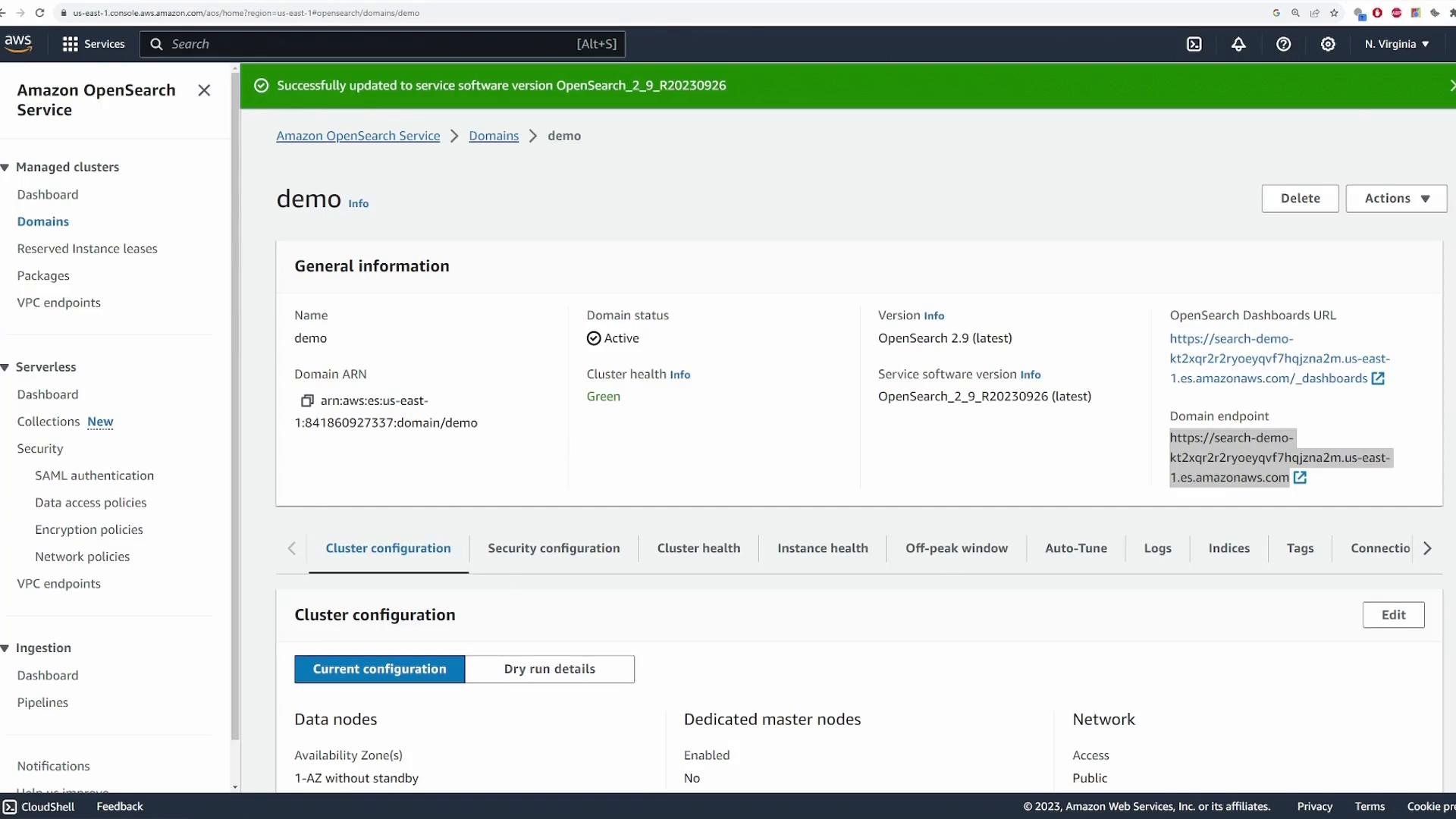
Once your domain status shows Active/Green, open the domain details. You’ll find:- Domain endpoint (use for API requests).
- OpenSearch Dashboards URL (web UI for exploration).
- Cluster configuration summary.
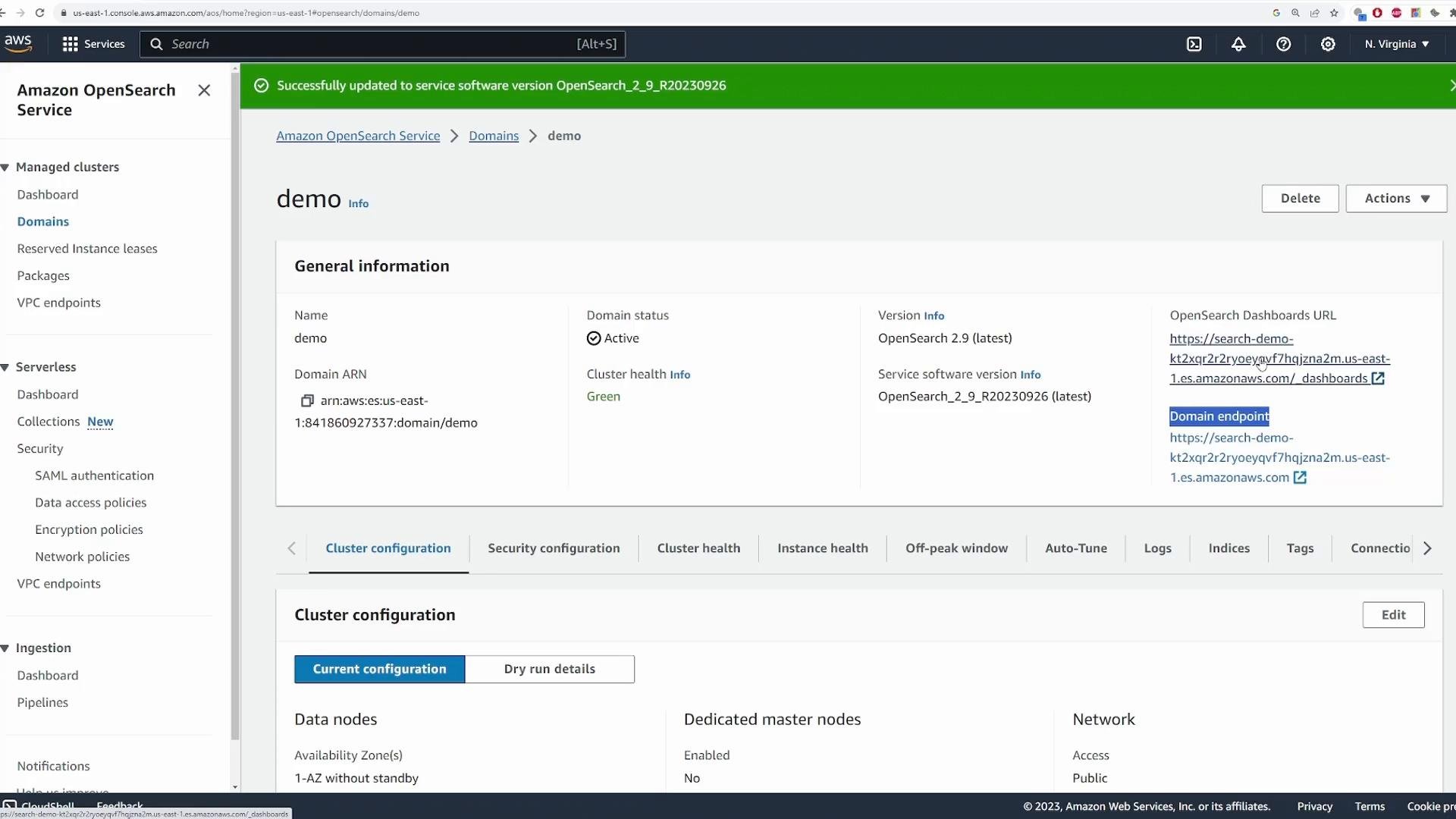
admin / your password). On first login you may be prompted to select a tenant; Global is fine for this demo.
Add sample data using OpenSearch Dashboards
OpenSearch Dashboards includes sample datasets for testing and visualization. To add sample data:- In Dashboards, click Add data and choose a dataset (e.g., e-commerce orders).
- Install the dataset, then click View data to inspect dashboards, visualizations, and underlying indices.
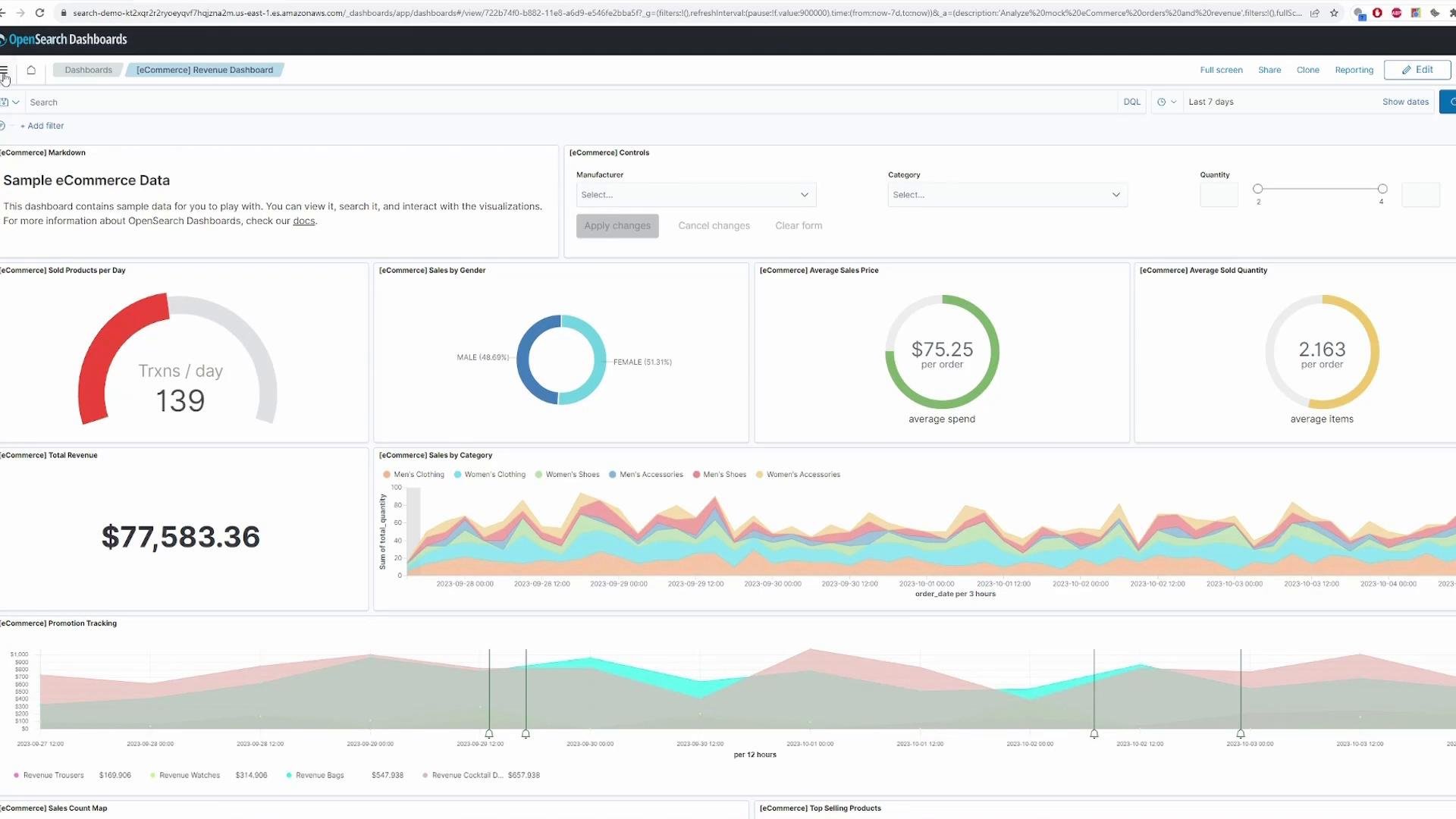
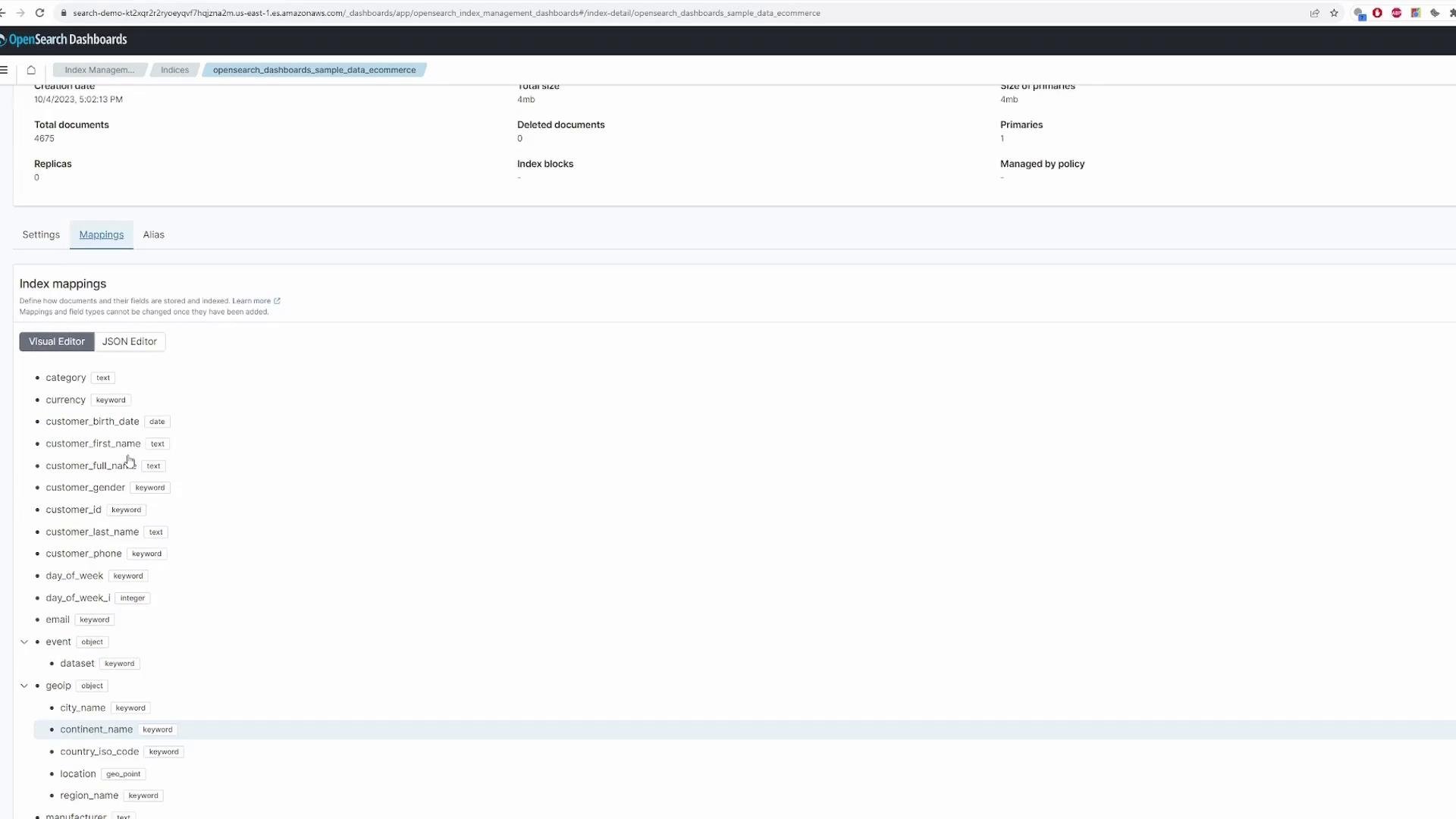
- Go to Management → Index Management → Indices.
- Select the sample index (e.g.,
opensearch_dashboards_sample_data_ecommerce). - View Mappings to see field names and types.
manufacturer = Pyramid Industries and by day_of_week = Saturday to narrow results.
Index your own documents with curl
Amazon OpenSearch supports regular Elasticsearch-compatible REST APIs. The AWS OpenSearch docs are a good reference: Amazon OpenSearch Service Developer Guide. Replacedomain-endpoint, master-user, and master-user-password with your values when running these commands.
Create (index) a single document:
Bulk upload multiple documents
For many documents, use the _bulk API with a newline-delimited file (action line + data line pairs). Examplebulk_movies.json content (NDJSON):
Create an index pattern and search in Dashboards
- In Dashboards → Management → Index Patterns, create a pattern for
movies. - In Discover, choose the
moviesindex pattern and run searches or filters. - Example search: look for documents where
actorisDowney Jr., Robert.
Clean up
To remove your demo domain and avoid charges:- Open the OpenSearch Domains page in the AWS console.
- Select your domain and click Delete. Confirm to remove the domain and all data.
If you plan to keep a cluster, follow AWS best practices: deploy in a VPC, enable encryption at rest and in transit, schedule automated snapshots, configure fine-grained access control, and apply least-privilege IAM roles.