Creating the Auto Scaling Group
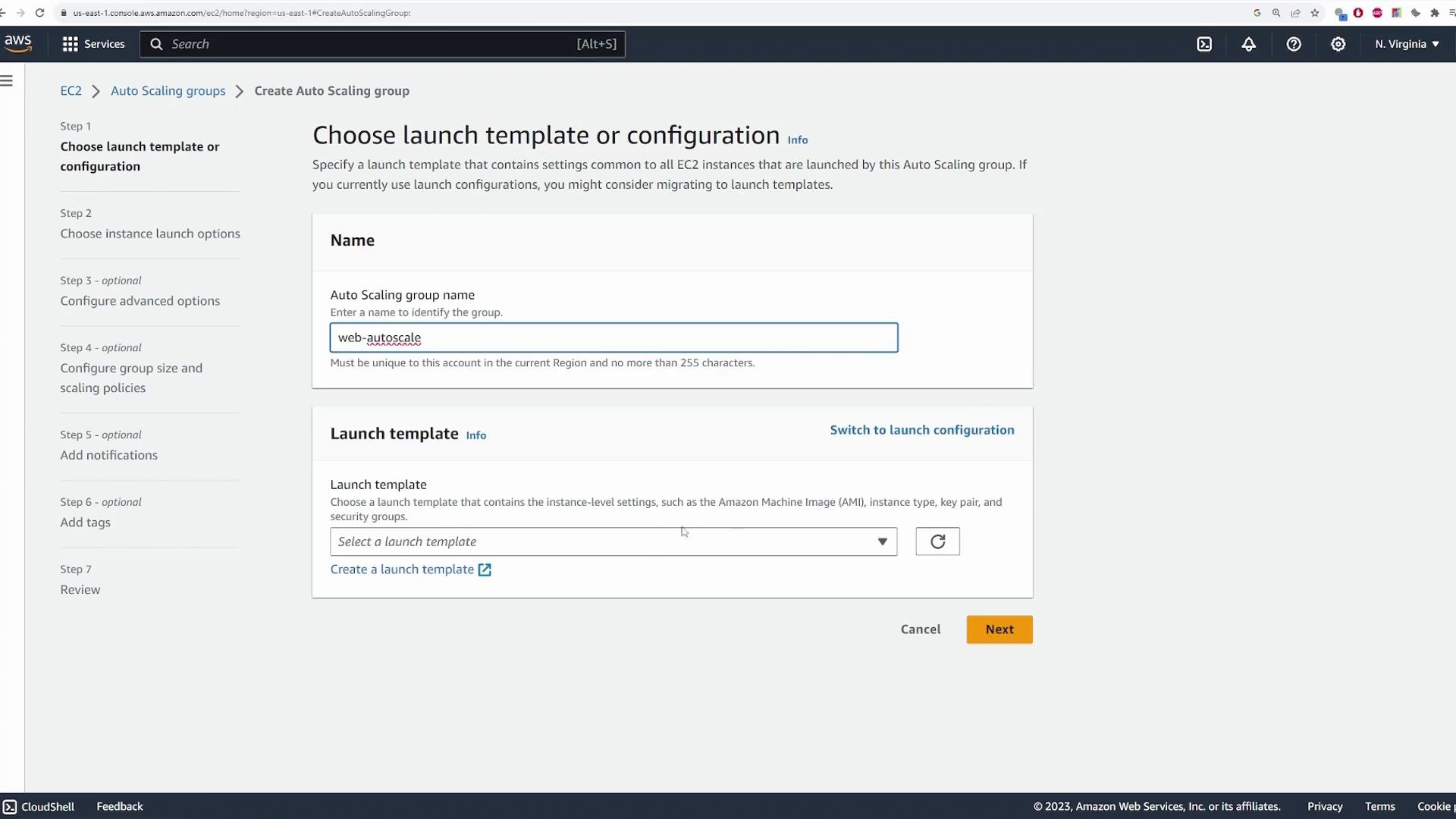
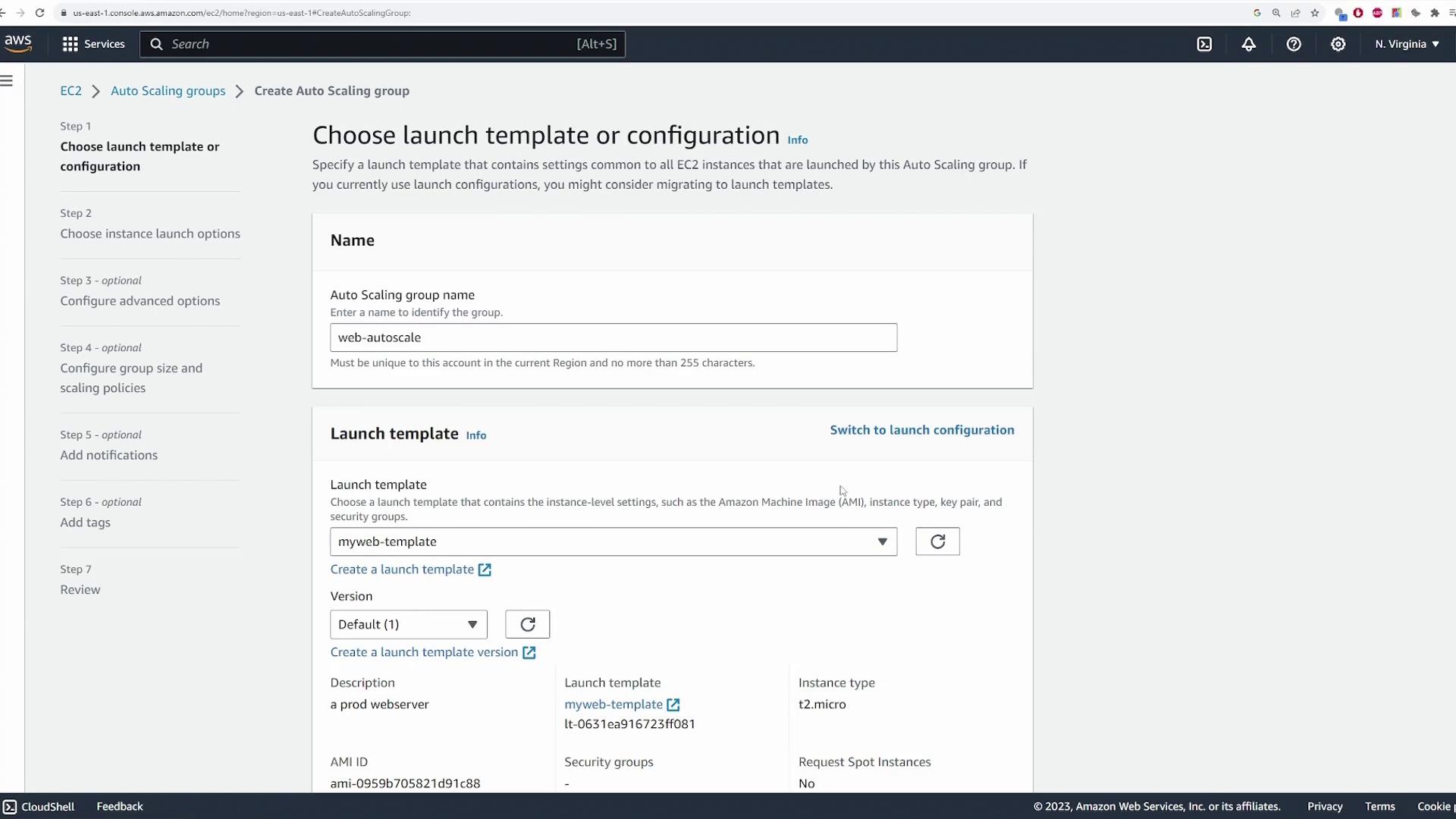
Start by logging into the AWS EC2 console and navigating to the EC2 service. Scroll down to find the “Auto Scaling Groups” section. Next, click on “Create Auto Scaling Group” and provide a descriptive name such as “web-auto scale.” You will be prompted to choose between a launch template or a launch configuration. Launch templates offer enhanced customization, making them preferable. In the launch template, you will specify the following:- AMI to use
- Instance type
- Key pair
- Security groups
Creating a Launch Template
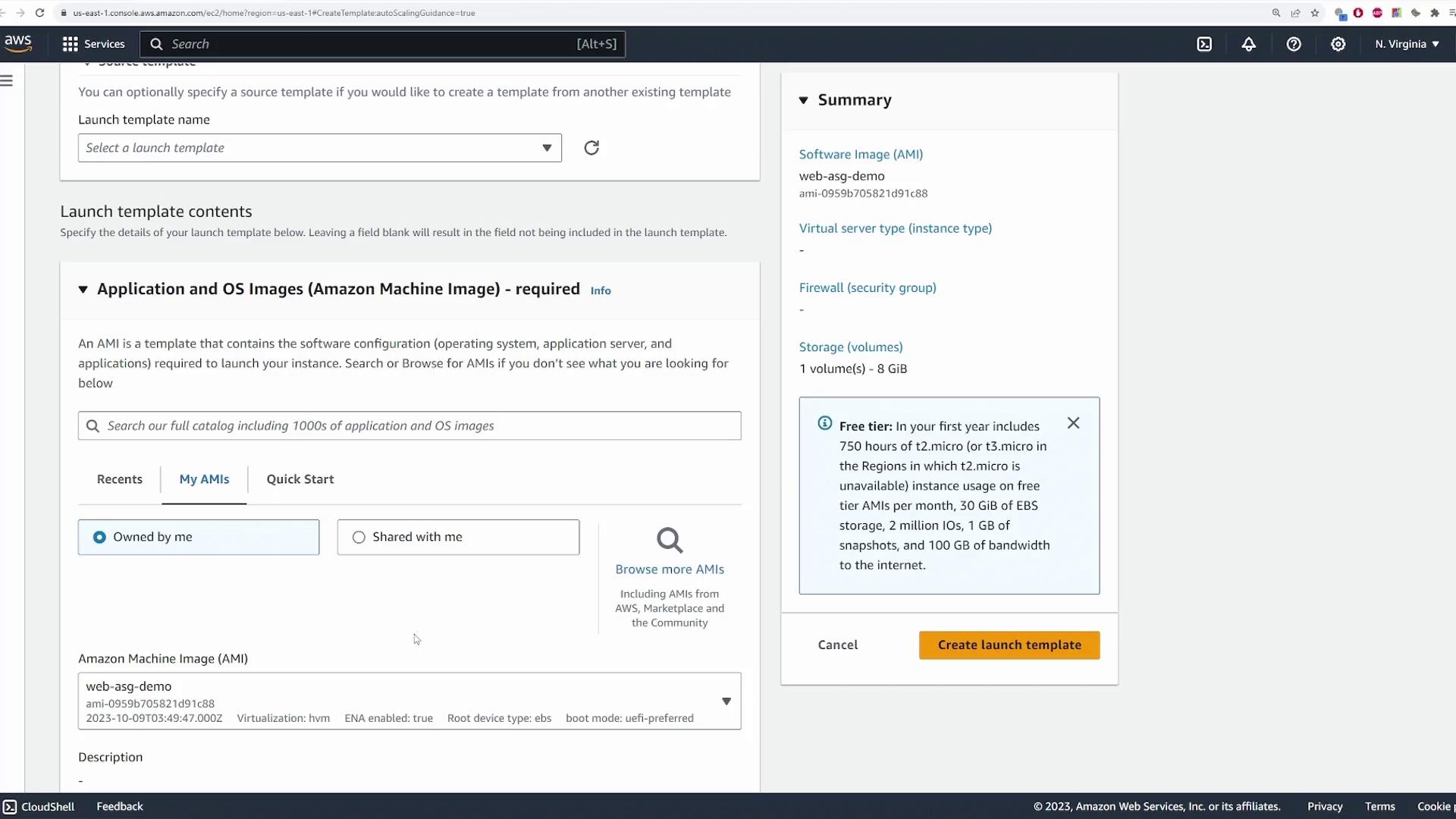
In the new tab, complete the settings for your EC2 instances. For example, set the template name to “my web template” and add a brief description like “prod web server.” While you can add tags or start with a source template, this demo builds the template from scratch. At the AMI selection section, choose your specific AMI. In this demonstration, we use a custom Linux AMI called “web ASG demo” that runs an Nginx server.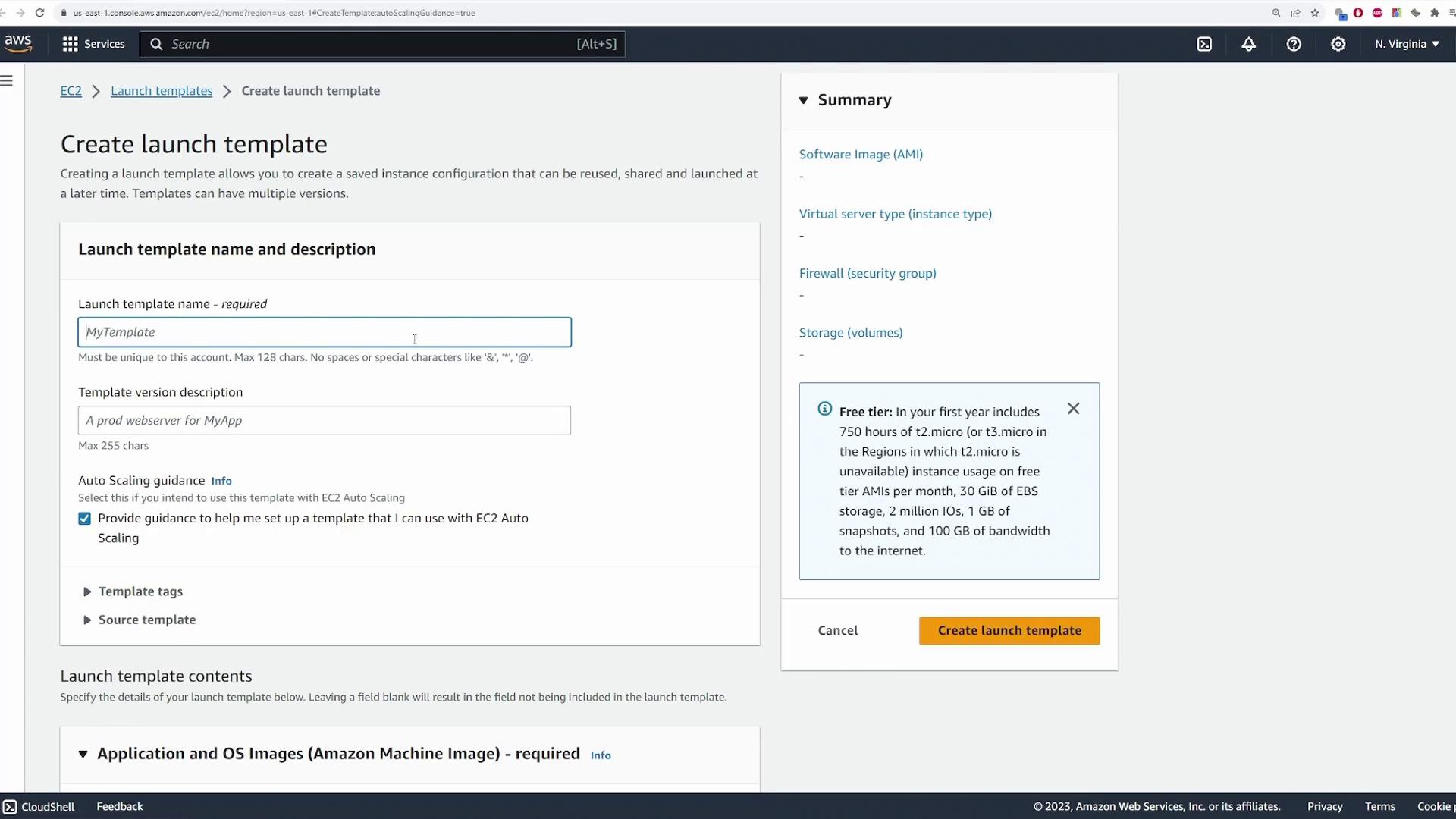
Configuring Network Settings
Select the appropriate VPC for your auto scaling group. In this demo, a demo VPC is used and instances are deployed in private subnets (with a load balancer later placed in public subnets). While you have the option to override launch template settings (e.g., different instance types), the default values are used here. Proceed to the next configuration step.Configuring the Load Balancer
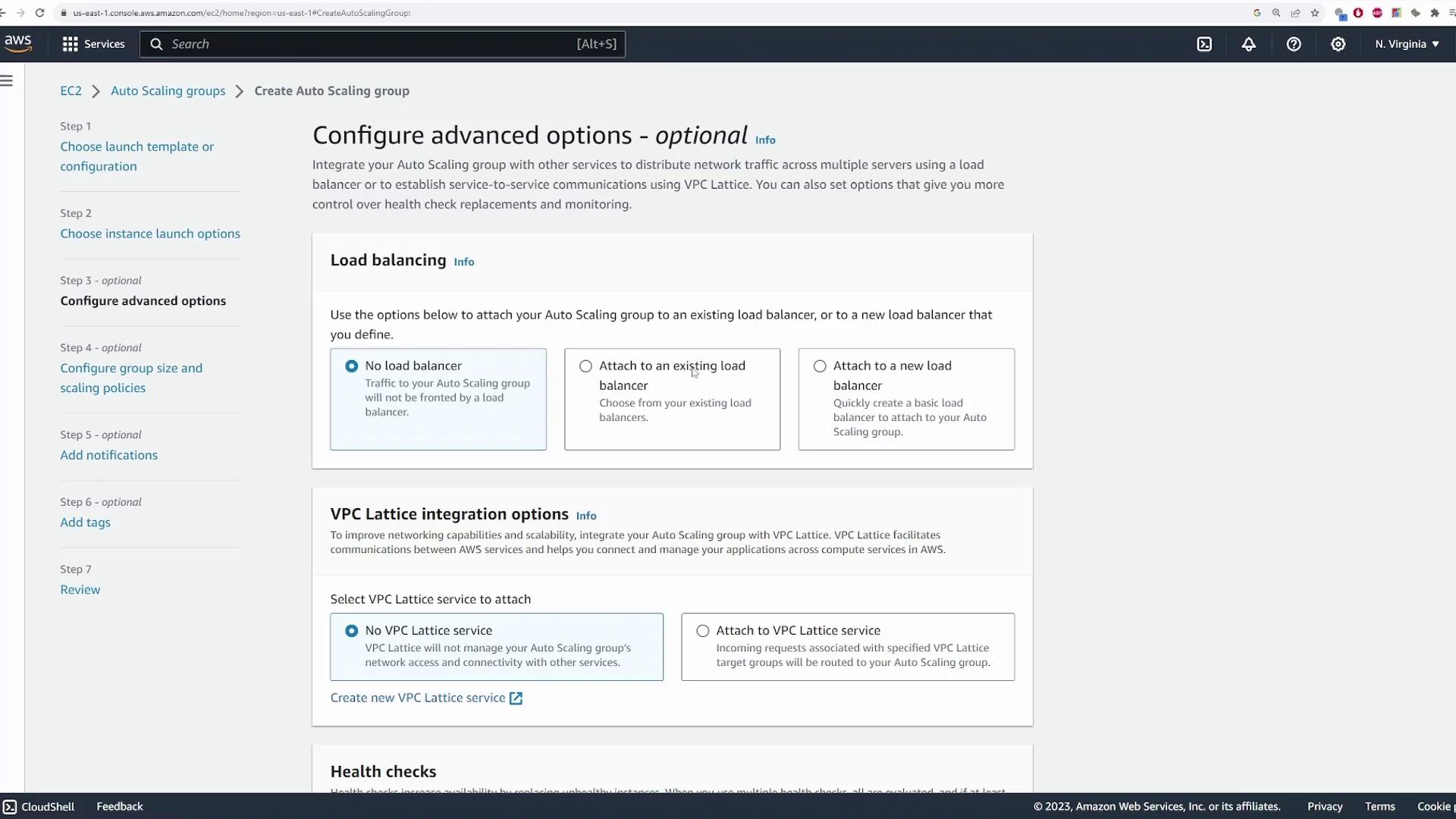
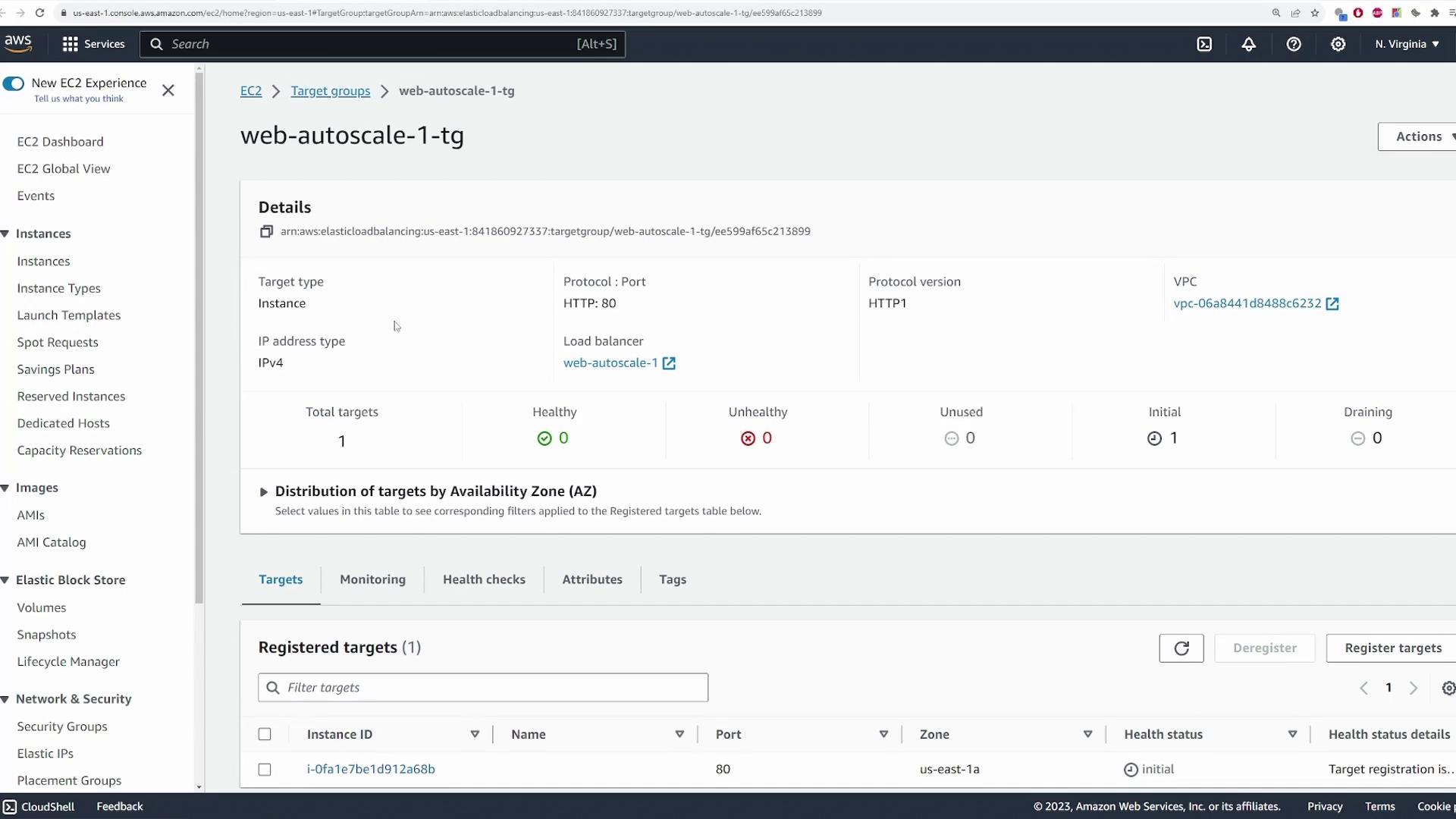
Decide if you want to associate a load balancer with your auto scaling group. For this demonstration, choose to create a new load balancer. An Application Load Balancer (ALB) is recommended because it is well-suited for web servers. Keep the default load balancer name (e.g., “web autoscale one”), set the scheme to “internet-facing,” and assign it to public subnets. Ensure that the listener is configured for port 80. Now, create a target group to route requests from the load balancer to the EC2 instances. For example, name the target group “web autoscale one tg.” You may add optional tags and specify VPC Lattice integration options. Enable the Elastic Load Balancing health checks with a 300-second grace period and retain the default CloudWatch metrics settings.Setting Capacity and Scaling Policies
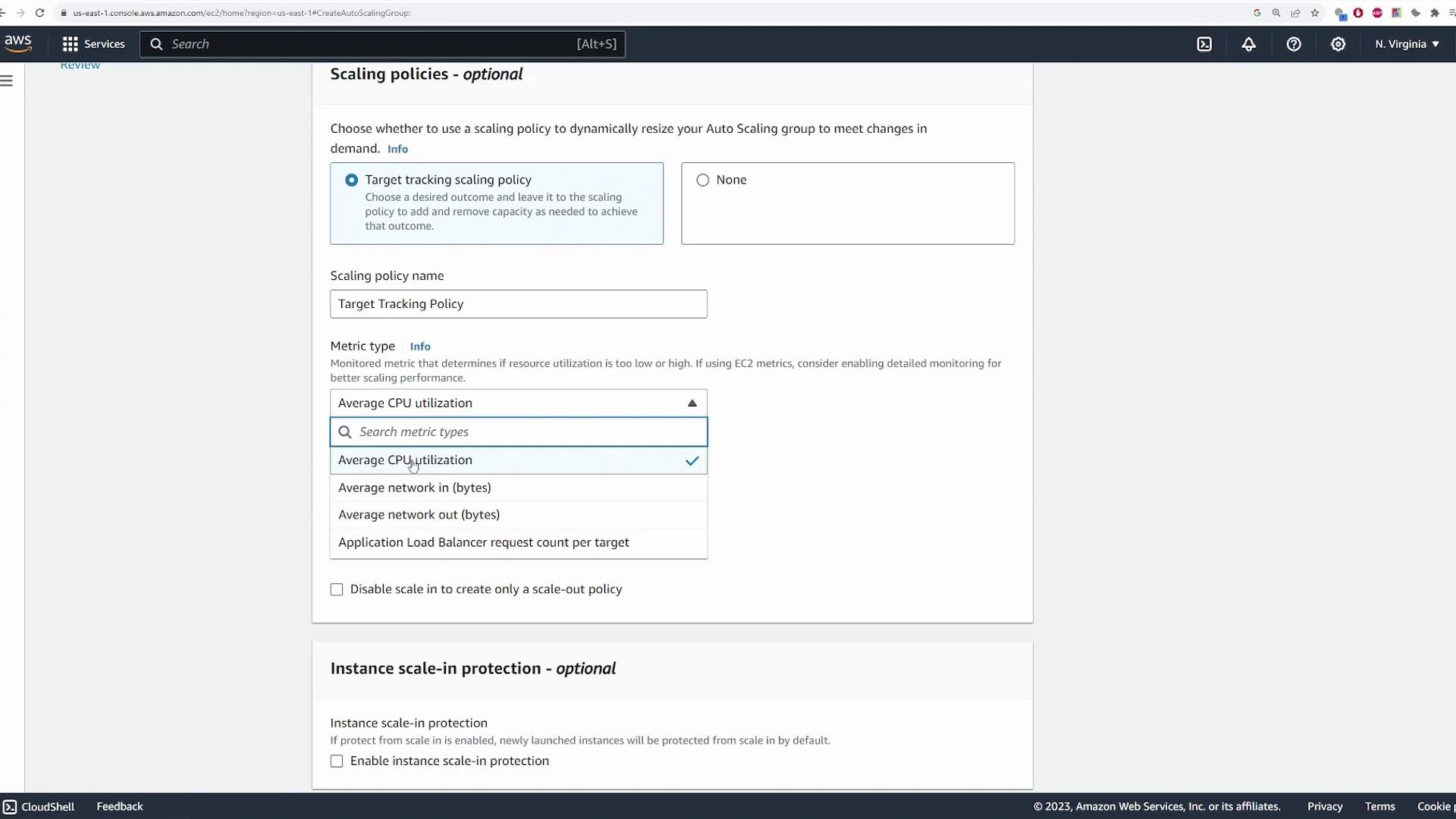
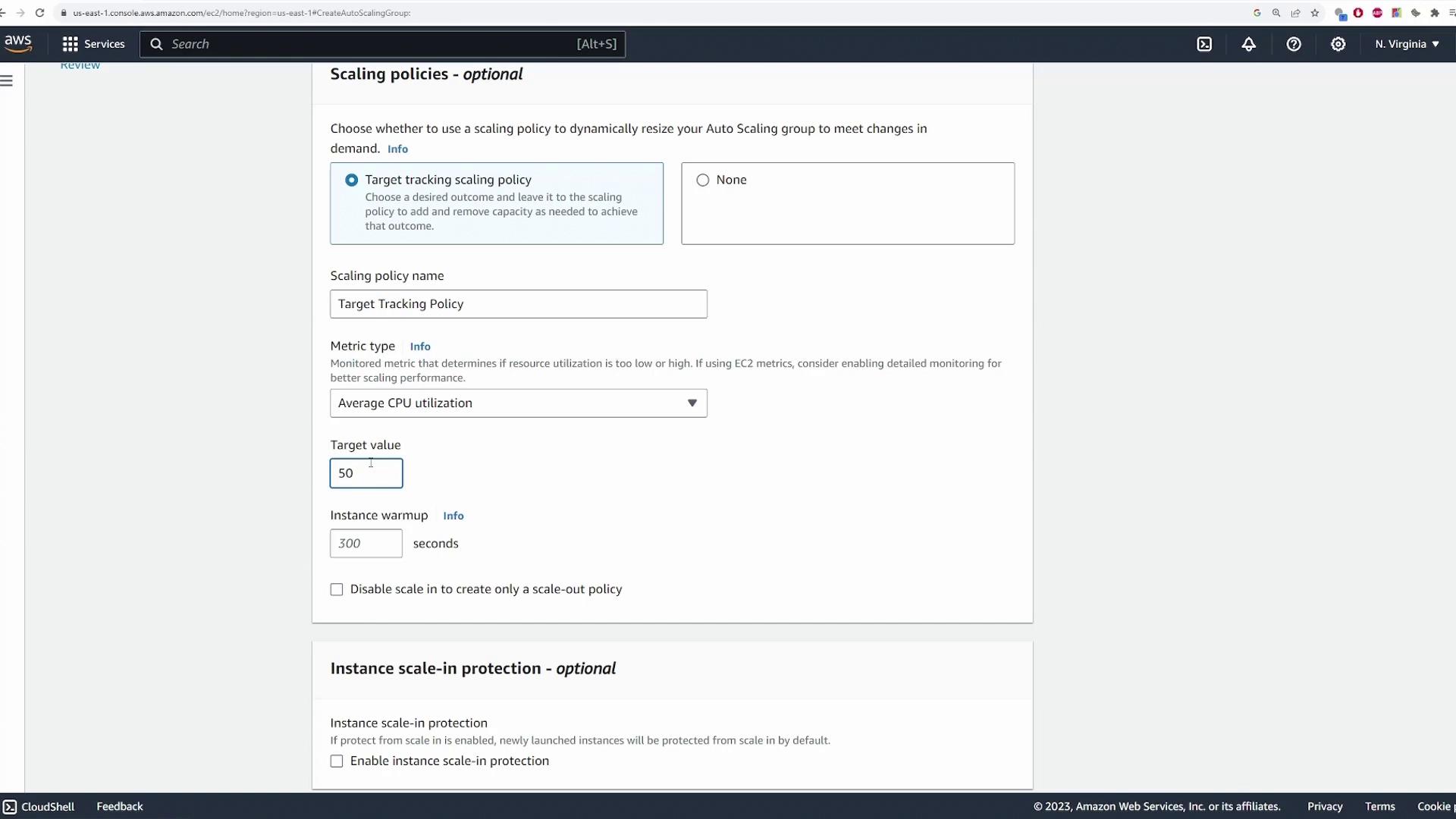
Define the capacity settings for your auto scaling group. For instance, you might use:- Desired capacity: 1
- Minimum capacity: 1 (ensuring at least one instance remains active)
- Maximum capacity: 3 (to handle increased load)
Verifying the Setup
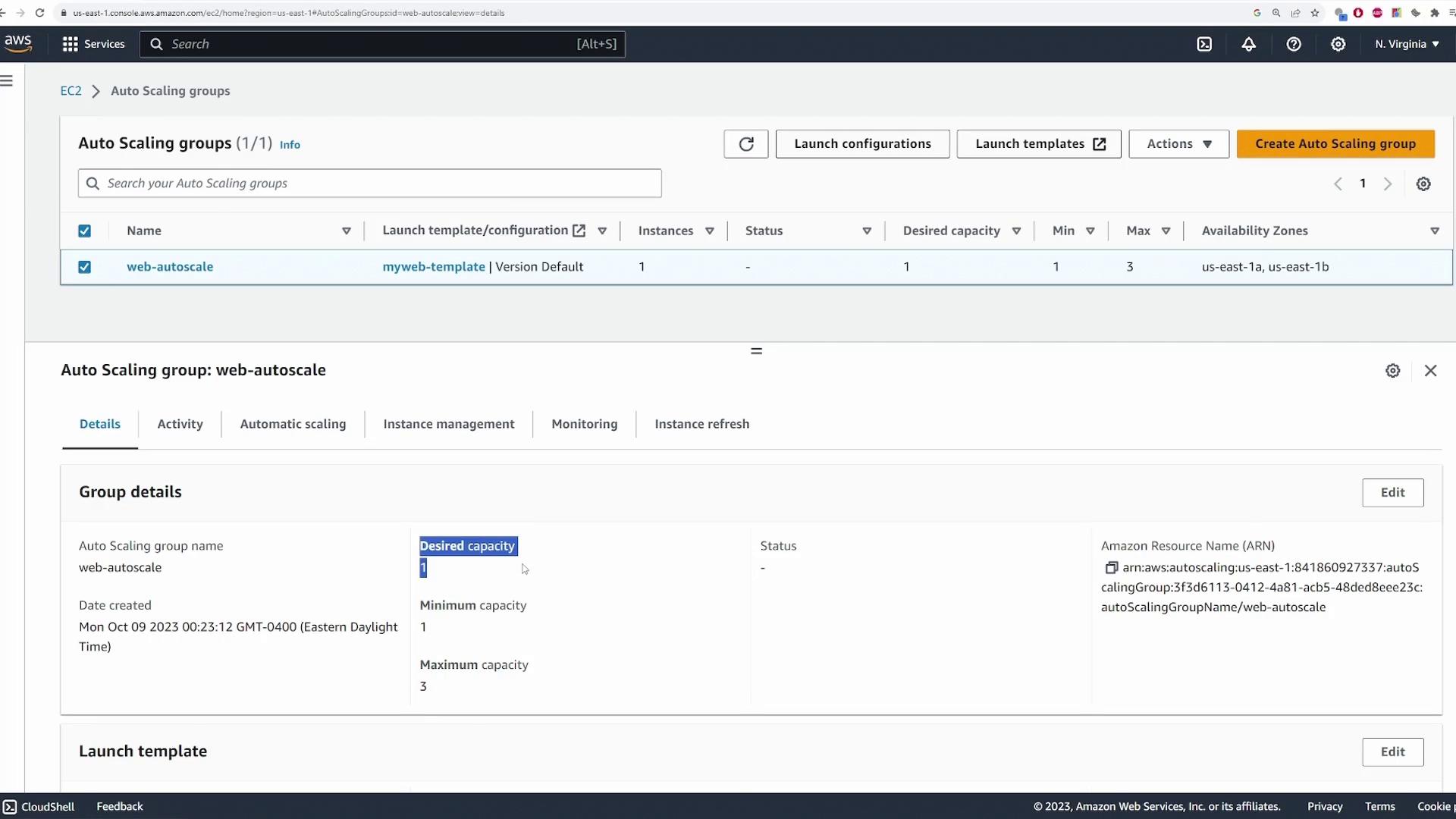
After deployment, verify the auto scaling group’s configuration. Confirm that:- Desired capacity: 1
- Minimum capacity: 1
- Maximum capacity: 3
Testing Auto Scaling
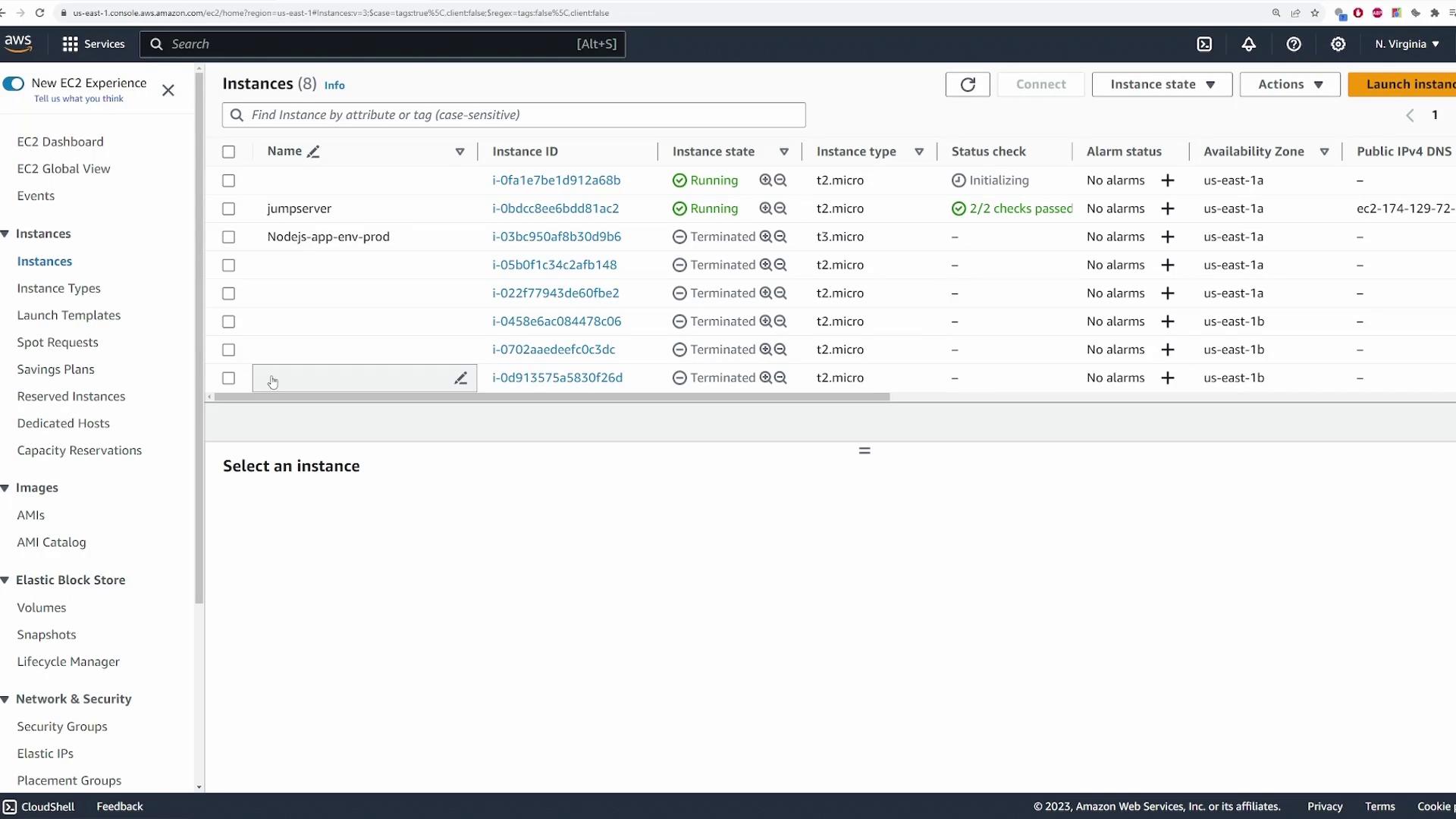
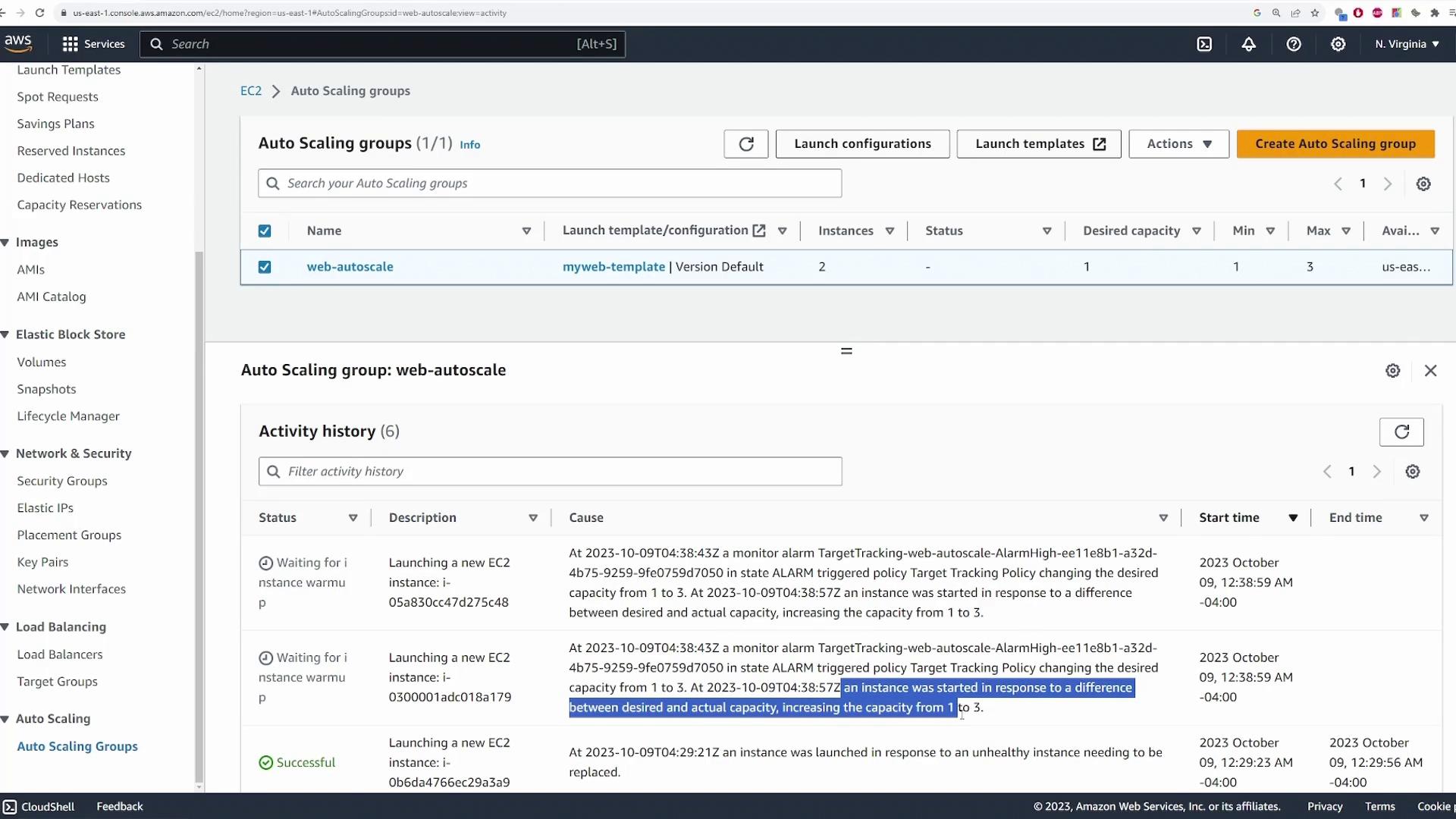
To confirm that the auto scaling group operates as expected, manually terminate the EC2 instance. The auto scaling group should detect the termination and automatically launch a new instance to maintain the desired capacity. Wait a few moments and then check the auto scaling group’s activity log. You should see an entry for an instance being removed due to a failed health check, followed by an entry for the launch of a new instance.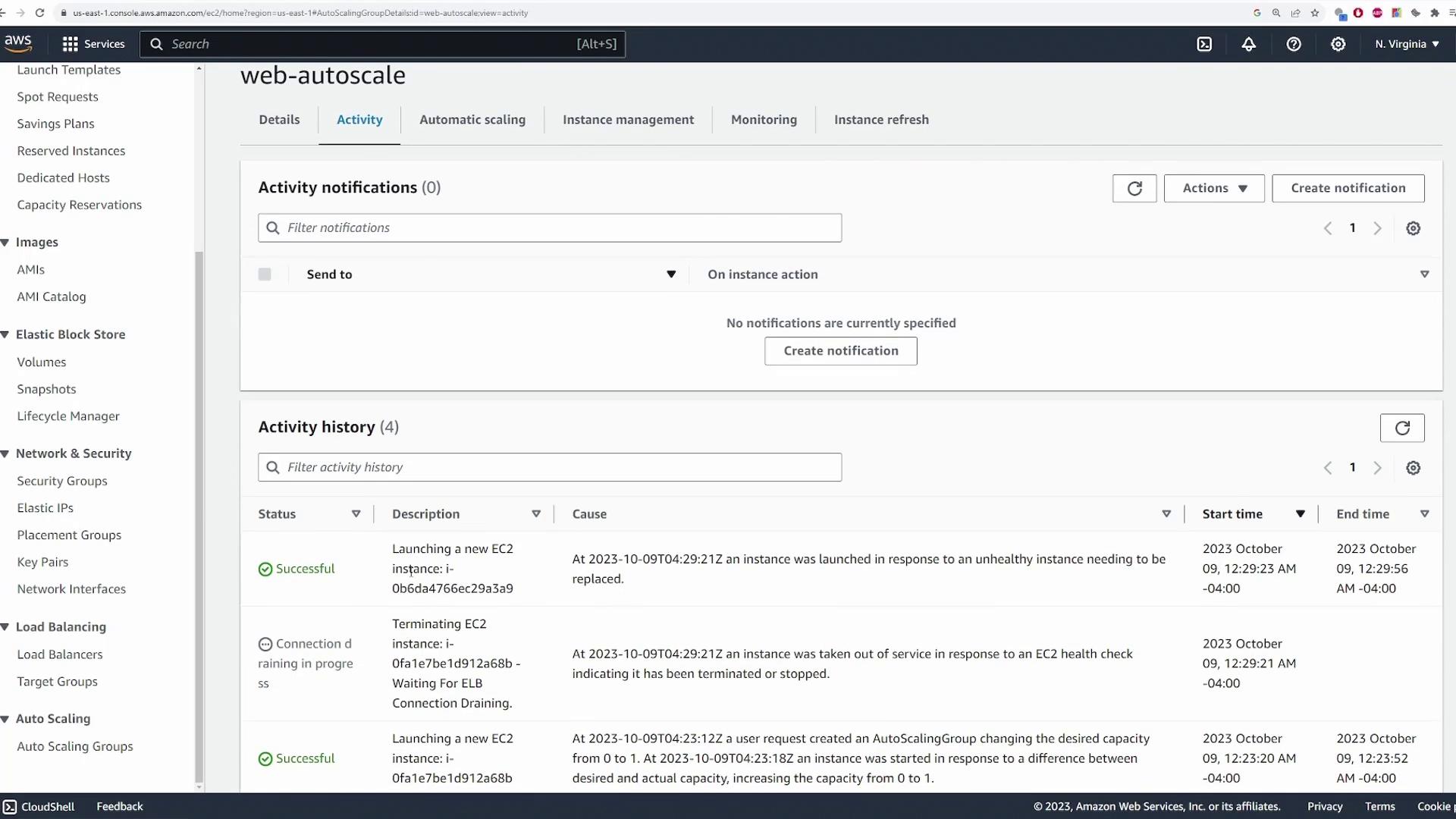

Simulating High CPU Load
This section demonstrates how to trigger the scaling policy by simulating high CPU load.- Connect to your EC2 instance via SSH.
-
Run the monitoring tool
topto observe the initial CPU utilization: -
To simulate load, run the following command to stress CPU resources:
-
Run
topagain to observe the CPU usage, which should spike to 100%:
Cleaning Up
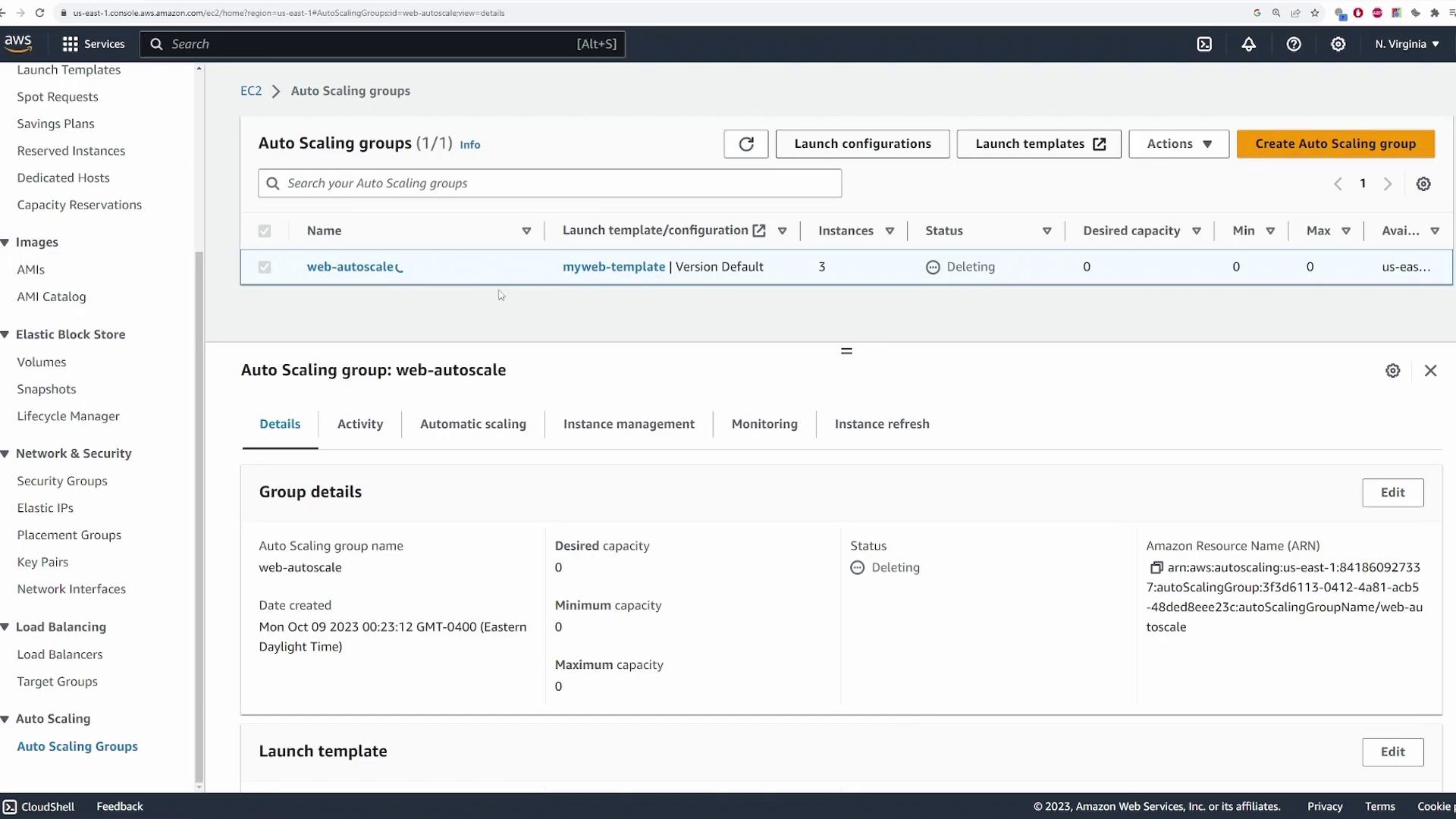
After completing this demo, ensure you delete the auto scaling group to terminate all associated resources (EC2 instances and load balancer configurations) and avoid extra charges.