

Creating a Network Interface
Follow these steps to create a network interface in AWS:- Open the EC2 page in the AWS Management Console.
- Scroll down and select “Network Interfaces.”
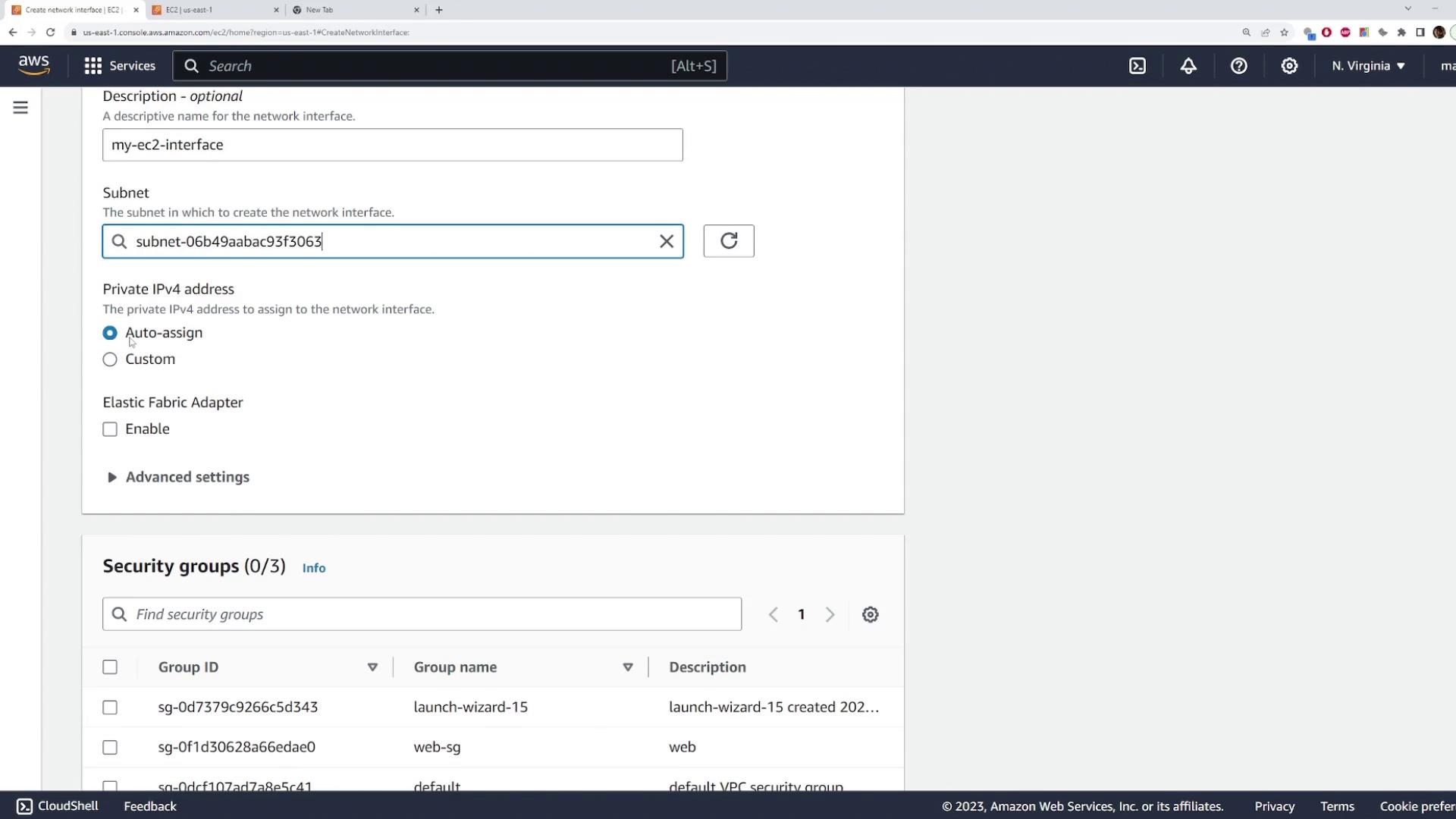
- Click on the option to create a network interface.
- Provide a clear description (for example, “my EC2 interface”).
- Choose the appropriate subnet for the interface.
- For the private IP address, decide whether to auto-assign it or specify a custom IP (in this example, auto-assign is used).
- Select the desired security group, such as “Web SG.”
Launching an EC2 Instance with an Existing Network Interface
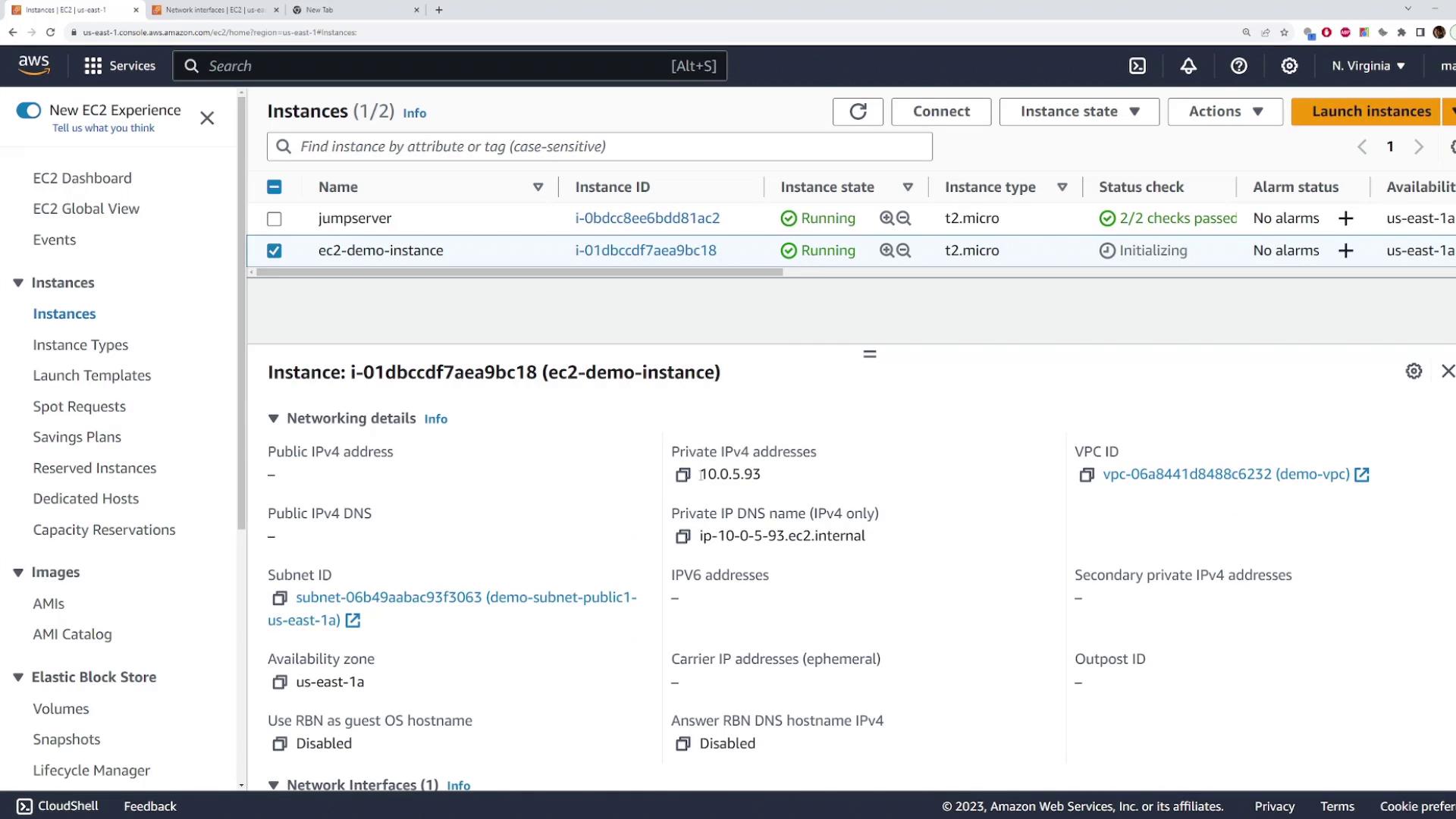
Next, you’ll learn how to launch an EC2 instance using an existing network interface:- Start by launching a new instance and assign a descriptive name (for example, “EC2 Interface Demo”).
- Select the Amazon Linux AMI, choose the T2 micro instance type, and pick the appropriate key pair.
- In the network settings section, select “Edit” to review the VPC, subnet, and security group configurations.
- Open the “Advanced network configuration” section to view the default network interface (device index 0) that will be used.
- Instead of keeping the default configuration, select the existing network interface you created earlier (look for an ID like “eni-3E3E…”). You might need to search for the specific interface ID.
- Leave the other settings unchanged and launch the instance.
Attaching Additional Network Interfaces
An EC2 instance can have multiple network interfaces. To attach an additional interface, proceed as follows:- Create a new network interface (e.g., named “NIC 2”) in the same availability zone as your EC2 instance. This interface can reside in a different subnet, provided it’s within the same zone. You may use the same security group if desired.
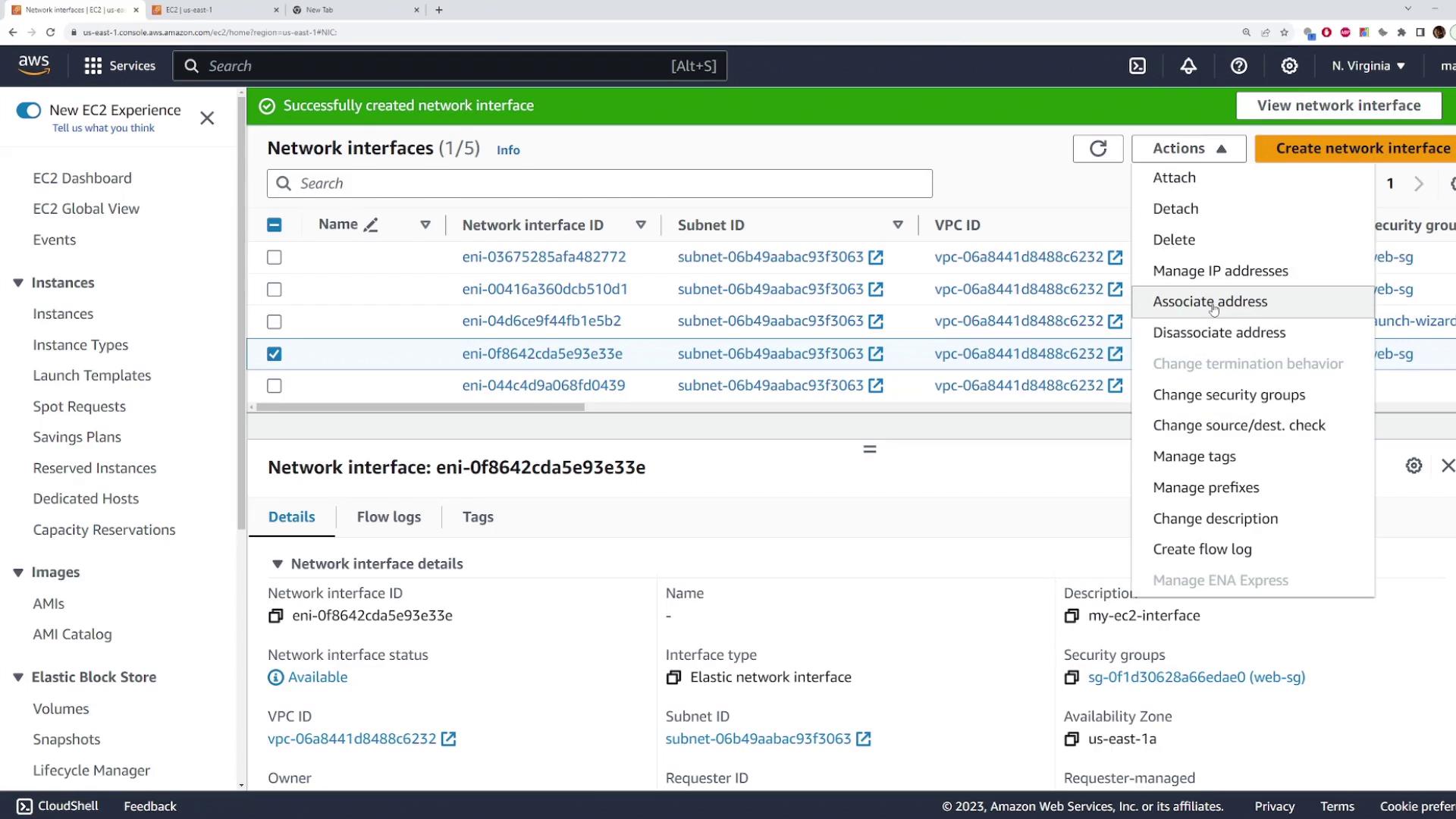
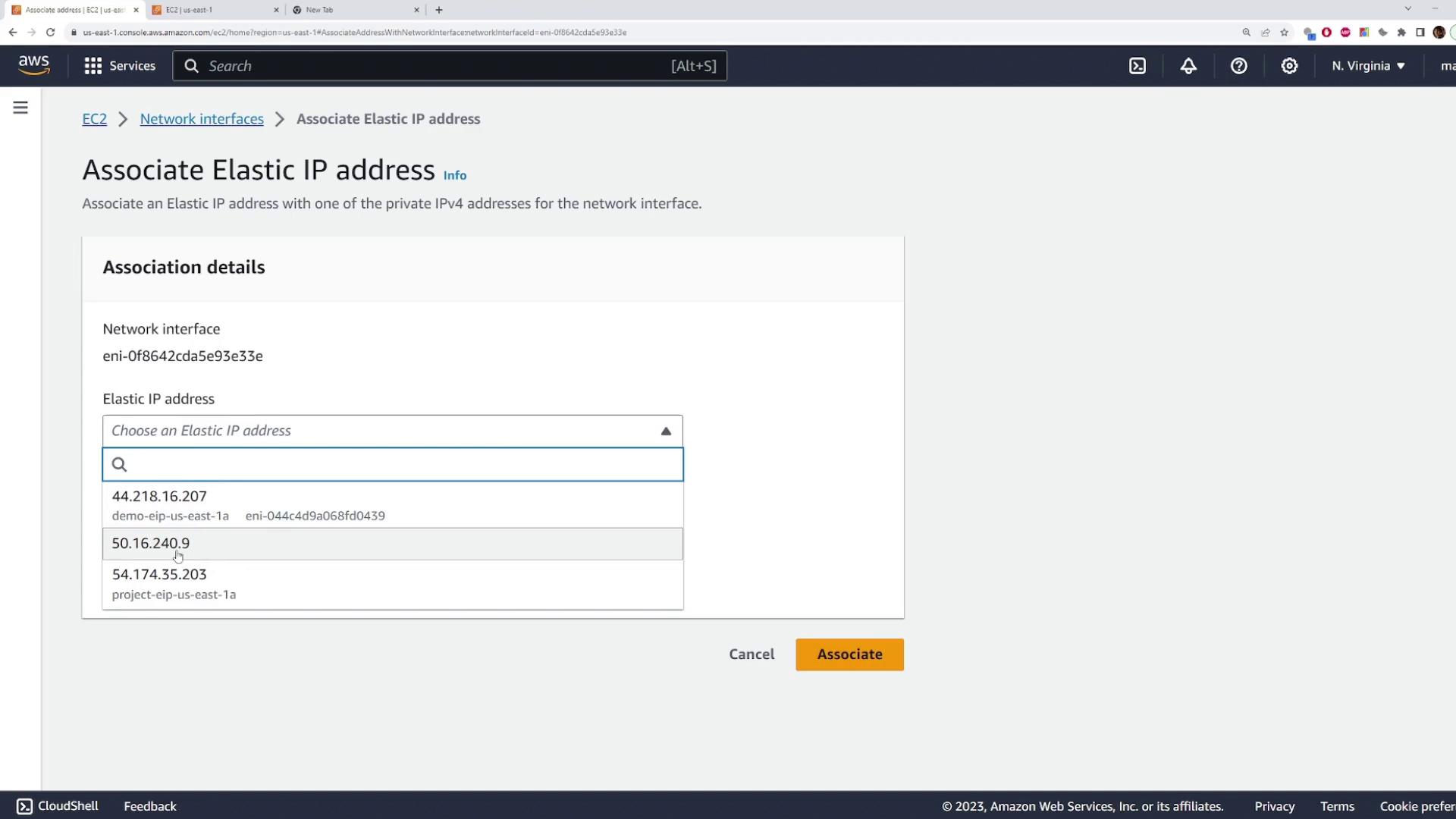
- Optionally, associate an Elastic IP with “NIC 2” by selecting one from your Elastic IP addresses.
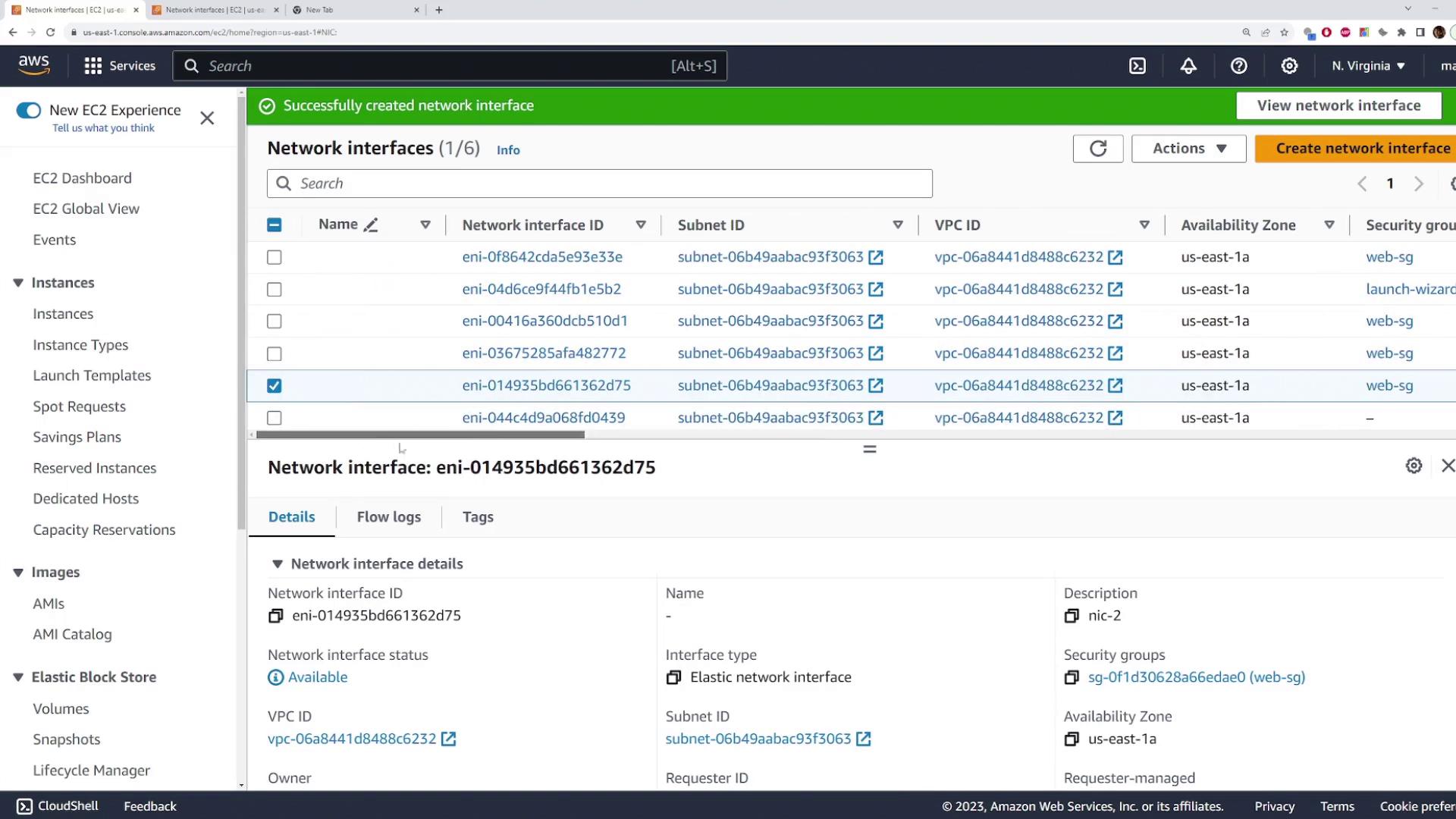
- Return to the EC2 instances page, select your demo instance, and choose the attach option for network interfaces.
- Select “NIC 2” from the list and attach it. This action can be performed while the instance is running.
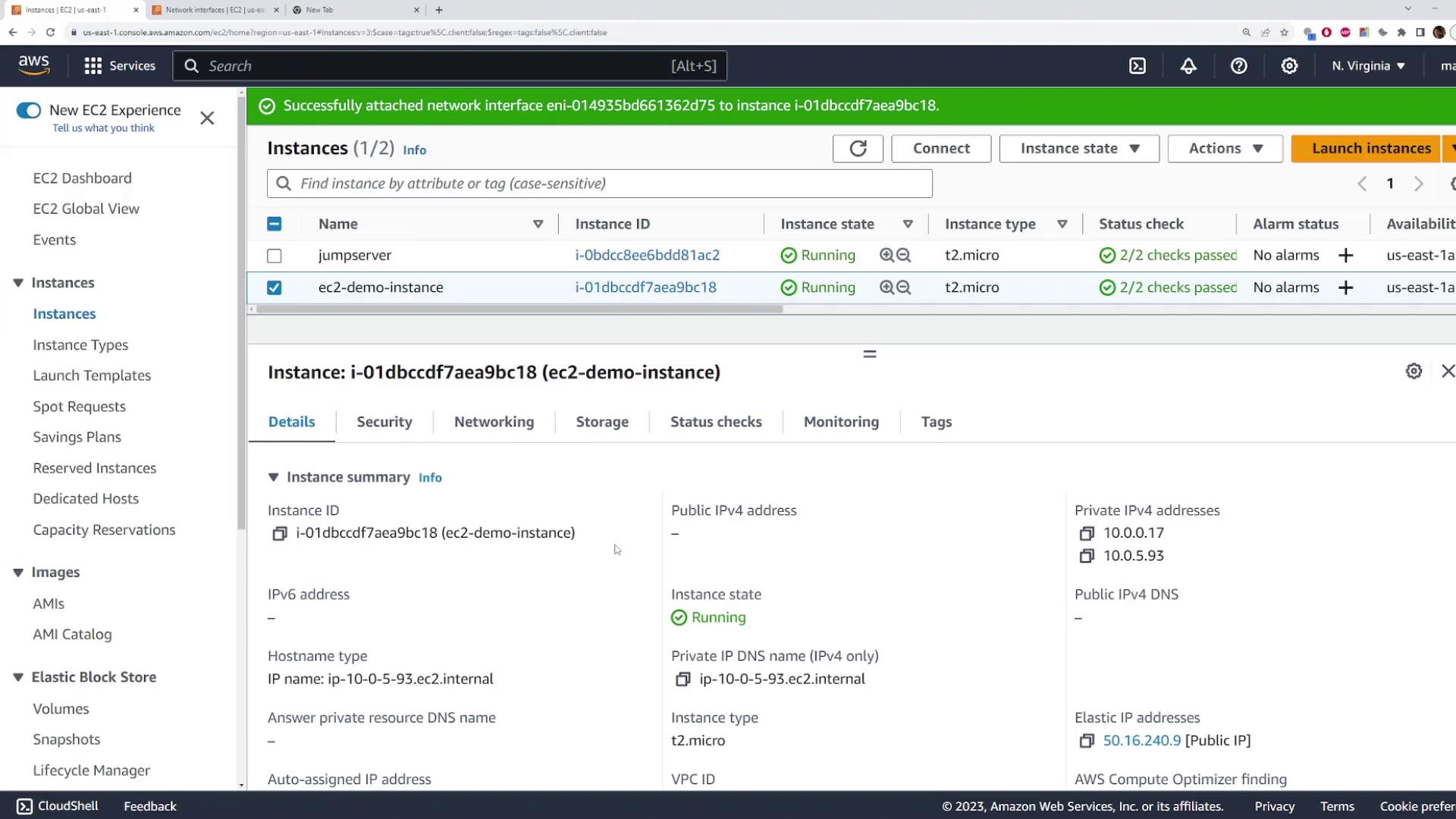
Using the public Elastic IP associated with “NIC 2,” you can SSH into the server without directly exposing the instance’s primary network configuration.
ip add command:
Network interfaces can be detached from a running instance via the instance’s actions menu. Detached interfaces retain their IP addresses and security configurations, allowing you to attach them to another instance without reconfiguration. This is especially useful for maintenance and scaling.