

stack.yaml that configures our CloudFormation stack. This template includes sections for defining resources such as EC2 instances and security groups, along with parameters and outputs to customize and retrieve important deployment details.
Defining the EC2 Instance
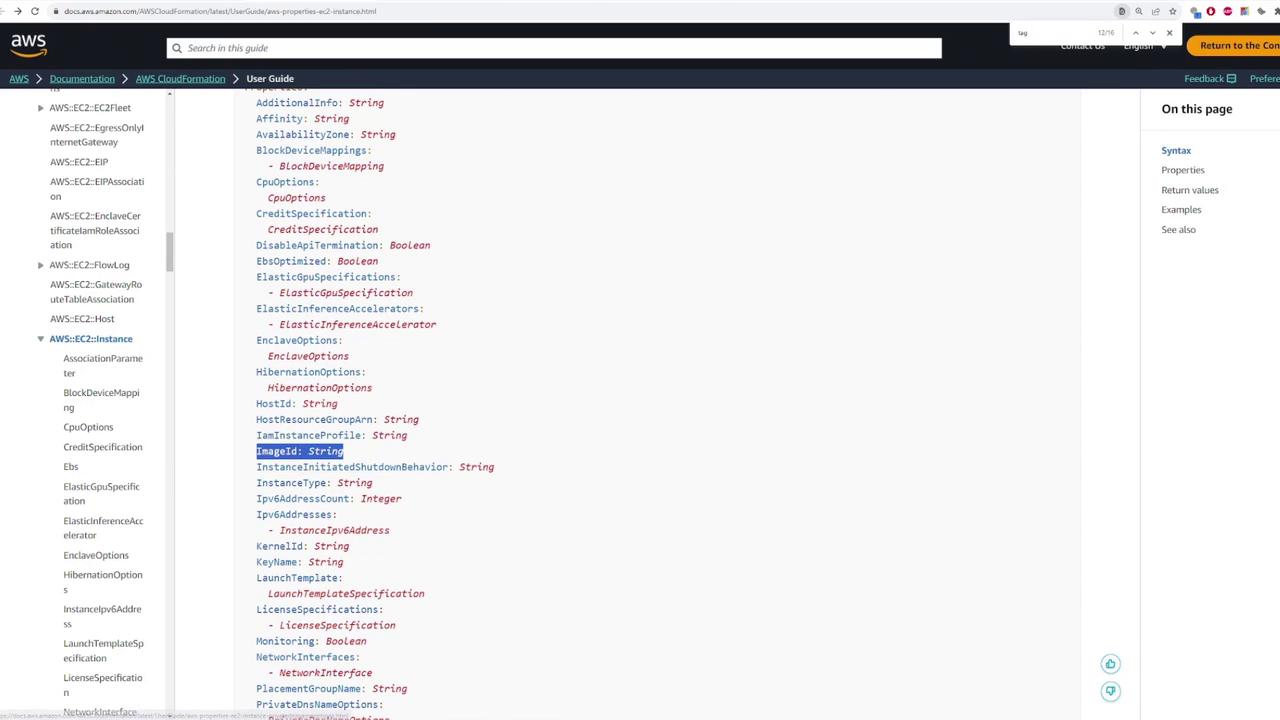
To start, we define an EC2 instance as a resource. First, we assign the resource a logical name (“Ec2Instance”) and specify its type asAWS::EC2::Instance, as outlined in the AWS documentation.
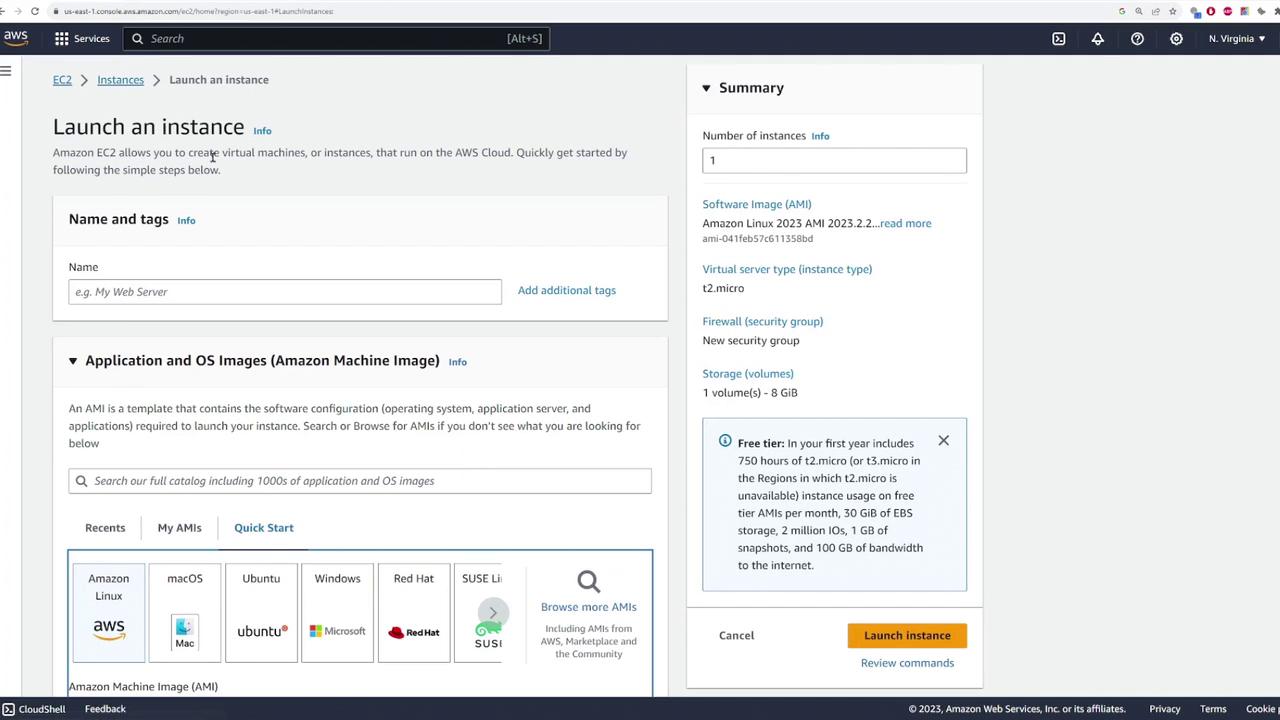
Type field to identify the resource, and the Properties section allows you to specify configuration details for your instance such as security groups, tags, and AMI details. The example below highlights a standard configuration excerpt:
Refer to the AWS CloudFormation User Guide for a full list of configurable properties.
Adding a Security Group
To enhance your deployment, you can add a security group resource that controls access to your instance. Begin by defining the security group with a logical name (“InstanceSecurityGroup”), its type (AWS::EC2::SecurityGroup), and a description.
If you intend to allow access over a range of ports, modify
FromPort and ToPort accordingly. For a single port, both values remain the same.!Ref intrinsic function:
Adding Parameters for Dynamic Input
To provide flexibility during deployment, you can introduce parameters for customizable values such as the EC2 instance name and key pair. The example below creates parameters for the key pair and instance name. By setting the type ofKeyName to AWS::EC2::KeyPair::KeyName, CloudFormation displays a dropdown list of available key pairs.
Adding Outputs
Outputs enable you to extract and display key information after the stack is deployed. In this template, the public IP address of the EC2 instance is output using the!GetAtt function to access the PublicIp attribute.
Complete CloudFormation Template
Below is the final version of the CloudFormation template combining parameters, resources, and outputs:Deploying the CloudFormation Stack
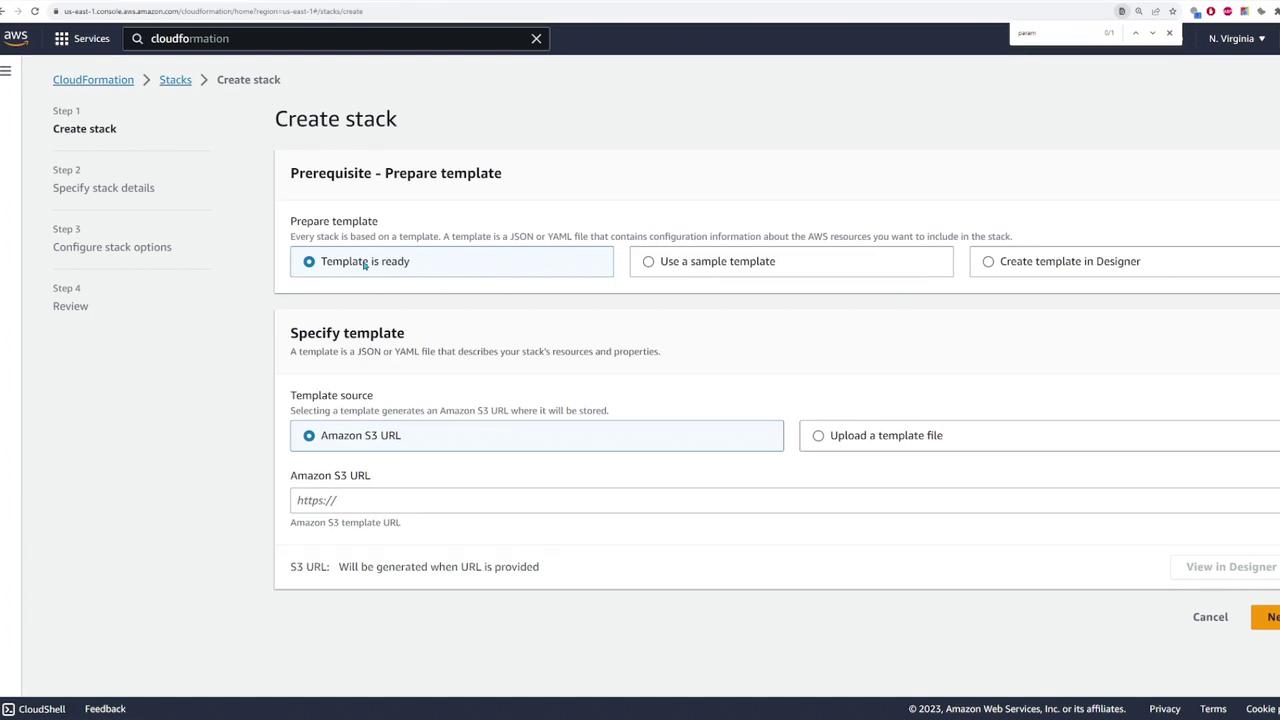
To deploy your CloudFormation stack:- Open the AWS CloudFormation console.
- Click Create stack and choose to upload your template file.
- Select the
stack.yamlfile. - Enter a stack name (e.g., “my-deployment”).
- Specify the parameters:
- For the EC2 instance name, enter a desired value (for example, “this is the server”).
- For the key pair, select the appropriate key from the dropdown.
- Click Next to configure additional options such as tags, rollback settings, or notifications.
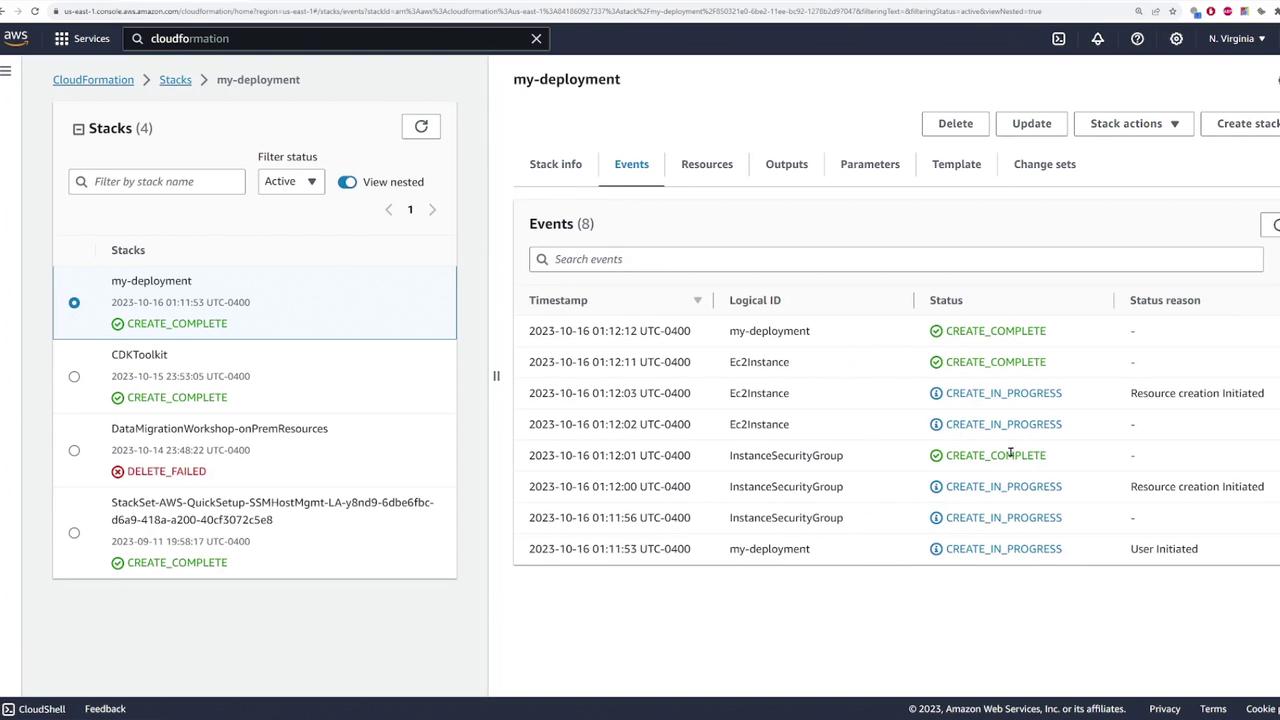
- Review and submit the stack for deployment.
Updating or Deleting the Stack
If you need to make changes, update the stack using the template designer within the AWS CloudFormation console. To delete a stack, simply select it in the console and click Delete. This action removes all resources created by the stack. The image below shows the update interface in the AWS CloudFormation console: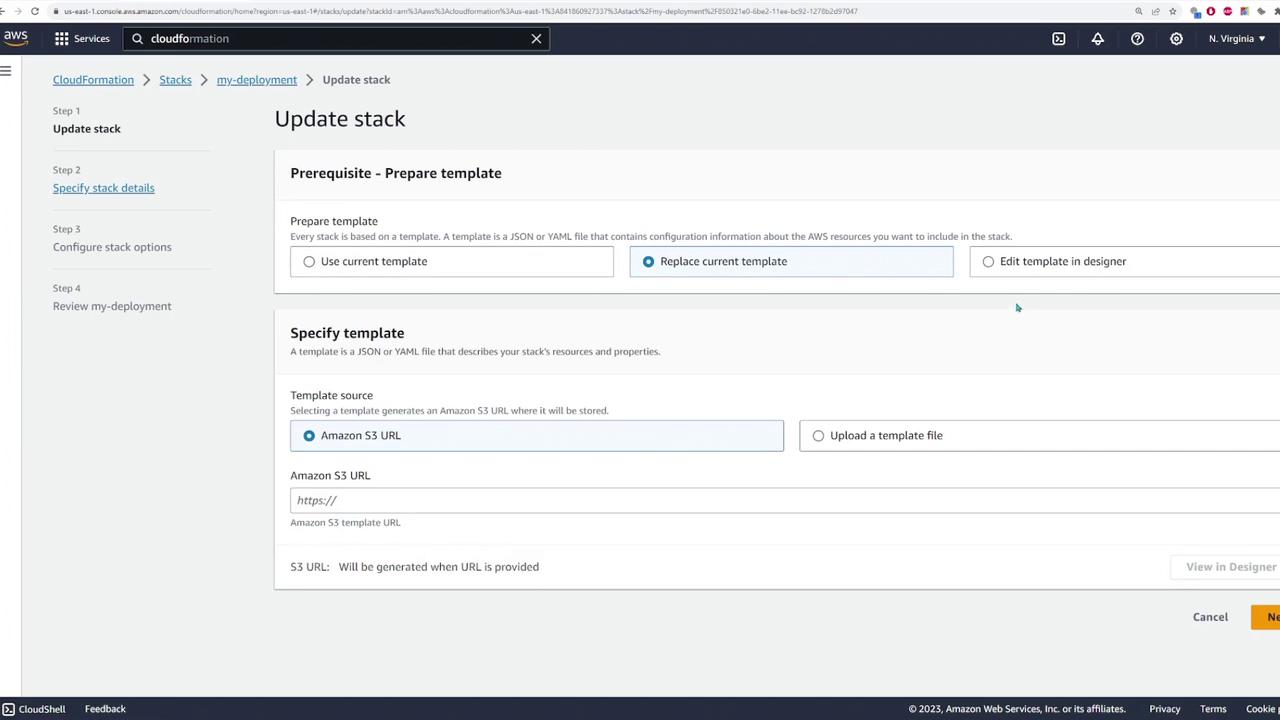
That concludes this lesson on AWS CloudFormation. Enjoy automating your infrastructure and check back for more detailed tutorials in our upcoming lessons!