

Launching an EC2 Instance with a Security Group
First, create an EC2 instance using the default Linux image. For demonstration, name the instance “server one” and launch it within an existing Virtual Private Cloud (VPC). During setup, you will have the option to configure a security group. If you do not select an existing security group, AWS will automatically create one for you. By default, this security group contains an inbound rule that permits SSH (TCP port 22) access from any IP address (0.0.0.0/0).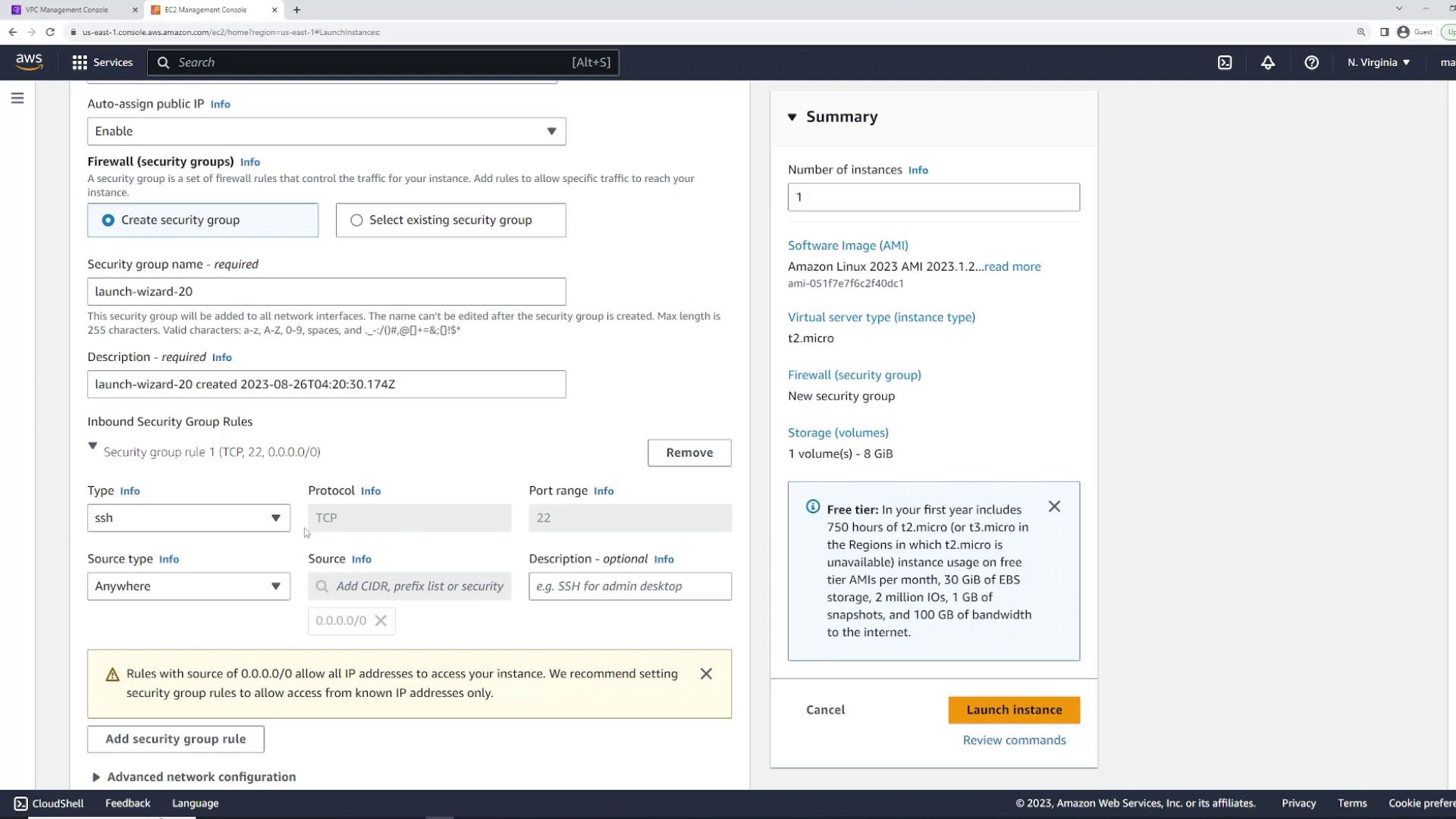
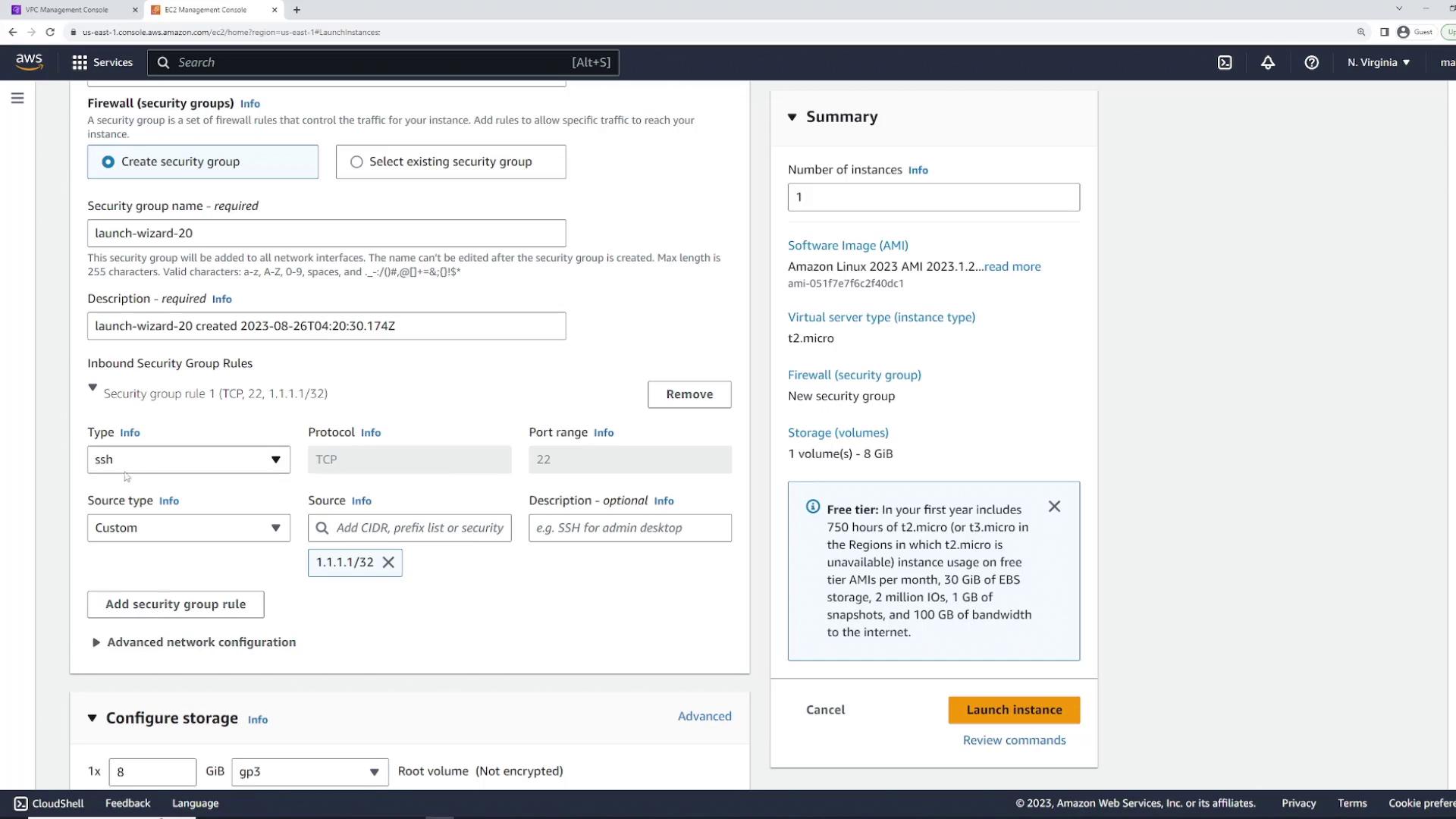
Modifying Security Group Rules
Now, let’s modify the security group rules to restrict access. Open the security group page in a new tab and click “Edit inbound rules.” Remove the existing SSH inbound rule so that the instance has no inbound rules, effectively blocking all traffic.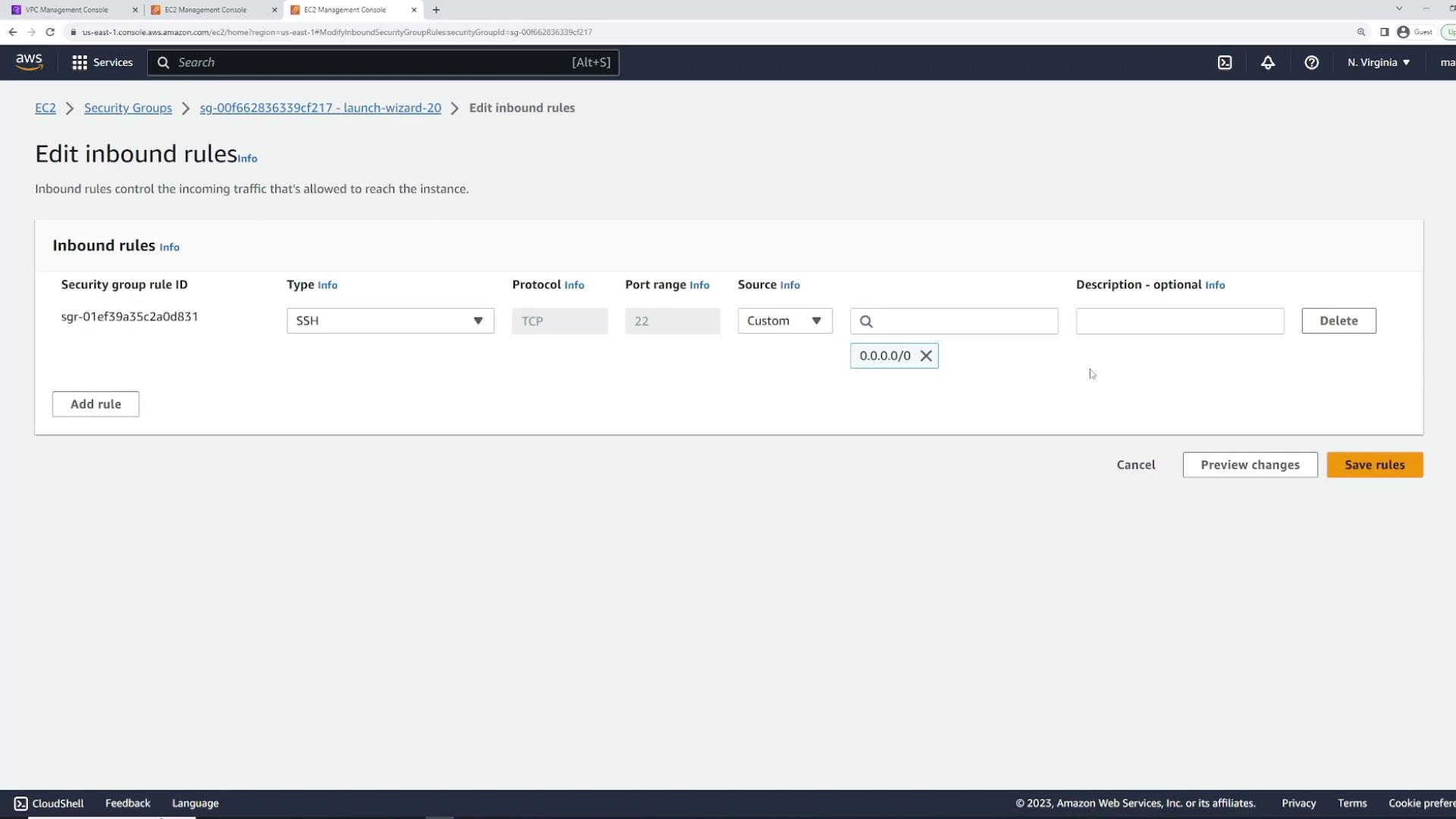
Since there are no inbound rules, remote connections cannot be established. Stop this test connection to prevent unintended lockouts.
Creating and Applying a New Security Group
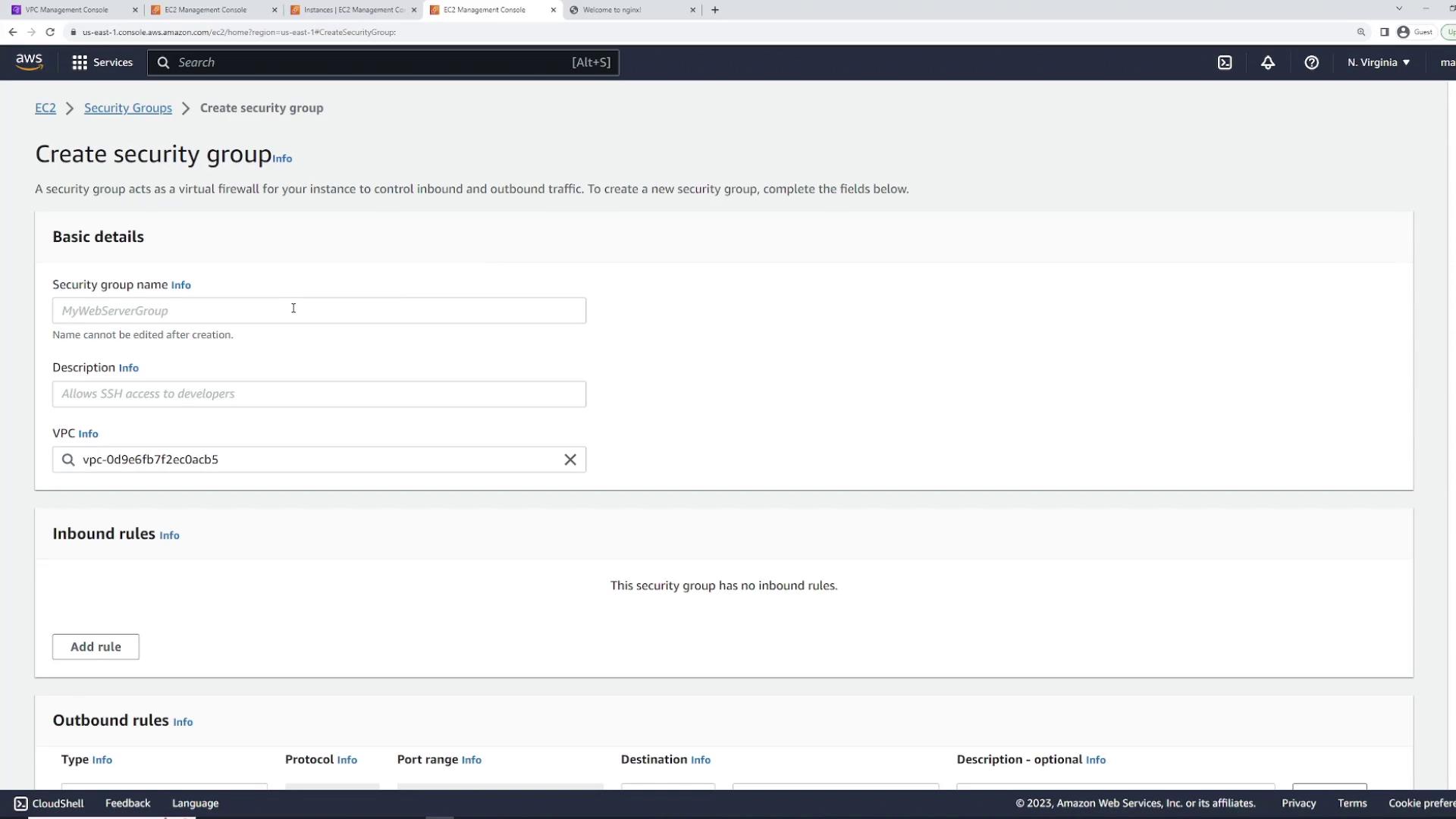
To restore connectivity, create a new security group for the server. Name it “web server security group” (or a similar descriptive name such as “web applications”) and ensure you select the correct VPC where the server exists. Define an inbound rule that allows SSH traffic (port 22) from any IP address (0.0.0.0/0), keeping the outbound rule to allow all traffic. This newly created security group mirrors the initial default rule but is manually set up. After creation, reattach it to your EC2 instance (“server one”):- In the EC2 console, select the instance.
- Click on “Actions” > “Security” > “Change Security Groups.”
- Remove the old security group and add the new “web server security group.”
- Click “Add” and then “Save.”

Installing and Testing a Web Server (nginx)
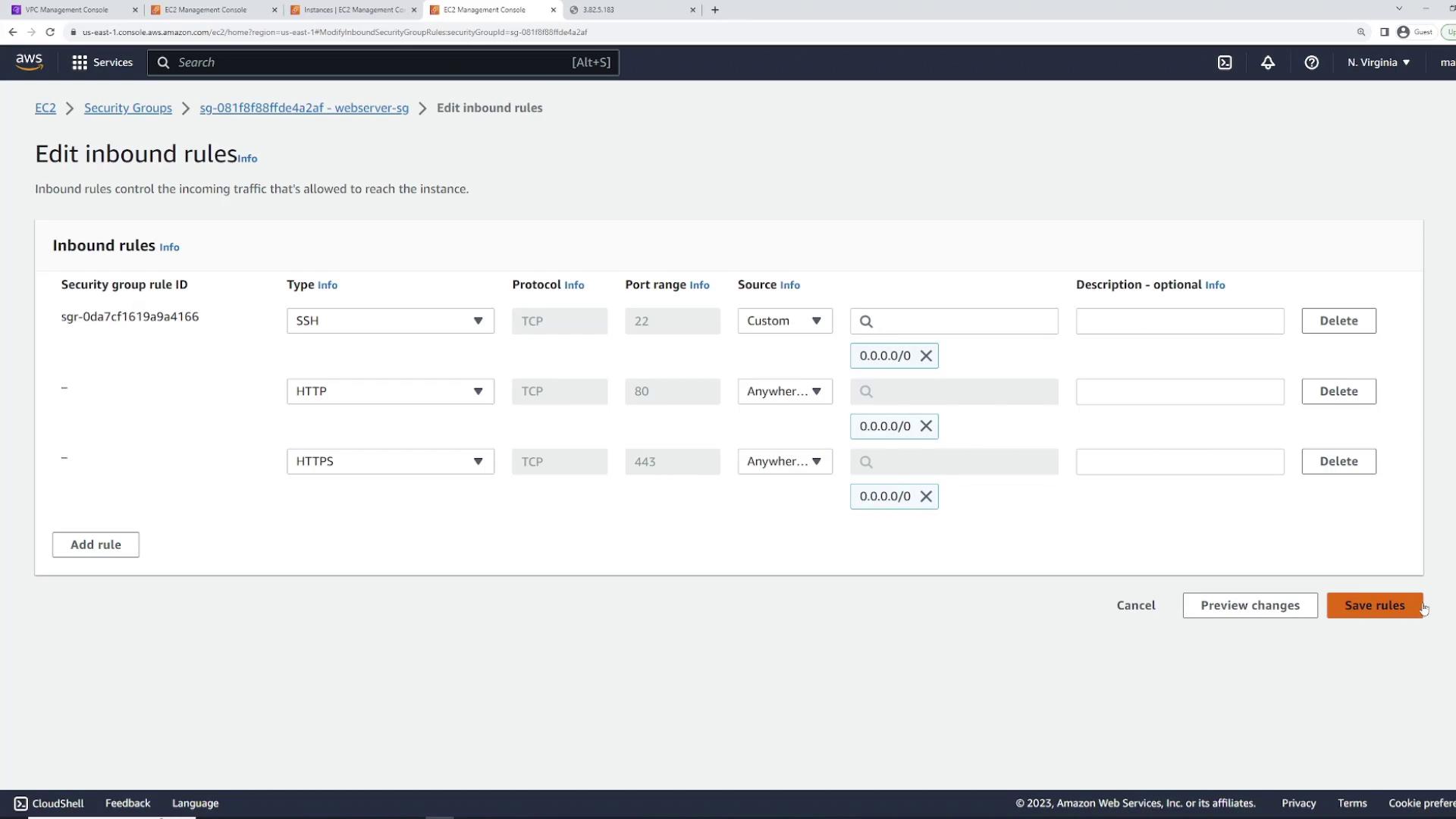
With SSH access restored, install the nginx web server on your EC2 instance by running:Ensure that you update the “web server security group” to allow HTTP (port 80) and HTTPS (port 443) traffic for full web server functionality.
- Open the security group in the EC2 console.
- Click “Edit inbound rules.”
- Add an HTTP rule (automatically sets protocol to TCP and port to 80) and an HTTPS rule (TCP port 443).
- Set the source to 0.0.0.0/0 for both rules and save your changes.
Outbound Rules and Stateful Behavior
Security groups in AWS are stateful. This means that even if the default outbound rule allows all traffic, AWS automatically permits return traffic for any inbound connection. For example, if an inbound request is received on port 80, the outbound response is allowed even in the absence of an explicit outbound rule. You can test outbound connectivity by pinging an external server: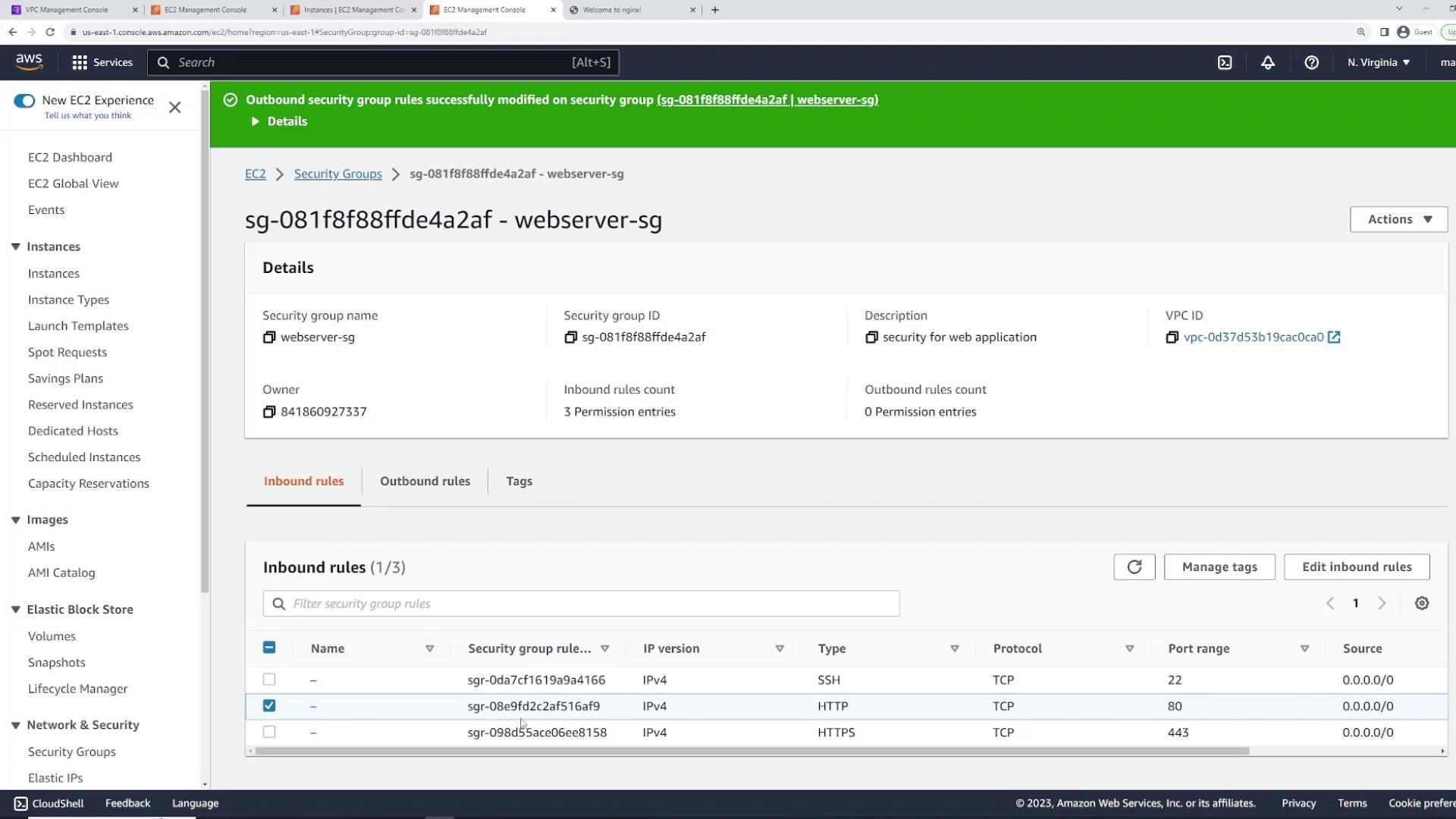
Combining Multiple Security Groups
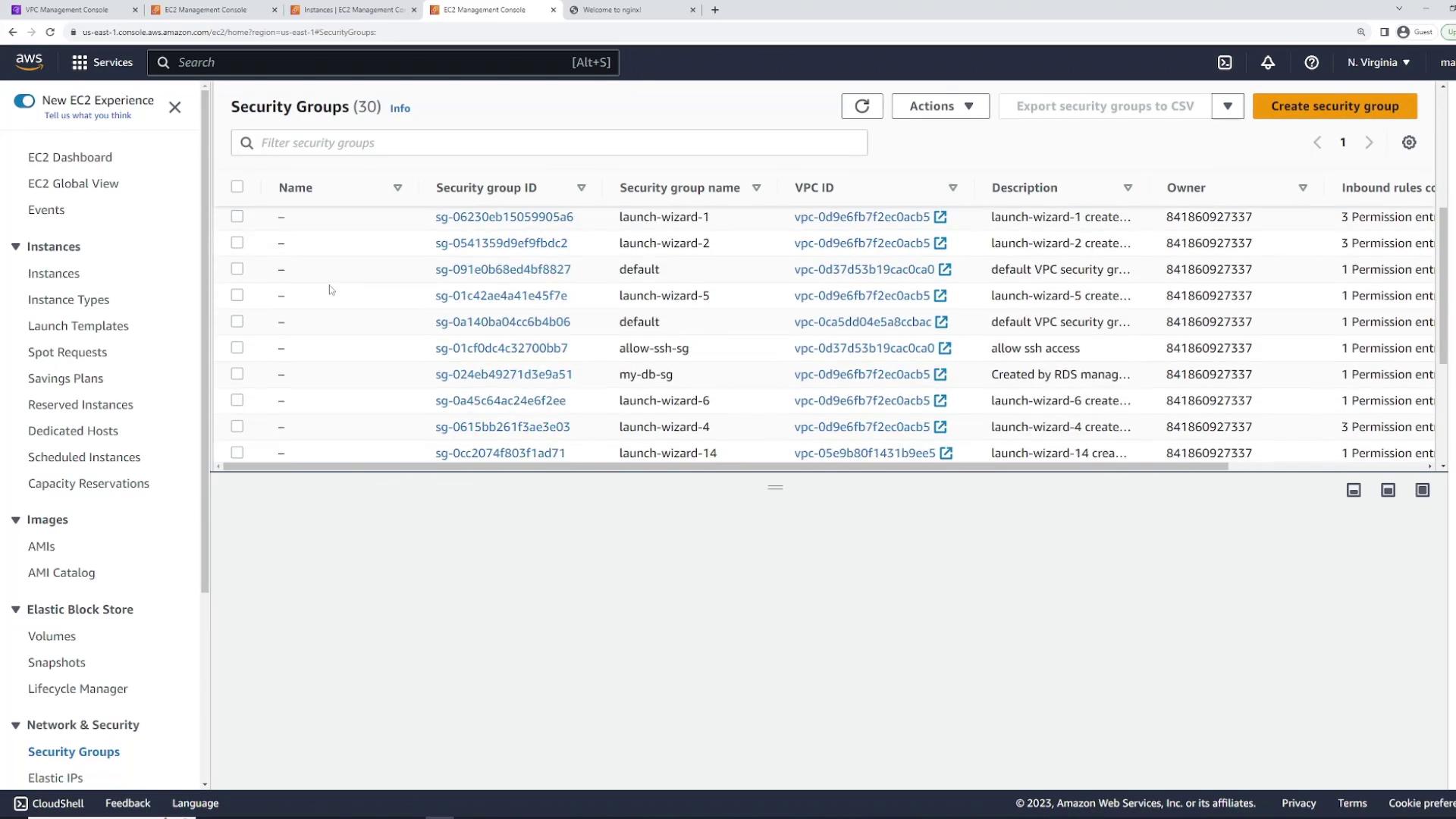
AWS allows you to attach multiple security groups to a single EC2 instance, providing a modular approach to access control. For demonstration, create the following two security groups:- Allow SSH Security Group – contains an inbound rule for SSH (port 22) from any IP.
- Allow HTTP Security Group – contains an inbound rule for HTTP (port 80) from any IP.
- In the EC2 console, select your instance.
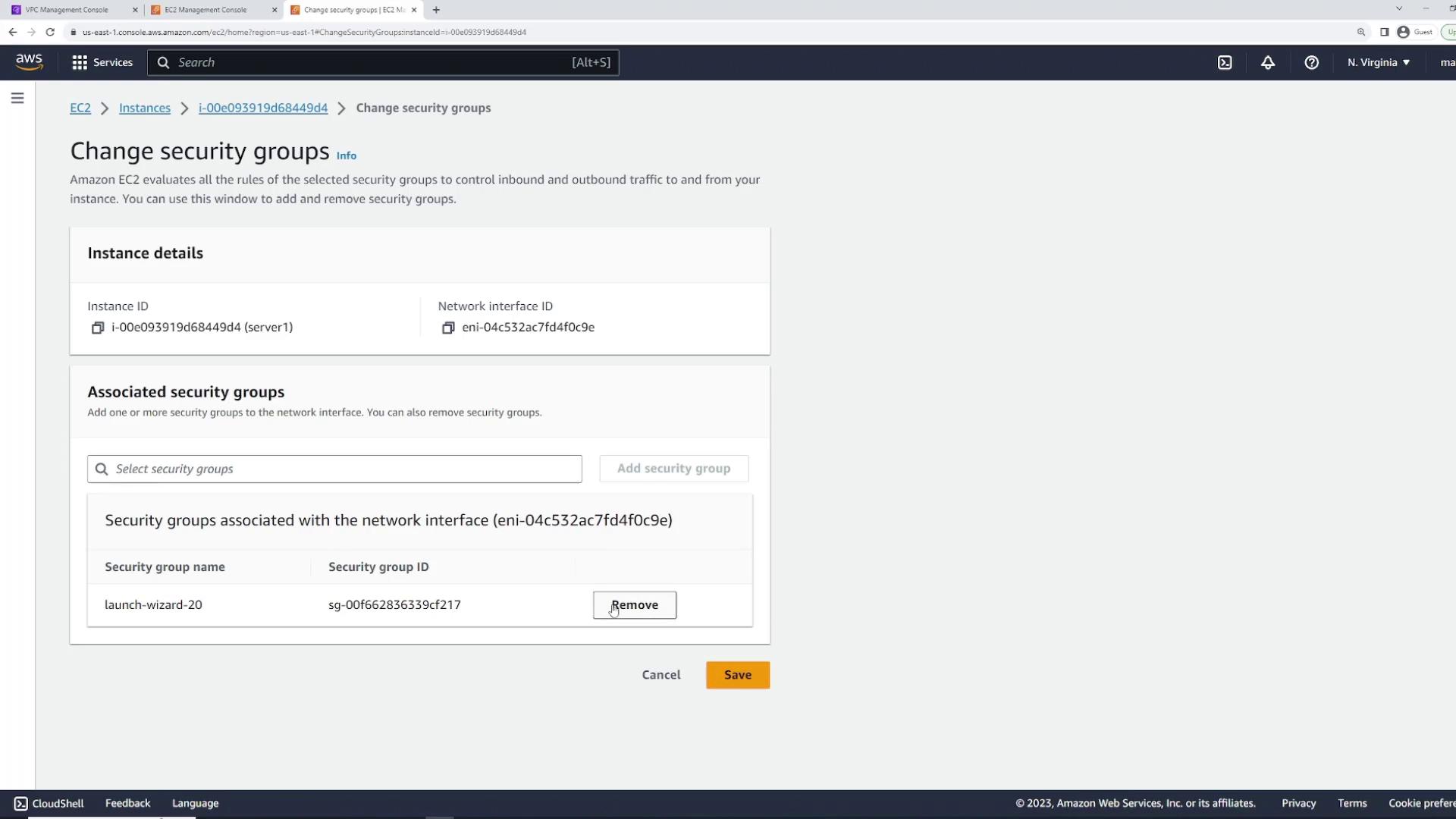
- Go to “Actions” > “Security” > “Change Security Groups.”
- Remove the previous security group.
- Attach both the SSH and HTTP security groups.
- Save your changes.
Creating a Database Security Group
Lastly, create a security group specifically for a database. Name it “database security group” and add an inbound rule for your database port (for example, port 5432 for PostgreSQL). Although you could set the source to 0.0.0.0/0 for universal access, it is best practice in production to restrict access to only your web servers. One advanced option is to use the security group of your web servers (e.g., the “Allow HTTP Security Group”) as the source. This ensures that the database only accepts connections from trusted sources, and any changes to web server configurations automatically update the access rules.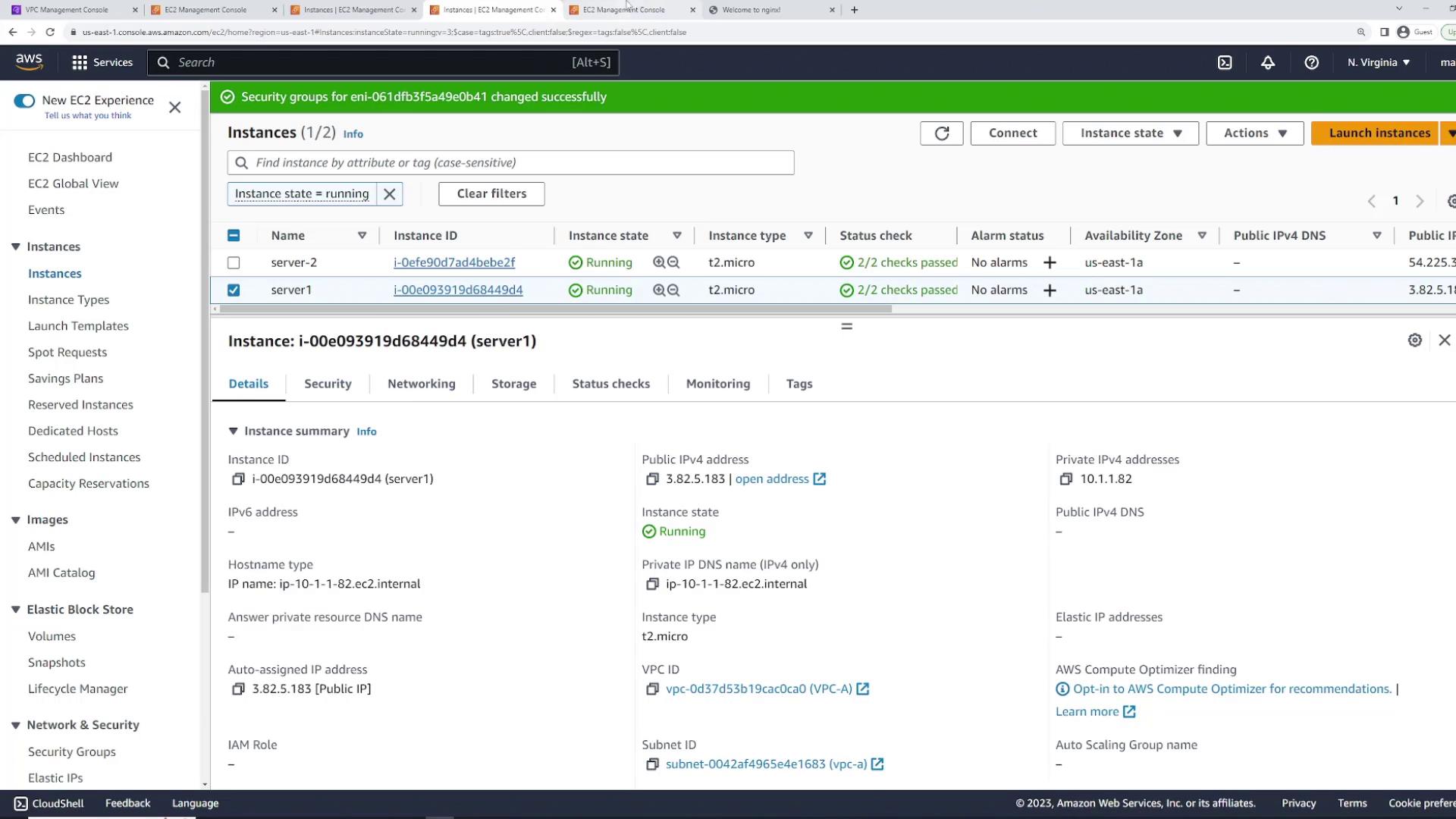
Conclusion
In this lesson, you learned how to:- Launch an EC2 instance with a default security group.
- Modify security group rules to restrict access.
- Create and attach a new security group that enables SSH, HTTP, and HTTPS access.
- Combine multiple security groups to modularize and simplify access control.
- Create a dedicated database security group with restricted access linked to another security group.