Environment Overview
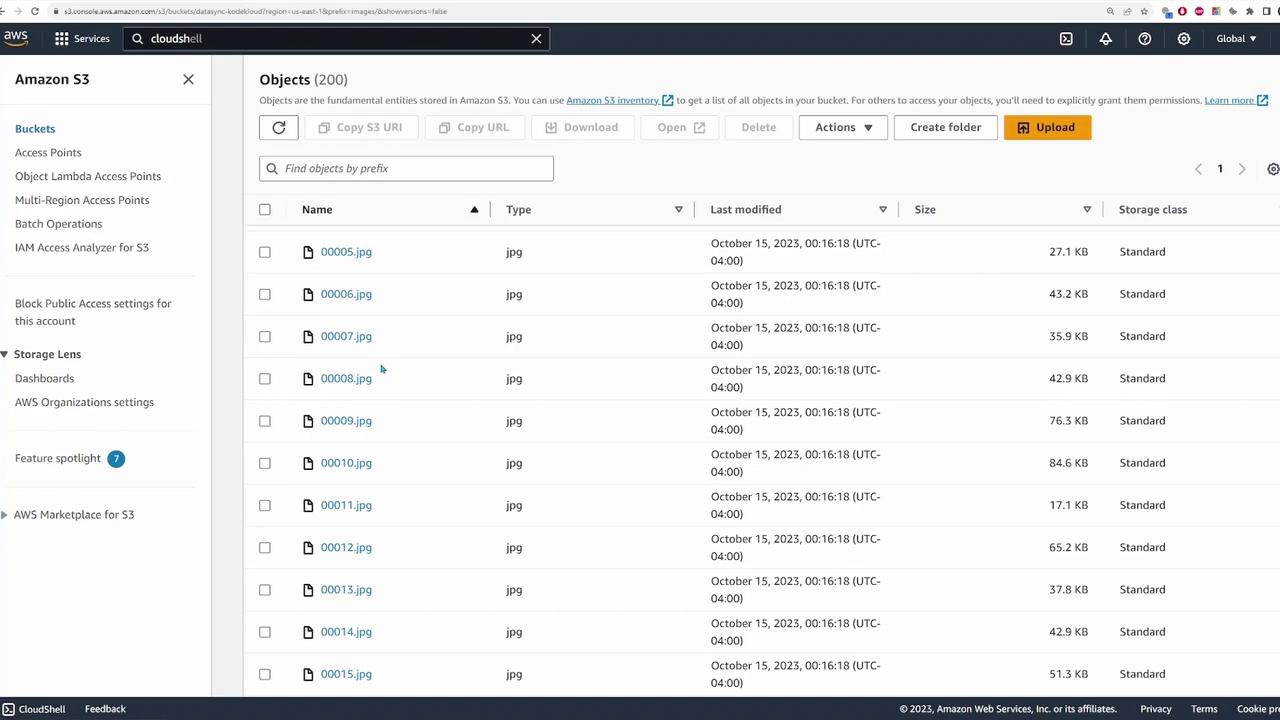
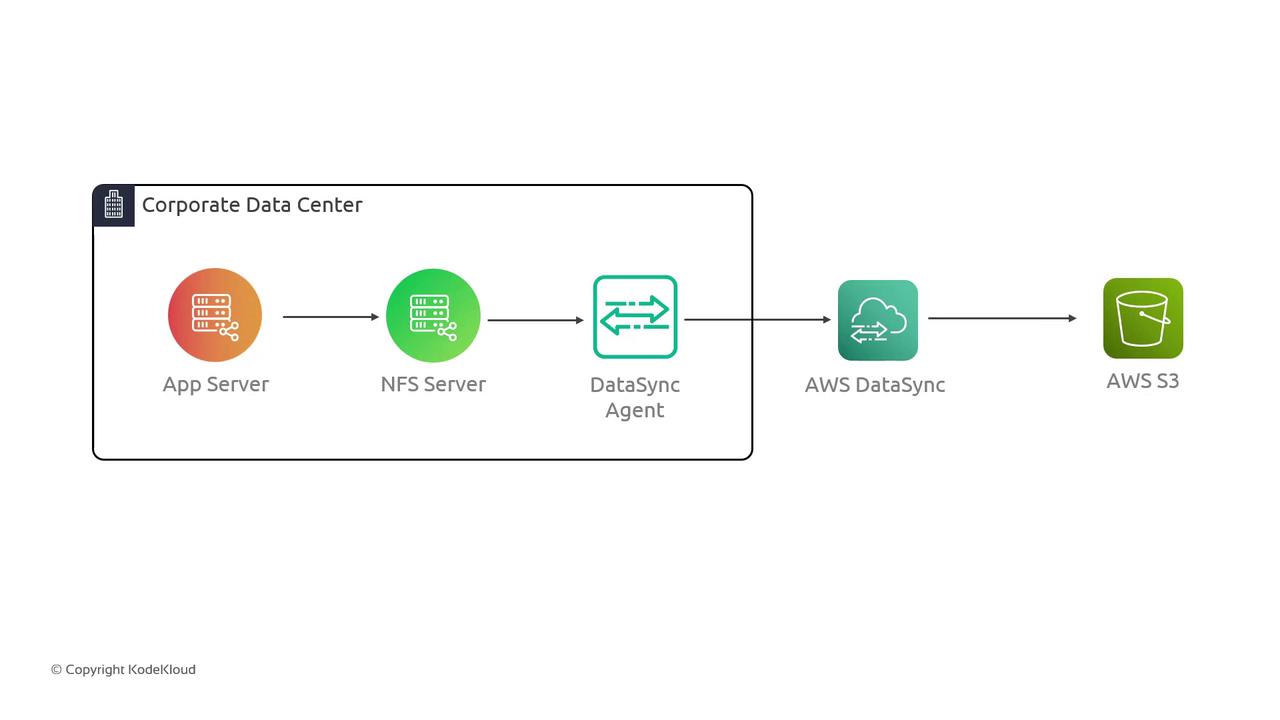
An application server in our simulated environment connects to an NFS server running within an AWS VPC. The data destined for migration is stored on the NFS server and will ultimately be copied to an S3 bucket. The following diagram shows the deployed application server and its connectivity with the NFS server: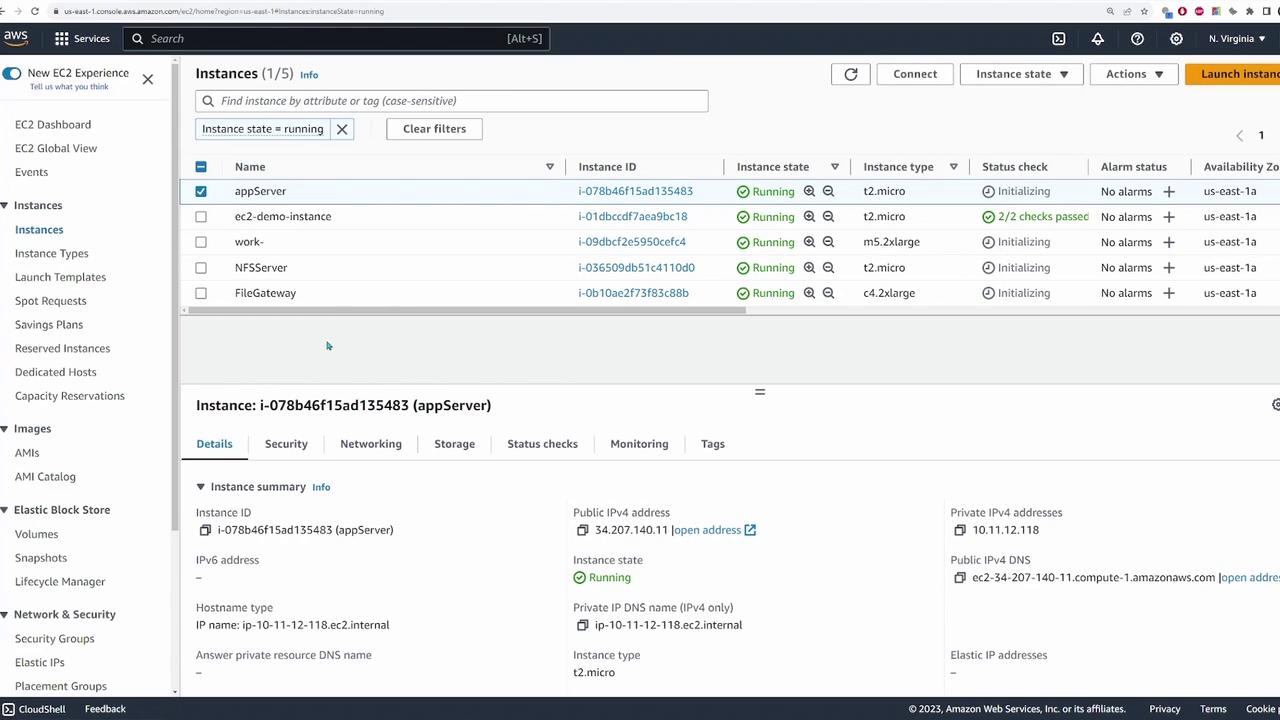
/mnt/data with the source path 10.11.12.182:/media/data:
/mnt/data reveals a folder called images that contains numerous JPEG files destined for migration to the S3 bucket. For example:
Deploying the DataSync Agent
The next step is to deploy the DataSync agent. While the agent can be deployed on any supported virtualization hypervisor (e.g., VMware, KVM, or Microsoft Hyper-V), this demonstration uses an EC2 instance in AWS.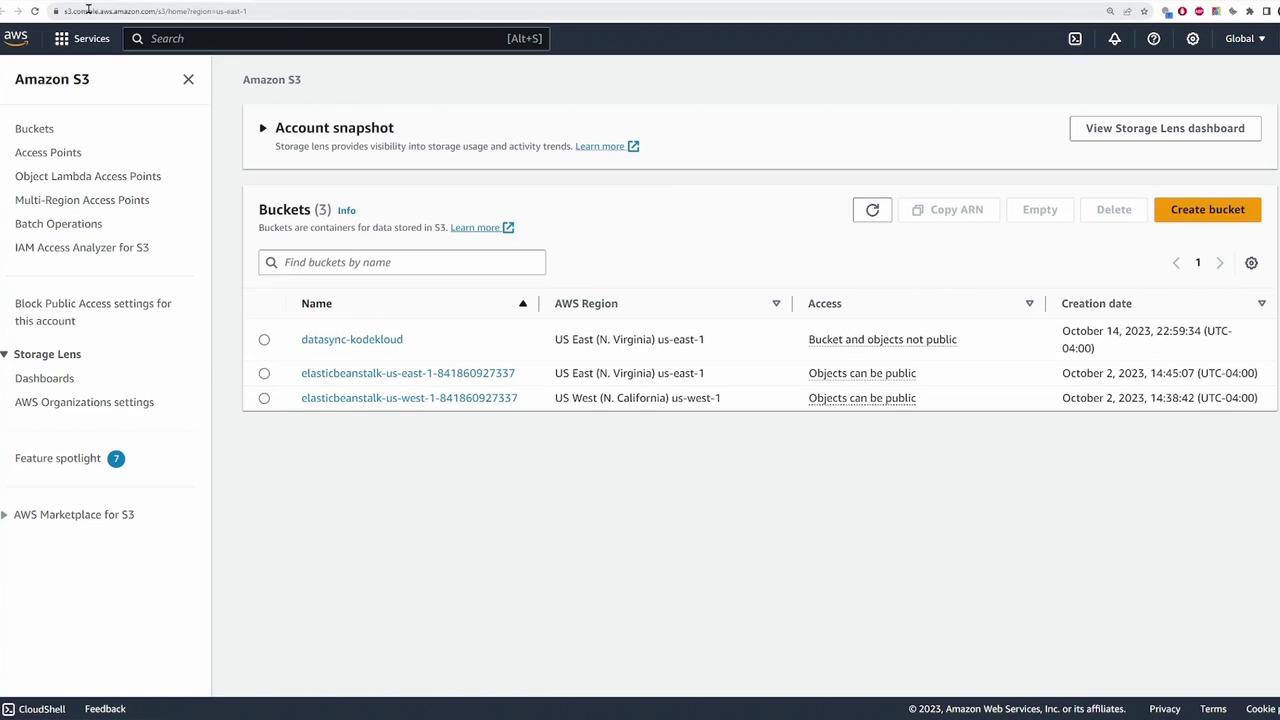
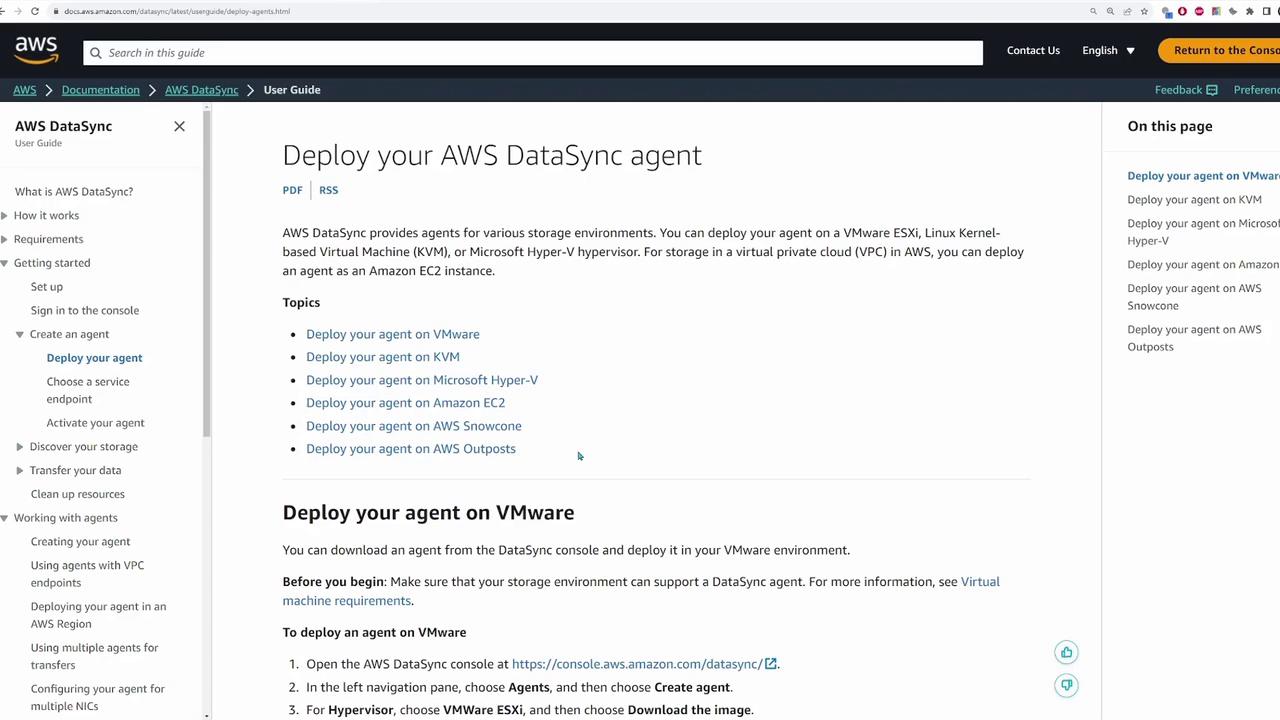
-
Retrieve the latest AMI for the DataSync agent using AWS CLI:
The output will be similar to:
You can run this command in AWS CloudShell if your local AWS CLI is not configured.
-
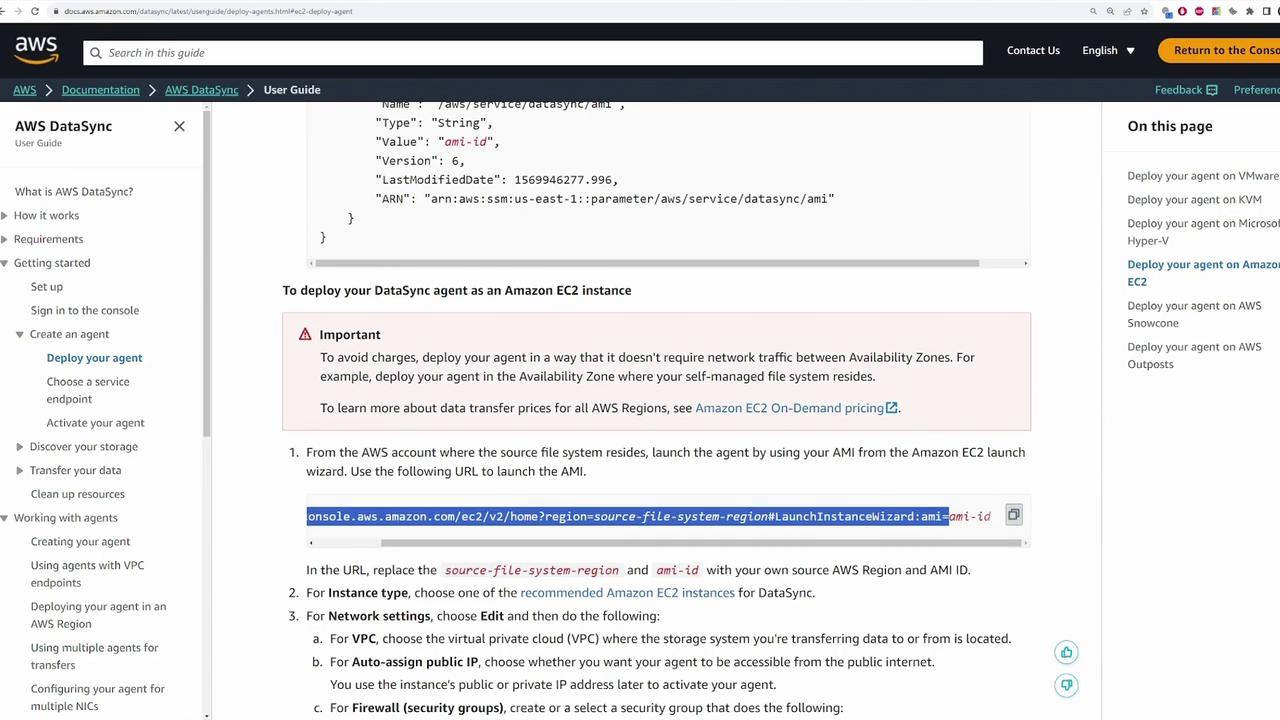
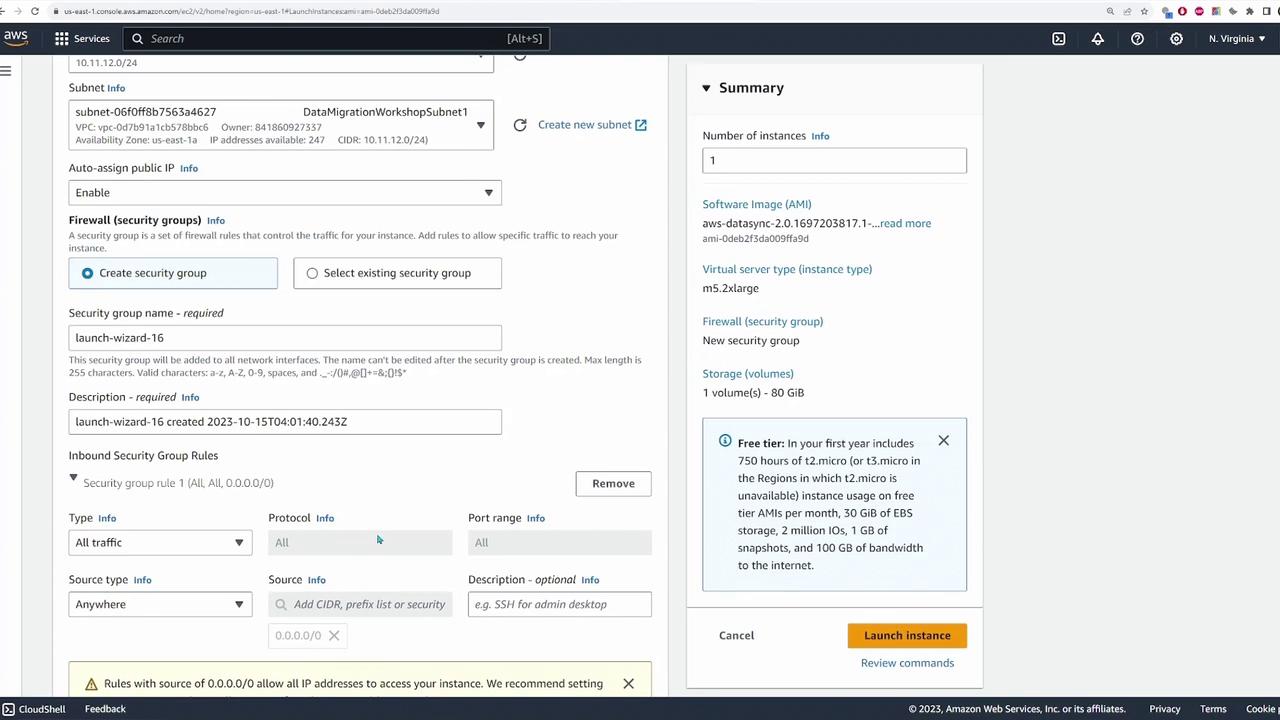
Launch an EC2 instance using the retrieved AMI. In the launch wizard, ensure that you update:
- Source Region: us-east-1 (or your respective source region)
- AMI: Paste the obtained AMI ID.
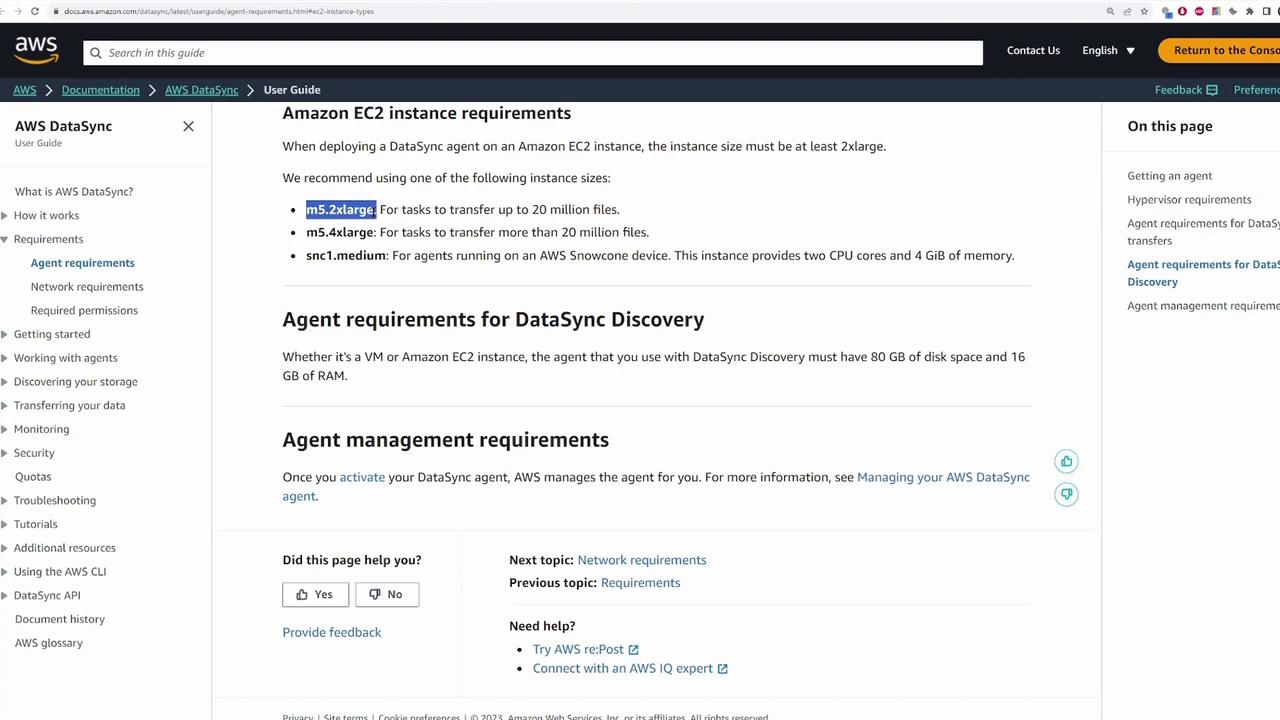
- Instance Type: Options like m5.2xlarge, m5.4xlarge, or c5.medium are recommended. For testing, a smaller instance might be sufficient.
- Key Pair: Select your designated key pair.
- VPC and Public IP: Choose the appropriate VPC and assign a public IP address.
- Security Group: For demonstration purposes, allowing all traffic is acceptable. In production, restrict access appropriately.
- Click on “Agents” then “Create Agent.”
- Select the EC2 option (since the agent is deployed on EC2) and leave the public service endpoint enabled.
- Retrieve the activation key by refreshing the EC2 instances list and noting the public IP address of the DataSync agent.
- Paste the public IP on the DataSync registration page, assign a name (e.g., “data sync agent”), and create the agent.
Creating DataSync Locations
After deploying the agent, the next step is to define the source and destination locations where DataSync will copy the files.Source: NFS File Server
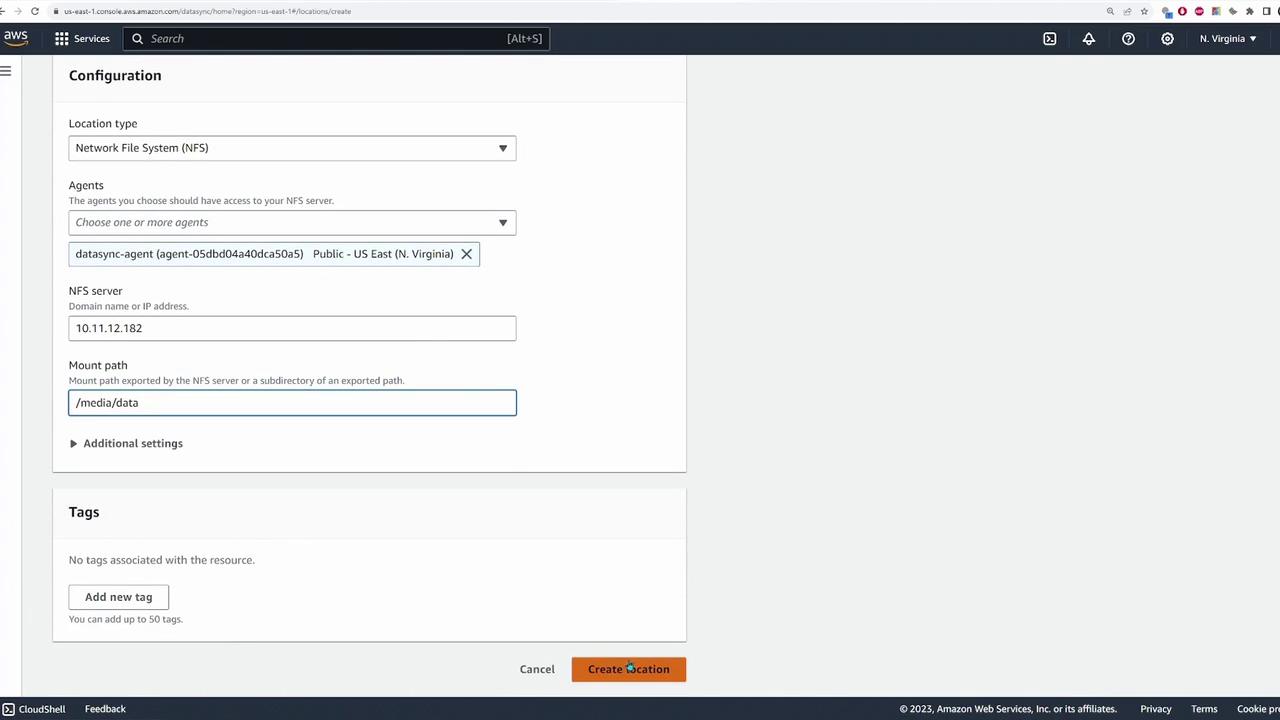
Create a source location for the NFS file server by following these steps:- Choose “NFS” as the location type.
- Select the DataSync agent deployed earlier.
- Specify the NFS server’s private IP address and set the mount path, which in this case is
/media/data.
Destination: S3 Bucket
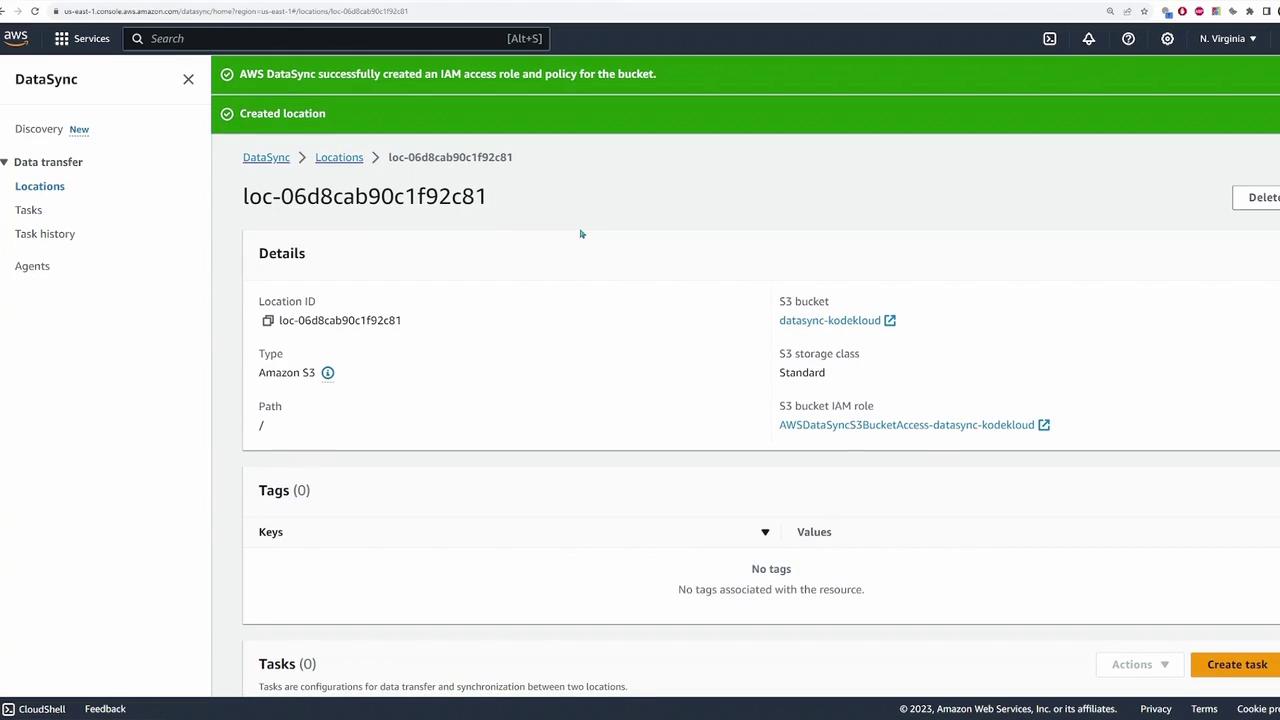
Define the destination location for your S3 bucket by following these guidelines:- Select your S3 bucket (e.g., “data sync - KodeKloud”).
- Use the “standard” storage class (or adjust as needed).
- Specify the bucket folder if required; for this demonstration, the root directory is used.
- Assign an IAM role for DataSync to access the S3 bucket. If none exists, you can opt for auto-generation of the role and policy.
Creating and Running a DataSync Task
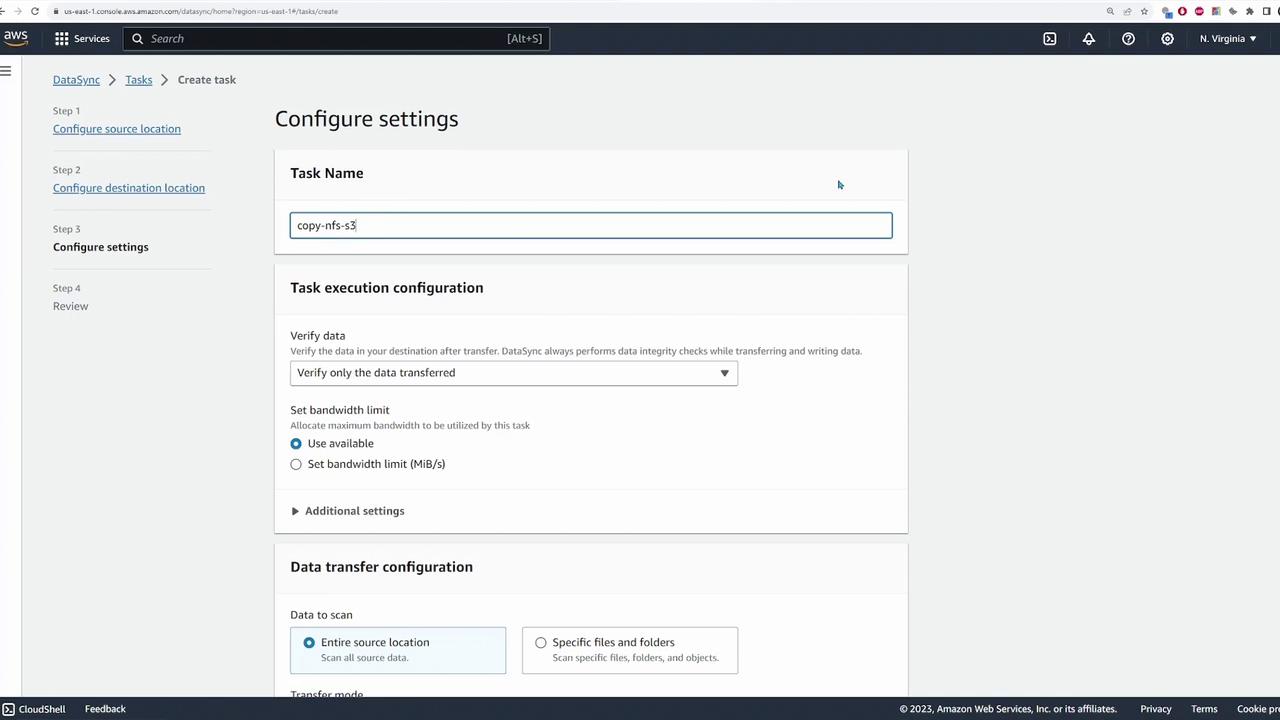
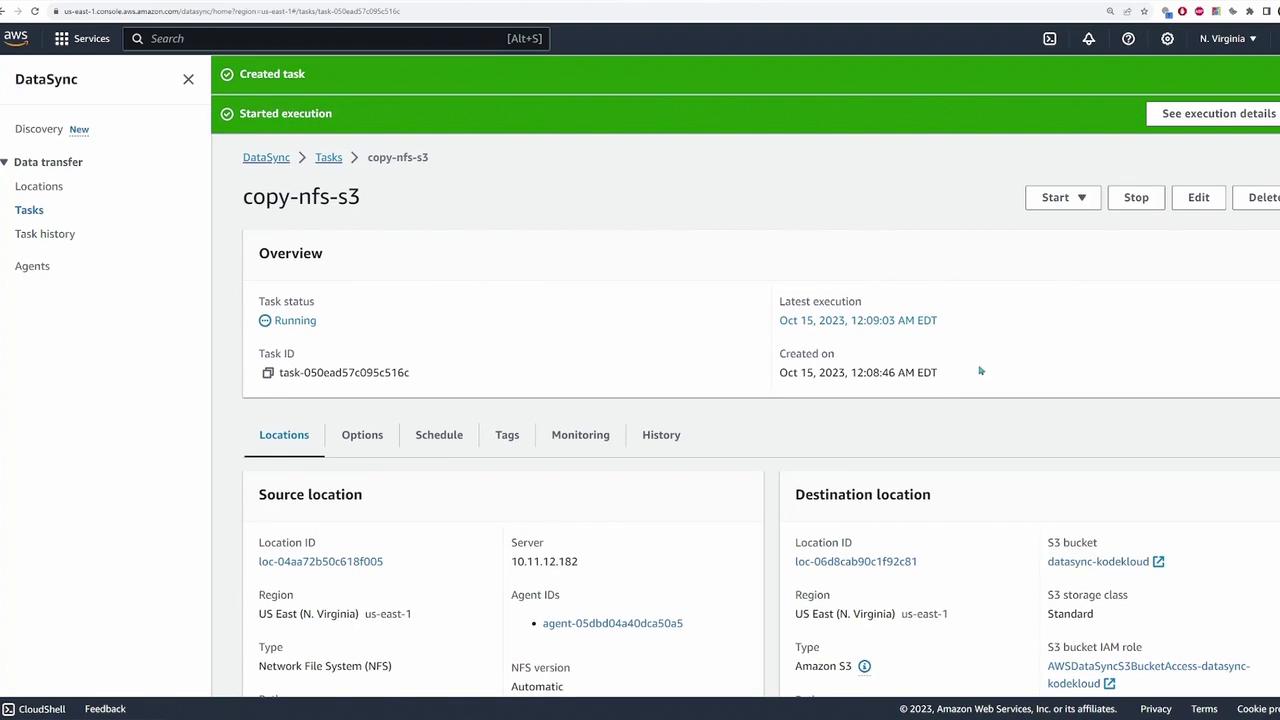
With both source and destination locations configured, you can now create a DataSync task to perform the file migration:- Click “Create Task” and select the previously configured source (NFS) and destination (S3) locations.
- Name the task (e.g., “copy-nfs-to-s3”).
- Configure the task options, including copying all files and optionally setting up logging via auto-generated CloudWatch log groups.
- Review the configuration and create the task.
- Start the task using the default settings.